

 ChatGPT
 Perplexity
 Claude
 Gemini
The worst time to figure out that your video has a copyright problem is right after you upload it. A song you didn’t listen closely to, a logo you missed in the background, or a face that bears resemblance to someone famous. One copyright claim and your ad money can go straight to someone else.
You can catch most of this before you upload. A video copyright checker scans your music and footage, and YouTube runs its own free check on private uploads.
This guide shows you how to check the music, the footage and the platform rules before you hit publish. Each step takes a few minutes, and together they cover the risks one tool alone can miss.
Key takeaways
- Music causes most copyright claims, so check every song first.
- Logos, products and famous faces in your footage need a frame-by-frame scan.
- YouTube, Facebook and CapCut each offer a free check before you post.
- AI-generated videos can show lookalike logos and faces you never asked for.
- Save your licenses and scan reports in case someone disputes your video later.
Disclosure: OpenArt makes the IP Safety Check covered in this guide. The test results come from our own scans in November 2026.
What Does a Video Copyright Checker Look For?
A video copyright checker looks for anything inside your video that belongs to someone else. That includes sound, visuals, and anything that shows up on screen.
| Risk | Example | What catches it |
|---|---|---|
| Music | A popular song playing in the background | Shazam, CapCut, YouTube Studio Checks |
| Footage | A clip or character from a movie, TV show or another creator | YouTube Studio Checks, reverse image search |
| Logos and products | A brand logo or a similar product design | OpenArt IP Safety Check |
| Famous faces | A person who looks like a celebrity | OpenArt IP Safety Check, YouTube likeness detection |
| Characters and artwork | A cartoon character or famous painting | OpenArt IP Safety Check |
Copyright Claim vs Copyright Strike: What You Risk
A copyright claim and a copyright strike have very different results. Knowing which one you face tells you what needs to be done.
- Copyright claim: YouTube's Content ID system finds a match. The rights owner can run ads on your video, block it in some countries, or track its views, and your account remains unpenalized.
- Copyright strike: The owner sends a legal takedown request and YouTube removes the video, if the request is valid. If you get three strikes within 90 days, YouTube removes your channel completely from the platform.
Other platforms can mute your audio, limit your reach or take the video down. A quick check before you post is much easier than a dispute afterward.
How to Check if a Video is Copyrighted: Step by Step
To check a video for copyright before uploading, follow these steps:
Step 1: Check the Music and Audio First
Music is the most common reason a video copyright checker flags a video. Start here, because a single song can block a video in every country.
Identify Every Song With a Music Copyright Checker
Play your video and name every song, even the ones that only play for a few seconds. A music copyright checker can do this for you.
- Shazam: Hold your phone near the speaker of the laptop to identify a song in seconds.
- CapCut: Run its built-in copyright check on the audio track before you export (covered in Step 3).
If you wonder "is this song copyrighted?", the answer is probably yes. In the U.S., a song is protected the moment someone records it.
Confirm You Have the Right License
Every song in your video needs permission to be used, and the permission to pair up music with video is called a synchronization license, or sync license for short.
- YouTube Audio Library: Free songs and sound effects for YouTube videos. Some tracks ask you to credit the artist in your description.
- Royalty-free music sites: You pay once and use the track under the site's license. Read whether it covers ads or paid client work.
- ASCAP and BMI repertory search: These free databases show who controls a song, so you know whom to ask for a license.
Even if you add an artist's attribution or give due credit, you still need a license to use the song. The same goes for writing "no copyright intended" in your description.
Step 2: Scan the Footage for Logos, Faces and Characters
Your footage can carry risks that a music check never hears, so you need a video copyright checker that looks at the visuals too. Logos, product designs, and lookalike faces are the most common ones, especially in AI-generated video.
Use a Video Copyright Checker That Scans Every Frame
A frame-by-frame video copyright checker compares what's on screen with a database of known brands, faces, designs, and artwork. It tells you what matches and exactly when it shows up.
OpenArt IP Safety Check does this for MP4 and MOV files up to 200 MB. It works on videos made with any app, and it comes with paid OpenArt plans.
This is the video we used to check for copyrights:
How to scan a video with OpenArt's IP Safety Check:
- Open the tool. In OpenArt, go to the AI copyright checker or Video tools if you want to generate a video first.
- Add your videos. Upload MP4 or MOV files, or pick videos you already saved in the OpenArt library.
- Run the scan. Click Check IP Safety check and wait for the copyright scan to finish.
- Review and download. Download the PDF copyright report and see the matched frames.
How to read the results:
- Label: Each video gets Detected, Warning or Undetected. Detected and Warning mean you should fix something before you post.
- Matched frames: The report shows a still of each match with its timestamp, so you know exactly where to edit.
- Owner and category: Each match names the brand, person, or artwork and who owns it, such as a trademark or a celebrity.
- Similarity score: A higher percentage means a closer match. The report also rates it High, Medium or Low.
Here's what the video copyright checker found in our 20-second AI tennis video:
- Wilson logo: flagged at 0:09 (62%) and 0:13 (85%), even though the logo was only partly visible on the racket.
- Celebrity resemblance: a 30% match to a well-known actress at 0:17.
- Overall result: a Warning label, so we knew to fix both spots before posting.
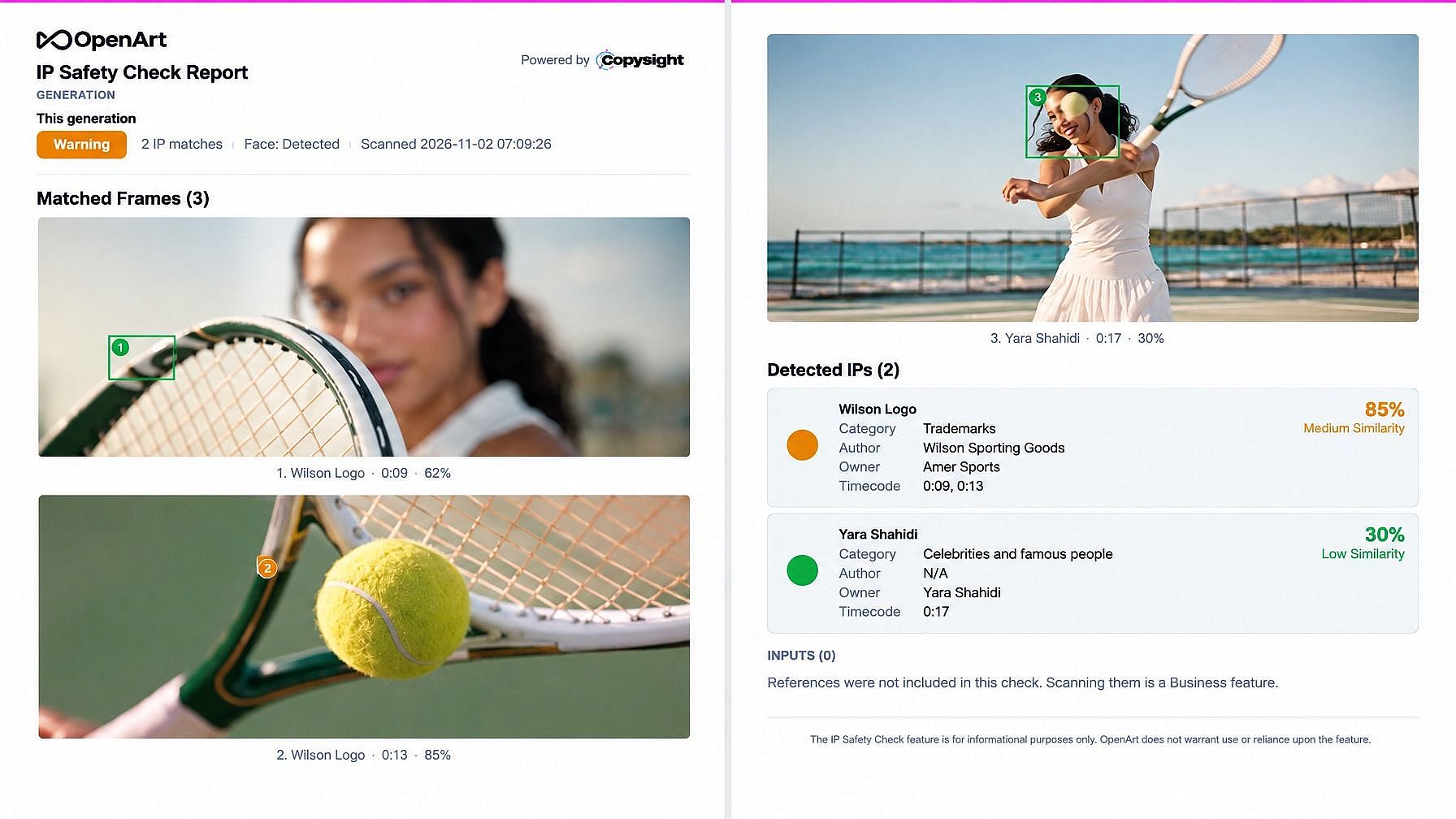
The timestamps made the fixes quick, because we only had to edit two short moments of the clip. For your thumbnail, follow our guide to check an AI image for copyright, since thumbnails count as images.
Step 3: Run the Platform's Own Copyright Check
Most big platforms have a free video copyright checker built into the upload flow. These checks are free, and they compare your video against what rights holders have already registered with that platform.
YouTube Copyright Checker: Use YouTube Studio Checks
YouTube Studio's Checks step works as a free YouTube copyright checker during upload. Use it on every video before you make it public.
- In YouTube Studio, click Create, then Upload videos, and pick your file.
- Set the visibility to Private or Unlisted.
- Wait on the Checks screen. The copyright check usually takes a few minutes.
- If YouTube finds a match, it shows the timestamp and the content that matched. Fix it, then upload the new version.
Checks only knows about content registered in Content ID, and owners can still file a claim after you publish. Faceless channels that rely on stock clips and music should run it every time, and our guide to making faceless YouTube videos shows how to build those videos from original AI footage.
How to Check if a YouTube Video Is Copyrighted Before You Reuse It
Every YouTube video is copyrighted by the person who made it, unless they choose a more open license. Check these before you add someone else's clip to your video:
- Read the license. On the desktop, open the video's description and look for "License" near the bottom. "Creative Commons Attribution" means you can reuse the clip if you credit the creator, and the Standard YouTube License means you need permission.
- Search for reusable clips. Type your topic into YouTube search, click Filters and choose Creative Commons to see only videos you can reuse.
- Ask the creator. For any other video, email the creator or message the channel and get written permission before you use the clip. Asking first saves you a re-upload.
Facebook and Instagram Copyright Check
Facebook added a Copyright Check option to the Reels composer in July 2025. Turn on this video copyright checker before you post, and Meta will scan your Reel for copyrighted material.
If Meta finds a match, it holds the Reel for one hour so you can fix it before anyone sees it. Brands posting to Instagram can run a similar check through Meta Business Suite before a Reel, Story, or carousel goes live.
TikTok Copyright Check With CapCut
CapCut, TikTok's sister editing app, has a built-in TikTok copyright check for audio. Run it before you export.
- Import your video into CapCut.
- Open Audio, then Copyright.
- Click Check.
If the audio is clear, CapCut's video copyright checker tells you the video can be posted on TikTok. The music check covers videos longer than 60 seconds, so short clips still need a manual look at the song license.
Extra Checks for AI-Generated Videos
AI video tools learn from huge amounts of real footage, so chances of creating similar faces, logos, designs, and music are quite high.
- Scan every frame: Run AI clips through a video copyright checker that spots logos and faces.
- Add YouTube's AI label: Since March 2024, YouTube asks creators to mark realistic AI-generated or altered video during upload. Look for the "altered or synthetic content" question in the details step.
- Watch for your own face: YouTube likeness detection is free for creators 18 and older. It flags AI-made videos on YouTube that use your face.
- Read the tool's terms: Your AI video tool decides how you can use the clip. On OpenArt, plus plans and higher allow business use of the videos you make in the AI video generator. The same goes for AI images you add as thumbnails or still shots, so compare which AI tools allow commercial use before you publish.
Labels help viewers, but they have limits, as we explain in why AI labels lose trust. For more on IP risks in AI content, see how to check AI images and videos for copyright infringement.
How to Fix a Copyright Flag Before You Publish
Fix the exact part that got flagged, then run your video copyright checker again. Use this table to pick the fastest fix.
| What got flagged | How to fix it |
|---|---|
| A short clip or a few seconds of a song | Cut that section out in the AI video editor |
| A full song or background track | Swap it for an original track from the AI music generator or the YouTube Audio Library |
| Someone else's voiceover | Record your own, or make one with AI text to speech |
| A logo or brand name on screen | Remove or replace it with AI video inpainting |
| A branded or famous background | Swap the scene with OpenArt VFX |
| A face that looks like a celebrity | Replace the person with an original character from OpenArt Characters |
| A claim you believe is wrong | Gather your license or proof, then file a dispute on the platform |
Brands can store their own logos and colors in an AI Brand Kit, so new videos start with assets they already own.
Which Video Copyright Checker Should You Use?
The best video copyright checker depends on what you want to check. Most creators use two: one for audio and one for the footage. Read more on best copyright checkers for content creators.
| Tool | Checks audio | Checks footage | Finds logos and faces | Works for | Cost |
|---|---|---|---|---|---|
| YouTube Studio Checks | Yes | Yes | Likeness detection only | YouTube | Free |
| Facebook Reels Copyright Check | Yes | Yes | No | Free | |
| CapCut Copyright Check | Yes | No | No | TikTok | Free |
| Shazam | Yes | No | No | Any platform | Free |
| OpenArt IP Safety Check | No | Yes | Yes, with timestamps | Any platform | Paid OpenArt plans |
For a deeper look at tools that scan images and video, see our list of the best AI copyright checkers.
Pre-Upload Video Copyright Checklist
Run through this list before every upload:
- I named every song and sound in the video.
- I have a license that covers each song in video.
- A video copyright checker found no logos, products or famous faces, or I fixed them.
- The platform I used to generate AI video supports commercial use.
- I added the AI label if the video shows realistic AI content.
- I saved my licenses and copyright scan reports with the project files.
Final Thoughts
A few minutes of checking before you upload can save your views, your ad money and your channel. Start with the music, then scan the footage with a video copyright checker, then run the platform's check on a private upload.
When every check comes back clear, publish with confidence. Run your next video through OpenArt's IP Safety Check so logos and faces get caught before your audience sees them.
Frequently Asked Questions
Is there a free video copyright checker?
Yes. YouTube Studio Checks, Facebook's Reels Copyright Check and CapCut's copyright check are all free. For logos and faces in your footage, OpenArt's IP Safety Check comes with paid OpenArt plans.
How do I check if a video is copyrighted before posting on YouTube?
Upload the video as private in YouTube Studio and wait for the Checks step, YouTube's built-in video copyright checker, to finish. If it finds a match, YouTube shows you the timestamp so you can fix that part before you go public.
Can a video copyright checker find logos and faces?
Yes, if it scans the frames. OpenArt's IP Safety Check found hidden logos and a celebrity resemblance in videos, with a timestamp for each match.
How do I check if a song is copyrighted?
Assume it is, since songs are protected as soon as they're recorded. Use Shazam or a song copyright checker to name the track, then look it up in the ASCAP or BMI repertory to find who can license it.
Does TikTok check copyright before you post?
You can run a TikTok copyright check in CapCut before posting. Open Audio, then Copyright, and click Check to scan your music.
Can AI-generated videos get copyright claims?
Yes. AI clips can show real logos or lookalike faces, and any music you add follows the same rules as other videos. Scan AI footage with a video copyright checker that reads every frame, and add YouTube's AI label for realistic content.
Is giving credit enough to use copyrighted music?
No, you still need a license from the owner. Fair use exists, but only a court decides it, so it works best as a last resort.
What should I do if my video gets a claim after I publish?
Check whether the claim is correct. If it is, trim the section or swap the song, and if it's wrong, file a dispute with your license as proof.
Can I avoid a Content ID match by changing the pitch or speed of a song?
No. Audio fingerprinting still matches a song after you change its pitch, speed or mix, so YouTube will usually catch it. Swap in a song you have a license for, or make an original track with the AI music generator.
What's the difference between copyright and trademark in a video?
Copyright protects creative work, such as songs, footage and artwork. Trademark protects brand names and logos, and most platform checks only listen for copyrighted songs and clips, so you need a video copyright checker that scans frames to catch logos.