



ChatGPT Video Generator
OpenArt's plugin turns ChatGPT into an AI video generator, so ChatGPT can make videos right in your chat. Tag @OpenArt and describe the clip. Plan shots first with Smart Shot, reuse images from your OpenArt library, and pick models like Seedance 2.5 or Veo 3.1. Works with GPT-6 Astra too.
How to Set Up ChatGPT AI Video Generator
Connect once, then generate video clips straight from your ChatGPT workflow.
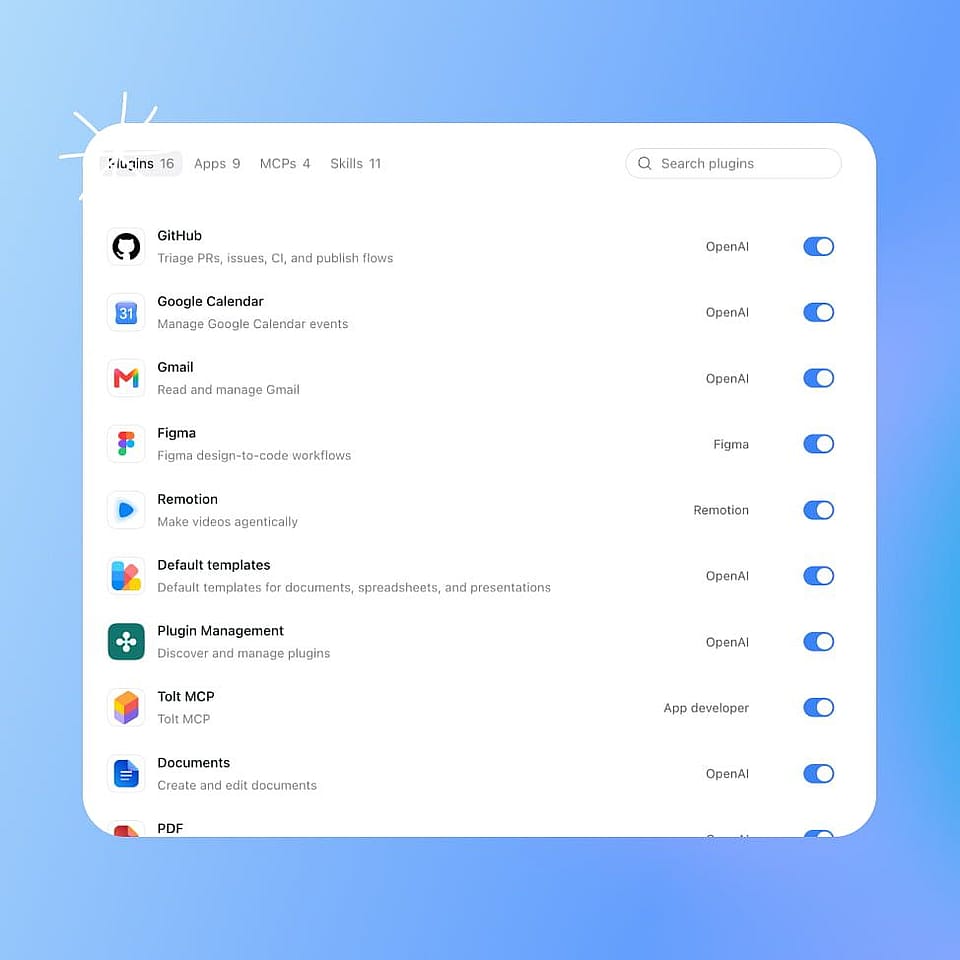
Install the OpenArt Plugin
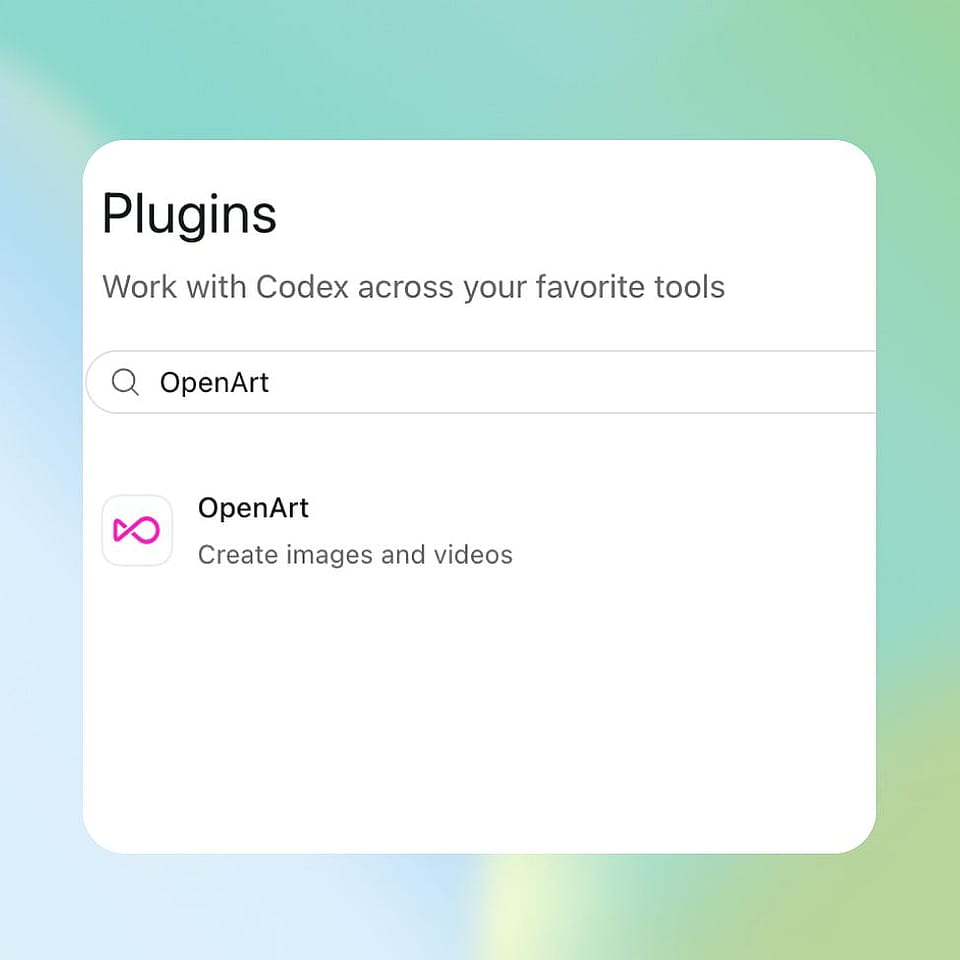
Open the OpenArt plugin page in ChatGPT and click Install Plugin. That one click adds OpenArt to your account.
Sign In to OpenArt
Sign in with your OpenArt account when ChatGPT asks, then allow the connection. That sign-in is the whole setup.
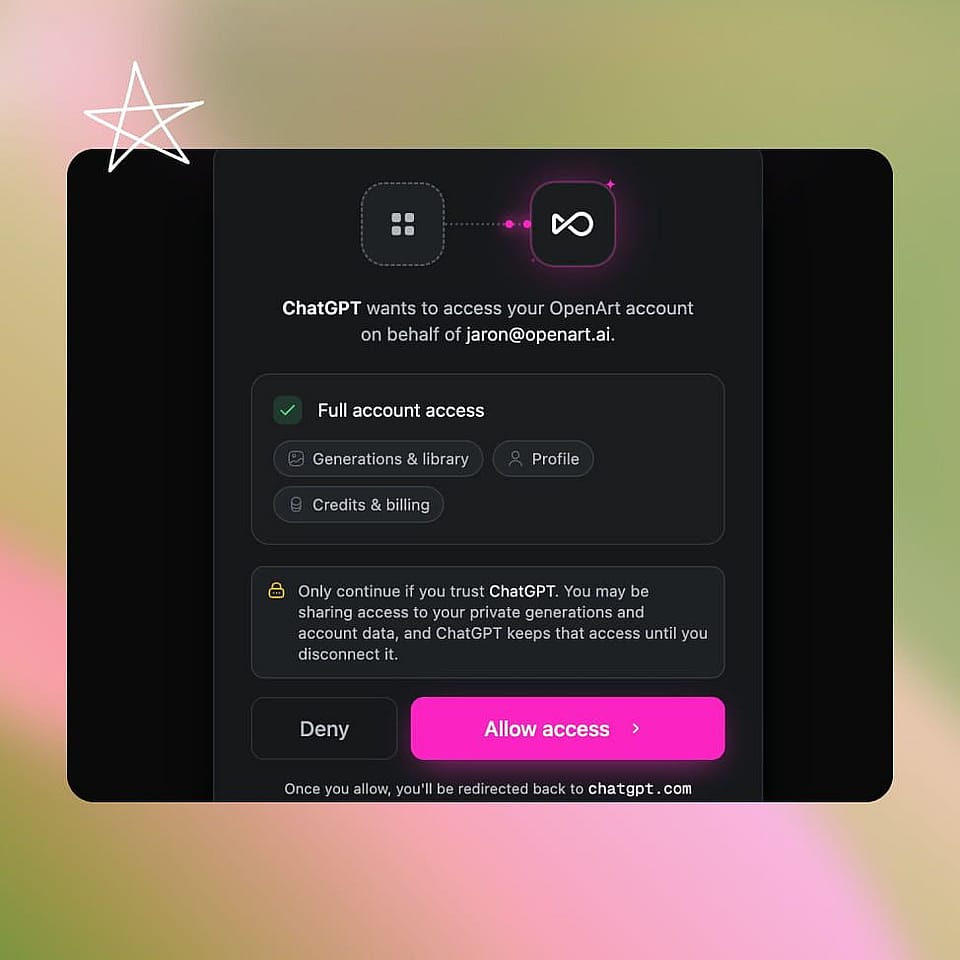
Tag @OpenArt and Prompt It
Pick your model in ChatGPT's model menu next to the send button. GPT-6 Astra works too. Then tag @OpenArt and describe the clip, like "Make a 5-sec clip of a rainy Tokyo alley, using Seedance 2.5", and the video is delivered in the chat.
Access All of OpenArt From Your ChatGPT
Make Videos Without Leaving Your ChatGPT Window
Plan the Shot Before You Generate
Ask for a shot plan first and Smart Shot generates one for you: reference views, the set, a top down camera map, storyboard frames, and lighting notes. Read it in the chat, change what you want, then tell OpenArt to make the video from that plan. You can make further edits to your video from within the same ChatGPT conversation.
Reuse Images From Your OpenArt Library
Everything you make on OpenArt stays in your library. Ask OpenArt to pull an image from it, like last month's product shot or a character portrait, and use it as the reference for a new clip. You never re-upload anything, so a whole series keeps the same look from clip to clip.
Animate Images into Video
Upload your image in your ChatGPT chat and ask OpenArt to animate it into a video along with any instructions. The photo is automatically carried over to OpenArt as a reference image from within your ChatGPT. A photo of a coffee cup becomes a video with steam rising and the camera pulling slowly back. This is powered by the same AI video generator you use on the OpenArt website, so you get the same quality.
Skip the Complex Prompting
Just describe what you want to see in your ChatGPT and OpenArt sets up the rest. It picks the video model that fits your request, writes the full prompt in the wording that model works best with, and sets the length and resolution. You can still specify the model and the settings yourself, like a 30 second clip with voice lines on Seedance 2.5.
Videos You Can Make From a ChatGPT Chat
Most people already write their captions, scripts, and product copy in ChatGPT. Now the video gets made in the same place.
Turn One Product Photo Into a Clip
A store owner with one product photo can ask for a slow turntable spin on a plain white background. A photo of a candle becomes a video of the flame moving. Sellers on Amazon and Shopify can have a product video ready the same day the stock lands, without booking a shoot.
Try it NowMake Vertical Clips for Social Feeds
Ask for a vertical clip from one campaign photo, watch it, then ask for a square version in the same chat. Sound comes with the video on models like Seedance 2.5 and Gemini Omni 1.1 Flash, so the clip is ready to post without extra software.
Try it Now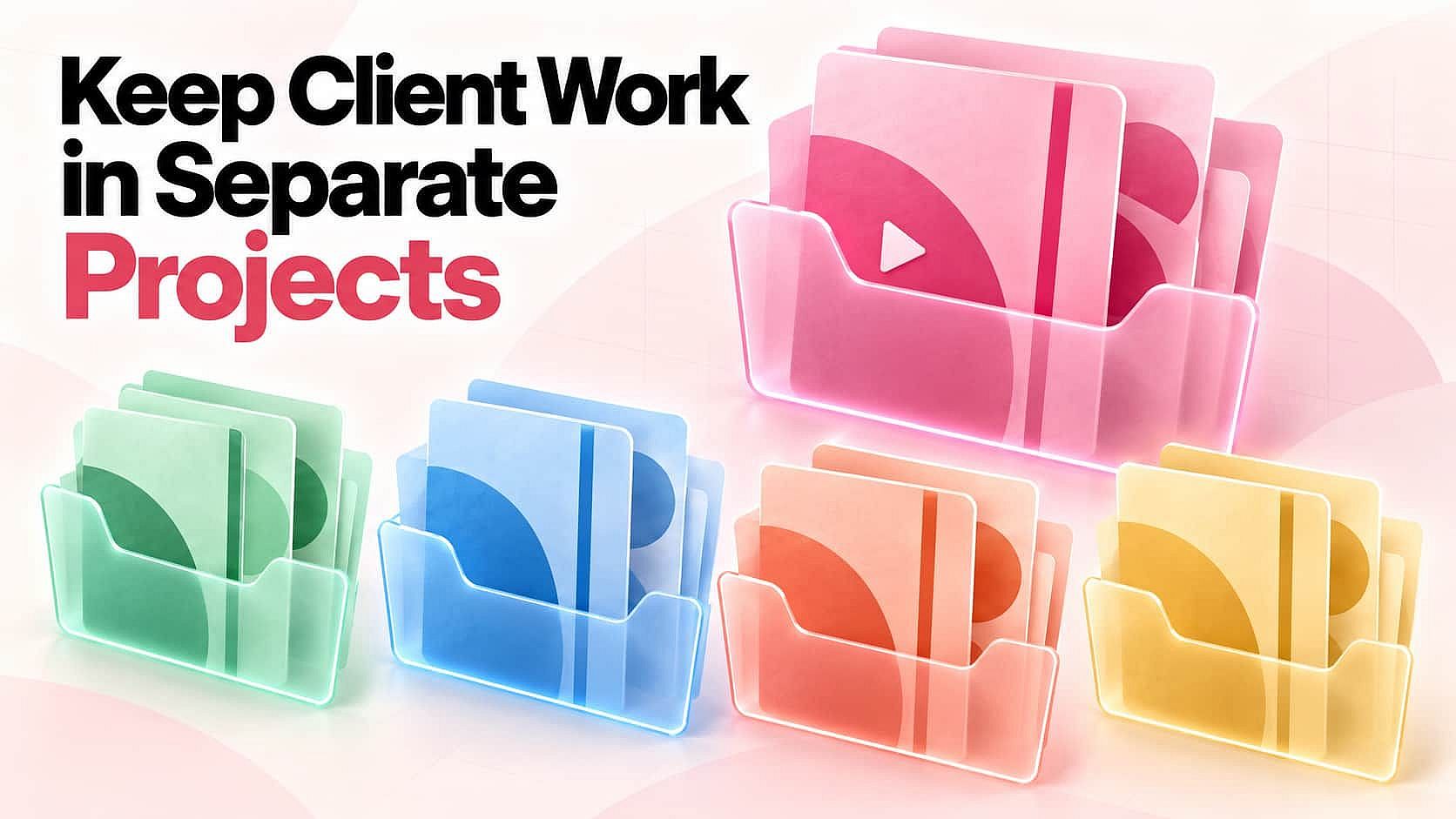
Keep Client Work in Separate Projects
An agency can ask OpenArt to list its projects, make a launch clip for one client, and save that clip straight to the client's project. Five clients' worth of video stays sorted instead of piling into one folder. Next month's campaign starts from the clips that already worked.
Try it NowWrite the Script and Make the Video
You are often already writing the script in ChatGPT, so ask for the clip in the same chat. With GPT-6 Astra selected, ChatGPT can plan the campaign and draft the script and shot list, then OpenArt turns the script into video, one clip at a time. Look at a couple of options and pick the one that fits the post, instead of using stock footage everyone has seen.
Try it NowFrequently Asked Questions
Yes. ChatGPT can make videos once you install the OpenArt plugin and sign in with your OpenArt account. Tag @OpenArt, describe the clip, and the finished video is delivered in the chat. Name a model such as Seedance 2.5, Veo 3.1, or Kling 3.0, or let OpenArt pick one that fits your request.
No. Signing in with your existing OpenArt account is the whole setup, and it takes about a minute.
OpenArt MCP has no extra cost. Generations use the same credits as on openart.ai, and MCP is included on every plan from Starter up. New accounts get 40 free credits to try it out, no credit card required. See OpenArt pricing for plan details.
Yes. The same @OpenArt connector generates video in ChatGPT from a prompt or image. In Cursor, add OpenArt as an MCP server in settings and the same tools show up there too. Prefer the terminal? The OpenArt CLI covers the same generation from the command line.
Install OpenArt from ChatGPT's plugin store and sign in with your OpenArt account. Then type @OpenArt plus your prompt, and it returns the image right in the chat. Full walkthrough: connecting OpenArt's MCP to ChatGPT.
Look for real model range, not just one default model. OpenArt's MCP gives Claude or ChatGPT access to multiple image and video models plus reference-image consistency, and it works the same way on Cursor too. For video specifically, see generating AI videos from Claude.
Yes. Choose GPT-6 Astra from the model menu next to ChatGPT's send button, then tag @OpenArt in the same chat. Astra is available on ChatGPT Plus, Pro, Business, and Enterprise plans; on Enterprise, an admin has to turn it on first. Astra handles the planning and writing, and OpenArt makes the images and videos.
OpenArt's MCP integration lets Claude or ChatGPT call OpenArt directly, so it can generate images and video, pull from your library, and check credits, all inside the chat. No API key, no separate app. See it in action for Claude image generation and Claude video generation.
Seedance 2.5, Seedance 2.5 Draft, Seedance 2.0, Veo 3.1, Kling 3.0, Wan 3.0, Gemini Omni 1.1 Flash, MiniMax H3 Max and PixVerse V6, along with more. Name one yourself or ask OpenArt to recommend one.
Most models make clips up to about 15 seconds. Seedance 2.5 and Wan 3.0 go up to 30 seconds in one pass, and Extend Video on the OpenArt website adds more time to a clip you already like.
OpenArt's MCP works for teams: connect it once, and reference images keep products or characters consistent across shots. Usage is tracked by workspace, not by login. See a real example: generating product ads from Claude.
Create without limits
Join thousands of creators using OpenArt to generate stunning images, videos, and more — all in one platform.
Get Started for Free →