

 ChatGPT
 Perplexity
 Claude
 Gemini
ChatGPT MCP connections let ChatGPT use external tools instead of only discussing what those tools can do. For a creative workflow, that means you can develop an idea, generate the asset and request revisions without repeatedly copying your brief between tabs.
OpenArt brings image and video creation into that workflow, and it works as a ChatGPT AI video generator as well as an image tool. OpenArt is now available as an official ChatGPT plugin, so you can connect your OpenArt account and create images or videos from the same conversation where you plan them. There is no MCP URL to paste, API key to create, or configuration file to edit.
In this guide, you will install OpenArt in ChatGPT, make your first generation, and learn how to keep ChatGPT using OpenArt when you revise an image or turn it into a video. It also covers how to use OpenArt with GPT-6 Astra.
Quick Guide: Open the OpenArt plugin page in ChatGPT, click Install Plugin, sign in to OpenArt, and approve access. In a ChatGPT conversation, type
@OpenArt, select the plugin, and ask it to generate an image or video. To use GPT-6 Astra, pick it from the model menu next to the send button before you type@OpenArt.
What Is ChatGPT MCP and How Does OpenArt Use It?
MCP stands for Model Context Protocol. In simple terms, it gives an AI assistant a standard way to use an external tool. A ChatGPT MCP connection can therefore let ChatGPT call a service rather than merely explain how to use it. With OpenArt connected, ChatGPT can ask OpenArt to create an image or video and return the result to the conversation.
OpenArt functions as both an AI image generator MCP and an AI video generator MCP. You do not need to manage those technical layers yourself because the published plugin provides the connection.
The OpenArt connection can handle more than basic AI image generation. From chat, you can:
- Generate images from written prompts
- Create videos from text or images
- Plan a short multi-shot video with Smart Shot
- Ask for available image or video models
- Use an image URL as a visual reference
- Reuse assets from your OpenArt library
- Choose an OpenArt project for new generations
- Check your OpenArt credits and account information
The important distinction is that ChatGPT manages the conversation while OpenArt performs the creative task. Your generations use your connected OpenArt account and its credits, and completed assets are saved to your OpenArt library as well as returned in chat.
Who Uses OpenArt in ChatGPT?
The plugin fits people who already plan their work in ChatGPT and want the visuals to come out of the same conversation.
- Marketing agencies running several clients: keep a separate OpenArt project for each client, draft concepts and product shots straight from the client brief, and pass the same product photo as a reference in every request so the product looks the same across stills and videos.
- Marketing teams inside brands: turn one campaign brief into launch visuals, social posts and short product videos in 1:1, 9:16 and 16:9, without moving files between tools. Every result is saved to your OpenArt library, ready for review.
- Small business owners: describe the product and the offer in plain words. ChatGPT writes the detailed prompts for you, so you can get ad images or a short promo video without learning prompt syntax.
Why Use OpenArt Instead of a Custom MCP Setup?
Many MCP image-generation tutorials are written for developers. They ask you to install a package, add a server to a JSON file, create an API token, or run a local process. That approach makes sense when you are building your own MCP server or need full control over an API integration.
It is unnecessary when your goal is simply to create with OpenArt in ChatGPT. The published plugin provides a hosted connection and account-based authorization. You can start with a normal OpenArt login and keep using the models, credits, projects and assets already connected to your workspace.
It also avoids locking the conversation to a single image model. OpenArt brings image and video creation into one connection, so the same chat can move from a concept to still images and then to motion.
If you are comparing other creative MCP services before choosing a setup, see this guide to Higgsfield MCP alternatives.
How to Connect OpenArt MCP to ChatGPT
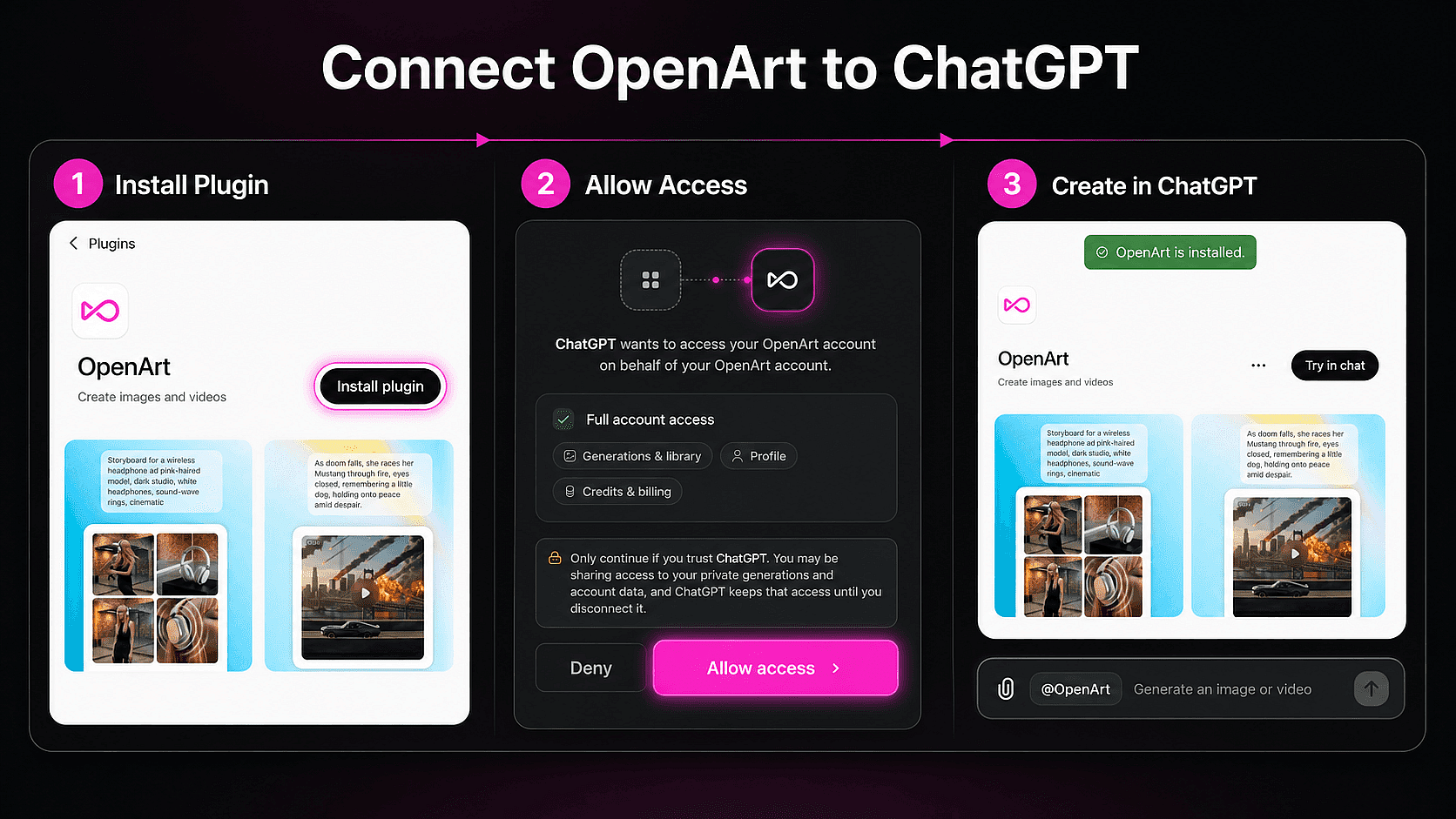
The current ChatGPT flow takes three steps.
Step 1: Open the Official OpenArt Plugin Page
Go to the OpenArt plugin page and click Install Plugin.
You do not need to copy the OpenArt MCP server URL or turn on developer mode. Those steps are used when adding an unpublished or custom MCP server. OpenArt has already been published to ChatGPT's plugin directory.
Step 2: Sign In and Authorize OpenArt
Sign in with your OpenArt account when prompted, then allow ChatGPT to connect to it. OpenArt uses account authorization, so there is no API key to generate, paste, store, or rotate.
If you are not already an OpenArt user, create an account during this step. The account connects your generations, credits, projects, and library to the plugin.
Step 3: Activate OpenArt in a Chat
Start a new ChatGPT conversation. In the message box, type @OpenArt and select OpenArt before entering your request.
Try this first prompt:
Use OpenArt to generate four square images of a clear perfume bottle on red volcanic rock, photographed at sunset with warm side lighting and a premium editorial look.Naming OpenArt matters, especially if more than one image tool is available. If you leave the plugin unselected and simply ask ChatGPT to make an image, ChatGPT may use its native image generator instead of your OpenArt connection.
How to Generate Images With OpenArt in ChatGPT
A useful image prompt gives OpenArt enough direction to make deliberate choices without turning into a wall of keywords. Include the subject, composition, visual style, lighting and output shape. If you need a starting point, explore these AI image generator prompts; for photographic work, the guide to the best AI image generators for realistic photos explains what to look for in a model.
For example:
@OpenArt Create a 16:9 hero image for a sparkling-water summer campaign. Place one clear glass bottle in the right third, leave clean negative space on the left for a headline, and use a sunlit Mediterranean palette with coral, warm sand and clear aqua. No people, logos or text.Once the result appears, stay in the same conversation to revise it:
Keep the composition, but make the shadows sharper and move the bottle slightly farther right.This conversational loop is useful because your brief, result and feedback remain together. You do not have to rewrite the full prompt for every small adjustment. When you want a larger transformation while preserving the source composition, an AI image-to-image generator is a better fit than repeatedly rebuilding the image from text.
You can also name a model when you already know which one you want. For example, you can ask for Seedream 5 Pro or Nano Banana 2 Lite directly. If you do not specify one, ask OpenArt to recommend or choose a suitable model for the job.
How to Generate AI Videos in ChatGPT With OpenArt
Video prompts need movement, camera direction and duration, not just a description of the first frame. Before you write one, decide how the video should start, because that decides which kind of request you send.
Choose How Your Video Starts
- From text only: describe the scene and the motion. Good for ideas you have not visualized yet.
- From an image as the first frame: the video opens on your exact picture and then moves. Use this when the shot is already right and you only want it to come alive.
- From an image as a subject reference: OpenArt keeps the product or character from your image but puts it in a new scene, place or action. Use this when the background or setting should change.
Most confusing results come from mixing up the last two. If you want your product somewhere new, say that you are giving it as a reference, not as the first frame.
Text to Video
Try a text-to-video request like this:
@OpenArt Generate a five-second cinematic video of a small sailboat crossing a calm blue bay at sunrise. The camera slowly pushes forward, the water moves gently, and the final shot feels quiet and realistic. Use a 16:9 frame.Animate an Image
For an image-to-video workflow, provide a usable image URL and describe only the motion you want:
@OpenArt Use this image as the first frame and create a five-second product video. Add a slow camera orbit, subtle reflections moving across the bottle, and gentle water ripples in the background. Preserve the label and product shape.Many video models also take an end frame. Give OpenArt two images and ask for a video that starts on the first and lands on the second, for example a closed box that ends as an open box with the product inside.
Put Your Product in a New Scene
When the setting should change, give the image as a subject reference and describe the new scene:
@OpenArt Use this perfume bottle as the subject reference, not the first frame. Make an eight-second video of the same bottle standing on a wet city street at night, neon reflections sliding across the glass as rain falls around it. Keep the bottle shape and label unchanged. 9:16 vertical.Plan a Multi-Shot Video With Smart Shot
Smart Shot turns one scene description into a short video with multiple cuts. It first writes a Shot Plan: a single sheet with storyboard frames, a top-down camera plan, set design and lighting notes. You can look at the plan before making the video, change it in plain words, and only then ask for the final video.
You can add up to three subject references (characters, products or props) and one location reference.
@OpenArt Use Smart Shot. Show me the Shot Plan first, don't make the video yet. Scene: a barista in a small sunlit cafe makes an iced latte, pours the milk, and slides the glass across the counter to a customer. Warm morning light, calm and real.When the plan looks right, reply with something like "Looks good, make the video from this plan."
Reuse Images From Your OpenArt Library
You do not have to upload the same picture again. OpenArt can pull earlier generations and uploads from your library and use them as a first frame or reference:
@OpenArt Find the last product image I made in OpenArt and use it as the first frame for a five-second video with a slow push-in and soft moving highlights.An image URL is the most reliable way to bring in a new reference across MCP clients. If your current ChatGPT interface supports passing an attached image to the plugin, you can try an upload; otherwise, use a public or accessible image URL, or save the image to your OpenArt library first.
Pick a Video Model
Ask @OpenArt which video models can I use? to see the current list. A few starting points by need:
- Long single shot with dialogue: Seedance 2.5 makes clips up to 30 seconds with synced audio and lip-sync.
- 4K short clip: Veo 3.1 makes 4, 6 or 8 second clips up to 4K with native audio.
- Cheap preview first: Seedance 2.5 Draft makes a 480p version you can upgrade to 1080p within 7 days.
- Fast concept tests: MiniMax H3 Max is a quick, lower-cost option for trying an idea before you make the final version.
When a video is ready, OpenArt shows a result card in the chat with the model, resolution, aspect ratio and length it used. From the card you can play the video, download it, make it again, or open it in OpenArt to keep editing. The same file is also saved to your OpenArt library.
How to Use OpenArt With GPT-6 Astra in ChatGPT
Once you are comfortable making single images and videos, GPT-6 Astra helps with bigger jobs that take many steps.
What Is GPT-6 Astra?
GPT-6 Astra is OpenAI's flagship model, released on September 3, 2026, as the successor to GPT-5.6 Sol. OpenAI built it for reasoning, computer use and long, multi-step agentic work. OpenAI reports a score of 72.6% on OSWorld 2.0, a computer-use benchmark, compared with 65.7% for GPT-5.6 Sol.
In ChatGPT, Astra is available on Plus, Pro, Business and Enterprise plans. On Enterprise workspaces it is off by default until an admin turns it on.
What Astra Does and What OpenArt Does
- GPT-6 Astra: reads your brief, breaks the job into steps, writes the prompts, and keeps track of your feedback as the conversation goes on.
- OpenArt: receives each request through the plugin, makes the image or video with the model you choose, and saves it to your OpenArt library.
This split matters most for jobs with many steps, such as a campaign that needs several directions, a set of stills and a video for each format. For a single quick image, any ChatGPT model can pass the request to OpenArt.
How to Select GPT-6 Astra and Call OpenArt
- Open a new ChatGPT conversation.
- Click the model menu next to the send button and choose GPT-6 Astra.
- Type
@OpenArt, select the plugin, and write your request.
The ChatGPT model you pick does not change what OpenArt charges. Credits depend on the OpenArt image or video model used for the generation.
Try a Multi-Step Campaign Prompt
To use Astra's planning, give it the whole job in one message and ask to see the plan first:
@OpenArt I'm launching a canned cold brew coffee. Plan three campaign directions and show them to me before making anything. After I pick one, write the prompts and make four 1:1 product images, then turn the best image into an eight-second 9:16 video. Save everything to a new OpenArt project called Cold Brew Launch.Because the plan comes first, you can change direction before any credits are spent. Later in the same chat you can ask for edits, such as "make the can colder and wetter" or "try a 16:9 version of the video," without repeating the brief.
More OpenArt Prompts to Try in ChatGPT
1. Compare Two Visual Directions
@OpenArt Create two visual directions for a natural skincare campaign: one clean botanical studio concept and one warm outdoor lifestyle concept. Generate two 1:1 images for each direction.If you are deciding which model best suits layout, branding or client work, compare the best AI image generators for designers.
2. Build a Moodboard
@OpenArt Generate a six-image moodboard for a premium tea brand using dark green, cream and brushed gold. Include packaging, ingredients, tabletop styling and atmospheric landscape details. Keep the art direction consistent.For a more structured visual-planning workflow, continue the concept in OpenArt's AI mood board maker.
3. Make Social Variations
@OpenArt Create three versions of this campaign concept for a square Instagram post. Keep the product in the center but vary the background color, supporting props and lighting. Do not add text.Teams producing repeat campaign assets can also move the chosen direction into the AI ad creative tool for additional formats.
4. Adapt One Image for Every Channel
@OpenArt Take the hero image you just made and create 1:1, 4:5 and 9:16 versions for an Instagram post, an Instagram feed ad and a TikTok cover. Keep the product, lighting and colors the same, and extend the background instead of cropping the product.Troubleshooting OpenArt in ChatGPT
ChatGPT Used Its Own Image Generator
Type @OpenArt and select the plugin before sending the prompt. You can also begin the instruction with “Use OpenArt to…” so the routing is explicit.
The Plugin Does Not Appear
Open the official plugin page again and confirm that OpenArt is installed. If you use a managed company workspace, plugin access may depend on workspace settings or admin approval. Try a new ChatGPT Work conversation after installation.
GPT-6 Astra Is Not in My Model Menu
Astra is available on ChatGPT Plus, Pro, Business and Enterprise plans. On an Enterprise workspace, ask your admin to turn it on. OpenArt still works with any other ChatGPT model in the meantime.
Authorization Did Not Complete
Confirm that you can sign in to OpenArt in your browser, then reconnect the plugin and approve access. You do not need an OpenArt API key.
A Generation Says There Are Not Enough Credits
OpenArt generations made through ChatGPT use the credits on your connected OpenArt account. Check your current balance or plan, then retry the request.
The Wrong Model Was Selected
Name the model in your prompt if you need a particular one. Otherwise, describe the output and ask OpenArt to recommend the best available image or video model.
The Video Kept My Photo but I Wanted a New Scene
Your image was used as the first frame, so the video stayed in the original setting. Ask again and say "use this image as the subject reference, not the first frame," then describe the new place or action.
ChatGPT Cannot Use My Reference Image
Paste a direct, accessible image URL into the prompt. A webpage containing an image is not always the same as the image file URL, and private links may not be available to the plugin.
Frequently Asked Questions
How Do I Connect MCP to ChatGPT?
For a published plugin such as OpenArt, open its official ChatGPT plugin page, click Install Plugin, and authorize your account. Then type @OpenArt in a ChatGPT conversation to activate it. You do not need to create a custom connector or paste an MCP server URL.
Is OpenArt an Official ChatGPT Plugin?
Yes. OpenArt has been approved and published in ChatGPT's plugin directory, so users can install it from its official listing instead of manually adding the MCP server URL.
Do I Need an API Key to Connect OpenArt to ChatGPT?
No. Install the plugin, sign in with your OpenArt account and authorize the connection. The official plugin flow does not require an API key.
Can OpenArt Generate Both Images and Videos in ChatGPT?
Yes. You can ask OpenArt to generate images from text, create videos from text or an image, plan multi-shot videos with Smart Shot, and return the completed result in the conversation.
Can I Use GPT-6 Astra With OpenArt in ChatGPT?
Yes, on ChatGPT plans that include Astra (Plus, Pro, Business and Enterprise). Choose GPT-6 Astra from ChatGPT's model menu, then type @OpenArt and select the plugin. Astra plans and writes the prompts, OpenArt makes the image or video, and credits depend on the OpenArt model you use.
How Long Can a Video Made in ChatGPT With OpenArt Be?
It depends on the video model. Seedance 2.5 and Wan 3.0 make single shots up to 30 seconds, Kling 3.0 makes 3 to 15 seconds, and Veo 3.1 makes 4, 6 or 8 seconds. Ask OpenArt which models are available if you need a specific length.
Where Are My ChatGPT Generations Saved?
OpenArt returns the result in ChatGPT and saves the generated asset to the library of the connected OpenArt account.
Does Using OpenArt in ChatGPT Cost Extra?
The connection does not create a separate generation balance. Creative requests use your OpenArt account and consume credits according to the selected model and settings, just as they do on OpenArt.
Can I Use the Same MCP With Claude or Cursor?
Yes. OpenArt MCP also works with Claude, Cursor and other MCP-compatible agents. Those clients may use the OpenArt MCP server URL or their own connector settings rather than the ChatGPT plugin installation flow. See the OpenArt MCP page for the current steps for each client, or follow the dedicated guide to generating AI videos from Claude with OpenArt MCP.
Start Creating With OpenArt in ChatGPT
The fastest way to understand an AI creative workflow is to make something with it. Install the OpenArt plugin in ChatGPT, type @OpenArt in a new conversation, and start with one clear image or video request.
Once the first result appears, keep going in the same chat: change the composition, test a different model, create variations, or animate the strongest image. The planning and production work can now happen in one place.