

 ChatGPT
 Perplexity
 Claude
 Gemini
Best AI Image Generators for Designers, Compared for Real Design Work
The best AI image generator for designers is not always the one that makes the prettiest first image. Designers need a tool that can follow a layout, work from references, keep a visual system consistent across a campaign, and survive several rounds of edits. This guide compares the leading options by the work that happens after generation: art direction, revision, typography, resizing, rights review, and production handoff.
For most mixed design workflows, OpenArt AI Image Generator is our best overall pick. It puts leading image models such as GPT Image 2, Nano Banana 2 Lite, Seedream 5.0 Pro, and Grok Imagine in one workspace, then lets you edit, expand, restyle, remove backgrounds, and upscale the chosen result. Midjourney remains a strong choice for visual exploration. Adobe Firefly fits teams already working in Creative Cloud. Ideogram is useful when visible text is central to the image.
Quick Verdict
| Tool | Best For | Main Strength | Main Limit |
|---|---|---|---|
| OpenArt | Best overall for multi-model design workflows | Multiple leading models plus editing in one platform | The range of models takes a little testing |
| Adobe Firefly | Creative Cloud production | Photoshop and Adobe workflow integration | The best choice often depends on your Adobe setup and credit plan |
| Midjourney | Art direction and visual exploration | Distinctive aesthetics and style controls | Final production work often moves to another design app |
| Ideogram | Posters and text-led concepts | Strong text rendering and graphic compositions | Less complete as an end-to-end design workspace |
| ChatGPT Images | Conversational briefs and revisions | Strong instruction following and natural-language editing | Selection-based edits can affect areas beyond the mask |
| Canva AI | Fast social and marketing layouts | Generated visuals sit inside a template editor | Less control for detailed art direction |
| Stable Diffusion | Custom and technical workflows | Deep control and local or custom deployment options | Setup, model choice, and quality control require more work |
Best choice by design task
- Choose OpenArt when you need several image models, reference-led creation, editing, restyling, and upscaling in one workflow.
- Choose Adobe Firefly when Photoshop and Creative Cloud are already your production base.
- Choose Midjourney when visual exploration and aesthetic direction matter more than final layout control.
- Choose Ideogram when words need to appear inside poster or packaging concepts.
- Choose ChatGPT Images when briefs and revisions are easier to explain through conversation.
- Choose Canva AI when the final asset will be completed inside a social or marketing template.
- Choose Stable Diffusion when a custom technical pipeline is worth the setup and maintenance.
There is no universal winner for every design task. The strongest option is the one that produces a usable series, accepts narrow revisions, and reaches the final layout with the least repair work.
Why This Comparison Matters Now
AI image creation has moved from occasional experimentation into everyday creative work, but designers are not settling on one universal tool. Adobe's 2026 Creators' Toolkit Report, published in June 2026, surveyed more than 16,000 creators across eight countries. It found that 87% say generative AI has accelerated the growth of their business or audience, and 75% now call it integrated or essential to how they work. The same report found that 57% say their AI outputs typically need moderate to extensive editing before they're ready to share.
That editing gap is the real reason a designer-focused comparison needs to look past raw generation quality. A tool can make an impressive first image and still fail a professional workflow if it is hard to revise, difficult to keep on-brand, or unclear for client use.
Figma's 2026 AI report adds a product-design perspective, drawing on three years of data and 8,403 survey responses across ten markets. Its clearest finding cuts against the idea that AI shrinks the designer's role: 90% of respondents say design is at least as important as it was before AI, and nearly 6 in 10 say it is actually more important. Among developers, 65% say design is at least as important as before. The useful question is no longer whether designers will try AI, but where it belongs in research, exploration, production, and review.
What Designers Should Look for in an AI Image Generator
An AI image generator for graphic designers should reduce exploration time without removing design decisions. The output still needs hierarchy, a usable focal point, room for copy, and enough control to support revisions.
1. Composition control
Designers rarely need "a beautiful image" in isolation. They need a wide hero with clear space on the left, a square product visual with a centered subject, or a portrait crop that can carry a headline. Aspect ratio controls are useful, but reference images and clear spatial instructions matter more.
2. Editable results
The first result is a starting point. A useful tool should let you remove an object, replace a background, extend the canvas, adjust one part of the scene, or restyle the image while keeping its structure. If each change forces a full restart, the tool creates more review work than it removes.
3. Text rendering
Text inside an image matters for posters, packaging concepts, editorial covers, signs, and social graphics. Even strong models can make spelling or spacing errors, so designers should treat generated type as draft artwork and check every word before publishing.
4. Reference and brand consistency
A single striking output is not a campaign. For brand work, the generator should respond to references for palette, lighting, product shape, character identity, or illustration style. It should also make it practical to create several related assets without losing the visual direction. A dedicated Brand Kit makes it easier to lock those references once and reuse them across a campaign instead of re-briefing every asset from scratch.
5. Production fit
The right tool should hand off cleanly to the rest of your workflow. That might mean creating a concept in OpenArt and finishing the type in Figma, extending a photograph inside Photoshop, or building a social layout in Canva. Judge the whole path from brief to delivery, not only the generation screen.
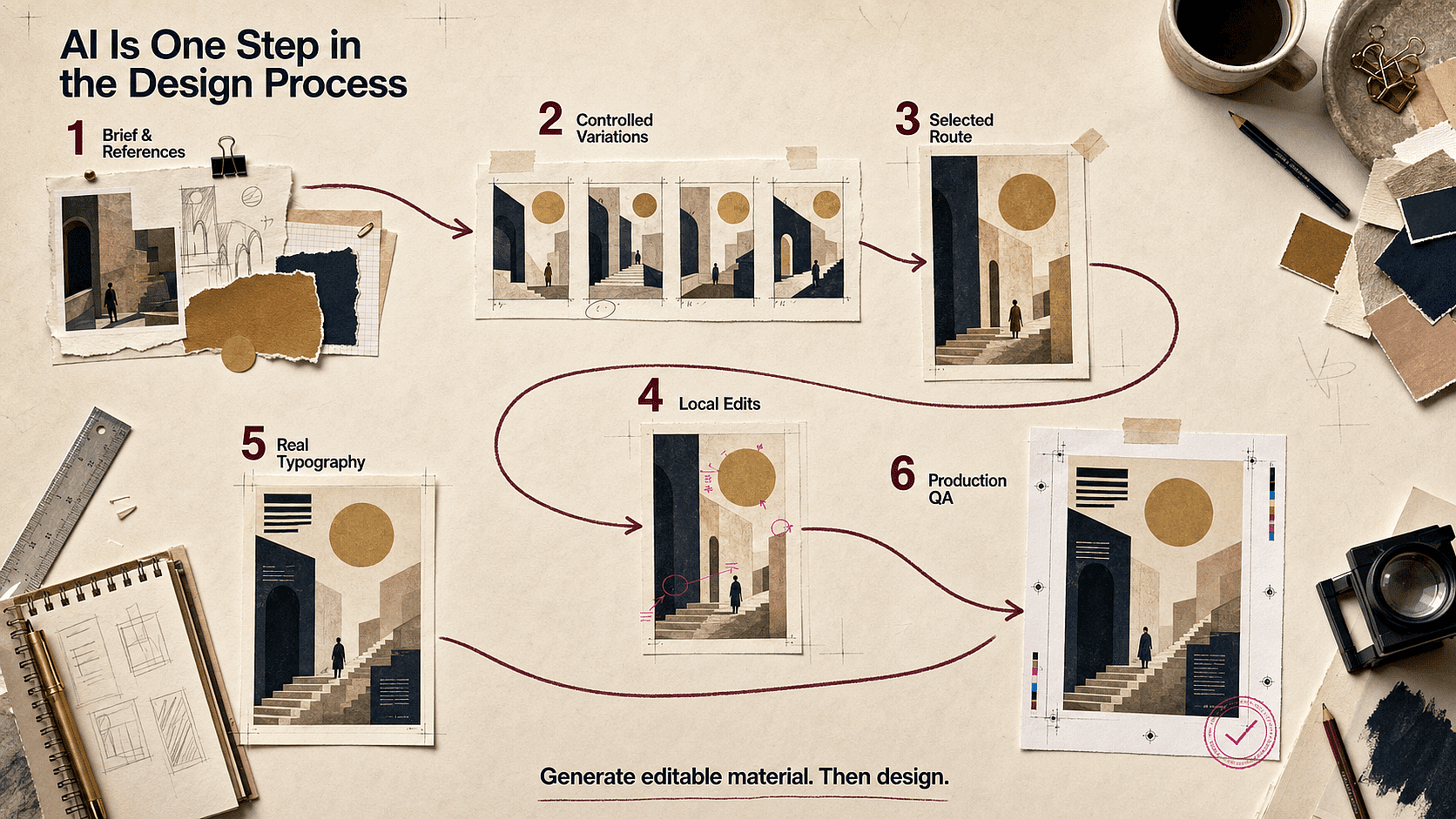
A typical flow runs from brief and references to controlled image variations, a selected route, local edits, real typography, and production QA. The image generator supplies editable visual material within that flow, not the whole design process.
Six Design Problems AI Images Still Do Not Solve by Themselves
The recurring concern in designer discussions is not a lack of images. It is a lack of control over the image as a design asset. These six problems are where a professional workflow earns its value.
Pain point 1: The image looks good, but the layout is unusable
AI models often pull the subject toward the center or fill every empty area with detail. That works for a standalone image but leaves nowhere for a headline, CTA, navigation, or product message. A hero shot that's dead-center with a busy background is unusable no matter how good the lighting looks, because there's nowhere left for the client's actual message to sit.
Build the safe copy zone into the brief itself instead of fixing it after the fact. Name the side and roughly how much of the canvas it needs, something like "keep the left 40% visually quiet," and rule out high-contrast objects, faces, or hard edges inside that area. Then test the image with a real headline before signing off on the composition, not a placeholder.
In OpenArt, that means picking a model that actually follows spatial instructions, then expanding or reframing the selected image if the copy zone still comes out too tight. Comparing two or three models on the same brief beats rewriting it from scratch across separate subscriptions.
Pain point 2: Every image in the campaign feels unrelated
A repeated prompt does not create a design system. Color, lighting, camera height, product scale, facial features, and illustration details may drift from one generation to the next.
Design guideline: create a small visual specification before making the series:
- 3 to 5 fixed palette colors
- one lighting direction and contrast level
- one camera-height rule
- one material and texture vocabulary
- one reference set for product, character, and environment
- a list of elements that must not change
Lock the approved image as a reference for the next asset. Change the channel ratio or scene while keeping the visual specification stable.
OpenArt workflow: keep reference-led creation, image editing, and character work in one visual workspace. This is more useful for a campaign than treating each output as a separate roll of the dice.
Pain point 3: A small revision destroys the approved parts
Designers frequently need a narrow change: move one prop, reduce a reflection, replace a wall color, or create more room above a product. Full regeneration can alter the subject, camera, or styling that a client already approved.
Design guideline: revise from large to small. First lock composition and subject. Next fix product or character accuracy. Then edit materials, lighting, and background details. Do not combine five unrelated changes in one instruction because it becomes harder to identify what caused a regression.
OpenArt workflow: use erase, background replacement, expansion, restyling, or image-to-image controls on the chosen asset. Keep checkpoints after each approved pass.
Pain point 4: Generated text is close, but not publishable
Text rendering has improved a lot, especially in models built for designed assets. But one wrong letter still makes a poster or package unusable, and a visually convincing word is not the same thing as editable typography. A price tag that reads "$9.99" in the preview and "$9.98" on zoom-in is not a rounding error, it's a reprint.
Treat generated lettering as exploration material, not the final asset. Use it for texture, integrated display art, or to test how a headline sits in the composition, then set the actual headlines, prices, legal copy, dates, and UI labels with real fonts. Spelling, kerning, contrast, reading order, and localization all need their own separate check, because a design review that only looks at the whole image tends to miss exactly this kind of detail.
GPT Image 2 or another suitable model can get the concept most of the way there, but the clean visual still needs to move into Figma, Photoshop, or Illustrator for final typography. OpenArt is the visual creation layer here, not a substitute for typographic control.
Pain point 5: The image cannot survive a multi-format campaign
A square image may collapse when cropped for a 16:9 hero or 9:16 story. Subjects become too large, hands or products get cut off, and the copy area disappears.
Design guideline: plan a master composition with crop tolerance. Keep critical details away from edges and create enough environment around the subject. Test at least 1:1, 16:9, 4:5, and 9:16 before the visual direction is approved.
OpenArt workflow: create or expand alternate ratios from the selected source rather than stretching the same flattened image.
Pain point 6: The team cannot explain where the image came from
Designers working with clients need to know the model, source assets, edit history, and usage terms. This is a process problem as much as a legal one.
Design guideline: keep a lightweight provenance record with the model, date, prompt or brief, uploaded references, permission status, and significant human edits. Avoid using unlicensed brand assets, copyrighted characters, or a living artist's name as a shortcut for art direction.
The U.S. Copyright Office's January 2025 report states that purely AI-generated material is not protected by copyright in the United States, while human-created expression, creative selection and arrangement, and creative modifications may be protected. It also says prompting alone does not provide sufficient control under current generally available technology. This is not legal advice, but it gives design teams a practical reason to document human art direction and final production work.
The Best AI Image Generators for Different Design Workflows
1. OpenArt: Best Overall for Designers Who Want Model Choice and Editing
OpenArt is the strongest all-round option when your work moves between concept art, campaign images, product scenes, illustrations, and image editing. Instead of locking the designer into one model, it gives access to several current image models in the same platform. That matters because no single model is best at every design task.
GPT Image 2 is a practical choice for text-heavy visuals, infographics, designed assets, and close instruction following. Nano Banana 2 Lite works well for natural-language edits and reference-led changes. Seedream 5.0 Pro is suited to detailed compositions and precise visual briefs. You can test a direction with one model, choose the strongest result, and continue refining it without rebuilding the workflow elsewhere.
OpenArt also connects generation to common production tasks. Designers can erase or replace elements, expand a composition, swap the background, restyle an image, and upscale the selected asset. This makes it useful after ideation, not just during it.
Best for: brand campaign exploration, social concepts, product scenes, editorial visuals, character-led projects, and designers who want several models under one subscription.
Keep in mind: model choice affects the result. Use a small test brief to learn which model handles your subject, type, or reference style best before producing a full set. If you're weighing platforms by price rather than by model, our pricing and cost-per-generation comparison across the top AI image, video, and audio generators is the more precise place to look.
2. Adobe Firefly: Best for Photoshop and Creative Cloud Workflows
Adobe Firefly makes the most sense for designers whose production files already live in Photoshop, Illustrator, Express, or other Creative Cloud tools. Its value is not limited to text-to-image creation. Generative Fill, Generative Expand, Boards, and connected editing tools can sit inside an established production process.
Firefly is especially useful when the generated image is one component of a larger design file. A designer can extend a photograph for a new crop, remove an unwanted element, explore a background, and continue working with familiar masks, layers, type, and color tools.
Adobe also positions its own Firefly models for commercial creative use. Teams should still confirm the model used, plan terms, client policy, and current usage rules, especially when Firefly provides access to third-party models.
Best for: Adobe-centered teams, photo compositing, campaign resizing, production edits, and enterprise workflows.
Keep in mind: Firefly is a broad suite, so cost and access depend on the plan, generative credits, and model selected.
3. Midjourney: Best for Art Direction and High-Impact Exploration
Midjourney remains one of the strongest tools for quickly finding a visual mood. Its Personalization profiles and Moodboards help designers steer aesthetics, while style controls support broad exploration. If you want to build that reference board before opening any generator, OpenArt's Mood Board Maker is a fast way to collect and organize the visual direction first. The web Editor adds inpainting, pan, zoom, Smart Select, layers, and Retexture.
It works well at the front of a project: key art studies, fashion directions, cinematic references, editorial concepts, and style frames. When the final deliverable needs exact typography, reusable components, or tightly controlled product details, designers often finish the work in a conventional design app.
Best for: mood development, visual territories, key art, editorial imagery, and aesthetic exploration.
Keep in mind: Midjourney's current Editor documentation notes that its latest generated images can enter the Editor while some editing functions use an earlier model version. Check the current workflow before relying on exact cross-step consistency.
4. Ideogram: Best for Text-Led Posters and Graphic Concepts
Ideogram deserves a place on a designer's shortlist when words must appear inside the image. It is useful for poster concepts, title treatments, packaging studies, signs, stickers, and social graphics where type and imagery need to feel like one composition.
Its Canvas tools include Magic Fill and Extend, so the workflow can move beyond a single generation. Even so, generated lettering should not replace final typesetting. Check spelling, kerning, brand fonts, accessibility, and legal copy in your layout tool before delivery.
Best for: poster exploration, decorative lettering, packaging concepts, title cards, and text-led social graphics.
Keep in mind: good text rendering is not the same as a production-ready type system. Use generated text as visual material, then rebuild important copy with real type.
5. ChatGPT Images: Best for Conversational Briefs and Iterative Changes
ChatGPT Images works well when a design brief is easier to explain as a conversation. You can create an image, upload an existing asset, ask for a change, add text, request a transparent background, or revise the aspect ratio.
This is useful for stakeholders who give feedback in plain language: "keep the product and lighting, remove the flowers, and leave more space above the subject." The official editor supports selected-area changes, but OpenAI notes that edits can extend beyond the highlighted region. Designers should compare revisions carefully when product shape or brand details must remain exact.
Best for: translating a written brief into visuals, iterative concept changes, transparent assets, and quick stakeholder-led revisions.
Keep in mind: conversational control is strong, but it is not a layer-based production file.
6. Canva AI: Best for Fast Marketing and Social Layouts
Canva is a good fit when the final output is a social post, presentation graphic, flyer, or marketing asset built from templates. Magic Media can create source visuals, while Canva's layout, brand, and publishing tools handle the rest of the asset.
The main advantage is speed from image to finished layout. It is less suited to designers who need deep image construction, precise masks, complex compositing, or a highly custom production pipeline.
Best for: social teams, quick campaign variations, presentation assets, and template-based production.
Keep in mind: convenience can make outputs look generic. Replace default layouts, refine spacing, and apply a clear brand system.
7. Stable Diffusion: Best for Custom and Technical Control
Stable Diffusion is not one fixed product experience. It is a model family used through local interfaces, hosted services, custom workflows, and specialist tools. For technically confident designers or studios, that flexibility can support custom models, repeatable pipelines, fine control, and private infrastructure.
The tradeoff is operational work. Choosing checkpoints, add-ons, interfaces, hardware, and settings can become a separate discipline. It is a strong option when customization is the requirement, but not the fastest route for every design team.
Best for: custom pipelines, technical art teams, local workflows, and specialist style control.
Keep in mind: licensing and permitted use can vary by model, checkpoint, or service. Review the exact terms attached to what you use.
How to Compare AI Image Generators Like a Designer
Most public comparisons reward the best-looking single output. That is not enough for design work. Use the following criteria to compare tools by what happens after the first image appears:
- Brief adherence: Can the tool follow subject, setting, hierarchy, crop, palette, and negative constraints?
- Reference control: Can a designer guide composition, style, identity, or product appearance with visual inputs?
- Revision quality: Can one part change without destroying the rest?
- Graphic design fit: Does it handle text, negative space, series consistency, transparent assets, and common aspect ratios?
- Workflow continuity: Can the result move into a real design, campaign, or content pipeline?
- Commercial clarity: Are model identity and usage terms clear enough for a team to review?
Do not rank tools by one viral example. Image models change quickly, and results vary by brief. The useful test is a small design system: one hero image, one square crop, one text-led asset, and one revision from the same visual direction.
A repeatable four-asset test
Use the same model settings, reference set, and brief wherever the tools allow it. Record the model and test date because product capabilities change.
- Create a 16:9 campaign hero. Require a fixed subject position and at least 40% quiet space for copy.
- Create a 1:1 companion asset. Keep the palette, lighting, subject identity, and material language from the hero.
- Create one text-led concept. Use a short, easy-to-check phrase and inspect spelling, hierarchy, and integration with the image.
- Request one narrow revision. Change the background color or remove one prop while preserving the subject, crop, styling, and lighting.
Score each tool from 1 to 5 for brief adherence, reference fidelity, edit containment, series consistency, text accuracy, and time to a usable final asset. The point is not to create a universal benchmark. It is to reveal which tool creates the least repair work for your design practice.
| Test Area | What to Inspect | Failure Signal |
|---|---|---|
| Brief adherence | Subject position, crop, palette, exclusions | Attractive image that ignores the layout |
| Reference fidelity | Product, face, style, and material details | Direction drifts between assets |
| Edit containment | Approved areas stay unchanged | One small edit rebuilds the whole image |
| Series consistency | Assets feel like one campaign | Each image has a different visual language |
| Text accuracy | Spelling, order, and legibility | Correct-looking but unusable lettering |
| Production effort | Time and repair passes before layout | Fast generation followed by heavy cleanup |
A Better AI Image Workflow for Graphic Designers
Step 1: Write a design brief, not a pile of style words
Define the asset, audience, message, subject, visual hierarchy, composition, palette, material, lighting, and delivery ratio. State what must stay empty for copy. Add one or two references when visual accuracy matters.
Step 2: Explore directions before polishing
Create several meaningfully different routes, not twenty near-duplicates. Compare composition and idea first. Small texture errors are easier to fix than a weak concept.
Step 3: Refine the selected route in passes
Lock the large decisions, then edit one issue at a time. Fix the subject and composition before surface detail. Add final typography, logos, regulated copy, and pixel-level adjustments in your normal design tool.
Build and refine a design concept in OpenArt
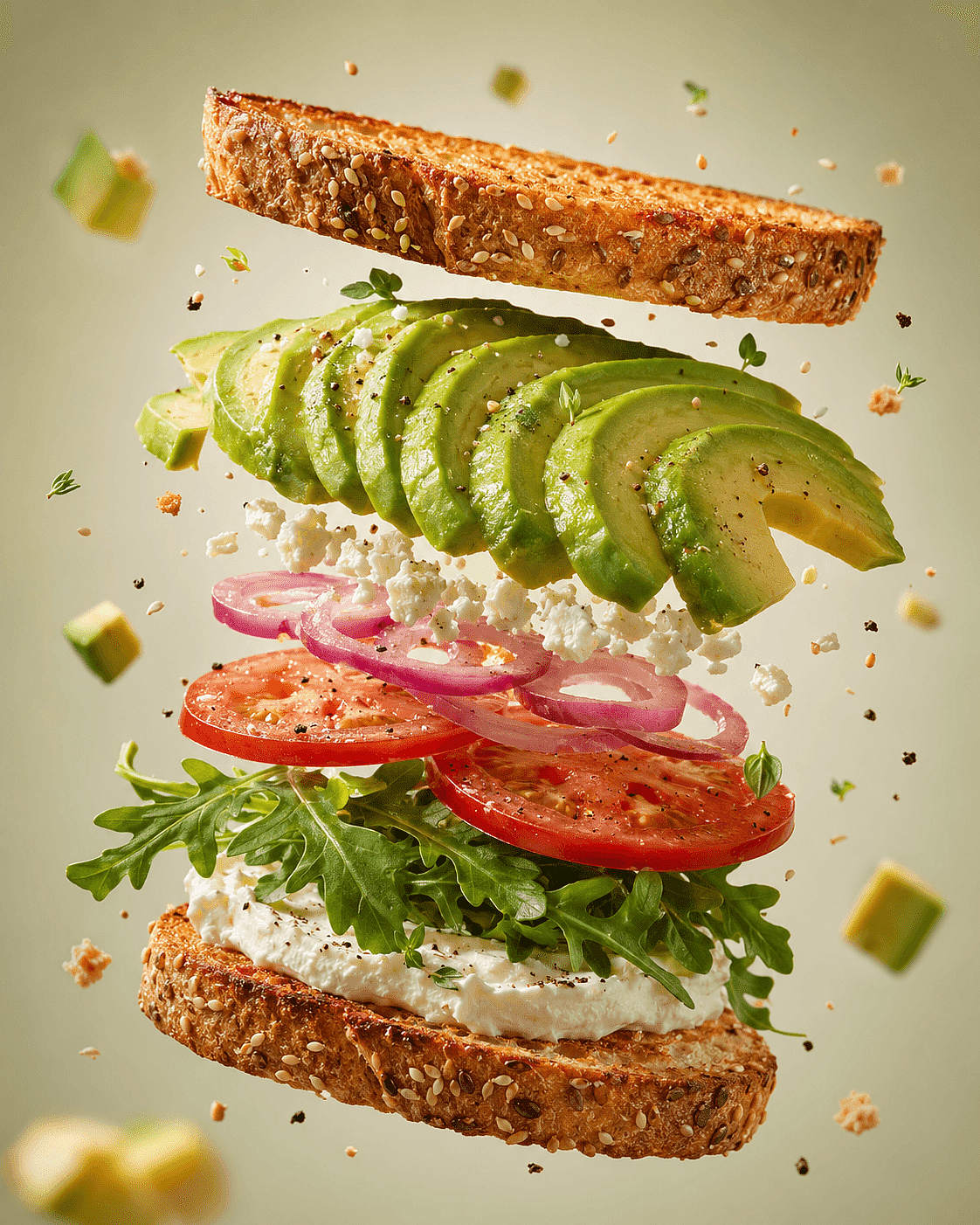
Example Prompt for a Food Product Visual
[PRODUCT], mid-air exploded view, with [INGREDIENTS] floating around it, clean [BACKGROUND] studio background, commercial food photography, soft directional lighting, shallow depth of field, ultra-detailed textures, photorealistic, no text, no logo.
Replace the bracketed parts with your own product, ingredients, and background color. The prompt works because it defines the subject, the composition (an exploded view), the photographic style, the lighting, and clear exclusions such as no text and no logo. To create a second campaign route, change the ingredients or background while keeping the rest of the prompt fixed so the series stays consistent.
Why the Best Result Is the One You Can Art-Direct
Designers reviewing AI tools often focus on raw image quality. In client work, revision cost is usually the sharper test. A beautiful result that cannot preserve the product, layout, or character after feedback is less useful than a slightly less dramatic image that can be directed.
Community discussions among graphic designers also show a recurring divide: clients may arrive with a rough AI concept, but they still need a designer to resolve typography, layout, print details, brand fit, and production quality. That makes AI image generation most useful as material inside a design process, not as a replacement for the process.
What Designers on Reddit Are Actually Worried About
Reddit discussions are anecdotal, so they should not be read as a representative survey. They are still useful because they expose the language and situations that polished product pages often leave out.
"The client made something with AI and now wants it cleaned up"
A 2026 r/graphic_design discussion, later covered by Creative Bloq, described designers receiving work from clients whose AI-made logos or social graphics were not good enough for final use. The replies focused on the details that still required trained design work: print setup, layout, accurate type, and controlled revisions.
How to handle it: treat the AI image as source material, not a finished identity system. Rebuild the logo as a vector, replace any generated type, set spacing rules, and check that the mark still works at small sizes and in one color.
Where OpenArt helps: it shortens visual exploration and image revision while leaving the designer in charge of the identity system and final file.
"I get one good image, then lose it when I ask for a change"
Across AI-art and Midjourney discussions, users repeatedly ask how to keep a subject, face, or style consistent through edits. This is the practical cost of "generate and hope": a strong result may not be reusable.
How to handle it: save every approved version, change one variable at a time, and rely on reference-led or local-edit workflows. For recurring people or mascots, define the identity separately from pose, outfit, and setting.
Where OpenArt helps: designers can choose among models and use editing, reference images, and Character Builder workflows without treating each image as a new project.
"Which tool should I pay for?"
Tool-selection threads often turn into model debates, but designers usually need several different capabilities: ideation, accurate text, reference edits, upscaling, background work, and alternate ratios. That is one reason Adobe's 2026 survey found 58% of creators feel more able to compete with larger teams since adopting creative AI: the advantage comes from stacking capabilities, not betting everything on one model.
How to handle it: test each tool on a small real campaign instead of a single prompt. Track how many outputs are usable, how many repair passes they need, how consistent the set looks, and how long it takes to reach a final layout.
Where OpenArt helps: its main advantage is workflow range and model access in one place. The value is not a claim that one model wins every task.
"Can I safely use this for a client?"
Reddit questions about commercial use often mix together platform permission, copyright ownership, trademark risk, reference-image rights, and client policy. These are separate checks.
How to handle it: check the exact terms for the model you use, keep permission records for uploaded inputs, avoid misleading imitation, document the human changes you make, and follow the client's approval rules. Commercial-use permission does not guarantee that an output is copyrightable or free of third-party rights.
Where OpenArt helps: model choice and editing can stay visible in one workflow, but the designer and client still own the approval process.
A Practical Design QA Checklist Before You Deliver
Use this checklist after the image is selected and before the final export:
Composition
- Does the focal point support the message?
- Is there enough quiet space for real copy?
- Does the layout still work at the intended crop?
- Are visual weight and reading order intentional?
Brand consistency
- Do palette, lighting, texture, and camera rules match the approved direction?
- Are the product, character, and logo shapes accurate?
- Does this asset belong to the same campaign as the others?
Typography and information
- Has all important generated text been replaced or checked?
- Are hierarchy, contrast, line length, and spacing readable?
- Are dates, prices, claims, and legal lines correct?
Image integrity
- Check hands, reflections, edges, shadows, repeated objects, and background geometry.
- View the image at 100% and at the final display size.
- Remove visual artifacts that become obvious after upscaling.
Rights and handoff
- Record the model and source references.
- Confirm permission for uploaded assets.
- Keep the editable layout and a clean image-only export.
- Document substantial human selection, arrangement, and modifications where appropriate.
Which AI Image Generator Is Best for Your Design Workflow?
Choose OpenArt if you want several leading models plus editing tools in one place. Choose Adobe Firefly if Photoshop and Creative Cloud are already the center of production. Choose Midjourney for high-impact visual exploration. Choose Ideogram when integrated words or title treatments drive the concept. Choose Canva for fast template-based delivery. Choose Stable Diffusion when custom technical control is worth the setup.
If you are unsure, test the same real brief in two tools. Include a reference, a required crop, visible negative space, one edit request, and a second asset in the same direction. The winner is the tool that gets through the full sequence with the least repair work.
Frequently Asked Questions
What is the best AI image generator for designers in 2026?
OpenArt is the best overall choice for designers who want access to multiple leading image models and editing tools in one workflow. Adobe Firefly is a better fit for Adobe-centered production, while Midjourney is especially strong for visual exploration and Ideogram for text-led concepts.
What is the best AI image generator for graphic designers?
The best option depends on the task. For broad graphic design work, look for reference control, negative-space composition, selective editing, text handling, and clean handoff to Figma, Photoshop, or Illustrator. OpenArt covers the widest mix of generation models and image-editing tasks in one platform.
Can AI image generators create production-ready graphic design?
They can create strong source imagery and early design directions, but most final assets still need a designer's review. Rebuild important typography, check logos and product details, confirm output size and color needs, and review all legal or regulated copy.
Which AI image generator is best for text in images?
Ideogram and GPT Image models are strong options for text-led image concepts. Results still need proofreading and professional typesetting when the words carry brand, legal, or accessibility requirements.
Is Midjourney or OpenArt better for designers?
Midjourney is a strong specialist for aesthetics, moodboards, and visual exploration. OpenArt is more flexible for designers who want to compare multiple models and continue into editing, background changes, restyling, and upscaling in the same platform.
Is Adobe Firefly safe for commercial design work?
Adobe presents outputs from its own Firefly models as commercially safe, but designers should verify the exact model, current terms, client requirements, and plan conditions. Third-party models accessed through a platform may have different terms.
Can I use AI-generated images for client work?
Often yes, but permission is not universal. Check the tool and model terms, your client's policy, rights in any uploaded references, and the rules in your market. Do not assume that access to a tool guarantees copyright protection or trademark clearance.
How do designers keep AI-generated visuals consistent?
Use the same reference set, model, palette, lighting rules, composition system, and negative constraints. Save approved outputs as references for later assets. Change one variable at a time and keep final typography and layout in a controlled design file.