
Kling 3.0 Motion Control — Video Generation Model
Create precise AI animations using Kling 3.0 Motion Control video model on OpenArt. Upload a reference video and apply the exact movement to a new character or scene. Click the button below to generate realistic motion, choreography, and cinematic shots with full control.
Community Creations
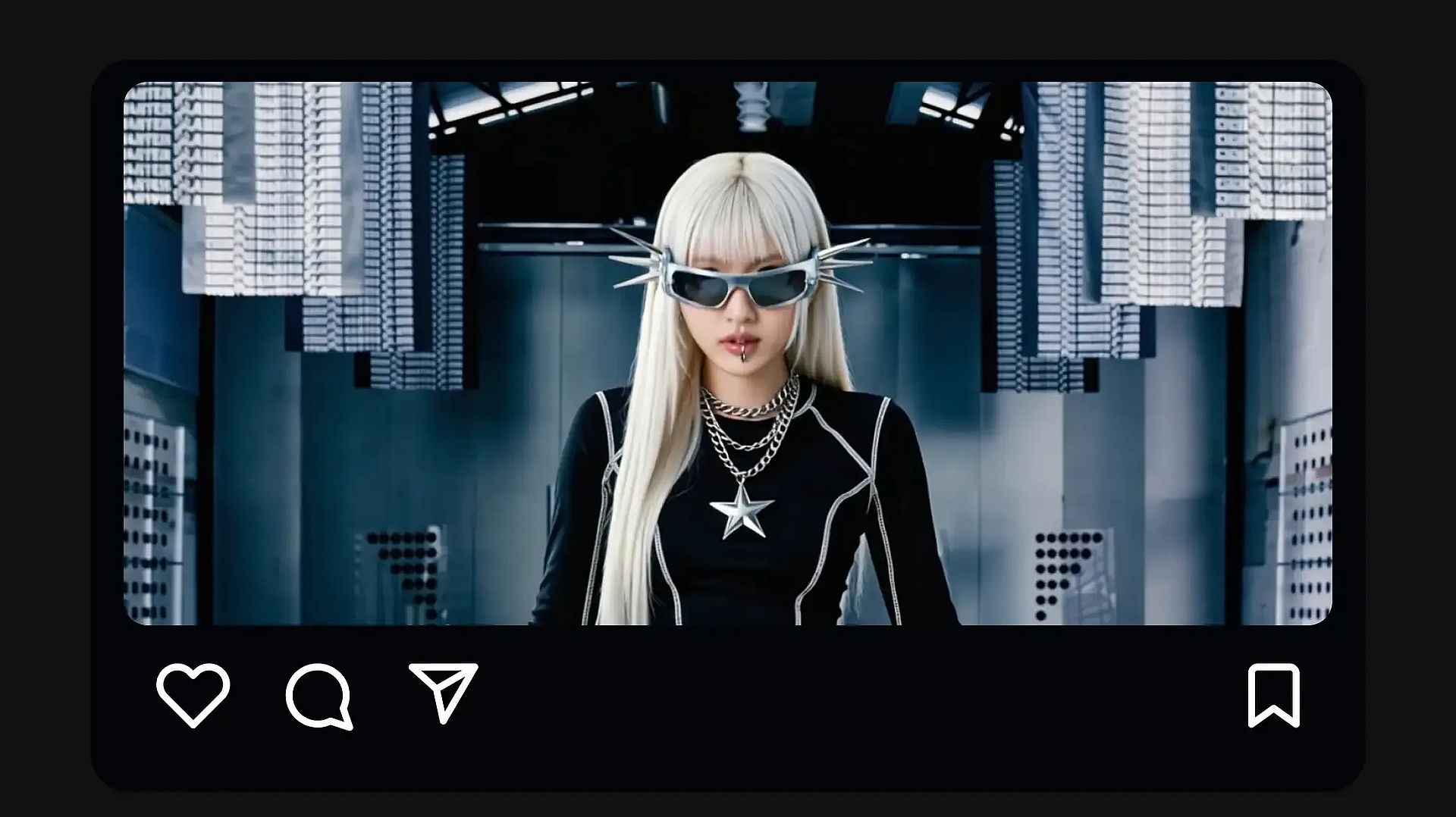
See what creators are making with Kling 3.0 Motion Control. From cinematic camera moves to fluid character animations.
Key Features of Kling 3.0 Motion Control
Reference Motion Transfer
Kling 3.0 Motion Control extracts movement patterns from a reference video and applies them to a new character or scene. When you upload a motion clip, the model tracks how the subject moves across frames and reproduces the same timing, body posture, and gesture sequence in the generated video.
Try it NowCharacter Identity Preservation
Kling 3.0 Motion Control keeps the character's appearance stable while the motion is applied. You can upload reference images that define the character's face, hair, clothing, and overall design, and the model maintains those details across the generated frames.
Try it NowCinematic Camera And Scene Control
Kling 3.0 Motion Control separates the motion of the character from the surrounding scene and camera setup. The reference video determines how the character moves, while the text prompt controls the environment, lighting, and camera direction.
Try it NowFace Occlusion And Identity Restoration
Kling 3.0 Motion Control can preserve a character's identity even when the face becomes partially hidden during movement. When objects such as hands, props, or clothing cover parts of the face, the model uses reference images through Element Binding to restore facial details accurately across frames.
Try it NowHow To Use Kling 3.0 Motion Control
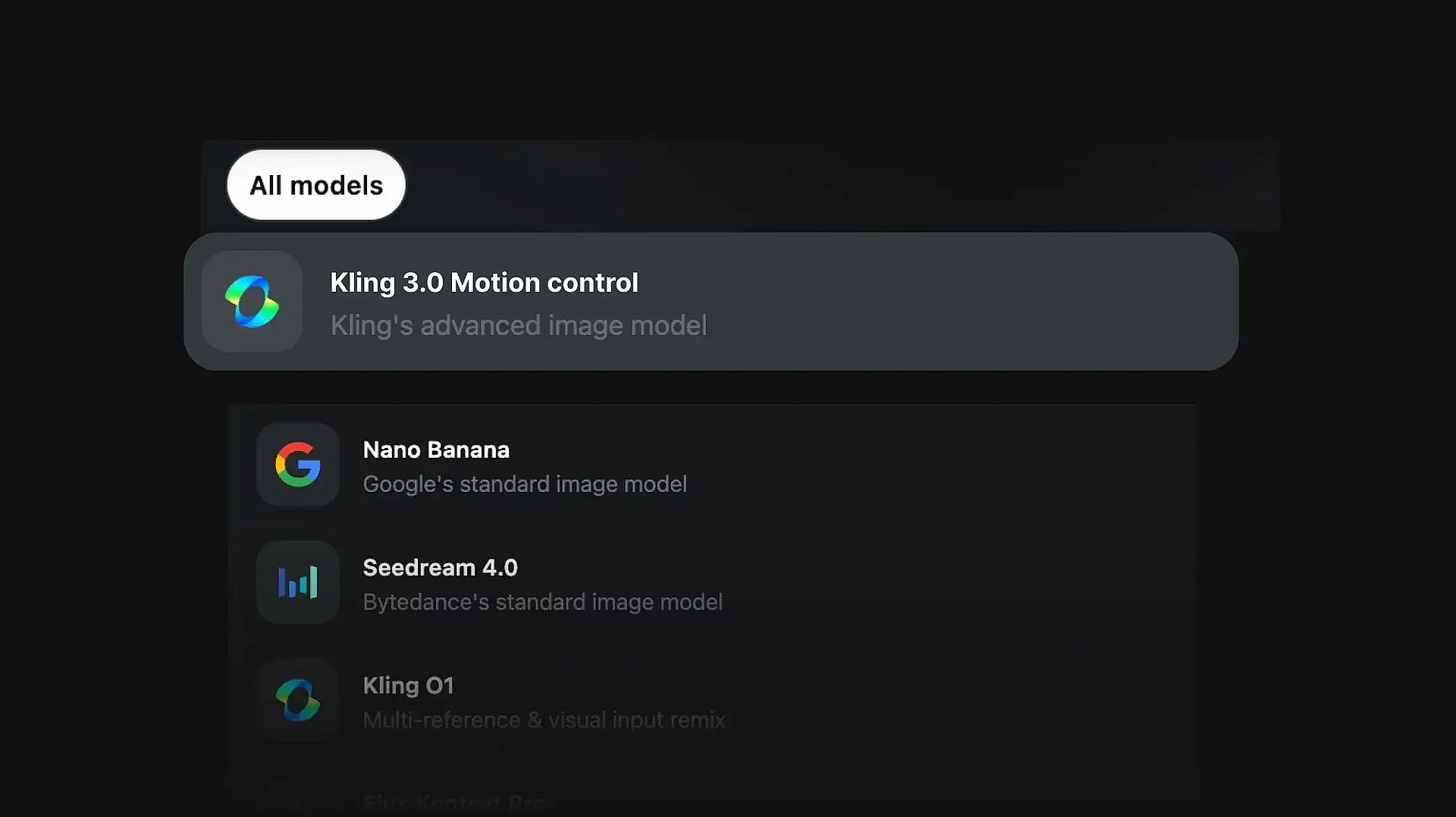
Pick the model
To get started, select the Kling 3.0 Motion Control AI video model.
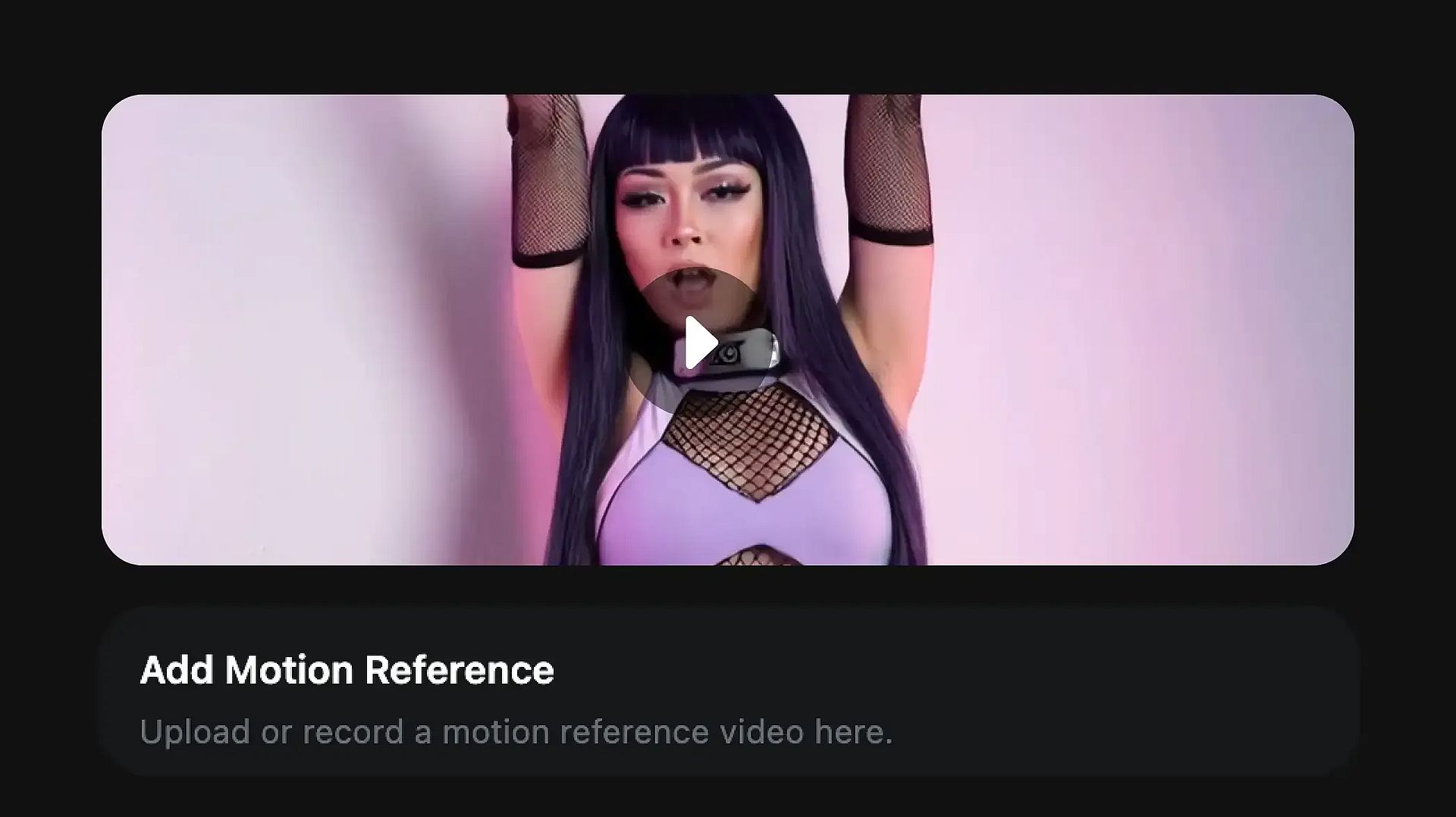
Upload motion reference
Upload a reference video that contains the movement you want to reproduce. This clip will define how the character moves in the generated video.
Save and share
Once the animation matches your vision, save the video or share it directly.
How To Get The Best Results
Frequently Asked Questions
The model typically uses a reference video to guide motion, a character image to define appearance, and a text prompt to control the environment and camera direction.
Yes. The reference video controls the character's movement, while the prompt can describe the camera direction, scene composition, and lighting. This allows the same motion to be placed into different cinematic settings.
Reference clips that clearly show the subject's body movement usually produce the best results. Videos with smooth motion, minimal blur, and a visible subject work most accurately.
Yes. You can upload an image of a character and apply motion from a real video. The model recreates the motion while preserving the character's visual appearance.
Get Insights from Experts Blog
Get the insights you need. Our experts share actionable hacks, break down the hottest topics, and provide essential how-to guides to help you build, optimize, and scale.
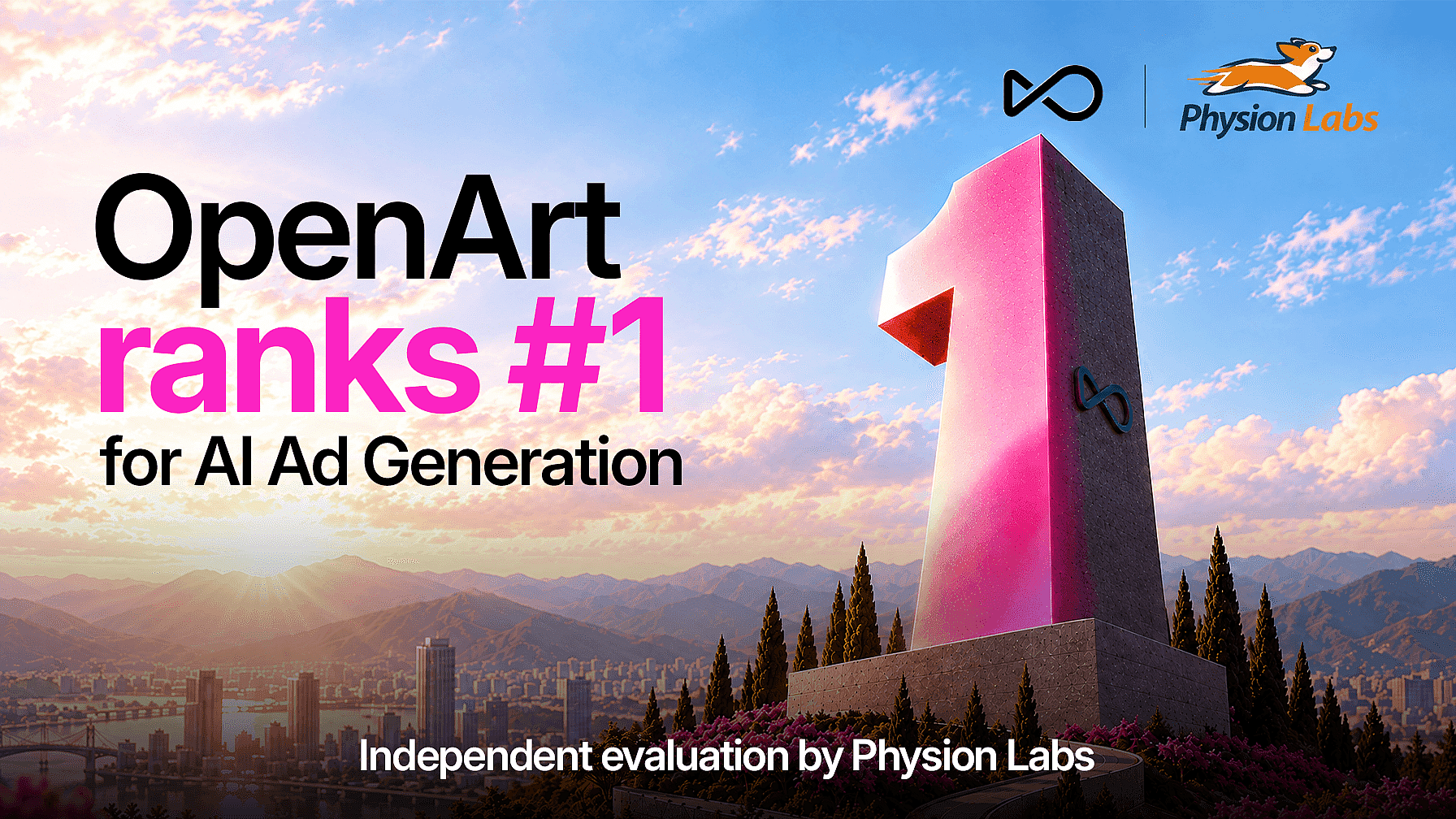
OpenArt Director Ranks #1 on Physion Labs' AI Video Ad Agent Benchmark
OpenArt Director ranked #1 in Physion Labs' AI video ad benchmark, beating 5 agents across 100 briefs and 500 videos to lead every quality category.
What Is OpenArt? – The All-In-One AI Creation Platform Explained
OpenArt is a generative AI platform for making images, video, and audio, from text prompts and references. Learn what it does, how it works, which models it runs, what it costs, and why you should use it.
OpenArt Introduces OpenArt Arena, a New AI Model Benchmark Tailor-Made for and by Creatives
OpenArt launches OpenArt Arena, the first AI image and video model leaderboard built on blind, expert evaluations from top creatives across film, advertising, and design.
Loved by Creators
I've tried many AI platforms... but OpenArt is still the best for character creation, image-to-video quality, and the variety of models available.
OpenArt offers an excellent array of AI tools... once you learn the features, the creative possibilities are amazing - and their support team is outstanding.
OpenArt is a very versatile AI platform with many image and video models, consistent character creation, and powerful editing tools.
Helpful AI tools all in one place - image and video generation, editing, and more... no need for multiple subscriptions.
Customer service is always quick and helpful... and the platform keeps getting better with new features and tools.
I've tried many AI platforms... but OpenArt is still the best for character creation, image-to-video quality, and the variety of models available.
OpenArt offers an excellent array of AI tools... once you learn the features, the creative possibilities are amazing - and their support team is outstanding.
OpenArt is a very versatile AI platform with many image and video models, consistent character creation, and powerful editing tools.
Helpful AI tools all in one place - image and video generation, editing, and more... no need for multiple subscriptions.
Customer service is always quick and helpful... and the platform keeps getting better with new features and tools.
I've tried many AI platforms... but OpenArt is still the best for character creation, image-to-video quality, and the variety of models available.
OpenArt offers an excellent array of AI tools... once you learn the features, the creative possibilities are amazing - and their support team is outstanding.
OpenArt is a very versatile AI platform with many image and video models, consistent character creation, and powerful editing tools.
Helpful AI tools all in one place - image and video generation, editing, and more... no need for multiple subscriptions.
Customer service is always quick and helpful... and the platform keeps getting better with new features and tools.
With so many AI platforms out there, OpenArt stood out as a stellar choice - I'd recommend it to any creator.
This platform includes everything you need for AI content creation - images, video, characters, audio, and multiple AI models in one place.
OpenArt is pushing the boundaries of AI video creation... and it's clear the team is committed to improving the creator experience.
I made my first AI music video with OpenArt... and their support team was the best help I've ever experienced.
I'm very happy with the support - my issue was resolved quickly and the team made the process easy.
With so many AI platforms out there, OpenArt stood out as a stellar choice - I'd recommend it to any creator.
This platform includes everything you need for AI content creation - images, video, characters, audio, and multiple AI models in one place.
OpenArt is pushing the boundaries of AI video creation... and it's clear the team is committed to improving the creator experience.
I made my first AI music video with OpenArt... and their support team was the best help I've ever experienced.
I'm very happy with the support - my issue was resolved quickly and the team made the process easy.
With so many AI platforms out there, OpenArt stood out as a stellar choice - I'd recommend it to any creator.
This platform includes everything you need for AI content creation - images, video, characters, audio, and multiple AI models in one place.
OpenArt is pushing the boundaries of AI video creation... and it's clear the team is committed to improving the creator experience.
I made my first AI music video with OpenArt... and their support team was the best help I've ever experienced.
I'm very happy with the support - my issue was resolved quickly and the team made the process easy.
Create without limits
Join thousands of creators using OpenArt to generate stunning images, videos, and more — all in one platform.
Get Started for Free →