AI Video Editor
OpenArt’s AI video editor lets you edit real footage with prompts. Change backgrounds, replace characters, add sound, and transform clips in minutes.
Key Benefits of AI Video Editor
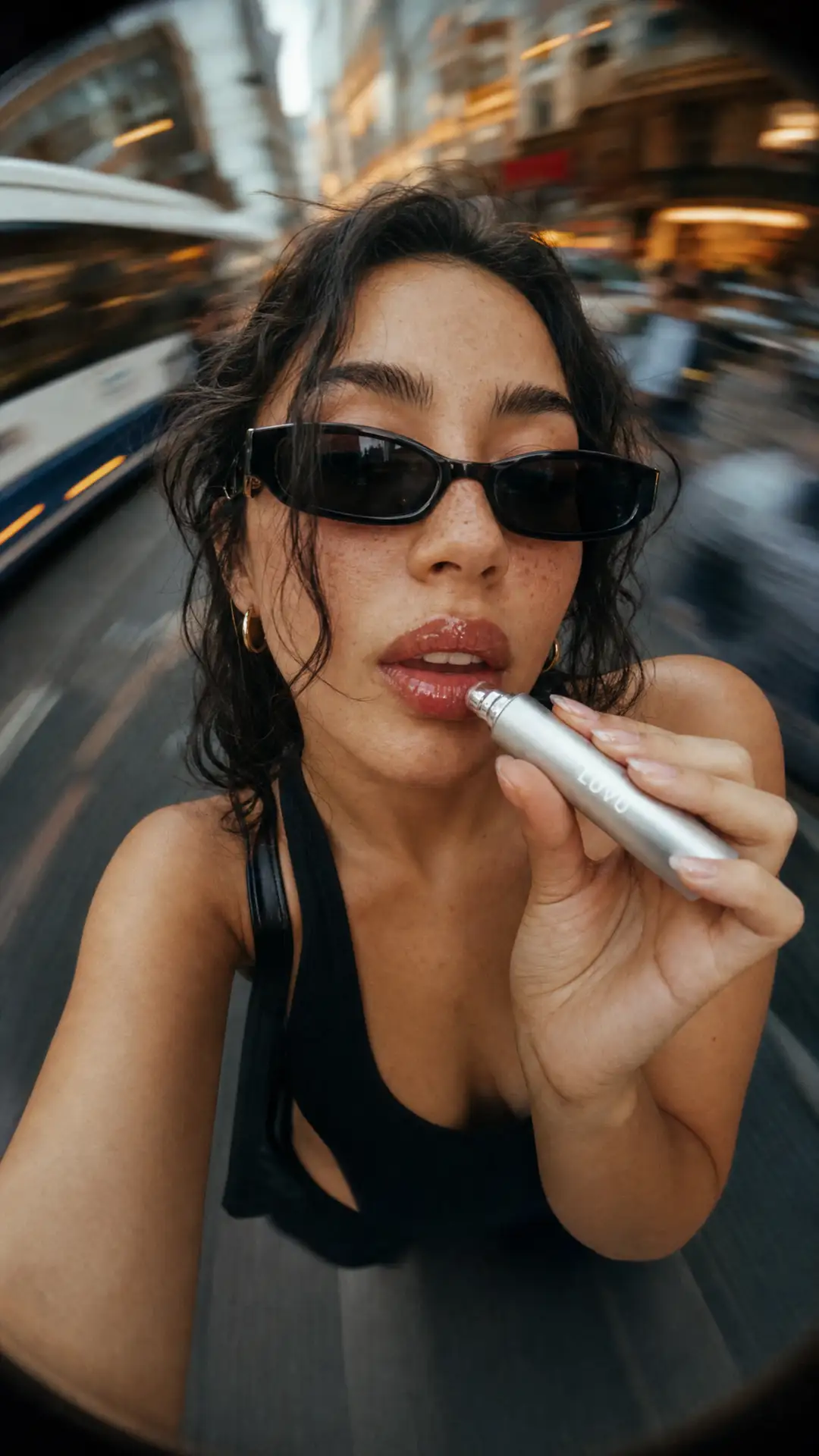

Conversational Editing
Chat with the AI the way you would text a friend. Say what you want different about your video and it makes that change for you.
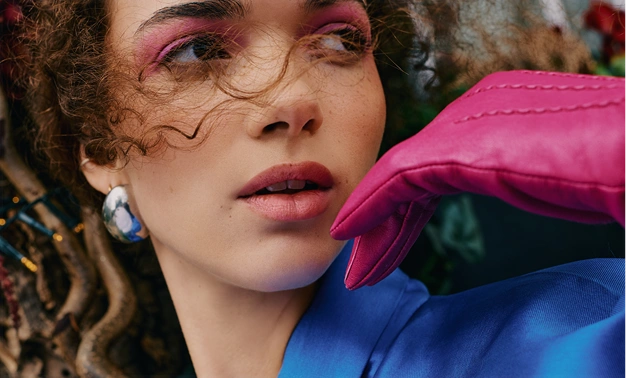

Precise, Regional Edits
Everything you did not ask to change stays the same. The people, the movement, and the parts you were happy with all carry over. No unnecessary regenerations.
Extensive Editing Capabilities
Change the background, swap a face, add sound, or make an old clip look sharp, all without moving your video between apps.
Key Features of AI Online Video Editor
OpenArt's AI video editing features are powered by the best AI video models, including Seedance 2.5, Seedance 2.0, Gemini Omni Flash, Kling O1, and more.
Edit your videos with AI
Open the Edit Video tool, upload a clip, and tell it what to change. Ask for "make her jacket red" or "make it rain outside the window" and you get that video back. Keep prompting to try other ideas until the clip looks exactly the way you pictured it.
Change backgrounds and lighting
Put your main character somewhere new, or fix light that came out too dark or too flat. You can also point at one subject in the shot and change only that. These AI video effects all exist thanks to OpenArt VFX, and none of them need a green screen.
Swap a face or a whole person
Put a different person in your video with an AI face swap or character replacement. Upload a photo of the new face you want, or pick a character you saved in the OpenArt Characters library. The new face follows every move your subject makes, so it looks real instead of pasted on.
Add voices, sound, and movement
Type out what you want your subject to say and the AI does the lip sync to it. Ask for sounds and it adds them, like rain on a window or a door closing. You can also copy the moves from one video onto another one with Motion Sync.
Make your video longer and sharper
With the Extend Video tool, add up to 10 more seconds onto the end of a clip and the AI picks up right where it stopped. You can also clean up an old or blurry video with the Upscale Video tool and take it all the way up to 4K, so it’s ready for a pixel-dense, big screen.
How to Use the AI Video Editor
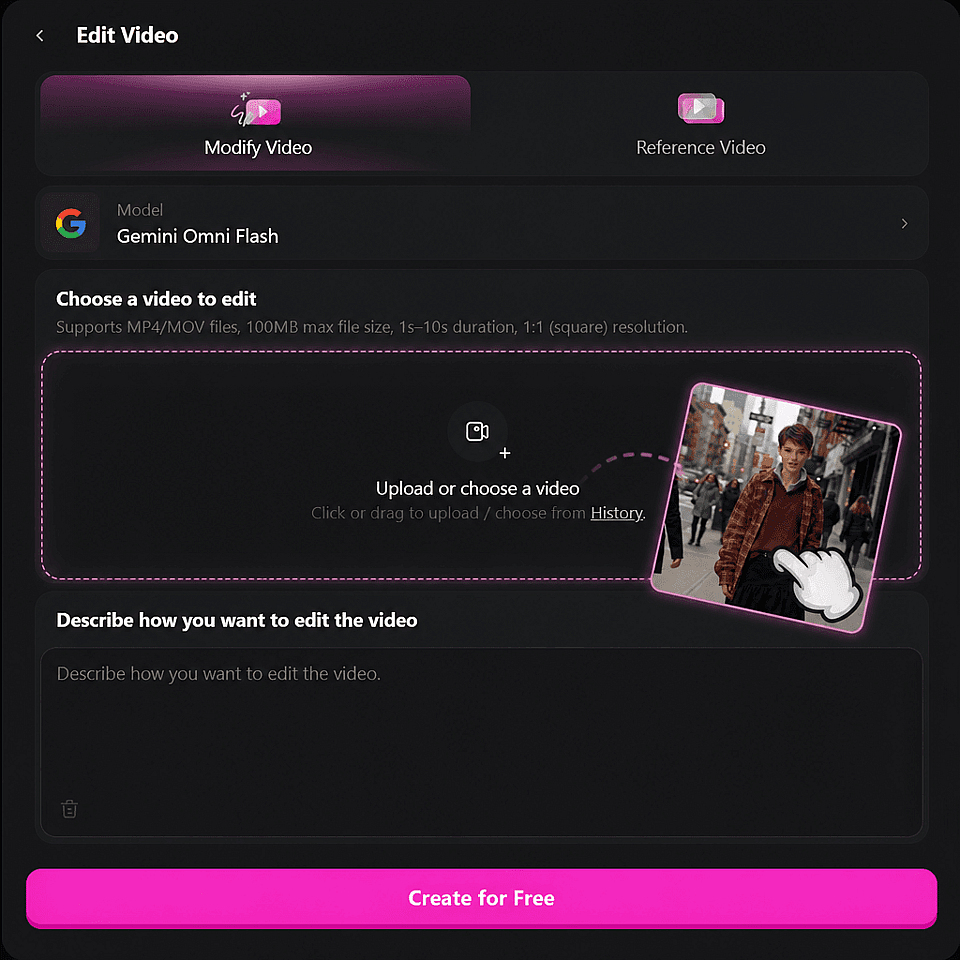
Open Edit Video tool
From the OpenArt video tools, open Edit Video and choose a model like Seedance 2.5 or Gemini Omni Flash.
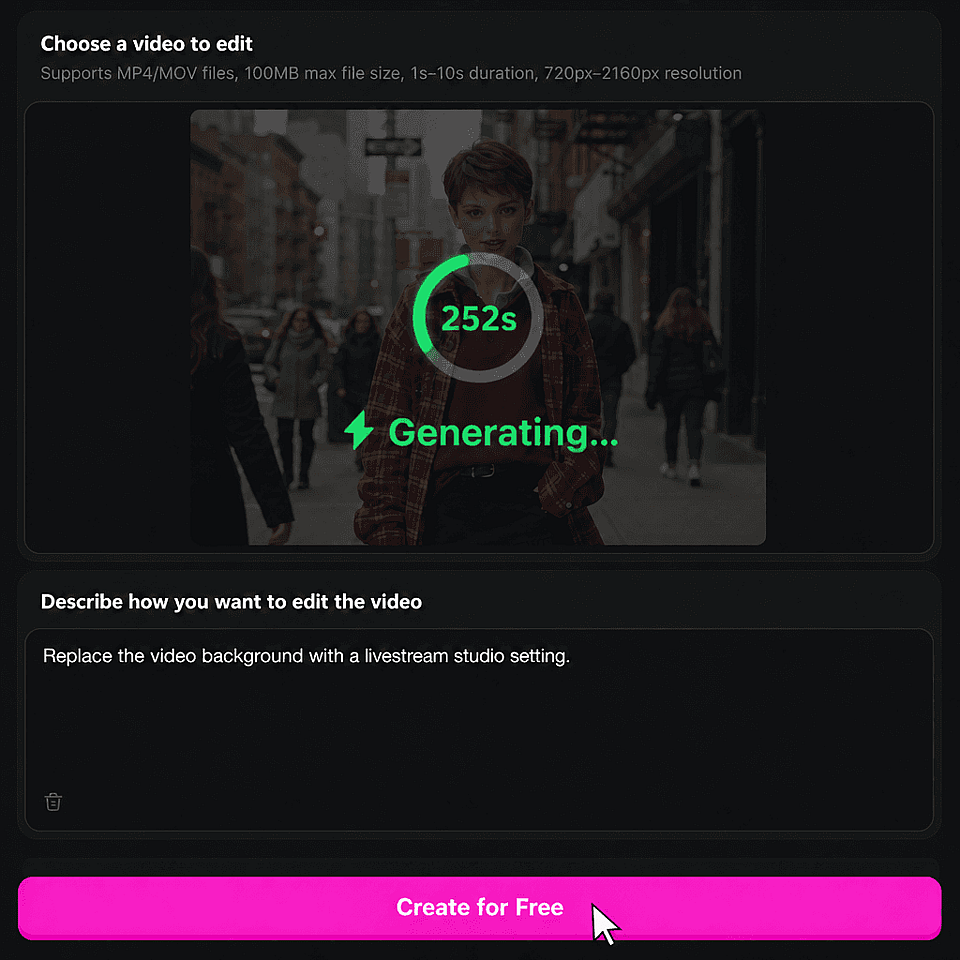
Upload your clip
Add an MP4 or MOV file up to 100MB and 10 seconds long, or pick one you already made from your Library.
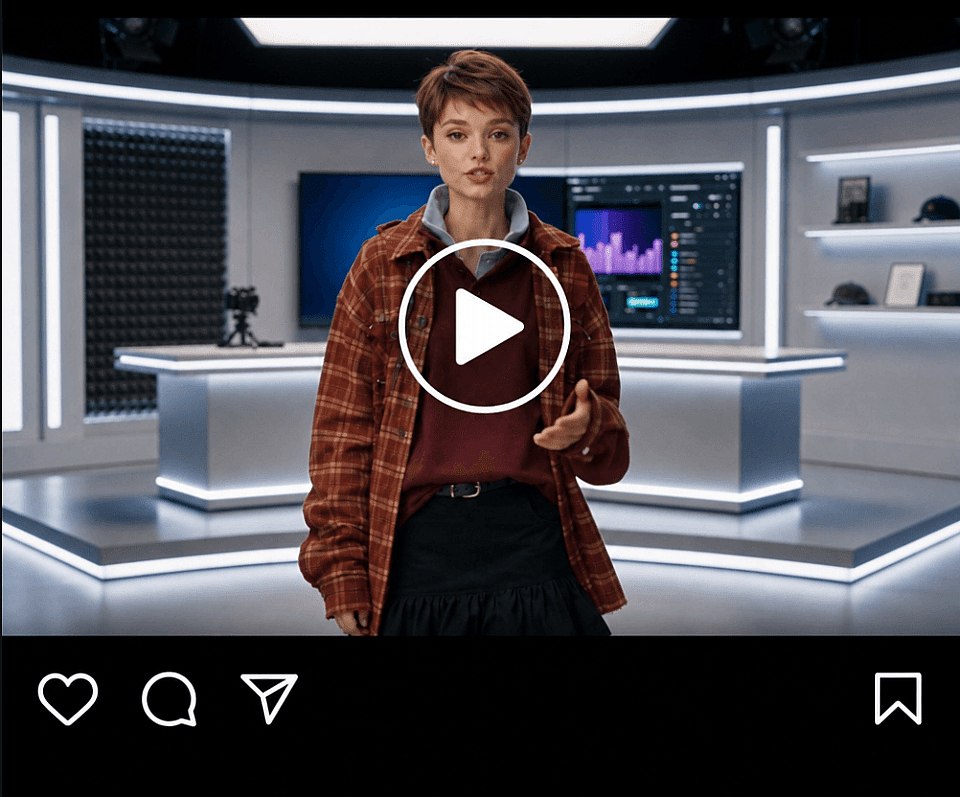
Prompt your edits
Type the changes in the box, hit Generate, then download your new video or ask for other changes.
Best Uses for the AI Video Editor
You do not need to be a professional editor. If you can just describe the change, you can make it.
Creators making variants of one video
You post a lot, and filming every idea takes all day. Take one UGC clip and make it ten. Change the outfit, the room, or the time of day each time, and you get a whole week of posts out of a single afternoon of filming.
Try it NowFriends and family having fun with clips
Put your friend's face on the dancing guy. Turn a birthday video into a snow scene. Give your dog a voice. These are the edits that used to need a friend who owns editing software, and now they take one prompt and a couple of minutes.
Try it NowMarketers needing quick, short video content
You want a short hero video at the top of your website, and you want it today. Film something quick on your phone, then ask the AI to clean up the light, drop in a nicer background, and add sound. You get a clip that looks paid for without paying for one.
Try it NowE-com stores making product ads & demos
One clip of your product can become several. Show it on a kitchen counter, then a café table, then outdoors, all from the same video. It costs you nothing extra to try another look, and you can make brand new clips with the AI video generator whenever you need them.
Try it NowFrequently Asked Questions
It is a tool that changes a video you already have, based on what you ask for. You upload your clip, tell the AI what you want different, and it gives you back a new version with that change made. On OpenArt this tool is called Edit Video, and there are other editing-adjacent tools such as VFX, Replace Character and Upscale Video too.
Yes. Ask for one change and that is the only thing that moves. The person, the movement, and everything else stay the way you filmed them. If you want to be extra safe, you can mark the part of the video that should stay untouched.
It changes what is inside your video, which is a different job from cutting a long video down. Pick the few seconds you want to keep, bring that clip here, and change anything in it. You get new backgrounds, new faces, new lighting, and new sounds on the footage you already chose.
MP4 and MOV files up to 100MB. Your clip can be 1 to 10 seconds long. If your video is longer than that, you can edit it in shorter pieces.
Look for one where you ask for the change instead of learning a timeline first. OpenArt works that way, so if you can write a sentence, you can make the edit. There is nothing to drag or line up, and your first edit works the same way as your hundredth.
Each edit uses credits, and the number depends on which model you pick. You see the exact cost on the Generate button before you run it, so there are no surprises.
Open the Edit Video tool on OpenArt, choose a model, and upload your clip. Then type what you want changed, like "make it snowing" or "put him in a suit", and hit Generate. Your new video is ready in a few minutes.
Clothes, colors, objects, the weather, the time of day, the background, the lighting, and the people in it. You can also add sounds, make someone say something new, copy movement from another video, make the clip longer, and make it look sharper.
Yes, it can make new things. Ask for a jacket your subject never wore, a room they were never in, or rain that was not falling that day, and the AI creates it and puts it in your video. Most editing apps can only work with what your camera happened to catch.
Gemini Omni Flash is the easiest place to start, because it is built for making a change just by asking. The Seedance models let you add other videos, pictures, and sound as references for what you want. Kling O1 is good when you want to change a few things in the same shot.
A few minutes for most videos, depending on the model and how long your clip is. It runs in the background, so you can close the tab and come back when it is done.
Yes, you can use them for business and paid work. Check your OpenArt plan for the terms on your account, and make sure you have permission for any videos and faces you upload.
Get Insights from Experts Blog
Get the insights you need. Our experts share actionable hacks, break down the hottest topics, and provide essential how-to guides to help you create, optimize, and scale.
Read More