

 ChatGPT
 Perplexity
 Claude
 Gemini
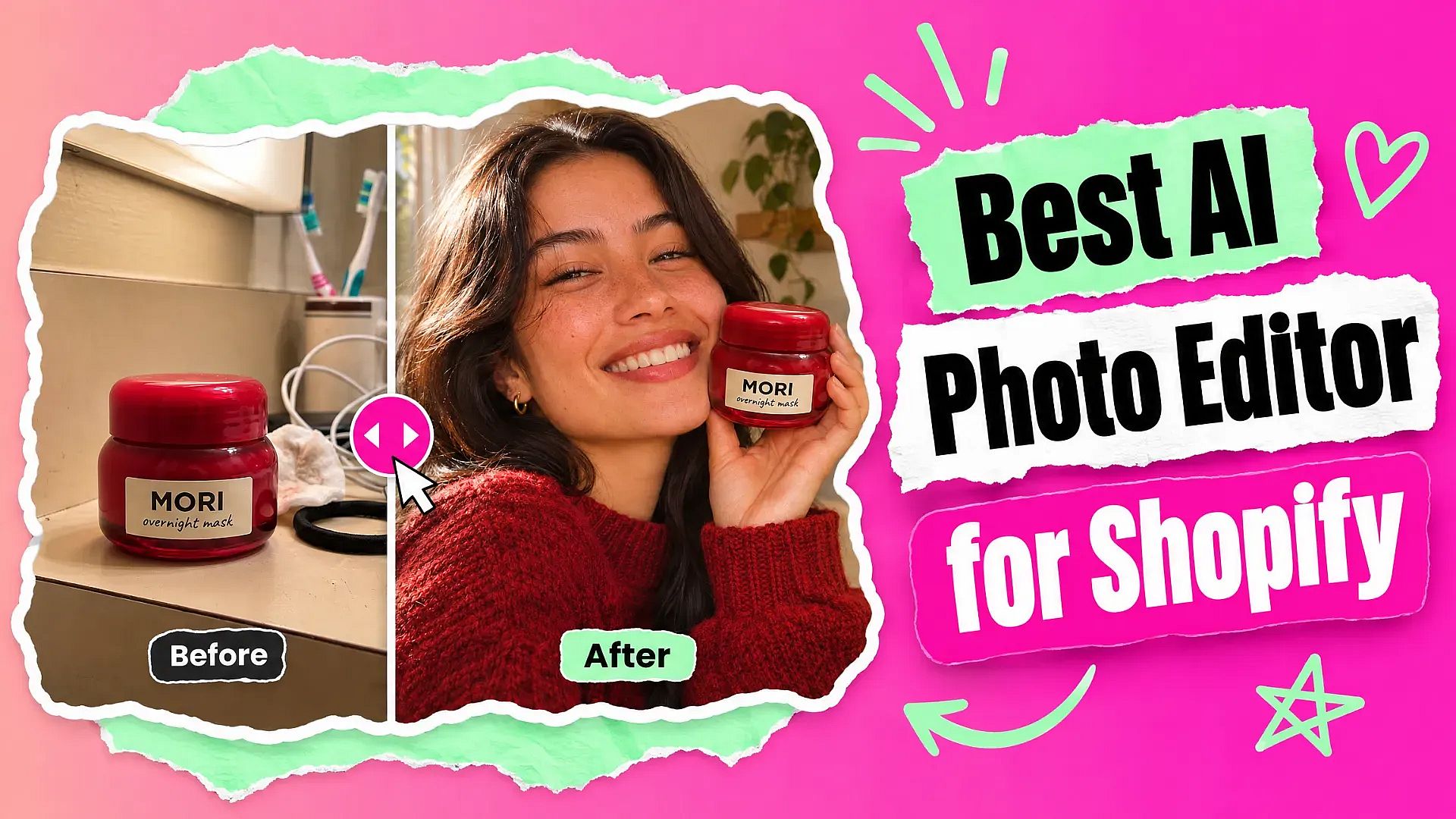
Picking the best Shopify photo editor comes down to where the edit happens. Shopify's built-in media editor handles quick crops and background swaps on Shopify product images. Shopify apps sync bulk edits back to your catalog. Outside AI tools make new scenes, sale banners, and product videos that you upload yourself. This guide compares the best AI photo editor for Shopify product images in each group, matches each tool to a real Shopify job, and walks through a workflow you can copy. It also lists the image sizes Shopify uses, so every edited photo fits your product pages and banners.
TL;DR
- For quick crops, resizes, and background swaps, Shopify's built-in media editor and AI media generation work inside the admin.
- For bulk edits that sync back to your catalog, a Shopify app such as Photoroom fits best.
- For new lifestyle scenes, sale banners with text, and product videos from one phone photo, OpenArt fits best, and the files are then uploaded to Shopify.
- Keep product images square at 2048 x 2048 px so zoom works and your collection grid lines up.
What Does a Shopify Photo Editor Need to Do?
A Shopify image editor has to do more than make one photo look good. Every image has a place in the store, and each place has its own job:
- Product page gallery: a clean main image, plus lifestyle, detail, and scale shots.
- Collection grid: main images in the same aspect ratio, so products line up. Shopify notes that images with the same ratio display at the same size side by side.
- Variant images: one image per color or style, assigned to the matching variant.
- Homepage and sale banners: wide images with room for text. Theme sections such as slideshows and image banners crop images to fit their shape.
- Ads and marketplaces: the same product sized for feeds, Stories, and Google Shopping.
The product itself has to stay true in all of these images. If the label or color changes, the listing no longer shows what the shopper will get.
When brand and ecommerce teams describe what slows them down, the same requests come up again and again:
- Readable label text: brand fonts, badges, and small print are where AI edits most often fail.
- Variants from one shoot: swapping SKUs, extending backgrounds, and making size and label versions without a new photo session.
- Short product clips: 3 to 6 second videos made from white background catalog images, for product pages and catalog ads.
- One design in every size: the same promo resized for feeds, Stories, and display ads, with quick changes to the offer or button text.
The tools below are compared on how well they handle these jobs for a Shopify store.
Best Shopify Photo Editors Compared
| Tool | How it works with Shopify | Best Shopify job | Watch out for |
|---|---|---|---|
| OpenArt | Web app; download, then add to Shopify Media | Lifestyle scenes, sale banners with text, infographics, product videos | Not a Shopify app, so there is no catalog sync |
| Shopify media editor and AI media generation | Built into the Shopify admin | Quick crops, resizes, alt text, and background swaps on single images | AI images default to about 1 megapixel, one scene at a time |
| Photoroom | Shopify app that syncs edits to your products | Catalog-wide cleanup, templates, and color variant images | The app needs permission to edit products and files |
| Claid | Web app and API, outside Shopify | Cleaning up supplier photos before import | No sync; bulk automation runs through the API |
| Canva | Canva Connect app opens your Shopify product images in Canva | Banners, badges, and text layouts | A general design tool, not built only for product photos |
| Google Product Studio | Inside the Google & YouTube app | Scenes and higher resolution for Google listings | Google labels it experimental |
For a wider look at free plans, credits, and watermarks across tools, see this list of free AI product photography generators. For photo editing outside of Shopify, such as object removal or text, this roundup of the best AI photo editor tools goes deeper.
The 6 Best Shopify Photo Editors for Product Images
1. OpenArt: Best for New Scenes, Banners, and Product Videos
The AI Product Image Generator on OpenArt turns one phone photo into studio shots, white background listing images, and lifestyle scenes. Simply upload the photo to Edit Image and describe the scene you want. This Image to Image edit changes the background and the light while the product stays as shot.
The AI Image Generator on OpenArt brings several image models into one account. GPT Image 2.6 and Nano Banana Pro keep small label text readable, which matters for skincare, food, and supplement packaging. No sample yet? Text to Image can make an early mockup from a written description.
For a Shopify store, OpenArt covers the images the built-in editor does not make: lifestyle shots for the gallery, a homepage banner with headline and button text, and a product infographic. Chat Mode can make several of these from one message and shows the credit cost first. Image to Video then turns a finished photo into a short clip, and Shopify product media accepts MP4 and MOV files up to 10 minutes long.
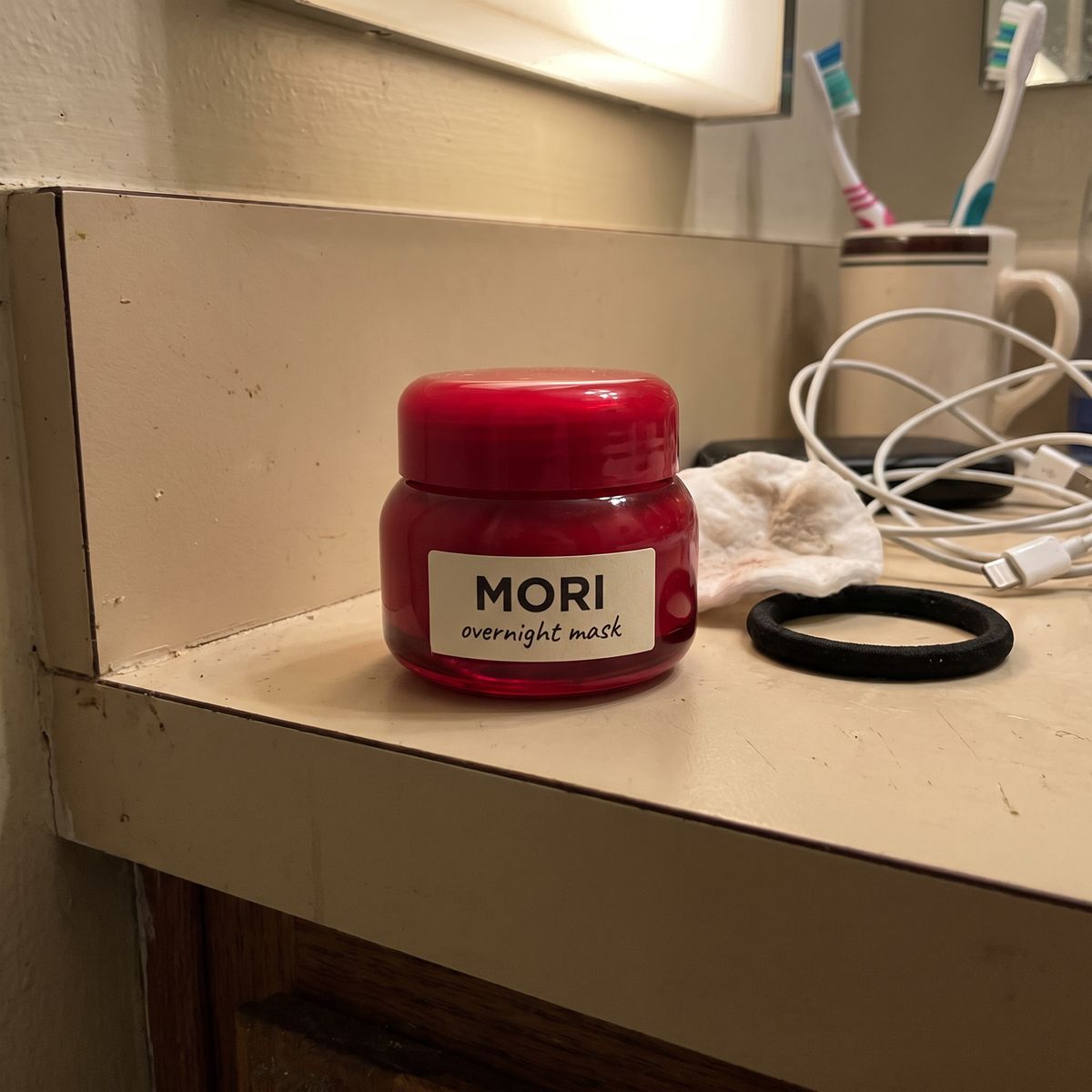
Before: phone photo
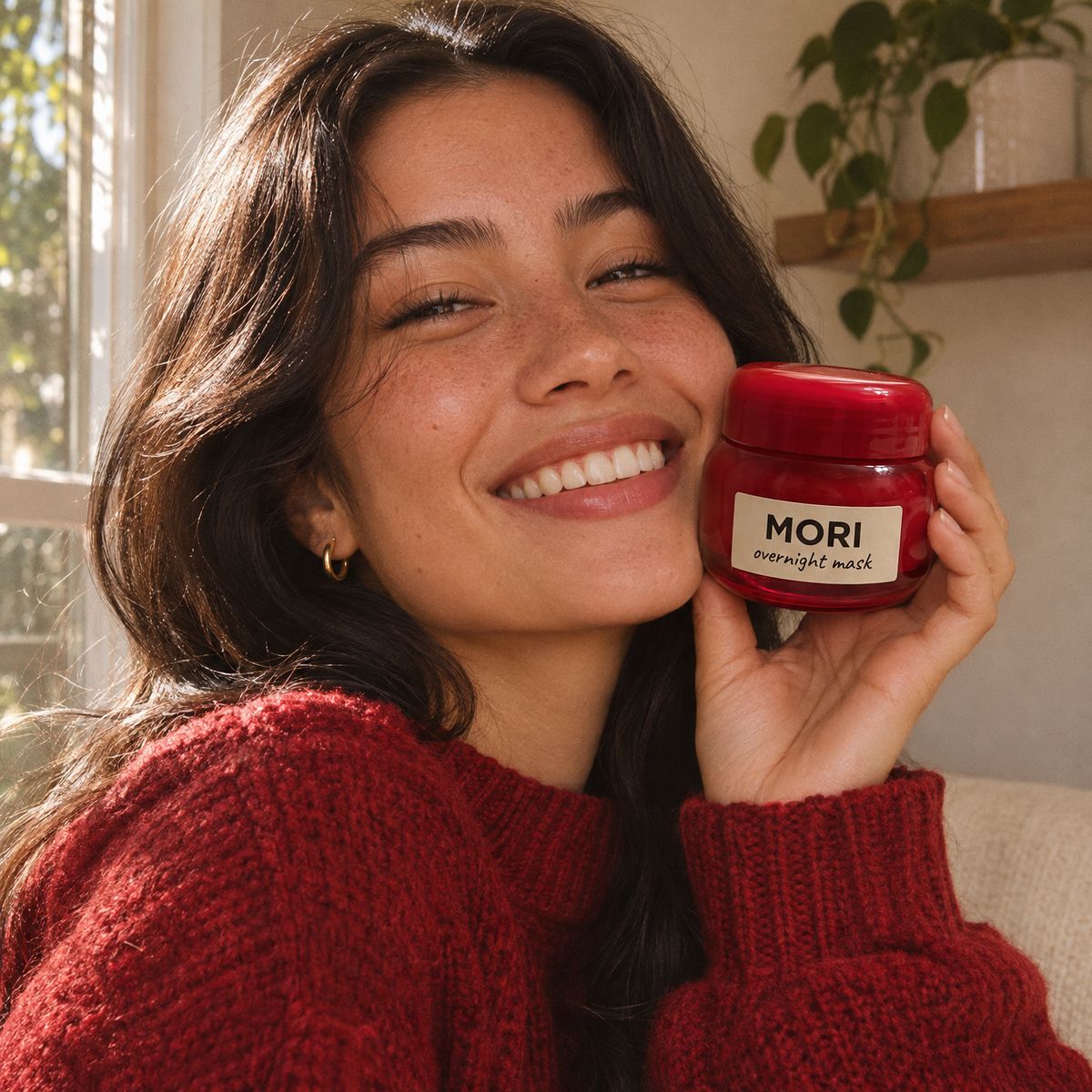
After: OpenArt Edit Image
One phone photo, edited with GPT Image 2.6. The jar, lid, and label stay the same.
- Best Shopify jobs: lifestyle gallery shots, homepage and sale banners, product infographics, and short product videos.
- Strengths: many image models in one place, edits built to keep the product as shot, and images and video in one account.
- Limits: OpenArt is not a Shopify app. Each file is downloaded and added to Shopify Media by hand.
- Price: free to start with 40 free credits and no credit card required. Commercial rights apply on eligible paid plans.
2. Shopify Media Editor and AI Media Generation: Best for Quick Edits Inside the Admin
Every Shopify store has a media editor for product media, theme images, and files. According to the Shopify Help Center, it can crop, resize, rotate, and draw on images, suggest alt text with AI, and remove or replace backgrounds. Image editing also works in the mobile app.
AI media generation, available through Sidekick in the file editor, adds three tools: Color background, Generate, which changes the background or lighting from a short prompt, and Extend.
- Best Shopify jobs: fixing single images without leaving the admin, cropping a collection to one aspect ratio, and writing alt text.
- Strengths: nothing to install, and edits save straight to the product.
- Limits: Shopify says generated images default to about 1 megapixel, well under its 2048 x 2048 px recommendation for square product images. The editor creates one AI scene at a time, and an invisible watermark is added that does not restrict commercial use.
- Price: Shopify lists AI media generation for Basic, Grow, Advanced, and Plus plans, at no additional cost for a limited time.
3. Photoroom: Best for Catalog-Wide Edits Synced to Shopify
Photoroom's Shopify app, listed as Photoroom AI Listing Assistant, connects to your store so edits flow back to your products. Sellers edit product images in batches, apply templates for a consistent look, add AI backgrounds and shadows, and publish the updates to Shopify. Photoroom's help center also covers Shopify workflows for recoloring products, AI fashion models, and ghost mannequin shots for apparel.
- Best Shopify jobs: matching main images across a large catalog, color variant images from one photo, and apparel listings.
- Strengths: batch edits, store sync, and a mobile app.
- Limits: to sync edits, the Shopify app needs permission to edit your products and store files.
- Price: free plan available. Check Photoroom's pricing page for current paid plans.
4. Claid: Best for Cleaning Up Supplier Photos
Claid suits stores that start from supplier photos or messy phone shots, which is common for dropshipping. It removes backgrounds, places products in AI Photoshoot scenes, upscales, and crops and pads images to sizes for Shopify, Amazon, and Google Shopping. Claid's Shopify page splits use in two: the web app for improving individual listings, and the API for growing catalogs, recurring supplier feeds, and teams that run several stores.
- Best Shopify jobs: fixing inconsistent supplier images before import, and processing recurring supplier feeds through the API.
- Strengths: no store permissions needed, and no scripts added to your theme.
- Limits: Claid is not a Shopify app, so finished files are downloaded and uploaded by hand unless your team connects the API.
- Price: free to try. Check Claid's pricing page for current plans.
5. Canva: Best for Banners and Text Layouts
Canva connects to Shopify through the Canva Connect app, which opens your product images and files inside Canva. From there, sellers add a "Sale" badge, a headline, or a collection banner to a finished product photo using Canva's templates. Canva's background remover is free to try.
- Best Shopify jobs: homepage and collection banners, promo badges, and social posts.
- Strengths: a large template library, brand fonts, and access to Shopify files.
- Limits: Canva is a general design tool and is not built only for product photos.
- Price: free plan available, with paid plans for more features.
6. Google Product Studio: Best for Google Shopping Images
Google Product Studio is available inside the Google & YouTube app in Shopify. According to Google Merchant Center Help, it can generate scenes, remove backgrounds, increase image resolution, and generate product videos.
- Best Shopify jobs: images for stores that already sell through Google Shopping.
- Strengths: built into the Google & YouTube app, which is free to install.
- Limits: Google calls the feature experimental, and it works best with packaged goods shown front and center.
- Price: Google's help page lists no separate fee.
Which Shopify Photo Editor Fits Each Job?
Most stores need several kinds of images. This table matches common Shopify jobs to the tool that handles each one best.
| Shopify job | Good fit | Why |
|---|---|---|
| White background main image for the collection grid | Shopify media editor, Photoroom | Color background in the admin for a few products; batch templates for a large catalog |
| Lifestyle shots for the product gallery | OpenArt | New scenes from one phone photo, with the product kept as shot |
| One image per color variant | Photoroom | A recolor workflow built for Shopify listings |
| Size, flavor, or label versions of one product | OpenArt | Edit Image swaps the label or packaging detail and keeps the scene, so a new SKU needs no new shoot |
| Supplier or dropshipping photos | Claid | Cleanup, upscaling, and size presets, plus an API for recurring feeds |
| Homepage hero or sale banner with text | OpenArt, Canva | A banner generated with headline text, or a Canva template over a finished photo |
| Product infographic for the gallery | OpenArt, Canva | Callouts generated in the image, or added with Canva's text tools |
| Short product clip from a white background image | OpenArt, Google Product Studio | Image to Video in OpenArt turns a catalog image into a few seconds of motion; Product Studio also generates product videos |
| Images for Google Shopping | Google Product Studio | Built into the Google & YouTube app |
| Alt text for product images | Shopify media editor | AI alt text suggestions inside the admin |
Many stores pair two tools: one for catalog cleanup and one for creative images. The built-in editor then handles the final crop and alt text before the product goes live.
How to Edit Shopify Product Images With AI
The steps below use OpenArt for the creative edit and the Shopify admin for the upload.
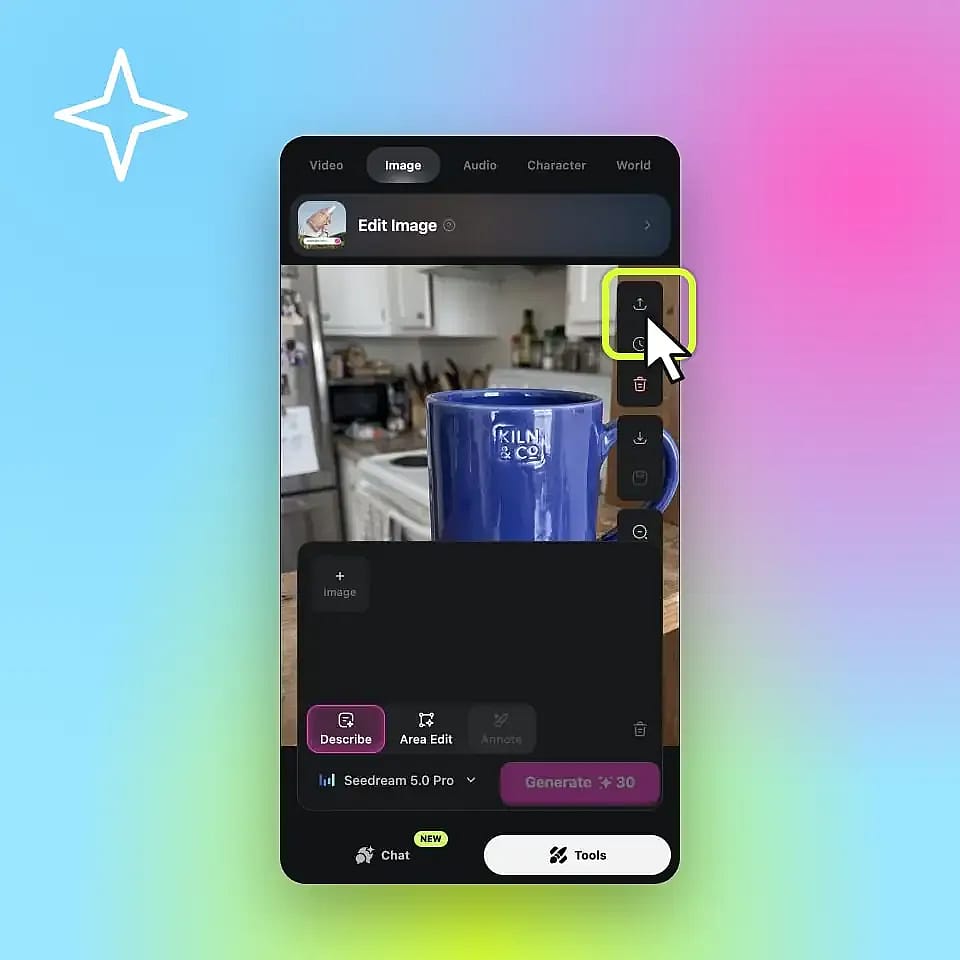
Step 1: Upload a Clear Product Photo
Open Edit Image and upload a sharp phone photo of the product. A plain background and even window light help the AI keep the label clean. Pick a 1:1 square size before you generate, since square images suit Shopify product pages.
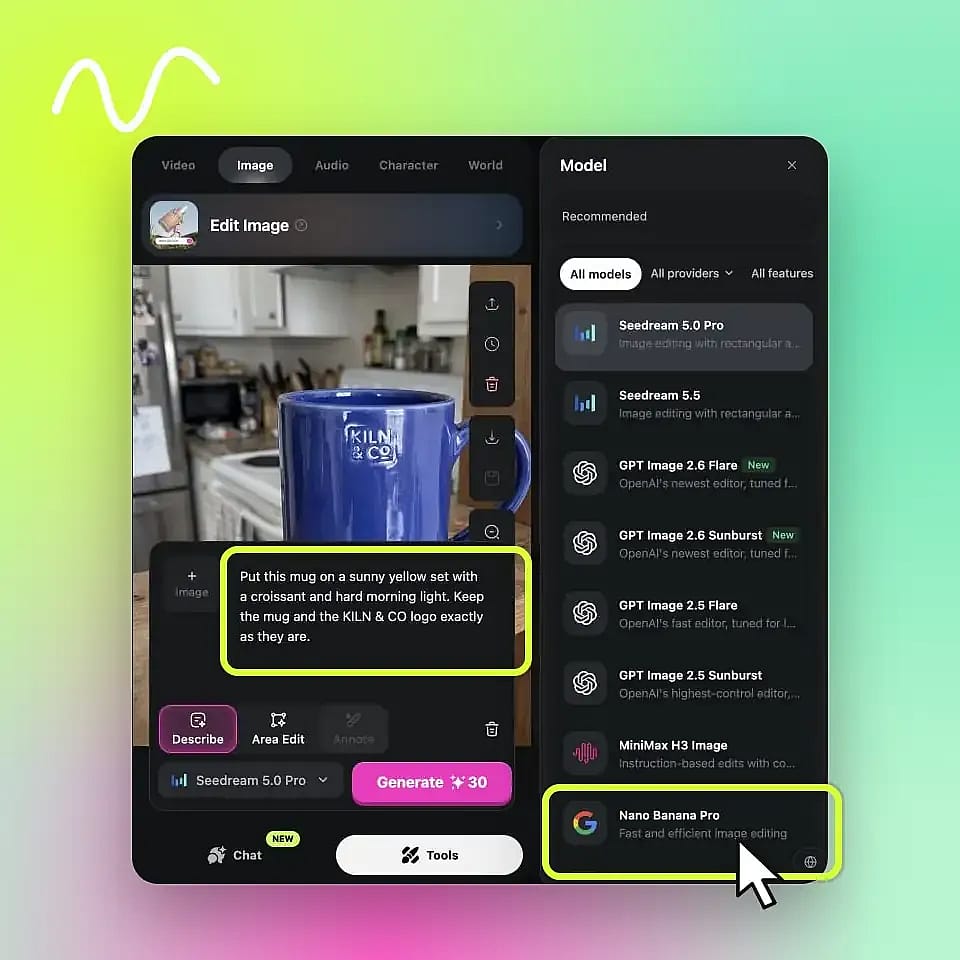
Step 2: Describe the New Scene
Type the background, surface, light, and props you want. Then add "keep the product, label, and shape exactly as they are." Choose GPT Image 2.6 or Nano Banana Pro for products with small text. For a simple background swap, the AI Background Changer is a quick option.
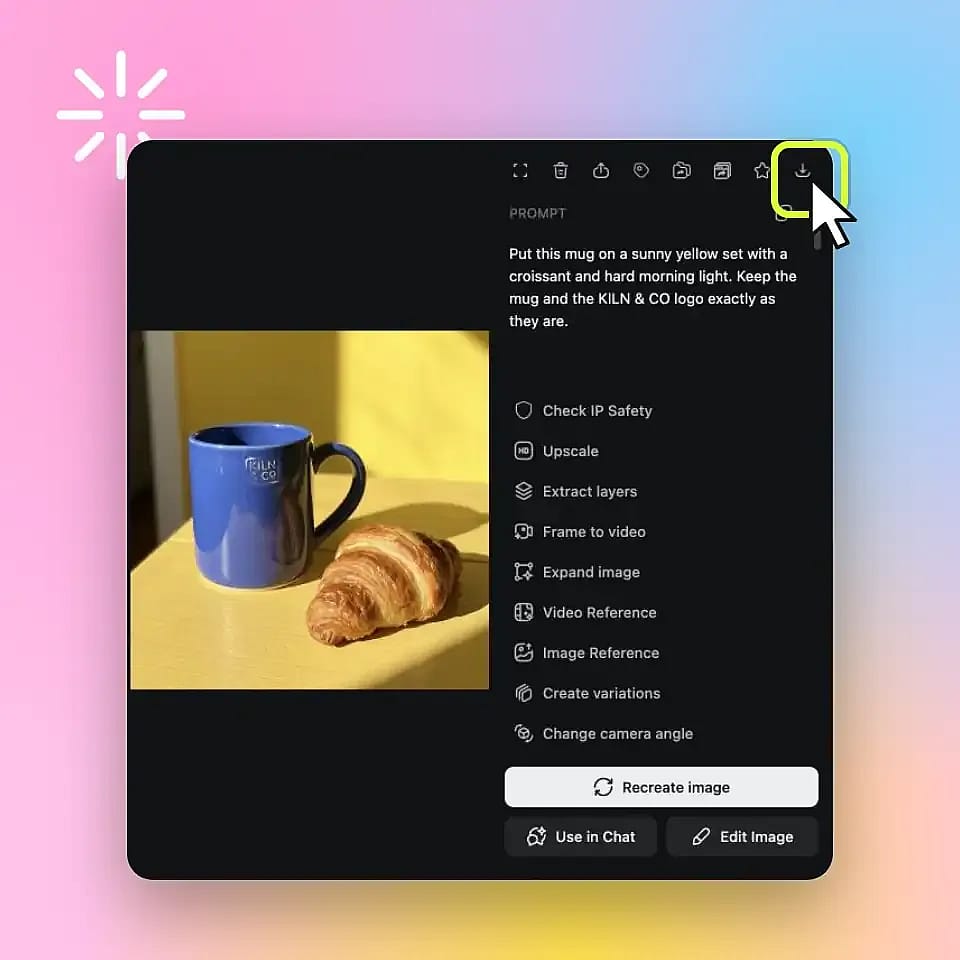
Step 3: Check, Upscale, and Add It to Shopify
Zoom in and check the logo, label, and color. Run the final version through Image Upscale so it stays sharp when shoppers zoom. Download the image, then in your Shopify admin open Products, select the product, and add the file under Media. If the image shows one color, assign it to the matching variant, and add alt text in the media editor.
AI Prompts for Each Shopify Product Image
Each prompt below is written for one spot in a Shopify store. Every prompt starts with the same line so the product stays as shot, and the product details can be swapped for your own.
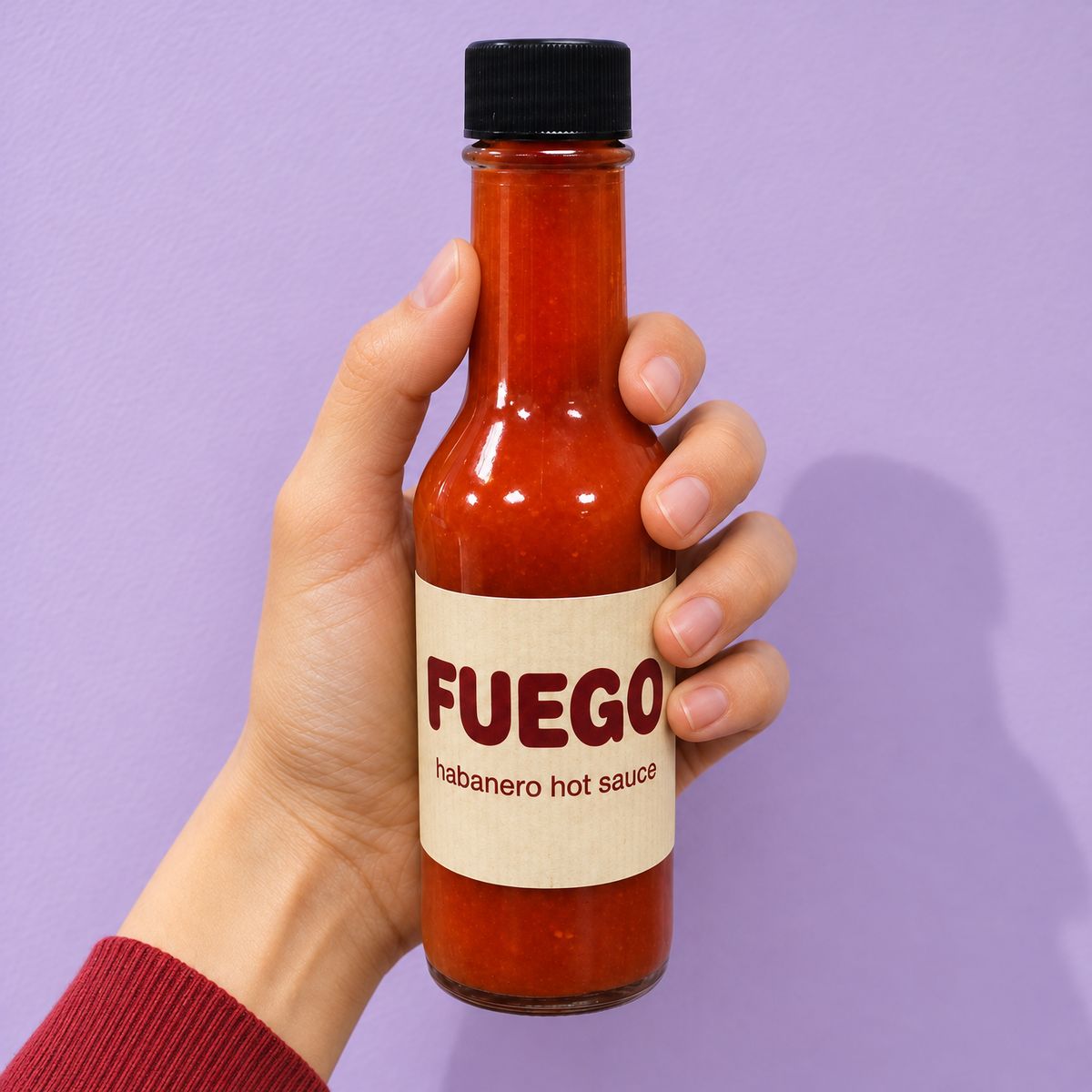
We ran each prompt in Edit Image with GPT Image 2.6. Image 1 is always a plain phone photo of the product. For most prompts, we also added two or three style reference images found on Pinterest with the same keyword, so the light and styling look like real brand photos. Here are the starting photos, then each prompt with its result.
Face mask
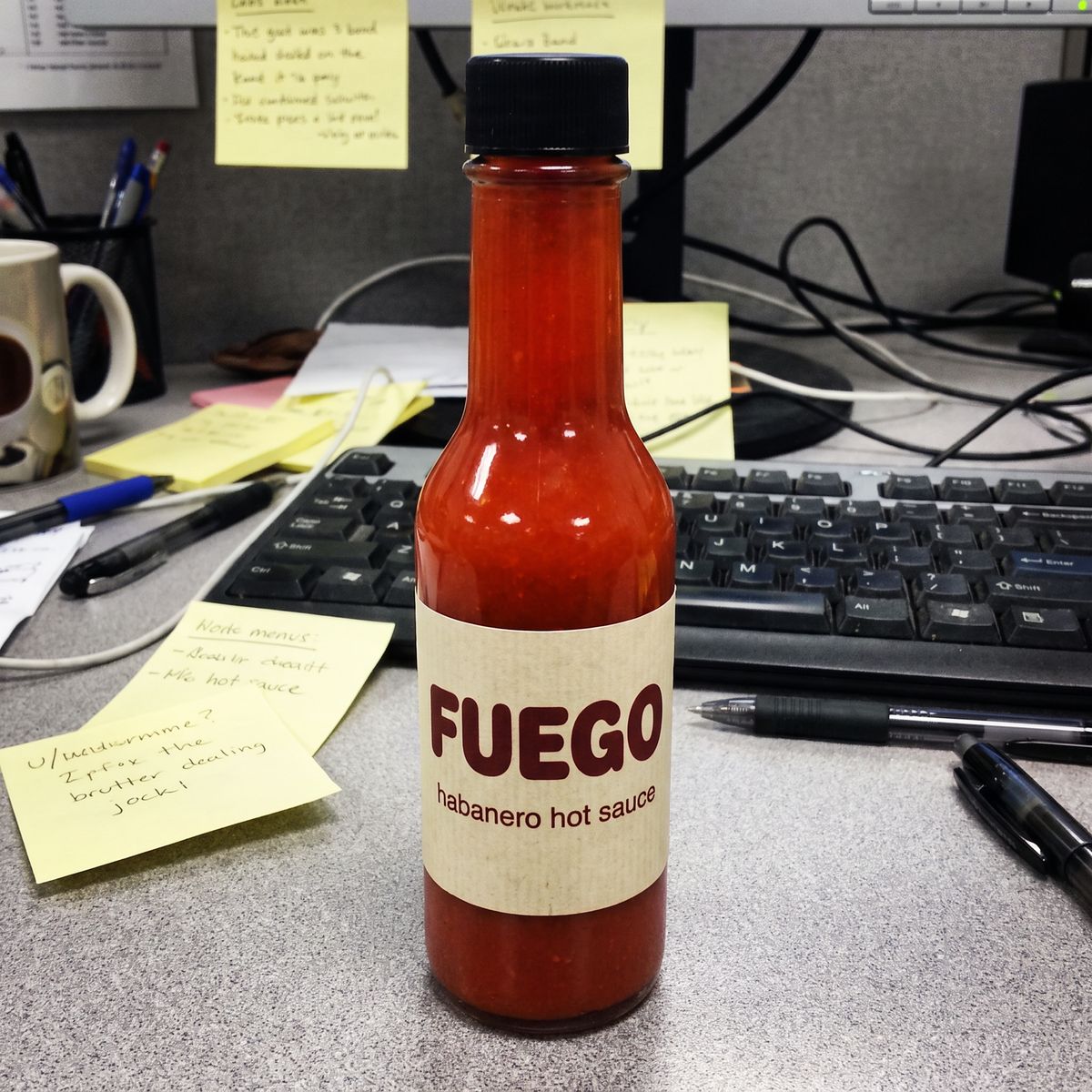
Hot sauce
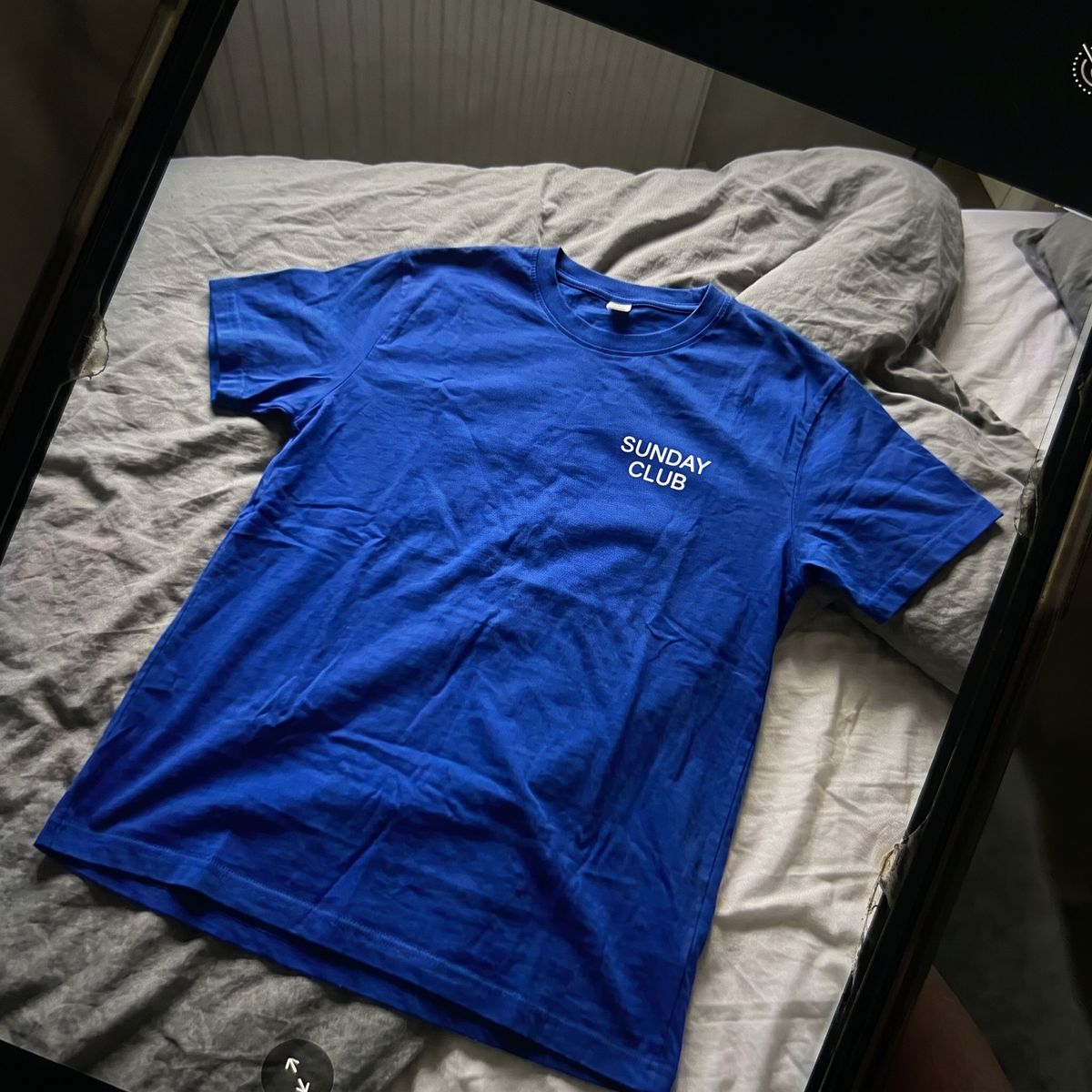
T-shirt
1. Main image for the product page
Keep the product, label, and shape exactly as in image 1. Place it on a pure white background with a soft shadow under it. Square 1:1 frame, product fills most of the frame, even studio light. Use the other images only as references for lighting and styling; do not copy their products, text, or logos.
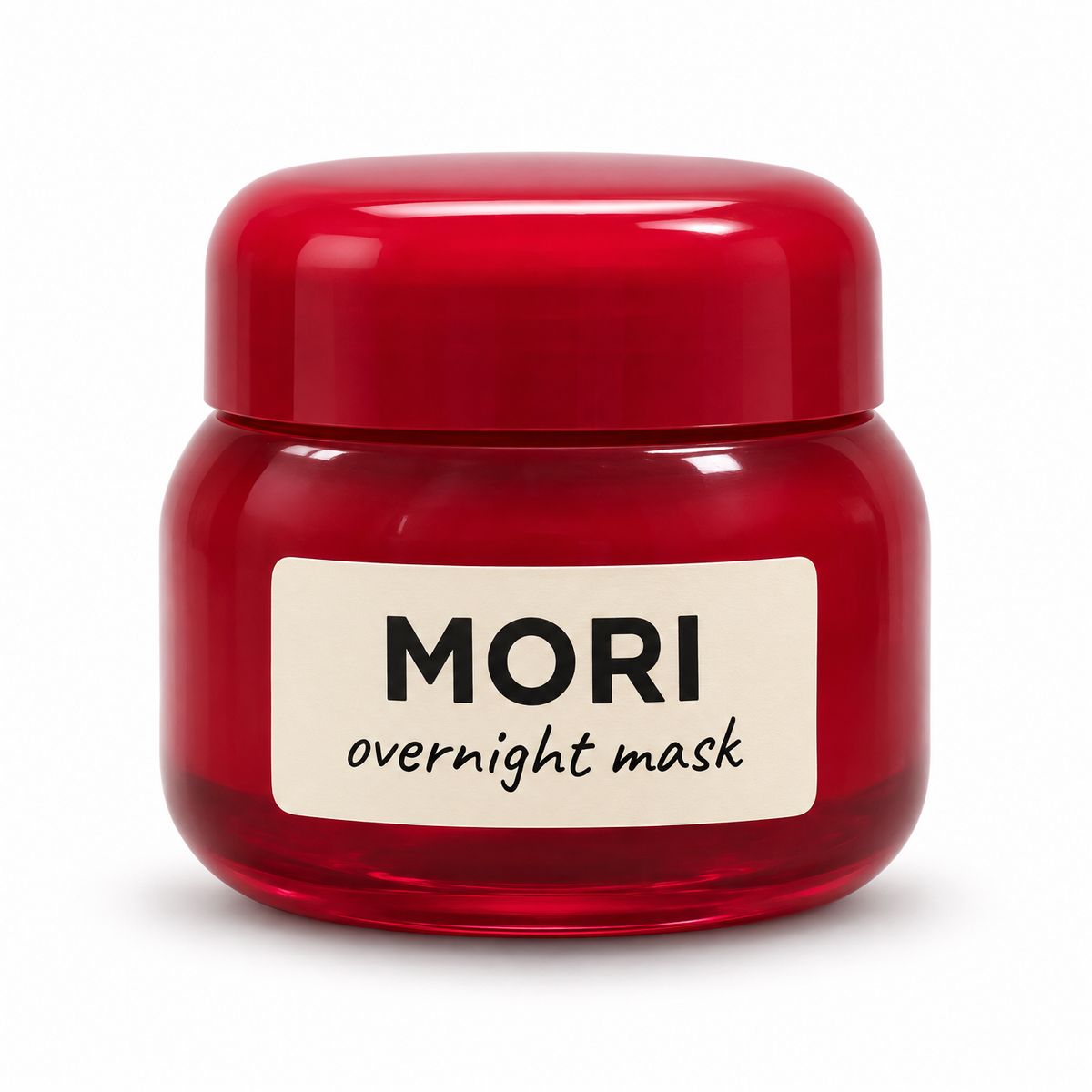
2. Lifestyle shot with a model for the gallery
Keep the jar, lid, and label exactly as in image 1. A stylish young woman with glossy dark hair and small gold hoop earrings holds the jar up next to her cheek and smiles, wearing a cherry red knit sweater. Warm natural window light at home, candid lifestyle photo for a Shopify skincare store, slight film grain, realistic matte skin. Square frame. Use the other images only as references for mood, styling, and light; do not copy their people, products, text, or logos.
3. Hand shot that shows scale
Keep the product exactly as in image 1. Show it held up by a clean, natural woman's hand with short, unpolished nails and no rings, close to the camera, against a lilac wall. Soft daylight, realistic skin, square frame. Use the other images only as references for lighting and styling; do not copy their products, text, or logos.
4. Flat lay for an apparel listing
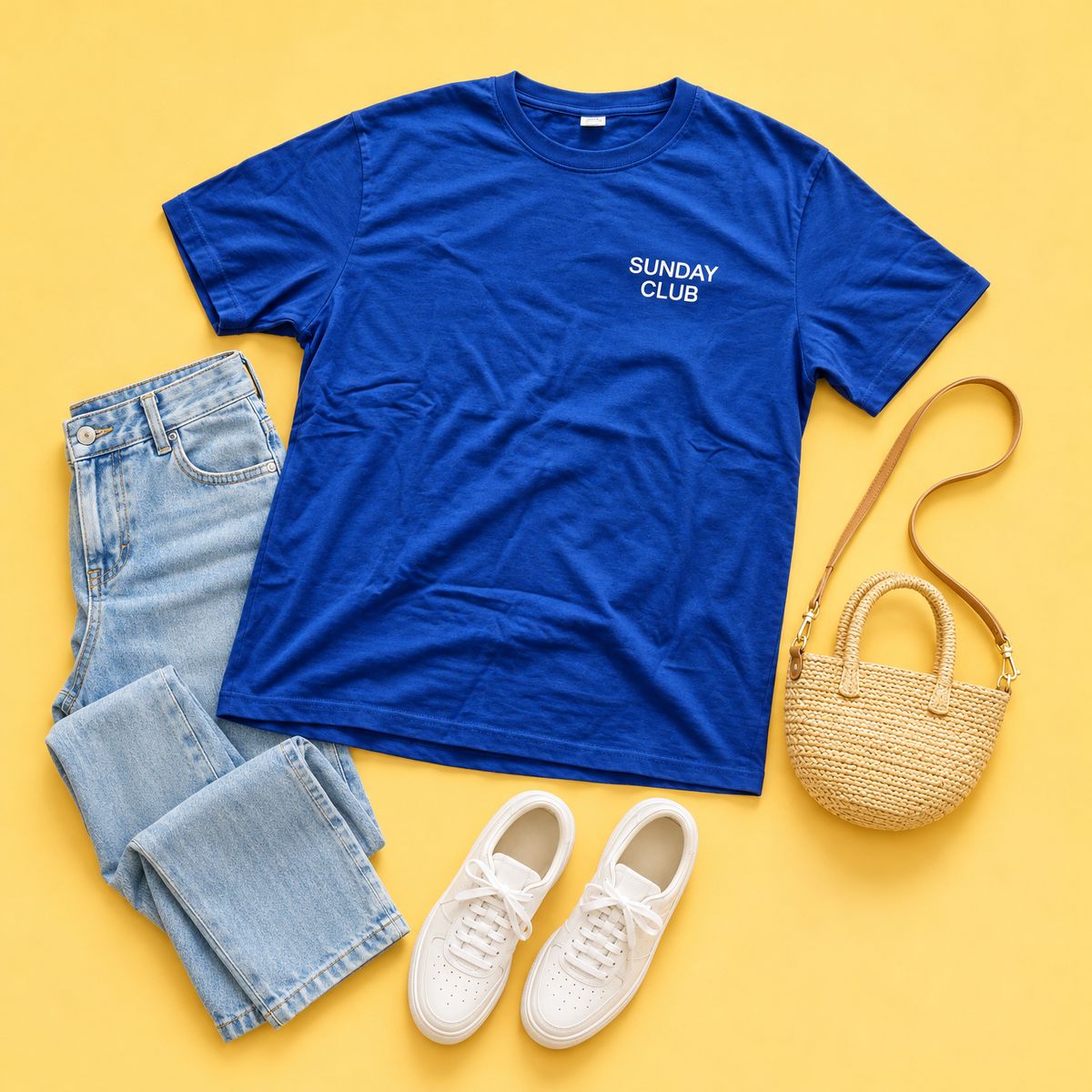
Keep the shirt's color, print, and logo exactly as in image 1. Lay it flat on a sunny yellow backdrop with light wash jeans, white sneakers, and a small straw bag, styled as a full outfit. Top-down view, bright soft light, square frame. Use the other images only as references for lighting and styling; do not copy their products, text, or logos.
5. Homepage holiday gift set banner
Keep the bottle and label exactly as in image 1. Create a 16:9 holiday banner for a Shopify hot sauce store. On the right, an open kraft gift box filled with crinkle paper holds three of these bottles, tied with a red ribbon, on a rustic wooden table with pine branches, a few red and gold ornaments, and warm string lights. On the left, on a deep forest green background, add the headline "HOLIDAY GIFT SETS" in large bold cream letters, the line "Stocking stuffers for spice lovers" below it, and a red rounded button that says "SHOP NOW". Warm, cozy, realistic food product photography. Use the other images only as references for layout and festive styling; do not copy their products, text, or logos.

To give a product photo you already have a festive look, try Add Christmas Background to Photo. For banners in other sizes and layouts, the AI Banner Generator is a good next step, and these Christmas marketing ideas cover more holiday posts and promos.
6. Product infographic for the gallery
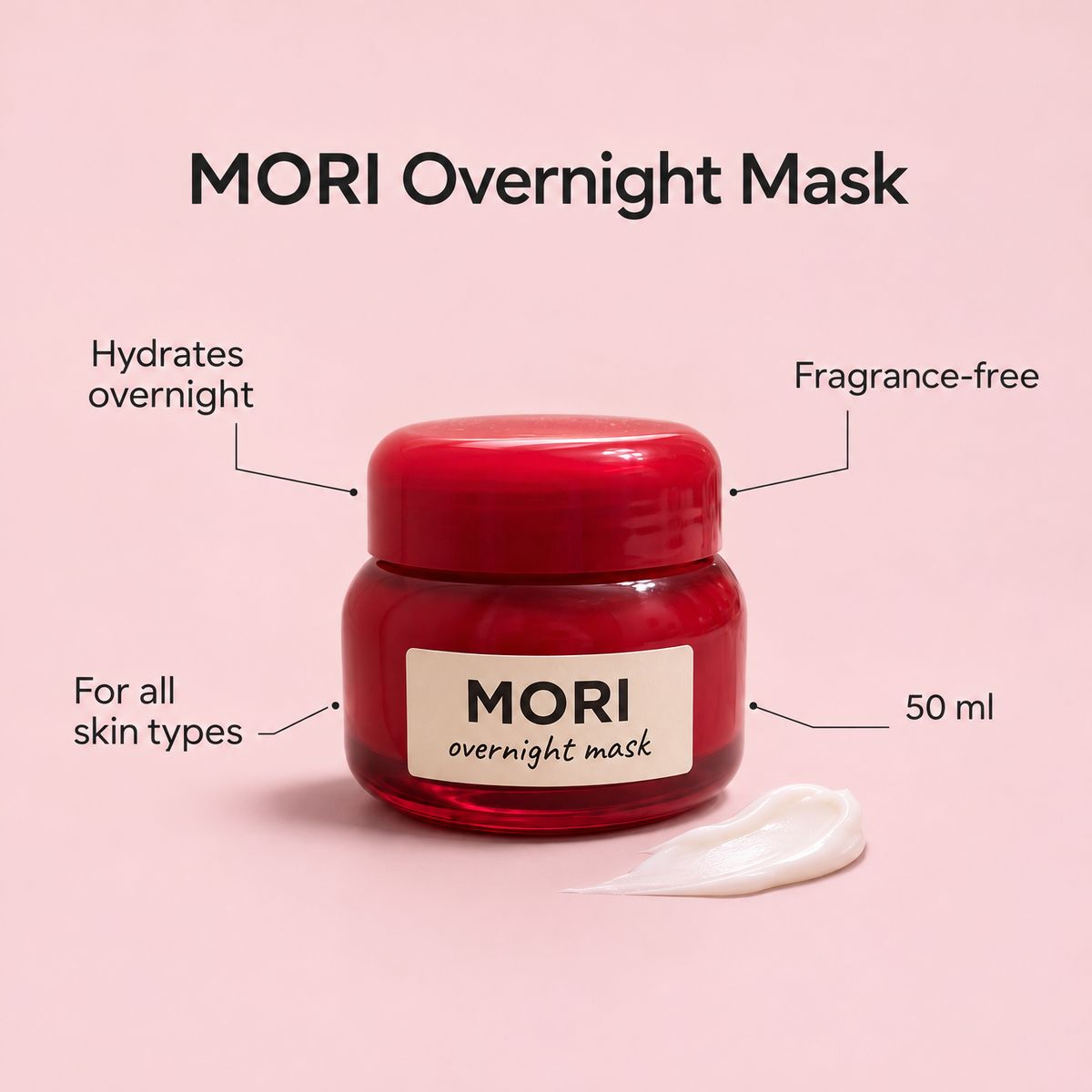
Keep the jar, lid, and label exactly as in image 1. Create a square product infographic for a Shopify product page. The jar sits on a soft blush pink background with a small swipe of the cream texture next to it. Add the title "MORI Overnight Mask" at the top and four short callouts with thin lines pointing to the jar: "Hydrates overnight", "Fragrance-free", "For all skin types", "50 ml". Clean sans-serif font, plenty of empty space. Use the other images only as references for layout and styling; do not copy their products, text, or logos.
Shopify Product Image and Banner Sizes
Edited images look best when they match the size of the spot they fill. The figures below come from Shopify's image size guide and the Shopify Help Center.
| Image | Recommended size | Notes |
|---|---|---|
| Product image | 2048 x 2048 px, square | Uploads up to 5000 x 5000 px or 25 megapixels, under 20 MB |
| Product zoom | Larger than 800 x 800 px | Smaller images can't be zoomed |
| Collection image | Up to 5000 x 5000 px | Same limit as product images |
| Hero image | 1280 x 720 px on desktop | 16:9 ratio |
| Website banner | 1200 x 400 px on desktop | 3:1 ratio |
| Background image | 2560 x 1440 px on desktop | 16:9 on desktop, 9:16 on mobile |
| Product video | Up to 10 minutes and 1 GB | MP4, MOV, or WebM, up to 4K |
PNG works best for most product images, followed by JPEG. A few habits keep a catalog consistent:
- Use the same background and light on every main image.
- Keep the product at a similar size in each frame.
- Make lifestyle shots from the same source photo so the color matches.
- Write alt text that names the product and its color.
For prompts and set ups beyond Shopify, see this guide to AI product photography.
FAQ
What is the best AI photo editor for Shopify product images?
It depends on the job. Shopify's built-in media editor handles quick fixes inside the admin, and Photoroom syncs bulk edits back to the catalog. For lifestyle scenes, banners, and product videos made from one photo, OpenArt is a strong fit, since its edits are built to keep the product as shot and it offers several image models in one account.
How do I edit pictures on Shopify?
In the Shopify admin, simply open the product and click the image thumbnail to open the media editor. Crop, resize, rotate, and background tools are all there, along with the alt text field, where Shopify may suggest text with AI. Changes are kept once Save is clicked.
Is Shopify's AI image editor free?
Shopify lists AI media generation at no additional cost for a limited time. Generated images default to about 1 megapixel and carry an invisible watermark that does not restrict commercial use. For large product images, we recommend upscaling the result or using a tool that exports at a higher resolution, since Shopify recommends 2048 x 2048 px for square product images.
What size should Shopify product images be?
Shopify recommends 2048 x 2048 px square images for products, which keeps zoom working and the collection grid even. Uploads can go up to 5000 x 5000 px or 25 megapixels, under 20 MB. For wide spots, Shopify's image size guide suggests about 1280 x 720 px for a hero image and 1200 x 400 px for a website banner, though each theme may crop differently, so it is worth checking the preview after upload.
How do I make a Shopify hero banner with AI?
Start from a clear photo of the flagship product and describe the scene, the headline, and the button text in one prompt, at a 16:9 size for a hero image or 3:1 for a website banner. With OpenArt, Edit Image keeps the product as shot while it builds the scene around it, and Brand Kit keeps the logo and hex colors consistent across banners. The AI Product Video Generator can then turn the same banner image into a short clip for a video section.
How do I bulk edit Shopify product images?
For catalog-wide background cleanup that syncs back to Shopify, an app such as Photoroom fits best. For supplier feeds that change often, Claid's API can process images before they are imported. For a fresh set of creative images, Chat Mode on OpenArt can make several from one request.
Can I use AI-edited photos on my Shopify store?
Yes. Shopify's own AI images carry an invisible watermark that does not restrict commercial use. With OpenArt, commercial rights apply on eligible paid plans, and the Pricing page shows which plan fits your store. In both cases, it is worth checking that each image matches the real product, so listings stay accurate.