

 ChatGPT
 Perplexity
 Claude
 Gemini
TL;DR
- OpenArt leads when everyday edits require background replacement, restyling, or prompt-based object and face fixes across multiple image models.
- Adobe Lightroom works best for realistic lighting, color, and object-removal fixes.
- Photoshop with Firefly suits detailed edits that need generative fill or image expansion.
- Luminar Neo gives desktop users AI-assisted corrections without requiring a subscription.
- Canva handles quick browser edits when your photo belongs inside a larger design.
- Fotor offers lightweight prompt-based changes such as background swaps and restyling.
- Pixlr fits fast, casual touch-ups on mobile or in a browser.
Try the AI photo editor free (40 credits, no credit card required) when your edits need more generative control than standard retouching tools provide.
What counts as everyday photo editing
Everyday photo editing starts with an existing photo and keeps that photo as the foundation. You might correct exposure or color, crop the frame, soften a blemish, or remove a distracting object. An ai image editor can also replace a background or repair part of a face without requiring manual selections.
AI editors handle those jobs in two different ways. Correction-focused tools such as Lightroom and Luminar Neo preserve the original scene while automating masks, lighting adjustments, and cleanup. Prompt-driven tools create new pixels when you ask them to add an object, change a pose, or restyle the photo. A Fotor AI Agent demonstration, for example, shows background replacement and object removal through plain-language commands.
Full image generation starts with a prompt or reference and creates a new composition. Everyday generative editing still begins with your photo, but it can change more of the scene than conventional retouching. The best AI image editor for you depends on which side of that line your usual edits occupy.
What to look for in an AI photo editor
Judge each AI photo editor against the work you actually do. A one-tap mobile tool and a desktop editor solve different problems.
- Realism and quality. Object removal should rebuild believable texture, while color and lighting adjustments should preserve natural skin tones.
- Ease of use. One-tap controls suit quick fixes. Manual masks and sliders give you more control but require more time.
- Platform. Browser tools work without installation, while desktop apps usually offer stronger file management and finer adjustments. Check whether the editor also supports your phone.
- Generative range. Correction tools repair the existing photo. An ai image creation workflow can create new backgrounds, restyle subjects, or replace larger parts of the scene.
- Price model. Subscriptions suit regular use, while one-time licenses can cost less over several years. Credit plans work best when you make occasional generative edits, but repeated attempts can consume credits quickly.
For more on which models currently handle photorealism best, see our breakdown of the best AI image generators for realistic photos.
OpenArt
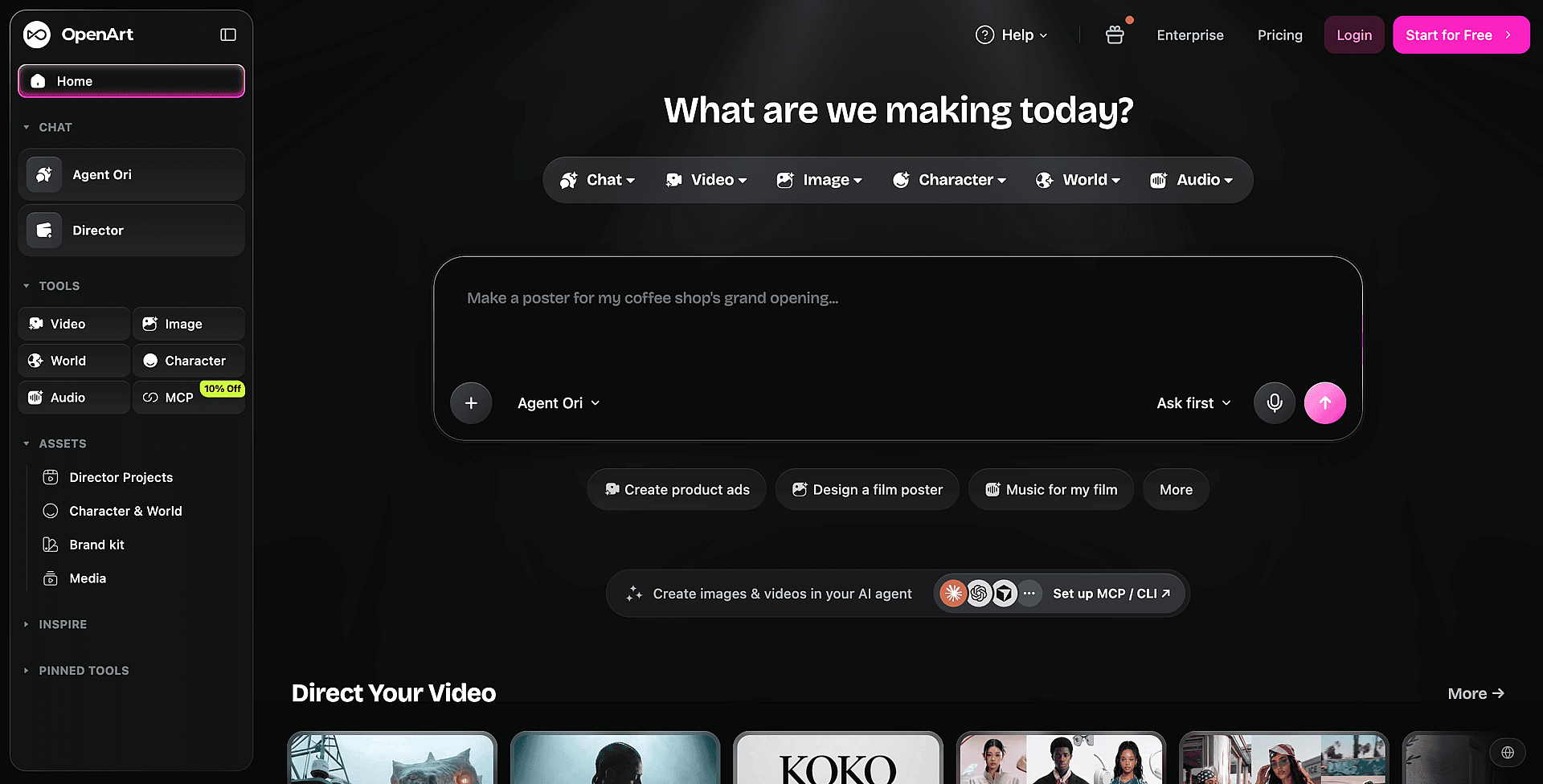 Best for: Background swaps, restyles, or written-prompt object and face fixes without a design team.
What it is: Prompt-based editing lets you describe the finished change instead of selecting every area by hand. OpenArt can handle requests such as replacing a dull room with a studio backdrop or repairing an awkward facial detail while preserving the rest of the photo. Its editor also supports a more visual way to point at a fix: instead of only typing a description, you can draw arrows directly on the photo and attach comments to mark exactly what should change, then let the model act on the marked area. In one hands-on test, that annotation workflow applied every requested change on the first pass.
Model choice gives you more ways to approach difficult edits. OpenArt provides access to image models such as Seedream 4.5, GPT Image 2, and Nano Banana Pro, so you can try another model when the first result changes the subject too much, the same fix that beats a single-model tool when a face comes out looking waxy or overprocessed. Generative editor comparisons test this category on pose control, scene consistency, and conceptual instructions rather than conventional color correction. Reviewers testing character-consistency tools across several generative editors have singled out OpenArt's implementation as a standout, preferring it over similar tools from competitors such as Higgsfield for keeping the same face, object, or background consistent across a batch of generated images.
An OpenArt subscription offers value when you generate and edit images regularly. The same account covers prompt-based editing and broader creation through the AI Image Generator, which suits workflows that mix existing photos with newly generated elements. For photos that also need more resolution, the same workspace includes an image upscaler.
Pros:
- OpenArt handles larger generative changes that one-click correction tools cannot easily produce.
- Multiple image models give you alternatives when an edit needs better identity, pose, or style consistency.
- Plain-language prompts reduce the manual masking required for background and object changes.
- Simple exposure fixes and crops may take less effort in a conventional photo editor.
Cons:
- OpenArt does not replace Lightroom's RAW catalog, lens correction, or nondestructive photo-management workflow.
- Generative edits can alter small identity or product details, so you should inspect each result — one reviewer found OpenArt's dedicated face-swap tool inconsistent, even though the same photo edited through its annotation-based editor turned out well.
Pricing: New accounts start with 40 free credits and no credit card required, enough to test a background swap or a face fix before committing to a plan. Beyond that, OpenArt uses paid subscription plans with credits for creation and editing. It is not the cheapest option for occasional touch-ups, but the subscription provides stronger value when your everyday work includes frequent generative edits and access to multiple models.
Adobe Lightroom
Best for: Realistic photo correction with control over each adjustment.
What it is: Adobe Lightroom combines traditional exposure and color controls with AI tools that target specific parts of a photo. Its masking tool can detect a sky, a person, or a background with one click, so restoring detail in a washed-out sky or brightening a face doesn't need a manual selection. Lens Blur adds an adjustable background blur and bokeh style after the shot is taken. Lightroom stores these adjustments separately from the original file, which lets you revise or remove them later.
Generative Remove clears unwanted objects and creates replacement pixels that match the surrounding area, and the Remove Distractions tool can auto-detect and erase background people with a single click, clearing a crowd of strangers from behind the subject almost as cleanly as Photoshop, without the manual masking. Lightroom works best when you want a believable correction rather than a dramatic prompt-based transformation.
Pros:
- Lightroom gives you precise control over lighting, color, masking, and object removal.
- Non-destructive editing protects the original photo and supports easy revisions.
- Mobile, desktop, and web apps let you continue edits across devices.
Cons:
- Lightroom takes longer to learn than Canva, Fotor, or Pixlr.
- Its catalog and file-management tools can feel excessive if you edit one photo at a time.
- Generative features offer less creative range than prompt-driven editors.
Pricing: Adobe sells full desktop access through a recurring subscription. Lightroom Mobile's free tier already includes flag and star organizing plus quick actions that adjust a subject and its background separately, as shown in Brendan Williams' overview, but advanced features and cloud storage generally require a paid plan. Adobe changes plan bundles and regional pricing, so check its current pricing before subscribing.
Photoshop (with Firefly)
Best for Precise photo correction plus generative fill, expand, and upscale tools.
What it is Photoshop combines traditional layer-based editing with Adobe Firefly. Generative Fill replaces selected objects through a text prompt, Generative Expand creates new content beyond the original frame, and Harmonize blends a separately composited subject into a new background by automatically matching its color, lighting, and shadow. A real-world walkthrough shows Generative Fill clearing distractions from a wedding photo, Harmonize compositing a couple into a studio backdrop generated in Firefly, and Generative Upscale sharpening a cropped, low-resolution shot.
Photoshop gives you more control than Lightroom when an edit changes the photo's composition. You can refine selections, mask generated content, and keep each adjustment on a separate layer. That control also makes Photoshop slower to learn than one-tap editors.
Pros
- Generative Fill and Expand handle convincing object replacements and wider crops.
- Layers and masks let you revise AI output without changing the original image.
- Firefly works inside an established manual editing toolkit.
Cons
- Photoshop asks you to understand selections, layers, and masks.
- Full desktop access requires a subscription.
- Quick lighting or color fixes take longer than they do in Lightroom.
Pricing Photoshop Web provides a limited free entry point, including a free AI assistant that turns a text prompt into editable layers and a Remove tool that erases objects without spending credits, and Firefly includes free monthly generative credits. A 2026 overview of Adobe's free editors covers both options. Full Photoshop features and larger credit allowances require a paid Adobe plan.
Skylum Luminar Neo
Best for AI-assisted corrections with a one-time license instead of another monthly subscription.
What it is Luminar Neo handles common photo fixes through tools such as automatic enhancement, sky replacement, portrait retouching, object removal, and RAW editing. Its Gen Erase tool removes an unwanted person or object and infers the shadow it should leave behind, Gen Expand extends a photo's borders to reframe it while matching the original color and lighting, and a Light AI tool builds a depth map from a single 2D photo so the subject and background can be relit separately. Its desktop interface gives you more control than a one-tap browser editor without demanding Photoshop-level experience.
Luminar Neo works well for hobbyists who want faster corrections while keeping some manual control. David Manning's beginner-focused review demonstrates how its sky replacement and one-click adjustments reduce repetitive editing. You can run Luminar Neo as a standalone editor or use it alongside another photo workflow.
Pros
- AI tools make selective corrections, subtle portrait retouching, and even old-photo restoration and colorization approachable.
- The perpetual license can cost less over time than an ongoing Adobe subscription.
- Desktop processing suits larger files and regular photo libraries.
Cons
- Luminar Neo offers fewer organizational tools than Lightroom for managing large libraries.
- Generative prompt editing remains limited compared with tools built around text instructions.
- Extensions and product editions can make purchasing less straightforward.
Pricing Skylum sells Luminar Neo as a one-time purchase rather than a subscription, at recent prices of roughly $119 for the desktop app alone or $159 for the cross-device bundle that syncs with its mobile app, though bundles and prices change. Dave Herring's Lightroom comparison treats the perpetual license as a central reason to choose Luminar Neo. Check Skylum's current checkout terms carefully because future feature updates may require a separate purchase.
Canva
Best for Fast browser-based edits that feed directly into social posts, presentations, or other designs.
What it is Canva combines a simple design canvas with tools for background removal, object replacement, cropping, and basic image correction. Magic Edit lets you select part of a photo and describe a replacement, while preset adjustments handle quick color and lighting fixes.
Canva favors speed over precise correction. You can finish common edits without installing software, but you get less control over masking, RAW files, and subtle retouching than Lightroom or Photoshop provides.
Pros
- Canva works in a browser and offers mobile apps.
- One-click tools handle background removal and quick generative replacements.
- Edited photos can move directly into Canva designs.
Cons
- Canva provides limited control over realistic photo correction.
- AI usage limits and feature access vary by plan.
- Complex selections can produce inconsistent edges or replacements.
Pricing: Canva offers a free plan with basic editing and limited AI use. Paid subscriptions expand AI access, storage, and premium design features.
Fotor
Best for: Quick generative edits in a browser without learning Photoshop.
Fotor's AI Agent lets you describe an edit through text or voice. In a detailed tutorial, the agent removes objects, replaces a background with Tokyo at night, changes a person's pose, and converts photos into illustrated styles. One-tap enhancement covers simpler lighting and clarity fixes.
Fotor suits occasional edits because the prompt interface removes much of the manual selection work. A comparison with Photoshop treats Fotor as a lighter alternative for AI generation, enhancement, and editing rather than a full production editor.
Pros: You can request substantial changes in plain language. The browser interface requires no installation, and one-tap tools handle routine fixes quickly.
Cons: Prompt results can alter facial details or introduce unwanted changes. Fotor offers less precise control than Photoshop and less photo management than Lightroom.
Pricing: Fotor offers limited free use, while paid plans provide more AI access and remove restrictions. Current prices and credit allowances vary by plan.
Pixlr
Best for: Fast, casual touch-ups in a browser or mobile app.
What it is: Pixlr combines a familiar manual editor with one-tap tools for background removal, object cleanup, retouching, filters, and image enhancement. You can make quick changes without learning a desktop photo workflow.
Compared with Fotor's prompt-led AI Agent, Pixlr relies more on direct controls and preset actions. You usually select a tool and apply the change yourself rather than describe a multi-step edit in plain language.
Pros:
- The browser and mobile apps require little setup.
- One-tap tools handle common social and personal photo fixes quickly.
- Manual controls give you more input when an automatic result misses the mark.
Cons:
- Generative editing feels less central than it does in Fotor or OpenArt.
- Ads, usage limits, and locked tools can interrupt the free experience.
- Pixlr offers less control over realistic photo correction than Lightroom.
Pricing: Pixlr offers free access with limits and ads. Paid subscriptions remove restrictions and add AI usage, but current prices vary by plan and billing term.
How these AI photo editors compare
No single tool wins on every column, so read this table by the column that matches your edit, not by row order. If you mainly fix lighting, color, and objects in an existing photo, weight the realism and correction column first. If your edits increasingly swap backgrounds, restyle scenes, or follow a written prompt, weight generative range first. ✅ marks a strong fit, 🟡 a trade-off, and ❌ a clear limitation.
| Tool | Generative range | Realism and correction | Ease of use | Platform | Price model |
|---|---|---|---|---|---|
| OpenArt | ✅ Deep generative range | ✅ Natural corrections | ✅ Plain-language prompts | 🟡 Best on Browser | ✅ Freemium |
| Adobe Lightroom | 🟡 Limited generation | ✅ Natural corrections | 🟡 Some learning | ✅ Desktop and mobile | 🟡 Subscription |
| Photoshop with Firefly | ✅ Fill and expand | ✅ Precise control | ❌ Steep learning curve | 🟡 Best on desktop | ❌ Subscription |
| Luminar Neo | 🟡 Preset driven | ✅ Strong AI fixes | ✅ Beginner friendly | ❌ Desktop focused | ✅ One-time option |
| Canva | 🟡 Magic Edit tools | 🟡 Basic correction | ✅ Very simple | ✅ Browser and mobile | ✅ Freemium |
| Fotor | ✅ Broad transformations | 🟡 Variable realism | ✅ Prompt based | ✅ Browser and mobile | ✅ Freemium |
| Pixlr | 🟡 Basic AI tools | 🟡 Casual touch-ups | ✅ Quick controls | ✅ Browser and mobile | ✅ Freemium |
Photoshop, Fotor, and OpenArt lead the generative range column, and OpenArt goes deepest into prompt-based scene and background changes. Lightroom and Luminar Neo lead realism and correction, which fits everyday fixes that should look untouched rather than reimagined.
Which AI photo editor fits you
For generative edits, choose OpenArt. Its AI photo editor fits background replacement, restyling, and prompt-based object or face fixes better than correction-focused editors. OpenArt provides the strongest overall fit when your photos increasingly serve as starting points for new compositions.
For phone-only casual editing, choose Pixlr. Its mobile-friendly tools handle quick crops, cleanup, filters, and one-tap adjustments without a desktop workflow.
For a budget-conscious hobbyist, choose Luminar Neo. Its desktop app offers guided AI corrections and a perpetual-license option, which can suit you better than another monthly subscription.
For fast browser editing, choose Canva. You can remove backgrounds, make simple generative changes, and place the finished photo directly into a social post or presentation.
Lightroom remains the better choice when realistic color, exposure, and selective corrections matter most. Photoshop fits you when those corrections require finer manual control.
Why OpenArt is the pick for generative everyday edits
OpenArt fits best when your photo needs new content rather than a cleaner version of the original. You can describe a background swap, restyle the full scene, or repair a face or object with a prompt. The editor interprets the requested change instead of making you mask and rebuild each area manually.
Multiple image models give you more ways to approach difficult edits. One model may preserve a face more convincingly, while another may follow a detailed style prompt better. OpenArt keeps those options within the same creation workspace, which makes iteration easier when the first result misses. The same prompt-based approach also works on old prints that need restoring or colorizing, not just recent photos.
OpenArt does not replace Lightroom's raw photo management or precise color workflow. It also may cost more than a basic one-tap editor. Its value comes from the generative range included in the subscription, especially when you regularly create several versions or move beyond routine corrections.
If your everyday edits increasingly involve changing what appears in the photo, try OpenArt free with 40 starter credits and edit your next image with a prompt.
How we ranked these tools
We ranked each editor by its handling of common photo fixes, ease of use, supported devices, and price model. Realistic results and repeatable workflows carried more weight than feature count.
Our review compared recurring recommendations across AI-model answers and top-ranking articles with hands-on video demonstrations. We used those demonstrations to verify workflows such as Fotor's prompt-based edits and Luminar Neo's beginner-focused tools. Since no reviewer tested every product under identical conditions, the ranking reflects documented capabilities and everyday fit rather than a controlled benchmark.
FAQs
What is the difference between AI photo editing and AI image generation?
AI photo editing changes an existing photo, while AI image generation creates a new image from a prompt. OpenArt supports prompt-based edits and can also create new visuals with its AI image generator. You can correct a specific detail without rebuilding the whole image, or generate a replacement when correction cannot produce the result you want.
Is a free AI photo editor good enough for everyday use?
A free AI photo editor can handle basic crops, color fixes, background removal, and light retouching. OpenArt's paid plans suit edits that require more generations, model choice, or larger creative changes. You can start free (OpenArt includes 40 free credits with no card required) for occasional touch-ups and pay when credit limits or restricted tools interrupt your work.
Which AI photo editor should I use to change a background or style with a prompt?
OpenArt fits background replacement and style changes because you can describe the desired edit in plain language. Its model selection supports generative changes that go further than Lightroom-style correction. You can replace a plain wall with a street scene or restyle a portrait without manually selecting every area.
Do I need another subscription if I already pay for Lightroom or Photoshop?
Not automatically. Lightroom and Photoshop are built for correcting a photo you already have, not for swapping a background or rebuilding an object from a written prompt, so most people keep their existing subscription for that work and add a generative editor only for the edits it actually covers. OpenArt's 40 free credits let you test that combination on a real edit before you decide whether it earns a second monthly bill. If your edits rarely go past exposure, color, and cropping, one subscription is probably enough.
Bottom line
Choose an editor based on the finished photo you need, not the length of its feature list. OpenArt fits best when your prompt needs to replace a background, rebuild an object, fix a face, or restyle the image.
Lightroom-style tools suit photos that need cleaner color, lighting, or detail while preserving the original scene. Your intended result determines whether correction controls or generative range will save more time. If you're not sure which side of that line you're on, generate one edit in OpenArt with the 40 free starter credits and compare it against your usual tool before you decide.