

Extract Layers - Image to Layers With AI
Extract Layers is OpenArt's image-to-layers workflow tool. Upload one picture, and the Extract Layers tool splits the background, products, people, and text into separate see-through layers you can change, remove, or reuse.

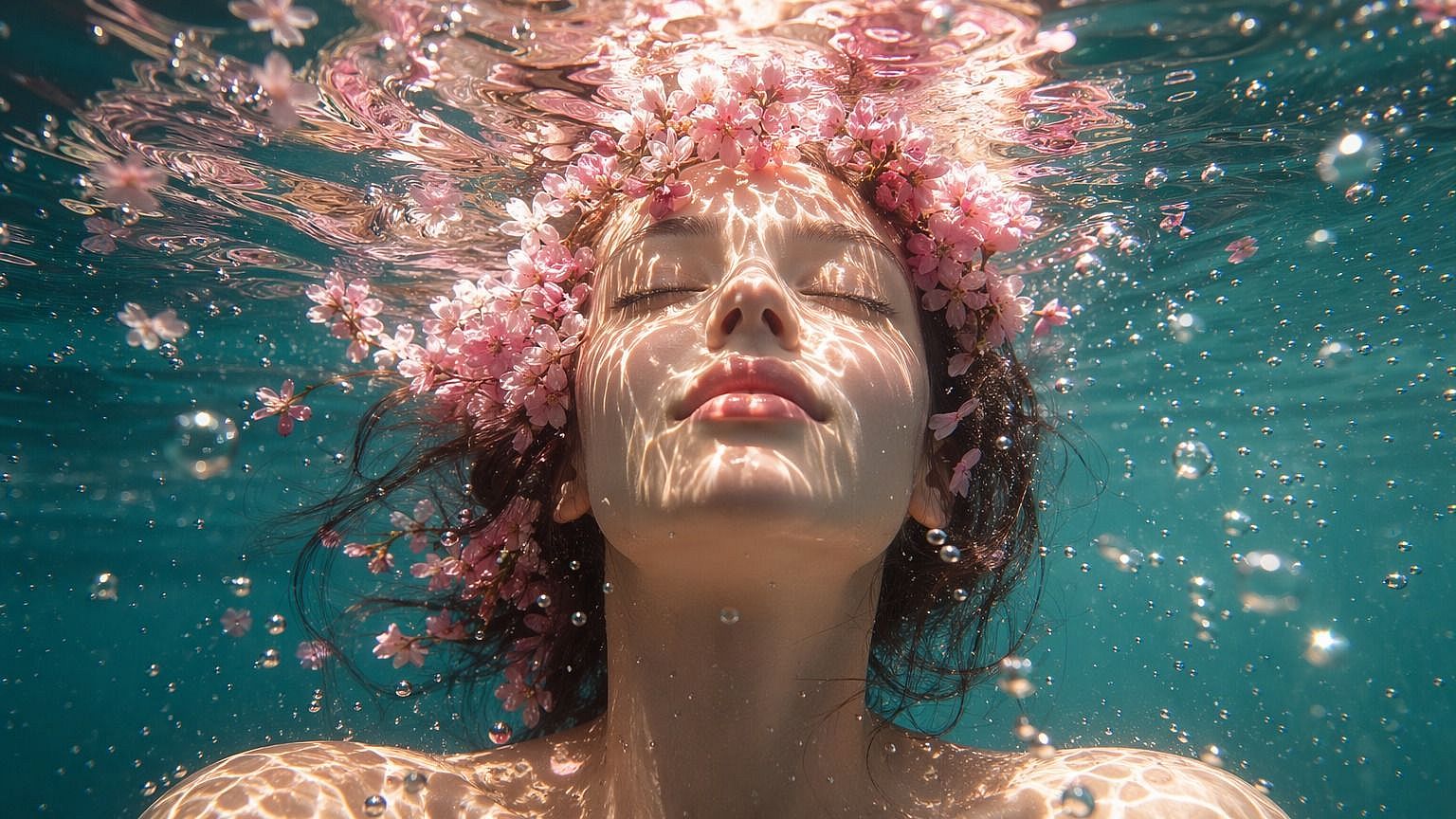
Benefits of an AI Layer Splitter
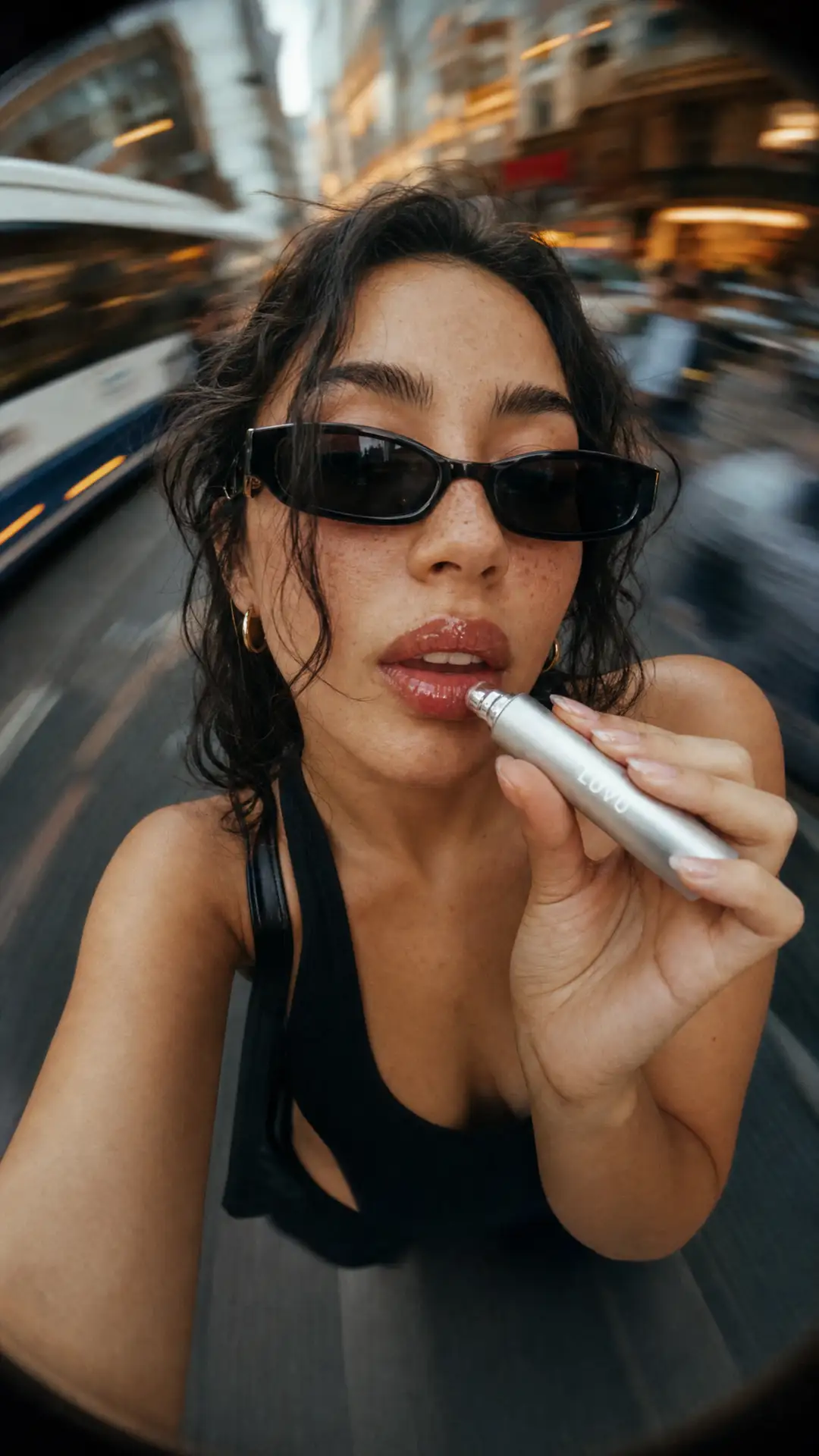
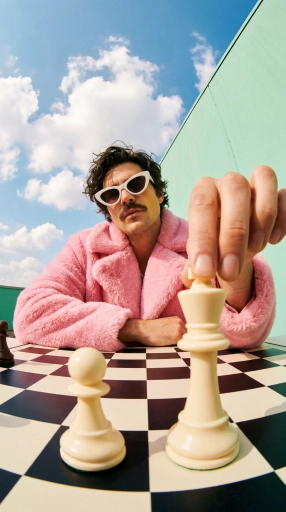
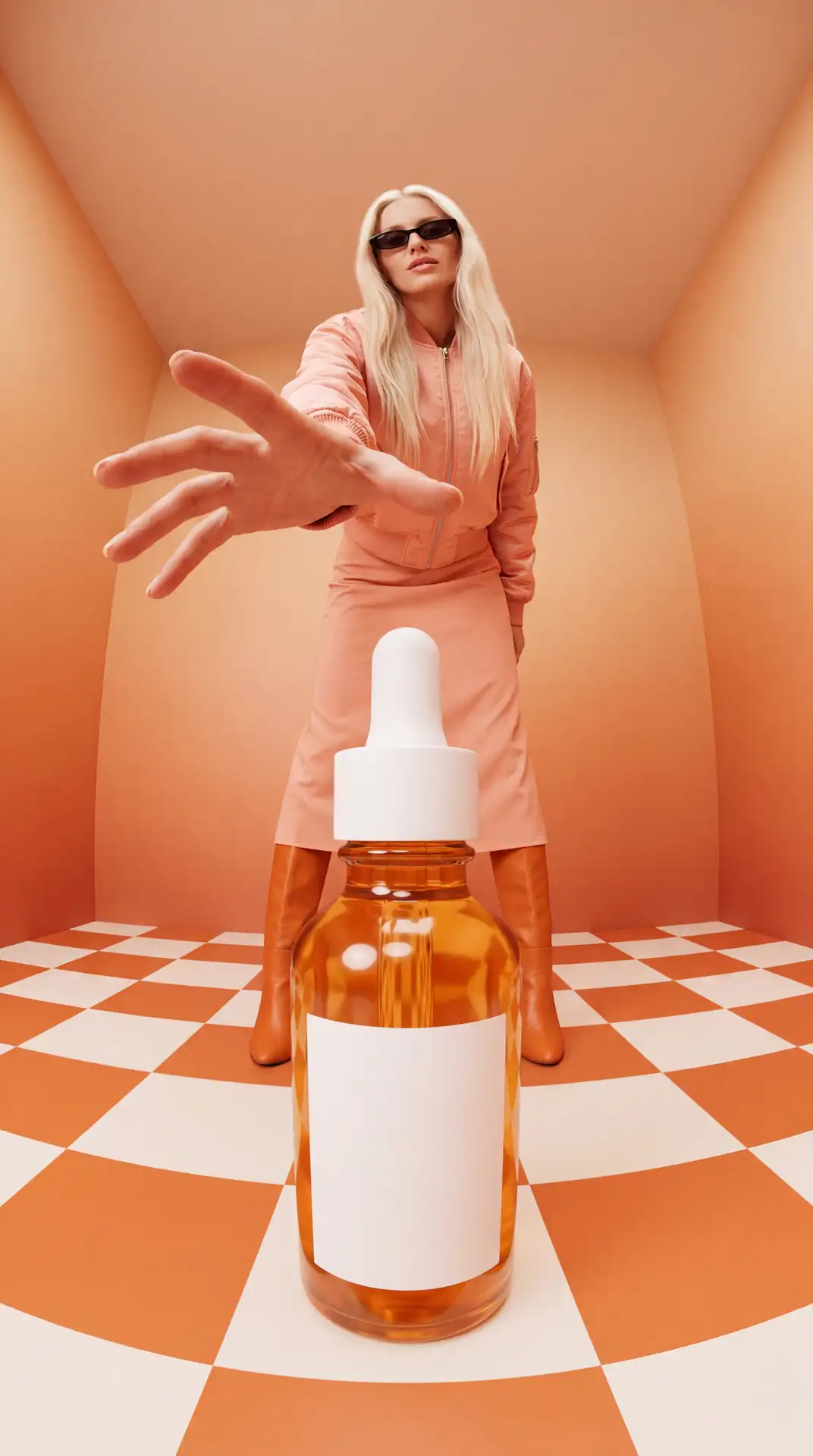
Change One Part at a Time
Extract Layers puts the background, the product, the people, and the text on separate layers, so you can update one part and leave the rest exactly as it is.
Reuse Every Piece
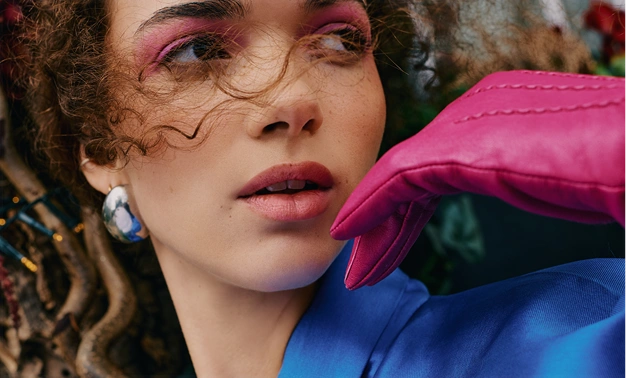
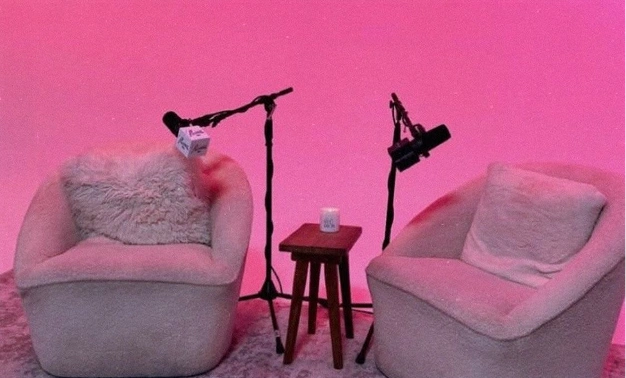
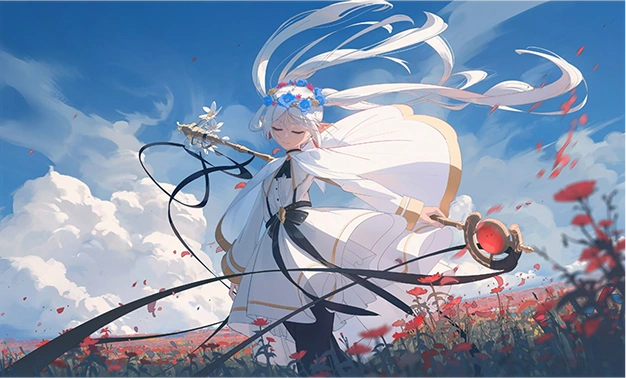
Every layer from Extract Layers is a see-through PNG you can drop into a new poster, ad, or product page.
Skip the Save Step
Extract Layers saves every layer to your Asset Library on its own, so your pieces are ready the moment the split finishes.
Key Features of Extract Layers
Separate an Image Into Layers With AI
OpenArt's Extract Layers uses Seedream 5.0 Pro to find each object in your picture and give it its own layer. Extract Layers works alongside the other image tools in the OpenArt AI image generator.
Split the Whole Image or One Area
Extract Layers can split an image into layers in two ways. Pick Whole Image to break the full picture into pieces. Pick Select Area and draw a free-hand loop around one part, like a single product on a crowded shelf. Extract Layers then splits only what is inside your loop.
Set the Most Layers You Want
Extract Layers lets you set the most layers you want, anywhere from 2 to 16. A photo of someone holding a mug might need only 3 layers: the person, the mug, and the background. A busy poster with a headline, a logo, and stickers can use more. Extract Layers treats your number as a limit, so you may get fewer layers.
Reorder, Hide, and Redo Single Layers
Extract Layers shows your results as a list of layer cards, with the front layer at the top and the back layer at the bottom. Drag a card up or down to change which layer sits in front, and the preview updates. Hide a layer to see the picture without it. If one layer looks wrong, regenerate just that layer.
Find Every Layer in Your Asset Library
Extract Layers saves each layer to your Asset Library as a transparent PNG as soon as the split finishes. Transparent means everything around the object is see-through, so a product layer can sit on any new background. When you come back later, Extract Layers opens your last split so you can keep working or start a new one.
How to Extract Layers from an Image
You can split an image into layers with OpenArt's Extract Layers tool in three steps.
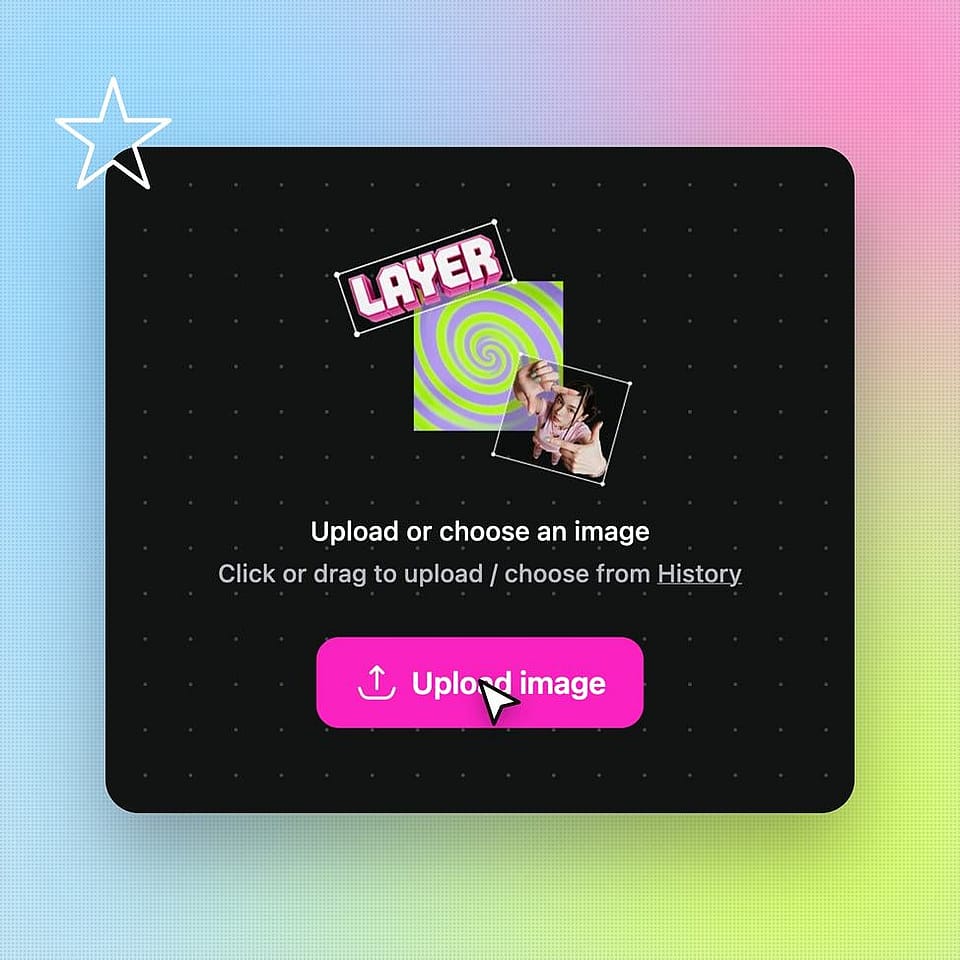
Upload your image
Open Extract Layers from the Image tool list and upload one picture.
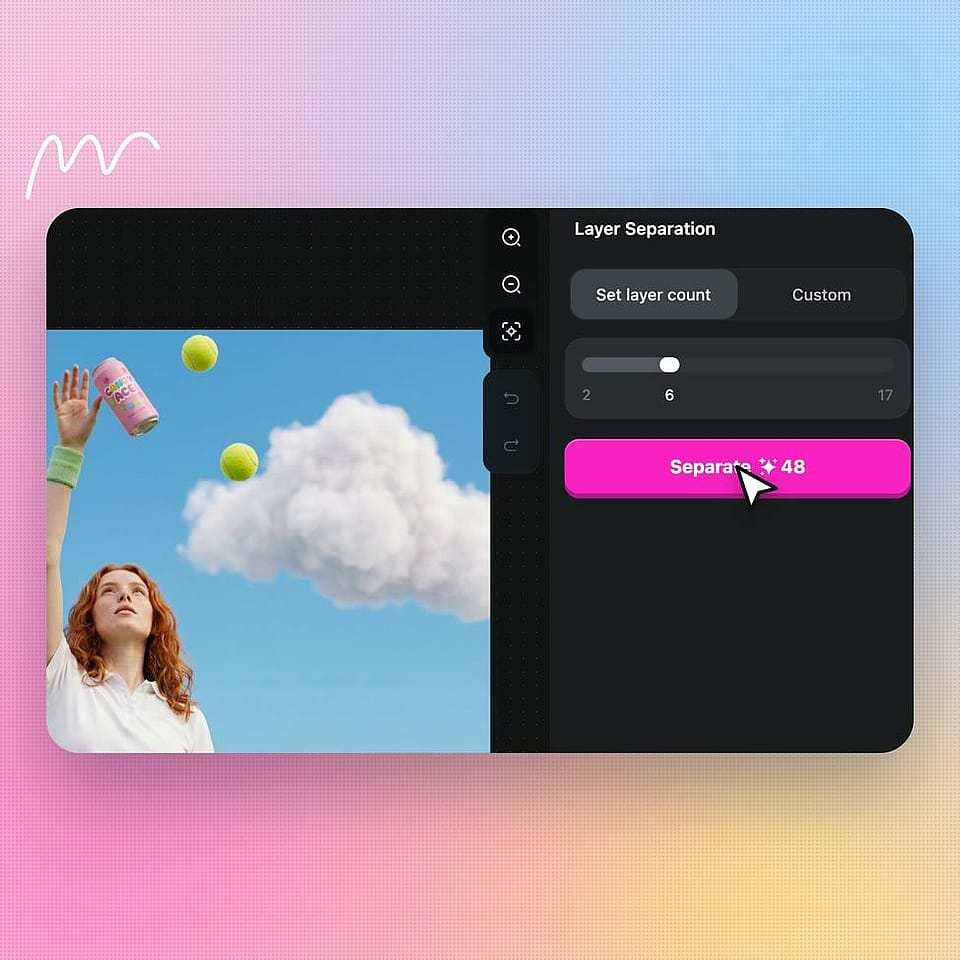
Choose the area and the layer count
Pick Whole Image, or pick Select Area and draw a loop around the part you want. Set the most layers you want, from 2 to 16, then generate.
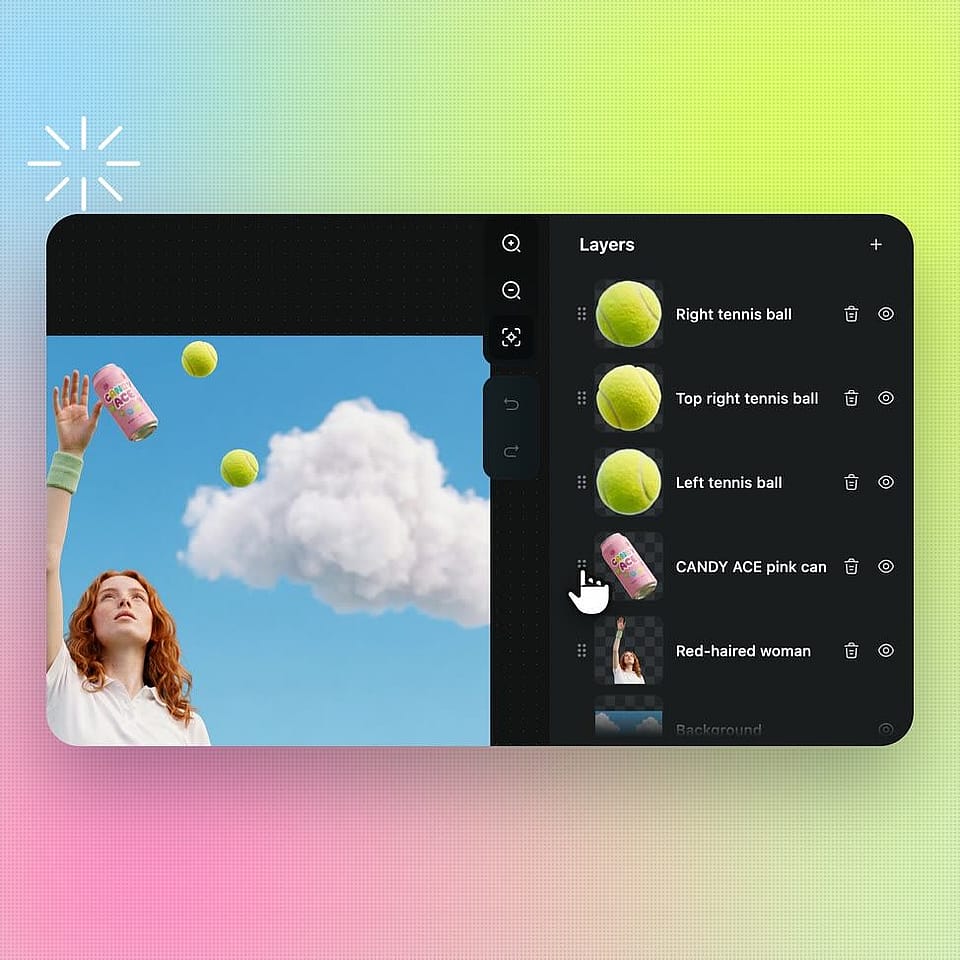
Check and arrange your layers
Drag the layer cards to change which one sits in front, hide any layer, or regenerate one that looks off. Every layer is already saved in your Asset Library.
Best Uses of an AI Layer Splitter
OpenArt's Extract Layers fits anyone who needs to change part of a finished image, from online sellers to agency teams.
Marketing Teams Updating Campaign Posters
Marketing teams use Extract Layers to update a finished poster without making it again from scratch. Split the poster, and the headline, the product, and the background each land on their own layer. Make a fresh background in your brand colors with Brand Kit in Create Image. Then place the saved product layer on top in your design app.
Try it NowOnline Sellers Making Product Photos
Online store owners use Extract Layers to pull a product out of a busy photo. Draw a loop around the product with Select Area, and Extract Layers saves it as a see-through PNG. The same product layer can go on a clean white listing photo, a holiday banner, and a sale ad. You get many product pictures from one photo shoot.
Try it NowDesigners and Agencies Reusing Client Artwork
Designers and agency teams use Extract Layers when a client sends a flat image with no original design file. Extract Layers separates the logo, the text, and the artwork onto their own layers. The team can then reuse each piece in new sizes and layouts for the same client. That saves the hours it takes to trace around every shape by hand.
Try it NowCreators Remixing Their Best Images
Social media creators use Extract Layers to get more posts out of one great image. Split an AI portrait, and the person and the background become separate layers. Put the person on a new background for a thumbnail, or post the background alone. Upload the finished thumbnail to Image to Video to make it move.
Try it NowFrequently Asked Questions
Extract Layers is an OpenArt image tool that splits one picture into separate transparent layers. Extract Layers can pull out backgrounds, products, people, text, and decorations, so you can change, remove, or reuse each one. Every layer saves to your Asset Library as a PNG file.
Yes. An AI layer splitter like OpenArt's Extract Layers looks at a flat picture, finds the separate objects, and puts each one on its own transparent layer. Extract Layers uses the Seedream 5.0 Pro model for every split, so you get the same setup every time with no model to pick.
Yes. Choose Select Area in OpenArt's Extract Layers and draw a free-hand loop around the part you want. Close the loop and confirm it, and Extract Layers splits only what is inside your selection.
OpenArt's Extract Layers saves every layer to your Asset Library as a transparent PNG as soon as the split is done. Saving happens automatically, with no button to press and no folder to choose. When you come back to Extract Layers, your most recent split opens so you can keep working or start a new task.
Set your maximum layer count close to the number of separate things in the picture. Use Select Area in OpenArt's Extract Layers when you only need one object, like a single product on a table. If one layer looks rough around the edges, regenerate that layer by itself.
Yes. Commercial rights apply on eligible paid plans, so you can use layers from Extract Layers in ads, product listings, and client work. Make sure you own the image you upload or have the rights to use it.
Upload the image to OpenArt's Extract Layers and choose Whole Image or Select Area. Set the most layers you want, from 2 to 16, and generate. Extract Layers puts each part of the picture on its own layer and saves every layer to your Asset Library.
OpenArt's Extract Layers lets you set a maximum anywhere from 2 to 16 layers. Extract Layers may return fewer layers than your maximum when the picture has fewer separate parts. Set a higher number for busy images like posters and a lower number for simple product photos.
OpenArt's Extract Layers can separate backgrounds, products, people, text, and decorations like shapes and stickers. That covers common jobs such as swapping a background, taking out an element you no longer want, or reusing a product in another design. If one layer comes out wrong, regenerate that single layer and keep the rest.
Yes. Each layer from OpenArt's Extract Layers is a standard PNG with a transparent background, and Photoshop, Canva, and Figma all open PNG files. Download the layers from your Asset Library and stack them in your design app in the same order.
Cutting out layers by hand means tracing around each object with a selection tool and copying it onto its own layer, one object at a time. OpenArt's Extract Layers finds and separates every object in one step. That turns a job of many careful clicks into a single generation.