

 ChatGPT
 Perplexity
 Claude
 Gemini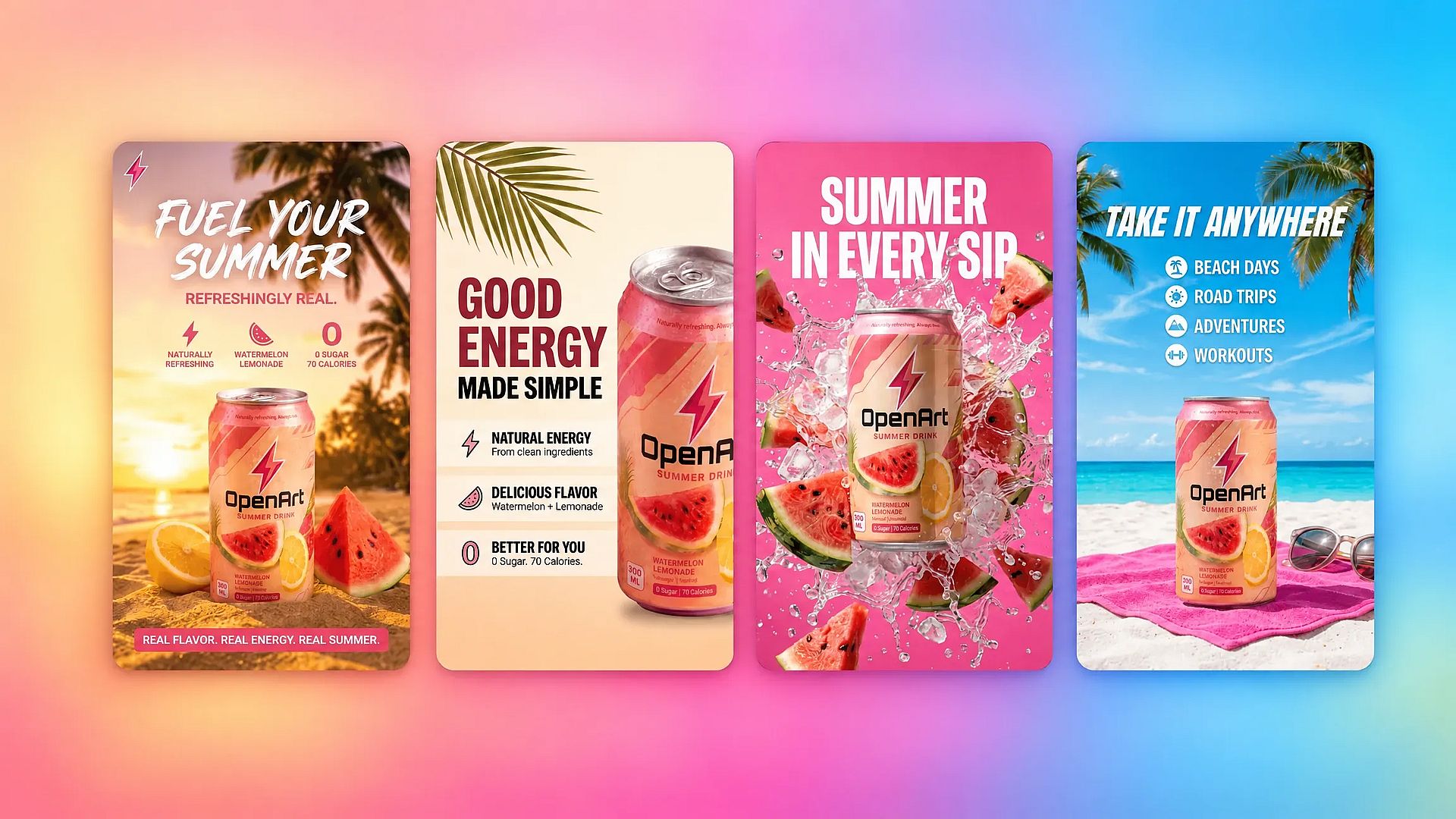
TL;DR
- OpenArt best fits turning one product photo into a consistent campaign, stills and video included, across multiple models. New accounts get 40 free credits to try it out, no credit card required. Commercial use rights start at the Plus plan.
- Canva works well for quick banners inside templates. Canva Free includes a small monthly allowance of AI uses that resets on the first of each month.
- Adobe Firefly suits brand campaigns that prioritize commercially safe training. The free plan includes daily generations across image, video, and audio, with limits that refresh every day.
- Freepik gives you varied ad visuals plus stock assets. Free accounts get around 20 image generations per day, but free output is for personal use with attribution.
- Fotor offers a dedicated product-shot workflow. Its starter credits cannot cover one Product Shot generation, and free exports carry a watermark.
All five tools now offer some form of AI video. What sets OpenArt apart is that the product photo, the brand settings, and a range of image and video models sit in one workspace, so the same approved shot can become a still, a resized ad, and a short product video without moving files between apps.
Try the AI image generator if you need styled campaign images, and video, built around an existing product photo.
Why this matters for a marketing team's actual workflow, not just "making an image"
If you're running paid social, email, and the landing page for a small brand, you already know the job isn't "make one nice photo." It's producing enough on-brand creative, in enough formats, fast enough to keep a campaign from going stale, usually without a photographer, a designer, or a second person to hand it off to.
Two realities drive that pressure. The first is creative decay: an ad shown repeatedly to the same audience loses click-through within a week or two, so a working paid social account needs a steady pipeline of new variations, not one polished hero shot you reuse for a month. The second is format sprawl: the same underlying idea has to become a square feed post, a vertical story or reel, a landscape display banner, an email header, and a website hero, each with its own crop and sometimes its own copy treatment. Recreating that by hand for every new creative burns the one resource a lean team doesn't have, which is time, not ambition.
This is the actual test for a free AI image generator: not "can it make one good picture," but "can it take an approved hero image and get me the next ten variations, in the right formats, without drifting off-brand, before the current batch of ads goes stale." A tool that only does step one is a demo. A tool that also handles steps two through ten is a workflow.
Demand for these tools reflects that shift. The AI image generator market was valued at about $474.2 million in 2025 and is projected to reach $555.1 million in 2026 and about $1.85 billion by 2033, growing at an 18.8% CAGR from 2026 to 2033, according to Grand View Research. Marketing and ecommerce teams are a big part of that demand, which is also why free-tier limits and commercial-rights fine print matter more than they used to.
Each entry below focuses on the factors that affect real marketing work, not just image quality in isolation. Current roundups use criteria such as image quality, customization, free-generation limits, and watermarks when comparing these tools (LinkedIn). This comparison also looks at whether you can edit an existing product photo instead of starting from a blank prompt every time, and whether a single approved asset can be re-briefed into new formats instead of regenerated from scratch. Free-tier limits change often, so treat the numbers below as a snapshot and check each vendor's pricing page before you commit to a plan.
Why most AI product photos still look fake, and it usually isn't the tool's fault
Before you pick a tool, it helps to know what actually breaks a result. Three mistakes show up again and again in AI product photography, regardless of which generator gets blamed.
Using a tool that wasn't built for image creation. Running a product photo through a general-purpose chat assistant instead of a dedicated image generator tends to produce results that look shiny but off: textures that don't sit right, labels that bend, lighting that feels artificial. You might not catch it right away. Your customer usually does, and files the image as low quality without stopping to explain why.
Overcomplicated prompts. The instinct is to write an essay, stuffing in every detail you can think of and hoping the model sorts it out. That usually confuses the model instead. A short, plain-language description of the setting, lighting, and mood tends to outperform a paragraph of hedged instructions.
Images that quietly announce themselves as AI. Overly smooth textures, shadows that don't make physical sense, and label text that almost reads correctly but not quite: these are the details that kill trust instantly, even when the overall composition looks appealing. Once a shopper feels like an image is faking it, they don't come back to double-check.
None of this means AI-generated product photography is a bad idea. It means the tool and the workflow both matter. The next section covers what to check in a tool; the walkthrough further down shows what a workflow that avoids these three mistakes actually looks like.
What to look for in a free AI marketing image tool
Free allowance. Check how many generations you receive and whether credits reset daily, monthly, or not at all. A large starting balance can still disappoint if one product-shot workflow consumes several credits.
Watermark policy. Check whether free exports carry a visible logo. Watermarks can make otherwise usable images unsuitable for ads, product pages, or email campaigns.
Commercial-use rights. Read the license before you run an image in an ad. Some tools permit commercial use only on paid plans, while others require attribution or restrict particular models.
Output quality ceiling. Compare resolution, prompt accuracy, product detail, and text rendering. Current comparison rubrics commonly assess image quality alongside customization and free-tier limits. Free plans may also limit access to stronger models or high-resolution exports.
Product-photo input. Choose image-to-image support when you want to preserve your actual item and replace its background, lighting, or setting. A text-only free AI image generator may create attractive concepts, but it cannot reliably reproduce a specific product from a written description.
Whether the tool can stay faithful to your actual product. This is the difference between a generator that reinterprets your product photo and one that quietly invents a new product that resembles it. Look for models and workflows that treat your upload as the anchor, not just as inspiration, especially if label text or product shape needs to stay accurate across every variation.
Format flexibility from one approved asset. Once you've picked the hero image, can you turn it into a square feed post, a vertical story, and a landscape banner without re-briefing from zero or switching tools? This is the step that actually determines how many placements you can cover before your next campaign deadline, and it's the criterion most free-tool roundups skip.
Comparison at a glance
| Tool | Best For | Free Tier Limits | Output Quality |
|---|---|---|---|
| OpenArt | Turning one product photo into consistent campaign stills and video | 40 free credits for new accounts, no credit card required | Strong model choice for styled backgrounds, custom marketing visuals, and image-to-video |
| Canva | Building banners and social graphics inside templates | Small monthly AI allowance that resets on the first of each month; video clip generation is paid-only | Suitable for digital graphics, weaker for realistic studio product shots |
| Adobe Firefly | Creating brand assets with commercially safe model training | Free daily generations across image, video, and audio; Adobe does not publish the exact daily number | Strong creative controls and access to Adobe and partner models |
| Freepik | Exploring varied concepts with a stock library available | Around 20 image generations per day on Freepik's own model; attribution required, personal use only | Good concept variety, with premium models reserved for paid plans |
| Fotor | Combining guided product shots with ad creation | Six starter credits, while Product Shot costs 15; free exports are watermarked | Capable guided workflows, but the starter balance cannot test Product Shot |
OpenArt
Best for
OpenArt fits you best when you want to turn one product photo into a consistent campaign set, complete with new backgrounds, compositions, visual styles, and, if you need it, a short product video from the same shot.
Multi-model image generation gives you several ways to reinterpret the same source photo. The lineup includes GPT Image 2.5 for sharp in-image text, Seedream 5.0 Pro for layered, editable images, Nano Banana 2.1 for chat-based edits, and FLUX 3 Image, which can work from up to 10 references to keep products consistent. The AI product image generator lets you explore polished studio scenes, lifestyle settings, and ad concepts without reshooting the product.
Every variation stays on-brand because of a setting, not manual double-checking. OpenArt's AI Brand Kit lets you set your logo, exact color palette down to the hex code, typography, and brand usage rules once, then applies them across every image and video you generate afterward, not just the ones you remember to brand by hand. Agencies or teams running multiple clients can keep separate, isolated brand kits per project, so a batch generated for one client never pulls in another client's colors or style references.
OpenArt uses credits across its plans and works better for focused campaign creation than bulk catalog production. A seller with 500 SKUs would need a separate catalog automation workflow, though the repeatable, reference-led prompt approach below scales comfortably to a handful of product lines or scent and color variants.
A real workflow: one photo, four ways to actually run it
This is the part most comparisons skip. Here's what turning one ordinary product photo into a campaign-ready set looks like in practice.
Start with whatever photo you have, even a mediocre one. A candle shot against a plain background, clearly cropped and pasted in, is a normal starting point, not a disqualifier. If the background is messy, run it through a background remover first so the model gets a clean cutout.
Pick a model built to keep your actual product intact rather than reinterpret it from scratch, and upload the product photo as a reference. A reference-led model such as FLUX 3 Image treats your upload as the fixed subject instead of guessing what the product should look like, which is what keeps labels, shape, and proportions consistent across every variation you generate afterward.
Keep the prompt short and concrete. Naming the setting, the lighting, and the mood is usually enough: what background, whether the light is soft or dramatic, what the product should communicate. Long, over-qualified prompts tend to confuse the model rather than guide it. Leave auto-enhance off for anything where label accuracy matters. It's a good option when you want a more artistic, abstract result, but for product shots it can invent details you never asked for.
Generate a small batch, four is a reasonable starting point, and pick the strongest result rather than committing to the first output.
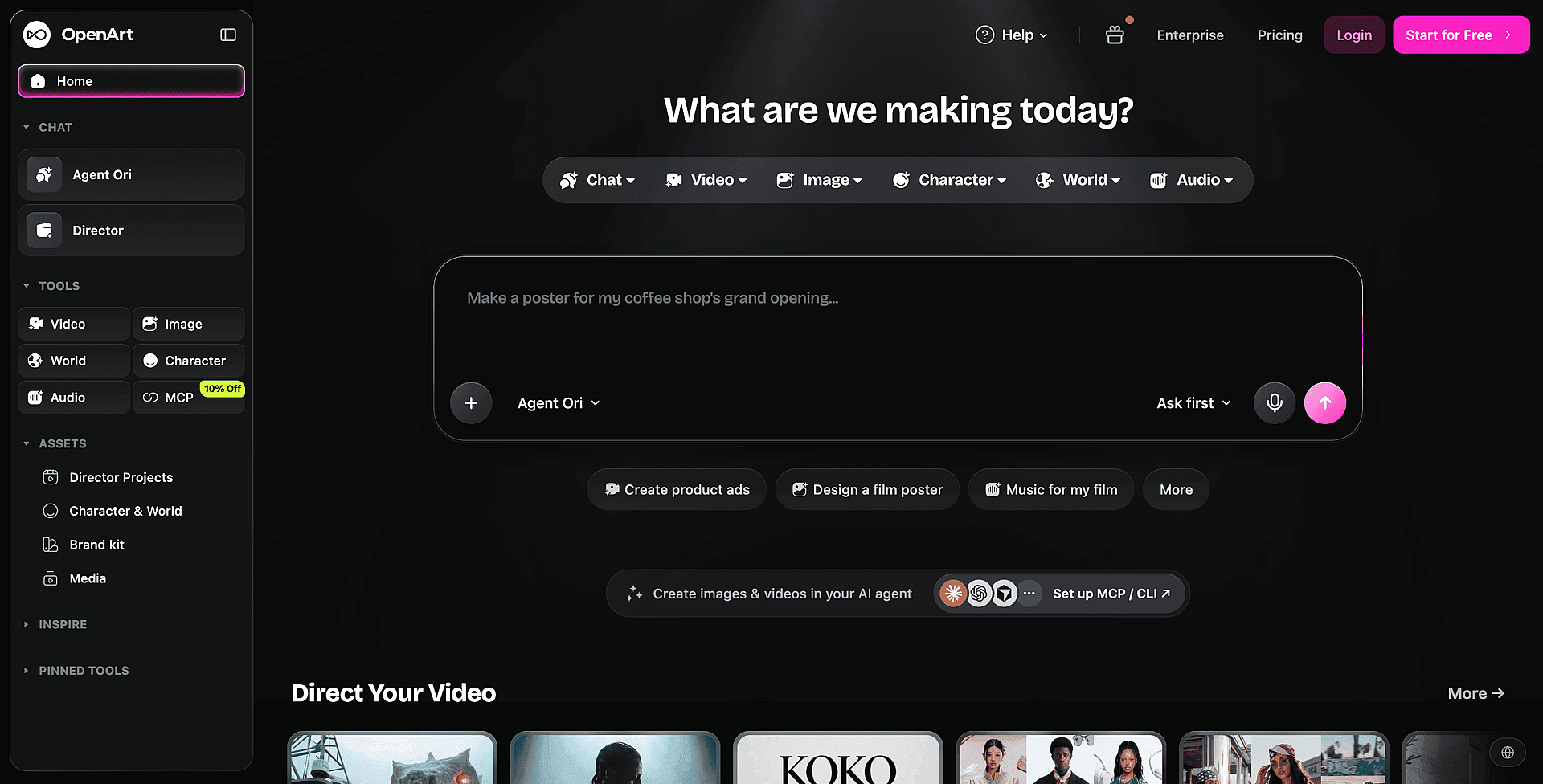
From there, OpenArt's built-in AI photo editor handles the follow-up work without leaving the platform. You describe the change you want, and it can remove unwanted objects from the background, swap faces or smooth skin in lifestyle shots, change the camera angle, or upscale the final image to 4K. Local edits are also useful when the same product ships in multiple scents or variants and you want one photo shoot to cover several SKUs.
Chat Mode lets you keep re-briefing the same image conversationally instead of starting over. You can tell it to keep the background exactly as-is and only move the product slightly, then overlay an ingredients panel with icons and label text, or turn the same photo into a close-up, testimonial-style shot with a hand holding the product and a couple of lines of sharp, legible label text. It's the same underlying idea as several of the conversion tactics in the section below, just executed as a follow-up prompt on an image you've already approved.
That re-briefing approach is also how you handle format sprawl without a second production. Once you've approved a hero shot, the AI aspect ratio changer turns it into a vertical story, a landscape banner, or a square feed post and fills the new space, instead of re-running the whole prompt-and-review cycle for every placement. It won't replace a dedicated batch-export tool for dozens of sizes at once, but for the handful of formats a small paid social account actually runs, it removes the second trip to a design tool.
Beyond stills: the same photo as video
OpenArt also supports image-to-video generation, so a product photo you're happy with can become a short moving asset without a second shoot. Model choice affects the result: options built for natural product motion (a candle flame flickering, smoke rising, a slow camera pull-back) sit alongside options built for more cinematic lifestyle scenes, including ones with people in them. It's worth testing more than one model on the same image, since each tends to handle motion and realism a little differently. For dedicated product clips, the AI product video generator starts from the same uploaded photo.
Beyond one photo: ad creative and product video built for a marketing workflow
The workflow above covers one hero shot. For teams that need a running supply of ad creative instead of one asset, OpenArt's Ad Creative AI generates both video and static ads directly from a text prompt or an existing product photo, in 9:16, 16:9, square, or custom formats. The workflow is three steps: describe or upload, configure and generate, then finish and download. Most video ads generate in a few minutes, which is what makes it realistic to produce a full ad set, several video and static angles at once, on a weekly cadence instead of waiting on a shoot or an editor. Brand Kit settings apply automatically, so ten ad angles for a launch still read as one brand instead of ten separate experiments.
For ads that need more back-and-forth than a single prompt, the AI Product Ads Generator uses a conversational "vibe directing" interface: upload a product photo, describe the spot, then refine it by chatting, "make it softer," "make the CTA stronger," rather than rewriting a prompt from scratch each time. The product itself stays accurate and consistent across frames, and the output is a polished, on-brand video ad without needing filming or editing experience, useful for DTC and ecommerce spots, UGC-style ads, social content, or a brand launch spot.
For teams that already work inside Claude, ChatGPT, or Cursor, OpenArt's MCP integration brings image and video generation into that same chat window, with access to OpenArt's full model catalog and your existing project library, so a marketer can generate or reuse assets without switching tools mid-task. Generations through MCP use the same credits as generating directly on openart.ai.
Put together, this is the part that's easy to miss if you only evaluate OpenArt as an image generator: the brand controls, ad-specific generation, and chat-based iteration are built around a marketing team's actual production cadence, not just single-image quality. That's the gap between a tool that makes a nice picture and one that can carry a weekly ad testing cycle.
Pros
- Multiple image models let you test different treatments of the same product without moving between separate tools.
- Saved references and brand fields reduce visual drift across email graphics, social ads, and website banners.
- Built-in editing, Chat Mode, and the aspect ratio changer cover common follow-up requests without a separate design tool.
- Image-to-video and product video tools turn an approved product photo into a short campaign video in the same workspace.
- Ad Creative AI and the Product Ads Generator turn a single approved photo into a running set of video and static ad angles, with brand rules applied automatically, instead of one image you have to repurpose by hand.
- Image generation can fit into supported agent workflows through OpenArt MCP.
Cons
- Free access has a credit ceiling: 40 free credits, so you can test the workflow but need a paid plan for regular campaign production.
- Model choice can require more experimentation than a template-led tool such as Canva.
- OpenArt does not target automated, catalog-scale product image production for very large SKU counts.
Pricing
OpenArt uses credit-based plans. New accounts get 40 free credits to try it out, no credit card required. Commercial use rights start at the Plus plan; Starter is a paid tier but does not include commercial use rights. See OpenArt pricing for current plans and credit allocations.
Canva
Best for: Canva gives you the fastest route to on-brand social posts and blog graphics when you already build campaigns in Canva.
What it is: Canva's AI image generator (formerly Magic Media) creates image options from a text prompt, then places your choice inside Canva's template editor. You can add your logo, brand colors, and readable overlay text without moving files between tools. Canva also offers separate editing tools for existing images.
Pros: Canva's template library makes layout work easy for non-designers. Generation usually takes about 10 to 20 seconds, according to a third-party Canva review. Canva's license allows Free content in original designs, including commercial ones, as long as you don't resell Canva's stock on its own.
Cons: Canva Free includes only a small monthly allowance of AI uses, shared across AI features and reset at midnight UTC on the first of each month, according to eesel AI's breakdown of Canva AI pricing. Text-to-video clip generation sits in Canva's top AI tier, which is paid-only. Another third-party test scored Magic Media 3.0 out of 10 for text rendering and 5.0 out of 10 for product shots. You can avoid generated lettering by adding text in Canva, but realistic studio photography remains a weaker use case.
Pricing: Canva Free includes a limited monthly AI allowance, and paid plans add a larger one. See Canva's pricing page for current plans.
Adobe Firefly
Best for: Adobe Firefly suits brand teams that prioritize clear training-data policies and content provenance.
What it is: Firefly is Adobe's AI marketing image generator for campaign graphics, social posts, and concept work. You can adjust composition, lighting, color, and style, then move images into Adobe Express or other Creative Cloud apps.
Pros: Adobe trains its Firefly models on licensed Adobe Stock material and public-domain content, which gives IP-conscious brands a clearer sourcing policy than many generators provide. Adobe states that outputs from Firefly AI models can be used for commercial purposes, and it adds Content Credentials to every output. These embedded records disclose AI involvement.
Firefly provides more than 20 creative controls and supports partner models alongside Adobe's own models. That selection gives you room to test different visual styles without leaving Adobe's workspace.
Cons: The free plan offers "free daily generations across image, video, and audio," with limits that refresh every day, but Adobe does not publish a specific daily number. That makes it hard to plan regular campaign production on the free tier alone. Partner models may carry different terms from Adobe's own Firefly models.
Pricing: Firefly Free includes daily generations, and paid plans add a monthly allowance of generative credits. See Adobe's Firefly plans page for current pricing.
Freepik
Best for Freepik suits you when you want a broad model roster and a large stock library as a fallback when generated images miss the brief.
What it is Freepik combines AI generation and editing tools with more than 200 million stock assets. A recent review counted more than 41 generative AI models, though free accounts cannot choose most of them directly. Freepik also offers image-to-video with models such as Kling.
Pros Paid access lets you choose models such as Flux and Mystic, while Seedream is another available option. The platform also includes background removal and upscaling. Paid-model testing found strong results on straightforward prompts, with Flux.2 Pro producing the best instruction fidelity among the models reviewed.
Cons Free accounts receive around 20 image generations per day on Freepik's own generator, and premium models such as Mystic are paid-only, according to zsky.ai's Freepik guide. Free output requires attribution to Freepik and is licensed for personal use only, so it isn't suitable for ads. Generated typography can contain gibberish, so Freepik works better for image assets than finished banners with embedded copy.
Pricing A commercial license starts with Freepik's paid plans, and credit use varies by model and prompt. See Freepik's pricing page for current plans.
Fotor
Best for Fotor suits solo sellers who want product shots and static ads in one editor instead of moving images between separate tools.
Fotor combines a guided Product Shot workflow with an Ad Maker. You upload an existing product image, choose a generated background, and then place the result into promotional creative. Its model menu includes third-party image models, and Fotor has added an AI video generator, although access depends on your credits and plan.
Pros
- The guided workflow makes product photography easier for non-designers.
- Fotor also provides standalone tools for background removal, enhancement, and upscaling.
Cons
- Fotor gives new free accounts six starter credits, but one Product Shot generation costs 15 credits. The starter balance cannot cover that workflow, according to a 2026 review of Fotor's plans and tools.
- Every free-tier export carries a watermark and is capped below HD, so free output isn't ready for ads, according to AI Tools Police's Fotor review.
- Batch background removal requires Pro+, which limits Fotor's usefulness for larger product catalogs.
Pricing Fotor Basic includes the starter credits and watermarked exports. Paid Pro and Pro+ plans add more credits, and Pro+ adds batch features. See Fotor's pricing page for current plans.
Image types that actually convert, and how to brief a tool for each
Picking a tool is only half the decision. What you generate with it matters just as much. These patterns show up repeatedly in high-converting product images across marketplaces, DTC stores, and social ads, and each one translates directly into a short, specific prompt. Baymard Institute's product page UX research identifies several of these as recurring, testable categories rather than stylistic preferences, which is worth knowing before you dismiss any of them as optional.
Lead with the contrasting feature, not the spec. If your water bottle holds both hot and cold liquids for hours, show it doing that, rather than captioning a number nobody searches for. A shopper is far more likely to register "keeps drinks cold for 24 hours, shown in use" than a spec like "20 KPA suction power" that means nothing without context.
Make it scannable, not readable. You have a few seconds to hold attention. Short text paired with simple graphics beats a paragraph every time. If you're prioritizing which features to visualize, ask two questions: do people actually care about this, and how fast will they understand it if you show it?
Use props and lifestyle context carefully on marketplaces with strict image rules. Amazon's main-image policy, for example, requires your product to fill at least 85% of the canvas, which puts heavily staged lifestyle shots at risk of suppression or account review. A well-designed packaging shot is usually the safer alternative when you want to hint at use case or elevate perceived quality without breaking a marketplace's rules.
Show everything that's included. If your product ships with multiple pieces, put them all in frame. Shoppers perceive more value when they can see the full contents at a glance, and it saves them from digging through your other images to confirm what they're getting.
Surface your other variations. If a shopper searching a broad term is actually looking for a specific color or size you carry, showing your range (or the top 8 to 10, if you have many) in the main image can still catch their attention even if a different variant is displayed by default.
Add color and life to anything transparent. Clear glass or plastic tends to photograph flat. A styled scene with color reads as considerably more premium for the same product.
Zoom in on the detail that backs up your claim. If you're telling shoppers a product is durable, show the hardware. If you're claiming waterproof, show the seal. This also quietly distinguishes you from competitors who only show the whole product from a distance.
Address the sticking point before they have to ask. Every product has a weak spot shoppers worry about. Mining your own review section (or a competitor's, or a category-wide view if you have access to aggregated review data) for the most common complaint tells you exactly what to answer visually, rather than guessing.
Give a size reference instead of just listing dimensions. Comparing your product to a familiar object, or a person, helps shoppers judge actual scale and meaningfully reduces returns driven by wrong assumptions about size. Baymard's research on "in scale" product images treats this as a best practice most product pages still skip, not a nice-to-have.
Show, don't tell. If it's waterproof, show it being rinsed off. If it's extra-long, show it being used somewhere that length matters. This is the same instinct behind a before/after image: concrete visual proof reads as more credible than a claim in text.
Lead with the benefit, not the feature, especially for technical products. Nobody buys a supplement because of a specific ingredient name; they buy it for what that ingredient does for them. Emotional, relatable benefits consistently outperform rational, spec-driven language.
Match your models to your actual customer. A model who resembles your target buyer's age, background, or lifestyle helps shoppers picture themselves using the product; Baymard's research on human-model product images finds this especially relevant for apparel, accessories, and cosmetics. Brand Analytics-style demographic data (age, gender, and similar) is useful for identifying your primary customer, but still aim to represent a reasonable range within your audience rather than a single narrow look.
Every one of these translates into a short prompt: describe the scene, the contrast you want to highlight, and the mood, then let a reference-led model (see the OpenArt workflow above) keep your actual product consistent while it builds the shot around it.
How to choose based on the job you actually have
For a campaign set built around one product photo, choose OpenArt. Image-guided generation lets you keep the product as the visual anchor while changing backgrounds, lighting, and campaign styling. Generate separate compositions for email, social posts, and web placements rather than stretching one image across every format. Credit limits still matter, so approve the visual direction before producing multiple variations.
If your real bottleneck is ad fatigue, the job isn't "generate an image," it's "keep a testing cadence going." Approve one direction, then use the reference-led workflow to produce the next batch of variations before the current set's click-through rate starts to slip, rather than waiting until performance has already dropped to start on the next round.
For a promotional banner built with a logo and product image, Canva offers the easiest workflow. Upload both assets, place them in a template, and use its AI image generator for supporting imagery. Keeping your logo and promotional text inside Canva's editor also avoids asking an image model to reproduce them accurately. Adobe Firefly makes sense when you already assemble campaign materials in Adobe apps.
For studio-style product shots without a photoshoot, OpenArt gives you more control over the visual treatment. Start with a clean product cutout, use it as an image reference, and test models or prompts until reflections and proportions look credible. Fotor offers a more guided Product Shot workflow, but its free starting balance does not cover that specific tool.
For social ads that should not resemble stock photography, choose OpenArt or Freepik. OpenArt suits campaigns that need a recognizable style across several original scenes. Freepik gives you broad visual variety and a stock library for backup, although free output is limited to personal use. Adobe Firefly fits better when commercial provenance carries more weight than stylistic range.
If you need both stills and a video ad from the same shoot, OpenArt is the one to try first here. Its image models, video models, and brand settings sit in one workspace, so turning an approved product photo into motion doesn't require a second production or a second tool.
Side-by-side scorecard
| Tool | Free-tier generosity | Product photo input | Video from the same workspace | Quality ceiling |
|---|---|---|---|---|
| OpenArt | ✅ 40 free credits, no credit card required | ✅ Supported, with reference-led models for consistency | ✅ Image-to-video, product video, and video ads | ✅ Strong multi-model options across styles and formats |
| Adobe Firefly | 🟡 Daily generations, exact number not published | ✅ Edits and extends existing images | ✅ Free daily video generations | ✅ Strong controls and model choice |
| Freepik | ✅ Around 20 images per day | 🟡 Editing tools, best models paid | 🟡 Image-to-video with models such as Kling | 🟡 Best models require paid access |
| Canva | 🟡 Small monthly AI allowance | 🟡 Separate editing tools, generator is prompt-based | 🟡 Video clip generation is paid-only | 🟡 Weaker for realistic product shots |
| Fotor | ❌ Six starter credits | ✅ Product Shot workflow | 🟡 AI video generator, credit-dependent | 🟡 Strong models, tight free access |
Which tool fits your situation
- Solo marketer running paid social. Choose OpenArt when ad fatigue means you need a steady stream of fresh, on-brand variations, not just one hero shot. The reference-led workflow and Chat Mode re-briefing above are what let one person cover a testing cadence that would otherwise need a designer on call.
- Lean team covering every channel from one asset. Choose OpenArt when the same product photo has to become an email header, a square feed post, a vertical story, and a landscape banner without a separate production for each. Its model options, including Seedream 5.0 Pro, GPT Image 2.5, and Nano Banana 2.1, give you more control over backgrounds and visual styles, and image-to-video covers the placements that need motion.
- Solo ecommerce seller. Choose Fotor when you want a product-shot and ad-making workflow in one place. Free exports carry a watermark, and the initial credit balance does not cover its Product Shot workflow.
- Non-designer needing a banner fast. Choose Canva when you already have a logo, product image, and brand colors. Its AI image generator fits directly into Canva's templates, so you can generate an image and place it into a finished banner without learning a separate design tool.
- Brand team concerned about IP risk. Choose Adobe Firefly when training sources and content provenance guide your approval process. Adobe's commercially focused positioning and Content Credentials make Firefly easier to assess under stricter brand policies.
Frequently asked questions
Is there a truly free AI marketing image tool? Every tool here offers free access with usage caps. OpenArt provides 40 free credits with no credit card required. Adobe Firefly refreshes a daily allowance, Freepik allows around 20 images per day, and Canva resets a small monthly allowance. For regular campaign production, you will likely need a paid plan.
Can AI turn a product photo into an ad? An AI product image generator can place an uploaded item into new scenes and create campaign variations. OpenArt can reuse your source image and brand assets across styled backgrounds and ad concepts. You can produce related visuals for social, email, and web without arranging another photoshoot.
Why do AI product photos sometimes look obviously fake? Three things usually cause it: using a general-purpose tool that wasn't built for image creation, writing an overcomplicated prompt that confuses the model instead of guiding it, and leaving in AI-typical artifacts like overly smooth textures or slightly wrong label text. A purpose-built image tool, a short and specific prompt, and a reference-led model that stays faithful to your actual product all help avoid this.
Can I get a video, not just a still image, from these tools? Yes. All five tools now offer some form of AI video, though free access varies. Adobe Firefly includes video in its free daily generations, while Canva reserves video clip generation for paid plans. OpenArt extends the same uploaded product photo into a short video with image-to-video generation, in the same workspace as your images and brand settings.
How do I keep ad creative fresh without a design team? The practical fix is to stop treating each new ad as a new production. Approve one hero image, then re-brief it (new background, new crop, a different callout) instead of starting from a blank prompt every time. That's the workflow OpenArt's Chat Mode is built around, and it's closer to how a performance marketer actually needs to work than a one-shot generator is.
Can I get the same image in different aspect ratios for different placements? Yes. OpenArt's AI aspect ratio changer turns one approved image into a Story, a square post, or a wide banner and fills the new space, and the AI image extender expands a scene when a crop feels too tight. Canva's resize tools are another option when the final asset is a template-based layout.
What is the easiest tool for non-designers? Canva offers the easiest route to a finished banner because its templates handle layout and text placement. OpenArt fits better when you want custom product scenes and less stock-like campaign imagery. Your choice depends on whether you need fast layout work or more control over the generated image.
Do free-tier images have watermarks and commercial rights? Licensing rules differ across free plans, so free access does not guarantee ad-ready exports. OpenArt includes commercial use rights from the Plus plan up. Fotor watermarks free exports, Freepik requires attribution and limits free output to personal use, and Canva allows Free content in original commercial designs. Before you run any AI image in a client campaign, an AI copyright check can flag brand similarity or likeness risks.
The bottom line
Choose a free AI image generator by the work you need to finish. Credit totals show how long you can experiment, but image-to-image control, watermark rules, and commercial rights determine whether you can publish the result. Most AI product photos that look fake aren't a tool problem: they come from the wrong tool, an overcomplicated prompt, or an uncorrected AI artifact, all of which are avoidable once you know to look for them.
If you want to turn one product photo into a coordinated set of styled campaign visuals, stills and video, start with the AI image generator. Its multi-model workflow lets you test backgrounds and campaign variations while keeping the source product consistent. Start with the free credits, check commercial-use terms for your plan, and upgrade when you need more output.