

AI Aspect Ratio Changer
OpenArt's AI aspect ratio changer turns any photo into a 9:16 Story, a 1:1 post, or a 16:9 thumbnail by adding new picture around the edges. Your original photo stays whole, so every face and product stays in the shot.
Key Features of AI Aspect Ratio Changer
Change the Aspect Ratio Without Cropping
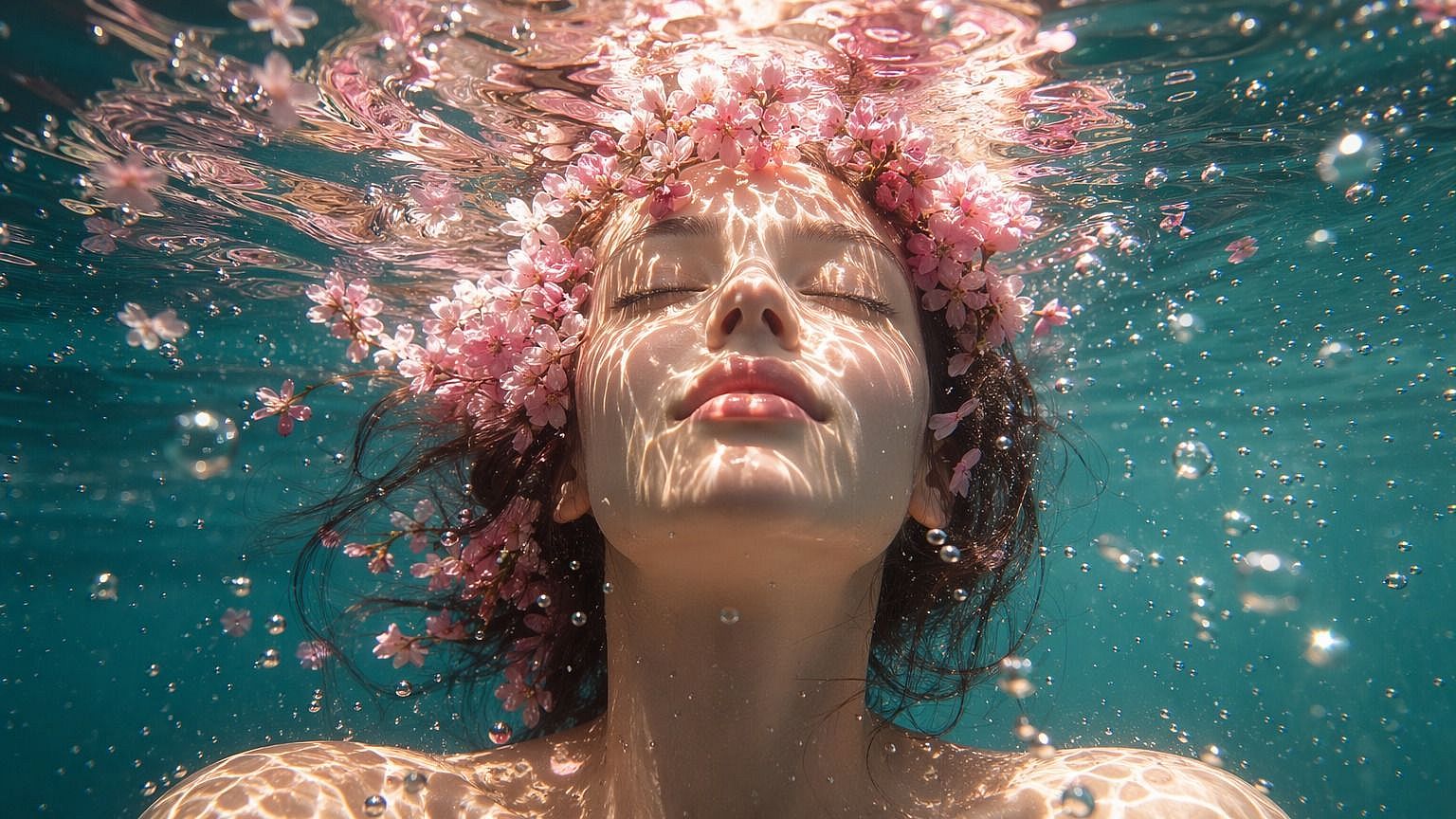
OpenArt's aspect ratio changer, called Expand Image tool, makes your picture bigger in the direction you need. Pick a new shape, and the AI draws new scenery past the old edges. The pixels in your original photo stay exactly the same. A tall beach selfie can become a wide 16:9 photo with more sand on both sides.
Pick a Ratio, an Exact Size, or a Social Preset
Expand Image gives you three ways to set the new shape. Choose a common ratio like 9:16, 3:4, 1:1, or 16:9. Type an exact width and height in pixels, or pick a preset such as Instagram Story, YouTube Thumbnail, or Facebook Post. The AI image resizer then builds your picture to that exact shape.
Tell the AI What Goes in the New Space
Expand Image lets you type what should fill the added space, like "more blue sky" or "an empty white wall for my headline." Leave the prompt blank, and the AI simply continues the scene you already have. Ask for more than one output to get a few versions at once. Then keep the version that looks most natural.
How to Use the AI Aspect Ratio Changer
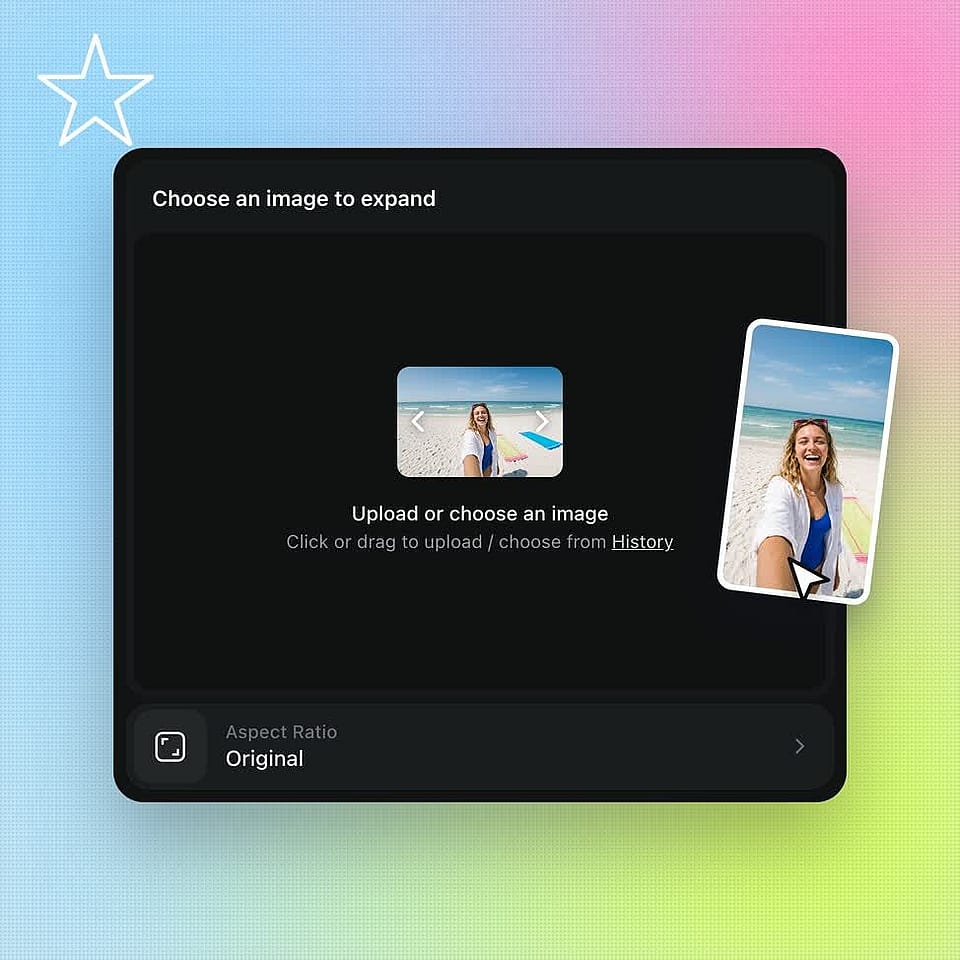
Upload your image
Open Expand Image and upload a photo, or pick one from your History.
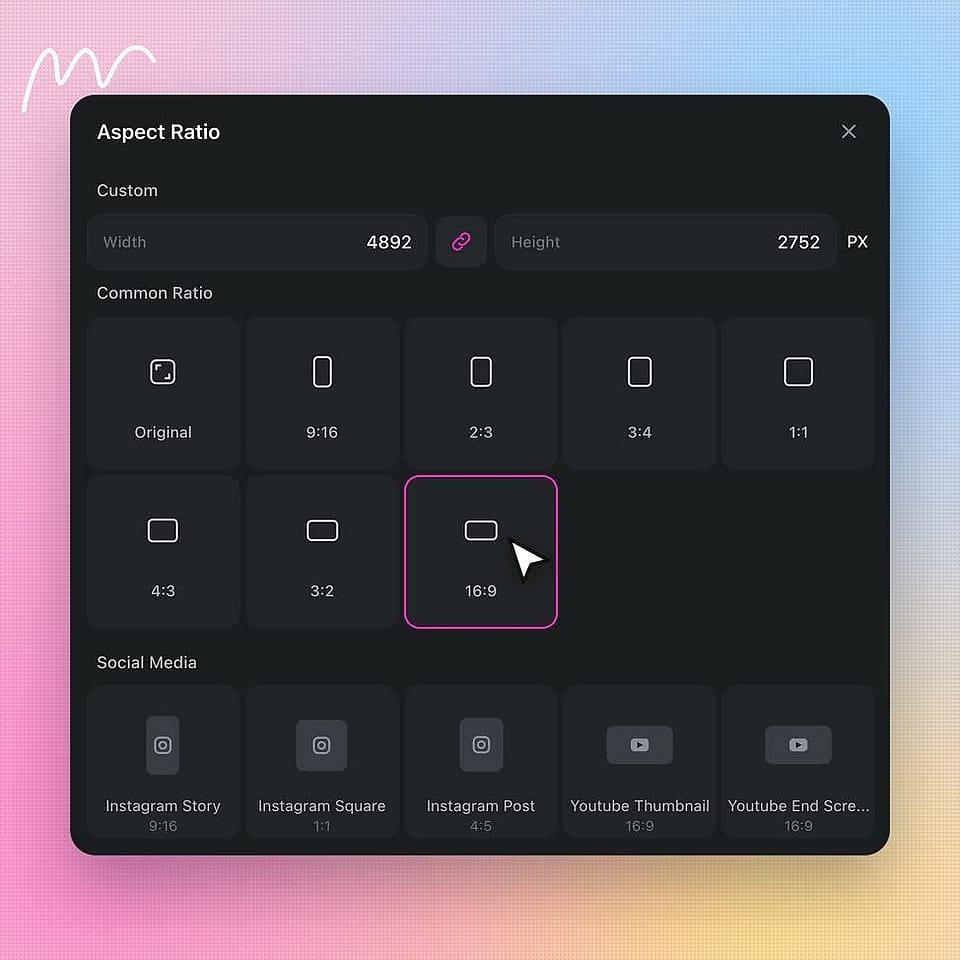
Choose the new shape
Pick a common ratio, a social media preset, or type a custom width and height in pixels.
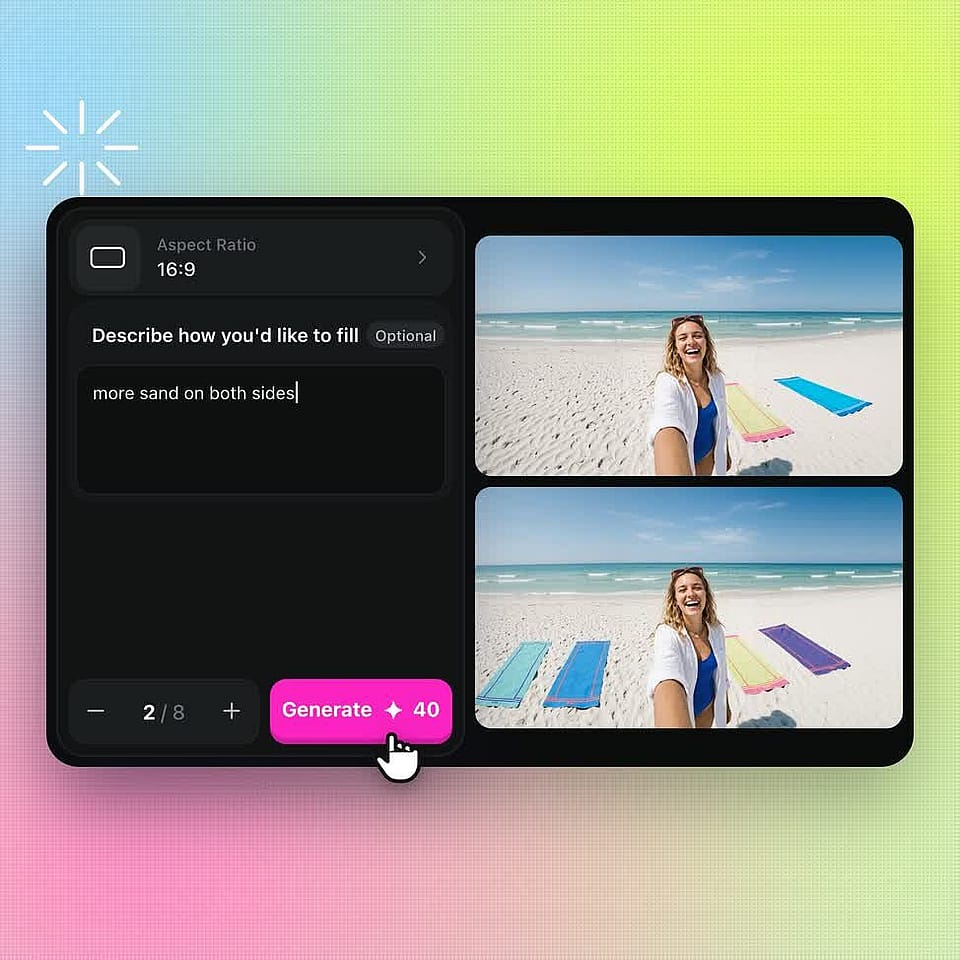
Describe and generate
Type what should fill the added area, or leave it blank. Set your number of outputs, generate, and download the one you like.
Use Cases
Making fresh images has never been this easy.
Social Media Creators Posting on Every App
Social media creators use OpenArt's Expand Image tool to post one photo on several apps. A square photo becomes a 9:16 Story, a tall 4:5 Instagram post, and a 16:9 YouTube thumbnail. Each version keeps the whole picture, so no one's face gets cut off at the edge. You post everywhere from a single photo shoot.
Try it NowSmall Business Owners Selling Online
Small business owners use OpenArt to reshape product photos for each online store and ad. A phone photo of a candle can grow into a wide banner for your website, with the candle still in the middle. Ask for empty space on one side, and you have room for your sale price. You skip booking a new photo shoot for every size.
Try it NowMarketing Agencies and Brand Teams
Marketing agencies and brand teams use OpenArt to fit one approved campaign photo into every ad size a client needs. The team types the exact pixel size for each ad and gets a matching set of pictures. Image to Video can then turn the tall version into a moving Story ad.
Try it NowYouTubers Making Thumbnails
YouTubers use OpenArt to turn a tall phone photo into a wide 16:9 thumbnail. The AI fills both sides with more of the scene, which leaves room for big title text. Pick the YouTube Thumbnail preset, and the picture comes out in the right shape. You can reshape the same photo into a tall 9:16 picture for Shorts too.
Try it NowFrequently Asked Questions
An aspect ratio changer is a tool that changes the shape of an image, like turning a square photo into a tall or wide one. Some people call it an aspect ratio converter. OpenArt's AI aspect ratio changer, the Expand Image tool, adds new picture around the edges, so your whole original photo stays in the shot.
Upload the image to OpenArt's Expand Image tool and pick the aspect ratio you want. The AI adds new scenery around your photo until the photo fills the new shape. Your original pixels stay exactly as they were. Type a short prompt if you want to decide what goes in the new space.
Yes. Image Upscale makes your whole image bigger and keeps the same aspect ratio. Set the upscale factor anywhere from 1x to 11x, and the AI adds sharper detail as the image grows. When you need a new shape at an exact pixel size, type the width and height in Expand Image instead.
OpenArt's Expand Image tool builds the new space from what is already in your photo, so a beach keeps going as beach and a studio wall keeps its color. Generate a few outputs at once and keep the one that blends in best. If an edge looks off, change your prompt and try again.
Yes. Every new OpenArt account starts with 40 free credits, so you can reshape your first images with the AI aspect ratio changer right away. When you're ready to create more, paid plans add monthly credits and watermark-free downloads. See current plans on the OpenArt pricing page.
An image aspect ratio is the width of a picture compared to its height, written as two numbers like 16:9. A 1:1 image is a square. A 9:16 image is tall and fills a phone screen, and a 16:9 image is wide like a TV screen. Aspect ratio describes shape only, so a small image and a large image can share the same aspect ratio.
Upload your photo to OpenArt's Expand Image tool and choose an Instagram preset, like Instagram Story, Square, or Post. You can also type an exact size: 1080 x 1350 pixels for a tall 4:5 post, 1080 x 1080 for a square post, or 1080 x 1920 for a Story or Reel. The AI fills the extra space, so your whole photo shows up in the post.
Yes, by making a new version of the video in the shape you need. Save a still from your video, change its aspect ratio in OpenArt's Expand Image tool, then upload the new picture to Image to Video and describe the motion. For brand new videos, pick 9:16, 1:1, or 16:9 in the AI video generator before you generate.
No. OpenArt's Expand Image tool leaves your original pixels untouched and only draws the new space around them. If you need a bigger file for print or a large banner, run the finished picture through Image Upscale to make it up to 11x larger.
Yes. Commercial rights apply on eligible paid plans, so you can use reshaped images in ads, product listings, and client work. Make sure you own the photo you upload or have the rights to use it.