


 ChatGPT
 Perplexity
 Claude
 Gemini

This guide shows how to make a carousel on Instagram and LinkedIn, from planning the slides to posting them. A carousel post is one post with several slides that people swipe through. On Instagram, you select up to 20 photos and videos in a single post. On LinkedIn, you upload a PDF, and each page becomes a slide. We cover each step in the order you do it: plan the slides, pick the carousel size, make the slide images with AI, then post.
TL;DR
- Instagram: create a post, select up to 20 photos and videos, set the order, and share. All slides use the same shape.
- LinkedIn: put your slides in one PDF, then add it to a post as a document. The file can be up to 100 MB and 300 pages.
- Size: 1080 pixels wide works on both. On Instagram, portrait 3:4 (1080 x 1440) takes up the most screen space.
- Plan one idea per slide: a hook on slide 1, the points in the middle, and a call to action at the end.
- To make the slide images, describe the whole carousel in one message to OpenArt's Chat Mode and get a matching set.
What is a carousel post?
A carousel post is a single social media post that holds several images or videos. People swipe left to see the next slide. The first slide shows in the feed, with dots below it that tell people there is more to see.
Carousels work well for content that has steps or parts: a how-to, a list of tips, a product with several angles, a before and after, or a short story. Each slide carries one piece, so the post is easy to follow on a phone. For product carousels, the AI Product Image Generator makes studio shots of your product to use as slides.
Instagram and LinkedIn both support carousels, and they handle them in different ways. Instagram builds the carousel from separate image and video files. LinkedIn builds it from one document, usually a PDF.
How to plan carousel slides that people swipe through
A carousel is short. Each slide has to earn the next swipe. This simple plan works for most topics.
Slide 1: the hook. Say what the reader gets in a few words, such as "5 onboarding mistakes that cost you customers." Make the text large enough to read in the feed.
Middle slides: one point each. Give each slide one tip, one step, or one product angle. Keep the words short and use the same layout so the set looks like one post.
Last slide: the action. Tell people what to do next: follow, save the post, visit the link in your bio, or read the full article.
Keep the look the same across slides. Use the same background, colors, and font on every slide, and keep your logo in the same corner. When the slides match, the carousel reads as one story.
What size should an Instagram carousel be?
Once you know what each slide says, set the size. Use 1080 pixels wide on both platforms. That is the width Instagram uploads at, and it keeps text sharp on LinkedIn too.
| Platform | Shape | Size in pixels | Notes |
|---|---|---|---|
| Portrait 3:4 | 1080 x 1440 | Tallest shape Instagram keeps without cropping | |
| Portrait 4:5 | 1080 x 1350 | A common portrait size | |
| Square 1:1 | 1080 x 1080 | Safe choice for grids | |
| Landscape 1.91:1 | 1080 x 566 | Takes the least screen space | |
| Square or portrait page | 1080 x 1080 or 1080 x 1350 | Every PDF page should be the same size |
According to Instagram's Help Center, Instagram keeps a photo at its original size when the aspect ratio is between 1.91:1 and 3:4 and the width is between 320 and 1080 pixels. Anything outside that range gets cropped. Since every slide in an Instagram carousel shares one shape, make all your slides the same size from the start.
How to make carousel images with AI
Designing ten matching slides by hand takes time. With an AI image generator, you can describe the whole carousel once and get every slide in the same style. Here is how to do it on OpenArt.
Step 1: Describe the whole set in Chat Mode. Open Chat Mode and write one message with the topic, the number of slides, the size, and the words for each slide in quotes. Chat Mode picks the model and settings, shows the credit cost, and saves every slide to your library.
Step 2: Keep the style locked. Describe the background, colors, and font style once and ask for every slide in that style. To use your exact logo, hex colors, and fonts, save them in Brand Kit and make the slides with text to image in Create Image, using GPT Image 2.6 or GPT Image 2.
Step 3: Fix one slide at a time. Tell Chat Mode what to change, such as "make the text on slide 3 bigger." Check the spelling on every slide before you post.
Step 4: Export for each platform. Download the slides in order. For Instagram, upload them as one carousel. For LinkedIn, put them into one PDF with any PDF tool, then upload the file as a document.
We made the example carousel below on OpenArt with Nano Banana Pro, one image per slide. Every prompt used the same style text, and only the slide words changed:
Style for every slide: solid sunny yellow (#FFD23F) background, a real photo cut-out in the top half with a crisp daylight shadow, a huge bold condensed cobalt blue (#1F4BFF) headline in the bottom half, and small "HEARTH COFFEE" text in the top left corner. Slide 1: "BETTER POUR-OVER IN 3 STEPS" and "Swipe to start". Slide 2: the number "1", "HEAT THE WATER TO 200°F" and "Just off the boil". Slide 3: the number "2", "RINSE THE FILTER" and "No papery taste". Slide 4: the number "3", "POUR SLOWLY IN CIRCLES" and "About 3 minutes total". Slide 5: cobalt background with yellow text, "SAVE THIS FOR TOMORROW" and "Follow for more brew tips".
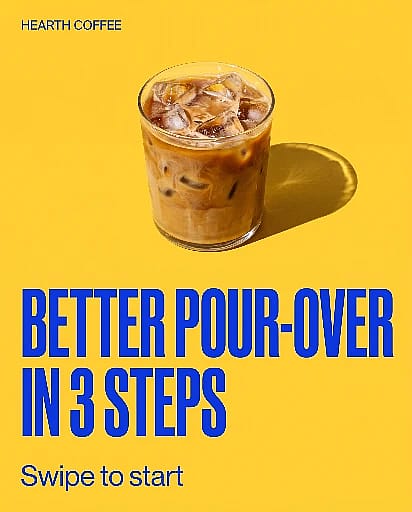

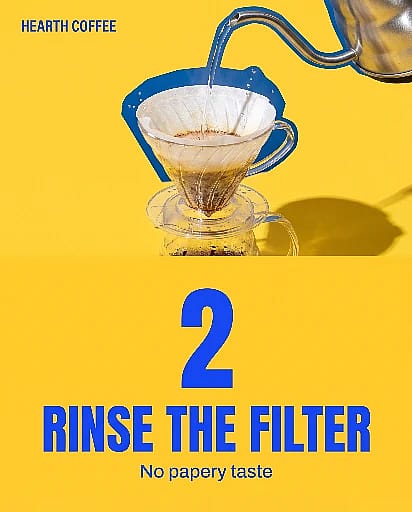
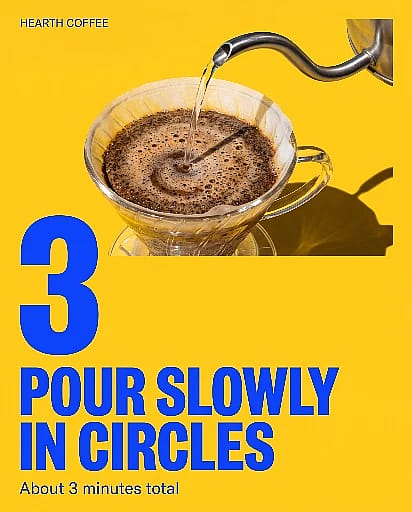

Example Instagram carousel made with Nano Banana Pro on OpenArt. All five slides are shown in order.
A few more things help. Put every word you want on a slide inside quotes in your prompt. GPT Image 2.6 and Nano Banana Pro handle text on images well. If you already have one slide you like, upload it to image to image and ask for the next slide in the same style. If you want one slide to move, upload it to Image to Video and describe one movement. Instagram carousels can mix photos and videos in one post. To reuse a set in another shape, resize it with the AI Aspect Ratio Changer.
The same style text works for the rest of your social images. Use it with the AI YouTube Thumbnail Generator for a matching video cover, the AI Poster Maker for an event or sale poster, or the Instagram Post Generator for single posts between carousels. That way your feed keeps one look.
How to make a carousel on Instagram
With your slides ready, you can post them. These steps follow Instagram's Help Center for Instagram on a computer. The phone app follows the same order.
- Start a post. Click Create, then click Post, then Select from computer.
- Select multiple files. Click the select multiple icon and choose up to 20 photos and videos.
- Pick the shape and crop. Choose square, portrait, or landscape. The shape you choose applies to every slide, so you can't mix shapes in one carousel. Drag each item to adjust how it fits the frame, then click Next.
- Set the order. Drag slides into the order you want. Your first slide is the one people see in the feed.
- Add filters if you want. Apply one filter to every slide, or edit slides one at a time.
- Write the caption and share. Add one caption and one location for the whole post. You can tag people on each slide. Then click Share.
After you post, you can reorder slides, remove a slide, and edit the caption. You can't add new slides to a carousel that is already live, so check the set before you share it.
One more detail from Instagram's Help Center: videos inside a carousel don't count as reels. They won't show in the Reels tab or get reels features.
How to post a carousel on LinkedIn
On LinkedIn, a carousel is a document post. You design the slides, save them as one PDF, and upload the file. LinkedIn shows the pages one at a time, so people can click through them like slides.
- Save your slides as one PDF. Put the slides in order and export them as a single file. LinkedIn also accepts PPT, PPTX, DOC, and DOCX.
- Start a post. Click Start a post at the top of your LinkedIn homepage.
- Add a document. Click More, then the Add a document icon, then Choose file.
- Give it a title. Type a document title and click Done. The title shows on the post.
- Write the post and publish. Add your post text, mention people or add hashtags if you want, and click Post.
LinkedIn's Help Center sets the limits at 100 MB and 300 pages per file. After posting, you can edit the post text, but you can't change the document itself. Members who see your post can also download the document as a PDF.
Here is what a LinkedIn carousel looks like before you combine it into a PDF. It uses square 1080 x 1080 pages with one point per page.
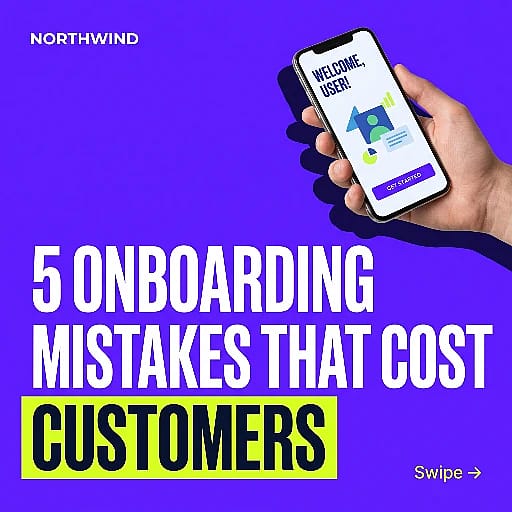
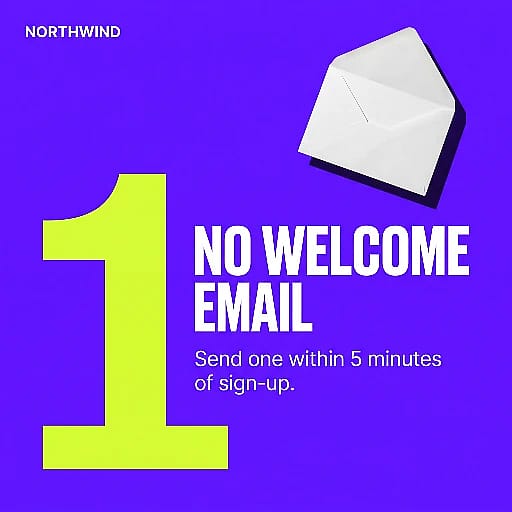
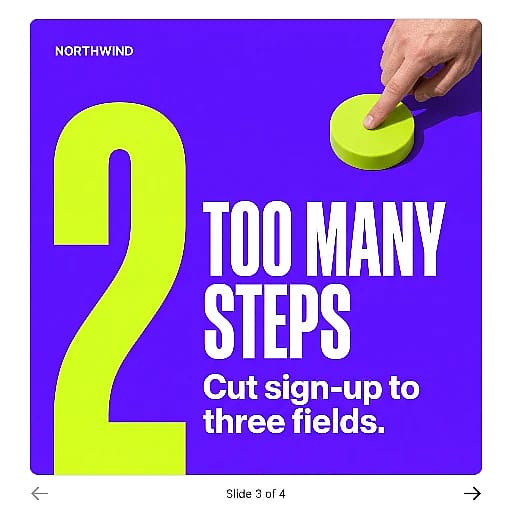
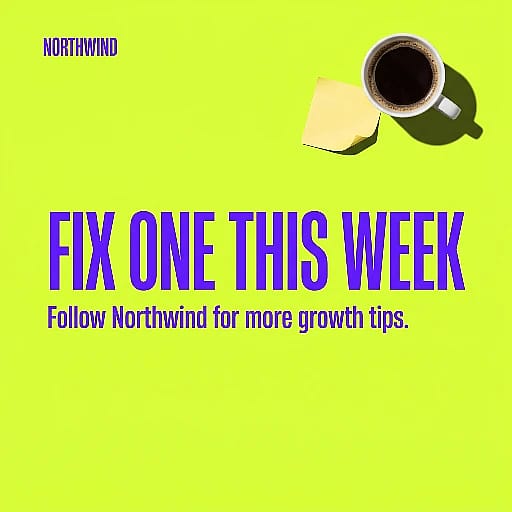
Sample LinkedIn carousel for Northwind, a made-up B2B brand, shortened to four square pages. We made each page with Nano Banana Pro on OpenArt, then combined the pages into one PDF for upload.
Instagram vs LinkedIn carousels: what's different?
| How you upload | Separate photos and videos | One document file (PDF, PPT, PPTX, DOC, DOCX) |
| Slide limit | Up to 20 photos and videos | Up to 300 pages, 100 MB |
| Video slides | Yes | No, a document has pages only |
| Edit after posting | Reorder, remove slides, edit caption | Edit post text only |
| Best for | Product sets, tips, behind the scenes, stories | Tips, frameworks, case studies, how-tos |
You can use the same slides on both. Make them square or 4:5 portrait, post the images as an Instagram carousel, and combine the same images into a PDF for LinkedIn.
FAQ
How many slides can an Instagram carousel have?
An Instagram carousel can have up to 20 photos and videos in one post, according to Instagram's Help Center. You can mix photos and videos in the same carousel.
Can I add more slides to an Instagram carousel after posting?
No. After you share a carousel, you can reorder slides, remove slides, and edit the caption. You can't add new photos or videos to it. To add slides, delete the post and share it again.
How do I make a carousel on LinkedIn without a PDF?
LinkedIn also accepts PPT, PPTX, DOC, and DOCX files for document posts, according to LinkedIn's Help Center. So you can upload a slide deck straight from PowerPoint. Whichever file you use, LinkedIn shows it as pages people click through.
What size is a LinkedIn carousel?
LinkedIn's Help Center does not set a page size for documents. Common choices are square 1080 x 1080 or portrait 1080 x 1350 pages. Keep every page the same size so the slides don't jump as people click through.
How do I reuse one carousel on Instagram, LinkedIn, and Stories?
Make the slides square or 4:5 portrait first, since both fit Instagram and LinkedIn. Post the images as an Instagram carousel and combine the same images into one PDF for LinkedIn. For 9:16 Stories, resize each slide with the AI Aspect Ratio Changer instead of making a new set.
Can AI make a carousel for me?
Yes. On OpenArt, describe the whole carousel in one Chat Mode message, with the number of slides and the words for each slide in quotes. You get a matching set of slide images that you can fix one slide at a time and then post.
Can I use AI-made carousel slides for my business?
Yes. Commercial rights apply on eligible paid plans on OpenArt. Check the text, logos, and product details on every slide before you publish. See the pricing page for plan details.