

 ChatGPT
 Perplexity
 Claude
 Gemini
The best MCP servers for Claude let you type an idea and get a finished image back in the same chat. We tested 7 image generation MCP servers in Claude on October 29, 2026, with the same two prompts, to see which ones actually make an image.
Key takeaways
- OpenArt, Krea, ImagineArt and Magnific all made the poster on free accounts, and Krea and ImagineArt also finished the photo edit.
- Higgsfield and fal need a paid plan or credits before Claude can make anything with them.
- Start your prompt with the connector's name, like "@OpenArt", or Claude may build a design in code instead.
- Try one image server at a time if you are on free Claude plan.
Summary of Tested Image Generation MCP Servers
| Server | Image models (examples) | Video too? | How you add it | Free account in our test | Best for |
|---|---|---|---|---|---|
| OpenArt MCP | Nano Banana 2.1, GPT Image 2.5, Ideogram 4.5, Seedream 5 Pro, FLUX 3 | Yes | Custom connector, sign in | Poster yes, photo edit needed more credits | Many top models in one connector |
| Krea | Krea 2, Flux, Imagen, Nano Banana Pro | Yes | Claude's connector directory | Yes, on cheaper models | Wide model range and upscaling |
| ImagineArt | ImagineArt 2.0 | Yes | Custom connector, sign in | Yes, on its own model | Free daily credits |
| Magnific (formerly Freepik) | Nano Banana 2, Seedream 5, Imagen 4, Recraft V4 | Yes | Custom connector, sign in | Poster yes, photo edit paused when free usage ran out | Editing and upscaling tools |
| Higgsfield | Soul 2.0, Seedream 5.0, Nano Banana Pro, GPT Image 2 | Yes | Custom connector, sign in | No, plan required | Existing Higgsfield subscribers |
| fal | Large pay-per-run catalog | Yes | Custom connector, sign in | No, credits required | Developers who pay per image |
| mcp-image | Nano Banana, GPT Image, Seedream | No | Local install with your own API key | Not tested | Open-source setup in Claude Code |
What Is an Image Generation MCP Server?
An image generation MCP server is a connector that gives Claude the tools of an image app. MCP stands for Model Context Protocol, an open standard introduced by Anthropic that lets AI assistants use outside tools.
You type what you want in plain words. Claude writes a detailed prompt, picks the settings and sends the job to the server, and the finished image comes back in the chat.
That turns Claude into an AI image maker, with the server doing the drawing. Our guide explains why Claude can't make images on its own and what a connector adds.
Connector or MCP Server?
They are the same thing in Claude. Claude calls an MCP server a connector once you add it under Customize > Connectors.
Most image servers run online, and you sign in with your account. A few, like mcp-image, run as a program on your own computer and use your own API key.
What to Look For in the Best MCP Servers for Claude
The best MCP servers for Claude differ in five ways. We used these for every server on this list.
How It Signs You In
Most servers let you sign in with your account in a browser window, and that sign-in is the whole setup. Open-source servers usually ask for an API key from an image provider instead. Once signed in, add ‘@plugin name’ to call it and create AI images.
Which Models It Reaches
Some servers run one in-house model, and others give you dozens. A wide choice matters because models have different strengths, like clean text on posters, realistic photos or careful photo edits.
How You Pay
Servers charge in three ways: credits from a plan, pay per image, or your own API bill. The best ones let Claude check the cost and your balance before anything runs.
Where Your Images End Up
Results show in the chat first. Some servers also save every image to a library on their site, so you can find it again later.
What It Does After the First Image
Look for editing, upscaling and video. With those, one connector can take an idea from a still image to a short clip.
How We Tested the Best MCP Servers for Claude
We ran every test on October 29, 2026. Each server got its own new chat, with every other image connector either disconnected or removed from the list.
We ran OpenArt twice, on our team's OpenArt workspace and on a free OpenArt account. The other servers ran on a Claude Free account in the mobile app, added one at a time.
We used the same two prompts to test image generation MCP servers:
- A poster with text: "Make a 4:5 poster for a jazz night called Blue Hour Sessions, Friday at 8 PM, with the title in large serif letters."
- An edit of our own photo: we attached an overhead photo of a cheetah cub and asked to "replace the cheetah with a golden retriever, sitting in the same position."
Disclosure: OpenArt MCP is our product, which is why we were able to test it on free account and our team’s workspace.
7 Best Image Generation MCP Servers for Claude
For each run, we noted how the server signed in, which model it picked, how it handled the photo and whether it showed a cost first. Each server chose its own model. That makes this list of the best MCP servers for Claude a guide to setup and access more than image quality.
1. OpenArt MCP: Best for Many Top Models in One Connector
Best for: people who want the newest image models, plus video, from one Claude connector.
OpenArt MCP connects Claude to OpenArt's image and video models. You describe the image in plain words, and Claude picks a model, writes a detailed prompt and returns the result in the chat.
The image models include Nano Banana 2.1, Nano Banana Pro, GPT Image 2.5, GPT Image 2, Seedream 5 Pro, Ideogram 4.5, FLUX 3 Image, Recraft V4.1, Wan 2.7 Image and Grok Imagine Image 2.0. The same connector also makes videos with models like Seedance 2.5 and Kling 4.0, Wan 3.0, and more.
Key Features
- Many models in one connector: Claude picks the right image or video model for each request, or uses the one you name.
- Your own photos: upload a photo through the upload box in Claude, or paste an image link.
- Smart Shot: plan a multi-shot video from one scene description, then render it.
- Cost checks: Claude can check your credit balance and a model's cost before it runs.
- Library and teams: every result saves to your OpenArt library, and team workspaces share one balance and one library.
- Works in: Claude, Claude Desktop, Cowork, ChatGPT, Cursor and Kimi, plus the OpenArt CLI for Claude Code.
Pricing: generations use your OpenArt credits, the same as on openart.ai. One balance covers both.
Pros
- The newest image models and video models from one sign-in
- Team workspaces with a shared balance and library
Cons
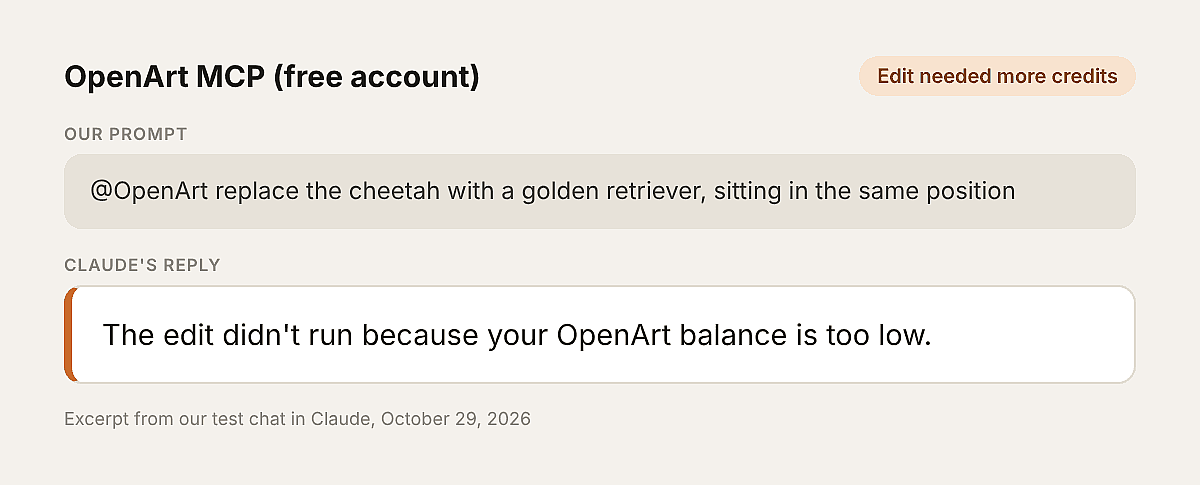
- Bigger jobs need paid credits, since our free balance covered the poster and ran out before the edit
- Trimming or resizing a finished file is a separate step
What We Got
On our team workspace, Claude picked Nano Banana 2.1 for the poster and made it at 4:5 and 2K on the first try. For the edit, it opened OpenArt's upload box for the cheetah photo, then made the golden retriever version at 16:9 to match the original photo.
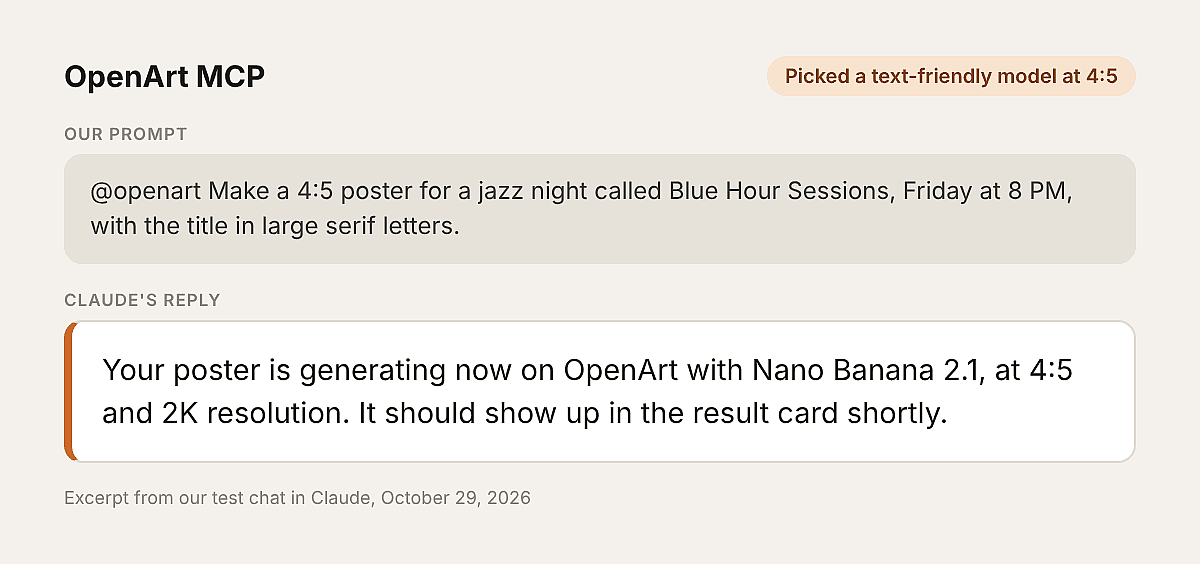
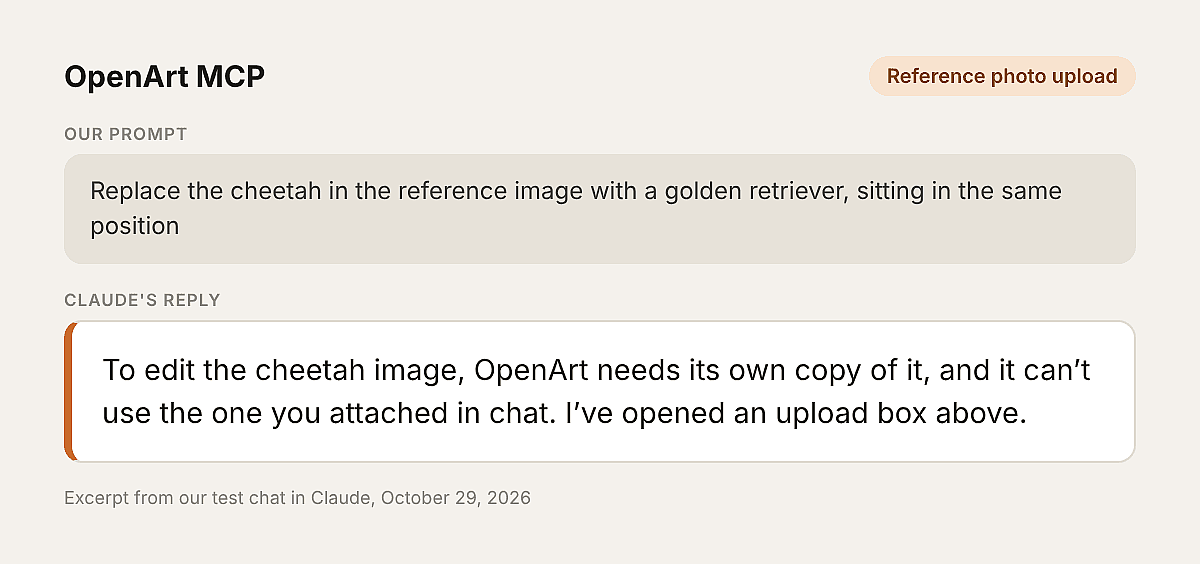
Both images came out correctly with no retries.
On a free OpenArt account, the poster worked the same way with Nano Banana 2.1. The photo edit needed more credits than the free balance had left.
Setup in Claude
Open Customize > Connectors, click Add custom connector, name it OpenArt and paste https://mcp.openart.ai/mcp. Click Connect and sign in with your OpenArt account, and that sign-in is the whole setup.
2. Krea: Best for Wide Model Range and Upscaling
Best for: people who want a large model catalog and high-resolution upscaling.
Key Features
- Large catalog: more than 60 image and video models, with tools to list models and read their settings. Its MCP server gives Claude its image, video, editing and upscaling tools.
- Upscaling: Topaz upscaling up to 22K.
- Consistent products: multi-reference workflows that keep a product or style the same across images.
- Saved workflows: run Krea node apps from Claude.
- Job control: check the status of long jobs or cancel them.
Pricing: Krea uses compute units, shared with its web app. Every account gets a small amount of free units each day, and paid plans unlock more models.
Pros
- One of the biggest model catalogs we tested
- Free daily units made both test images
Cons
- Many top models need a paid plan
- Aspect ratio options change from model to model
- Claude Code setup uses an API token
What We Got
On a free account, Krea's first two picks, Ideogram 4.5 and Nano Banana 2.1, needed a paid plan. GPT Image 2.5 needed more than the free daily units and had no 4:5 option.
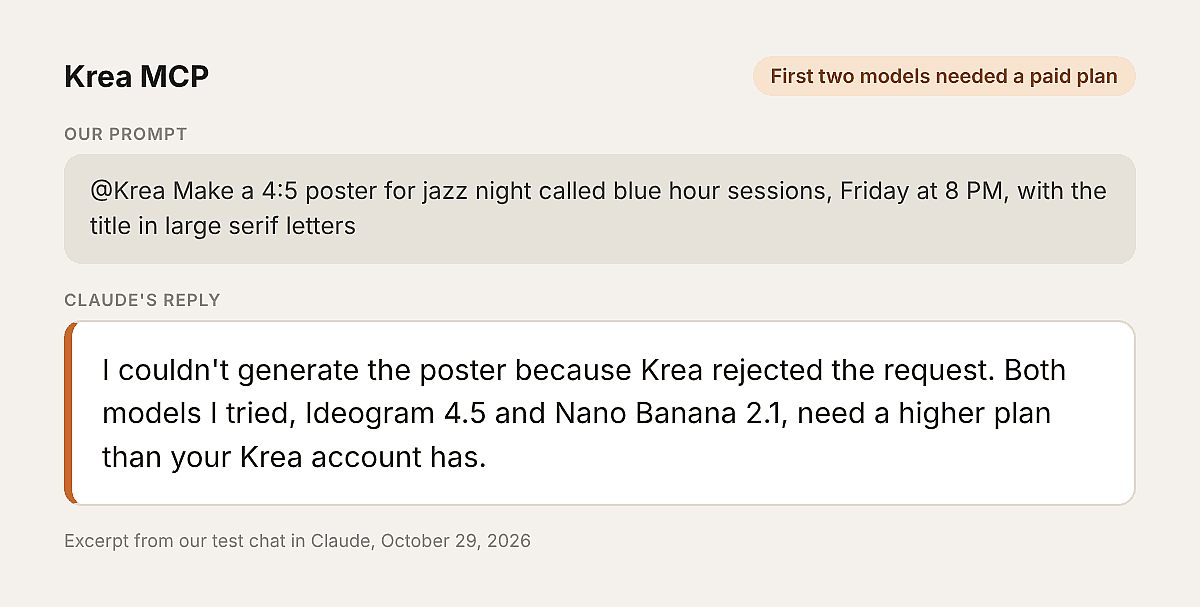
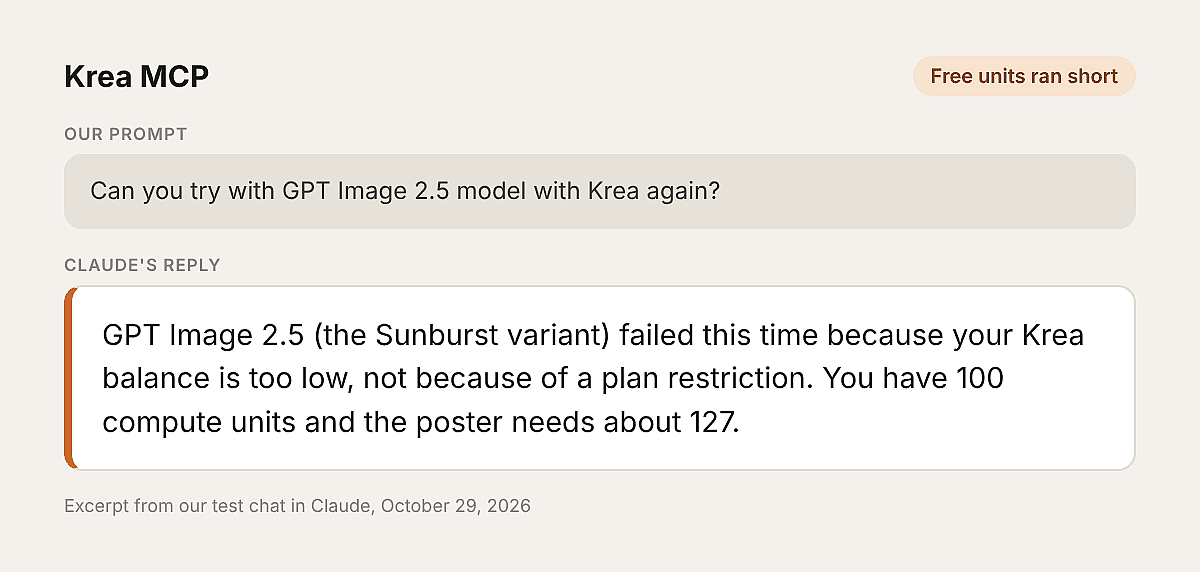
Claude then switched to Qwen Image 2512, which fit the free balance and made a true 4:5 poster. For the edit, Krea opened its own upload window and used Flux Kontext Dev.
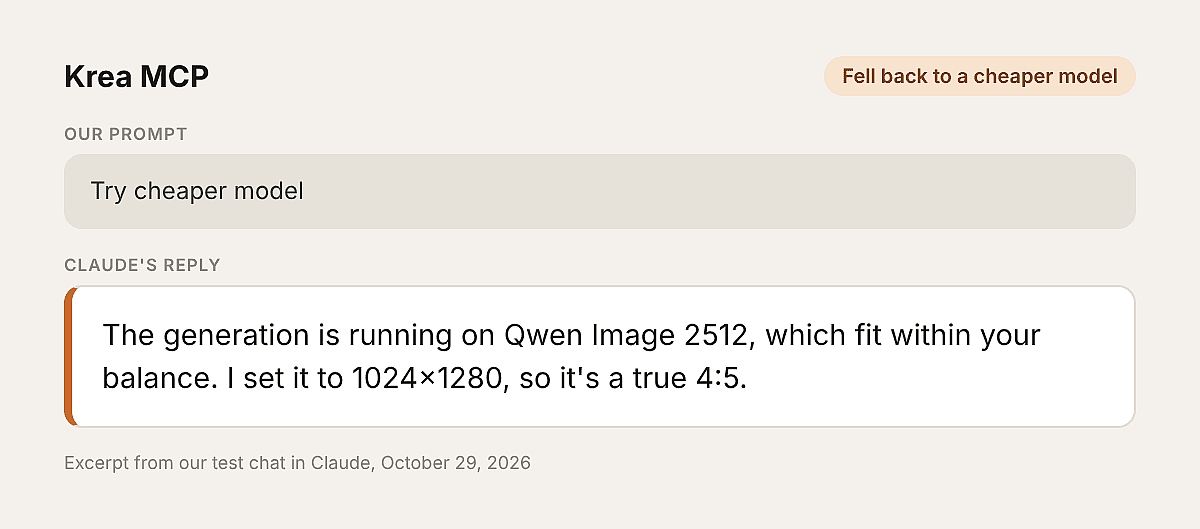
Claude showed Krea's plans in the chat and explained each cost before it ran anything.
Setup in Claude
Krea is listed in Claude's connector directory, so you can add it from Customize > Connectors and sign in. In Claude Code, Krea's docs show claude mcp add with its server URL, https://api.krea.ai/mcp, and an API token.
3. ImagineArt: Best Free Daily Credits
Best for: trying an image MCP server in Claude without paying.
Key Features
- Images: text-to-image with ImagineArt 2.0.
- Video: text-to-video clips up to 10 seconds.
- Clean-up tools: background removal and 4x upscaling.
- Music: royalty-free tracks from a prompt.
- Works in: Claude Desktop, Claude Code, Cursor and more.
Pricing: the free plan gives 100 credits a day with no card. Paid plans add credits and more models.
Pros
- Free plan gives 100 credits a day
- Image, video and music in one connector
- Photo edit worked on the free plan
Cons
- The free plan runs on ImagineArt's own model
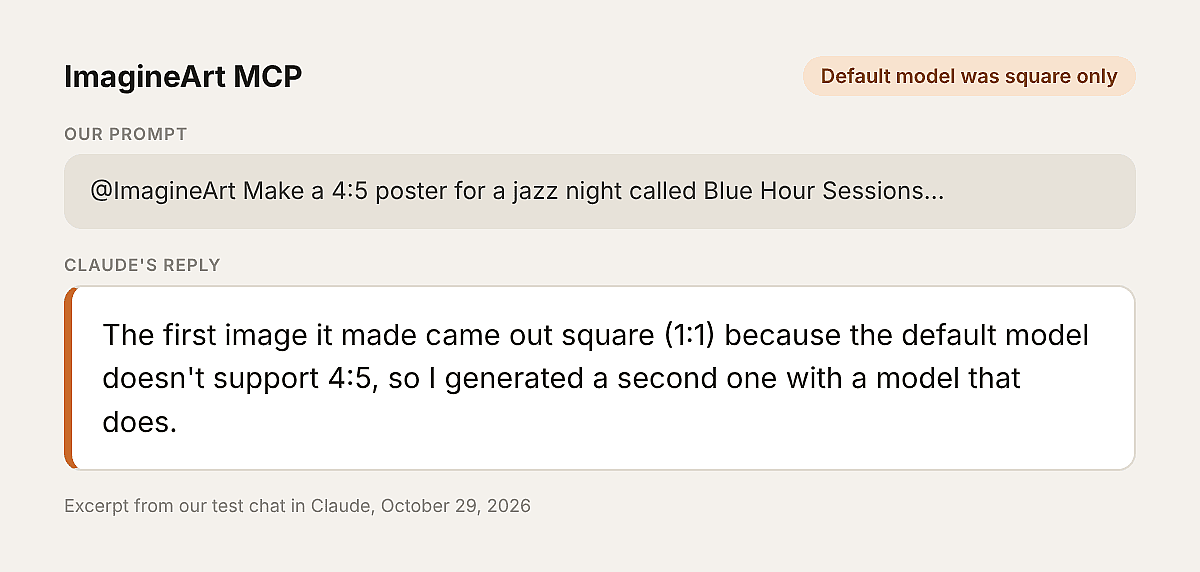
- The default model made a square image when we asked for 4:5
What We Got
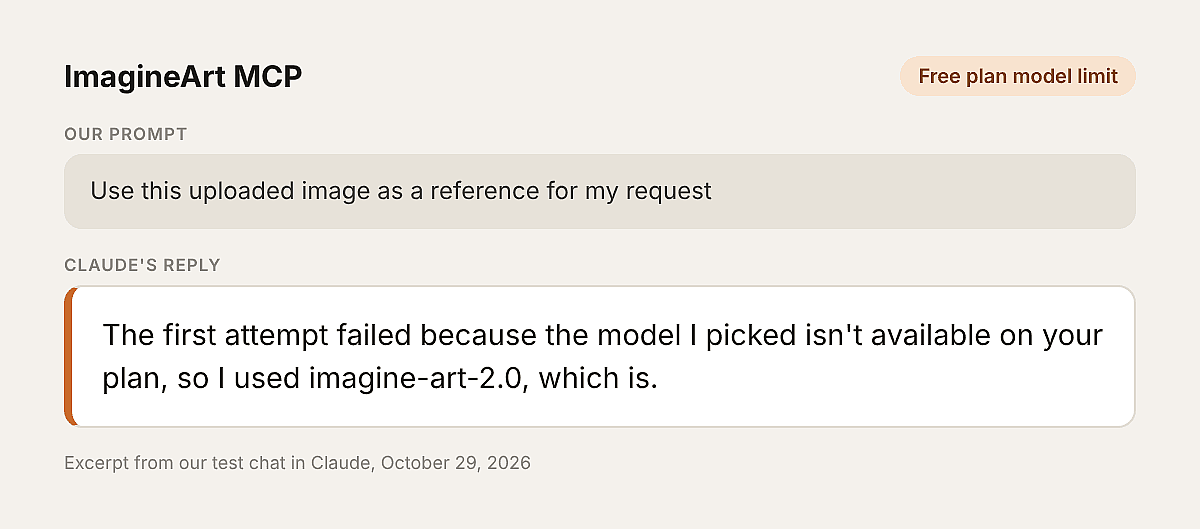
The default model made a square poster, so Claude made a second one with a model that supports 4:5. For the edit, ImagineArt opened an upload window, and Claude switched to imagine-art-2.0 because its first pick wasn't on the free plan.
Setup in Claude
Open Customize > Connectors > Add custom connector, name it ImagineArt and paste https://mcp.imagine.art. Click Connect and sign in with your ImagineArt account.
4. Magnific (Formerly Freepik): Best for Editing and Upscaling Tools
Best for: people who want generation and editing tools like upscaling and relighting in one connector.
Key Features
- Many formats: image, video, audio, vector and 3D generation.
- Editing tools: upscaling, relighting, layer edits and resizing.
- Saved setups: use Spaces and saved workflows, and train LoRAs for a custom style.
- Batch work: batch image generation and character creation.
- Multiple models: Nano Banana 2, Seedream 5, Imagen 4, Recraft V4, Seedance 2.0, Veo 3.1, and more.
- Free checks: checking your balance and searching past creations uses no credits.
Pricing: Magnific charges credits and uses credits even for models that are unlimited on its website.
Pros
- The widest set of editing tools we found
- Vector output for logos and icons
- The poster worked on our free account
Cons
- Magnific's page lists the MCP for paid plans
- Our photo edit paused when free usage ran out
- The poster added a venue and address we never asked for
What We Got
On a free account, the poster came back at a true 4:5, with the title spelled exactly as we typed it. The model also added a venue, an address and a ticket line that we never asked for.

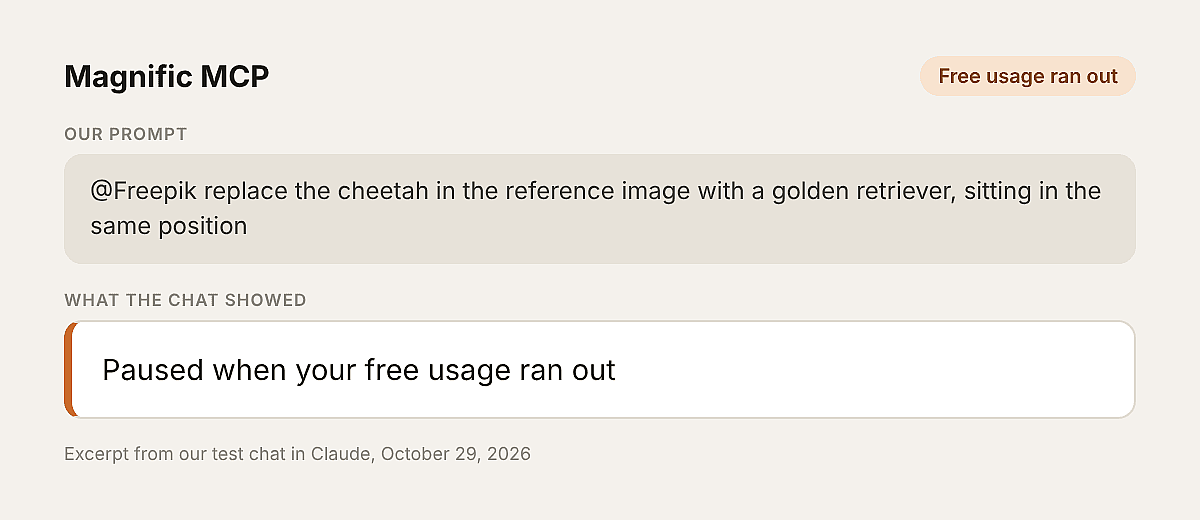
The photo edit didn't finish. After Claude loaded the tools, the chat paused with a message that our free usage had run out.
Setup in Claude
Open Customize > Connectors > Add custom connector and paste https://mcp.magnific.com. Click Connect and sign in with your Magnific account.
5. Higgsfield: Best for Existing Higgsfield Subscribers
Best for: people who already pay for Higgsfield and want its models inside Claude.
Key Features
- Over 30 models: image models up to 2K, including Soul 2.0, Seedream 5.0, Nano Banana Pro, GPT Image 2 and Flux.2 Pro, and its AI video models include Seedance 2.0, Kling 3.0 and Wan 2.7.
- Soul 2.0: Higgsfield's own model for a stylized look.
- Ready workflows: examples like UGC videos and ad recreation, plus photo and video editing.
- Reference uploads: its sample prompts ask for your own photos or clips.
- Works in: Claude, Claude Code, ChatGPT and a CLI.
Pricing: Higgsfield charges credits on a paid plan. In our test, image generation needed its Basic plan or higher.
Pros
- Strong set of video models next to its image models
- Ready-made workflows for social and ad content
Cons
- No free image generation in our test. See our list of Higgsfield MCP alternatives for other options
What We Got
Our free account connected and signed in without trouble. The poster prompt stopped with an error before anything was made.
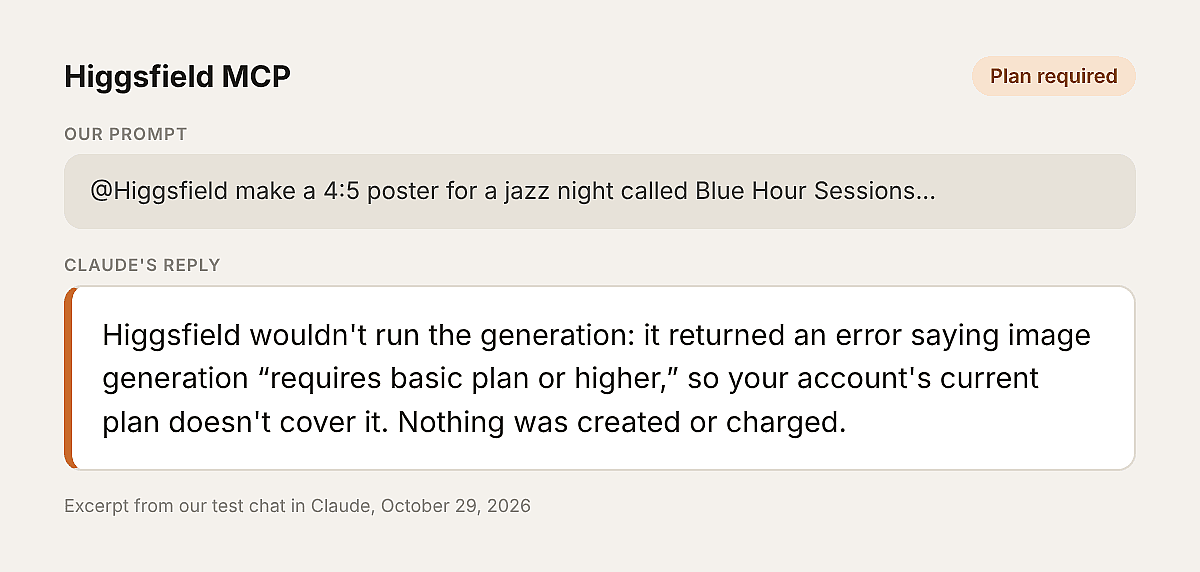
Nothing was charged, and Claude offered to build the poster in code instead.
Setup in Claude
Open Customize > Connectors > Add custom connector, name it Higgsfield and paste https://mcp.higgsfield.ai/mcp. Click Connect and sign in with your Higgsfield account.
6. fal: Best for Developers Who Pay Per Image
Best for: developers who want a large model catalog and pay only for what they run.
Key Features
- Model search: find models by keyword, get recommendations for a task and read each model's settings.
- Price checks: look up costs for up to 50 models before you run anything.
- Long jobs: submit video, 3D or training jobs and check on them later.
- Uploads: send local files up to 90 MB or public links.
- Account choice: pick which fal account pays for MCP runs.
- Works in: Claude, ChatGPT, Claude Code, Cursor and other MCP apps.
Pricing: the MCP server is free. You pay for each model run at fal's normal API rates, using fal credits.
Pros
- A huge model catalog for image, video, audio and 3D
- Built-in price checks before each run
- Good fit for developers who mix many models
Cons
- Needs credits before the first image
- New accounts may need one dashboard visit to finish setup
What We Got
We tried two free accounts. The second one first needed a quick visit to fal's dashboard to finish setting up.
Both accounts then stopped with an out-of-credits error. Claude looked up fal's prices for cheaper models, but even the cheapest one needed credits.
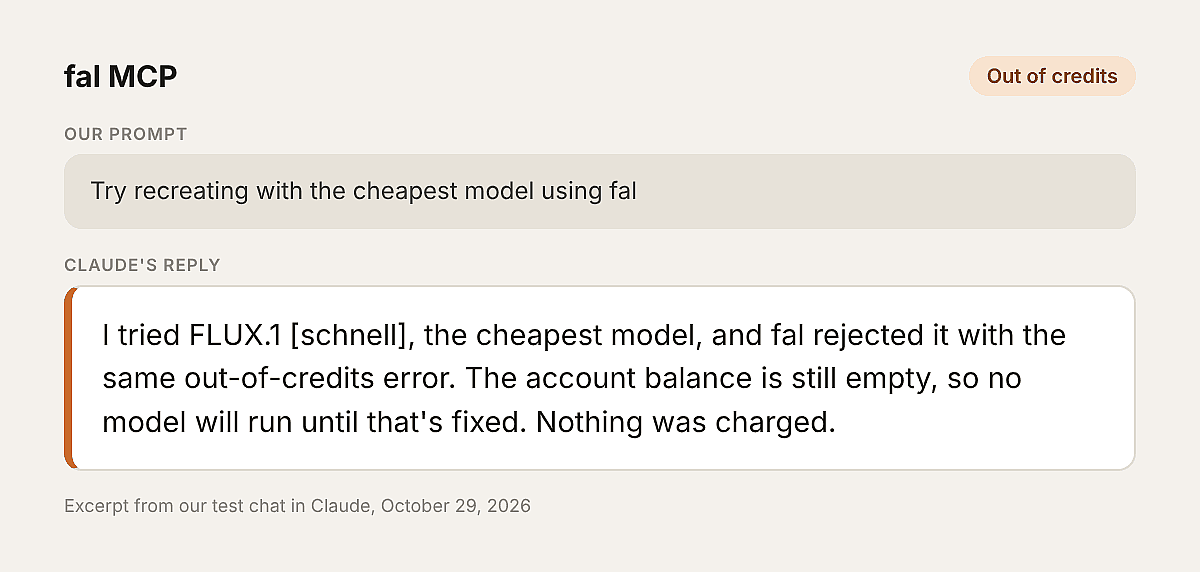
Nothing was charged on either account.
Setup in Claude
Open Customize > Connectors > Add custom connector, name it fal and paste https://mcp.fal.ai/mcp-relay. Sign in, then turn fal on from the + menu in a new chat.
7. mcp-image: Best Open-Source Option for Claude Code
Best for: developers who want a free, open-source server and already have an image API key.
Key Features
- Three providers: Nano Banana (Gemini), GPT Image (OpenAI) or Seedream. Needs API key.
- Prompt help: it adds detail to short prompts, and you can turn this off.
- Local files: It saves each image to a folder on your computer.
- Quality presets: fast, balanced or quality, at sizes from 1K up to 4K.
- Photo edits: pass the path to an image file to edit it.
- Prompt skill: it ships with an installable skill for writing image prompts.
Pricing: the server is free under the MIT license. You pay your image provider for each image.
Pros
- Free, open source and fully under your control
- Works in Claude Code, Codex and Cursor
Cons
- Needs Node.js 22 and your own API key
- Images save to a local folder, so there's no online library
We didn't test mcp-image. It needs Node.js 22 and your own image API key, and it runs as a program on your computer.
Setup
In Claude Code, run claude mcp add mcp-image with your API key and an output folder, following the GitHub page. Other MCP apps, like Claude Desktop, can run it from a config file.
Best Claude MCP Servers Compared
Here is how the seven servers line up on the five things from our scorecard.
| Server | How it signs you in | Which models it reaches | How you pay | Where your images end up | What it does after the first image |
|---|---|---|---|---|---|
| OpenArt MCP | Account sign-in | Nano Banana 2.1, GPT Image 2.5, Ideogram 4.5, Seedream 5 Pro, FLUX 3 and more | OpenArt credits, and our free account made the poster | In the chat and your OpenArt library | Photo edits, video and Smart Shot |
| Krea | Account sign-in or API token | 60+ models, including Krea 2, Flux, Imagen and Nano Banana Pro | Compute units, with a small free amount each day | In the chat | Upscaling to 22K, video and multi-reference images |
| ImagineArt | Account sign-in | ImagineArt 2.0 | Credits, with 100 free a day | In the chat | Background removal, 4x upscaling, video and music |
| Magnific | Account sign-in | Nano Banana 2, Seedream 5, Imagen 4, Recraft V4 and more | Credits, and its page lists paid plans | In the chat and your Magnific creations | Upscaling, relighting, layers, resizing, video and vector |
| Higgsfield | Account sign-in | 30+ models, including Soul 2.0, Seedream 5.0 and Nano Banana Pro | Credits on a paid plan | Not stated on its page | Photo and video editing, plus video |
| fal | Account sign-in | A large catalog you can search from Claude | Pay per run with fal credits | In the chat | Video, audio and 3D models |
| mcp-image | Your own API key | Nano Banana, GPT Image or Seedream | Your image provider's API bill | A folder on your computer | Photo edits |
Workflows That Work Well in Claude
An image MCP server is most useful when Claude handles the whole job. These are the workflows we'd start with.
- Posters and social graphics with text: ask for a model that's good at lettering, like Ideogram 4.5 or Nano Banana 2.1, then check every word.
- Edits to your own photos: upload a product shot and describe the change, like a new background or a different season.
- Product ads: give Claude a product photo and a goal, and let it plan several versions. Here is how to make product ads from Claude.
- Image to video in one chat: make a still image, then ask Claude to animate it with the same connector.
- Batch variations: ask for five versions of one idea in different styles, then pick the best and refine it.
How to Add a Claude Image Generation MCP Server
Most of the best Claude MCP servers use the same setup steps. The exact URL for each one is in its section above.
Add It in Claude or Claude Desktop
- Open Customize > Connectors and click Add custom connector.
- Name the connector and paste its server URL.
- Click Connect and sign in with your account on that platform.
- Start a new chat and begin your prompt with the connector's name, like "@OpenArt".
Claude Free plans allow one custom connector, so remove one before you add another. For a full walkthrough, see how to make images in Claude. You can also add these connectors in Claude Cowork.
How to Choose the Best Claude MCP Server for Images
The best MCP server for Claude depends on what you need most.
| If you want... | Pick |
|---|---|
| The newest image models plus video in one connector | OpenArt MCP |
| A large catalog and high-resolution upscaling | Krea |
| Free daily credits to try things out | ImagineArt |
| Upscaling and relighting next to generation | Magnific |
| Higgsfield's Soul 2.0 style | Higgsfield (paid plan) |
| Pay only for each image you run | fal |
| An open-source server with your own API key | mcp-image |
If you want to run batch jobs for asset creation, try the OpenArt CLI. Our guide to MCP vs CLI explains when to use each.
Tips From Our Test
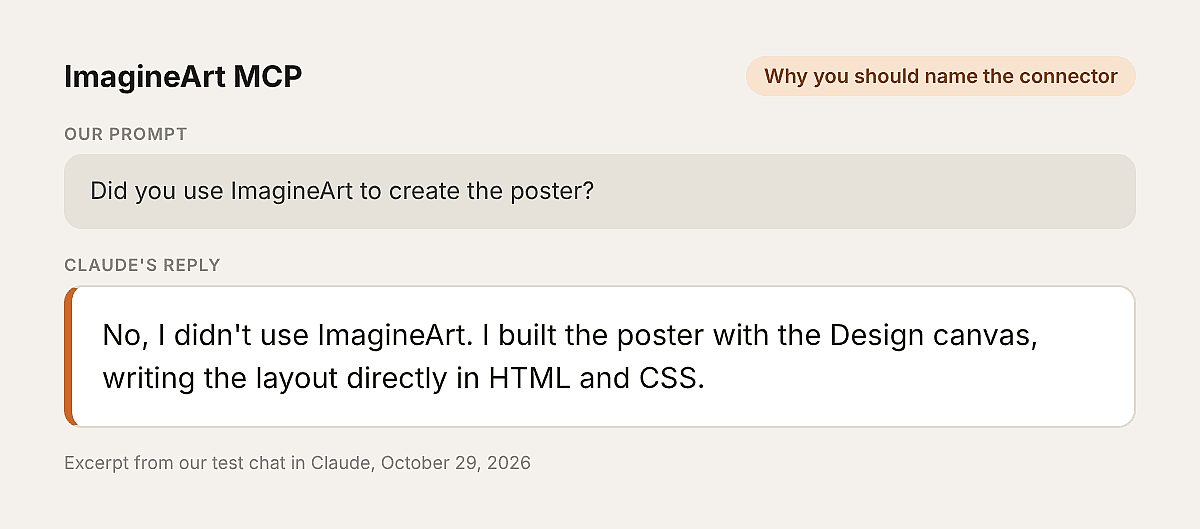
- Name the connector in your prompt. In one test, we left out "@ImagineArt", and Claude built the poster in code instead.
- Check every line of text. Magnific's poster added a venue and address we never gave it.
- Expect model swaps on free plans. Krea and ImagineArt both moved to cheaper models.
- Ask for the cost first. Most servers can check prices and your balance before they run, so ask Claude to show you before you approve.
- Plan around one connector on Claude Free. Free plans allow one custom connector, so test servers one at a time.
- Ask your Owner on Team plans. Only an Owner can add a custom connector for the whole team.
- Save the images you like. In case you remove the Claude connector or log out of the connector’s platform, the test images might stop showing in the old Claude chats.
For a wider list that also covers video tools, see our guide to MCP servers for image and video. Or if you want to explore the platform, try creating images on the web with OpenArt AI image generator.
Frequently Asked Questions
What are the best MCP servers for Claude for making images?
In our October 2026 test, the best MCP servers for Claude were OpenArt MCP, Krea and ImagineArt. OpenArt ran both prompts on its first model choice on our team workspace, while Krea and ImagineArt made images on free accounts with cheaper models.
Are the best MCP servers for Claude free?
Some of the best MCP servers for Claude have free options. OpenArt, ImagineArt, Krea and Magnific made the poster on free accounts in our test, while Higgsfield and fal needed a paid plan or credits.
Can Claude generate images?
Yes, once you connect one of the best MCP servers for Claude, like OpenArt. Our guide explains why Claude can't make images on its own and how a connector adds that.
Do I need an API key for an image generation MCP server?
No, for most of them. OpenArt, Krea, ImagineArt, Magnific, Higgsfield and fal all let you sign in with your account, and mcp-image is the one that needs your own API key.
Which image MCP servers for Claude also make video?
OpenArt, Krea, ImagineArt, Magnific, Higgsfield and fal all make video too. Here is how to make videos in Claude with OpenArt.
Can I use image generation MCP servers in Claude Code?
Yes. Add a server with claude mcp add and its URL and sign in for Claude Code image generation. mcp-image also runs through Claude Code.
Can I connect more than one image MCP server to Claude?
Yes, on paid Claude plans. Start each prompt with the server's name, like "@OpenArt" or "@Krea", so Claude knows which one to use.
Where do my generated images go?
The image shows up in the Claude chat. OpenArt also saves every result to your OpenArt library, so you can reuse it on openart.ai.