

 ChatGPT
 Perplexity
 Claude
 Gemini
TL;DR
- Kimi AI connects to OpenArt MCP through the Kimi plugin store. Do not paste the connector URL used with Claude, ChatGPT, or Cursor.
- Install the "OpenArt AI" plugin from Kimi's plugin store.
- Sign in with your OpenArt account through OAuth. You do not need an API key.
- Type
/OpenArtin the message box to activate the plugin, then ask Kimi to generate an image or video within the chat. - This walkthrough covers OpenArt's newly documented support for connecting OpenArt AI to Kimi.
Why connect OpenArt to Kimi
OpenArt MCP lets compatible AI clients call OpenArt's image generation, video generation, and library tools. Connecting it to Kimi lets you create media inside a Kimi conversation instead of moving between separate interfaces.
Kimi's open-weight K2 and K3 models are built for tool-based workflows, and a lot of that audience already lives in agentic tooling: the same crowd running Claude Code, Codex CLI, and Gemini CLI. If you already ask an assistant to call outside tools mid-conversation, adding image and video generation to that habit is a small step, not a new one, and if you'd rather skip the chat interface entirely, OpenArt also ships a CLI you can call straight from the terminal.
OpenArt lists Kimi as a supported MCP client on its MCP page, with a Kimi-specific install path through the plugin store instead of the connector URL you'd paste into Claude or ChatGPT. None of the instructions below carry over between the two, so treat this as its own setup, not a variant of one you've already done. Runway, Krea AI, and Higgsfield ship their own AI agent integrations too, and you can see how OpenArt compares to each: Runway, Krea, Higgsfield. Freepik ships one as well, but as of this writing, none of them list Kimi as a supported client the way OpenArt does.
Installing the OpenArt AI plugin from Kimi's plugin store
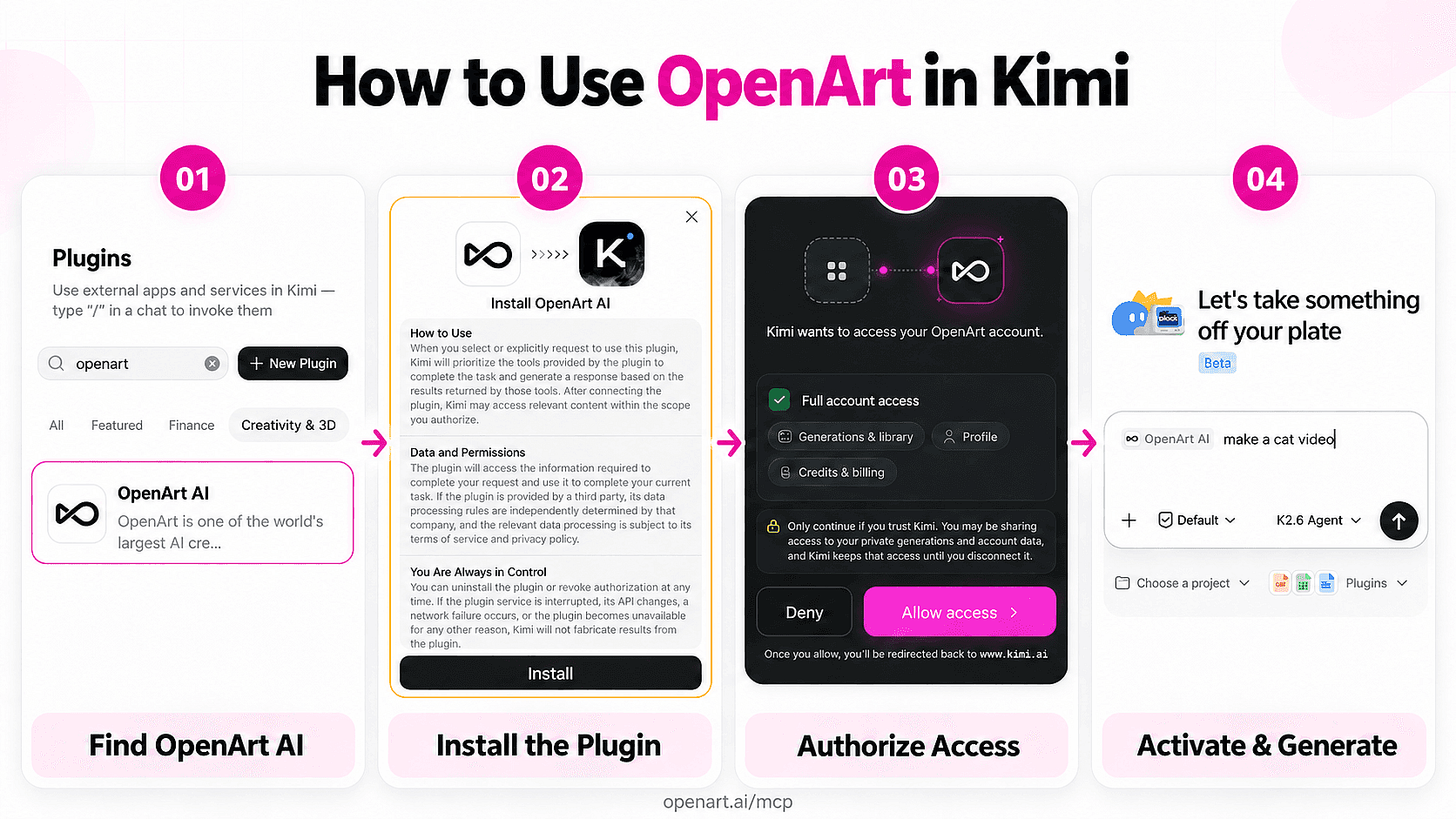
Open the main Kimi chat interface and select Plugins to open the plugin directory. Use Kimi's plugin store rather than trying to add the OpenArt MCP connector URL manually. OpenArt currently documents the plugin store as the supported installation path for Kimi.
In the directory, follow either of these routes.
- Open the Creativity & 3D category and locate OpenArt AI.
- Enter openart in the plugin search field and select OpenArt AI from the results.
Check the plugin name before continuing. Similar image tools may appear in the same category, but you need the listing named OpenArt AI.
Kimi opens a permissions modal when you select the plugin. Review the How to Use section for instructions on invoking OpenArt inside a conversation. Then open Data and Permissions to see what information the plugin can access when you use it. The You Are Always in Control section explains how Kimi handles plugin access and how you can disable or remove the plugin later.
Select Install after reviewing the modal, then wait until Kimi marks OpenArt AI as installed or adds it to your available plugins. You can then connect the installed plugin to your OpenArt account.
Authorizing OpenArt with your account
After installing the plugin, start the authorization prompt in Kimi. Kimi opens an OpenArt sign-in page where you can log in or create an account. OpenArt uses OAuth for this connection, so the Kimi plugin does not require you to copy, create, or paste an API key.
The consent screen requests access to three areas of your OpenArt account.
- Generations & library lets Kimi create media through OpenArt and access generations you choose to reuse.
- Profile lets the plugin identify the OpenArt account connected to Kimi.
- Credits & billing lets Kimi check your available credits and related account information.
Review the permissions, then click Allow access. OpenArt redirects your browser to kimi.ai, and Kimi links the plugin to the OpenArt account you authorized.
This is a one-time step. Kimi holds onto the authorization for every future conversation until you revoke it, the connection expires, or you reconnect a different account. If Kimi ever asks you to sign in again, that just means the session lapsed, not that something broke, so reconnect through the plugin settings and you're back to where you were.
Activating OpenArt AI in a chat and generating your first image or video
Open a Kimi chat and activate the plugin before writing your generation prompt.
- Choose OpenArt AI from the Plugins dropdown. You can also type
/in the message box and select OpenArt AI from the plugin picker. Typing/OpenArtshould surface the same option. - Confirm that an OpenArt AI chip appears at the beginning of the message box. The chip identifies OpenArt AI as the selected tool for your next request rather than Kimi's native image tool. In the current plugin interface, this activation flow works with Kimi's K2.6 Agent model.
- Enter a specific prompt after the chip appears. For example, ask, "Create a cinematic product photo of a silver hiking watch on wet black stone, with soft morning fog and a square aspect ratio."
Kimi sends the request through the OpenArt AI plugin and displays the completed image in the conversation. For video, keep the plugin active and ask, "Create a five-second video of the camera slowly moving toward the watch while the fog drifts across the stone."
Check the tool activity or generation response for an OpenArt reference. If Kimi invokes its native image generator instead, reopen the plugin picker, select OpenArt AI again, and verify that its chip remains visible before resubmitting the prompt.
What can you do with OpenArt once it's connected to Kimi?
OpenArt AI lets you generate images and videos through ordinary Kimi prompts. You can describe the desired subject and visual treatment, including the format or motion, and receive the result inside the conversation. Follow-up prompts can request another version or adjust the creative direction.
Reference images give OpenArt more visual context. You can attach an image for OpenArt to follow or ask it to reuse a previous generation from your OpenArt library. For example, you might generate a product image, then use that result as the starting frame for a short video.
The OpenArt AI plugin can also retrieve supported OpenArt account information inside Kimi. You can ask the plugin to check your available credits or retrieve relevant account details without opening the OpenArt site.
MCP generations consume the same OpenArt credits as generations made on OpenArt. OpenArt saves every completed result back to your library, so you can access it later through OpenArt or reuse it as a reference in another Kimi request.
How is this different from connecting OpenArt to Claude, ChatGPT, or Cursor?
MCP is what lets an assistant call an outside tool mid-conversation instead of just describing what one might make, which matters because Claude can't generate images on its own. That's the whole point of an "MCP integration": you type a prompt in Claude, Claude Desktop, or ChatGPT and get back an actual OpenArt image or video, without switching tabs or copying a prompt somewhere else. OpenArt is one of the creative tools that plugs into Claude Desktop this way, alongside ChatGPT and Cursor, each through the same connector.
Kimi connects to OpenArt through its plugin store. By comparison, Claude, ChatGPT, and Cursor use a connector flow where you paste https://mcp.openart.ai/mcp into the client's MCP or connector settings.
For Kimi, install the OpenArt AI plugin and authorize your OpenArt account through OAuth. Kimi manages the server connection behind the plugin, so you do not paste the MCP URL or provide an API key. The plugin-store model reflects Kimi's app-store policy rather than any limitation in OpenArt's image, video, library, or account tools.
If you previously connected OpenArt to another client, do not look for a raw MCP connector field in Kimi. OpenArt currently documents the plugin store as the supported Kimi connection method.
OpenArt AI plugin not working in Kimi? Try this
If OpenArt AI is missing, first check where you searched and whether Kimi completed the installation. Open the Plugins directory and check the Creativity & 3D category, then search for both "OpenArt" and the exact name "OpenArt AI." If Kimi still shows an Install button, complete the installation and check your installed plugins again. Refresh Kimi and reopen the directory if the installed plugin does not appear immediately.
Kimi may use its native image tool when OpenArt AI is installed but inactive. Before submitting a prompt, confirm that the "OpenArt AI" chip appears at the start of the message box, as described in the activation step above. If the chip is missing, select the plugin again or start a new chat and reactivate it. You can also make the route explicit by writing "Use OpenArt AI to generate" before your image or video description.
If the chip appears but generation fails, open the plugin settings and confirm that your OpenArt account remains authorized. Reconnect the account to create a new OAuth session if the existing session has expired or was interrupted.
Does OpenArt MCP work with Kimi Code?
Not yet, at least not officially. Kimi Code, Moonshot's separate terminal and IDE coding agent, supports MCP servers through a user-edited mcp.json file, and that's a genuinely different product from the Kimi chat app this guide covers. Nothing on OpenArt's side confirms the connector URL works if you drop it into that file, so treat it as untested rather than as a shortcut.
Stick with the OpenArt AI plugin in Kimi's chat interface for now. If OpenArt publishes setup steps for Kimi Code, that's a guide for another day.
Closing takeaway
Kimi is one of the first chat clients where OpenArt shows up as an installable plugin instead of a pasted connector URL, and that matters more than the setup mechanics. It means the same creative toolset you'd reach for on openart.ai now lives inside a chat you may already have open for coding or research, with no separate tab and no API key to manage. If you want to see how it stacks up against other options, OpenArt rounded up the best MCP servers for image and video generation in a separate guide.
FAQ
- Does this cost extra credits?
OpenArt applies its normal generation credit rates. Kimi requests spend the same OpenArt credits as requests made on OpenArt. Your completed images and videos save to your OpenArt library. - Do I need an OpenArt account first?
An OpenArt account stores your authorization, credits, and generated assets. Kimi asks you to sign in through OAuth when you connect the plugin. You do not need to create or paste an API key. - Does this work with Kimi Code?
Kimi Code is a separate coding interface that supports user-configured MCP servers through anmcp.jsonfile. OpenArt has not documented or confirmed compatibility with Kimi Code through that route. Use the OpenArt AI plugin in Kimi's chat interface for the documented connection. - Can I use Brand Kit through the Kimi connection?
Brand Kit stores brand assets and generation rules in OpenArt. OpenArt has not documented Brand Kit controls within the OpenArt AI plugin for Kimi. Use reference images in Kimi when you need visual consistency. - Does OpenArt AI generate video as well as images in Kimi?
Yes. Keep the plugin active after generating an image and ask for a video in the same or a follow-up prompt. OpenArt renders it through the same MCP connection and saves it to your OpenArt library like any other generation. - What if
/OpenArtdoes not do anything when typed?
The command activates the installed OpenArt AI plugin. Open the plugin picker, confirm installation, and select OpenArt AI manually. Check for the OpenArt AI chip before prompting so Kimi does not use its native image tool.