

 ChatGPT
 Perplexity
 Claude
 Gemini
If you want to know how to use Claude Cowork for creative work, start with one job: a product shoot. We gave Cowork a single photo of a tennis racket and a folder. It came back with three ad photos each in 9:16 and a 5-second product video and two hook versions of that video in 9:16 and 16:9.
This Claude Cowork tutorial walks through that exact test. You will add the OpenArt MCP connector, run a creative job from brief to finished files and copy the prompts we used for images and videos.
Key takeaways
- Claude Cowork is Claude's mode for handing off whole tasks. With the OpenArt connector added, it can generate images and videos and work with the files in a folder you choose.
- OpenArt MCP makes the images and videos. Claude plans the job, writes the prompts, shows the cost before it generates and edits the finished clips on its own.
- With approvals on, Claude asks before it spends credits. In our test, it offered a quality choice with the cost for each option before any image was made.
- Edits cost no credits. Trimming, captions, a 16:9 version and the hook versions all ran inside Cowork with no new generation.
- Every generation also lands in your OpenArt account, so you always have a copy even if a file doesn't reach your folder.
What Claude Cowork Is (and What You Need)
Claude Cowork is the part of Claude that carries out whole tasks for you. Anthropic sums it up this way: chat is for thinking with Claude, and Cowork is for delegating to Claude. Since September 2026, Cowork is part of every Claude conversation, so you'll find it in the regular Claude app. The rollout is also gradual.
Cowork uses the same agentic setup as Claude Code, with no terminal. It can work with files in a folder and call connectors like OpenArt MCP. That makes Claude Cowork a good fit for creative jobs with many steps.
Here is what you need before you start:
- A paid Claude plan. Cowork is in beta on Pro and Max.
- The Claude desktop app on macOS or Windows. You need it to connect a local folder. Folder access needs the Claude desktop app installed and online.
- A folder for the job. Put your product photo or other references in it. Claude saves finished files back there.
- An OpenArt account with credits for generation. The next section shows how to connect it.
How to Add MCP to Claude Cowork (the OpenArt Connector)
You add OpenArt MCP to Claude Cowork once, as a custom connector. It needs no API key.
- Open Claude and go to Customize > Connectors.
- Click + Add, then Add custom connector.
- Name it OpenArt and paste this URL:
https://mcp.openart.ai/mcp - Click Connect and sign in to your OpenArt account.
- Start a Cowork task and pick your folder.
On Team and Enterprise plans, an Owner adds the connector under Organization settings > Connectors. Members then click Connect on their own account. Anthropic's custom connector guide has screenshots of each step, and our guide to connect OpenArt MCP to Claude covers the same setup in chat.
Choose how Claude Cowork asks for approval
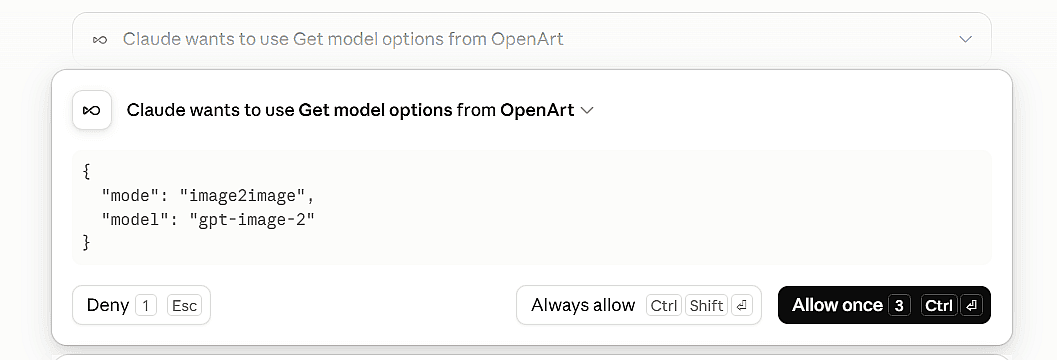
The first time Claude calls an OpenArt tool, it asks you to Allow once, Always allow or Deny. You can set each tool ahead of time in the connector settings as Always allow, Needs approval or Blocked.
Set the generate image and generate video tools to Needs approval. Claude still shows you the plan and cost before each generation, and you click to confirm. Read-only tools, such as checking models or costs, are safe to set to Always allow.
Let Claude Cowork save files to your folder
OpenArt delivers finished images and videos from cdn.openart.ai. If your Cowork session can't reach that domain, Claude will generate the files but can't download them into your folder.
That happened in our test. Claude gave us the file link and asked us to save the video into the folder, then carried on with the edit. Two ways to handle it:
- Allow the domain. On a Team plan, an admin adds
cdn.openart.aiunder Organization settings > Capabilities. - Download it yourself. Every generation also lands in your OpenArt account. Open it there, save the file into your Cowork folder and tell Claude it's ready.
How to Use Claude Cowork for a Creative Job, Step by Step
Here is how to use Claude Cowork from brief to finished files. Each step below is what happened in our racket test.
1. Give Claude a brief and a folder
Start a Cowork task, select your folder and describe the job in plain words. Say what the product is and where the ads will run.
Our brief was short: make three ad photos of the racket in our folder, on clean studio backgrounds, then save the finished images back to the same folder.
2. Send your product photo as a reference
Claude opened OpenArt's Upload Reference window right in the chat. We dropped in a basic tennis racket photo, and Claude used it as the product reference for every image and video after that.
If the asset is already in your OpenArt library, ask Claude to use it from there. OpenArt MCP can reuse images and videos you've made before as references.
3. Review the plan and the cost
Before it generated anything, Claude wrote out a plan for each shot. It picked GPT Image 2 for the photos and offered two quality levels, with the credit cost of each.
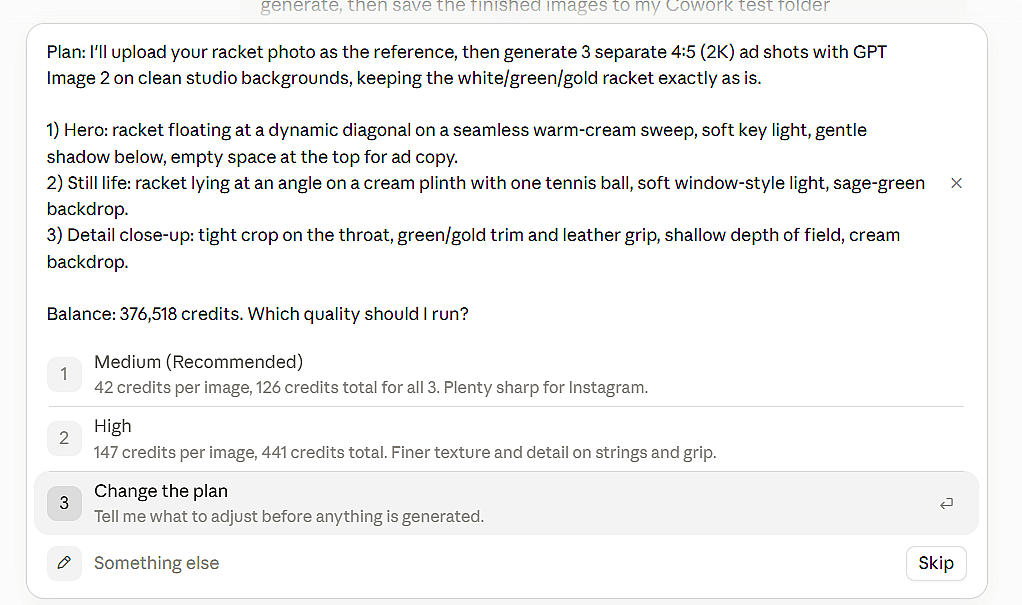
You can approve the plan, pick another option or ask for changes. Nothing is generated until you confirm.
4. OpenArt MCP generates the images*
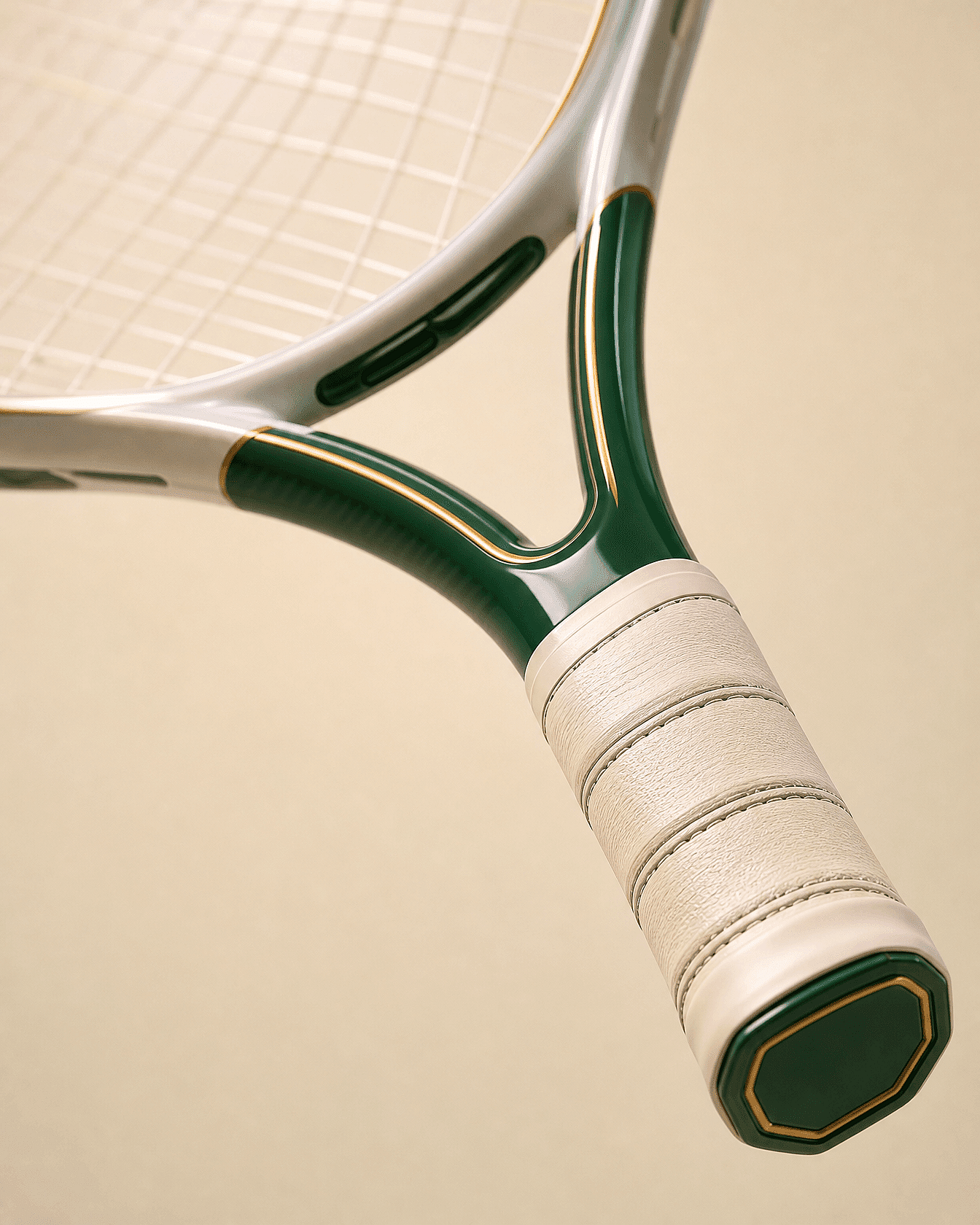
OpenArt MCP made the three shots we approved: a floating hero shot, a still life with a tennis ball and a close-up of the grip. Each one kept the racket's white, green and gold design.


5. Make a draft video first
For video, Claude planned a 5-second, 9:16 clip with Seedance 2.5 Draft, using the racket photo as the product reference. The racket sits on a cream turntable that turns slowly while the camera stays still.
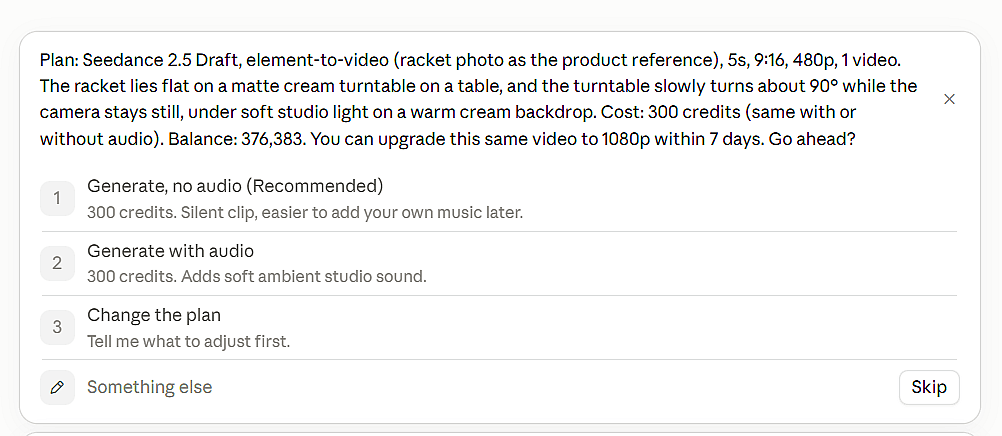
The draft renders at 480p. If you like it, you can upgrade the same video to 1080p. Claude also asked whether we wanted audio before it generated.
6. Get the files into your folder
Every generation lands in your OpenArt account. Claude then downloads it into your Cowork folder, as long as the session can reach cdn.openart.ai (see the setup section above).
7. Let Claude edit the video
OpenArt MCP has no editing tool, so Claude does the edit itself with free tools inside Cowork. Our edits cost 0 credits.
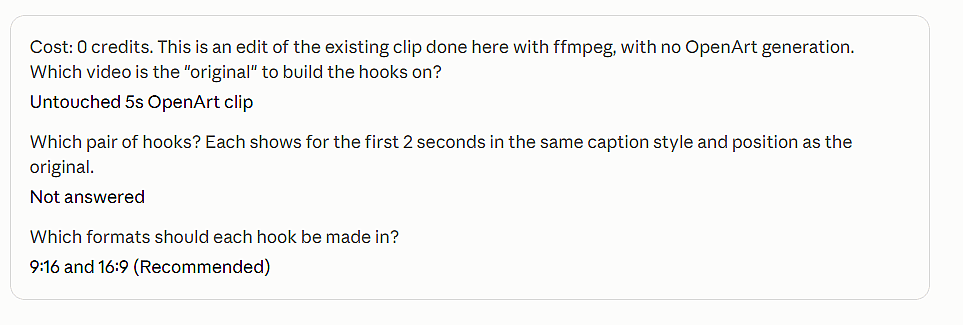
Claude trimmed the clip to 3 seconds and added a caption. For a 16:9 version of the vertical clip, it offered three options: a blurred background fill, cream bars or a new 16:9 generation. The first two were free, and Claude flagged that the third would cost credits.
For more on video editing, explore the best AI video editing tools for automated workflows.
8. Give notes and get versions
Ask for changes the way you would with an editor. We asked for a script-style caption, and Claude saved it as a new file next to the first cut.
When you have the version you want, ask Claude to upgrade that one clip to 1080p. Only the video you'll post gets the full render.
Claude Cowork Use Cases and Examples, With Prompts to Copy
These Claude Cowork examples come from creative and marketing work. Paste a prompt into a Cowork task, swap in your product and folder name, then review the plan before you approve it.
Product photos from one reference
One clean product photo is enough to make images in Claude for ads and product listings.
Use the product photo in my [folder name] folder as the reference. Make 3 ad photos in 4:5 on clean studio backgrounds: a hero shot with space at the top for text, a still life with one prop and a close-up of the best detail. Keep the product exactly as it is. Show me the plan and cost first, then save the images to the same folder.
A short video ad
This prompt asks for a draft first, so you can check the motion before you upgrade to 1080p. It's the fastest way to make videos in Claude without guessing at settings.
Use my product photo as the reference and make a 5-second 9:16 video with Seedance 2.5 Draft. The product sits on a turntable that turns slowly under soft studio light. Show me the cost before you generate. Then trim it to 3 seconds, add the caption "[your line]" and make a 16:9 version without a new generation.
Hook versions of one approved video
Once a video works, test its opening line instead of making new videos. In our test, Claude suggested three pairs of hooks, each shown for the first 2 seconds in the same caption style.
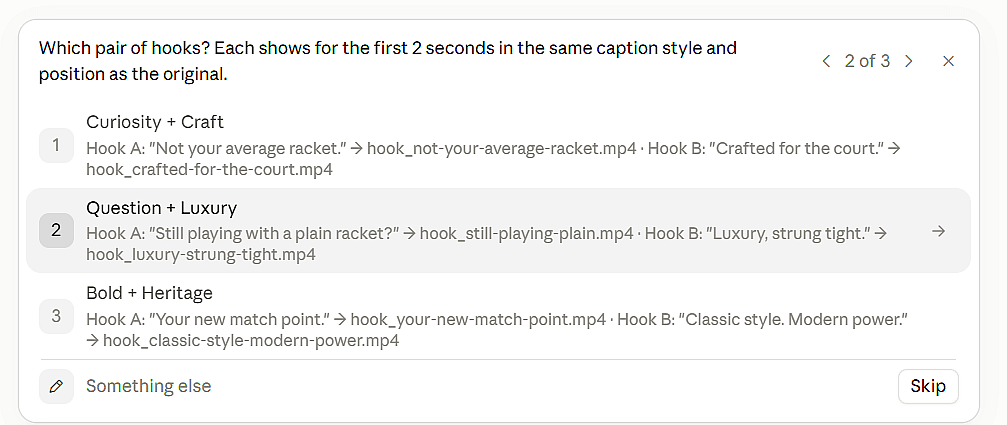
We picked "Not your average racket." and "Crafted for the court." Claude made each one in 9:16 and 16:9, named every file by its hook and spent 0 credits.
Take [video file name] and make 5 hook versions. Put a different hook line on screen for the first 2 seconds, in the same caption style. Make each in 9:16 and 16:9 and name every file after its hook. Don't generate anything new.
10 product ads from one message
Cowork can repeat the whole job across a product catalog.
Go through the 10 product photos in my [folder name] folder. For each product, make one 4:5 ad photo and one 5-second 9:16 draft video. Show me the full plan and total cost first. Save each product's files in its own subfolder.
Claude Cowork vs Claude Code for Creative Work
For most creative jobs, pick Claude Cowork. Both run on the same agent, but Cowork works in the Claude app with no terminal, which suits marketers and designers. Claude Code fits developers who want image and video generation inside a coding workflow.
| Claude Cowork | Claude Code | |
|---|---|---|
| Where you use it | The Claude app (desktop, web and mobile) | A terminal or code editor |
| Terminal needed | No | Yes |
| Adding OpenArt MCP | Customize > Connectors, paste the URL | One command in the terminal |
| Working with files | Folders you connect in the desktop app | The project folder you open |
| Approvals | Allow once, Always allow or Deny in the chat | Prompts in the terminal |
| Best for | Ads, product shots, social videos, batch creative jobs | Generating assets inside an app or site build |
If you live in the terminal, the OpenArt CLI is another option. Our MCP vs CLI comparison explains when each one fits.
Tips and Limits
Each tip below comes from our racket test.
Tips for better results
- Ask for a new file name for each edit. In our test, Claude saved one edit over an earlier file and then had to restore it. Add "save each version as a new file" to your brief.
- Draft first, then upgrade one video. Run ideas through Seedance 2.5 Draft and upgrade only the winner. For final quality from the start, use Seedance 2.5.
- Ask Claude to check its work. Claude can open the finished frames and confirm the caption sits where you asked before it hands the files over.
- Keep brand rules in a Claude skill. Write your fonts and caption style once, and Claude follows them in every task. Add your logo as an image reference when you need it on screen.
- Watch your mode. Auto mode lets Claude act without asking. Manual mode keeps you in control of every generation.
Limits to know
- OpenArt MCP doesn't edit videos. It generates images and videos. Claude does trims, captions and resizes with its own tools. For more on this, see how to edit videos in Claude.
- No Brand Kit or Characters tool in MCP. Pass logos and products in as image references, or reuse assets from your OpenArt library.
- Folder access needs the desktop app. On web and mobile, Cowork can generate but can't save to a local folder.
- Local MCP servers don't run in cloud sessions. Use the hosted OpenArt URL,
https://mcp.openart.ai/mcp.
If you'd rather build a multi-shot video on a visual timeline, try Director mode in OpenArt.
For more ways to use Claude across campaigns, read our guide to Claude for marketing.
Frequently Asked Questions
How do I use Claude Cowork to make images and videos?
Add OpenArt MCP as a custom connector, start a Cowork task and pick a folder. Then describe the job, approve the plan and cost, and Claude generates the files with OpenArt and saves them to your folder.
What can Claude Cowork do?
Cowork carries out tasks with many steps, such as working with files in a folder and calling connectors like OpenArt MCP. Chat is better for quick questions and thinking out loud, while Cowork is built to finish a job and hand you the files.
How do I add an MCP connector to Claude Cowork?
Go to Customize > Connectors, click + Add, then Add custom connector. Paste the server URL, such as https://mcp.openart.ai/mcp, and sign in.
Do I need the desktop app for Claude Cowork?
You need it to connect a local folder, which is how Claude reads your references and saves finished files. Cowork can run on mobile but folder access needs the Claude desktop app installed and online. Your generations stay in your OpenArt account.
Does Cowork save the files to my folder?
Yes, when the session can reach cdn.openart.ai. If it can't, Claude gives you the file link, and every generation is also in your OpenArt account to download.
How do I keep costs under control?
Keep tool approvals on so Claude shows the plan and cost before each generation. Use Seedance 2.5 Draft for first passes, and ask Claude to edit existing clips instead of generating new ones.
Which creative AI tools work with Claude Desktop?
Any tool with a remote MCP server can connect to Claude. OpenArt MCP gives Claude image and video models in one connector, and our list of the best MCP servers for image and video generation compares other options.