1
Copy the OpenArt Connector URL
You'll paste this URL into Claude in the next step.
https://mcp.openart.ai/mcp
Top image & video models, 10% off in ChatGPT, Claude & more with OpenArt MCP.
Claim 10% Off ›Generate Images & Video Inside Your AI Agent

You'll paste this URL into Claude in the next step.
In the Claude app or on claude.ai, go to Settings → Connectors and choose Add custom connector. For Team and Enterprise plans, Follow instructions instead.
Click Add → Connect and sign in to OpenArt. Set permissions to Always Allow. Once connected, you can ask Claude to generate images or videos using OpenArt.
Find the OpenArt plugin here, then click Install Plugin.
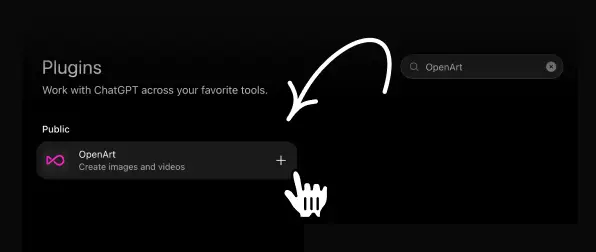
Sign in with your OpenArt account to connect, it only takes a few seconds, and no API keys are needed.
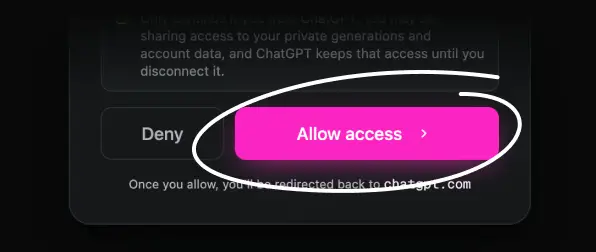
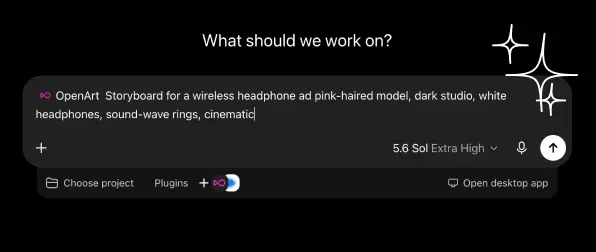
Type @OpenArt in the message box to enable it, then simply ask ChatGPT to generate images or videos.
Settings → MCP & Integrations → New MCP server (opens mcp.json).
Paste this into mcp.json and save:
{
  "mcpServers": {
    "openart": {
      "url": "https://mcp.openart.ai/mcp"
    }
  }
}Click the Needs login prompt next to the server and approve in the browser. OpenArt tools now show up in Agent chats.
Find 'OpenArt AI' in Kimi plugins store and install.
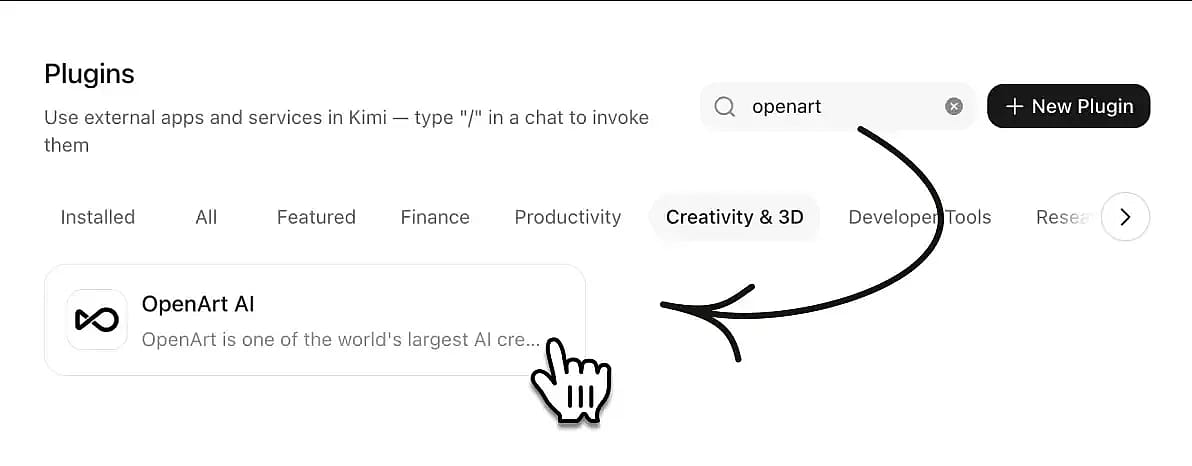
Sign in with your OpenArt account to connect, it only takes a few seconds, and no API keys are needed.
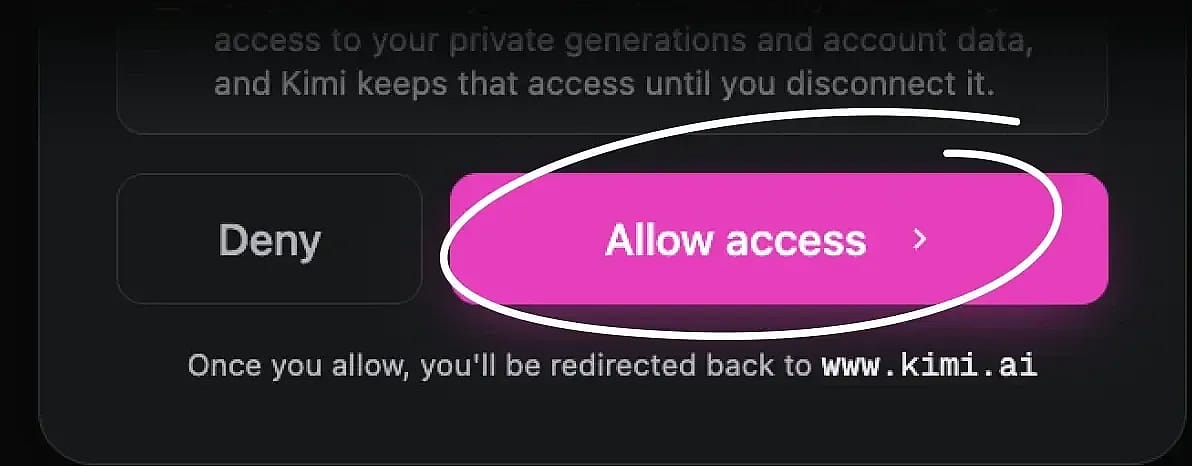
Type /OpenArt in the message box to enable it, then simply ask Kimi to generate images or videos.
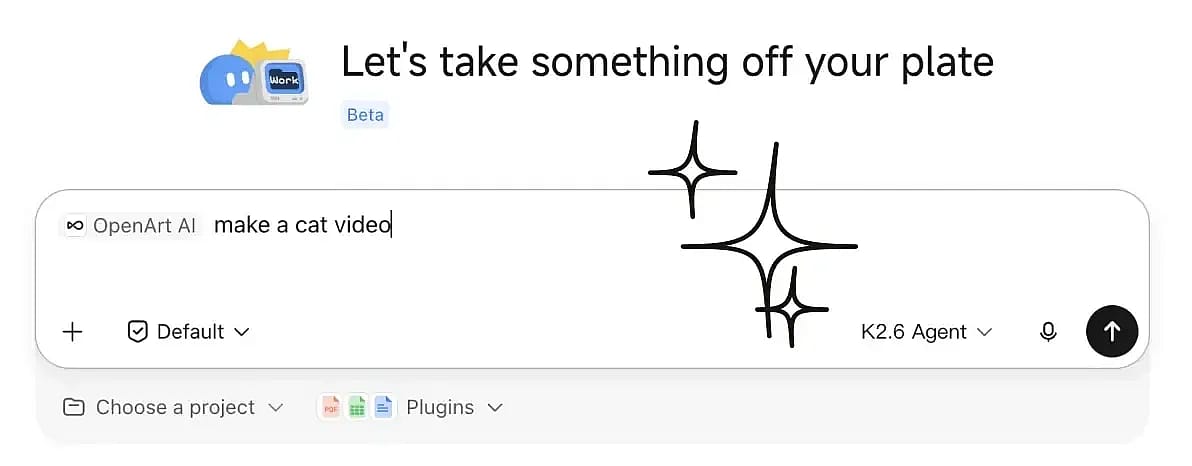
Look for Connectors, Integrations, or MCP servers.
Add a server with transport Streamable HTTP and the URL above. No API key, no extra config.
Sign in with your OpenArt account on first use. Credits and results stay tied to your account.
curl -fsSL https://raw.githubusercontent.com/OpenArt-AI/cli/main/install.sh | shirm https://raw.githubusercontent.com/OpenArt-AI/cli/main/install.ps1 | iexLogin with your OpenArt account.
openart loginStart generate an image or video.
openart generate image "a red fox in the snow" --model nano-banana-2 -o ./out/curl -fsSL https://raw.githubusercontent.com/OpenArt-AI/cli/main/install.sh | shirm https://raw.githubusercontent.com/OpenArt-AI/cli/main/install.ps1 | iexLogin with your OpenArt account.
openart loginStart generate an image or video.
openart generate image "a red fox in the snow" --model nano-banana-2 -o ./out/curl -fsSL https://raw.githubusercontent.com/OpenArt-AI/cli/main/install.sh | shirm https://raw.githubusercontent.com/OpenArt-AI/cli/main/install.ps1 | iexLogin with your OpenArt account.
openart loginStart generate an image or video.
openart generate image "a red fox in the snow" --model nano-banana-2 -o ./out/curl -fsSL https://raw.githubusercontent.com/OpenArt-AI/cli/main/install.sh | shirm https://raw.githubusercontent.com/OpenArt-AI/cli/main/install.ps1 | iexLogin with your OpenArt account.
openart loginStart generate an image or video.
openart generate image "a red fox in the snow" --model nano-banana-2 -o ./out/If you are using Claude Code or Codex, it's better to
GitHubConnect OpenArt with Claude, ChatGPT, Cursor, and more to unify image generation, video creation, and all your creative library in one seamless workflow.
Turn text into images and videos, all through a single OpenArt connection.
Try it Now
Turn selected start and end frames into a polished image to video while keeping the transition under your direction.
Try it Now
Hand Smart Shot your references and a text prompt, and it plans the shots, framing and motion for a multi-cut, finished spot.
Try it Now
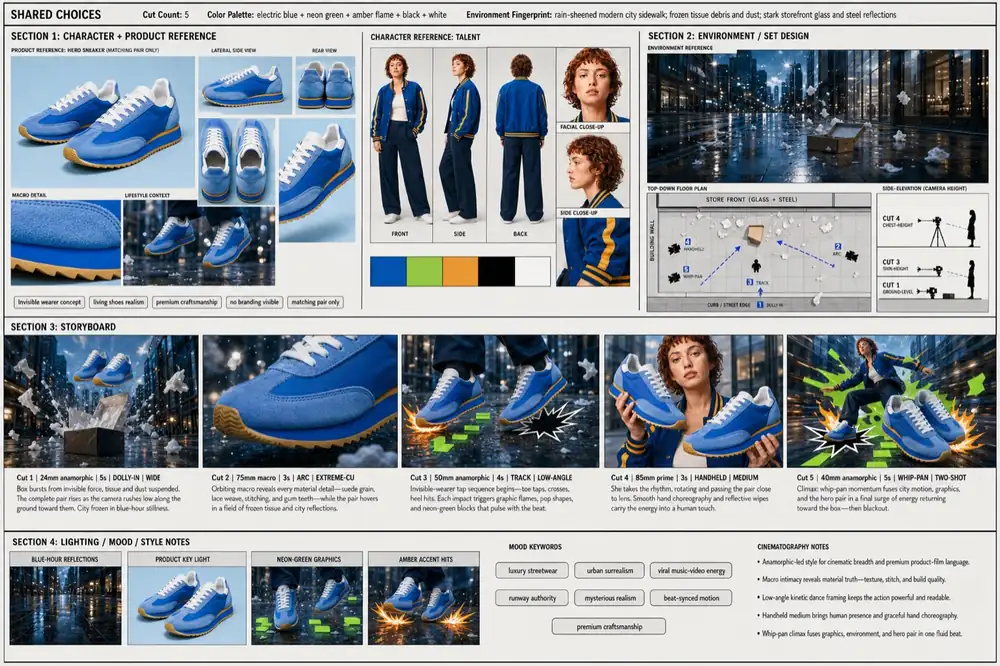
Add one URL and your agent instantly accesses OpenArt's full catalog of image and video models. Every new model is synced automatically, so your setup never needs manual updating.
Try it NowImage
 GPT Image 2 Recommended
  Nano Banana Pro Nano Banana 2 Nano Banana 2 Lite
  Seedream 5 Pro Seedream 5 Lite Seedream 4.5
  Kling 3 Omni
 Video
Seedance 2.5 Seedance 2.0 Seedance 2.0 Mini Gemini Omni 1.1 Flash Gemini Omni Flash Kling 3 Omni  Grok Imagine 1.5
  PixVerse V6
  Wan 2.7
 Pull any past OpenArt generation into a new creation as a style reference or a video start frame. Your entire creative history is always within reach for reference.
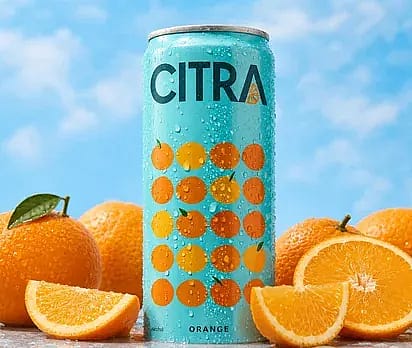
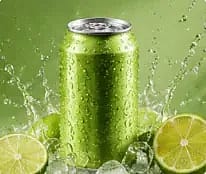
Try it NowCreate a premium beverage ad for the Citra orange soda can, surrounded by fresh oranges and splashing citrus. Use vibrant studio lighting, crisp product detail, and polished commercial styling.
Work with the same OpenArt account, credits, projects, and workspaces you already use, for maximum convenience.
Try it NowSee what becomes possible when OpenArt is connected to your AI agent. Just chat with your agent to create anything!
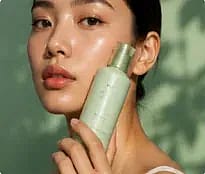
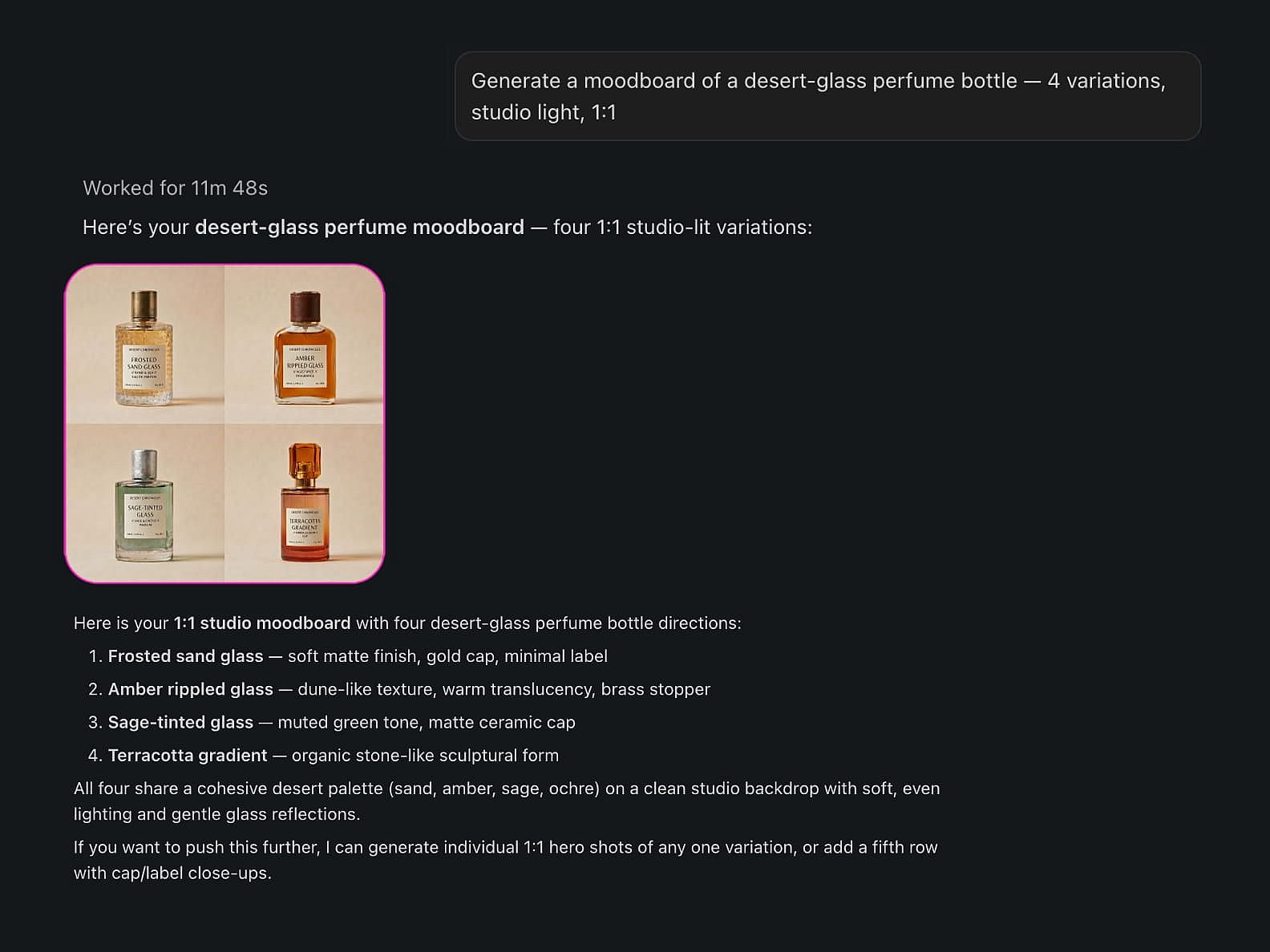
Generate a moodboard of a desert-glass perfume bottle — 4 variations, studio light, 1:1.
Text-to-image across OpenArt's image models. Your agent returns the results right in the conversation and saves them to your library.
Animate this product shot into a 5-second cinematic ad.
Make videos from text or images directly through your AI agent. OpenArt handles generations and returns the finished result right in the conversation.
List my OpenArt projects, then create three new concepts in my Q3 campaign project.
List your OpenArt projects and pick one before you create, so each generation lands in the right place. No manual file shuffling and switching tabs.
Use my last three renders as references.
Pull assets from your OpenArt library and use previous generations to maintain style, characters, and creative consistency.
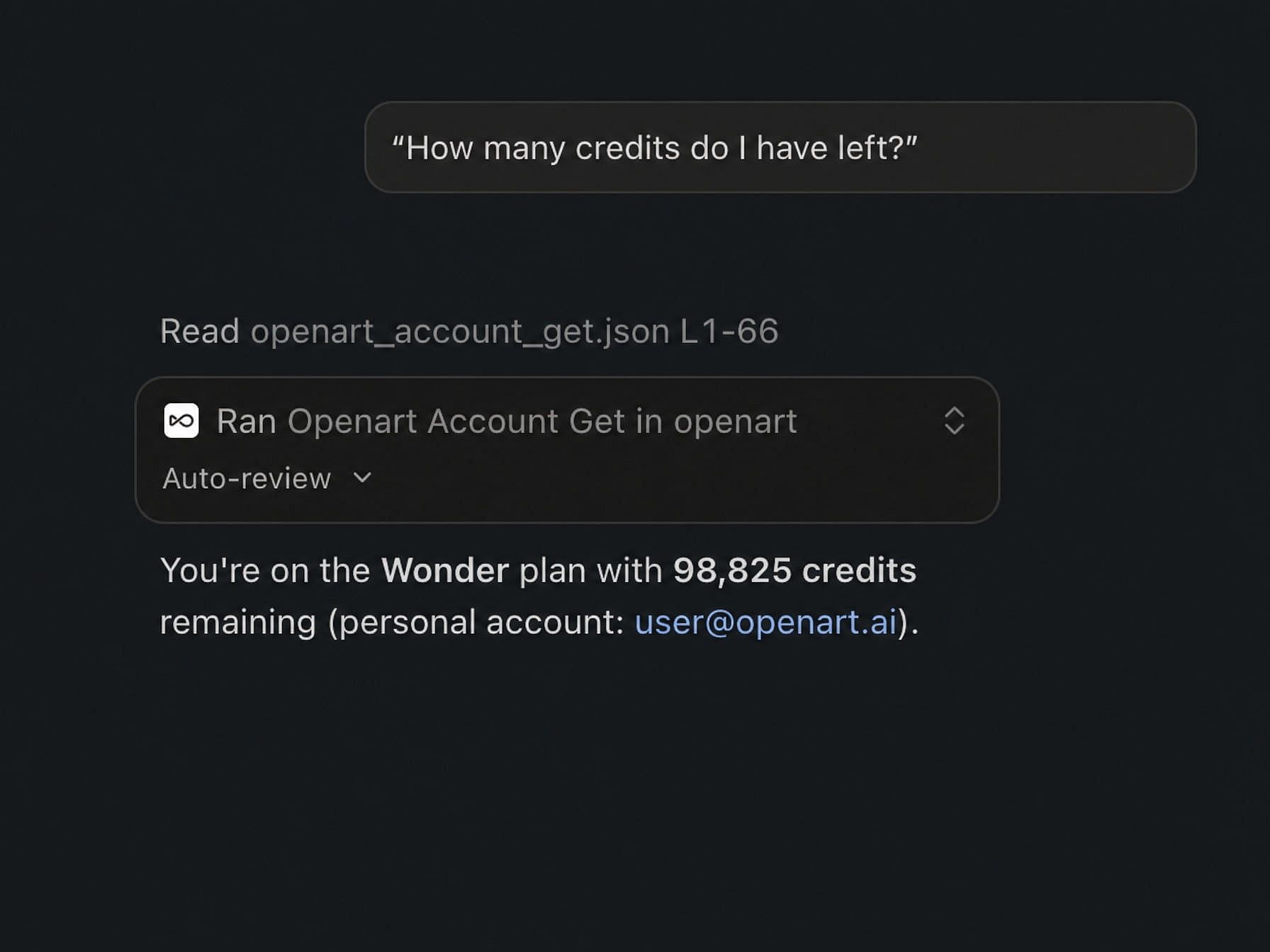
How many credits do I have left?
Check plans, credits, and account information instantly without opening OpenArt settings. All information flows freely between OpenArt and your AI agent.
Join thousands of creators using OpenArt to generate stunning images, videos, and more — all in one platform.
Get Started for Free →