
 ChatGPT
 Perplexity
 Claude
 Gemini
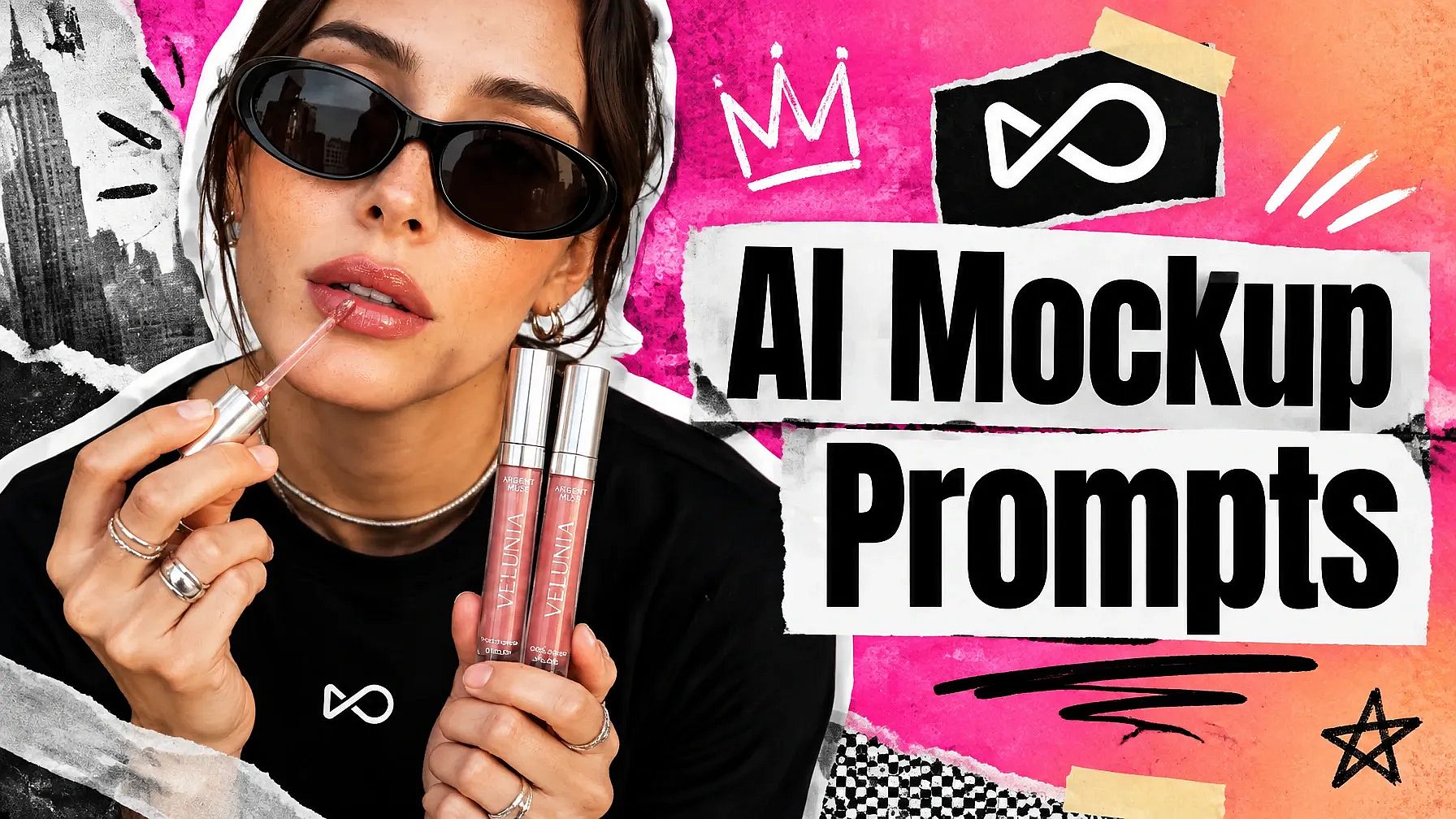
Printing 500 boxes to find out your logo is too small is an expensive way to learn. Mockup prompts let you see the box first.
We wrote 40 of them, from product and logo mockups to packaging, merch and phone screens. Most groups include prompts that use your own design, so the mockup shows your actual logo or label on the object.
Copy a prompt, then make the mockup in OpenArt's AI mockup generator. For prompts in other styles, see our guide to the best AI image generator prompts.
Key takeaways
- A mockup prompt needs the object and where your design sits on it.
- To use your own logo or label, upload it and start with "Keep my design exactly as it is."
- Soft shadows and light that matches the scene make a mockup look real.
- Keep text on the product short, and check it up close.
- Each group below has one example image and the OpenArt model we used.
What Is a Mockup Prompt?
A mockup prompt describes an object, like a box or a T-shirt, with your design placed on it. It shows how a logo or label will look in real life before you print anything.
A mockup shows your design on an object. When you need a photo for product listing itself, our guide to Amazon product photography covers it.
The Mockup Prompt Formula
Most good mockup prompts follow the same order. Fill in each part and you have a prompt for mockup design:
[your design and where it sits] + [object, material and color] + [setting and props] + [lighting] + [camera angle and framing] + [style]
- Your design and where it sits. If you're uploading a logo or label, start with "Keep my design exactly as it is," then say where it goes, like "on the front of the bag."
- Object, material and color. Name what the design goes on, like "a matte white coffee bag" or "a brushed metal sign."
- Setting and props. Say where it sits, like "on a light oak counter next to coffee beans."
- Lighting. Pick one light, like "soft window light from the left."
- Camera angle and framing. Try "45-degree angle, close-up" or "top-down flat lay."
- Style. End with the look you want, like "clean, minimal product photo."
Keep the order and swap in your own details, and it works like a simple mockup prompt generator.
Keep my design exactly as it is. Place it on the front of a matte white coffee bag, standing on a light oak counter next to a few coffee beans. Soft window light from the left, gentle shadow, 45-degree angle, clean and minimal product photo.
Mockup Prompts by Type
We grouped the prompts by what you're putting your design on. Each group has one example image and the OpenArt model we used. Prompts marked "with your design" need you to upload your logo or product photo first.
Product mockup prompts
Why it works: a soft shadow under the product is what tells your eye it's sitting on a real surface.
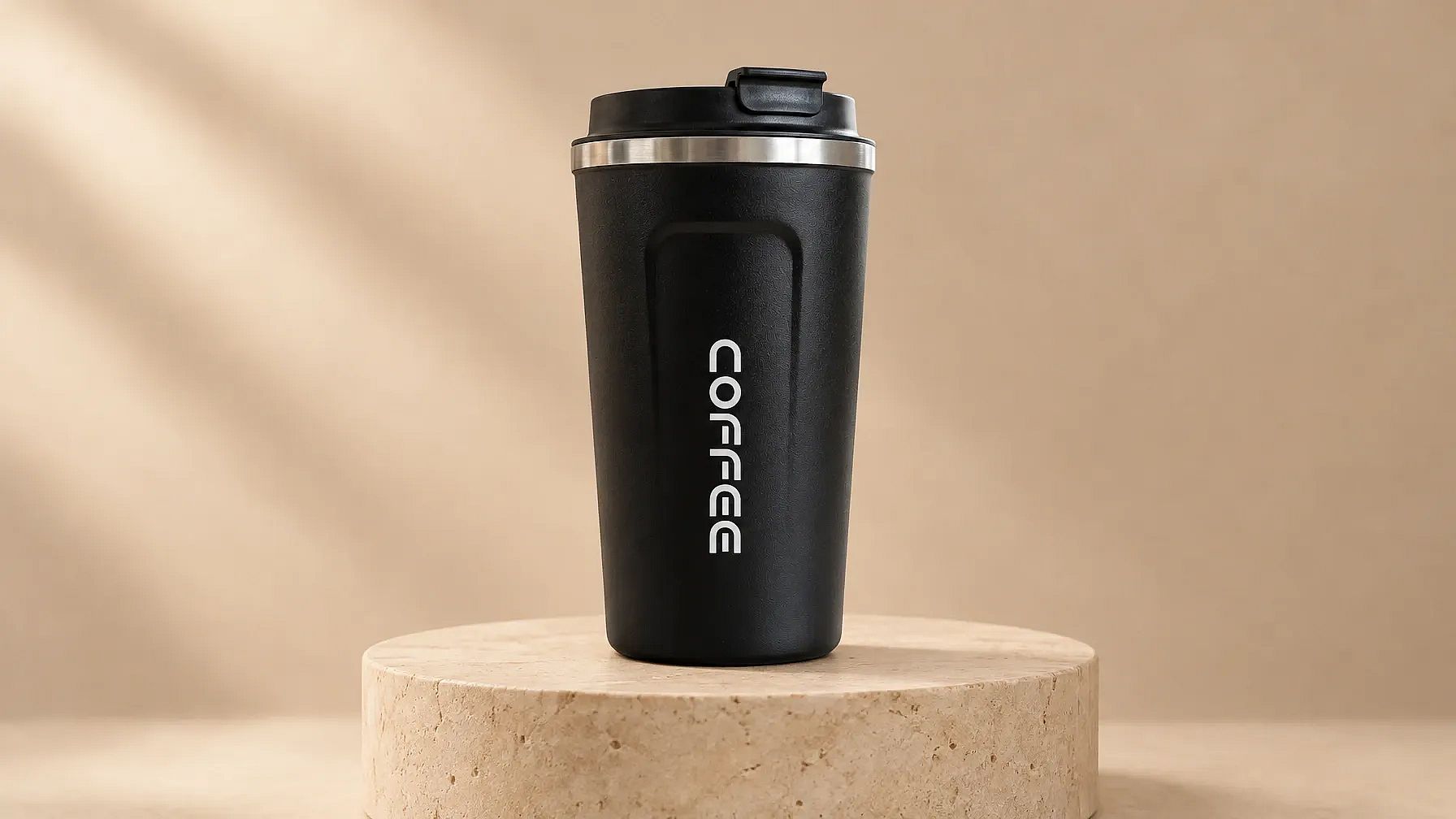
1. Product on a stone plinth (with your design)
Keep my product exactly as it is. Place it on a round beige stone plinth against a soft sand-colored backdrop. Soft studio light from the top left, gentle contact shadow, 45-degree angle.
2. Flat lay on linen
Top-down flat lay product mockup of a skincare bottle on white linen, with dried eucalyptus, a small towel and a ceramic dish around it. Bright, even daylight, 1:1.
3. 3D floating product
3D product mockup of a sleek wireless speaker floating above a glossy surface with a clear reflection below it. Dark gradient background, soft rim light around the edges.
4. Product in a kitchen scene
Product mockup of a glass olive oil bottle with a blank label on a marble kitchen counter, next to fresh tomatoes and a wooden board. Warm morning light, shallow depth of field.
5. Product in a hand (with your design)
Keep my product and its label exactly as they are. Show it held in one hand against a plain light background, label facing the camera. Natural skin tones, soft light, close-up.
Logo mockup prompts
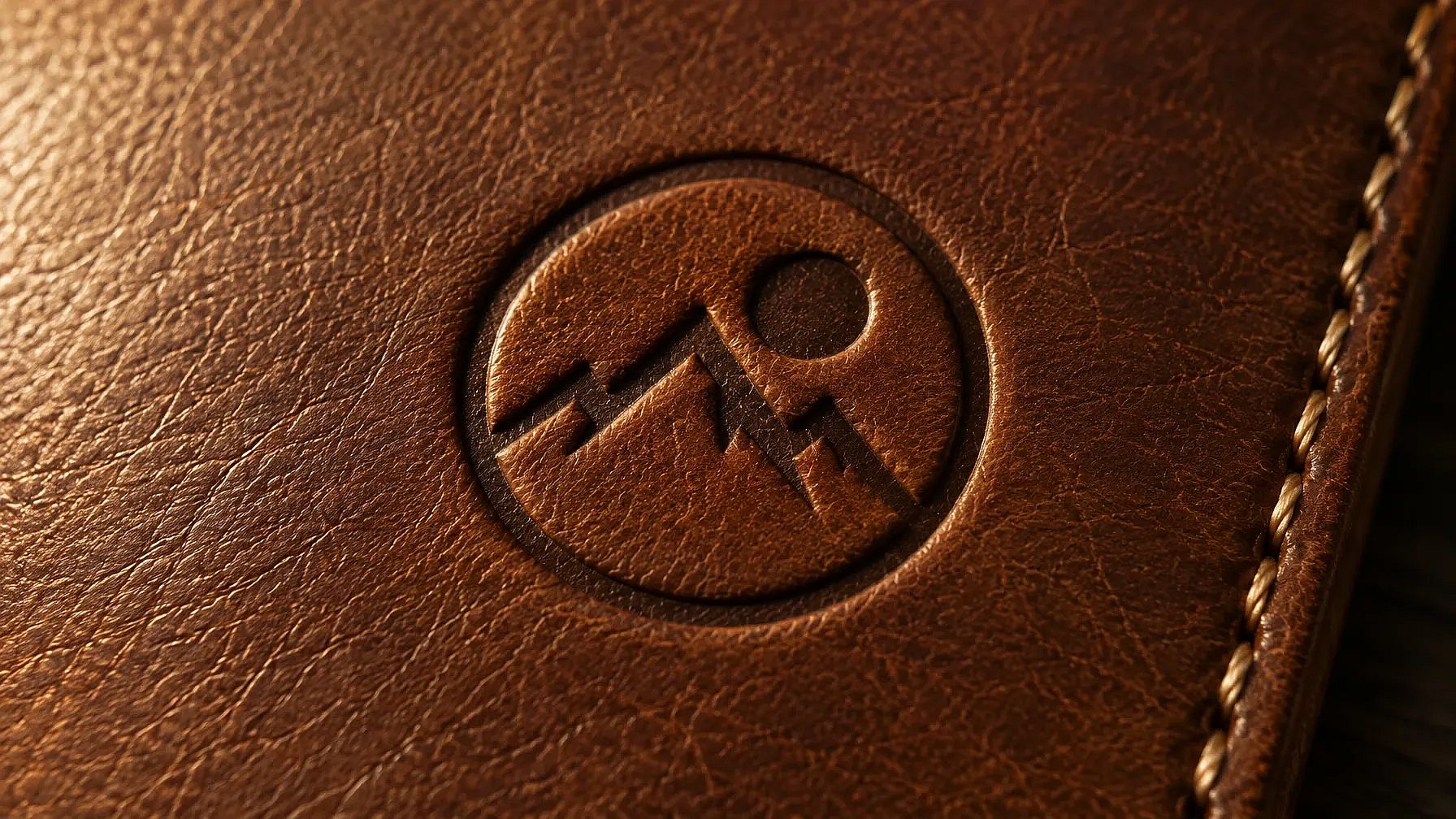
Why it works: naming the material, like brushed metal or leather, tells the AI how your logo should look like. Try these prompts on the OpenArt AI logo generator.
6. 3D metal sign on a wall (with your design)
Keep my logo exactly as it is. Turn it into a 3D brushed metal sign mounted on a smooth concrete wall in a modern office lobby. Soft spotlight from above, small shadow behind the letters.
7. Logo embossed on leather
Logo mockup of a simple round logo embossed into brown leather, close-up, with visible stitching along one edge. Warm side light that shows the depth of the emboss.
8. Logo on a frosted glass door
Logo mockup of a logo etched on a frosted glass office door, with a soft blurred office behind it. Cool daylight, straight-on view.
9. Logo on a storefront awning
Logo mockup of a small café storefront with a dark green awning and a cream logo printed on it. Street-level view, morning sun, a few potted plants by the door.
10. Logo on stationery (with your design)
Keep my logo exactly as it is. Place it on a letterhead, an envelope and a business card laid out on a light gray desk. Top-down view, soft even light.
Packaging and label mockup prompts
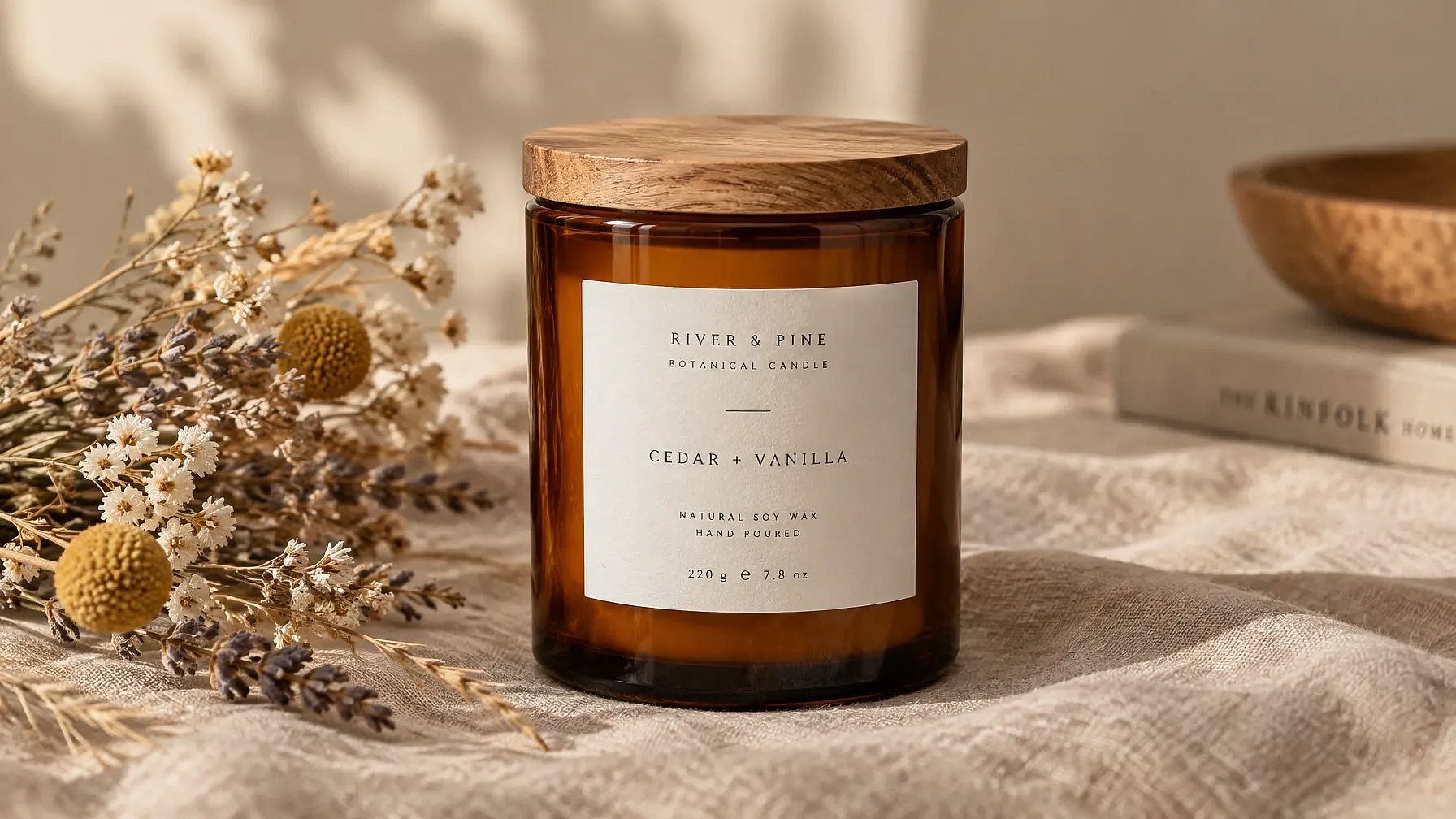
Why it works: packaging looks real when the label follows the shape, so name the shape, like a round jar or a tall bottle.
11. Luxury product packaging
Photorealistic mockup of a product packaging, elegant and sophisticated style, ideal for luxury brands.
12. Glass bottle with a wrapped label (with your design)
Keep my label design exactly as it is. Wrap it around a tall clear glass bottle with a cork stopper, standing on a dark wood shelf. Soft side light, small reflection on the glass.
13. Candle jar with a minimal label
Packaging mockup of an amber glass candle jar with a minimal white label and a wooden lid, on a linen cloth next to dried flowers. Warm, soft light.
14. Cosmetic jar and tube set
Packaging mockup of a matching cosmetic jar and squeeze tube in soft pink with blank labels, on a white marble shelf. Bright, clean light, straight-on view.
15. Open kraft mailer box
Box mockup of an open kraft mailer box with white tissue paper inside and a small thank-you card on top, on a light wood table. Top-down view, soft daylight.
For full package designs, see our packaging design prompts, or try the AI packaging design generator.
Apparel and merch mockup prompts
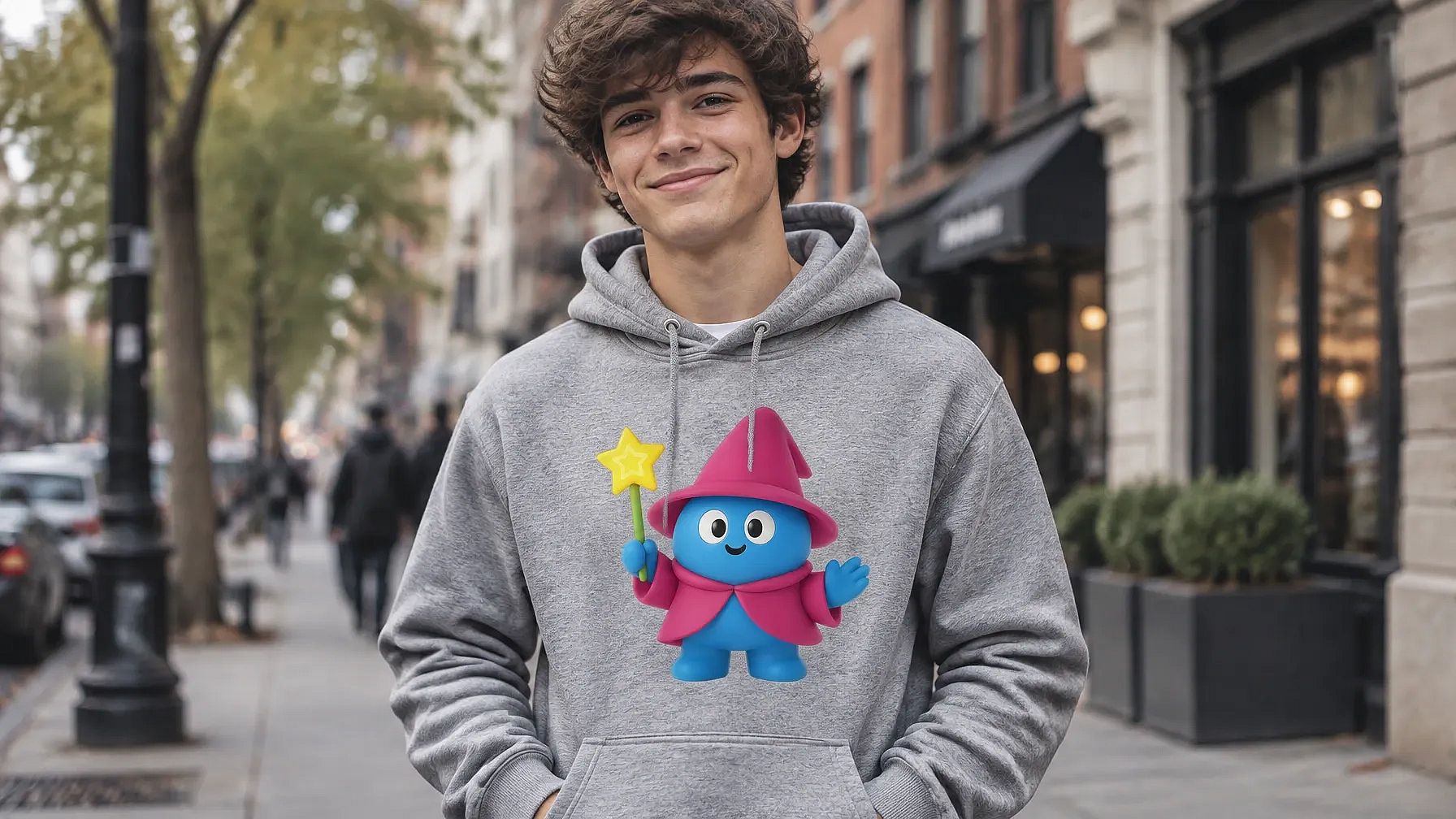
Why it works: real fabric has folds, so ask for them. A flat, perfect print on a shirt looks stuck on.
16. Streetwear T-shirt
Photorealistic mockup of a T-shirt, casual and contemporary style, ideal for streetwear brands.
17. Hoodie on a model (with your design)
Keep my design exactly as it is. Print it on the front of a heather gray hoodie worn by a young man on a city street. Natural fabric folds, soft overcast light, waist-up shot.
18. Embroidered cap
Cap mockup of a navy baseball cap with a small embroidered logo on the front, resting on a wooden table. Close-up, soft side light that shows the stitching.
19. Canvas tote bag
Tote bag mockup of a natural canvas tote with a simple printed design, hanging on the back of a wooden chair. Soft daylight, straight-on view.
20. Mug on a café table
Mug mockup of a white ceramic mug with a printed logo, on a café table with a little steam rising from the coffee. Warm morning light, shallow depth of field.
For more T-shirt mockups, see our T-shirt design prompts.
Print mockup prompts
Why it works: paper has a finish, so naming it, like matte or glossy, changes how real the print looks.
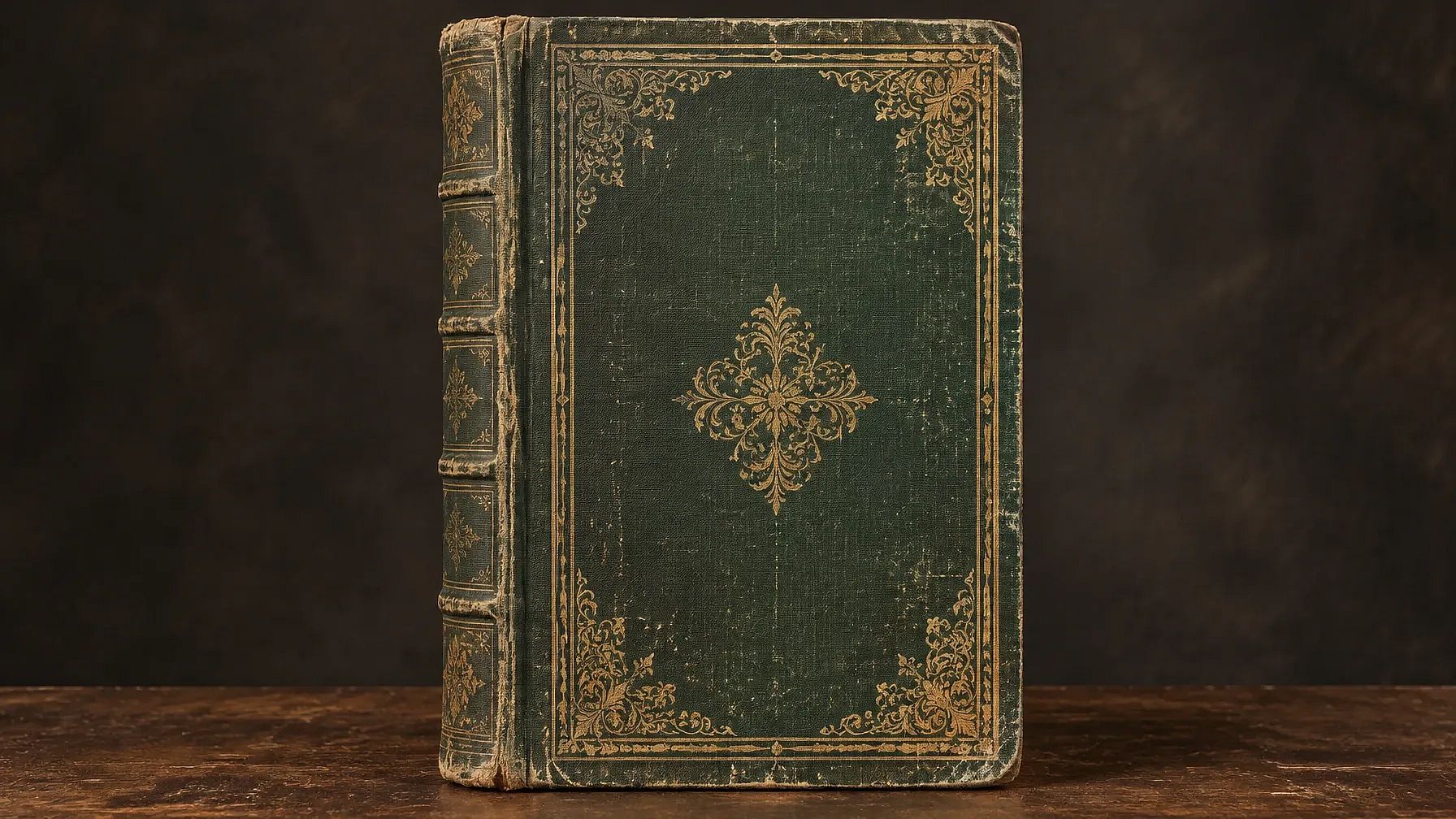
21. Classic book cover
High-resolution mockup of a book cover, classic and timeless style, suitable for literary fiction.
22. Hardcover book on a shelf (with your design)
Keep my cover design exactly as it is. Put it on a hardcover book standing upright on a wooden bookshelf, next to a small plant. Soft warm light, slight angle so the spine shows.
23. Framed poster in a living room
Poster mockup of a large framed poster with a thin black frame, hanging above a beige sofa in a bright living room. Natural daylight, straight-on view.
24. Letterpress business cards
Business card mockup of a small stack of thick cream letterpress business cards on dark slate, with the top card slightly turned. Close-up, soft side light that shows the pressed letters.
25. Folded flyer on a café table
Flyer mockup of a folded A5 flyer lying on a café table next to a coffee cup. Top-down view, soft morning light, matte paper.
Phone, laptop and website mockup prompts
Why it works: a clean desk and soft light keep the focus on the screen. Ask for the screen to face the camera so your design is easy to read.
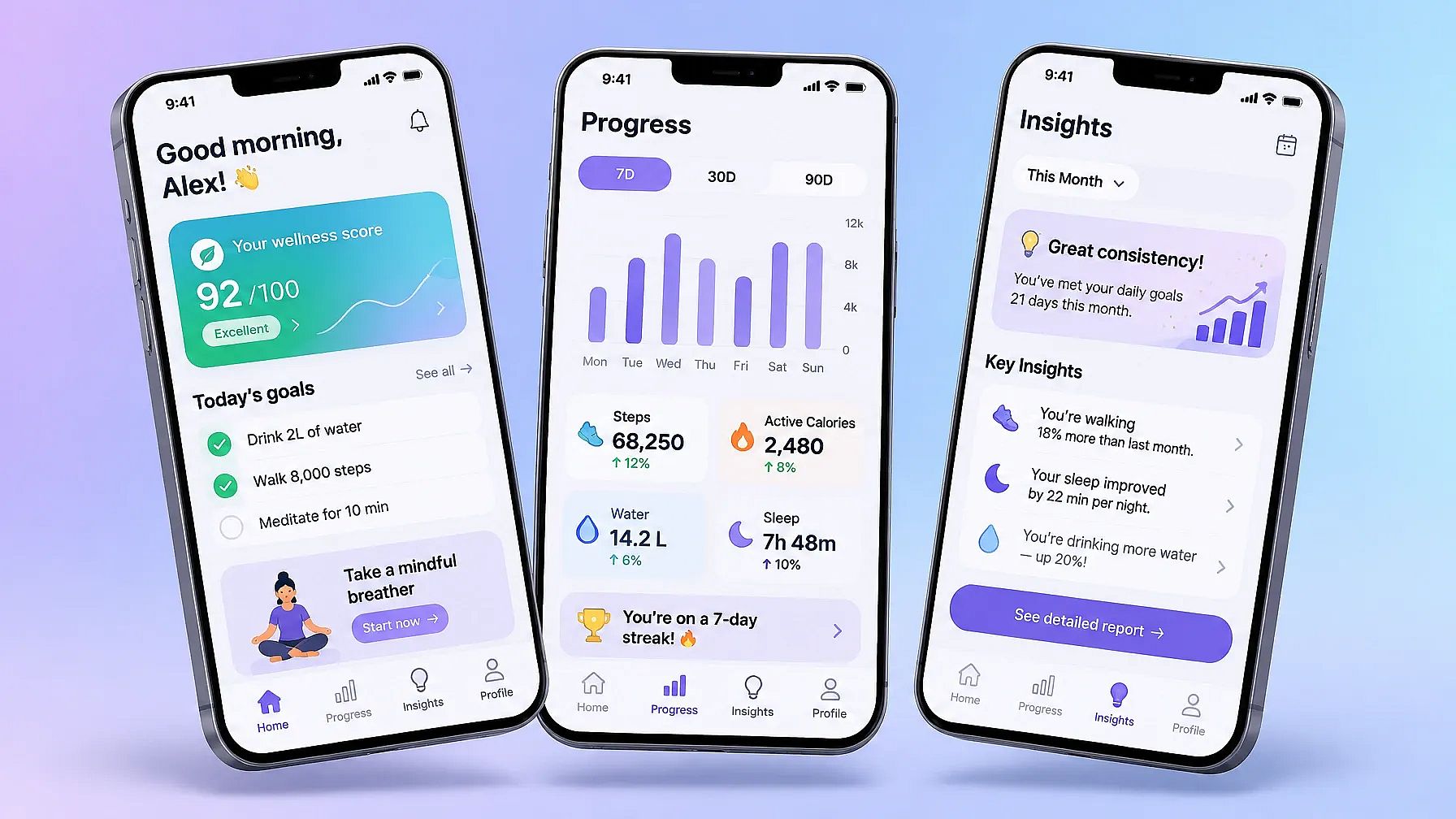
26. Sleek smartphone
High-resolution mockup of a smartphone, sleek and modern style, suitable for tech product showcases.
27. Laptop showing your website (with your design)
Keep my website screenshot exactly as it is. Show it on the screen of an open laptop on a clean white desk, with a notebook and a coffee cup beside it. Soft daylight, screen facing the camera.
28. App screens at an angle
App mockup of three smartphone screens floating at a slight angle, side by side, on a soft gradient background. Clean, modern, soft shadows under each phone.
29. Website in a browser window
Website mockup of a homepage shown in a clean browser window on a large desktop monitor, in a bright home office. Straight-on view, sharp screen.
30. Tablet and phone together
Responsive design mockup of a tablet and a smartphone lying side by side on a light wood desk, showing the same app. Top-down view, even light.
Billboard and signage mockup prompts
Why it works: signs are seen from a distance, so the camera angle matters. Ask for street level to make the scale feel right.
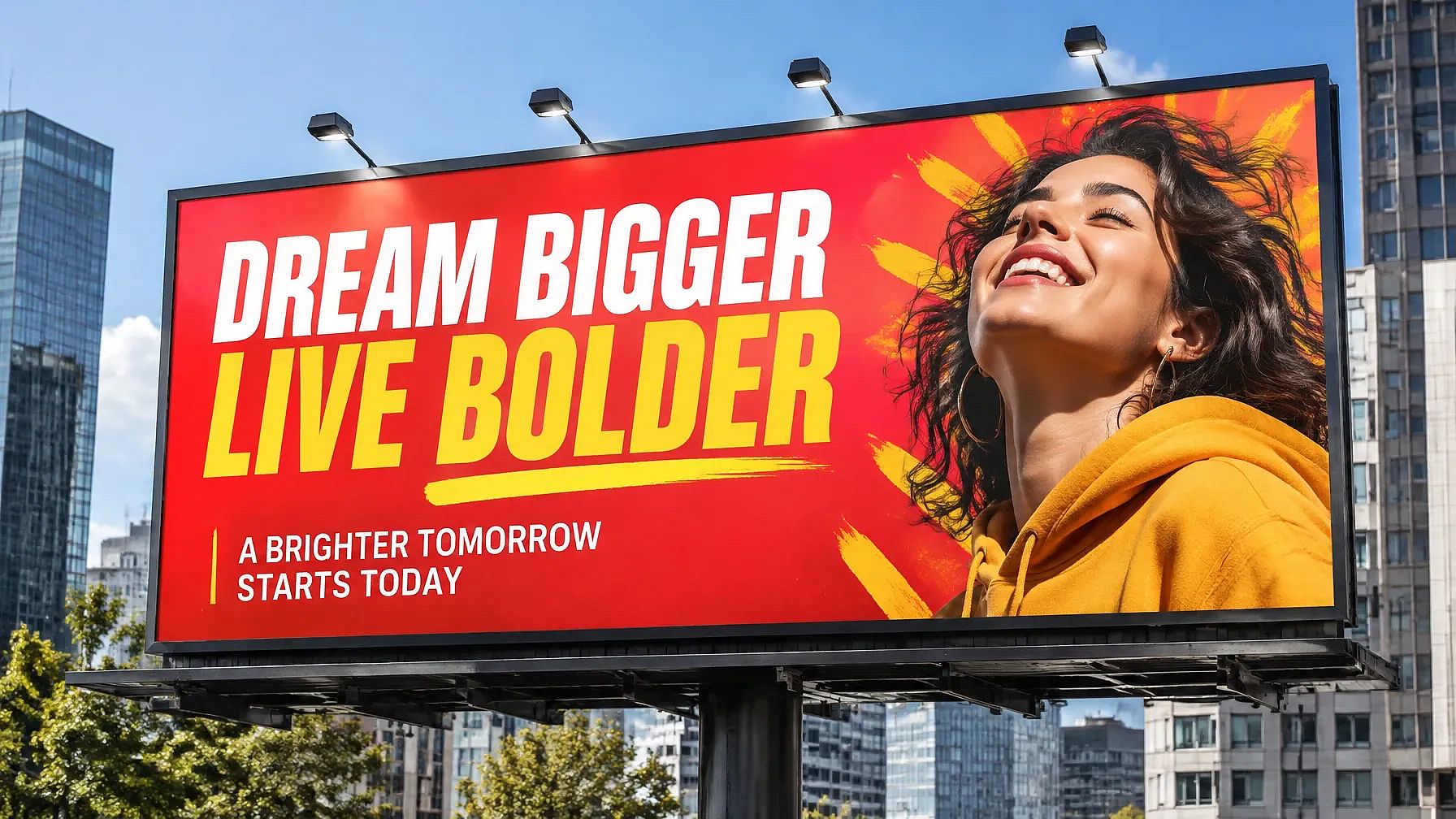
31. City billboard
Realistic mockup of a billboard advertisement, eye-catching and bold style, perfect for urban settings.
32. Bus stop poster at night (with your design)
Keep my poster design exactly as it is. Place it in a lit bus stop ad panel on a city street at night, with a few blurred car lights passing by. Street-level view.
33. Shop window decal
Signage mockup of a white vinyl logo decal on a clean shop window, with the store interior softly blurred behind the glass. Daylight, straight-on view.
34. Hanging café sign
Signage mockup of a round hanging wooden sign with a painted logo, on a metal bracket outside a brick café. Morning light, slight upward angle.
35. Trade show booth banner
Mockup of a trade show booth with a tall roll-up banner and a branded back wall, in a bright exhibition hall. Wide view, even lighting.
Social media and ad mockup prompts
Why it works: showing your post on a phone screen tells people exactly where it will live, which makes the mockup easier to approve.
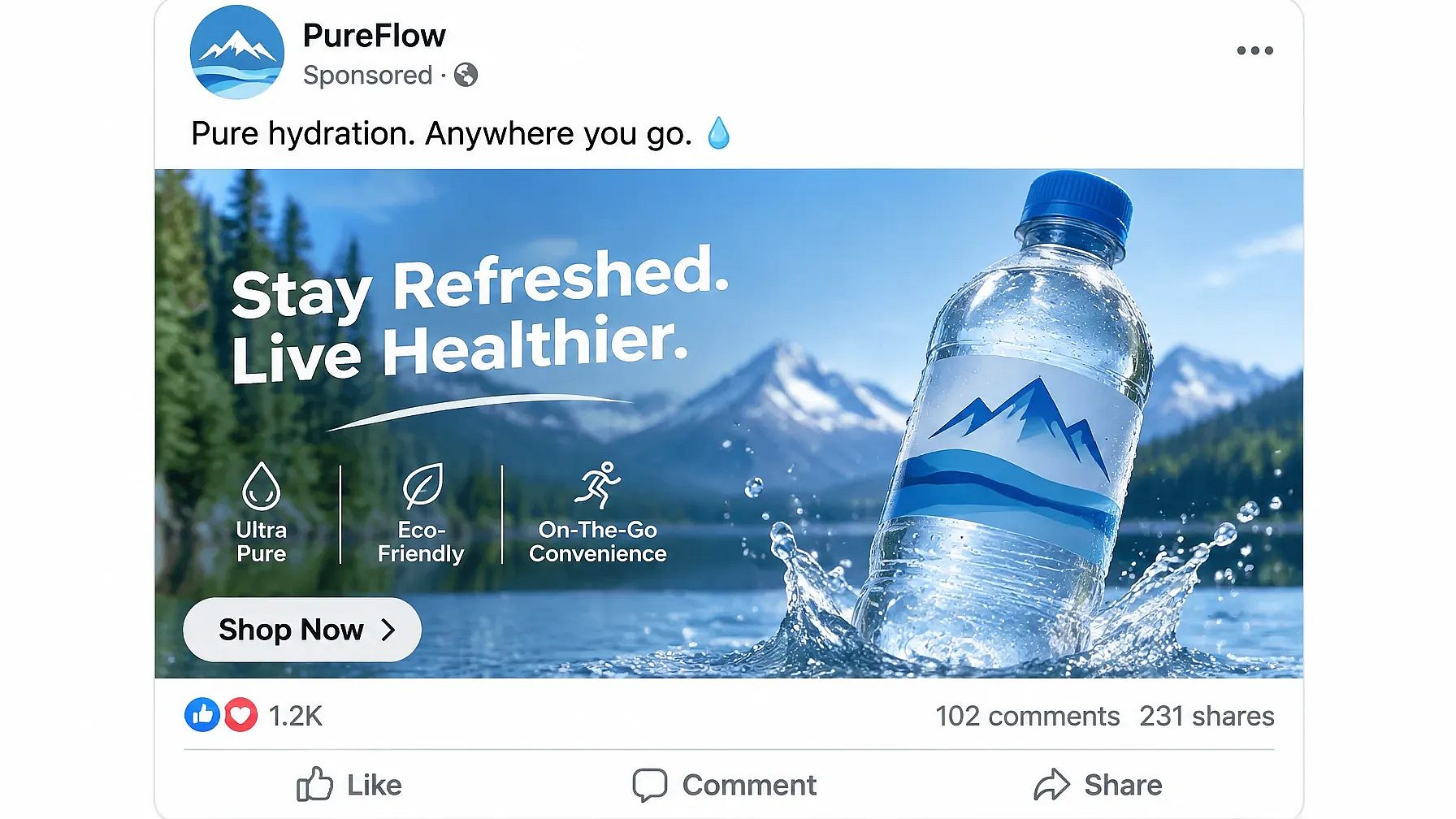
36. Post on a phone in a hand (with your design)
Keep my post design exactly as it is. Show it as a square post on a social media feed, on a smartphone held in one hand. Soft natural light, background slightly blurred.
37. Story ad on a phone
Mockup of a vertical 9:16 story ad on a smartphone screen, the phone propped on a desk next to a coffee cup. Clean, bright, screen facing the camera.
Want your product mockup to move? Upload it to the AI video generator and describe the motion, like the product slowly turning on its stand. A short clip works well for Reels and story ads.
38. One product, a full ad set
Ad mockup showing the same product ad in three sizes side by side: a square post, a tall story and a wide banner, on a light gray background. Clean and evenly lit.
39. Email header on a laptop
Mockup of a marketing email open on a laptop screen, with a colorful header image at the top. Clean desk, soft daylight, screen facing the camera.
40. Display ad on a news site
Mockup of a display ad inside a news website shown on a desktop monitor, with the ad clearly visible in the sidebar. Straight-on view, sharp screen.
Planning holiday campaigns? Our Christmas marketing ideas guide has more ad prompts and a posting calendar.
How Do I Put My Own Design on a Mockup?
Upload your logo or product photo as a reference image, then start your prompt with "Keep my design exactly as it is." The AI builds the mockup around it and leaves the design alone.
- Upload your design. Open the AI mockup generator or Create Image in the AI image generator, and add your logo or product photo as a reference image.
- Paste a prompt. Use any prompt above marked "with your design."
- Place it precisely. If the design lands in the wrong spot, open the OpenArt AI image editor, select Area Edit and highlight where it should go.
- Generate and download. Make a few versions and keep the one where the design looks most natural.
The same prompts work in ChatGPT and Gemini. Upload your design in the chat and paste the prompt. New accounts get 40 free trial credits, so you can make a few mockups before you pay anything.
Make Mockups in a Chat or from Claude
You can also skip the prompt writing.
- Chat Mode. Describe the mockup you want in plain words. OpenArt picks a model and makes the image for you.
- Claude. OpenArt's MCP connector lets Claude make product mockups for you while you chat.
- One look across every mockup. Add a Brand Kit with your logo and brand colors. It works in Create Image with GPT Image 2.5 and GPT Image 2, so a mascot or logo looks the same on every mug and tote.
Mockup Prompt Tips
A mockup looks fake when the design floats on top of the object. These words help it sit on the surface.
| Words that make mockups look real | Words that cause problems |
|---|---|
| natural fabric folds, label wraps around the bottle | flat, perfect print |
| soft contact shadow | no shadow, floating |
| light that matches the scene | dramatic neon glow |
| keep my logo exactly as it is | long sentences on the product |
| correct perspective, 45-degree angle | mixed or extreme angles |
Common mockup prompt mistakes
- Not saying where the design goes, so it ends up in a random spot.
- Asking for long text on the product. Keep it to a name or a short line.
- Uploading a blurry or tiny logo. Use the cleanest file you have.
- Putting too many objects in one shot, so the product gets lost.
- Skipping the zoom-in check on letters and edges before you share the mockup.
Mockup Prompt FAQs
What is a mockup prompt?
A mockup prompt is a text description of an object with your design placed on it, like a logo on a mug or a label on a bottle. You use it with an AI image generator to see how a design will look in real life.
What is the best prompt for a product mockup?
Name the product and its material, then the surface it sits on and the light. For example: "Keep my product exactly as it is. Place it on a beige stone plinth, soft studio light, gentle shadow, 45-degree angle." Prompts 1 to 5 are ready to copy.
How do I put my logo on a mockup?
Open OpenArt AI image-to-image generator, upload your logo as a reference image, and start your prompt with "Keep my logo exactly as it is." Then describe the object and where the logo goes. If it lands in the wrong spot, use Area Edit in Edit Image to place it.
Can AI make a book mockup?
Yes. Upload your cover design and ask for it on a hardcover book standing on a shelf, like prompt 22. Ask for a slight angle so the spine shows.
What is the difference between a mockup and a product photo?
A mockup shows a design, like a label or logo, on an object. A product photo shows the finished product itself for a store or an ad. Our guide to AI product photography shows how to make those.
Do these mockup prompts work in ChatGPT or Gemini?
Yes. Upload your design in the chat and paste a prompt. On OpenArt you can also choose between models like Nano Banana 2.1 and GPT Image 2.
Is there a free AI mockup generator?
Yes. OpenArt's AI mockup generator gives new accounts 40 free trial credits, so you can make a few mockups for free. Every prompt on this page is also free to copy.
How do I keep my brand consistent across mockups?
Add a Brand Kit with your logo and brand colors to your OpenArt project. It works in Create Image with GPT Image 2.5 and GPT Image 2, so every mockup in the set matches.