

 ChatGPT
 Perplexity
 Claude
 Gemini
TL;DR
- You can use an AI image generator to turn raw product photos into Amazon listing images without booking a studio shoot.
- Amazon product photography requires a clean, product-only main image and secondary images that show lifestyle scenes, use cases, or infographic callouts.
- This workflow focuses specifically on Amazon product photos rather than images for multiple sales channels.
- The main image has hard technical rules: a pure white background at RGB 255, 255, 255, the product filling 85% or more of the frame, and at least 1,000 pixels on the longest side. Full specs are in the requirements section below.
- Selling the images you generate is commercial use, so check that your plan includes commercial rights before you upload.
What Amazon listings actually need from your images
Your Amazon product photography plan needs two image types. The main image presents the exact product in a clean, product-only studio shot. Secondary images show the product in use, place it in a lifestyle setting, or explain benefits with infographic-style callouts.
Each image type requires a different production approach. For the main image, you control the background, lighting, angle, and shadows so nothing distracts from the item. For secondary Amazon product photos, you build context around the same item. A kitchen tool might appear on a countertop, while a backpack might appear on someone commuting.
The next two workflows cover each job separately. You will first turn a raw product photo into a clean main image. You will then use the same product reference to create lifestyle scenes, in-use shots, and benefit callouts for the secondary slots.
Keep production and compliance as separate steps. Generate first, then run every file against the pixel, background, format, and content rules listed later on this page.
Turning a raw product photo into a compliant main image
Start with a sharp source photo taken on your phone or camera. Capture the entire product, avoid covering edges with your hand, and make sure packaging text and logos remain readable.
- Upload the source photo. Open OpenArt's background changer, then upload the clearest image of your product. Use a photo that shows the same product variant you plan to sell.
- Choose a neutral studio background. Select a plain background and a clean studio style. Avoid props, people, decorative surfaces, shadows that hide product details, or added objects.
- Describe the intended shot. Ask for a product-only studio image with the full item visible against a pure white background. Keep the prompt literal. Do not request lifestyle scenery, benefit callouts, badges, or extra text for the main image.
- Generate several versions, then judge each one twice. Create multiple options while keeping the same source image, product angle, and background direction. View each candidate at full size to catch artifacts in labels, seams, and logos. Then shrink it to thumbnail size, because that is how shoppers first meet your main image in search results. A shot that reads well large can vanish into the white background small, which is a particular risk for pale and reflective products.
- Review the product itself. Check the shape, color, label text, logo, included parts, and package quantity against the real item. Reject any image where AI changes a cap, adds an accessory, invents text, or removes a product detail.
- Download the cleanest candidate. Choose a product-only image with a white background and no unrelated elements. Save the highest-quality available file without adding infographic text or promotional graphics.
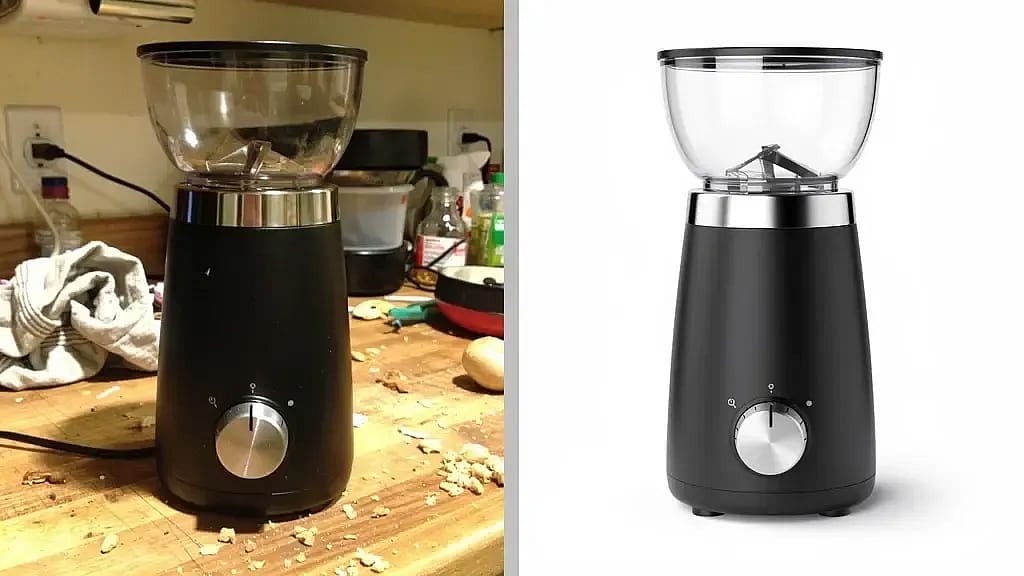
The finished image may look suitable for a main image, but generation alone does not confirm compliance. Check it against the background, dimension, and file rules below before uploading.
Generating lifestyle and infographic images for your secondary slots
Secondary images need prompts that describe use, setting, or a specific product benefit. A neutral studio prompt will produce another catalog shot instead of the context these Amazon product photos need.
- Open OpenArt's AI Product Image Generator. Upload the same clear source photo you used for the main image.
- Choose one purpose for the image. Decide whether you want an in-context scene, a hand or model holding the product, or an infographic-style benefit image. Generate each purpose separately.
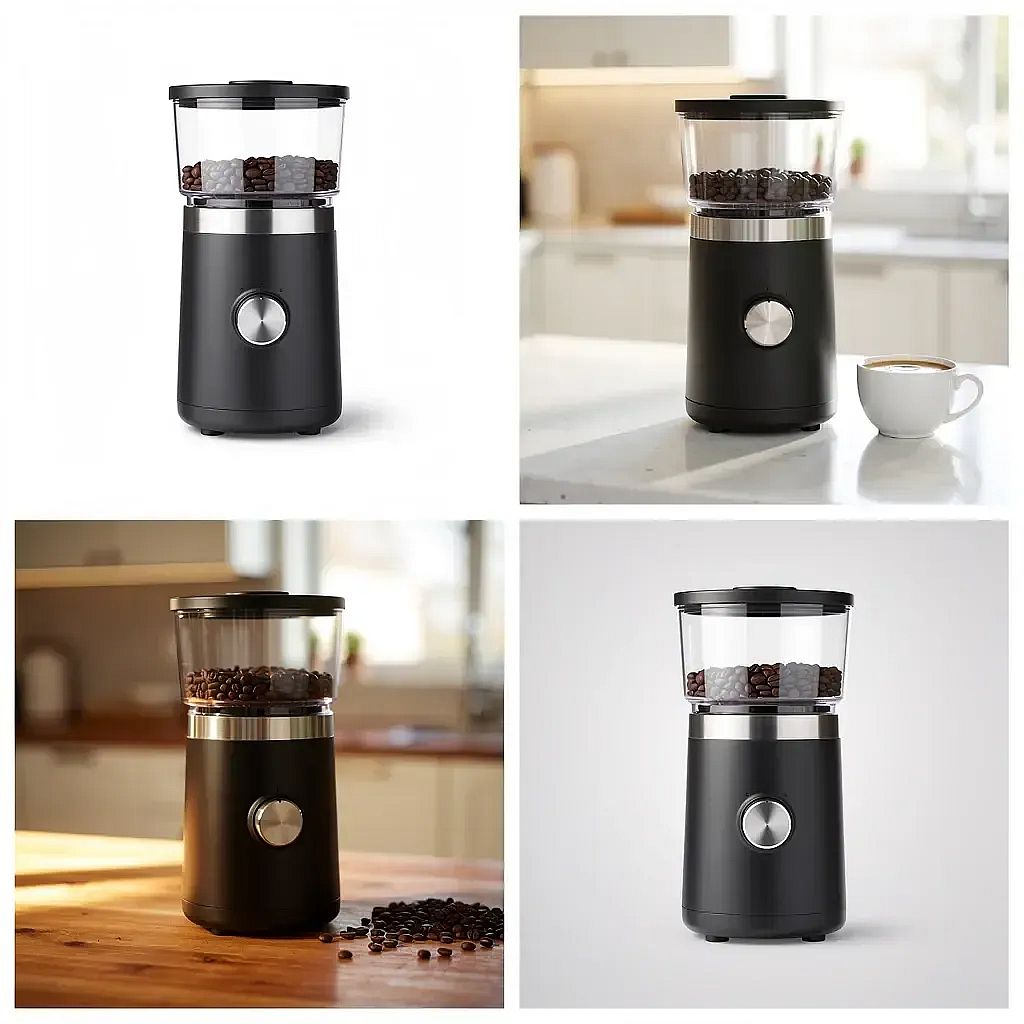
- Describe an in-context scene with concrete details. Name the room or location, the surface beneath the product, and the lighting. For example, prompt for a coffee grinder on a bright kitchen counter beside a prepared cup.
- Describe the interaction when a person should appear. Specify which body part appears, how the person holds or uses the item, and the camera angle. For example, ask for a close-up of one hand gripping a cordless drill while driving a screw into unfinished wood.
- Build benefit images around one claim at a time. Ask OpenArt to place the product in a clean composition with open space for a callout. You can also request a simple label, pointer line, or detail inset tied to a visible feature.
- Generate several versions and inspect the product itself. Reject images that change its shape, controls, label, packaging, color, or proportions. Check hands and contact points closely because awkward grips can make an otherwise usable scene look false.
- Review any generated callout text at full size. AI image tools can misspell words or alter numbers, so replace inaccurate text before using the image.
- Download the strongest version for each secondary slot. Keep the original generation available in case you need to revise the scene or benefit angle later.
Secondary images give you far more room than the main image does. Text overlays, props, backgrounds, and people are all allowed here. The pixel and file rules still apply, so check those below before these images go live.
Keeping your product consistent across the whole image set
Use one master product reference for every Amazon product photo. Upload the same clean source image to the AI image generator for the main image and each secondary image rather than starting a new generation from a text prompt. If you need several viewpoints, create a small reference set and reuse the matching source whenever you return to that angle.
Keep product details fixed in every prompt. Repeat the exact color and material, then specify that the generator must preserve the product's proportions, label placement, and packaging. Avoid creative wording such as "reimagine" or "inspired by," since those instructions can invite changes to the item itself.
Lock the visual treatment across related secondary images. Choose a consistent camera height, lens perspective, lighting direction, and shadow softness. You can change the room or use case while keeping those production choices stable. For infographic images, reuse an approved product render as the base and add callouts around it instead of generating another version of the product.
Review the complete image set side by side before downloading it. Compare logos, seams, buttons, cap shapes, and other details that AI can alter. Reject any image that introduces a color shift or changes the product's geometry, even if the surrounding scene looks convincing.
A consistent product reference makes the listing read as one branded image set. Your backgrounds can vary, but the customer should see the same item in every slot.
Amazon's image requirements: the specs to check before you upload
AI generation handles production. It does not confirm that a file meets Amazon's listing rules. Run every image, generated or photographed, through the checks below.
Technical specs that apply to every image
| Spec | Requirement |
|---|---|
| Longest side | At least 1,000 px to enable zoom; 1,600 px or more is the practical target |
| Maximum dimension | 10,000 px |
| Resolution | 72 dpi or higher |
| File formats | JPEG (.jpg) preferred; PNG, TIFF, and non-animated GIF also accepted |
| Color mode | sRGB |
| File name | Product identifier plus extension, such as B000123456.jpg |
| Image slots | Up to 9 images per listing; roughly the first 7 appear in the gallery, or 6 when you include a video |
Zoom is the reason the 1,000 px floor matters in practice. Below it, shoppers cannot magnify your product, which removes the one tool they have for checking texture, stitching, and print quality before buying.
Main image rules
- Pure white background, RGB 255, 255, 255. "Almost white" fails, and it is the most common reason a generated background gets flagged.
- The product fills 85% or more of the frame.
- The entire product is visible. No cropping, no partial views, no sectioning.
- No text, graphics, logos, watermarks, borders, inset images, or promotional messaging such as "Best Seller" or "50% Off."
- A photographic representation of the actual product. No illustrations, drawings, placeholders, or mockups.
- No props, no additional objects, and no people unless your category specifically allows them.
- One product only. Bundles and multipacks follow separate category rules.
Where the rules bend by category
The main-image rules above are the general standard, not a universal one. A handful of categories permit lifestyle main images, including beds, bed frames, mattresses, rugs, rug pads, and sofas. Apparel and shoes carry their own framing conventions, and some beauty and baby subcategories restrict the use of human models. Before you finalize a main image, open the style guide for your specific category in Seller Central and check it against your file, because category rules override the general standard.
Secondary images are where you get room to work. Text, graphics, lifestyle settings, props, and people are all permitted, which is why the infographic and in-use workflows above belong in those slots rather than in the main image.
Sources: Amazon's product photography standards post in Seller Forums, plus the category style guides in Seller Central. Amazon revises these rules, so confirm the current version for your category before a launch.
Try it with your own product photo
Open OpenArt's AI Product Image Generator, upload a raw product photo, and generate a compliant main image plus lifestyle and infographic secondary images in the same session. You get a full Amazon-ready image set without booking a studio or hiring a photographer.
Start Creating →FAQs
Does Amazon allow AI-generated product photos?
Amazon allows AI-generated product photos when they accurately represent the item and follow the applicable listing rules. OpenArt can produce main and secondary images from a real product reference. Accurate references reduce the risk of showing features, colors, or accessories that buyers will not receive.
Can AI images be used as the main Amazon image?
AI images can serve as main images if they show the actual product and meet the main-image rules: pure white background, the product filling 85% or more of the frame, the full product visible, and no added text or graphics. Check the finished file against your category's style guide before uploading it.
Do I need a paid plan to sell products with AI-generated images?
Using generated images on a listing you sell from is commercial use, so you need a plan that grants commercial rights. On OpenArt those rights start at the Plus plan, which is $34 per month or $27 on annual billing. The lower Starter plan does not include them. Check openart.ai/pricing for current figures before you commit.
How many secondary images should an Amazon listing have?
Most listings allow up to 9 images, with roughly the first 7 showing in the gallery. Use enough of those slots to answer the buyer's main questions without repeating the same view. A useful set covers alternate angles, a scale reference, and at least one lifestyle or infographic image. Display counts vary by category and device, so put your strongest images first.
What is the difference between lifestyle and infographic images?
Lifestyle images place the product in a realistic setting, while infographic images add text or graphics that explain features, dimensions, or use cases. Both belong in secondary slots rather than the main image. OpenArt can generate contextual scenes and benefit-callout visuals for those slots, and using both formats helps buyers understand how the product looks and what it does.
Why does my white background keep getting rejected?
The main image needs pure white at RGB 255, 255, 255, and generated backgrounds often land slightly off, at a light gray or a faint tint that looks white on screen. Sample the background pixels in any image editor and confirm the values before uploading. Soft drop shadows and reflections that spill into the background are a second common cause.