




 ChatGPT
 Perplexity
 Claude
 Gemini
Cursor writes good code, but it can't see your GitHub issues, your Figma file or this week's library docs. The best MCP for Cursor is the one that brings in the thing you keep leaving the editor to find.
This guide covers 10 Cursor MCP servers, grouped by the job each one does. You'll also learn how to add them, which ones to skip and how many to run at once.
We connected OpenArt MCP in Cursor 3.31.11 on Windows and built a landing page from an empty folder. The other servers are described from each vendor's documentation. OpenArt makes one of the servers on this list.
Key Takeaways
- Start with 3 or 4 servers.
- A fresh Cursor install in our test already had 45 tools turned on before we added a single server.
- Remote servers with a sign-in (Figma, Linear, OpenArt) take about a minute to set up.
- OpenArt MCP is one of the best MCP servers for Cursor when you need images or video, and it saves a hero image straight into our project.
- On Cursor's Free plan, MCP tool calls use your monthly agent allowance, and we hit the limit after one image.
What Is an MCP Server in Cursor?
An MCP server is a small connector that gives Cursor's agent new tools, like reading a Figma frame, creating an AI image, or opening a pull request on GitHub. It runs on the Model Context Protocol, an open standard that Anthropic released in 2024, so most servers also work in Claude Code, Codex, Windsurf and VS Code.
Cursor is the MCP client. Each server lists its tools (actions the agent can take) and resources (data the agent can read), and the two sides talk using JSON-RPC messages.
In Agent mode, Cursor picks the right tool for your request and asks you before it runs it. Cursor also shows any images a tool sends back right in the chat.
Cursor Plugins vs MCP Servers vs Extensions
People often mix up these three, so here is the short version.
| Type | What it is | Who uses it |
|---|---|---|
| MCP server | A connector that adds tools the agent can call | Cursor's agent |
| Cursor plugin | A Cursor Marketplace package that can bundle MCP servers, rules, agents, commands, hooks and skills | You install it, and the agent uses what's inside |
| Extension | A VS Code add-on for the editor, such as a theme or a linter | You, in the editor |
If you're looking for the best Cursor extensions, those make the editor nicer for you. Cursor plugins and MCP servers give the agent more to work with.
Best MCP for Cursor at a Glance
Here is the best MCP for Cursor for each job, from reading docs to fixing production errors. Free tiers change often, so check each vendor's pricing page before you commit.
| Job | Server | Runs | Sign-in |
|---|---|---|---|
| Current library docs | Context7 | Remote or local | None needed to start |
| Code, issues and pull requests | GitHub MCP Server | Remote or local (Docker) | Personal access token |
| Browser testing | Playwright MCP | Local | None |
| Design to code | Figma MCP | Remote | OAuth |
| Images and video | OpenArt MCP | Remote | OAuth |
| Database | Supabase MCP | Remote | OAuth |
| Production errors | Sentry MCP | Remote | OAuth |
| Issues and planning | Linear MCP | Remote | OAuth |
| Web pages and scraping | Firecrawl MCP | Remote or local | Remote, OAuth or API key |
| Deploys and logs | Vercel MCP | Remote | OAuth |
The 10 Best MCP Servers for Cursor
The list starts with the servers most developers use every day and moves toward more specific jobs. Each entry has a config you can paste inside the mcpServers block of your mcp.json file. The setup section below shows where that file lives.
1. Context7: Best MCP for Cursor When Docs Change Fast
Context7 pulls the current, version-specific docs for a library into your chat. That stops Cursor from writing code for an API that changed two versions ago.
It comes from Upstash and has two main tools: resolve-library-id finds the library, and query-docs fetches the right pages. You can start without an API key, or npx ctx7 setup is recommended for higher rate limits and account quota tracking. The free plan comes with 1000 API calls.
Setup: the fastest route is one command, npx ctx7 setup --cursor, which signs you in and adds the server (it needs Node.js 22.13 or newer). To add it by hand, use the remote URL with your Context7 API key:
"context7": {
  "url": "https://mcp.context7.com/mcp",
  "headers": { "Authorization": "Bearer YOUR_CONTEXT7_API_KEY" }
}
Limits to know: Context7's library index is partly built by the community. Some libraries are missing or lag behind, so double-check the docs for anything critical.
Best for: anyone using fast-moving frameworks like Next.js, Tailwind or the Vercel AI SDK.
Try this prompt: "Use Context7 to check the current Next.js metadata API, then add Open Graph tags to the homepage."
Context7 MCP in Cursor is the easiest first install on this list. With two tools (resolve-library-id and query-docs), it barely touches your tool budget.
2. GitHub MCP Server: Repos, Issues and Pull Requests
GitHub's official server lets Cursor read issues and review pull requests from the chat. It can also check why a GitHub Actions run failed. You stay in the editor while the agent handles the GitHub side.
Setup: GitHub's Cursor install guide gives two routes, and both have a one-click install button. Either way, create a GitHub personal access token first and give it only the scopes you need.
Remote server (easiest): GitHub hosts the server, so there's nothing to install. In Cursor, the remote server signs in with your personal access token, sent as a header:
"github": {
  "url": "https://api.githubcopilot.com/mcp/",
  "headers": { "Authorization": "Bearer YOUR_GITHUB_TOKEN" }
}
Local server (Docker): the server runs on your computer inside Docker, so Docker Desktop needs to be open. Add your token as an environment variable:
"github": {
  "command": "docker",
  "args": ["run", "-i", "--rm", "-e", "GITHUB_PERSONAL_ACCESS_TOKEN", "ghcr.io/github/github-mcp-server"],
  "env": { "GITHUB_PERSONAL_ACCESS_TOKEN": "YOUR_GITHUB_TOKEN" }
}
The local Docker server can also sign in through your browser instead of a token, which GitHub's guide explains. Restart Cursor after you save, then ask "List my GitHub repositories" to check that it works.
Limits to know: out of the box, GitHub’s server turns on five toolsets: context, issues, pull_requests, repos and users. That’s only part of the full catalog, but it still adds dozens of tools to your list.
You can keep only the groups you need. On the remote server, add an X-MCP-Toolsets header (or X-MCP-Tools for single tools), and on the local server, use the --toolsets or --tools flag. GitHub’s toolset docs list every option.
"headers": {
  "Authorization": "Bearer YOUR_GITHUB_TOKEN",
  "X-MCP-Toolsets": "repos,issues,pull_requests"
}
The server itself is free to use, but each tool follows the rules of the GitHub feature behind it. Tools in the copilot toolset need a paid GitHub Copilot license, and security tools like code_security need GitHub Advanced Security.
The old @modelcontextprotocol/server-github package stopped being supported in April 2025, but some guides still recommend it. Use GitHub’s own github-mcp-server instead.
Best for: reviewing pull requests, triaging issues and turning an issue into a branch.
Try this prompt: "List the open issues labeled bug, pick the smallest one and open a pull request with the fix."
3. Playwright MCP: Test Your App in a Real Browser
Microsoft’s Playwright MCP lets Cursor open your app in a real browser and click through it the way a user would. It reads the page’s structure (buttons, links, text and labels), so it works with any model and needs no API key.
Setup: click the Install in Cursor button on Playwright’s getting started page. To add it by hand, open Customize, click MCPs, add a new server and paste this config:
"playwright": {
  "command": "npx",
  "args": ["@playwright/mcp@latest"]
}
Playwright starts the browser for you, so there’s nothing else to install. To check that it works, ask Cursor to “go to demo.playwright.dev/todomvc and add a few to-do items.” A browser window should open, and you’ll watch the agent type and click.
Useful options: add these to the args list when you need them.
--headlessruns the browser without a window.--browser=firefoxswitches browsers (you can also usechrome,webkitormsedge).--isolatedstarts every session with a clean browser.
Limits to know: it needs Node.js 20 or newer on your computer, and long browsing sessions fill the chat with page snapshots. By default, Playwright MCP keeps one browser profile per project, so logins and cookies stay between sessions. Use --isolated when you test sign-up or login flows, or when you don’t want saved logins around.
Best for: checking a signup flow end to end, or catching a broken button before you push.
Try this prompt: "Open localhost:3000, sign up with a test email and tell me about any console errors."
For performance traces, try Chrome DevTools MCP from Google's Chrome team. Its --slim flag cuts down the tool count, and --no-usage-statistics stops it from sending usage stats to Google.
4. Figma MCP: Turn Designs Into Components
Figma's MCP server gives Cursor the real layout, colors, spacing and components of a frame, so the agent builds from the design file instead of guessing from a screenshot. Cursor can also write back to Figma, for example to update frames, components and variables using your design system.
Figma offers two servers. The remote server connects through https://mcp.figma.com/mcp, with no desktop app needed. The desktop server runs through the Figma desktop app and needs a Dev or Full seat on a paid plan.
Setup: Figma recommends its remote server. Install it from the Cursor Marketplace, or add the URL and sign in with your Figma account.
"figma": {
  "url": "https://mcp.figma.com/mcp"
}
Limits to know: Writing to Figma needs the remote Figma MCP server and a Full seat for any file outside your drafts. It’s free while in beta, and Figma plans to make it a paid, usage-based feature later. .
Best for: frontend developers who get handoffs from designers.
Try this prompt: "Build the selected Figma frame as a React component using our Tailwind theme."
Framelink (Figma Context MCP) is a community alternative that works with a Figma API key.
5. OpenArt MCP: Best MCP for Cursor for Images and Video
OpenArt MCP lets Cursor make images and video for whatever you're building, using models like GPT Image 2, Nano Banana Pro, Seedream 5 Pro and Seedance 2.5. Every file is also saved to your OpenArt library, so you can reuse it later.
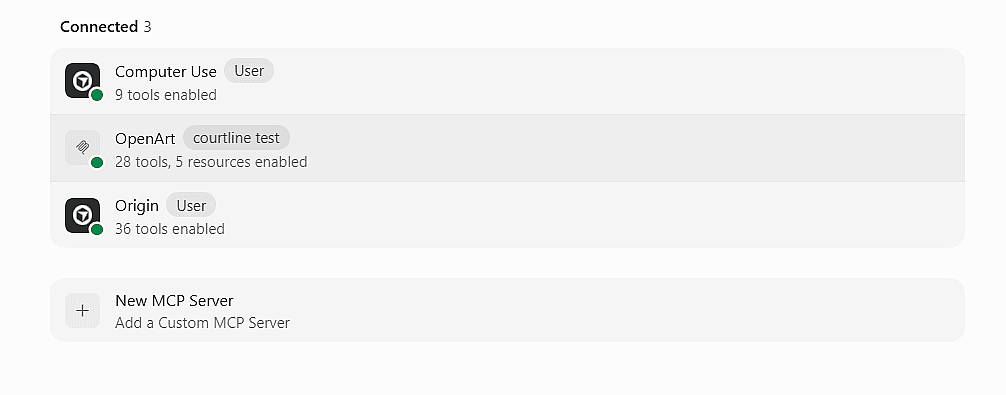
This is the one server we tested ourselves in Cursor. We added it in Customize, under MCPs, with the URL https://mcp.openart.ai/mcp, saved it to the project and signed in. It connected on the first try and added 28 tools and 5 resources.
Config:
"OpenArt": {
  "url": "https://mcp.openart.ai/mcp"
}
Then we gave Cursor one prompt in an empty folder:
Create a simple landing page for a tennis racket brand called Courtline. Use OpenArt to generate a 16:9 hero image of a white tennis racket with green trim on a clay court at golden hour, with space on the left for a headline, and add it to the hero section.
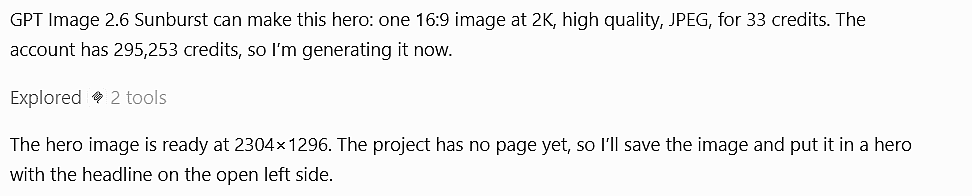
Cursor looked up OpenArt's image models and picked GPT Image 2.6. It made a 2304 x 1296 hero image and saved it to images/hero inside the project. It then built the page and opened a preview in Cursor's own browser.
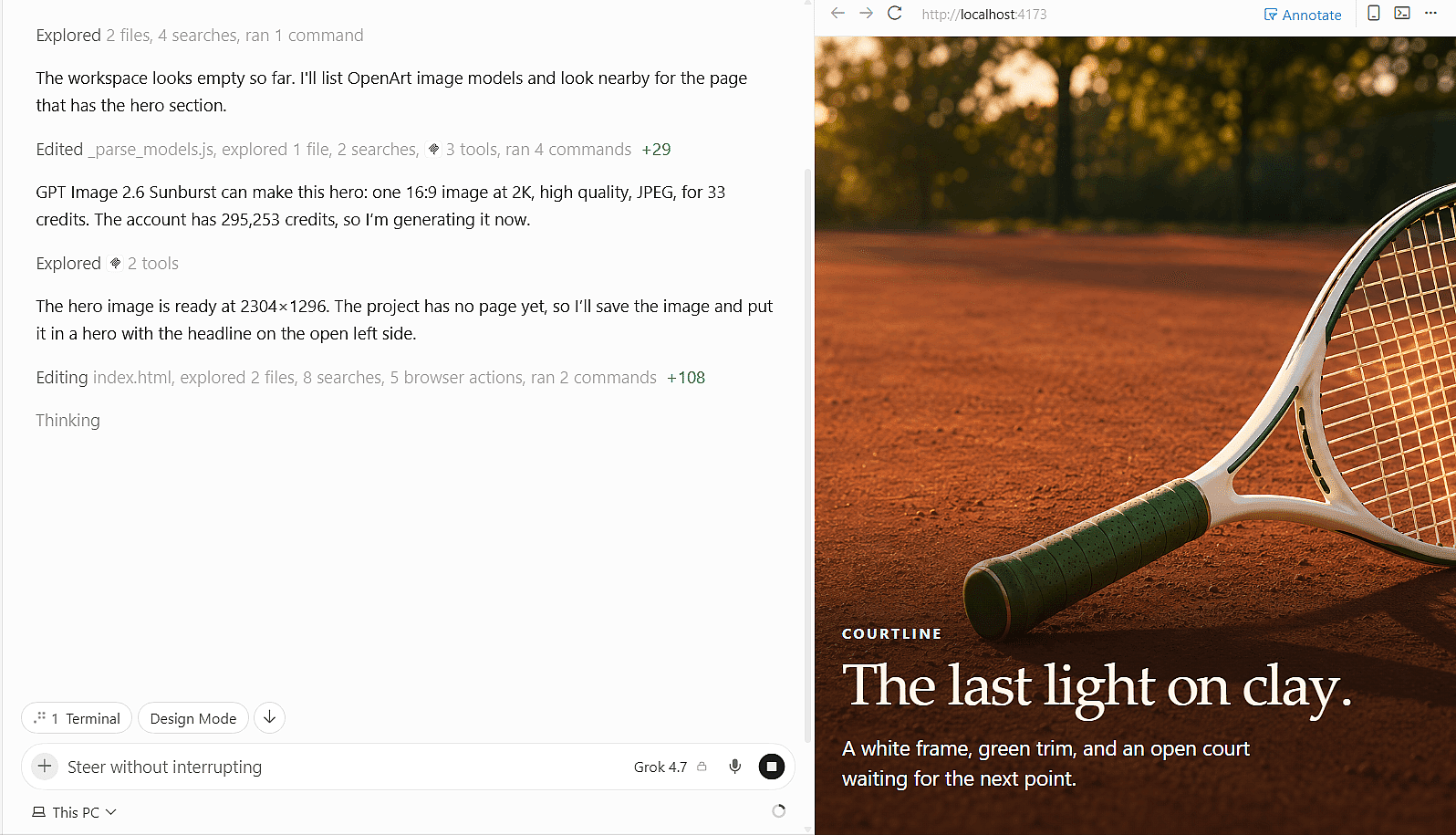
The racket matched the prompt, with a white frame, green trim and grip, clay court and warm evening light. The left side stayed open, and Cursor placed the headline there.
You can also turn the hero image into a video in the same chat, with models like Seedance 2.5, Kling 3 Omni and PixVerse V6.
Limits to know: each image and video uses OpenArt credits, and each request also uses Cursor's agent allowance. On Cursor's Free plan, we ran out after one image, so we didn't get to test the video in Cursor.
Cursor also wrote a small helper script into the project to read OpenArt's model list. Check for leftover files like this before you commit.
Best for: hero images, product shots, social cards, app screenshots for a store listing and short demo videos.
For the full setup and more prompt ideas, see how to connect OpenArt to Cursor. If you want a hand with the prompt itself, these website design prompts are a good place to start.
6. Supabase MCP: Add a Database Without Leaving Cursor
Supabase's server lets Cursor create tables, run SQL, read logs and manage your project. You can build the backend for a feature in the same chat where you write the frontend.
Connect it with OAuth, then scope it to one project and turn on read-only mode when you work near real data. The agent looks at your real tables before it writes a query.
Setup: click the one-click Cursor button in Supabase’s MCP docs, or add this to .cursor/mcp.json. Use ~/.cursor/mcp.json instead if you want it in every project.
"supabase": {
  "url": "https://mcp.supabase.com/mcp?features=docs%2Caccount%2Cdatabase%2Cdebugging%2Cdevelopment%2Cfunctions%2Cbranching%2Cfeedback%2Cnotebooks"
}
The features list in the URL turns on groups of tools. Every group is on by default except Storage, and the configuration panel in Supabase’s docs lets you switch groups on or off and rebuilds the URL for you.
Cursor opens a browser window so you can sign in to Supabase. Pick the organization that holds the project you want to work on.
Then check that the server shows as connected in Cursor’s MCP list, and restart Cursor if some tools don’t appear. To test it, ask: “What tables are there in the database? Use MCP tools.”
If you use the Cursor CLI, it shares the same config. Run these in your terminal:
agent mcp enable supabaseapproves the server.agent mcp login supabasesigns you in.agent mcp listchecks the connection.
Limits to know: data stored in your tables can carry prompt injection that steers the agent into unsafe queries. Supabase recommends a development project, and the server runs with your developer permissions, so never expose it to customers.
Best for: full-stack apps built on Supabase.
Try this prompt: “Create a waitlist table with email and created_at, then connect the signup form to it.”
Supabase also offers a plugin that installs the MCP server and its agent skills in one step. On plain Postgres, Neon MCP lets the agent test a migration on a database branch first.
7. Sentry MCP: Fix Production Errors in Context
Sentry’s server lets Cursor search your errors, triage issues and check performance problems. You skip copying stack traces out of the browser.
Setup: use the Install MCP Server button on Sentry’s MCP page, or add the URL by hand. Sentry recommends adding your organization and project to the URL, so the agent stays on that project:
"sentry": {
  "url": "https://mcp.sentry.dev/mcp/your-org/your-project"
}
Every connection uses OAuth, so you don’t need an API token. The first time you connect, Cursor opens a browser window where you sign in to Sentry. Sentry’s free Developer plan includes MCP access, so you can try it on a solo project before you pay.
If you’d rather run it on your computer, install the Sentry CLI and run sentry auth login. Then add a local server with "command": "sentry" and "args": ["mcp"]. This route also works with a self-hosted Sentry.
Limit Sentry to one organization or project: add them to the end of the URL, and every Sentry tool works only inside that scope.
/your-orglimits the session to one organization./your-org/your-projectlimits it to one project.
Scoping also hides the tools you no longer need. An organization scope removes find_organizations, and a project scope removes find_projects, which keeps your tool list shorter.
Limits to know: the hosted server at mcp.sentry.dev connects to Sentry’s cloud. If your team runs a self-hosted Sentry, use the local Sentry CLI route instead, signed in to your own Sentry address.
Best for: debugging production issues once your app has real users.
Try this prompt: “Find the newest unresolved Sentry error in the checkout page and fix it.
8. Linear MCP: Turn Issues Into Code
Linear’s official server lets Cursor find, create and update issues, projects and comments. The agent can read the issue it’s working on, then post what it changed when it’s done.
Since February 2026, it can also create and edit initiatives, project milestones and project updates, and manage project labels. It can open images attached to issues too, which helps when a bug report includes a screenshot.
Setup: use the Add to Cursor link in Linear’s MCP, or add the URL by hand. Linear’s server runs on Streamable HTTP, and Cursor opens a browser window so you can sign in with OAuth:
"linear": {
  "url": "https://mcp.linear.app/mcp"
}
To let the agent read without changing anything, use https://mcp.linear.app/mcp/readonly, which only offers read tools. You can also skip the browser sign-in and send a Linear API key as an Authorization: Bearer header, and a key with only Read permission keeps the agent read-only.
Limits to know: each connection works with one Linear workspace, and signing in again doesn’t switch workspaces. If you use several workspaces, Linear’s docs explain how to keep a separate sign-in for each.
The older SSE address (/sse) is being removed, so use /mcp. If you see an internal server error, delete the .mcp-auth folder in your home folder and connect again..
Best for: teams that plan work in Linear, including product managers who keep project updates current from Cursor.
Try this prompt: “Read issue ENG-42, find the cause in the code, fix it and post a comment with what you changed.”
9. Firecrawl MCP: Bring Live Web Pages Into Cursor
Firecrawl turns web pages into clean text that Cursor can read. Use it for docs Context7 doesn't cover, or to move content off an old site.
Its main tools cover four jobs:
firecrawl_scrapereads one page you already have the URL for.firecrawl_searchsearches the web when you only have a question.firecrawl_maplists every URL on a site, andfirecrawl_crawlreads a whole section.firecrawl_interactclicks buttons and fills in forms on a live page.
Setup: install Firecrawl from the Cursor Marketplace, or use the one-click button in Firecrawl's official page. To add it by hand, use the hosted server and sign in through your browser, with no API key needed:
"firecrawl": {
  "url": "https://mcp.firecrawl.dev/v2/mcp-oauth"
}
If you'd rather use an API key, point Cursor at https://mcp.firecrawl.dev/v2/mcp and send the key as an Authorization: Bearer header. Firecrawl now treats the local npx firecrawl-mcp server as the older setup, so keep just one Firecrawl server turned on.
To check it works, ask: "Use Firecrawl to scrape firecrawl.dev and summarize it." Approve the tool call, and Cursor should run firecrawl_scrape.
Limits to know: if Cursor shows only three Firecrawl tools (search, scrape and parse), you're connected without signing in. Sign in or add your key to get the full set, and to avoid the tighter rate limits on keyless use.
Scrapes and searches use Firecrawl credits, and a crawl reads many pages at once. Firecrawl suggests keeping crawls shallow (a depth of 2 or 3) with a low page limit, or mapping the site first and reading only the pages you need.
Best for: research and reading docs that Context7 doesn't cover.
Try this prompt: "Use Firecrawl to read the Stripe webhook docs and show me how to verify the signature."
10. Vercel MCP: Deploy and Read Logs
Vercel’s official server lets Cursor manage your projects and deployments and read deployment logs. It can also search Vercel’s docs and pull visitor numbers from Web Analytics.
When a deploy fails, the agent can read the log and fix the code in one go.
Setup: click Add to Cursor on Vercel’s MCP official page, or add this to your project or global .cursor/mcp.json:
"vercel": {
  "url": "https://mcp.vercel.com"
}
Cursor then shows a “Needs login” prompt next to the server. Click it and approve access to your Vercel account, and Vercel asks for this approval on every new connection.
Vercel only works with AI apps it has reviewed or that use a newer sign-in standard, and Cursor is on its supported list.
Limits to know: connecting gives the agent the same access as your Vercel account. Vercel’s docs warn that untrusted tools can slip in harmful instructions, so review what each tool can reach and keep approvals on for changes to live projects.
Best for: anyone who deploys on Vercel.
Try this prompt: “Why did the last deploy fail? Read the deployment logs and fix it.”
Other MCP Servers Worth Knowing
These servers came up often in other best MCP servers lists. They're useful for specific setups.
- Chrome DevTools MCP: live debugging and performance traces in Chrome.
- Slack MCP: posts updates to a channel when the agent finishes a task.
- Notion MCP: lets Cursor read specs and docs from your Notion workspace.
- Neon MCP: Postgres with branches, so the agent can test a migration on a copy first.
MCP Servers You Can Skip in Cursor
Some servers show up on many lists but add little in Cursor. Skipping them keeps your tool list short.
- Filesystem MCP: Cursor's agent already reads and edits the files in your project. Add Filesystem only if the agent truly needs folders outside the project.
- Sequential Thinking: it gives the model a planning scratchpad, and current models already plan well on their own.
- Browserbase: cloud browsers make sense at scale. For testing your own app, Playwright MCP covers it.
- Archived reference servers: the old
@modelcontextprotocol/server-*packages for GitHub and Postgres are no longer maintained. Use the official vendor servers.
How to Add an MCP Server to Cursor
To add an MCP server to Cursor, open Customize in the left sidebar, click MCPs and add the server. Then sign in or add your API key.
These steps match Cursor 3.31. Older builds put the same settings under Cursor Settings and Tools & MCP. Full details are in Cursor's MCP docs.
What You Need Before You Start
- Cursor desktop app: MCP servers work on every plan, but each tool call uses your plan's agent requests. Cursor's Cloud Agents on the web need a paid plan.
- Node.js: local servers that start with
npx, like Playwright and Firecrawl, need Node.js installed. Runnode -vin a terminal to check. - Python with uv: a few community servers run with
uvx. Install uv only if a server's docs ask for it. - Accounts and keys: sign up for each service first, such as GitHub, Figma or OpenArt. Create an API key only for servers that ask for one.
Option 1: Install From the Cursor MCP Marketplace
Click Browse Marketplace in Customize, find the server and click Add to Cursor. Cursor installs it and walks you through the sign-in.
Many vendors also put an "Add to Cursor" button on their docs. For community servers, try cursor.directory or the official MCP Registry.
Option 2: Add a Custom MCP Server
Use this when a server isn't in the Cursor MCP marketplace.
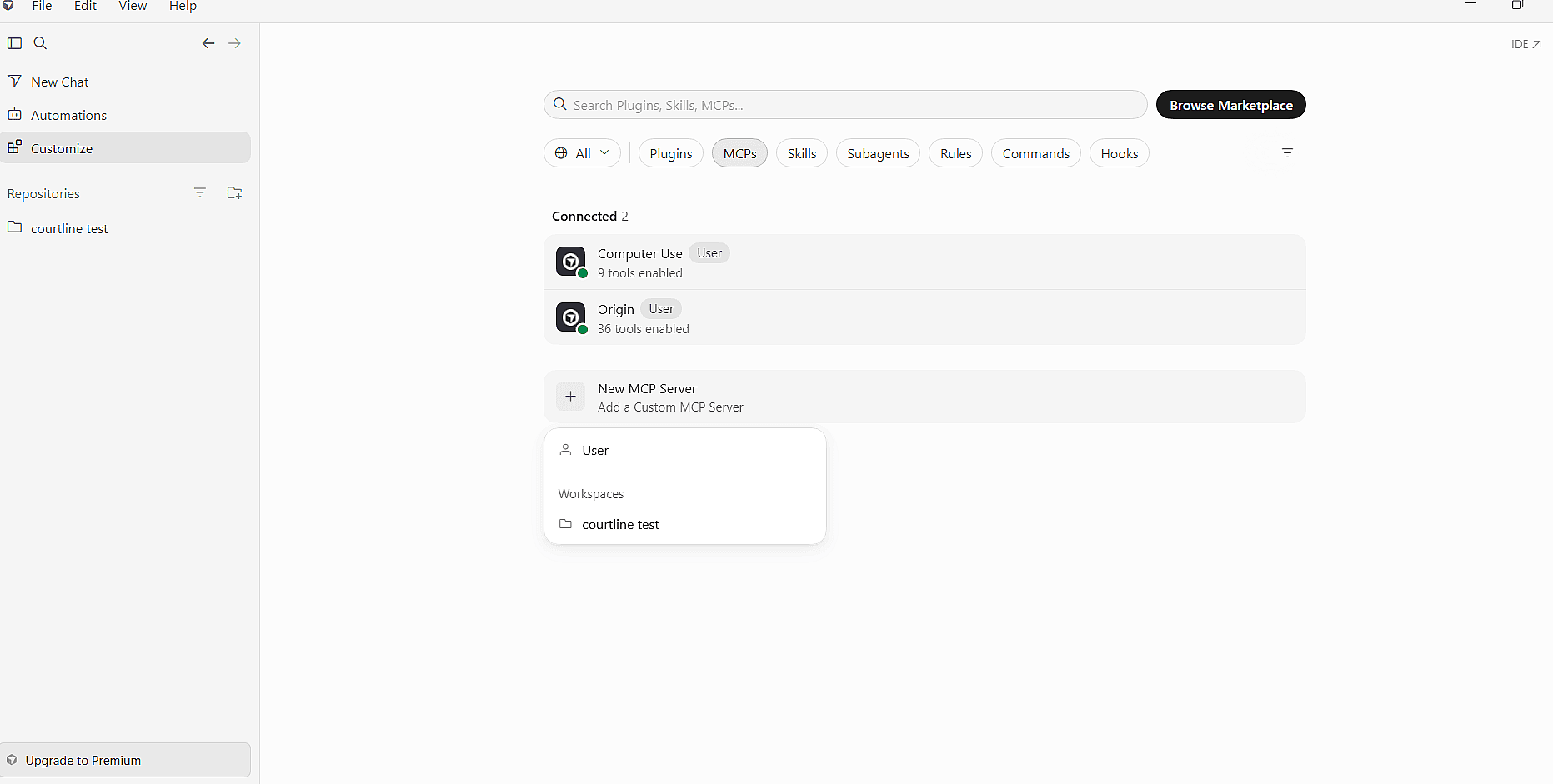
- Open Customize and click MCPs.
- Click New MCP Server.
- Choose User to use it in every project, or pick your project under Workspaces to keep it in one place.
- Enter the server name and URL.
- Click Connect and sign in.
Option 3: Edit mcp.json for Your Cursor MCP Setup
Every server lives in an mcp.json file. A project's file sits at .cursor/mcp.json inside the project, and your global file sits at ~/.cursor/mcp.json (on Windows, C:\Users\YOUR-NAME\.cursor\mcp.json)
Cursor reads both files. If the same server name shows up in both, the project file wins.
A remote server only needs a URL:
{
  "mcpServers": {
    "OpenArt": {
      "url": "https://mcp.openart.ai/mcp"
    }
  }
}
A local server tells Cursor what command to run:
{
  "mcpServers": {
    "playwright": {
      "command": "npx",
      "args": ["@playwright/mcp@0.0.41"]
    }
  }
}
Never commit a real API key to Git. Cursor can read the key from an environment variable on your computer, so the file holds only the variable's name, and Cursor's MCP docs show the exact syntax. Here, replace the placeholder with your key or your variable:
{
  "mcpServers": {
    "firecrawl": {
      "command": "npx",
      "args": ["-y", "firecrawl-mcp"],
      "env": { "FIRECRAWL_API_KEY": "Bearer YOUR_FIRECRAWL_API_KEY" }
    }
  }
}
Save the file and restart Cursor so it picks up the change. Local servers can also load keys from an env file with the envFile setting.
Remote vs Local MCP Servers
A remote server runs on the vendor's side and connects over Streamable HTTP. You paste a URL and sign in with OAuth, so there's nothing to install.
A local server runs on your computer over stdio. Most local servers start with Node.js and npx, and some use Python or Docker. An older remote method called SSE still works, but most vendors now use Streamable HTTP.
For most people, remote is the easier choice. If you'd rather run tools from a terminal, our guide to MCP vs CLI explains the difference, and the OpenArt CLI shows the terminal route.
How to Use MCP Tools in Cursor's Agent
Open the chat with Ctrl + L (Cmd + L on Mac) and make sure it's set to Agent. Then ask for the job in plain words, and name the server when more than one could do it, like "Use Context7 to..." or "Use OpenArt to...".
Cursor shows each tool call before it runs. Approve it, and the result appears in the chat, including any images the server sends back.
You can turn single tools on or off from the tools list at the top of the chat panel. This helps when two servers offer similar tools.
Cursor MCP Not Working? Check These First
- Open the Output panel (Ctrl + Shift + U, or Cmd + Shift + U on Mac) and pick MCP Logs.
- Restart Cursor after you edit
mcp.json. - For a local server, check that Node.js is installed.
- If a server shows 0 tools, look for a bad API key or a typo in the JSON.
- If the sign-in keeps failing, turn the server off and on again in Customize.
How Many MCP Servers Should You Use in Cursor?
Use 3 to 5 servers. Every server adds tools the agent has to choose from, and a long list makes it slower to pick the right one.
Our test shows how fast tools add up. A fresh Cursor 3.31.11 install already had 45 tools on, from two servers that came with Cursor (9 tools and 36 tools).
Adding OpenArt brought the total to 73 Cursor MCP tools. Two more big servers could push you past 100. Cursor's MCP docs don't list a fixed Cursor MCP tool limit.
Turn off the tools you never use from the tools list in the chat panel, and save project-only servers to that project's Workspace.
Are Cursor MCP Servers Safe?
They are safe when you use official servers, keep tool approval on and give each server only the access it needs. Cursor asks for your approval before it runs an MCP tool by default.
The main risk is prompt injection. Text inside a web page or a GitHub issue can hide instructions that try to steer the agent.
A server's own tool descriptions can also be tampered with, which is called tool poisoning. These habits keep you safe:
- Install servers from the vendor or the official MCP Registry.
- Pin version numbers for local servers.
- Use read-only modes where they exist, such as GitHub's and Supabase's.
- Give tokens the smallest scope that works.
- Think twice before you let tools run without approval. Cursor's Auto-review mode runs allowlisted tools right away, and you can change this in Cursor Settings under Agents.
Best MCP for Cursor Starter Stacks by Role
The best MCP for Cursor depends on the work you do every day. Start with one of these sets, then add servers as you find gaps.
Frontend Developer
Use Context7, GitHub, Figma and Playwright. You get current docs, real designs, your repo and a browser to check the result.
Full-Stack Developer
Use Context7, GitHub, Supabase and Sentry. That covers your code and data, plus whatever breaks after you ship.
Product Team
Use GitHub, Linear and Sentry, then add Slack or Notion if your team plans there. The agent can read an issue and finish with a pull request and a status update.
Solo Founder or Indie Maker
Use Context7, GitHub, OpenArt and Vercel. Our test shows why: one prompt turned an empty folder into a page with its own hero image.
From there, you can make AI images and AI videos without leaving Cursor. When you're ready to announce, add a launch video. Clean up product photos with the background remover, and upscale the image for sharp retina screens.
Useful MCP Resources for Cursor
- Cursor's MCP docs: the official guide to
mcp.json, transports, OAuth and approvals. - Cursor Marketplace: one-click installs for official servers and plugins.
- cursor.directory: community MCP servers and Cursor rules.
- Official MCP Registry: a public list of servers with verified names.
- Model Context Protocol docs: how the protocol works, if you want to build your own server.
Pick Your First Two Servers Today
The best MCP for Cursor is a small set that matches your work. Start with Context7 and GitHub, then add one server for whatever you leave Cursor to do most often.
If that's making images or video, connect OpenArt MCP and try the Courtline prompt above.
Frequently Asked Questions
What is the best MCP for Cursor?
The best MCP for Cursor depends on your job. Context7 is best for current docs, and GitHub is best for code and pull requests. Playwright handles testing, Sentry handles production errors and OpenArt MCP handles images and video.
What is the best MCP for Cursor beginners?
Context7 is the best MCP for Cursor beginners. You can start without an API key, and it adds only a couple of tools to your list.
How do I add an MCP server to Cursor?
Open Customize, click MCPs and choose Browse Marketplace or New MCP Server. Enter the server URL, pick User or a Workspace, then sign in.
Where is the Cursor mcp.json file?
The project file is at .cursor/mcp.json in your project folder. The global file is at ~/.cursor/mcp.json in your user folder.
Are Cursor MCP servers free?
Most MCP servers are free to connect. Each tool call uses your Cursor plan's agent requests, and paid services Firecrawl and OpenArt bill on their own.
In our test on the Free plan, we hit Cursor's limit after one image. Check OpenArt pricing for credits.
How many MCP servers can Cursor handle at once?
Cursor's docs don't set a fixed limit. Keep it to 3 to 5 servers and turn off tools you don't use, so the agent picks the right one faster.
Can Cursor generate images?
Yes, once you connect an image MCP like OpenArt. In our test, Cursor made a hero image and saved it straight into the project. To compare your options, see our list of MCP servers for image and video generation.
Do Cursor MCP servers work in Claude Code and Codex?
Yes. MCP is an open standard, so the same server works in Claude Code, Codex and other MCP clients. Only the setup steps change. Here's how to add an MCP server to Codex.
Can I generate video from ChatGPT or Cursor?
Yes. OpenArt MCP lets both ChatGPT and Cursor make videos from a text prompt or an image, using models like Seedance 2.5 and Kling 3 Omni.
In Cursor, add the OpenArt server and sign in, as shown on the OpenArt Cursor setup page. In ChatGPT, install the OpenArt plugin and ask for a video in chat, as our ChatGPT video generator guide explains.