

 ChatGPT
 Perplexity
 Claude
 Gemini
The best GPT Image 2.6 prompts read like directions you would give a photographer on set. They say who is in the picture, where the camera sits, what the light looks like, and what has to stay out of the shot. Plain sentences work well, so you can write the way you talk.
This guide covers the prompting habits that get the most out of GPT Image 2.6 on OpenArt. You will see how to build a prompt in order, how to describe light, materials, and text, and how to edit one part of an image by circling it. It also explains how to write prompts for looping GIFs and SVG files, and it ends with two full example prompts you can copy.
Quick note: GPT Image 2.6 on OpenArt has settings next to the prompt box for resolution (1K, 2K, or 4K), quality (low, medium, or high), aspect ratio, file type, and the number of images. Pick those in the settings, and keep your prompt for what the picture shows.
Build your prompt from the subject out
A GPT Image 2.6 prompt is easiest to write and fix when it moves through four parts in a fixed order. Each part answers one question.
- Subject: What is in the picture?
- Composition: Where is the camera, and where does the subject sit in the frame?
- Style: What should the image look like?
- Constraints: What has to be true, and what has to stay out?
A short prompt like "croissant on a table, bakery aesthetic" leaves GPT Image 2.6 to guess at all four. Here is the same idea built out in order:
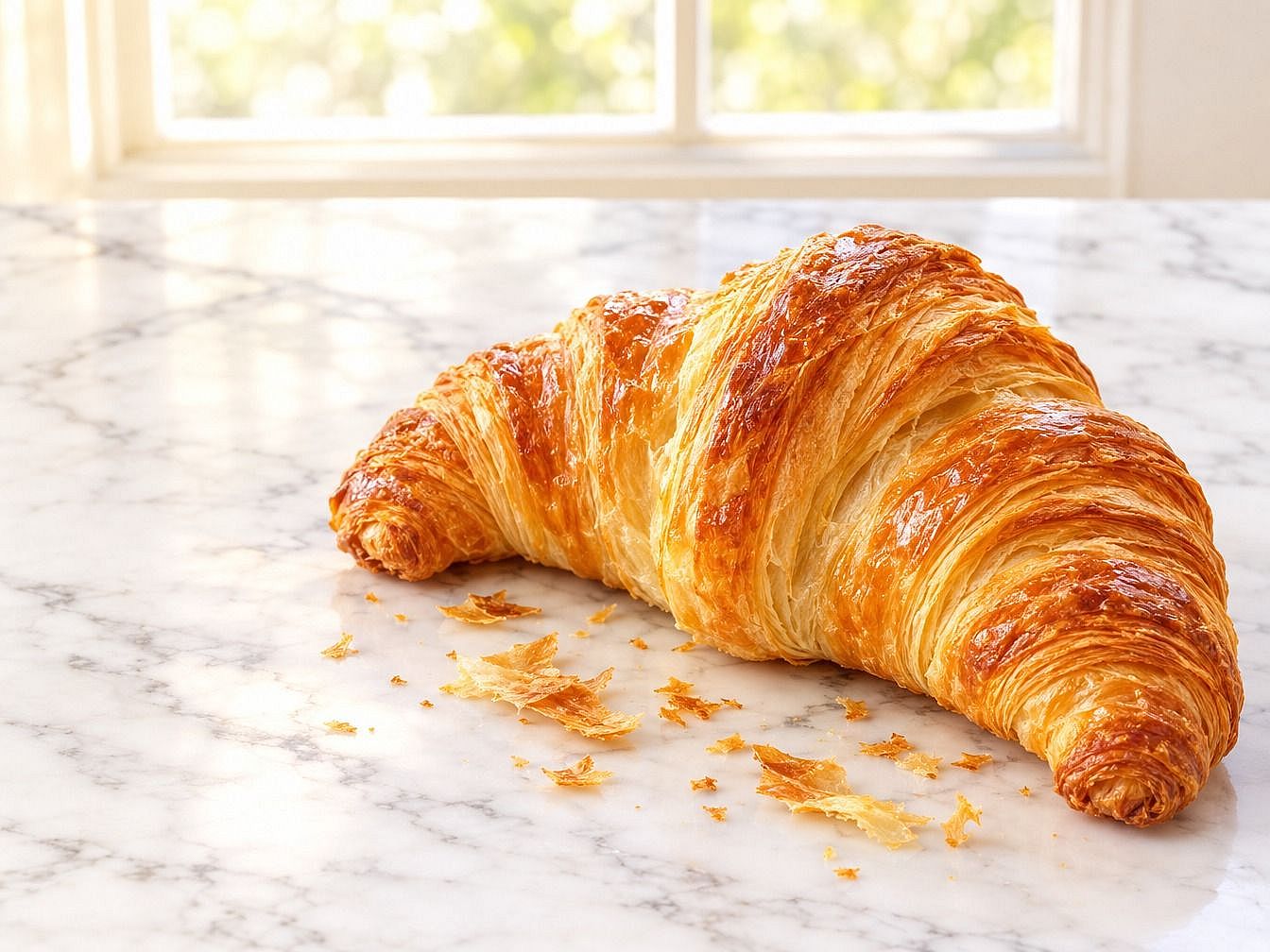
"A golden butter croissant on a white marble counter, with a few flakes of pastry beside it. Close-up from a slight top-down angle, the croissant in the lower right of the frame. Bright bakery photo style, soft morning light from a window behind, pale cream and gold colors. No text, no hands, no other food."
The croissant prompt gives GPT Image 2.6 one answer for each question. If the result is close but the angle is off, you change only the composition sentence and run it again.
This is the image the croissant prompt made in GPT Image 2.6 Flare:
Tell the AI where the image will be used
GPT Image 2.6 makes smarter choices about layout when it knows where the image is going. A croissant for a printed menu board needs room for a price beside it. The same croissant for a phone story needs to fill a tall frame.
Add the job in a short phrase at the start or end of your GPT Image 2.6 prompt. A few that help: "for a website banner with space for a headline on the left," "for a square social post," "for a book cover," or "for a product listing on a white page."
Swap vague mood words for things you can see
A mood word like cozy or luxury means something different to every person, so GPT Image 2.6 has to guess what you meant. Turn each mood word into two or three things a camera could actually capture.
| Mood word | What to write in a GPT Image 2.6 prompt |
|---|---|
| Cozy | A knit blanket on a sofa, a lamp with a warm yellow shade, rain on the window |
| Luxury | Black marble, brushed brass edges, one narrow spotlight from above |
| Fresh | Water drops on green leaves, bright white light, a pale blue sky |
| Spooky | Thick fog at ground level, bare trees, one lit window in a dark house |
| Energetic | A runner caught mid-stride, a low camera angle, bold red and yellow |
People need the same treatment in a GPT Image 2.6 prompt. Say whether you want a head-and-shoulders shot or the full body, where the person looks, and what their hands are doing.
Spell out the light, the materials, and the colors
Light, surfaces, and color shape the feel of every GPT Image 2.6 image, so give each one its own phrase in your prompt.
- Light: Say where it comes from and how strong it is. "Hard noon sun from straight above" and "one candle on the left in a dark room" make two very different pictures.
- Materials: Name the surface. Worn denim, frosted glass, polished walnut, and cracked leather each catch light in their own way.
- Colors: List the two to four colors you want most, and name any color you want left out.
For a photo look in GPT Image 2.6, add camera words like 35mm lens, film grain, or soft background blur. For an illustrated look, name the style, such as flat vector art, watercolor, or a 1970s screen print.
Put the exact words you want in quotation marks
Quotation marks show GPT Image 2.6 which words should appear in the picture letter for letter. Anything outside the quotes is a description.
A chalkboard prompt for GPT Image 2.6 might read: 'A café chalkboard on an easel with "Oat Latte $5" in large white chalk letters and "Ask about our pastries" in smaller letters underneath. No other writing on the board.'
Text in a GPT Image 2.6 image comes out cleaner when the prompt says where each line goes, how big it is, and what style the letters take. Spell brand names and rare words one letter at a time if they matter. Check every word in the finished image, and use an edit to fix any typo before you publish.
Tell GPT Image 2.6 what each reference image is for
GPT Image 2.6 can take several reference images at once, so number them in your prompt and give each one a single job. A reference with no job may get mixed into the picture in a way you did not expect.
A prompt with three references might say: "Image 1 is our mascot, a round orange fox. Image 2 is the street scene to use as the setting. Image 3 shows the color palette only. Put the fox from image 1 on the sidewalk in image 2, waving at the camera, in the colors from image 3."
Circle the spot you want to change
GPT Image 2.6 works with OpenArt's Image Editor tool, where you draw a circle around part of an image and type the changes. The circle shows the model where to work, so the prompt only needs to say what to do.
A circled-edit prompt in GPT Image 2.6 can be a few words long: "Turn this mug blue." "Change the price to $12." "Add a small potted plant here." Skip location words like "on the left side," since the circle already covers that.
GPT Image 2.6 circled edits work on still images. GIF and SVG files cannot be used as the image you edit, so make your edits on the still first and export the GIF afterward.
Make one change per edit
GPT Image 2.6 edits come out cleaner when each request asks for one thing. A prompt that asks for a new jacket, a new background, and a new pose all at once gives the model three chances to drift.
Work through GPT Image 2.6 edits as a short checklist. Change the jacket and check the result. Then change the background and check again. Each step builds on a version you already like.
Name what the edit should leave alone
A GPT Image 2.6 edit prompt works best when it names what to keep as well as what to change. Write the change first, then a short keep list.
A headshot edit might read: "Change the blazer to navy blue. Keep her face, hair, expression, earrings, and the office background the same. Keep the soft light from the right."
Paste the same keep list into every GPT Image 2.6 edit in a session. Small details like a logo, a hairstyle, or a shadow can shift over many rounds of edits, and the list keeps them in view.
List what should stay out of the picture
A short leave-out list at the end of a GPT Image 2.6 prompt cleans up a lot of common problems. Pick the ones that fit your image:
- No writing or watermarks
- No brand logos
- No extra people in the background
- No plastic-looking skin
- No lens flare
GPT Image 2.6 can make images with a transparent background, and a leave-out list helps most there. For a product cutout or a sticker, ask for "a clean edge around the subject, with nothing behind it and no shadow." Then test the file on a white page and a black page to check the edges.
Give your GIF prompt one small movement
GPT Image 2.6 turns a scene with one small movement into a short looping GIF. Start from a written prompt or from a still image you already made.
A GPT Image 2.6 GIF prompt has two parts: the scene, then the one thing that moves. "A neon 'OPEN' sign in a dark shop window at night. The sign flickers on and off. Everything else stays still." Small, repeating motions like steam, a wave, a blink, or a flicker make the smoothest loops.
Describe SVG graphics with simple shapes and flat colors
GPT Image 2.6 makes SVG files from a text prompt, so every SVG starts with words. Choose SVG as the file type, then describe the graphic.
A GPT Image 2.6 SVG prompt works best when it names simple shapes, a few flat colors, and how thick the lines are: "A flat icon of a paper plane, white shape with a thick navy outline, rounded corners, no shading." SVG files stay sharp at any size, which makes them a good fit for icons, badges, stickers, and website graphics.
Write long prompts as labeled blocks
A long GPT Image 2.6 prompt is easier to manage when you split it into labeled blocks like SCENE, SUBJECT, ART STYLE, and CONSTRAINTS. Each block holds one kind of detail. When you want a change, you edit one block and leave the rest alone.
Example 1: A full-body editorial glamour shoot in a studio
A full-body fashion shot asks GPT Image 2.6 to get a whole person right, from head to heels, along with fabric, pose, and studio light. This prompt spells out each one. Settings: GPT Image 2.6 Sunburst, 4K, 2:3, and high quality.
SCENE: A large professional photo studio with a seamless deep emerald green paper backdrop that curves smoothly into the floor. A single low black velvet cube sits to the right of the model. The polished floor shows a soft reflection under her feet. No other props or furniture.
SUBJECT: Full-body shot of a tall woman in her late twenties with warm brown skin, a sleek low bun, and small gold hoop earrings. She wears a floor-length champagne gold satin slip gown with thin straps and a high slit on the left leg, long black satin opera gloves, and pointed black stiletto heels. She stands with her weight on her back leg, one gloved hand resting on her hip and the other hanging loosely at her side. Her chin is lifted and she looks over her left shoulder straight into the camera. Her whole body is in the frame, with a little space above her head and below her shoes.
ART STYLE: High-fashion magazine editorial with classic glamour lighting. A large soft light from the upper left lights her face and gown. A tall strip light behind her on the right draws a thin bright edge along her body and the satin. Gentle fill light from the front keeps the shadows soft. 85mm lens, camera at hip height so her legs look long. Sharp focus from head to toe, glossy satin highlights, rich deep shadows. Color palette of emerald green, champagne gold, and black.
CONSTRAINTS: Show her entire body, including both shoes. Do not crop her head or feet. One person only. No text, logos, or watermarks. Natural skin texture with no heavy smoothing. Natural hands with five fingers each and natural anatomy.
The result made with GPT Image 2.6 Sunburst:
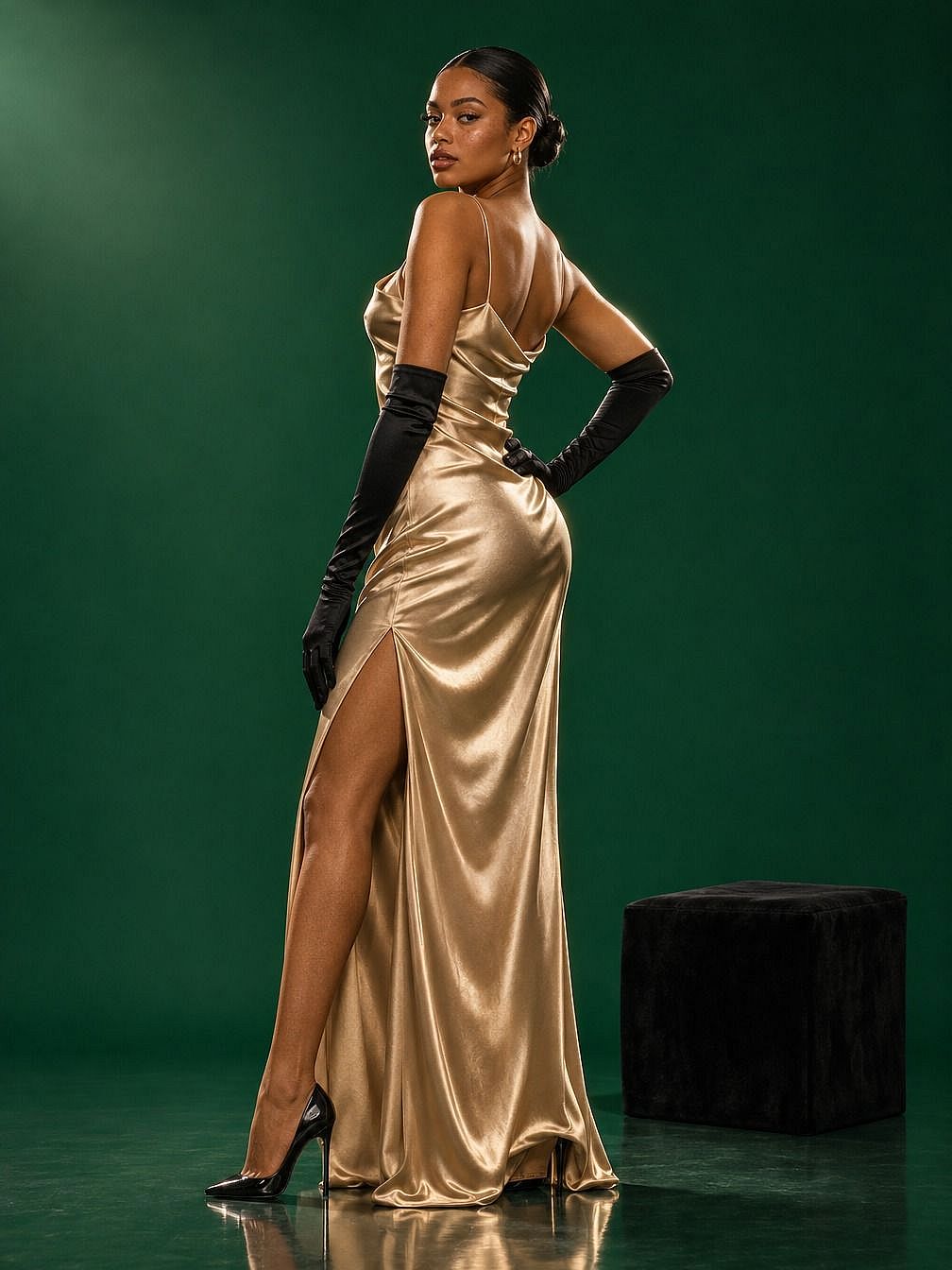
The SUBJECT block in this GPT Image 2.6 prompt does most of the work. It lists the outfit piece by piece, places each hand, and says exactly where she looks. The full body is asked for twice, once at the end of SUBJECT and once at the top of CONSTRAINTS, which keeps her feet in the frame.
To try a new look, change one block of the GPT Image 2.6 prompt. Swap the backdrop to "deep oxblood red" for a new color story, or open the image in Edit Image, circle the gown, and type "Make this gown black velvet with long sleeves."
Example 2: A man playing with his cat at a Halloween house party
A busy party scene asks GPT Image 2.6 to keep track of many people, a pet, a detailed room, and three kinds of light. This prompt splits the scene into foreground, middle, and background so each part has a clear place. Settings: GPT Image 2.6 Sunburst, 4K, 3:2, and high quality.
SCENE: The crowded living room of an old Victorian house during a Halloween party at night. On the left, a dark wooden staircase is wrapped in orange string lights and fake cobwebs. On the back wall, a stone fireplace holds a small lit fire, with three carved jack-o'-lanterns glowing on the mantel and old framed portraits above it. On the right, a bay window is lined with purple fairy lights and a paper bat garland. Through a wide archway in the back, a dining table holds pumpkin cookies, candy bowls, and a punch bowl with low fog spilling over the edge. A tall bookshelf with candles and small skulls stands beside the archway. A patterned red rug covers the wooden floor.
SUBJECT: Foreground: a man in his early thirties with short curly dark hair and a trimmed beard, dressed as a vampire in a black cape with red lining over a white shirt. He sits cross-legged on the rug, laughing, holding a feather wand toy above his head. A black cat with bright green eyes stands on its back legs in front of him, both front paws stretched up toward the feathers. Middle: a woman dressed as a witch sits on the arm of a green velvet sofa, holding a drink and smiling down at the cat. Beside the fireplace, a man in a skeleton costume and a woman in a homemade astronaut costume talk and laugh. Background: in the archway, a person in a round pumpkin costume fills a cup from the punch bowl, and a couple dressed as a ghost and a zombie dance near the stairs.
ART STYLE: Candid party photo, documentary style. Camera low, at the seated man's eye level, 35mm lens. Warm orange light from the fireplace and string lights, cool purple light from the window, and soft candle glow from the jack-o'-lanterns. Sharp focus on the man and the cat. The people behind them are slightly soft and still easy to recognize. Light film grain, natural colors.
CONSTRAINTS: One cat only, with four legs and one tail. The man's face is fully visible, with no mask. Every person has a natural face and natural hands. No blood or gore. No text, logos, or signs. Keep the man and the cat in the lower center of the frame.
The result made with GPT Image 2.6 Sunburst:
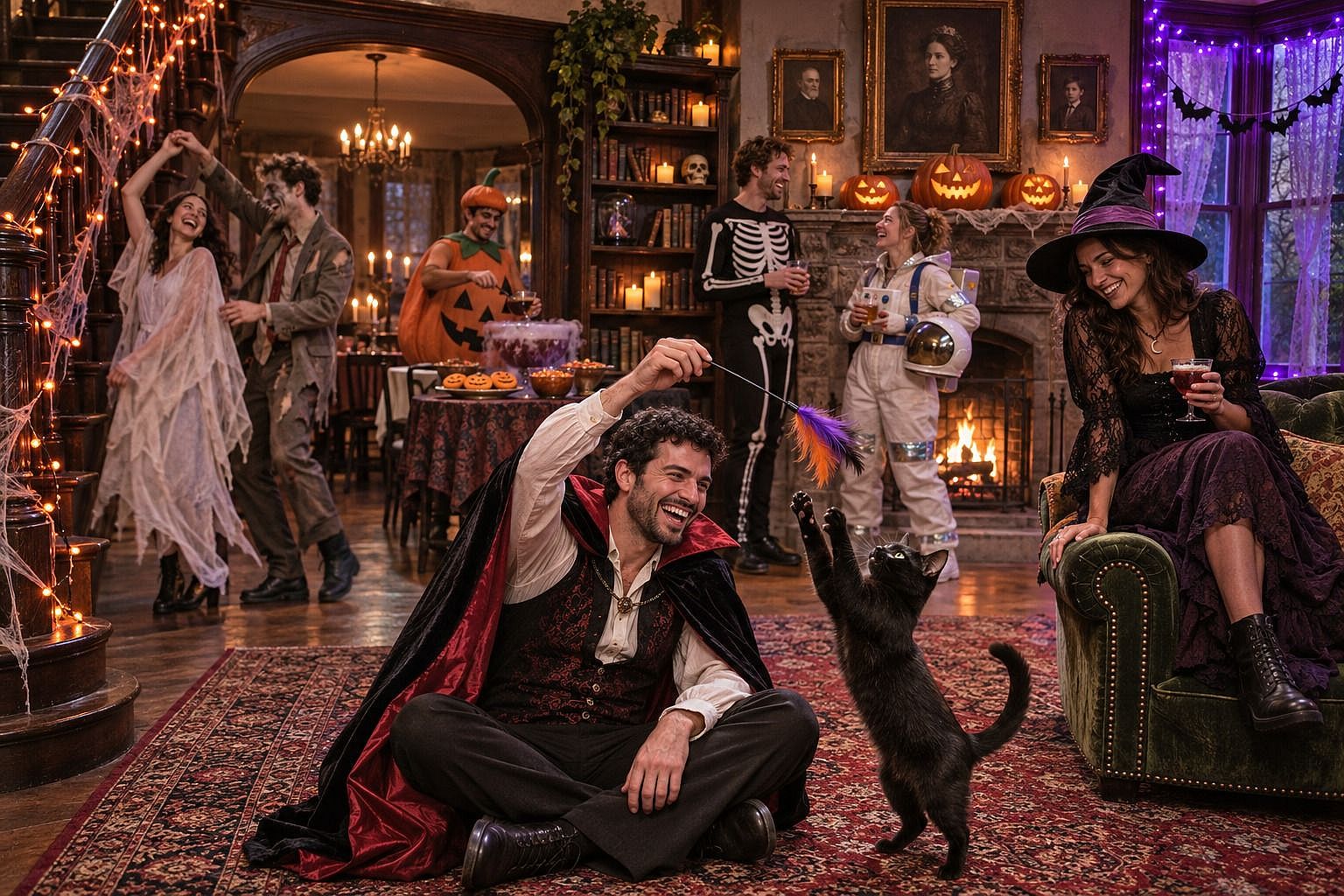
The SCENE block in this GPT Image 2.6 prompt pins every part of the room to the left, the back, or the right, so a busy house still reads clearly. The SUBJECT block ranks the people with Foreground, Middle, and Background labels, which tells the model who matters most. The CONSTRAINTS block covers the details that slip most often in a crowd: extra animals, hidden faces, and hands.
The Halloween party image also works as a starting point for a GPT Image 2.6 GIF. Use the still and write: "The feather wand sways back and forth and the cat swats at it. Everything else stays still."
Draft in Flare, finish in Sunburst
GPT Image 2.6 has two modes, and every habit in this guide works in both. GPT Image 2.6 Flare is the faster mode, built for trying ideas and making lots of versions. GPT Image 2.6 Sunburst is the mode for final images, close-up detail, and edits that need tight control.
A simple GPT Image 2.6 routine is to test a prompt in Flare until the idea looks right, then run the same prompt in Sunburst for the version you publish. Keep the prompt, references, and settings the same when you switch, so the mode is the only thing that changes.
Mistakes that weaken a GPT Image 2.6 prompt
- Stacking keywords with commas. A list like "4k, ultra detailed, masterpiece" tells GPT Image 2.6 very little. Full sentences describe the picture.
- Mixing two ideas in one prompt. A product shot and a lifestyle scene in the same request pull the image in two directions. Make two images.
- Forgetting the keep list halfway through editing. Paste it into every edit.
- Adding location words to a circled edit. The circle already tells GPT Image 2.6 where to work.
- Asking a GIF to do too much. Pick one small movement per loop.
- Skipping the proofread. Read every word in the image before it goes live.
A quick GPT Image 2.6 prompt checklist
Run through these five questions before you hit generate in GPT Image 2.6:
- Does the prompt name the subject, the camera position, the style, and the limits?
- Does every mood word come with something you can see?
- Are exact words in quotation marks, with a note on where they go?
- If you are editing, does the prompt ask for one change and list what stays?
- Does the mode fit the job, Flare for drafts and Sunburst for the final image?
Ready to try GPT Image 2.6?
Open OpenArt's AI image generator, pick GPT Image 2.6, and start with one of the example prompts above. For more prompting tips, see the GPT Image 2.5 prompt guide.