


 ChatGPT
 Perplexity
 Claude
 Gemini
OpenArt lets Codex make a product photo and a 5-second video right in your terminal once you add it as a Codex MCP server. You add any server with codex mcp add, sign in with codex mcp login, and check it with codex mcp list.
This guide shows the OpenAI Codex MCP setup in the Codex CLI, plus the same setup in config.toml. Then it walks through OpenArt, which we tested both ways in Codex on November 6, 2026: as an MCP server and through the OpenArt CLI, the route OpenArt recommends for Codex.
Key takeaways
- Codex supports MCP servers in the Codex CLI, the IDE extension and the ChatGPT desktop app, and all three share one config file.
- A remote Codex MCP server takes three commands:
codex mcp add <name> --url <url>,codex mcp login <name>andcodex mcp list. - Every Codex MCP server lives in
~/.codex/config.toml, or in.codex/config.tomlfor a single trusted project. - For images and video in Codex, OpenArt recommends its CLI, which waits for each job and can download the result into your project folder.
- Turn on network access in Codex's sandbox with one flag or one config line so the OpenArt CLI can reach OpenArt.
Does Codex Support MCP?
Yes. Codex supports the Model Context Protocol (MCP), the open standard that lets AI agents use tools from other apps.
An MCP server gives Codex new tools, like searching docs, reading a design file or making an image.
OpenAI's docs list Codex MCP support in three places: the Codex CLI, the IDE extension and the ChatGPT desktop app. They share the same MCP configuration, so a server you add in the terminal also shows up in the other two.
Local vs Remote Codex MCP Servers
Codex works with two kinds of MCP servers.
- Local servers run as a program on your computer, and Codex talks to them through the program's text input and output (STDIO). Codex starts them with a command, like
npx. - Remote servers live at a web address. You add the URL, and Codex connects over the internet using Streamable HTTP, the web connection MCP uses.
Remote servers can sign you in with OAuth, which opens a browser window for your account. They can also use a bearer token, a password-like code that proves who you are. You save it in an environment variable, a named setting on your computer.
OpenArt's MCP server is a remote server that uses OAuth, so you sign in with your OpenArt account and you're ready.
How to Add an MCP Server to Codex
You add a Codex MCP server from your terminal with codex mcp add. Then you sign in, if the server needs it, and check that it connected.
Install Codex CLI First
If you don't have Codex yet, install it with OpenAI's installer. Download the script first, then run it.
- macOS and Linux: curl -fsSL https://chatgpt.com/codex/install.sh -o install.sh sh install.sh
- Windows (PowerShell): irm https://chatgpt.com/codex/install.ps1 -OutFile install.ps1 .\install.ps1
- npm: npm install -g @openai/codex
Open a new terminal window after you install, then run codex and choose Sign in with ChatGPT. On Windows, Codex also asks you to set up its sandbox the first time.
We picked the default option, which needs one Administrator approval.
Add a Remote Codex MCP Server
Here is how to add a remote MCP server to Codex.
- Add the server with a name and its URL:
codex mcp add <server-name> --url <server-url>
- Sign in, if the server uses OAuth:
codex mcp login <server-name>
- A browser window opens. Sign in, then go back to the terminal. On a machine without a browser, add
--no-browserand paste the redirect link back in. - Check the server list:
codex mcp list
- Start Codex with
codex, then type/mcp. Each server shows as connected or failed, with its number of tools.
Add a Local Codex MCP Server
For a local server, put the start command after two dashes. OpenAI's docs use Context7 as the example:
codex mcp add context7 -- npx -y @upstash/context7-mcp
Add --env NAME=VALUE before the two dashes to pass settings like keys to the server. Run codex mcp --help to see every command.
Codex MCP Config: Set Up Servers in config.toml
The Codex MCP config lives in config.toml, the same file that holds your other Codex settings. Every codex mcp add command writes to this file, so you can also edit it by hand.
- Global:
~/.codex/config.toml(on Windows,C:\Users\<you>\.codex\config.toml) - One project:
.codex/config.tomlin the project folder. Codex only reads it in trusted projects.
Each server gets its own [mcp_servers.<name>] table. A remote server needs a url, and a local server needs a command and args:
[mcp_servers.openart]
url = "https://mcp.openart.ai/mcp"

[mcp_servers.context7]
command = "npx"
args = ["-y", "@upstash/context7-mcp"]
These optional keys are the ones you're most likely to use:
| Key | What it does |
|---|---|
enabled |
Set to false to turn a server off without deleting it |
tool_timeout_sec |
How long a tool can run before Codex stops waiting. The default is 60 seconds |
startup_timeout_sec |
How long Codex waits for the server to start. The default is 10 seconds |
enabled_tools / disabled_tools |
Allow or block specific tools from a server |
default_tools_approval_mode |
Whether Codex asks before using the server's tools (auto, prompt, writes or approve) |
bearer_token_env_var |
The name of the setting on your computer that holds the server's token, for servers that use one |
Use OpenArt in Codex: The OpenArt CLI Route
OpenArt recommends its CLI for Codex. Its MCP page says: "If you are using Claude Code or Codex, it's better to use the CLI."
In our test, the CLI waited for each job to finish, and Codex saved both files into the project folder. By default the CLI prints a link to the result, and it downloads the file when the command includes -o (or --output).
The OpenArt CLI is a command-line tool for making images and videos. Codex runs its commands for you, the same way it runs any other terminal command.
Install the OpenArt CLI and Sign In
Install the CLI. Download the installer first, then run it:
- macOS and Linux:
curl -fsSL https://raw.githubusercontent.com/OpenArt-AI/cli/main/install.sh -o install.sh sh install.sh - Windows (PowerShell):
irm https://raw.githubusercontent.com/OpenArt-AI/cli/main/install.ps1 -OutFile install.ps1
.\install.ps1
- macOS and Linux:
Open a new terminal window. Codex finds
openartonly in a window you open after the install.Sign in with your OpenArt account:
openart loginA browser window opens, and signing in there is the whole setup.
Check it works with
openart --help.
For every command and flag, see our OpenArt CLI guide.
Turn On Network Access in the Codex Sandbox
Codex runs commands inside a sandbox, a protected space with its own rules for files and internet use. Turn on network access in the sandbox so the OpenArt CLI can reach OpenArt.
For one session, start Codex like this:
codex --sandbox workspace-write --ask-for-approval on-request -c 'sandbox_workspace_write.network_access=true'
To keep it on, add this to ~/.codex/config.toml:
[sandbox_workspace_write]
network_access = true
workspace-write lets Codex save files only in your project folder. on-request lets it ask you before it runs a command.
Ask Codex to Make an Image or Video
Start Codex in your project folder and describe what you want. Name the tool so Codex knows which one to use:
Use the openart CLI to generate a 1:1 image of a white ceramic mug on a wooden table and save it in this folder.
Codex reads the CLI's --help output, picks a model and runs the command. Ask for a video the same way, and add --dry-run to any command to preview it without spending credits.
To make many images in one go, see bulk image generation from the terminal.
Or Add OpenArt as a Codex MCP Server
OpenArt also works as a Codex MCP server. Setup takes three commands, and Codex gets OpenArt's image and video tools directly.
- Add the server:
codex mcp add openart --url https://mcp.openart.ai/mcp
- Sign in with your OpenArt account:
codex mcp login openart
- Check that it connected:
codex mcp list
In our test, /mcp showed openart: connected (21 tools). The command saved this block to config.toml:
[mcp_servers.openart]
url = "https://mcp.openart.ai/mcp"
If you also use OpenArt in ChatGPT, Codex may show it a second time under codex_apps, the name for apps from your ChatGPT account. To use the server you just added, say "Use the openart MCP server" in your prompt.
OpenArt's MCP also works in ChatGPT, Claude and Cursor. See OpenArt MCP and CLI for every setup, and how to connect OpenArt MCP to ChatGPT.
MCP or CLI in Codex?
Both routes made the same kinds of files in our test. They differ in setup and in what comes back.
| OpenArt CLI | OpenArt MCP server | |
|---|---|---|
| Setup | Install, sign in, turn on network access | Three codex mcp commands |
| Results | A link, or a file in your folder with -o | A link you open to download |
| Long jobs | The CLI waits until the file is ready | Codex returns "pending," and you ask it to check the status |
| Best for | Repeat work, batches and scripts | Quick setup and trying things out |
For a deeper comparison, see MCP vs CLI for image and video generation.
Example: A Product Image and a 5-Second Video From One Codex Session
We ran the same job through both routes on November 6, 2026, in Codex CLI 0.167.0 on Windows 11. The job was a 1:1 photo of a white ceramic mug on a wooden table, then a 5-second video of that mug with steam rising.
What Happened With the OpenArt CLI
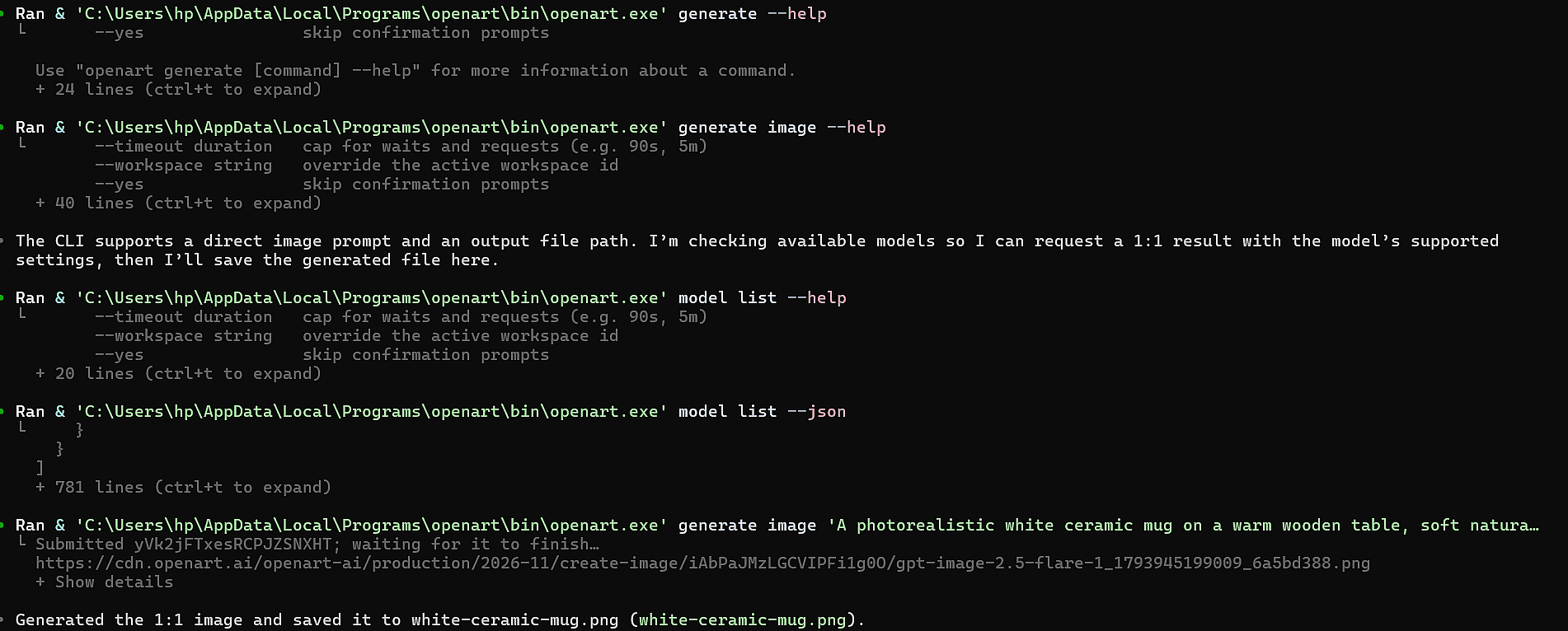
Codex learned the CLI on its own. It ran openart --help, openart generate image --help and openart model list --json before it made anything.
- Image: Codex ran
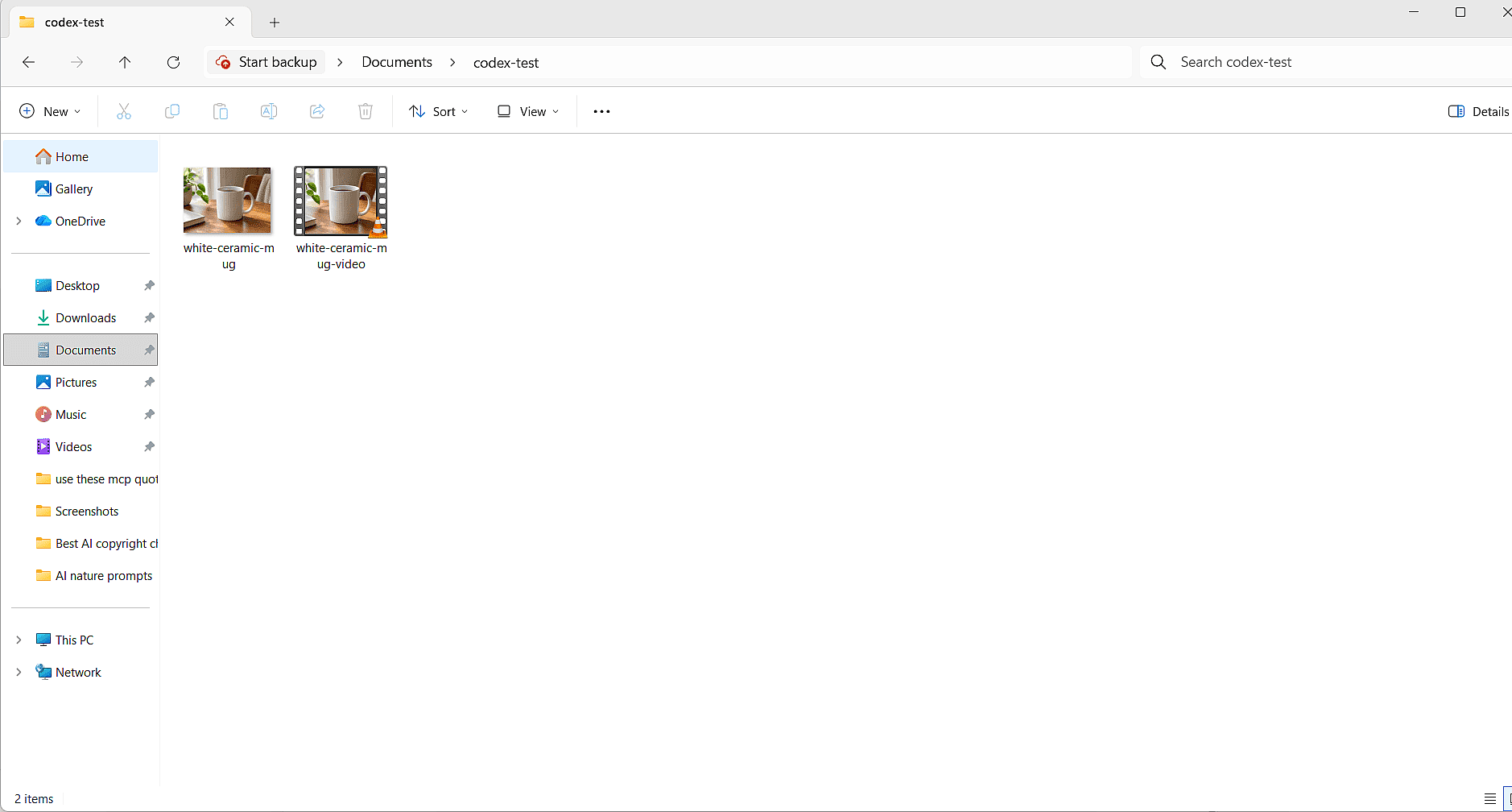
openart generate imageand picked GPT Image 2.5 Flare. The CLI waited for the job and savedwhite-ceramic-mug.pngin the folder. - Video: Codex ran
openart generate videowith the mug photo as the first frame and picked Seedance 2.5. The CLI uploaded the photo itself, waited withopenart creation wait, and Codex savedwhite-ceramic-mug-video.mp4next to the image. Codex set the wait to 10 minutes, so the video had plenty of time to finish.
These are the exact prompts we used. The first one gives Codex the CLI's full path, because Codex was still running in the window we opened before the install.
Use the openart CLI at C:\Users\<you>\AppData\Local\Programs\openart\bin\openart.exe to generate a 1:1 image of a white ceramic mug on a wooden table and save it in this folder.

Now use the openart CLI to make a 5-second video from that image and save it here.
The photo looks like a real product shot, with soft window light and a clean white mug. We asked for a 1:1 square, though, and it came out at 1792x1344, a 4:3 shape. Codex still reported “the 1:1 image,” so check the real size of each file the CLI makes. The MCP route gave us a true 1:1 square for the same request.
The video is 5.04 seconds long at 748x562 and keeps the photo's 4:3 shape. A light wisp of steam rises while the camera moves in slowly, and the mug looks the same from start to finish.
What Happened With the OpenArt MCP Server
Every tool call started with openart., which confirmed Codex used the server we added.
- Image: Codex called
openart_model_list, thenopenart_generate_image, and picked GPT Image 2.6 Sunburst. The first reply said the job was pending, so we asked, "Check the status of that OpenArt generation and give me the image link." Codex calledopenart_creation_getand returned a link to the finished 1360x1360 PNG. - Video: Codex picked PixVerse V6 and used the mug photo as the first frame. After a second status check, it returned a link to a 5.04-second, 1024x1024 MP4.

This is the exact prompt we used for the video:
Use the openart MCP server to make a 5-second video of the same mug with steam rising.
The steam rises in a soft, natural way. The mug looks the same from the first frame to the last.

Every result also saves to your OpenArt library, so you can find it later on openart.ai. For more ideas to try, see these AI video prompts for MCP.
Codex MCP Troubleshooting
These are the problems we hit in testing, and the fix for each one.
- Codex says
openartisn't found. Open a new terminal window after you install the CLI. You can also give Codex the full path, likeC:\Users\<you>\AppData\Local\Programs\openart\bin\openart.exe. - Network access is blocked. Start Codex with the network flag above, or add
network_access = trueunder[sandbox_workspace_write]in config.toml. - Codex says it can't request approval. This happened in a folder that wasn't a Git project. Start Codex with
--ask-for-approval on-request, as in the command above. - The MCP result says "pending." In the terminal, results arrive as a link. Ask Codex to check the status to get it.
- A video times out on the MCP route. Raise
tool_timeout_secfor that server in config.toml. The default is 60 seconds. - A server shows as failed in
/mcp. Runcodex mcp login <name>again, then check the URL in config.toml. - The image comes out in the wrong shape. Ask Codex to set the aspect ratio in the command, and add
--dry-runto check the command before it runs.
Make Images and Videos in Codex With OpenArt
Install the OpenArt CLI, run openart login and ask Codex for your first product shot.
Prefer the browser? Make images with the AI image generator and videos with the AI video generator.
For more agent options, see our list of MCP servers for image and video.
Frequently Asked Questions
Does Codex support MCP servers?
Yes. Codex supports both local MCP servers, which run as a command on your computer, and remote MCP servers at a URL.
The Codex CLI, the IDE extension and the ChatGPT desktop app all share the same MCP settings.
How do I add an MCP server to Codex?
Run codex mcp add <name> --url <url> for a remote server, or codex mcp add <name> -- <command> for a local one. Then run codex mcp login <name> if the server needs a sign-in, and codex mcp list to check it.
Where is the Codex MCP config file?
The Codex MCP config is in ~/.codex/config.toml, under a [mcp_servers.<name>] table for each server. You can also add servers to .codex/config.toml inside a trusted project, so they load only there.
Can Codex generate images and videos?
Yes, once you connect an image tool like OpenArt. Codex writes the prompt and runs the tool, and OpenArt makes the image or video.
In our test, the MCP route made a 1:1 product photo and a 5-second video in one session. The CLI route made the same pair, but its photo came out 4:3.
Do I need an API key to use OpenArt in Codex?
No. Both the OpenArt CLI and OpenArt's MCP server sign you in with your OpenArt account in the browser.
Generations use your OpenArt credits, the same as on openart.ai.
How do I turn on network access for the OpenArt CLI in Codex?
Start Codex with -c 'sandbox_workspace_write.network_access=true', or set network_access = true under [sandbox_workspace_write] in config.toml.
Should I use the OpenArt CLI or the MCP server in Codex?
OpenArt recommends the CLI for Codex, since it waits for each job and can download files to your folder. The MCP server sets up with three commands, so it suits a first try.
How do I turn off a Codex MCP server?
Set enabled = false in that server's table in config.toml. Codex keeps the setup, so you can turn it back on later by changing it to true.