

 ChatGPT
 Perplexity
 Claude
 Gemini
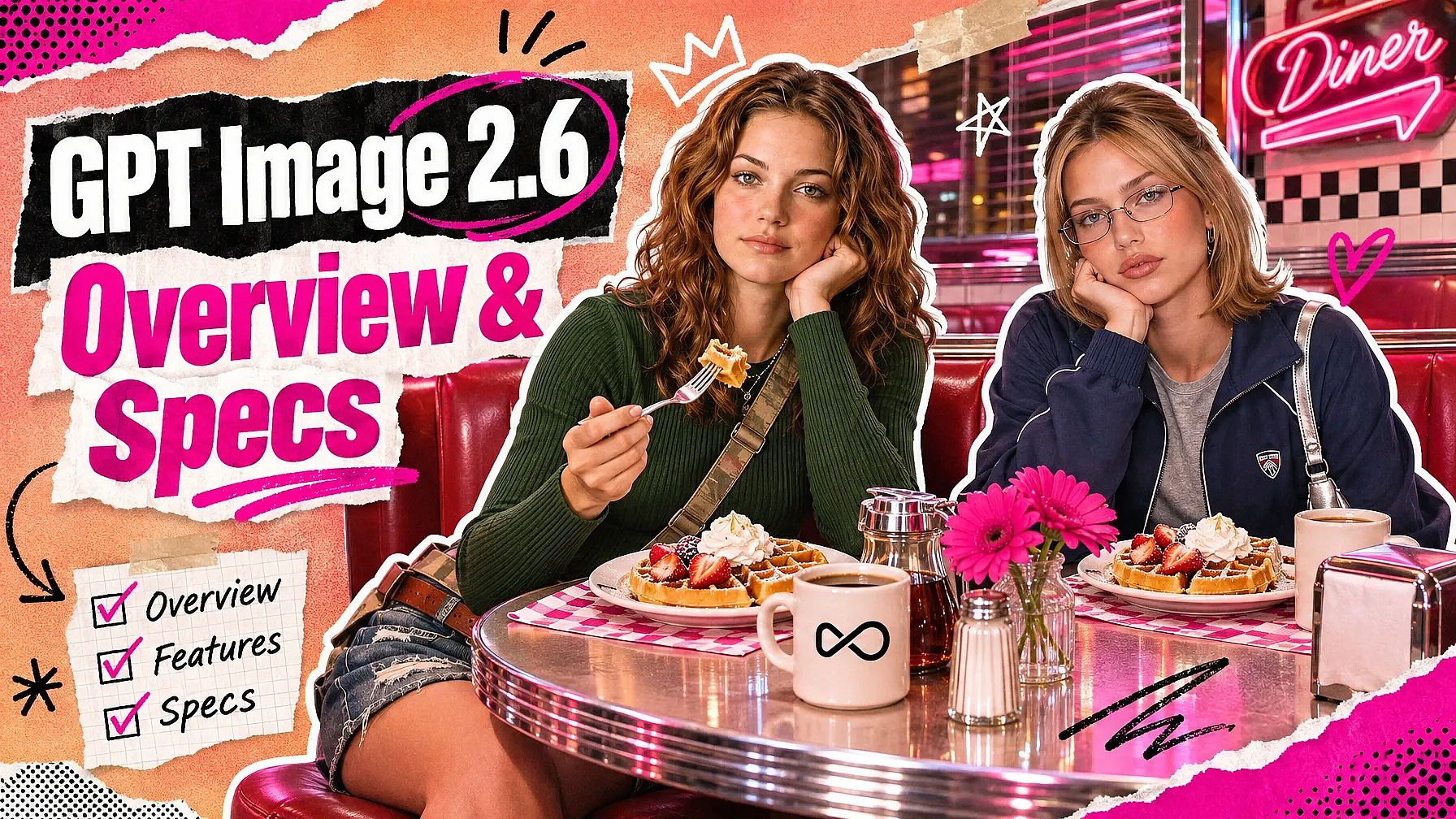
GPT Image 2.6 is OpenAI's newest model for making and editing images. GPT Image 2.6 lets you circle part of a picture and type the change you want there. GPT Image 2.6 also turns a scene into a short looping GIF, saves simple graphics as SVG files, and makes images up to 4K.
GPT Image 2.6 comes in two modes. GPT Image 2.6 Flare is the faster mode for drafts and quick edits. GPT Image 2.6 Sunburst gives up some speed for better quality and more editing control, so it suits the final image you publish.
GPT Image 2.6 at a glance
| Question | GPT Image 2.6 answer |
|---|---|
| Who makes it? | OpenAI |
| What does it do? | Makes new images from a prompt and edits images you upload |
| What are the two modes? | Flare for speed, Sunburst for quality and editing control |
| What files can it make? | PNG, JPEG, WebP, looping GIF, and SVG |
| How sharp are the images? | 1K, 2K, or 4K |
| What is new in this version? | Circled edits, looping GIFs, SVG files, and a reasoning level you set |
| Who is it for? | Marketers, brand teams, small businesses, designers, and filmmakers |
| Where can you use it on OpenArt? | The AI image generator, Edit Image, Brand Kit, Director mode, and the OpenArt MCP connector |
Key features of GPT Image 2.6
Circle the part you want to change
GPT Image 2.6 lets you point at the exact spot you want changed. Open your picture in the Image Editor tool, circle the area, and type what should go there instead. You can change the words on a sign, turn a red jacket navy, or remove a person from the background.
Most feedback on an image is about one spot, so circling saves you from writing a long prompt that explains where the change goes. OpenAI says GPT Image 2.6 holds details more steadily during edits and follows the marks and sketches you add to a picture more closely. Look over the whole image after each edit, because any AI edit can change something you did not ask for.
Turn a prompt or a still image into a looping GIF
GPT Image 2.6 turns a scene with one small movement into a short looping GIF. Describe the scene in a prompt, or start from a still image you already have, and say what should move. Steam can rise from a coffee cup, a mascot can wave, or a sale badge can pulse.
The camera stays still in a GPT Image 2.6 GIF, and one simple movement plays on repeat. That makes the GIF a good fit for an email header, a social post, a chat reply, or a display ad.
Make SVG files from a text prompt
GPT Image 2.6 saves simple graphics as SVG files when you start from a text prompt. Type what you want, such as a flat icon of a paper plane or a badge that says "Free Shipping", and choose SVG as the file type. An SVG file stays sharp at any size, so the same graphic works on a phone screen and a trade show banner.
SVG files from GPT Image 2.6 suit icons, badges, stickers, and simple website graphics. OpenAI describes these SVGs with transparent backgrounds, so they sit cleanly on any color. Each SVG starts from a written prompt, so describe the shapes and colors you want in plain words.
Make images with a transparent background
GPT Image 2.6 can make images with a transparent background, so only your subject is in the file. Ask for a product cutout, a sticker, or a simple graphic, and the result sits cleanly on any color. Drop the file into a slide, a product page, an email, or a larger design.
One cutout from GPT Image 2.6 works across a whole campaign. You skip the step of erasing a background by hand. Place the image over a light and a dark background to check the edges before you publish.
Choose how much GPT Image 2.6 thinks before it draws
GPT Image 2.6 lets you choose how much the model thinks through your image before making it. A low setting suits quick jobs like a background swap or a few fast variations. A higher setting suits complex work like an infographic, a poster with several lines of text, or a scene with tricky lighting.
OpenAI recommends starting GPT Image 2.6 at a high quality setting. More thinking takes more time and can sometimes add changes you did not ask for, so lower the setting for small edits. You decide where the time goes, so a quick fix stays quick and a detailed layout gets the care it needs.
Pick Flare for speed and Sunburst for quality & depth
GPT Image 2.6 Flare is the faster mode, and OpenAI built it for quicker generation. Use GPT Image 2.6 Flare for early ideas, quick variations, and everyday social posts. Flare lets you try many versions before you settle on one.
GPT Image 2.6 Sunburst gives up some speed for quality and editing control. Use GPT Image 2.6 Sunburst for client revisions, product photos, and detailed layouts. A simple habit works well: explore in Flare, then finish in Sunburst.
Create images in up to 4K resolution natively
GPT Image 2.6 makes images at 1K, 2K, or 4K on OpenArt. Pick 4K when the picture goes on a printed poster, a product page, or a large screen. Pick 1K when you want a quick round of ideas before you choose one to finish.
GPT Image 2.6 also makes up to 8 images from one prompt on OpenArt. You can compare versions side by side and keep the best one. Check small details like labels and logos when you zoom in on a 4K image.
GPT Image 2.6 technical specs
GPT Image 2.6 has two sets of specs. The first table lists what OpenAI published about the model. The second table lists the settings you get when you use GPT Image 2.6 on OpenArt.
GPT Image 2.6 model specs from OpenAI
| Specification | Detail |
|---|---|
| Developer | OpenAI |
| Release date | November 4, 2026 |
| Official name | ChatGPT Images 2.6 |
| Model names | GPT-Image-2.6 Flare and GPT-Image-2.6 Sunburst |
| Model type | Image generation and image editing in one model |
| Flare | Built for faster generation |
| Sunburst | Built for quality and editing control |
| Reasoning effort | Adjustable, so you choose between speed and more careful work |
| Editing | OpenAI reports better editing consistency, detail preservation, and response to sketches and notes on an image |
| Photo markup | Supported in ChatGPT and the OpenAI API |
| GIF output | Supported in ChatGPT and the OpenAI API, with extra safety checks for movement |
| SVG output | Supported in the OpenAI API |
| Safety checks | Requests are checked before the model starts, and finished images are checked before you see them |
| Provenance | C2PA metadata plus an invisible SynthID watermark |
GPT Image 2.6 settings on OpenArt
| Setting | Detail |
|---|---|
| Modes | GPT Image 2.6 Flare and GPT Image 2.6 Sunburst |
| Ways to start | Text to image and image to image |
| Resolution | 1K, 2K (the default), or 4K, plus custom width and height |
| Aspect ratios | 1:1, 3:2, 2:3, 4:3, 3:4, 5:4, 4:5, 16:9, 9:16, 21:9, and 9:21 |
| Images per prompt | Up to 8 |
| Reference images | Up to 16 |
| File types | PNG (the default), JPEG, WebP, GIF, and SVG |
| SVG files | Made from a text prompt |
| GIF files | Made from a text prompt or a still image |
| Circled edits | In Edit Image |
| File size control | Adjustable compression from 0 to 100 |
| Edit references | Use a still image; GIF and SVG files cannot be used as edit references yet |
| Where to use it | The AI image generator, Edit Image, Brand Kit, Director mode, and the OpenArt MCP connector |
How to use GPT Image 2.6 on OpenArt
- Open OpenArt's AI image generator and pick GPT Image 2.6 from the model menu.
- Choose Flare for speed or Sunburst for quality and editing control.
- Type your prompt, or upload reference images and describe what each one is for.
- Pick your resolution, aspect ratio, file type, and number of images, then generate.
- To change one spot, open the image in Edit Image, circle the area, and type the change.
Try this GPT Image 2.6 stress-test prompt
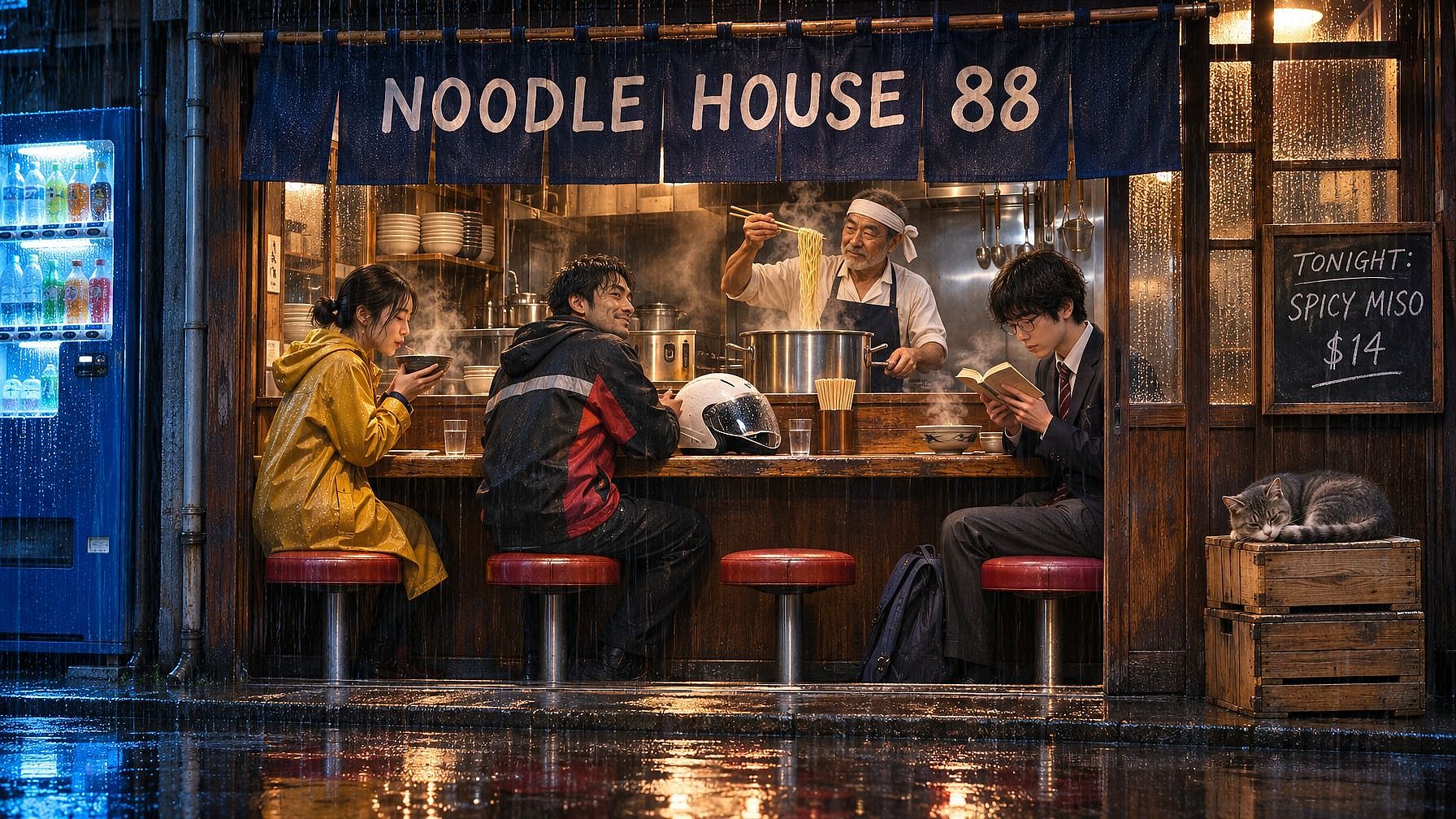
This prompt tests what GPT Image 2.6 handles well in one picture: several people in one scene, two kinds of light, reflections, steam, and exact words on signs. Paste the prompt into the AI image generator with these settings: GPT Image 2.6 Sunburst, 4K, 3:2, and a high reasoning setting.
SCENE: A narrow ramen shop on a rainy side street in Tokyo at 11 p.m., seen from across the street at eye level. The shop's open front shows the whole counter. Rain falls in thin streaks, and the wet street in front of the shop reflects its warm light and the blue glow of a drink vending machine on the left.

SUBJECTS: Behind the counter, an older chef in a white headband and a navy apron lifts noodles out of a steaming pot with long chopsticks. Three customers sit on round red stools at the wooden counter: a woman in a yellow raincoat holding a bowl with both hands, a delivery rider with his white helmet resting on the counter, and a student reading a paperback book. A gray cat sleeps on a stack of wooden crates by the door.

TEXT: A dark blue cloth curtain hangs over the doorway with "NOODLE HOUSE 88" in large white letters. A small chalkboard by the door reads "TONIGHT: SPICY MISO $14" in white chalk handwriting.

LIGHT AND MATERIALS: Warm yellow light inside the shop, cool blue light outside. Steam from the pot and the bowls catches the light. Drops of water bead on the front window. The wooden counter is worn smooth, and the chef's metal pot shines.

STYLE: Cinematic street photo, 35mm lens, natural colors, gentle film grain, sharp focus on the chef and the three customers.

RULES: Spell the curtain and chalkboard text exactly as written. Add no other words, logos, or signs. Show the faces of the chef and all three customers. Keep the cat fully in the frame.
What GPT Image 2.6 adds to OpenArt's AI Image Generator
GPT Image 2.6 gives OpenArt users circled edits, looping GIFs, SVG files, and 4K images from one OpenAI model. Pick GPT Image 2.6 in OpenArt's AI image generator for new images, and open Edit Image when you want to circle a change. Both modes sit in the same model menu, so you can switch from Flare to Sunburst without leaving your work.
GPT Image 2.6 works with OpenArt's Brand Kit, where you save your brand's colors and logos. Pick GPT Image 2.6 with your Brand Kit, and your pictures follow your brand from the first draft. GPT Image 2.6 also works in Director mode, so the images that start your video scenes can come from the same model.
GPT Image 2.6 runs in the OpenArt MCP connector too. Ask Claude or ChatGPT for an image, a GIF, or an SVG, and pick GPT Image 2.6 as the model. The finished file lands in your OpenArt library.
Who uses GPT Image 2.6?
Performance marketers testing ads
Performance marketers use GPT Image 2.6 to build clean test versions of an ad that already works. Take your best ad and make three versions: one with a new headline, one with a new offer, and one with a new background. Circle only that one part in each version, so every version tests a single change. Make a looping GIF version of the same ad for display placements.
Brand and creative teams handling client feedback
Brand and creative teams use GPT Image 2.6 to act on client notes without starting over. Say a client approves a 4K campaign poster but wants new words on a shop sign. Open the poster in Edit Image, circle the sign, and type the new words in GPT Image 2.6 Sunburst. You keep working from the image the client already liked.
Small business owners refreshing product photos
Small business owners use GPT Image 2.6 to get more out of the product photos they already have. Start with a real photo of a candle, circle the background, and ask for a snowy windowsill. Then turn the same photo into a short GIF where the flame flickers, and put it at the top of your holiday email.
Designers making icons and web graphics
Designers use GPT Image 2.6 to make icons, badges, and stickers as SVG files. Type a prompt like "a flat green leaf icon with rounded edges" and choose SVG as the file type. The SVG stays sharp at any size, so one file works on a website, an app, and a printed flyer.
Filmmakers planning shots
Filmmakers and storyboard artists use GPT Image 2.6 to show a shot to the crew before the shoot. Describe a kitchen at night lit only by an open fridge, and set a high reasoning setting for the tricky light. Then circle an extra in the background to remove them, or circle a prop to swap it. Every result is a still frame you can share and change before anyone books a location.
Start creating with GPT Image 2.6
GPT Image 2.6 gives you circled edits, looping GIFs, SVG files, transparent backgrounds, and 4K images in one OpenAI model. GPT Image 2.6 Flare keeps drafts moving, and GPT Image 2.6 Sunburst handles the final image. Every new OpenArt account starts with 40 free credits, so you can try GPT Image 2.6 right away.
Open OpenArt's AI image generator, pick GPT Image 2.6, and make your first image today. To ask for a whole batch of images in one message, without complex controls and prompting, use Chat Mode.
Frequently asked questions
What is GPT Image 2.6?
GPT Image 2.6 is OpenAI's newest model for making and editing images, released on November 4, 2026. GPT Image 2.6 makes images at up to 4K, lets you circle part of a picture to change it, and turns scenes into short looping GIFs. GPT Image 2.6 also saves simple graphics as SVG files from a text prompt.
What is the difference between GPT Image 2.6 Flare and Sunburst?
GPT Image 2.6 Flare is the faster mode, built for drafts, quick variations, and everyday social posts. GPT Image 2.6 Sunburst gives up some speed for quality and editing control, so it suits client revisions, product photos, and detailed layouts. Many people explore ideas in Flare and finish the chosen image in Sunburst.
What is new in GPT Image 2.6 compared with GPT Image 2.5?
GPT Image 2.6 is the update to GPT Image 2.5. GPT Image 2.6 brings circled edits, looping GIFs, SVG files, and a reasoning setting that controls how much the model thinks. OpenAI also says GPT Image 2.6 holds details more steadily during edits and follows sketches and notes on an image more closely.
Can GPT Image 2.6 make GIFs?
Yes. GPT Image 2.6 turns a prompt or a still image into a short looping GIF of one simple movement, such as a wave or rising steam. The camera stays still in a GPT Image 2.6 GIF. For longer scenes with camera moves and sound, use OpenArt's AI video generator.
Can GPT Image 2.6 make SVG files?
Yes. GPT Image 2.6 makes SVG files when you start from a text prompt and choose SVG as the file type. SVG files stay sharp at any size, so they suit icons, badges, stickers, and website graphics. Describe the shapes and colors you want in plain words to get the cleanest SVG.
Can GPT Image 2.6 make images with a transparent background?
Yes. GPT Image 2.6 makes product cutouts, stickers, and graphics with a transparent background, ready to place on a slide, a product page, or a larger design. Check the edges over a light and a dark background before you publish.
What resolutions and aspect ratios does GPT Image 2.6 support on OpenArt?
GPT Image 2.6 makes images at 1K, 2K, or 4K on OpenArt, and 2K is the default. GPT Image 2.6 offers 11 aspect ratios, from wide 21:9 to tall 9:21, plus custom width and height. You can make up to 8 images from one prompt.
Does GPT Image 2.6 add a watermark?
OpenAI adds an invisible SynthID watermark to GPT Image 2.6 images made through ChatGPT, Codex, and the OpenAI API. SynthID lives inside the picture's pixels, so you cannot see it and it does not change how the image looks. OpenAI also attaches C2PA metadata, an industry standard that records that an image was made with AI.
Can I try GPT Image 2.6 for free?
Every new OpenArt account starts with 40 free credits, so you can try the product right away. When you're ready to create more, paid plans add monthly credits and watermark-free downloads. See current plans on the OpenArt pricing page.
Can I use GPT Image 2.6 images for my business?
Commercial rights for GPT Image 2.6 images apply on eligible paid plans, so check the OpenArt pricing page for the plan that fits your work. Make sure you hold the rights to any photo, logo, or person you upload.