AI Halloween Video Generator
OpenArt's AI Halloween video generator turns a short prompt or a photo into a spooky video with sound. Make Halloween ads, party invites, and greetings sized for every social feed.
Create with Halloween AI Video Templates
Make spooky videos, costume transformations, and haunted scenes with ready-to-use Halloween AI templates.
Key Features of the AI Halloween Video Generator
Try on a costume, step into a spooky scene, get a prompt from any picture, or turn your photo into a short video.
Make Halloween Videos From a Prompt or Photo
OpenArt's AI Halloween video maker starts with a few plain words in the AI video generator. Type the video you want, like "a jack-o'-lantern glowing on a porch as fog rolls across the yard at night." You can also start from a picture you already have. Upload the image, and your costume photo or haunted house picture gets animated with flickering candles and drifting fog.
Add Spooky Sounds, Voices, and Music
Many video models on OpenArt make sound in the same step as the picture, including Seedance 2.5, Veo 3.1, and Wan 3.0. Enable audio generation for wind, rain, or a creaking door in the background. Write a voice line inside quotes, like a witch saying "Come in, if you dare," and the character says it in the video. Add Sound Effect tool puts new sounds on a video you already made, like an evil laugh or a crack of thunder.
Keep Your Halloween Content Consistent
Save a person, a mascot, or a spokesperson in OpenArt Characters, and the same face stays recognizable across every Halloween video and photo. Your brand's friendly witch looks the same in the Reels clip, the YouTube ad, and the email banner. Save your logo, colors, and fonts in Brand Kit, and the AI applies them to every clip in the project when you pick Seedance 2.0.
Generate a Halloween Campaign With AI
Chat Mode handles several Halloween pieces in one request. Ask for a sale poster, three short promo videos, and a spooky jingle, and Chat Mode writes the prompts, picks the models, and makes each one. For one longer video, like a two-minute Halloween story ad, Director mode lets OpenArt plan the scenes, build a storyboard, and make a finished video up to 5 minutes long. The same characters, products, and voices stay consistent from the first scene to the last. To change one scene, type a note and OpenArt changes only that scene.
How to Use the AI Halloween Video Generator
You can make a Halloween video with OpenArt in three steps.
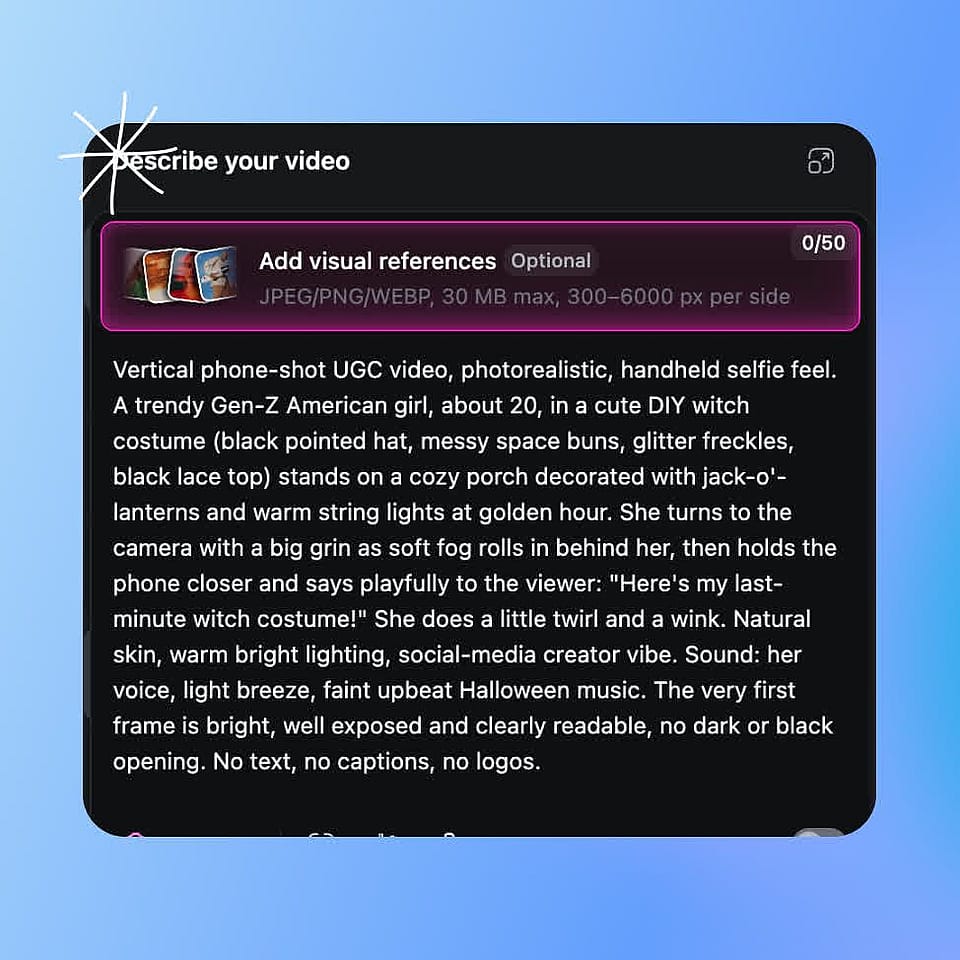
Describe your Halloween video
Open the AI video generator and type the scene, the costume, and the mood. Upload a photo if you want the video to start from your picture.
Pick your settings
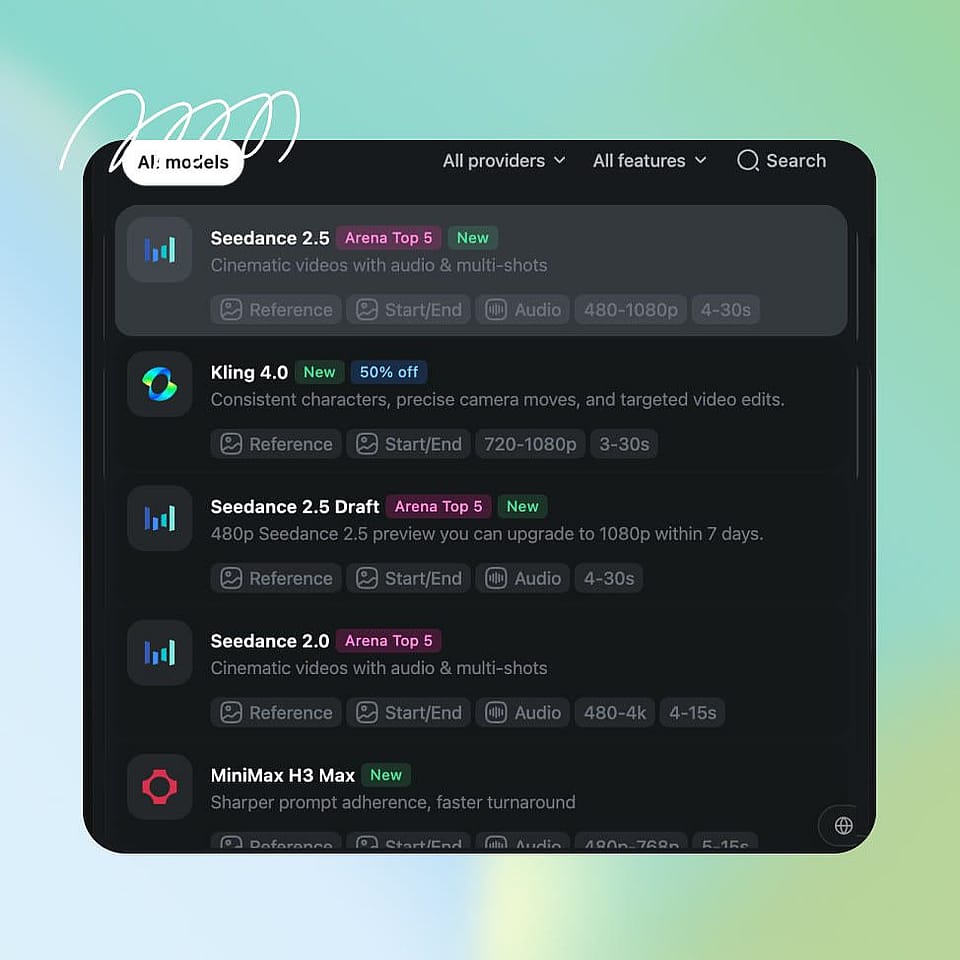
Choose a video model, aspect ratio, length, and resolution. Turn on Add Ambient Sounds for background audio.
Generate and download
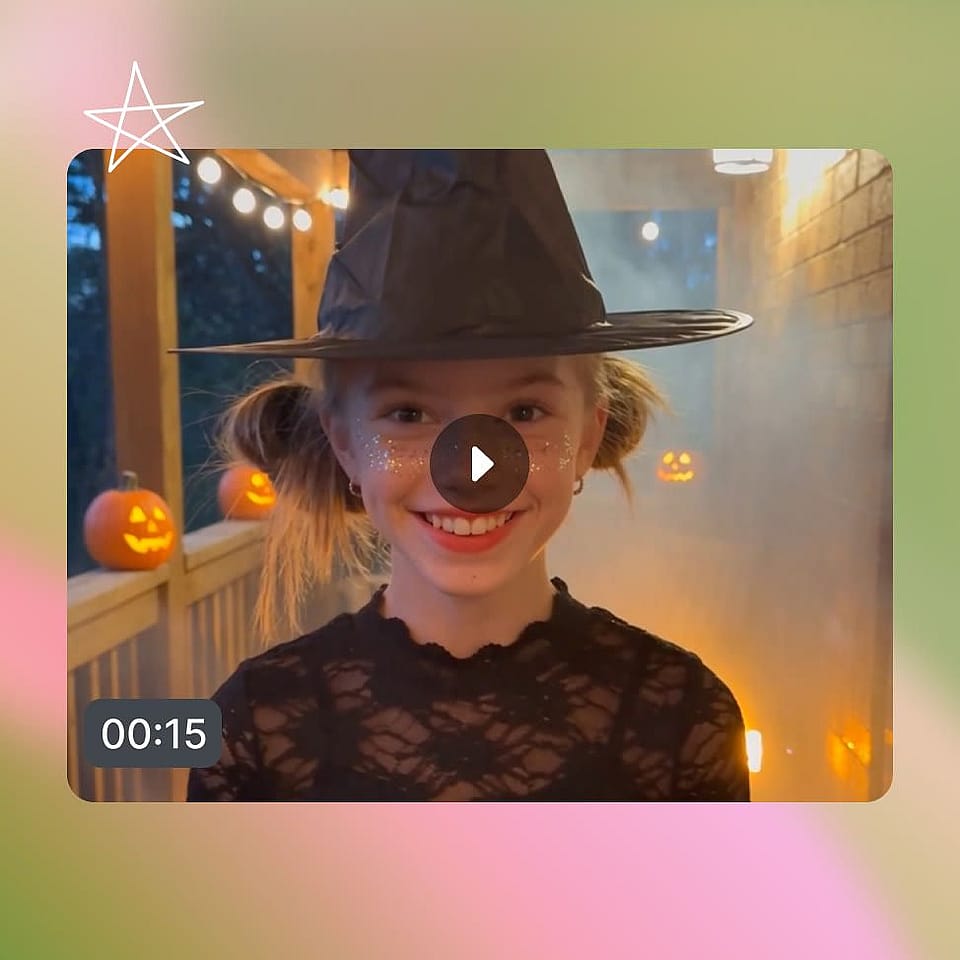
Watch the results, change your prompt and generate again if needed, then download the video you like.
Best Uses for the AI Halloween Video Maker
Halloween Social Media and UGC Videos
Social media creators and UGC creators use OpenArt’s AI Halloween video generator to post new Halloween videos all through October. Upload a photo of yourself in costume, and the video shows you turning to the camera as fog rolls in behind you. Write a line in quotes, like “Here’s my last-minute witch costume,” and the person in the vertical 9:16 video says it to the viewer. For a paid UGC ad, start from a photo of you holding the brand’s product, and the product stays in your hands for the whole video.
Try it NowCreate Halloween Promos and Ads
Performance marketers and ad designers use OpenArt's AI Halloween video generator to make seasonal promo videos for paid campaigns. Upload your product photo and prompt it to place the product on a foggy porch or next to a glowing pumpkin, so the item in the ad matches the one you sell. Make several versions with different openings, like a candy bowl reveal or a spooky countdown, and test which one gets the most clicks.
Try it NowShare Halloween Posts and Greetings
Brand and social media teams use the AI Halloween video generator to post Halloween greetings that still look like the brand. Make a short "Happy Halloween" clip with your mascot carving a pumpkin or waving from a haunted house. Save the mascot in OpenArt Characters, and the same mascot shows up in the Story, the feed post, and the YouTube Short. A short animated greeting also works in a customer email or as a pinned post through October 31.
Try it NowPlan Your Halloween Party
Bars, cafes, shops, and event venues use the AI Halloween video generator to plan and promote their Halloween parties. Make a short invite video with bats flying past a full moon or a costumed host standing in a decorated doorway. Write the date and dress code as a voice line in quotes, and the host announces them in the video. Post the invite on Instagram, send it to a group chat, or play it on a screen by the counter. A party at home works the same way.
Try it NowMake Short Horror Films and Trailers
Filmmakers and storyboard artists use OpenArt to test Halloween horror ideas before a real shoot. Smart Shot turns one prompt into a storyboard and then one video with several cuts, like a slow walk down a dark hallway, a close-up of a door handle turning, and a scream. Save your lead actor in OpenArt Characters so the same face appears in every scene.
Try it NowFAQ
An AI Halloween video generator is a tool that makes Halloween videos from a text prompt or a photo. OpenArt's AI Halloween video generator turns an idea like "a witch stirring a glowing cauldron in a dark kitchen" into a short video with motion and sound. You can use it for Halloween ads, party invites, greetings, and short horror films.
Yes. Upload your Halloween photo to OpenArt's Image to Video and describe the motion you want, like candles flickering behind you or fog rolling across the ground. The person and costume from your photo stay in the video while the scene moves. To make the costume photo first, use the AI Halloween generator and then turn the picture into a video.
Most video models on OpenArt make clips up to 15 seconds long, and Seedance 2.5 and Wan 3.0 make clips up to 30 seconds. For a longer Halloween story or ad, Director mode makes a multi-scene video up to 5 minutes long. Each scene in a Director mode video still follows the length limit of the model that makes it.
Save your mascot or spokesperson in OpenArt Characters so the same face stays recognizable in every video. Save your logo, colors, and fonts in Brand Kit, and Text to Video applies them to every clip in the project when you pick Seedance 2.0. With other video models, upload your logo, product, or an older brand video as a reference image to guide the look.
Yes. Every new OpenArt account starts with 40 free credits, so you can try the product right away. When you're ready to create more, paid plans add monthly credits and watermark-free downloads. See current plans on the OpenArt pricing page.
Yes, labeling an AI Halloween video is a good habit on social media. A label keeps viewers from mistaking a realistic AI video for real footage. TikTok and Instagram both let you add an AI label when you post.
To make a Halloween video with AI on OpenArt, open the AI video generator and type the scene, the costume, and the mood you want. Pick a video model, an aspect ratio, and a length, and turn on Add Ambient Sounds for background audio. Generate the video, change the prompt if you want a different result, and download the one you like.
Yes. Video models with native audio on OpenArt, including Seedance 2.5, Veo 3.1, Wan 3.0, and Gemini Omni Flash, make sound in the same step as the video. Write a voice line inside quotes in your prompt, and the character speaks it. You can also add sound effects to a finished video with Add Sound Effect, or make a Halloween song with Create Music.
Yes. Describe the party scene in the AI video generator, like "a costumed host waving guests into a house lit with orange string lights." Write the date, time, and dress code as a voice line in quotes so the host announces them in the video. Pick 9:16 for Instagram Stories or a group chat, and download the invite when it looks right.
Yes. Commercial rights apply on eligible paid plans, so you can use videos from OpenArt's AI Halloween video generator in paid ads, social posts, and client work. Stick to original costumes and characters, and leave famous movie monsters and real celebrities out of your prompts. OpenArt's AI Copyright and IP Check scans an image for similarity to well-known brands and characters before you use it. The IP check is a warning tool and gives no legal guarantee.
Good AI Halloween video prompts name the subject, the action, the setting, the light, and the sound. Try "a black cat walking along a fence under a full moon, leaves blowing, slow camera follow," or "a haunted house door creaking open, warm candlelight inside, wind howling." Add a camera move like a slow zoom in or a pan to make the video feel planned. Turn on Auto-Polish Prompt to add more detail to a short prompt.
Get Insights from Experts Blog
Get the insights you need. Our experts share actionable hacks, break down the hottest topics, and provide essential how-to guides to help you create, optimize, and scale.
Read More