

AI Carousel Generator
OpenArt's AI carousel generator turns your text into a full set of matching slides for Instagram or LinkedIn. Type the words for each slide, keep one look from the first slide to the last, and download carousel posts ready to share.

Build Every Slide With The AI Carousel Maker
Turn your text into carousel slides
OpenArt works as an AI carousel generator from text. Write what one slide should show and put the exact words in quotes, like "a cream slide with a green leaf and the words 5 Ways to Cut Your Energy Bill." Pick a model that writes clear text, and the AI image generator makes the slide in seconds. If you want to describe the whole carousel at once, Chat Mode writes the prompts, picks the model, and makes several slides from one request.
Keep every slide in the same style
A carousel works best when every slide looks like part of one set. Make your cover slide first, then upload it as a reference image when you make slide two. Change only the words and the picture in your prompt, and the new slide follows the cover's layout and background. Repeat this for every slide, and the whole carousel stays in one style. If the same person or mascot appears on each slide, save them in OpenArt Characters so the face stays the same.
Put your brand on every slide
Save your logo, color codes, fonts, and brand rules to a Brand Kit once. When you make slides with GPT Image 2.6, Brand Kit applies them to every image in the project. Your tenth slide gets the same colors and fonts as your first, and you stop pasting hex codes into every prompt. With other image models, upload your logo or an old post as a reference image to guide the look.
Change one slide and keep the rest
Change one word or one picture on a slide and keep everything else as it is. Open the slide in OpenArt's AI photo editor, highlight the part you want to change, and type the fix. The rest of the slide stays the same, so it still matches the set. You can also draw arrows, boxes, and notes on the slide to show exactly what should change.
How to Use the AI Carousel Generator
You can make a carousel with OpenArt in three simple steps.
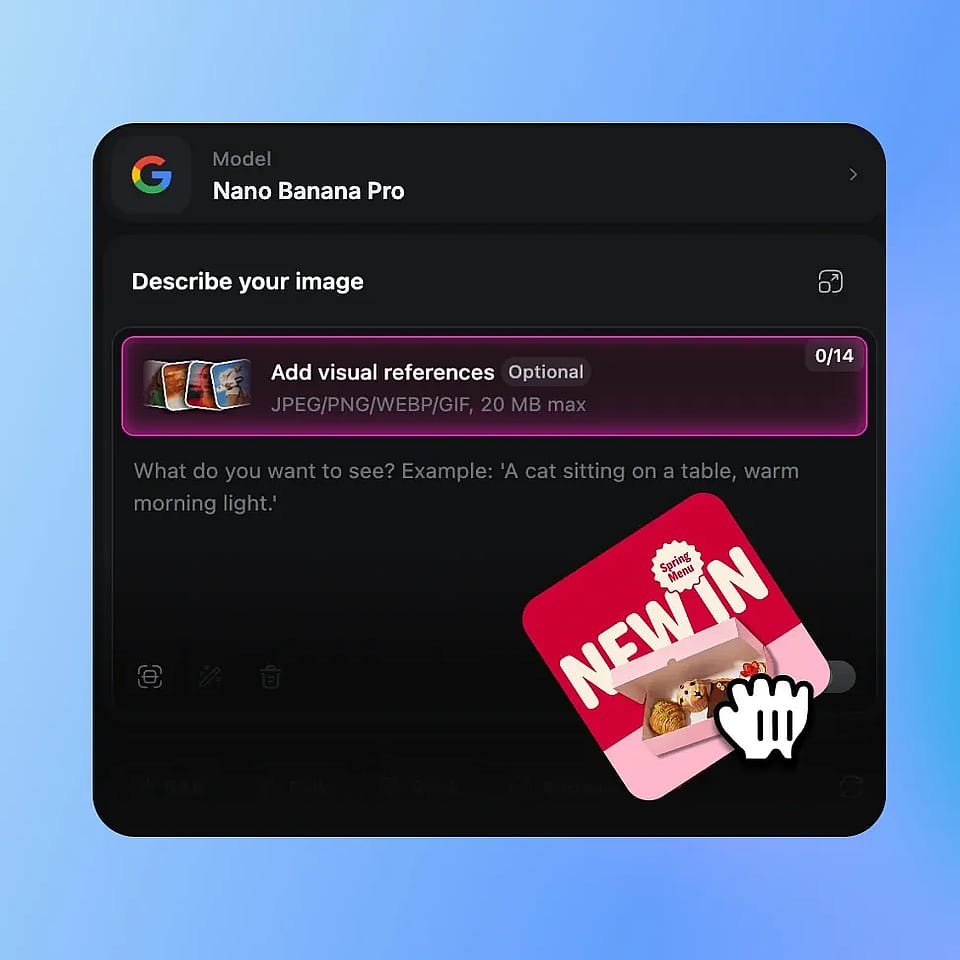
Open image generator and pick a model
Open Create Image and choose a model that writes clear text, like Nano Banana Pro or Nano Banana 2.
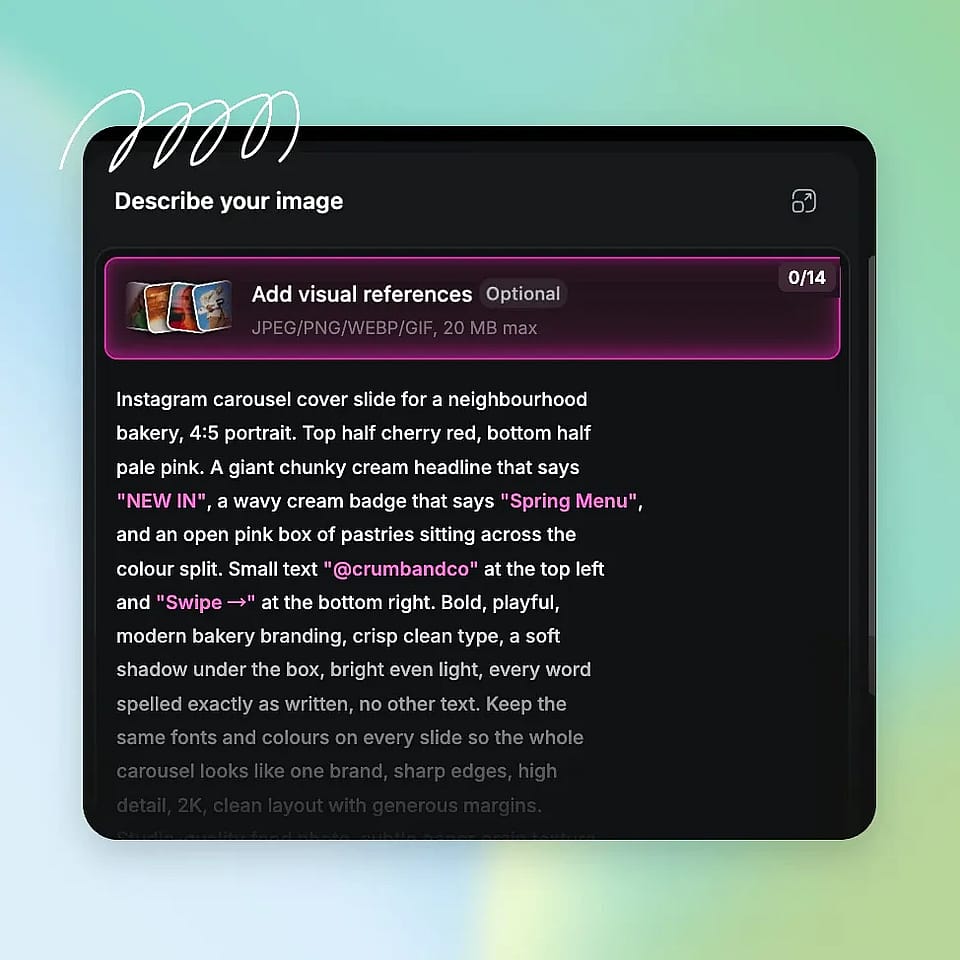
Make your cover slide
Describe the cover and put the headline in quotes. Set the aspect ratio to 4:5 or 1:1, choose how many versions you want (up to 8), and generate.
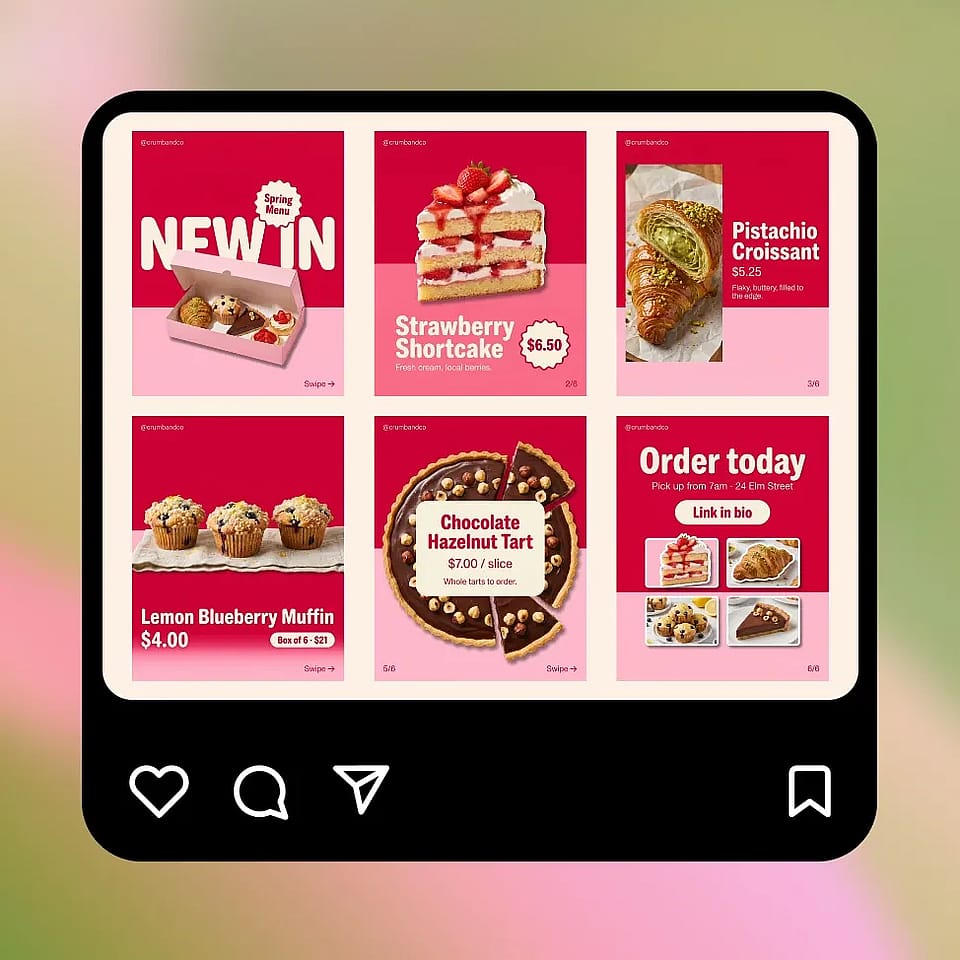
Make the rest of the slides
Upload your favorite cover as a reference image, then change the words and the picture in the prompt for each new slide. Download every slide in order.
Who Uses an AI Carousel Generator
Marketers, social media teams, and small business owners use OpenArt as their carousel creator for ads, tips, and product posts.
Performance Marketers Testing Carousel Ads
Performance marketers and ad designers use OpenArt to make carousel ads for Instagram and Facebook. Upload your real product photo as a reference image so the product looks the same on every slide. Give each slide one selling point, like the fabric, the fit, and the price. Then make a few versions of the first slide with different headlines to test which one gets more clicks.
Try it NowSocial Media Teams Posting Instagram Carousels
Brand and social media teams use OpenArt as an Instagram carousel maker for tips, how-to guides, and product launches. People save and share carousels that teach them something, like "7 ways to style one blazer." Make the slides at 4:5 so they take up more of the screen in the feed, and keep them on brand with your Brand Kit. A whole week of carousels can come out of one sitting.
Try it NowB2B Marketers and Founders Making LinkedIn Carousels
B2B marketers and founders use OpenArt as a LinkedIn carousel generator for frameworks, case studies, and product updates. LinkedIn shows a carousel as a document post, where each page of a PDF becomes one slide. Make every slide the same size, 4:5 or square, then download them and combine them into one PDF in order. Slides with one idea each are easy to read on a phone.
Try it NowSmall Business Owners Sharing Menus and New Products
Small business owners use OpenArt to post carousels about a new menu, a product range, or a list of services. A bakery can show one cake per slide with the name and price written on it. A hair salon can show one style per slide with a short line about who it suits. You get a polished carousel for your shop's page without hiring a designer.
Try it NowFrequently Asked Questions
An AI carousel generator is a tool that makes a set of matching slides for a swipeable social media post from a written description. With OpenArt's AI carousel generator, you type what each slide should say and show, pick an image model, and get finished slides in seconds. You can then fix one slide, keep the set in one style, and download the slides for Instagram or LinkedIn.
Make your cover slide first and upload it as a reference image for every slide after it. Keep the same style words in each prompt, like "cream background, green serif headline, flat illustration," and change only the text and the picture. Save your colors and fonts to a Brand Kit to keep the carousel design the same with GPT Image 2.6. For a person or mascot on every slide, save them in OpenArt Characters.
The most common Instagram carousel size is 1080 x 1350 pixels, a 4:5 portrait shape. Square 1:1 slides at 1080 x 1080 pixels work too. Instagram uses the first slide's shape for the whole carousel, so make every slide the same size. In OpenArt, pick 4:5 or 1:1 as the aspect ratio before you generate.
Yes. Save your logo, color codes, fonts, and brand rules to an OpenArt Brand Kit, and GPT Image 2.6 applies them to every image in the project. Every slide in the carousel then uses the same colors and fonts. With other image models, upload your logo or an old post as a reference image to guide the look.
You can try some features for free. New accounts get 40 free credits, no credit card required. Every generation uses credits, and the exact cost shows before you click Generate. To keep creating, choose a paid plan. You can compare plans, prices and annual billing options on the pricing page. Commercial use requires the Plus plan or above. Plans renew automatically, monthly credits do not roll over, and extra credits are only sold as add-ons to a paid plan. You can cancel any time from Profile, then Subscriptions. Cancel at least 5 days before your renewal date to avoid the next charge, and you keep access until the end of the billing period. Completed generations and active subscription periods are generally not refundable. Full billing, cancellation and refund details are in the Help Center.
The best AI carousel generator lets you pick the right image model for each slide and keeps the whole set in one style. OpenArt gives you text-strong models like Nano Banana Pro and Ideogram 4.5 for clear words on every slide. Brand Kit keeps your colors and fonts the same with GPT Image 2.6, and the AI photo editor fixes one slide at a time. You make, fix, and download every slide in one OpenArt workspace.
Write the words for each slide first, like a cover headline and one tip per slide. In OpenArt's Create Image, describe the first slide, put its words in quotes, and generate. Use that slide as a reference image for the next one and swap in the next slide's words. You can also describe the whole carousel in Chat Mode, and OpenArt makes several slides from one request.
Yes. Text-strong models on OpenArt, including Nano Banana Pro, Nano Banana 2.1, FLUX 3 Image, and Ideogram 4.5, write clear headlines, tips, and prices on a slide. Put the exact words in quotes and keep each slide to a short headline and one or two lines. If a word comes out wrong, highlight it in OpenArt's AI photo editor and type the fix.
LinkedIn carousels are document posts, where each page of a PDF shows up as one swipeable slide. Make your slides in OpenArt at 4:5 or 1:1, with every slide the same size. Download the slides, combine them in order into one PDF with any PDF tool, and upload the PDF as a document when you create a LinkedIn post. Keep each slide to one idea so it reads well on a phone.
You can make as many slides as your carousel needs, one slide at a time. Each prompt in OpenArt makes up to 8 images, so you can get 8 versions of a slide and keep the best one. Build the rest of the carousel by reusing the same reference image with a new prompt for each slide.
Yes. Commercial use requires the Plus plan or above, so you can use slides from OpenArt's AI carousel generator in ads, client work, and brand posts. Make sure you own any photo or logo you upload as a reference, or have the rights to use it. Before a campaign goes live, OpenArt's AI Copyright and IP Check scans your images for IP matches and shows a Detected or Undetected result for each file. The check is a detection tool and gives no legal guarantee.
Get Insights from Experts Blog
Get the insights you need. Our experts share actionable hacks, break down the hottest topics, and provide essential how-to guides to help you create, optimize, and scale.
Read More