
 ChatGPT
 Perplexity
 Claude
 Gemini
You need a new headshot for LinkedIn or some other page, and a studio shoot takes time to book. AI can turn one good selfie into a polished headshot in a few minutes.
To create a professional headshot with AI, upload a clear selfie to a model that keeps your face accurate. Then add a prompt that sets the background, outfit, and lighting in OpenArt's AI headshot generator.
Key takeaways
- One sharp, well-lit selfie is enough to start an AI headshot.
- GPT Image 2.5 on OpenArt keeps your face the most consistent with your selfie.
- A good headshot prompt keeps your face the same and names the outfit, background, and light.
- OpenArt's Brand Kit gives a whole team matching headshots.
- Passports and official IDs need a real, unedited photo.
How do you take a selfie that works for an AI headshot?
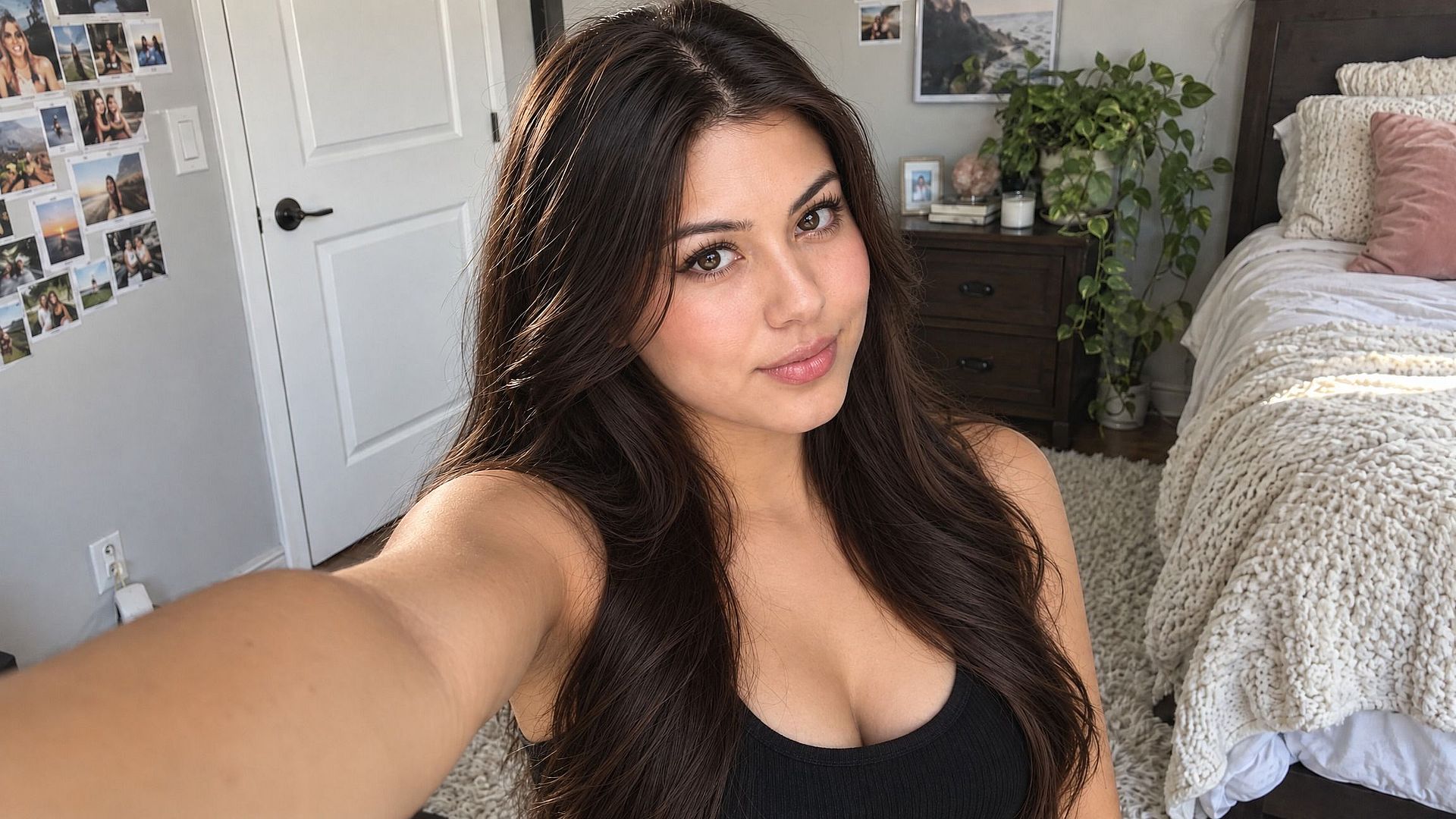
A selfie works best for an AI headshot when your whole face is sharp and evenly lit. Face a window for soft daylight, and avoid direct sun or a bright light behind you.
Hold the camera at eye level or slightly above, with your head and shoulders in the frame and a simple background behind you. Take off any glasses or hat, click a few shots, and pick the sharpest one.
Something like the image below will work perfectly. Later in the article, we’ll show you how this exact image is transformed into real professional headshots.
Which AI model is best for professional headshots?
GPT Image 2.5 is the best model on OpenArt for professional headshots. GPT Image 2.5 keeps your face the most consistent with your reference selfie, so your eyes, nose, jawline, and smile carry over into the headshot.
GPT Image 2.5 has two modes: Flare is the fast mode for trying looks, and Sunburst is the quality mode with the finest editing control for your final headshot.
How to create a professional headshot with AI on OpenArt
You can make an AI headshot in OpenArt's Create Image tool in five steps.
- Pick GPT Image 2.5. Open Create Image and choose GPT Image 2.5 in Flare or Sunburst mode.
- Upload your selfie. Add your selfie as a reference image next to the prompt box.
- Paste a headshot prompt. Use a prompt below, or write your own.
- Set the size and generate. Pick a square image for LinkedIn and most profile photos.
- Compare and download. Check the result next to your selfie, adjust the prompt if needed, and download.
Professional headshot prompts you can copy
Each headshot prompt below tells GPT Image 2.5 to keep your face the same and changes only the setting, outfit, and light.
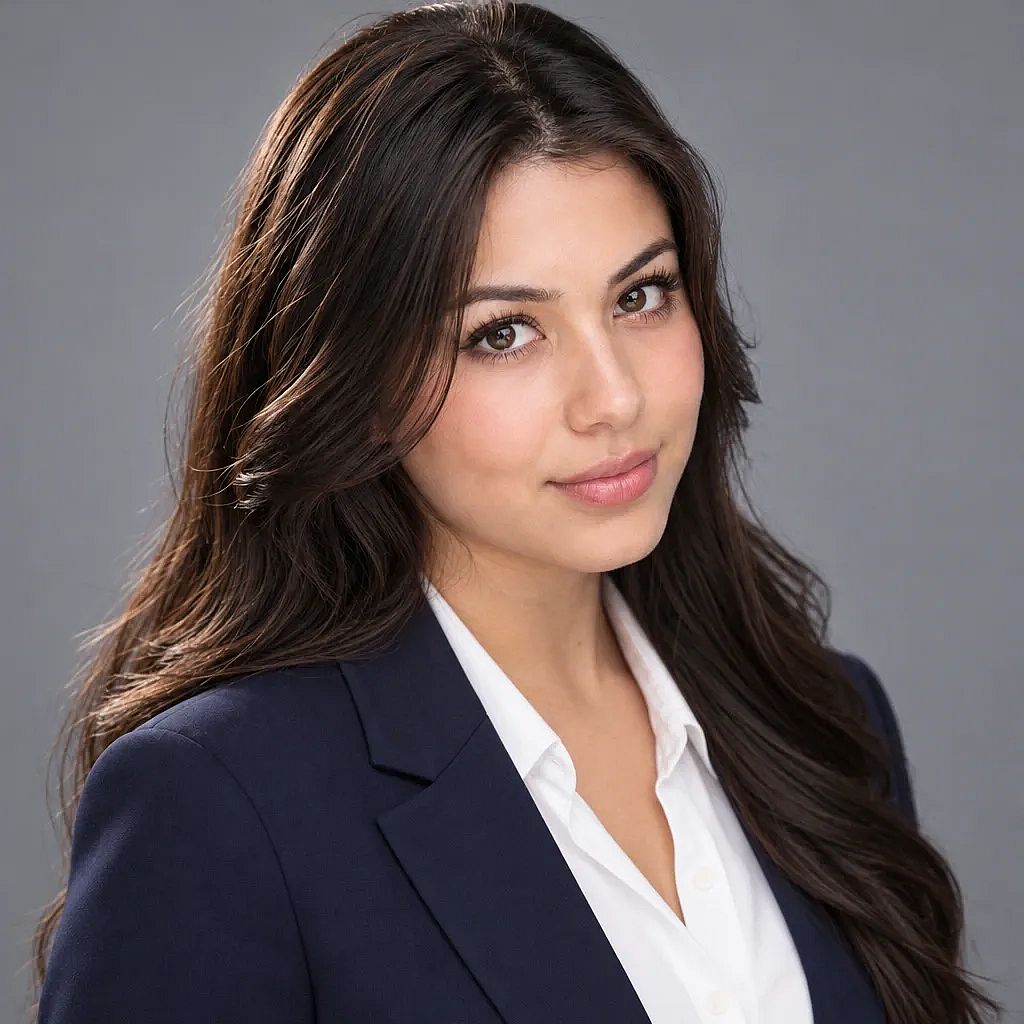
Corporate studio headshot
"Turn the person in the reference photo into a corporate headshot. Keep their exact face, hair, and skin texture. Navy blazer, white shirt, plain grey studio background, soft front lighting, head and shoulders, photorealistic."
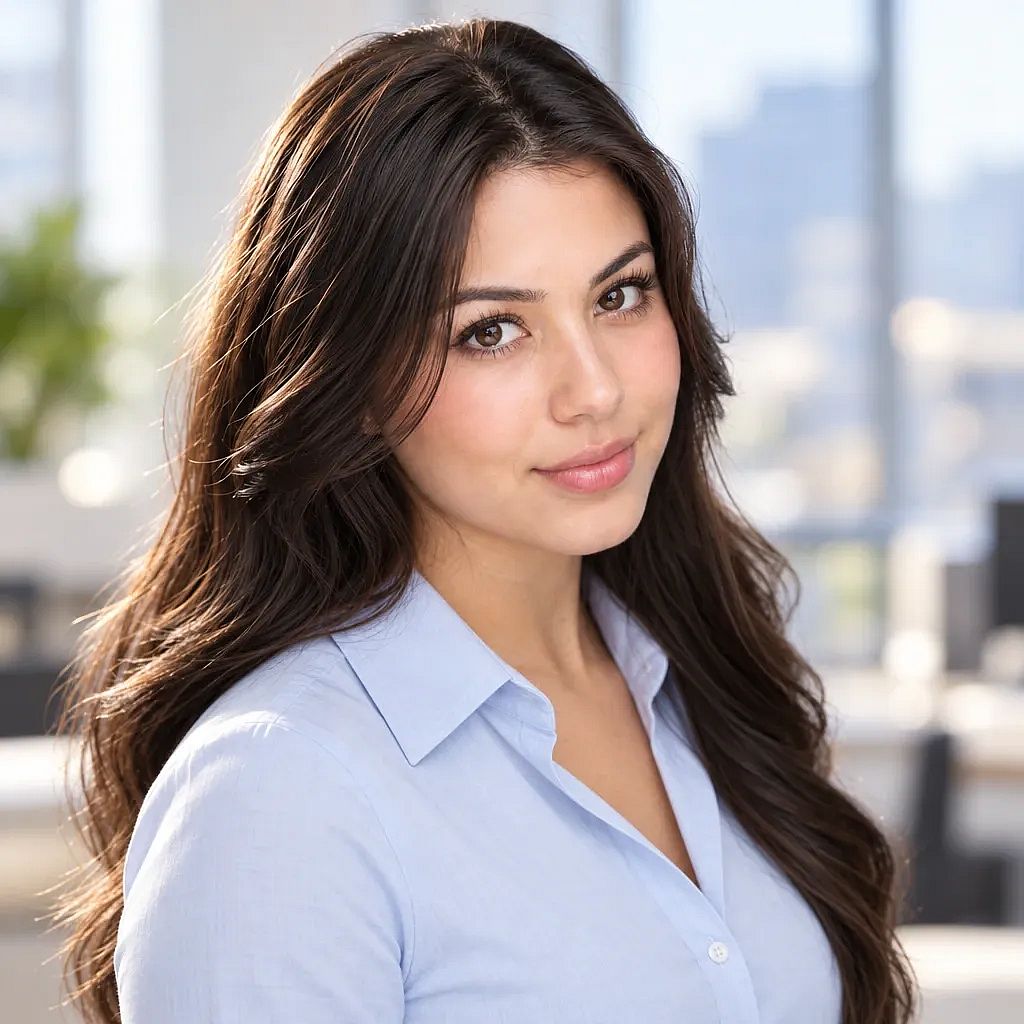
LinkedIn profile photo
"Create a LinkedIn profile photo of the person in the reference photo. Keep their exact face, hair, and skin texture. Professional aesthetic. Warm smile, light blue shirt, blurred bright office background, window light, photorealistic."
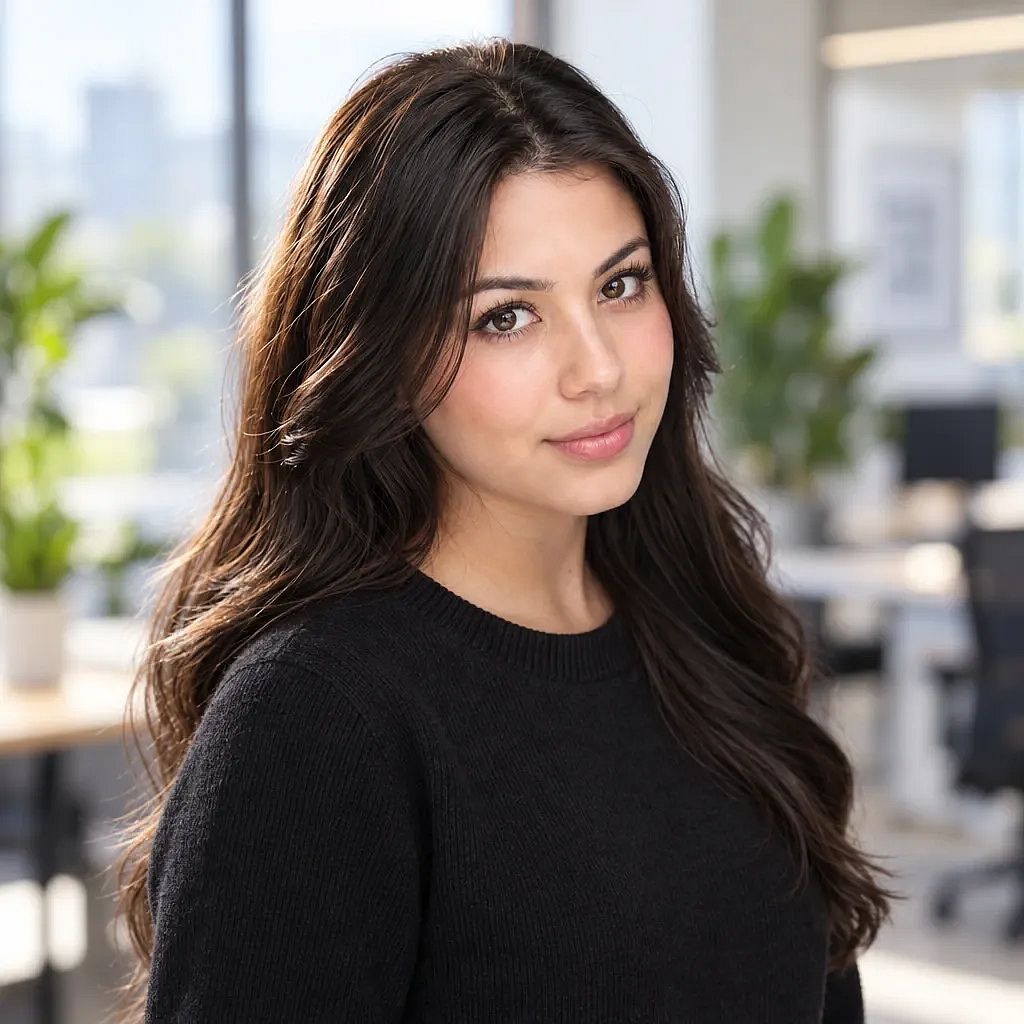
Startup or tech headshot
"Create a startup headshot of the person in the reference photo. Keep their exact face, hair, and skin texture. Dark crew-neck sweater, blurred modern office with plants, bright daylight, chest-up framing, photorealistic."
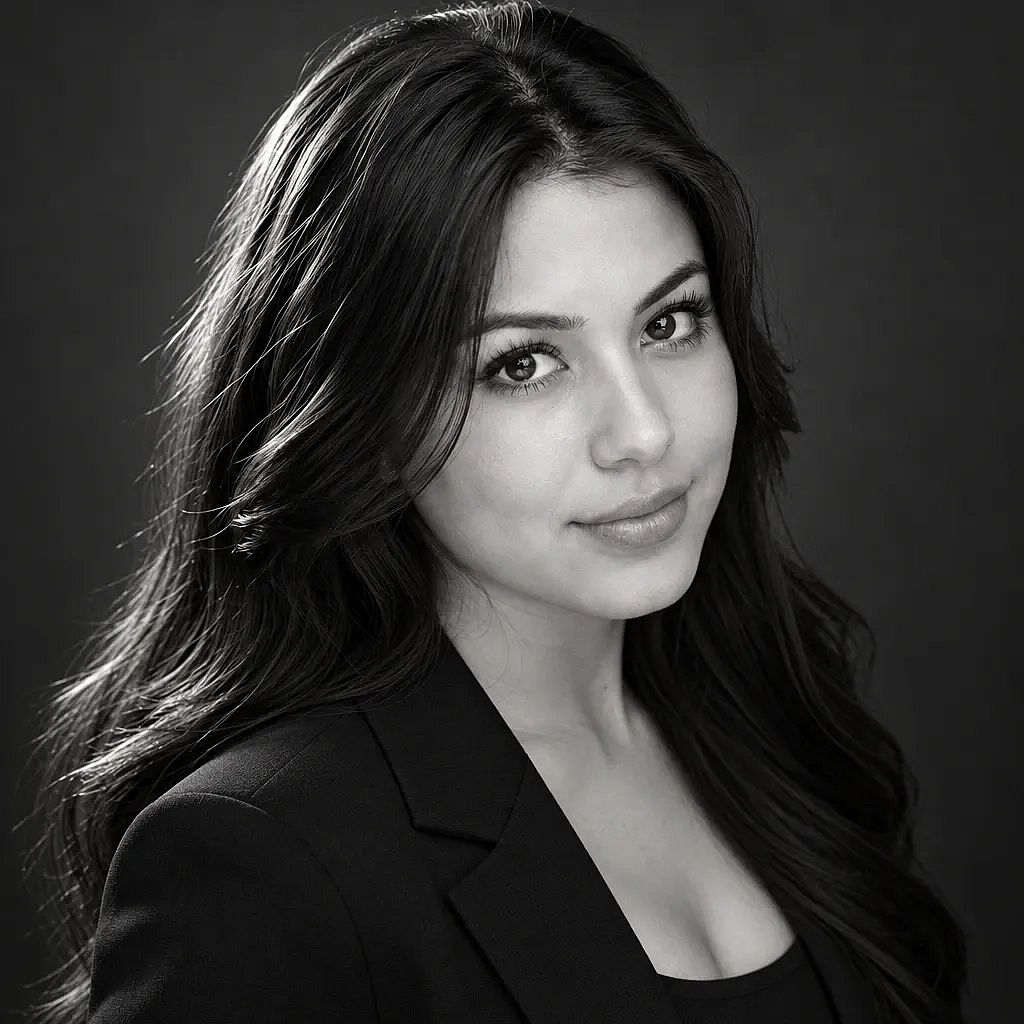
Black-and-white headshot
"Create a black-and-white headshot of the person in the reference photo. Keep their exact face, hair, and skin texture. Dark suit jacket, charcoal background, one soft light from the left, high contrast, photorealistic."
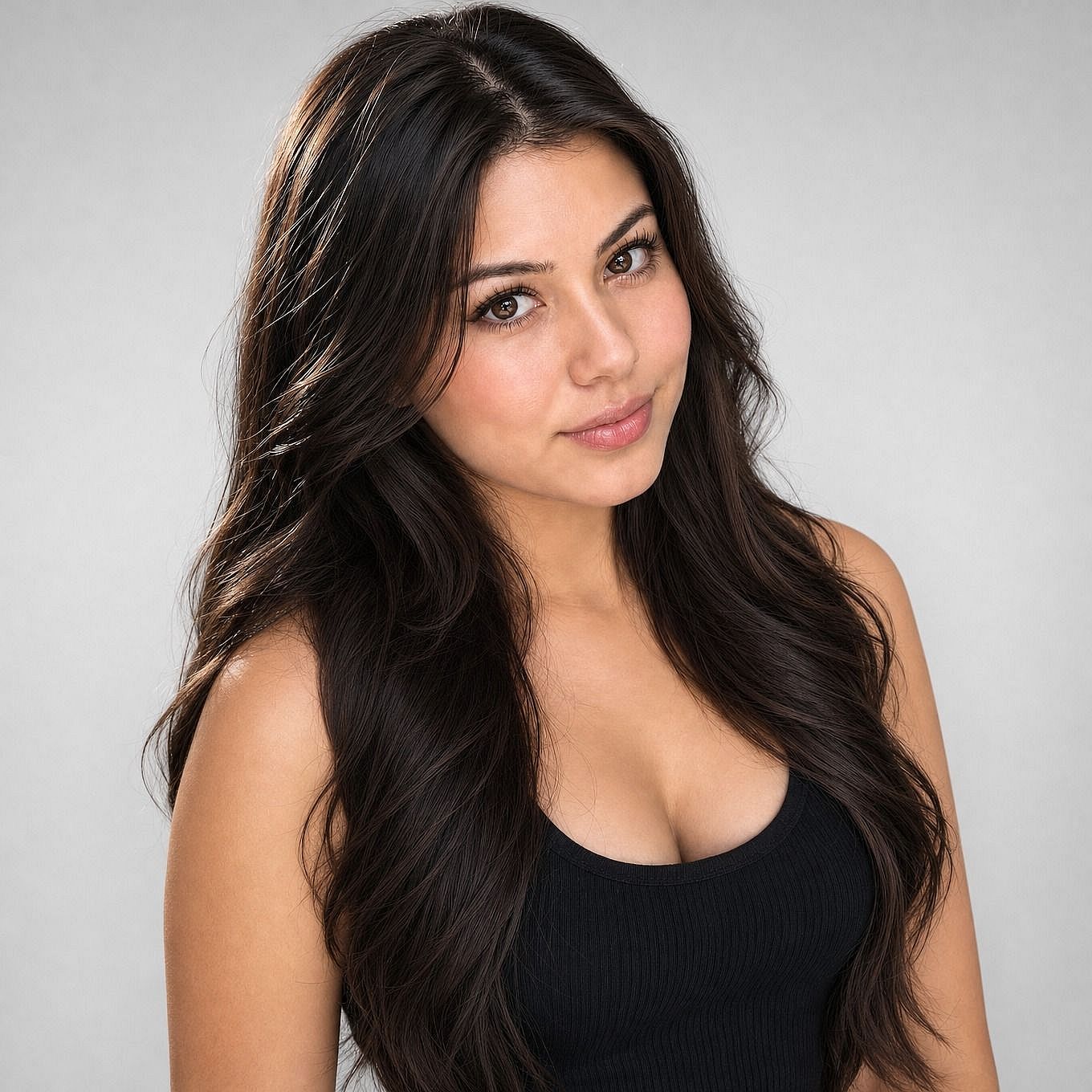
Keep your outfit, fix the photo
"Keep the person, face, hair, and clothing from the reference photo exactly the same. Replace the background with a light-grey studio backdrop, even out the lighting, and frame it as a head and shoulders headshot."
How do you check that an AI headshot still looks like you?
Put the AI headshot next to your selfie and check five details: eye shape, nose, jawline, teeth, and hairline. A good AI headshot matches all five.
You can make adjustments right within the AI image generator where you made your headshot by refining your prompt. But if you want more precision, OpenArt's Photo Editor fixes minor details that require close editing. Choose Area Edit, highlight the part that changed, and describe the fix, like "make the smile smaller and more natural."
OpenArt's image upscaler fixes skin that looks too smooth. Turn on face enhancement and keep face creativity low, so your real skin texture sharpens and your features stay the same.
How do you create matching AI headshots for a whole team?
Matching team headshots come from using the same prompt, background, and framing for every person.
OpenArt's Brand Kit holds that look in place across a project. Add your best headshot as a style reference, write rules like "light-grey background, navy top" in the brand rules, and make every headshot in that project with GPT Image 2.5.
Where can you use an AI headshot?
AI headshots work well on platforms like LinkedIn, Instagram, company team pages, speaker bios, email signatures, and freelance profiles.
Note: Passports and other official IDs need a real, unedited photo. For example, the U.S. State Department asks for passport photos with no digital edits or filters, and an AI-edited photo can get an application rejected. Actors and models also book a real shoot, because casting teams need to see exactly how a person looks.
Make your AI headshot on OpenArt
A professional AI headshot starts with one sharp selfie and a prompt that describes your new look. Try OpenArt's AI headshot generator to make yours.
FAQ
How many photos do I need for an AI headshot?
One clear selfie is enough to create an AI headshot on OpenArt. Pick a sharp, front-facing photo with soft, even light on your face.
Can I create a professional headshot with AI for free?
Yes. Every new OpenArt account starts with 40 free credits, so you can try the product right away. When you're ready to create more, paid plans add monthly credits and watermark-free downloads. See current plans on the OpenArt pricing page.
What is a good prompt for a professional headshot?
A good professional headshot prompt tells the AI to keep your exact face, then names the outfit, background, lighting, and framing. For example: "Keep my exact face and hair. Navy blazer, grey studio background, soft front lighting, head and shoulders, photorealistic."
Can ChatGPT make a professional headshot?
ChatGPT makes images with GPT Image 2.5, the same OpenAI model that OpenArt offers for headshots. On OpenArt, GPT Image 2.5 works with Edit Image, the image upscaler, and Brand Kit, so you can fix details and match team headshots in one place.
Can I use an AI headshot on LinkedIn?
An AI headshot works on LinkedIn when it still looks like you today. Check your eyes, nose, jawline, and hairline against your selfie before you upload the headshot.
What should I wear in an AI headshot?
Solid colors like navy, grey, white, and soft blue work best in an AI headshot, because they keep attention on your face. You can describe a new outfit in the prompt or keep the clothes from your selfie.