


 ChatGPT
 Perplexity
 Claude
 Gemini
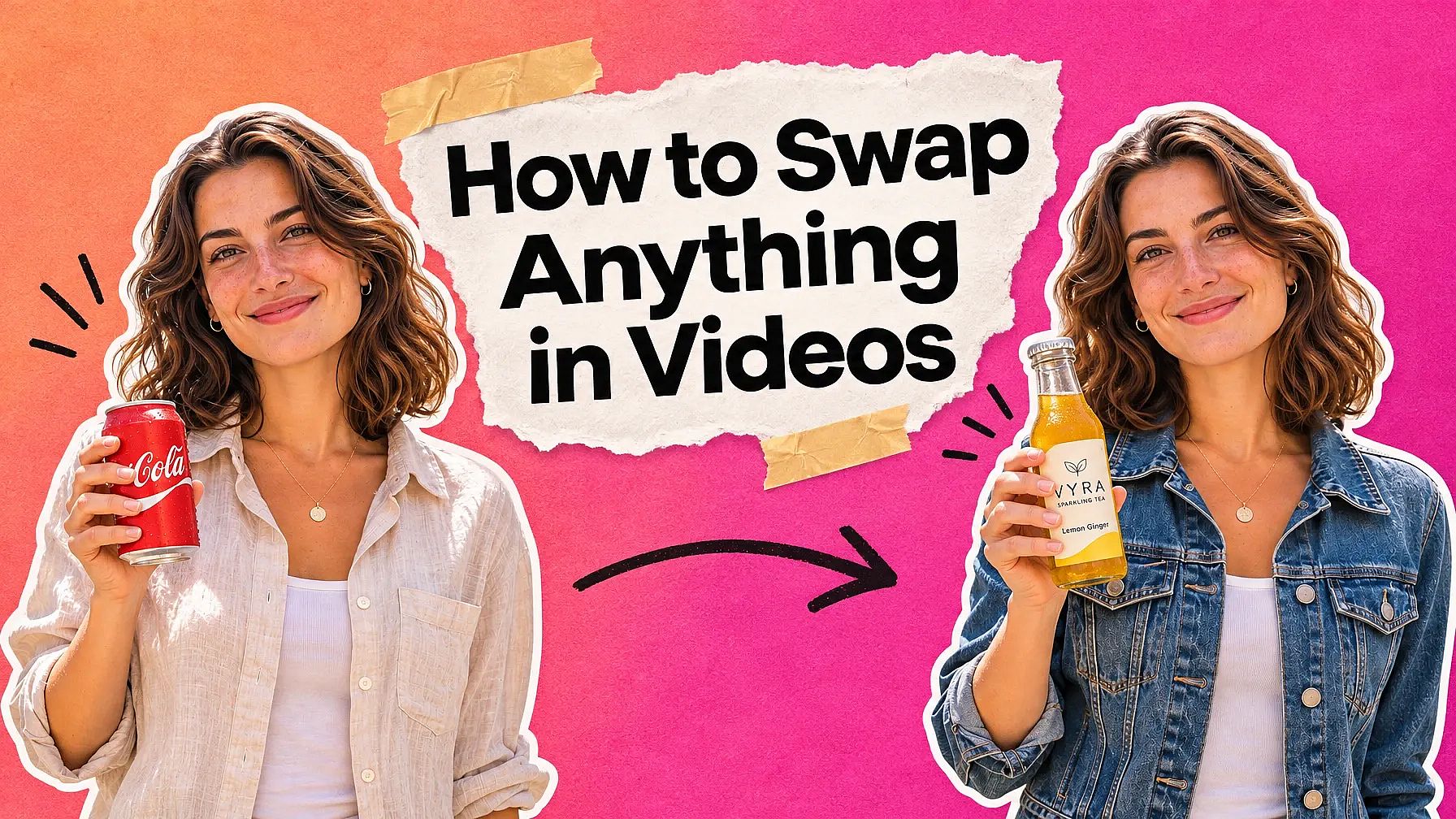
You have a video that works. The moves are right, the camera is right, and the timing is right. Now you want a new product in it, a new outfit, or a new place.
You can swap anything in a video with AI and keep everything that made the video work. This guide shows you how to do it with Swap Anything on OpenArt, step by step.
What does it mean to swap anything in a video with AI?
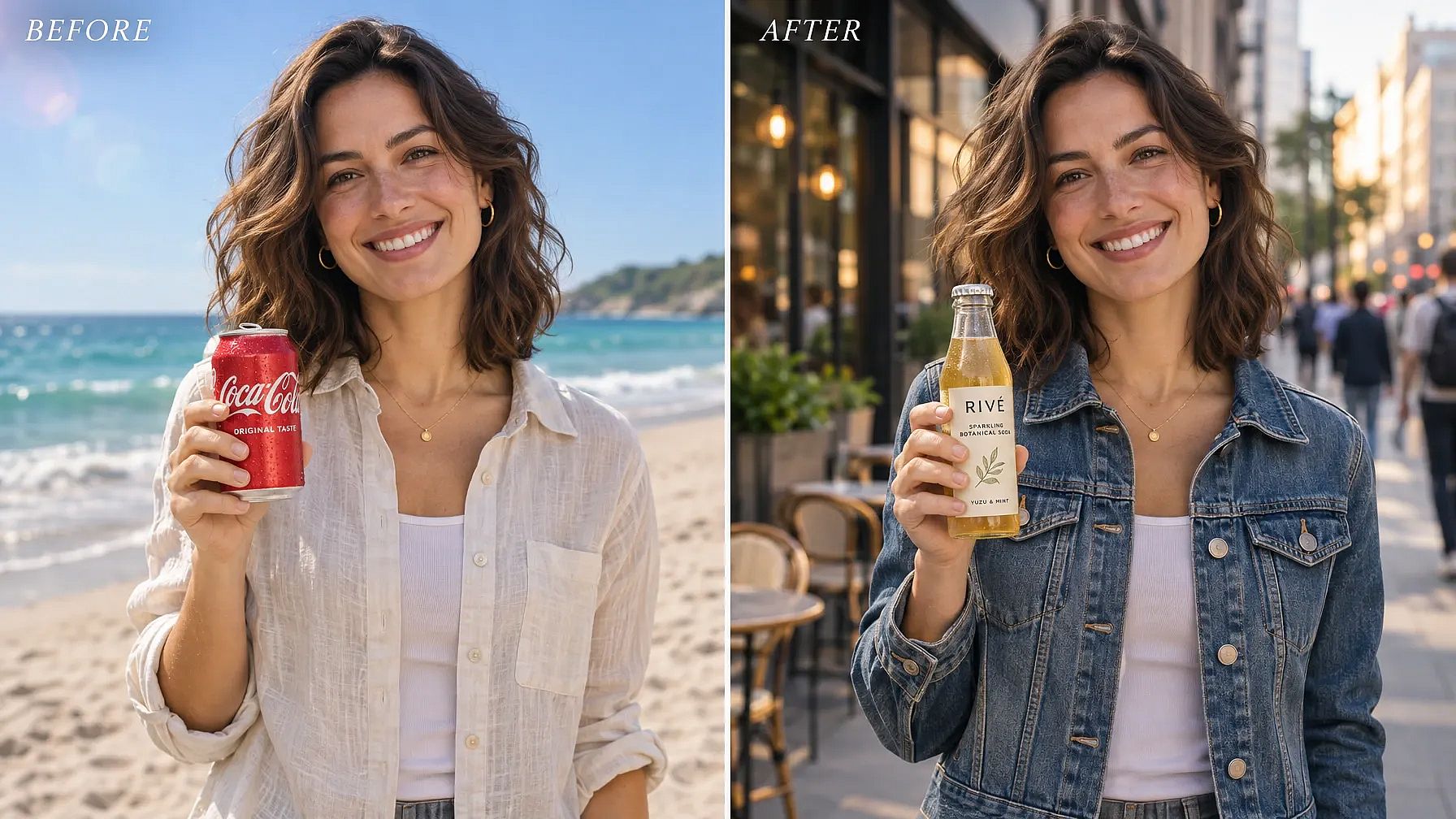
Swapping in a video with AI means you keep how the video moves and change what is in it. The AI copies the motion, the camera moves, and the timing from your video. Then it builds a new video from the images you give it.
This is often called motion transfer AI. The motion comes from your video, and the look comes from your pictures.
On OpenArt, this tool is called Swap Anything. Its first feature is Motion Transfer, and you find it in Create Video.
What can you swap in a video?
Swap Anything takes 1 to 10 reference images in one run. Each image shows the AI something you want in the new video. You can swap:
- People and characters. Replace a person in a video with an AI character or someone who agreed to appear.
- Products. Put a new bottle, shoe, or box into an ad that already works.
- Outfits. Change clothes in a video by adding a picture of the new outfit.
- Objects. Replace a prop, a sign, or a cup with something new.
- Places. Move the whole scene to a new street, room, or beach.
You can mix these in one swap. A new product, a new jacket, and a new city can all go into the same video.
How to swap anything in a video with AI on OpenArt
You need one video and a few images. Here is how it works.
- Open Swap Anything. Go to Create Video in OpenArt and pick Swap Anything.
- Upload your video. Use a clear video between 4 and 30 seconds long, at least 480p.
- Add your reference images. Add 1 to 10 images of the people, products, outfits, objects, or places you want.
- Add a prompt, or skip it. Write a short line like "the man now wears the red jacket and holds the green bottle." If you leave the prompt empty, OpenArt writes one from your video and images.
- Pick the shape and quality. Choose 16:9, 4:3, 1:1, 3:4, 9:16, or 21:9, and pick 480p, 720p, or 1080p.
- Generate. Check the credit cost on the Generate button, click it, and download your new video.
Your new video is the same length as the video you uploaded. The motion and camera moves match the original.
Tips for a better swap
- Start with a steady, clear video. Easy-to-see people and objects give the AI less to guess.
- Use clean reference images. A product on a plain background works better than a busy photo.
- Add an image for everything you care about. Everything in the new video comes from your images and prompt, so show the AI each part you want.
- Say what replaces what. A short prompt like "the blue sneaker replaces the white sneaker" helps the AI put each image in the right spot.
Ways to use Swap Anything
Make new versions of a winning ad. Keep the hook and pacing of your best ad, and swap in the next product, flavor, or color. This kind of product video swap gives you new ads to test without filming again.
Adapt one video for each market. Swap in a local street, local signs, or holiday decor, and keep the moves your team already approved. Add AI video dubbing to reach viewers in other languages.
Test ideas on real footage. Filmmakers can try a new costume, actor, or location on a scene they already shot. You see the idea on real footage before you pay for a reshoot.
Jump on outfit trends. Creators can swap their outfit or background to match a trend, using a video they already own.
Start swapping
Swap Anything lets you start from a video that works and change only the look. Upload your video, add your images, and get a new version in a few clicks.
Frequently asked questions
How do I replace a person in a video with AI?
Upload your video to Swap Anything on OpenArt and add an image of the new person. Use an AI character from OpenArt's AI character generator, or a person who agreed to appear in your video. The new person moves the same way as the person in your video.
How do I change clothes in a video using AI?
Add a picture of the outfit you want as a reference image in Swap Anything. Add a short prompt like "she now wears the yellow dress." OpenArt makes a new video with the new outfit and the same moves.
Can I change the background of a video with AI?
Yes. Add an image of the new place as a reference image in Swap Anything, and the scene moves there. For background-only changes, you can also use OpenArt's AI video background changer.
How long can my video be?
Swap Anything works with videos between 4 and 30 seconds long. The new video is the same length as the one you upload.