
Swap Anything: AI Object Swap for Your Videos
OpenArt's Swap Anything tool is an AI object replacer keeps the motion, camera, and timing of a video you already have. Add images of the people, products, outfits, objects, or places you want, and get a new video built from them.
Key Features of Swap Anything Tool
Keep the motion, camera, and timing of your video
Swap Anything reads how everything moves in your video, from a hand reaching for a can to a camera sliding past a shelf. Your new video follows the same moves, the same camera path, and the same timing. The new video is also the same length as the video you upload. This means the hook and pacing of a video that already works stay in place, and only the look changes.
Swap people, products, outfits, and places with images
Swap Anything works as an AI object replacer that takes its instructions from pictures. Add 1 to 10 reference images, such as a person, a product, an outfit, an object, or a background. Upload a photo of your new sneaker, a jacket, and a city street, and all three show up in the new video. Pictures show the AI exactly what you want, so you spend less time describing colors and shapes in words.
Tell OpenArt what each image replaces, or let it decide
Swap Anything gives you an optional prompt box for extra direction. Write a short line like "the woman now holds the green bottle and stands on a beach", and the AI video generator follows it. You can also leave the prompt box empty. OpenArt then looks at your video and your images and writes the prompt for you.
Pick the shape and quality of your new video
Swap Anything lets you choose the aspect ratio of the new video: 16:9, 4:3, 1:1, 3:4, 9:16, or 21:9. Pick 9:16 for TikTok and Reels, or 16:9 for YouTube and websites. You can make the new video in 480p, 720p, or 1080p. To make a finished swap sharper, raise it to 4K with OpenArt's AI video upscaler.
How to Use Swap Anything
You can replace objects in a video with AI in three steps.
Upload your video
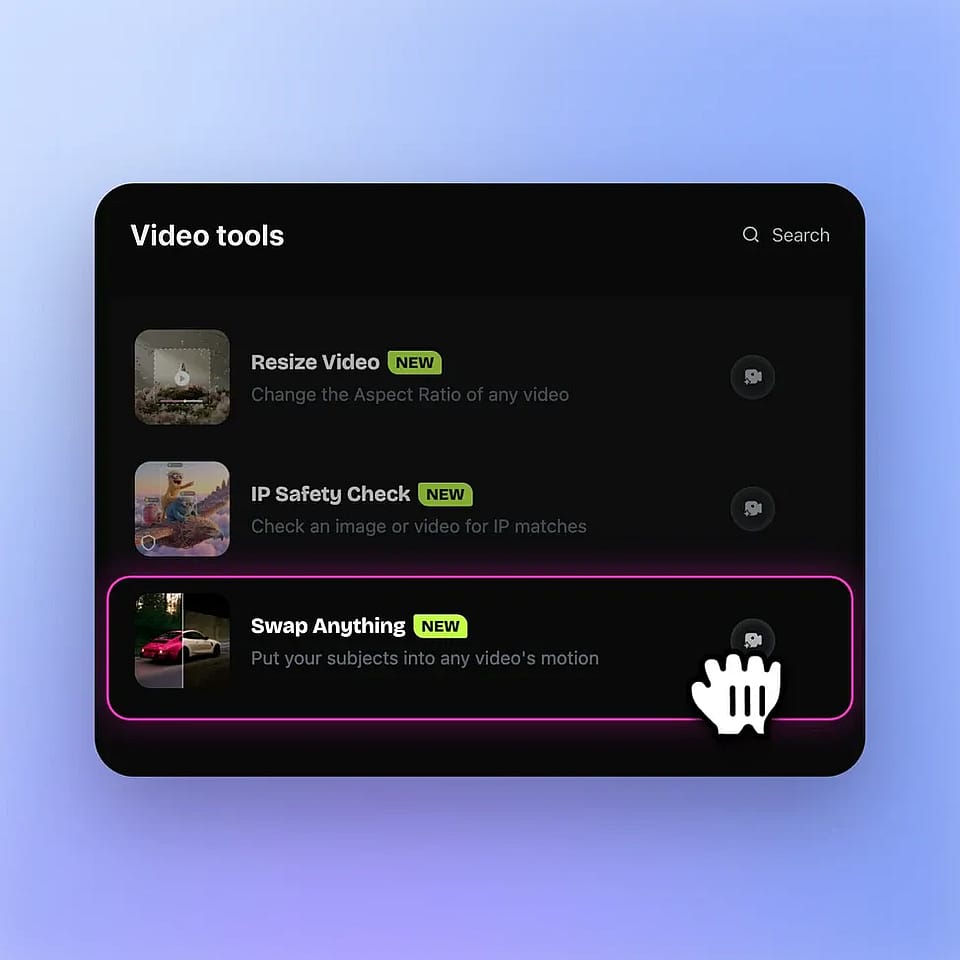
Open video tools in OpenArt, pick Swap Anything, and upload a video between 4 and 30 seconds long.
Add your reference images
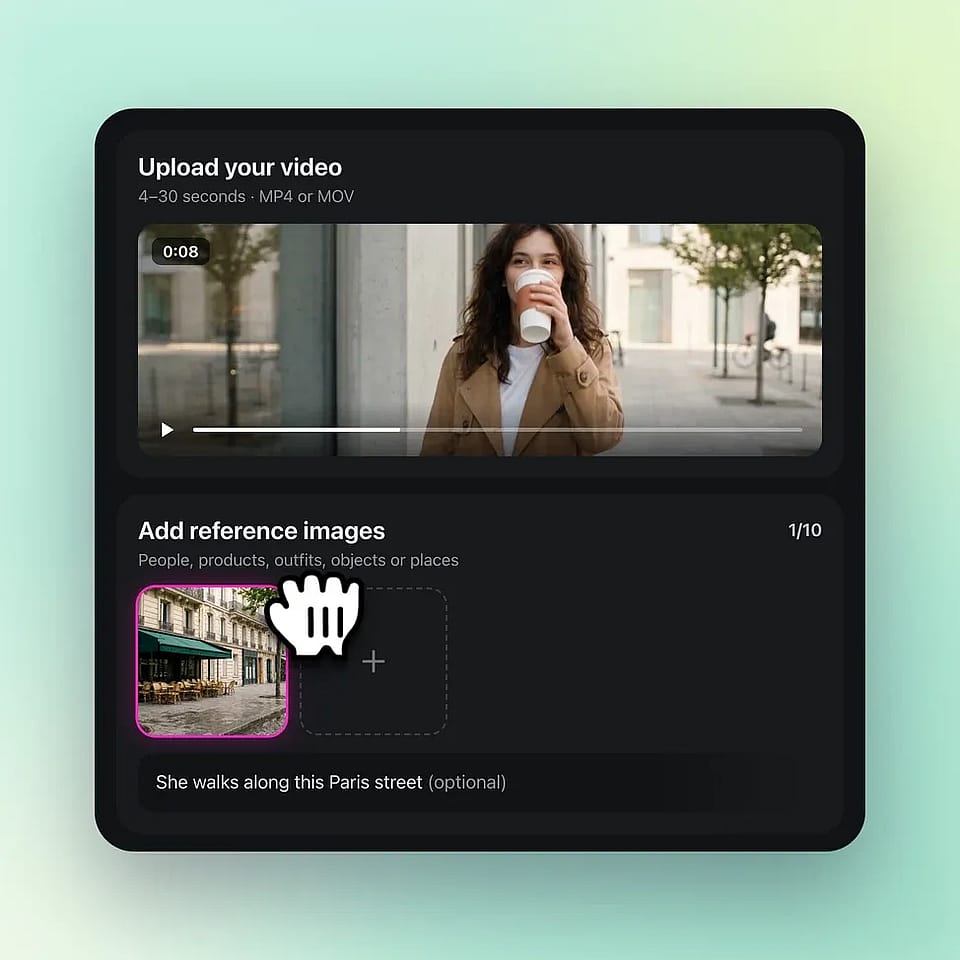
Add 1 to 10 images of the people, products, outfits, objects, or places you want in the new video. Add a prompt if you want to say what each image replaces.
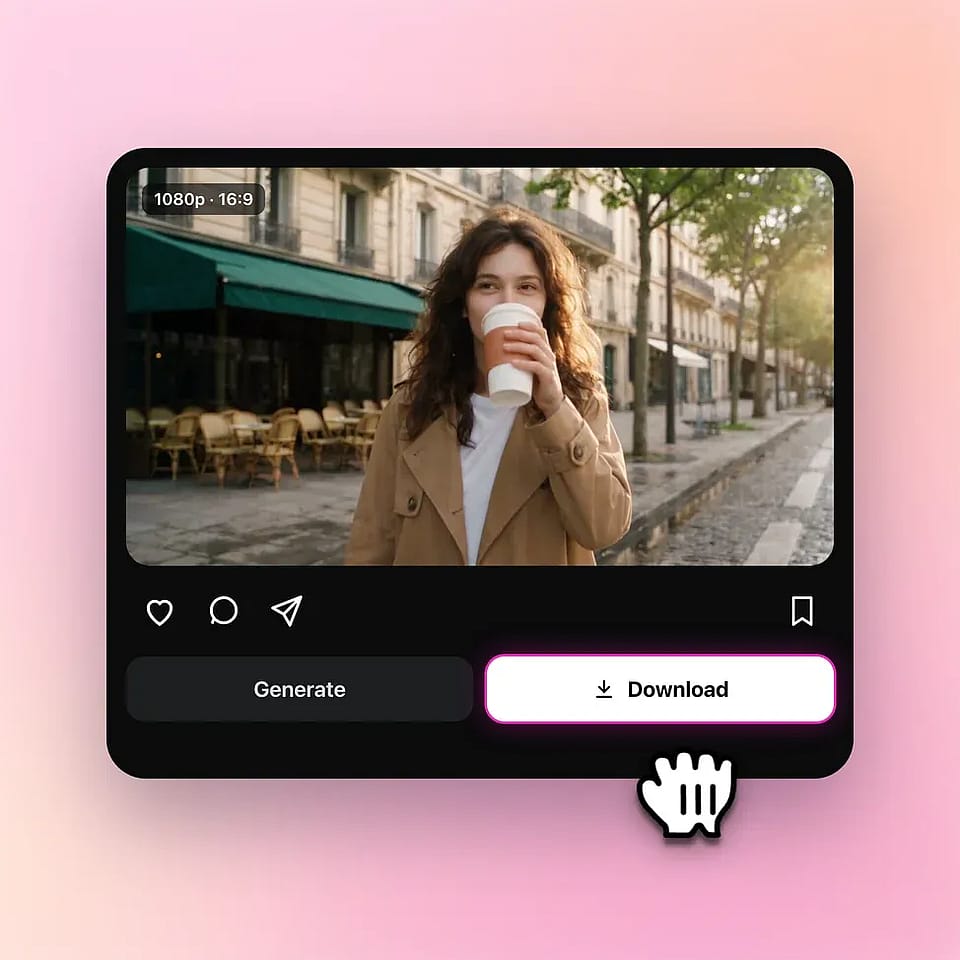
Generate and download
Pick your aspect ratio and resolution, check the credit cost, and click Generate. Download the new video when it is ready.
Best Uses for Swap Anything Tool
Performance marketers testing ad variants
Your best ad already has the hook, the pacing, and the camera moves that people stop for. Performance marketers use Swap Anything to keep all of that and swap in what is new, like the next product, flavor, or color. Upload the winning ad, add a photo of the new product, and get a new version to test without filming again. Run the same ad again with each new product to fill your next round of tests. To build the first ad, use OpenArt's AI ads generator.
Try it NowBrand teams adapting video assets
Brand teams and small business owners use Swap Anything to turn one approved video into a version for every market and season. Add images of a local street, local signs, or holiday decor, and keep the same moves your team already approved. Use AI characters or people who agreed to appear in your videos when you change the cast for a new market. To reach viewers in other languages, add AI video dubbing to each version.
Try it NowAI filmmakers testing new costumes and characters
Filmmakers, directors, and editors use Swap Anything to try ideas on footage they already shot. Add an image of a costume, a new actor, or a new location, and see the scene with the same camera moves and timing. You can also swap a prop or a logo you are not allowed to show. This way you decide with real footage in front of you before you pay for a reshoot or a new set. To build a cast that looks the same in every shot, start with OpenArt's AI character generator.
Try it NowCreators adding sponsored products in videos
Creators use Swap Anything to put a sponsor's product into a video they already made. Upload your own video, add a photo of the product, and keep your moves and timing. You can also swap your outfit or your background to fit a new trend. Use only videos you own or have the rights to use.
Try it NowFrequently Asked Questions
Swap Anything is OpenArt's AI object replacer for video. You upload one video and add images of the people, products, outfits, objects, or places you want. OpenArt makes a new video that keeps the motion, camera, and timing of your video and builds everything else from your images. Motion Transfer is the first Swap Anything feature, and you find it in Create Video.
You can swap people, products, outfits, objects, and backgrounds or places. Add 1 to 10 reference images in one swap, so you can change the product, the outfit, and the place in the same video. OpenArt uses each image to build the new video.
Upload a video between 4 and 30 seconds long, at least 480p. Very tall or very wide videos may not work, so use a common shape like 16:9, 9:16, or 1:1. Clear, steady videos with easy-to-see subjects give the best results.
Video to video AI usually changes a video's style from a written prompt. Swap Anything builds the new video from your own reference images, so the people, products, and places look like the pictures you add. Both keep the motion of your video. For style changes from a prompt, use OpenArt's AI video to video tool.
Yes. Upload your ad once, then run Swap Anything again with a new product, flavor, color, or place each time. Each run gives you a new version with the same motion and timing. This makes Swap Anything a quick way to fill an ad test with new versions.
Swap Anything makes videos in 16:9, 4:3, 1:1, 3:4, 9:16, and 21:9. You can pick 480p, 720p, or 1080p. To go higher, raise the finished video up to 4K with OpenArt's AI video upscaler.
Open Swap Anything in OpenArt and upload a video between 4 and 30 seconds long. Add an image of the object you want, such as a new product or a new outfit, and add a short prompt if you want to say what it replaces. Click Generate, and OpenArt makes a new video with your object in it.
The motion, the camera moves, and the timing stay the same. The new video also keeps the length of the video you upload. Everything else in the scene is built from your reference images and your prompt, so add an image for each thing you want to see.
No. The prompt box is optional. Leave the prompt box empty, and OpenArt looks at your video and your images and writes the prompt for you. Add your own prompt when you want to say exactly which image replaces which part of the video.
Yes. Add an image of the outfit you want as a reference image, and add a short prompt like "the man now wears the red jacket". OpenArt makes a new video where the person wears the new outfit and moves the same way as in your video.
Only use a real person's picture if that person agreed to appear in your video. You can also make an AI person with OpenArt's AI character generator and use that character as your reference image. Make sure you own the video you upload or have the rights to use it.
Get Insights from Experts Blog
Get the insights you need. Our experts share actionable hacks, break down the hottest topics, and provide essential how-to guides to help you create, optimize, and scale.
Read More