AI Video Upscaler
Upscale video to 4K and smooth out choppy motion with OpenArt's AI video upscaler. Choose Topaz or BytePlus vCube model, set your resolution and frame rate, and download a sharper version of the clip you already have.
Key Features of AI Video Upscaler
OpenArt's AI video upscaler runs on two dedicated video enhancement models, Topaz and BytePlus vCube. You choose the model, the output resolution, and the frame rate on every clip you upscale.
Add real detail up to 4K
Upload your video and the AI video upscaler reconstructs it at a higher resolution, filling in detail across edges, textures, and faces. It also clears up the blur and pixelation that low-resolution footage carries, so the clip holds up on a large screen instead of falling apart.
Choose Topaz or BytePlus vCube
Both AI models upscale to 4K and interpolate to 120fps, so the practical difference is how much footage each one takes. Topaz handles clips up to 100MB or 20 seconds, and BytePlus vCube handles clips up to 300MB or 1 minute. In both cases the first limit your file reaches is the one that applies.
Set your frame rate up to 120fps
Pick 30, 60, 90, or 120fps and the AI video upscaler generates the in-between frames for you. Higher frame rates give you smoother pans, cleaner action, and usable slow motion. Footage shot or generated at a low frame rate stops looking stuttery once you interpolate it.
Upscale the clips you generated
You can send anything you made on OpenArt’s AI video generator straight into the upscaler tool. Generate at a fast setting while you iterate, then upscale only the shot you are keeping. Your finished video leaves OpenArt at delivery quality without a separate upscaling app in the middle.
How to Use the AI Video Upscaler
Improve video quality and resolution in three easy steps.
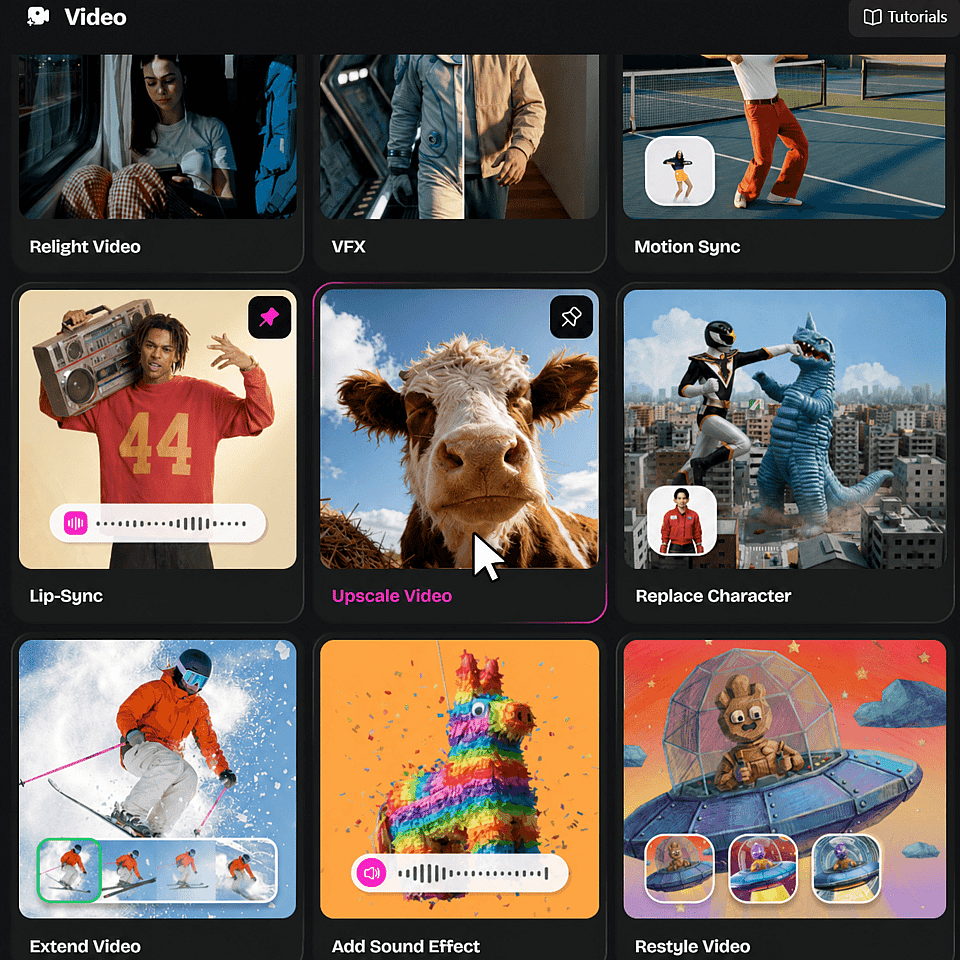
Open the Upscale Video tool
From the OpenArt homepage, open the video tools dropdown and select Upscale Video.
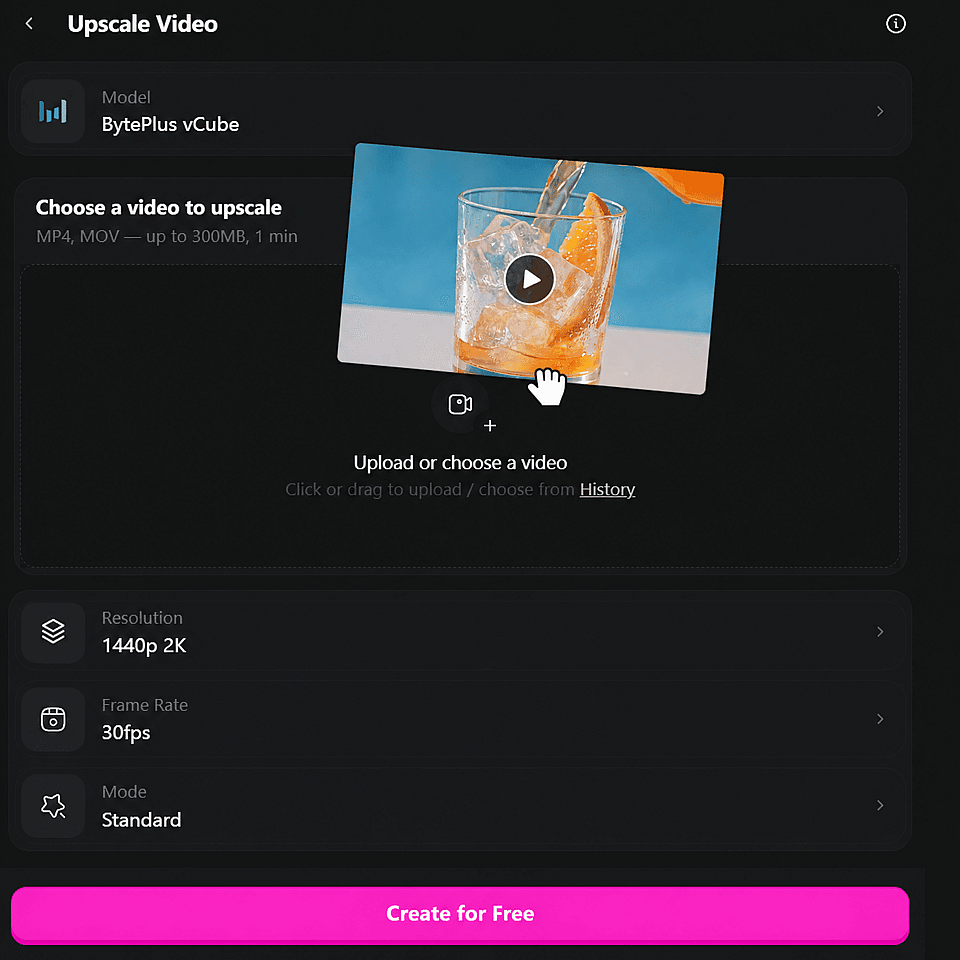
Upload your video
Upload your MP4 or MOV video clip — up to 300MB, 1 min.

Configure settings and go
Choose your output resolution and frame rate, hit generate, and download the upscaled video.
Best Uses for AI Video Upscaler
Wherever your footage is too soft or too choppy to publish, the AI video upscaler brings it up to a usable quality.
Creators posting to YouTube and TikTok
Uploads get compressed again on the way to the feed, so a soft clip only gets softer. Upscale video to 4K before you post and your footage survives the platform's own compression. Interpolating to 60fps also keeps fast cuts and gameplay readable.
Try it NowMarketers finishing ad and brand footage
Ad footage often arrives at whatever resolution the original shoot or the original file allows. Run it through the AI video upscaler so a single clip works across a paid placement, a landing page, and a large in-store screen. You get one sharp master instead of commissioning a reshoot.
Try it NowRestoring old or low-resolution footage
Archive clips, old phone recordings, and screen captures are usually the lowest-resolution assets you own. Upscaling adds resolution and cleans up pixelation, and frame interpolation smooths out the stutter that older recordings carry. Footage you had written off becomes usable again.
Try it NowFinishing AI video at delivery quality
AI video models are often set to a faster, lower-resolution output while you test prompts and pick a take. Upscale the winning clip afterwards so the version you deliver is sharp, and pair it with Extend Video when the take needs to run longer. If you also need stills at a higher resolution, the AI Image Upscaler does the same job for images.
Try it NowFrequently Asked Questions
An AI video upscaler increases the resolution of a video using AI. Instead of stretching the pixels you already have, it reconstructs detail frame by frame, so the video gets larger and sharper at the same time.
Open the video tools dropdown on the OpenArt homepage, select Upscale Video, choose Topaz or BytePlus vCube, upload your clip, set 4K as your output resolution, and generate. Everything runs in your browser, so there is nothing to install.
Up to 20 seconds on Topaz and up to 1 minute on BytePlus vCube. Both models also cap file size, at 100MB and 300MB, and whichever limit your file hits first is the one that applies.
Exporting at a higher resolution just spreads the pixels you already have across a larger frame, which is why the result looks soft. The AI video upscaler adds new detail and new frames, so the video gets genuinely sharper and smoother rather than only bigger.
Yes, with one caveat about the kind of blur. Softness from compression, low resolution, or a small source file upscales well. Severe motion blur or extreme digital zoom leaves the model very little edge detail to work from, so expect an improvement rather than a rescue.
Both upscale to 4K and interpolate up to 120fps, so choose by clip size. Topaz takes videos up to 100MB or 20 seconds, and BytePlus vCube takes videos up to 300MB or 1 minute.
Clips with a clear original image and moderate motion give the best results, including phone video, screen recordings, older archive footage, and AI-generated video. Very dark, very noisy, or heavily motion-blurred footage has less detail available to rebuild.
Get Insights from Experts Blog
Get the insights you need. Our experts share actionable hacks, break down the hottest topics, and provide essential how-to guides to help you create, optimize, and scale.
Read More