


 ChatGPT
 Perplexity
 Claude
 Gemini
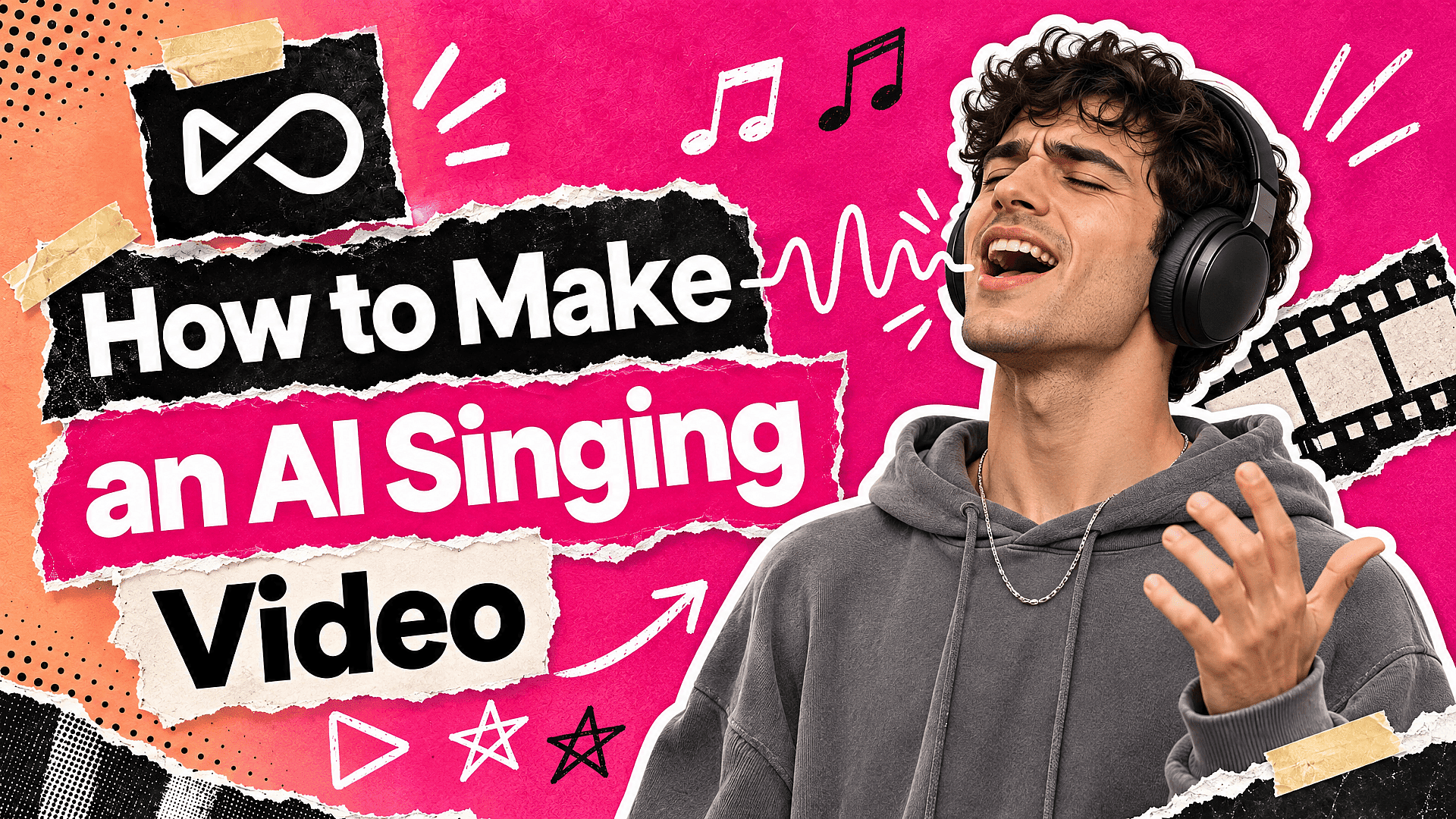
An AI singing video shows an AI-made artist singing your song, with lips that match every word. This guide shows you how to make an AI singing video from nothing, one short part of the song at a time.
The steps follow a tutorial by Artturi Jalli on his YouTube channel, Artturi Jalli. Artturi Jalli makes a one-minute lip sync music video on OpenArt, with one AI artist in a new place for every part of a lo-fi hip-hop song.
Video by Artturi Jalli.
Key takeaways
- An AI singing video is built one short part of the song at a time.
- A saved character and a character sheet keep the artist's face and outfit the same in every scene.
- Each part of the song runs 3 to 10 seconds and is exported as a video file with a black picture.
- The exact lyrics for each part go into the prompt, so the artist's lips match the words.
- A 720p draft uses fewer credits than a 4K version of the same clip.
Step 1: Create the song
In the video: 1:17
An AI singing video starts with the song. Any song works, as long as you have the audio file and the lyrics.
To make a song from a description, open OpenArt's AI music generator and describe the style. Artturi Jalli's track is a mellow lo-fi hip-hop song with soft jazz chords and a relaxed beat.
Save the lyrics in a text file. You paste the lyrics for each part of the song into a prompt later, and the lyrics drive the lip sync.
Prompt to try for the song (AI music generator, Full Song):
A mellow lo-fi hip-hop track with a warm vinyl sound, soft jazz chords, a relaxed bassline, and a simple drum beat. A male voice sings and raps about starting over in a new city.
Step 2: Create your AI artist
In the video: 2:27
The AI artist is the star of the singing video. Open Character under Tools in OpenArt, and choose to describe your character in words.
Artturi Jalli's tip, when you have no idea for the artist yet, is to ask an AI assistant. Paste the song's lyrics and style, and ask for a short description of an artist who fits the song.
Generate a picture, click the one you like, and set it as your character. Give the character a name, such as Kai, and create it. Artturi Jalli leaves the voice setting empty, because the song supplies the voice.
OpenArt Characters saves the artist, so you can add the same face to every scene.
Prompt to try for the artist (OpenArt Characters, text prompt):
A man in his mid twenties with short curly dark hair and a calm, thoughtful face. He wears a loose gray hoodie, a silver chain, and black jeans. Soft, moody light. Realistic photo.
Step 3: Make a character sheet
In the video: 4:01
A character sheet shows the artist from the front, the side, and behind in one image. Artturi Jalli calls the character sheet his consistency trick. The sheet shows the video model the artist's full outfit from every side.
Open the AI image generator, choose your saved character, and ask for a character sheet of that person. Download the result.
Prompt to try for the character sheet (AI image generator, saved character chosen):
Create a character sheet of this person. Show him from the front, from the side, and from behind, in the same outfit, on a plain background.
Step 4: Set up the AI video generator
In the video: 5:16
The AI video generator needs three things before the first scene: a model, your character, and the character sheet.
- Pick the model. Open Video under Tools and choose Seedance 2.5. Artturi Jalli records his tutorial on Seedance 2.0 and says to pick Seedance 2.5 when it is in the list.
- Add your character. Click Characters and choose your artist.
- Add the character sheet. Click to upload media and add the character sheet as a reference.
Why is an AI singing video made in short parts?
In the video: 5:59
An AI singing video is made in short parts because a video model makes one short clip at a time, and a song runs for minutes. Artturi Jalli's method splits the song and builds the video scene by scene.
Artturi Jalli plans 5 to 10 scenes for a one-minute song. Every scene uses the same two references, the character and the character sheet, so the artist stays the same from scene to scene.
Step 5: Split the song into short parts
In the video: 6:34
Each scene needs its own short piece of the song, saved as a video file. Any video editor can do this step, and you need no editing experience.
- Add a black picture. Drop a plain black image on the timeline and stretch it to the length of the song.
- Add the song. Drop the audio file under the black picture.
- Find the first break. Play the song and stop where the singing pauses.
- Split and export. Split the timeline at the pause, and export the first part as a video file with the black picture.
Artturi Jalli keeps every part between 3 and 10 seconds. He finds that the model starts to lose track of the song after about 10 seconds.
Step 6: Create the first singing scene
In the video: 9:19
The first scene joins the three references and the lyrics. Back in the AI video generator, add the exported song part as a reference, next to your character and the character sheet.
Write the prompt in two blocks. The top block describes the scene: where the artist is, how close the camera is, and the time of day. The bottom block starts with "Lip sync lyrics:" and holds the exact words sung in this part.
Check four settings before you generate.
- Audio: turn audio on.
- Resolution: pick 720p for drafts. Artturi Jalli uses 720p because higher resolutions use many more credits.
- Length: match the length of the song part. A 5-second part gets a 5-second clip.
- Aspect ratio: pick 21:9 for a wide cinema look, or 16:9 for a standard video.
Artturi Jalli's first scene puts his artist in an old laundry room at midnight in the rain. The artist sings the first line with matching lips and the same face as the saved character.
Prompt to try for the first scene (Seedance 2.5, 720p, 21:9, audio on, three references):
A cinematic single-shot close view of Kai inside a small corner diner late at night, with rain running down the window behind him. He looks into the camera and sings the song from the reference video.

Lip sync lyrics: [type the exact words sung in this part of your song]
Step 7: Match the lip sync in your editor
In the video: 13:19
The generated clip has to line up with the real song. Download the clip, go back to your video editor, and drop the clip on the timeline above the song.
Play the clip and the song together. An echo means the clip and the song are slightly out of step. Drag the clip left or right until the two sound waves line up, and the echo goes away.
Turn the clip's own sound down once the timing is right. The finished video plays only the original song.
Step 8: Create the rest of the scenes
In the video: 14:32
Every later scene repeats steps 5 to 7 with the next part of the song. Find the next pause, split the song there, and export the new part with the black picture.
In the AI video generator, remove the old song part and add the new one. Write a new scene, paste the lyrics for this part, and set the length. Round the length up, so a 5.6-second part gets a 6-second clip.
Artturi Jalli changes the place in every scene. His second scene shows the artist on the edge of a bed in a plain bedroom on a rainy day.
A slow part of the song can use two clips. Artturi Jalli makes a second clip of the same lines in a different room and switches between the two. He warns that the room and the outfit should stay believable from clip to clip.
Prompt to try for the second scene (Seedance 2.5, 720p, 21:9, audio on, three references):
A cinematic single-shot medium close view of Kai sitting on a rooftop at sunrise, with the city behind him. He sings the song from the reference video.

Lip sync lyrics: [type the exact words sung in this part of your song]
How much does an AI singing video cost?
In the video: 21:39
Every generation on OpenArt uses credits, and the exact cost shows before you click Generate. A lip sync music video needs many clips, and each clip is a separate generation.
Artturi Jalli gives cost its own chapter, and two of his habits keep the cost down.
- Draft at a low resolution. Artturi Jalli finds that 4K costs almost five times as many credits as 720p. He drafts at 480p or 720p.
- Plan for extra clips. Artturi Jalli plans on about half of his clips being usable.
You can compare plans, prices and annual billing options on the pricing page.
Settings used in this tutorial
| Step | OpenArt tool and model | Settings |
|---|---|---|
| Song | AI music generator | One style description, lyrics saved as text |
| Artist | OpenArt Characters | Text prompt, one picture, voice left empty |
| Character sheet | AI image generator | Saved character chosen, one prompt |
| Singing scenes | AI video generator, Seedance 2.5 or Seedance 2.0 | Audio on, 720p, 21:9, length matched to the song part |
| References for each scene | Character, character sheet, song part | Song part is a 3 to 10 second video file with a black picture |
Make your first AI singing video
An AI singing video comes down to four things: a song, a saved artist, short parts of the song, and one lip sync scene for each part. Line the clips up with the song in your editor, and the video is done.
For more camera angles of the same singer, read how to make a professional AI music video with lip sync. For a simpler first project, see how to make an AI generated music video from scratch. OpenArt's AI music video generator also makes a full music video from one song in Director mode.
Frequently asked questions: AI singing videos
What is an AI singing video?
An AI singing video is a video of an AI-made artist who sings a song with matching lip movements. On OpenArt, you save the artist as a character, and Seedance generates each singing scene from a short part of the song.
How do you make an AI lip sync music video?
To make an AI lip sync music video, split your song into parts of 3 to 10 seconds. Generate one scene for each part with your character, a character sheet, the song part, and the exact lyrics, then line the scenes up with the song in a video editor.
How long should each clip be in a lip sync music video?
Each clip in a lip sync music video should run 3 to 10 seconds. Artturi Jalli splits the song where the singing pauses, and he finds that clips longer than about 10 seconds start to lose track of the song.
Why does my AI singing video have an echo?
An AI singing video has an echo when the generated clip and the original song play slightly out of step. Drag the clip on the timeline until the two sound waves line up, then turn the clip's own sound down.
Which AI model is best for an AI singing video?
Artturi Jalli picks Seedance for an AI singing video. He records his tutorial on Seedance 2.0 and recommends Seedance 2.5, and both models are on OpenArt with sound and lip sync.