


 ChatGPT
 Perplexity
 Claude
 Gemini
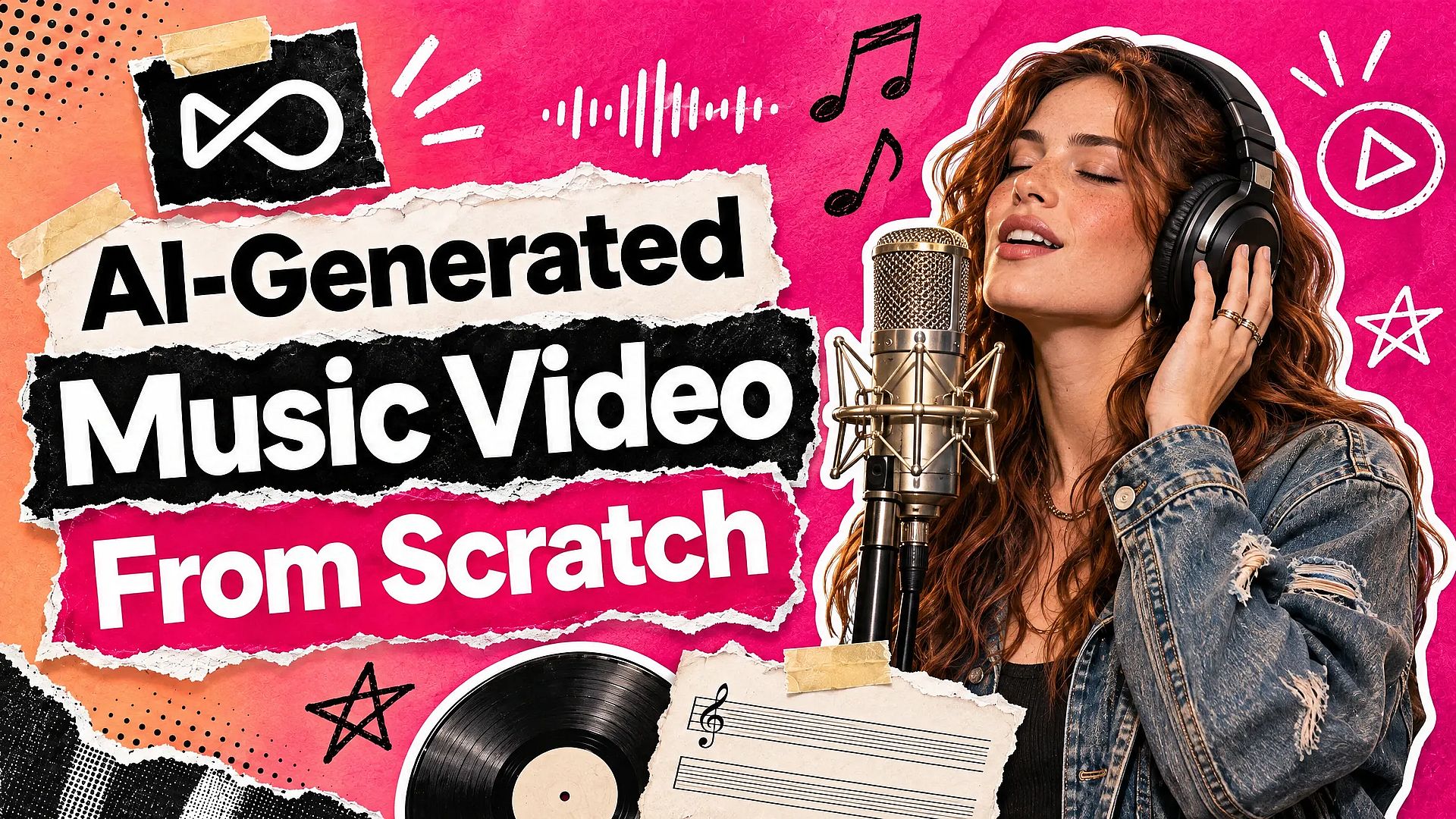
An AI generated music video needs four things: a song, a singer who looks the same in every scene, a picture for each scene, and clips that move to the music. This guide shows you how to make all four from scratch and edit them into one video.
The steps follow a tutorial by Roboverse on the YouTube channel Roboverse. Roboverse makes a country pop music video on OpenArt with one AI singer in three places: a studio, a stage, and a living room.
Video by Roboverse.
Key takeaways
- An AI generated music video starts with the song, because every clip is built around a part of it.
- One saved picture of your singer keeps her face the same in every scene.
- Each scene starts as a still picture that becomes the first frame of a video clip.
- Seedance 2.0 takes the picture and a part of the song together and makes the singer's lips move to the words.
- Lip sync changes from one generation to the next, so make two versions of each clip and keep the better one.
Step 1: Make the song, or bring your own
In the video: 0:48
The song comes first, because every clip in a music video is built around a part of the song. The steps in this guide work the same way with a song you already have.
To make a song from scratch, open OpenArt's AI music generator and describe the track. Pick a Quick Clip for a 30-second loop or a Full Song for a track up to about 3 minutes long. You can add your own lyrics or let OpenArt write lyrics from a theme.
Roboverse's advice is to be specific. Name the style, the feel of the voice, the shape of the song, and the story the lyrics tell. His own track is a country pop song with emotional lyrics.
Download the finished song. You upload parts of it again in step 4.
Prompt to try for the song (AI music generator, Full Song):
A country pop song with warm female vocals, acoustic guitar, and a slow build to a big chorus. The lyrics tell a story about driving home at night after a long tour and seeing the town lights again.
Step 2: Create your AI singer
In the video: 2:26
A music video needs one singer the viewer can follow. Roboverse makes the singer first, so every scene has the same face to copy.
Open the AI image generator and pick Nano Banana Pro. Roboverse picks Nano Banana Pro because the singer has to look like a real person in a real photo.
Describe the singer in detail, and turn on Auto-Polish Prompt so OpenArt refines your wording. Set the shape to 16:9, the size to 2K, and the number of images to four. Save the image you like best.
Prompt to try for the singer (Nano Banana Pro, 16:9, 2K, four images):
A photo of a woman in her late twenties with long wavy auburn hair, light freckles, and soft green eyes. She wears a worn denim jacket over a white top. She looks just past the camera with a calm, thoughtful expression. Natural window light, soft blurred background, realistic skin texture.
Step 3: Build the first frame of each scene
In the video: 4:23
Each scene of the music video starts as one still picture. That picture becomes the first frame of a video clip, and the video model moves the scene forward from there.
Stay in the AI image generator with Nano Banana Pro. Upload the singer picture as a reference image, so her face stays the same, then describe the new place.
Roboverse builds three scenes, each with its own mood.
- A recording studio at night. Warm amber light, a microphone, and the singer in the middle of a line.
- A big dark stage. One spotlight on the singer, with black all around her.
- A living room in a rainstorm. A warm lamp on one side of her face and cool blue window light on the other.
Prompt to try for the studio scene (Nano Banana Pro, 16:9, singer picture as reference):
The woman from the reference image sings into a studio microphone in a small recording studio at night. Warm amber lamp light on her hair, dark wood walls, headphones around her neck. Medium view, eyes half closed, in the middle of a song.
Prompt to try for the stage scene (Nano Banana Pro, 16:9, singer picture as reference):
The woman from the reference image stands alone in the center of a huge dark stage. One warm spotlight falls on her from above, and everything around her is black. Wide view, realistic film still.
Step 4: Animate each scene to the song
In the video: 6:42
Each first frame now becomes a clip that moves to the music. Open the AI video generator, pick Seedance 2.0, and choose the Text with reference option. That option takes a picture and an audio file together.
Every clip follows the same four moves.
- Add the first frame. Upload the scene picture as the image reference.
- Add a part of the song. Upload the part of the song for this clip as the audio reference. Roboverse uses 13-second parts.
- Set the length. Match the clip length to the audio, so a 13-second part gets a 13-second clip.
- Describe the camera and the performance. Say how the camera moves and how the singer acts.
Roboverse makes five clips: two in the studio, one on the stage, and two in the living room. His camera moves are simple, such as a slow move toward her face or a low view under the spotlight.
Seedance 2.0 makes the singer's lips move to the words in the audio. Roboverse is open about the limit: lip sync changes from one generation to the next, and the singer's body can look stiff. Generate two versions of each clip and keep the better one.
Prompt to try for a studio clip (Seedance 2.0, Text with reference, 13 seconds):
The woman sings the song from the audio reference into the studio microphone. The camera starts at a medium view and moves slowly closer to her face. Warm light slides across her face as she sings. Her lips match the words of the song.
Step 5: Edit the music video
In the video: 10:58
The last step puts the five clips in order. Open any video editor, import the clips, and pick the best version of each one.
Arrange the clips so the places tell a story, then trim anything that does not fit. Roboverse changes from one clip to the next on a beat or at the end of a line, so every change feels planned.
How do you make an AI music video from a song in one step?
OpenArt also makes a full AI music video from a song in one request. Open Director mode, start a Music Video, and pick a style: Narrative, Lyrics Video, or Visualizer.
Upload your song as an MP3, WAV, or M4A file. Add up to 10 reference images and videos, such as your singer picture, and type a short visual direction. Click Create My Music Video, and OpenArt plans and makes the whole video.
OpenArt's AI music video generator page covers this route in full. The five-step method gives you control of every clip, and Director mode gives you a finished video faster.
Settings used in this tutorial
| Step | OpenArt tool and model | Settings |
|---|---|---|
| Song | AI music generator | Quick Clip (30 seconds) or Full Song (up to about 3 minutes) |
| Singer | AI image generator, Nano Banana Pro | Auto-Polish Prompt on, 16:9, 2K, four images |
| Scene first frames | AI image generator, Nano Banana Pro | 16:9, singer picture as a reference |
| Clips | AI video generator, Seedance 2.0 | Text with reference, one picture and one audio part, 13 seconds |
Start your AI music video
An AI generated music video comes together in five steps: the song, the singer, the scene pictures, the clips, and the edit. One singer picture carried through every step keeps the video looking like one production.
For more camera angles and tighter lip sync, read how to make a professional AI music video with lip sync. To keep one character steady across a longer story, see how to make long AI videos with consistent characters.
Frequently asked questions: AI generated music videos
What is an AI generated music video?
An AI generated music video is a music video where AI makes the pictures and the motion in place of a camera crew. The singer, the places, and every clip come from prompts and reference pictures, and the clips move to your song.
How to make an AI music video step by step?
To make an AI music video, create or upload a song, make one picture of your singer, and build a still picture for each scene. Turn each picture into a clip with a part of the song as the audio reference, then join the clips in a video editor.
Can you make an AI music video from a song you already have?
Yes. Every step in this guide works with your own song. In OpenArt's Director mode, you can also start a Music Video, upload the song as an MP3, WAV, or M4A file, and have OpenArt make the full video.
Which AI model makes a singer's lips match the song?
Roboverse uses Seedance 2.0 on OpenArt to match the singer's lips to the song. Seedance 2.0 takes a picture of the singer and a part of the song together and generates a clip with lip sync.
Why does the lip sync look off in some AI music video clips?
Lip sync changes from one generation to the next. Roboverse's fix is to generate two versions of each clip and keep the one where the lips match the words best.