



 ChatGPT
 Perplexity
 Claude
 Gemini
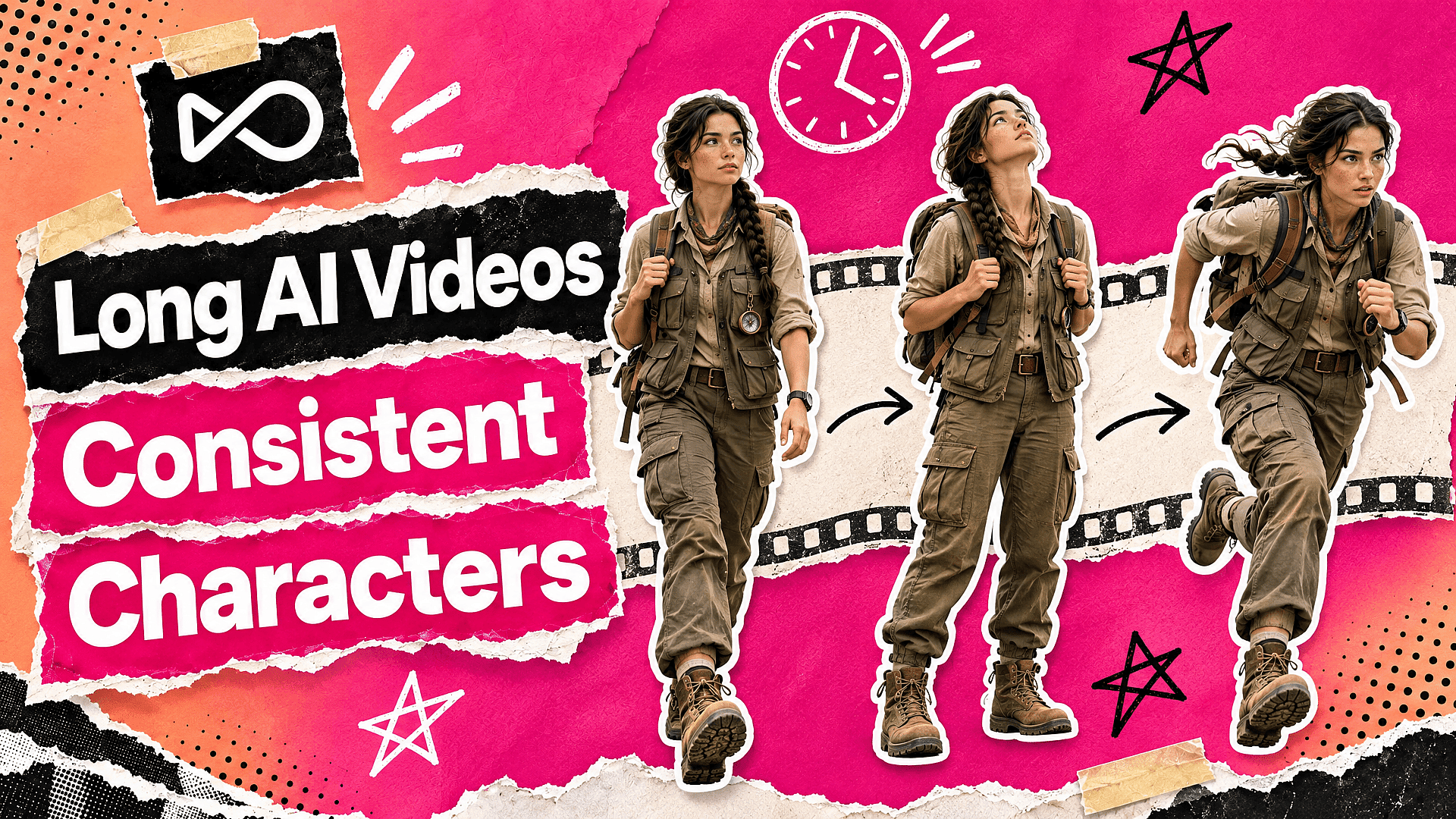
Learning how to make long AI videos starts before the first video prompt. You build three pictures first, then chain your clips so each new clip continues the one before it.
The steps follow a tutorial by Isa on her YouTube channel, Isa does AI. Isa makes a jungle adventure on OpenArt from three 15-second clips, with herself as the main character.
Video by Isa does AI.
Key takeaways
- A written scene description comes first, so every picture and clip follows the same story.
- A saved character keeps the face the same, and a full-body picture keeps the outfit and hair the same.
- A location picture gives the video model one exact place to copy.
- Clip one uses the character picture and the location picture as references.
- Every later clip uses the character picture and the clip before it as references.
Step 1: Write the scene description first
In the video: 1:05
A written scene description keeps a long AI video on one story. Isa asks an AI assistant for a full scene description before she opens any generation tool.
The scene description covers the character, the place, and what happens from start to end. Every later prompt is a short piece of that description, so you never invent the story in the middle of the work.
Prompt to try for the scene description (any AI assistant):
Write a scene description for a 45-second action video in three parts. An explorer pushes through a jungle and finds an ancient stone temple. She walks down a dark corridor and sets off a trap. She runs into a large inner room as the walls shake. Describe her outfit, the temple, the light, and the action in each part.
Step 2: Create your character from a photo
In the video: 3:10
OpenArt Characters saves a character once and reuses the character in every image and clip. Open Character under Tools and choose to create a character.
OpenArt Characters gives you three ways to start: a reference image, a text prompt, or Character Builder presets. Isa starts from a reference image, because she wants the character to look like her.
Upload one clear photo that shows the face from the front or at a slight angle. Give the character a name and save it. OpenArt gives the saved character a tag, and you type @ and the name in every prompt from this point on.
Step 3: Make a full-body picture of your character
In the video: 4:18
A saved character keeps the face the same. The outfit, the hair, and the overall look can still change from clip to clip. Isa fixes this with one full-body picture that sets the look for the whole video.
Open the AI image generator and pick GPT Image 2.6. Set the shape to 16:9, tag your character in the prompt, describe the outfit, and ask for two versions.
Isa picks 16:9 because her video is 16:9. A reference picture in the same shape as the video carries over more cleanly.
Prompt to try for the full-body picture (GPT Image 2.6, 16:9, saved character tagged):
@Maya standing in a jungle clearing, full body, front view. She wears olive green explorer gear: a utility vest, cargo pants, hiking boots, and a small backpack. Her hair is tied back in a braid. Realistic film still, soft daylight.
Step 4: Make a picture of your location
In the video: 5:50
A location picture keeps the place the same in every clip. Stay in the AI image generator with the same model and the same 16:9 shape, and describe the place with no people in it.
Isa makes the location as its own picture because a picture tells the video model more than words do. The model copies the exact stone, light, and colors it sees.
Prompt to try for the location (GPT Image 2.6, 16:9):
The inside of an ancient stone temple hidden in a jungle. Tall carved pillars, hanging vines, beams of sunlight through cracks in the roof, and a long corridor leading into the dark. Realistic film still. No people.
How do references keep a long AI video consistent?
In the video: 6:39
References keep a long AI video consistent because each clip hands its look to the next clip. Isa changes the references from clip to clip in one fixed pattern.
| Clip | Reference 1 | Reference 2 |
|---|---|---|
| Clip one | Full-body character picture | Location picture |
| Clip two | Full-body character picture | Clip one, as a video reference |
| Clip three | Full-body character picture | Clip two, as a video reference |
The video reference is the key move. A new clip that sees the clip before it continues the same place and the same motion.
Step 5: Generate the first 15-second clip
In the video: 7:28
The first clip sets the look of the whole video. Open the AI video generator, pick Seedance 2.0, and add the character picture as image 1 and the location picture as image 2.
Set the length to 15 seconds and write the prompt. Seedance 2.0 can put more than one camera angle in a single clip and adds sound, so one clip covers a full part of your story.
Isa's first clip shows her character pushing through the jungle to the temple entrance. The outfit and the temple match the two reference pictures.
Prompt to try for clip one (Seedance 2.0, 15 seconds, two reference images):
The woman in image 1 pushes through thick jungle leaves and reaches the entrance of the stone temple in image 2.
Shot 1: wide view of her walking toward the entrance.
Shot 2: close view of her face as she looks up at the carved stone.
Shot 3: she steps inside and switches on a flashlight.
Jungle sounds and low, tense music.
Step 6: Chain the next clips with a video reference
In the video: 9:29
Each later clip continues from the clip before it. For clip two, upload clip one as a video reference and keep the character picture as image 1. Leave the location picture out.
Write what happens next and generate. Isa's second clip has five camera angles in one 15-second generation, and her character and the temple stay the same.
Repeat the step for clip three with clip two as the video reference. Isa's third clip is a fast action scene, and Seedance 2.0 keeps up with only small flaws.
Prompt to try for clip two (Seedance 2.0, 15 seconds, one image and one video reference):
Continue from video 1. The woman in image 1 walks down the temple corridor with her flashlight. A stone under her foot sinks with a click, and she stops and looks up. Dust falls from the roof, and she starts to run. Keep her outfit and the temple the same as in video 1.
Step 7: Join the clips and add music
In the video: 11:54
The last step joins the clips into one long AI video. Open any video editor, import the three clips, and place them in order.
Add one music track under all three clips. Each clip already has its own sounds, and one shared music track makes the three clips play as a single video.
How long can an AI video be on OpenArt?
Isa's finished video runs about 45 seconds, made from three 15-second clips. The same chain keeps working for a fourth and a fifth clip.
Seedance 2.5 makes single clips up to 30 seconds on OpenArt and also accepts video clips as references. Fewer, longer clips mean fewer places where a character can change.
For a full story, OpenArt builds a multi-scene video up to 5 minutes long in Director mode. You describe the story in a chat, add your saved character, and OpenArt plans and makes every scene as one project.
Settings used in this tutorial
| Step | OpenArt tool and model | Settings |
|---|---|---|
| Character | OpenArt Characters | One clear photo as the reference image |
| Full-body picture | AI image generator, GPT Image 2.6 | 16:9, two versions, character tagged with @ |
| Location picture | AI image generator, GPT Image 2.6 | 16:9, no people |
| Clip one | AI video generator, Seedance 2.0 | 15 seconds, character and location pictures as references |
| Clips two and three | AI video generator, Seedance 2.0 | 15 seconds, character picture and the clip before as references |
Start your long AI video
A long AI video stays consistent when every clip has something to copy. A saved character, a full-body picture, a location picture, and the clip before give Seedance 2.0 that anchor.
For more planning and editing methods, read this AI filmmaking guide. For cartoon characters, see how to make AI cartoon videos.
Frequently asked questions: long AI videos
How do you make long AI videos?
To make long AI videos, generate several clips and chain them. Use a character picture and a location picture as references for the first clip, then use the character picture and the clip before as references for each later clip.
How do you keep a consistent character in an AI video?
A consistent character in an AI video needs two things: a saved character for the face and a full-body picture for the outfit and hair. Add the full-body picture to every clip as a reference.
Why does a character's outfit change between AI video clips?
A character's outfit changes when the video model only knows the face. A saved character keeps the face the same, so add one full-body picture that shows the outfit and hair, and use that picture in every clip.
How long can one AI video clip be?
One AI video clip on Seedance 2.0 runs up to 15 seconds in Isa's tutorial. Seedance 2.5 on OpenArt makes single clips up to 30 seconds.
What is the longest AI video OpenArt can make?
OpenArt builds a multi-scene video up to 5 minutes long in Director mode. OpenArt plans the scenes, builds a storyboard, and makes the full video as one project.