



 ChatGPT
 Perplexity
 Claude
 Gemini
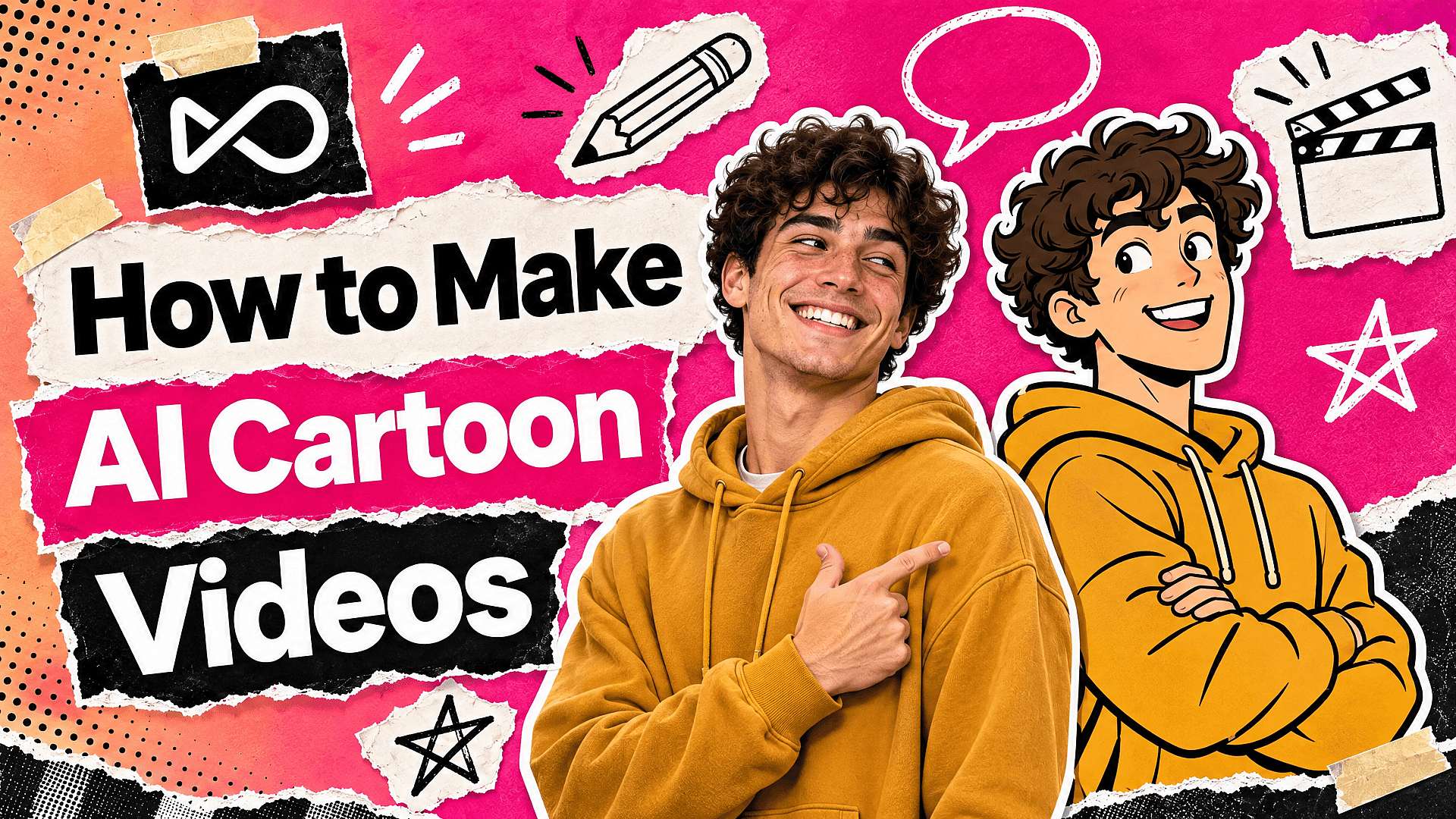
Learning how to make AI cartoons comes down to one system: pick a style, lock your characters, then animate one scene at a time. This guide walks you through that system, including how to cartoon yourself from your own photos.
The steps follow a tutorial by Dan Kieft on his YouTube channel, Dan Kieft. Dan Kieft makes a short cartoon on OpenArt with himself and an alien sidekick as the stars.
Video by Dan Kieft.
Key takeaways
- Pick one cartoon style first and use it for every character and scene.
- A three-panel character sheet keeps a cartoon character the same in every scene.
- To cartoon yourself, build your character sheet from three photos of yourself.
- A written voice description in every prompt keeps a character's voice the same.
- The last frame of one clip works as the first frame of the next clip.
Step 1: Pick one cartoon style
In the video: 1:00
A cartoon needs one style from the first image to the last. Decide on the look before you make anything, such as a flat 2D sitcom look with bold outlines, a soft 3D look, or an anime look.
Dan Kieft picks a flat 2D sitcom style for his demo. Write your chosen style in one short line, because you reuse that same line in every prompt.
Step 2: Make an AI character sheet (and cartoon yourself)
In the video: 1:51
A character sheet shows one character from three views on one image. An AI character sheet generator needs three things from you: a picture of the character, a blank three-panel template, and a prompt.
Open the AI image generator and pick GPT Image 2.6. Add the character picture as image 1 and the blank template as image 2. Set the shape to 16:9 and the size to 4K, then generate.
To cartoon yourself, use photos of yourself as the character picture. Dan Kieft builds his own cartoon character from three photos that show his face and hair from different sides.
Dan Kieft's tip is to use a close view of the head and upper body for the third panel. A close view gives the video model more detail about the character's face.
Prompt to try for the character sheet (GPT Image 2.6, 16:9, 4K):
Fill the blank three-panel template in image 2 with the character from image 1, redrawn in a flat 2D sitcom cartoon style with bold outlines. Left panel: full body, front view. Middle panel: full body, side view. Right panel: close view of the head and upper body. Keep the same outfit, hair, and colors in all three panels. Plain background. No text.
Step 3: Put your cartoon characters in one scene
In the video: 3:56
A scene image puts your characters together in one place. Stay in the AI image generator, add each character sheet as a reference image, and describe the scene.
Dan Kieft writes the scene prompt in eight short parts. The parts are the output, which image is which character, a rule for the sheets, the scene, the camera, the style, what to keep, and what to avoid.
The rule for the sheets matters most. Tell the model to use each sheet for the character's design only, so the model draws one clean scene and leaves the three-panel layout out.
Prompt to try for the scene image (GPT Image 2.6, 16:9):
A single 16:9 frame for an animated cartoon episode. Image 1 is the character sheet for Sam. Image 2 is the character sheet for Zib the alien. Use both sheets for character design only. Do not copy their layout, poses, panels, or background.
Scene: a home kitchen late at night. Sam sits at the kitchen table behind a laptop. Zib stands right behind Sam and looks at the screen.
Camera: a steady medium-wide view at eye level.
Style: flat 2D sitcom cartoon with bold outlines and simple colors.
Keep: each character's outfit and body proportions.
Avoid: multiple panels, character sheet layout, extra characters, text, logos, open mouths.
Step 4: Turn the scene into an AI cartoon video
In the video: 6:05
The scene image becomes the first frame of your cartoon video. Open the AI video generator, pick Seedance 2.0, choose start and end frame, and add the scene image as the start frame.
Dan Kieft says Seedance 2.0 is enough for cartoons, because cartoon scenes are simple. Set the resolution to 1080p and match the length to your scene. Dan Kieft's first scene runs 13 seconds.
Write the video prompt as a timeline. Say what happens in each part of the clip, write each voice line in quotes, and describe each voice.
Prompt to try for the first cartoon scene (Seedance 2.0, start frame, 1080p, 13 seconds):
A 13-second cartoon scene that starts from the first frame. Keep both characters and the kitchen exactly as shown.
0 to 4 seconds: Zib leans over Sam's shoulder and says, "You still owe me five dollars."
4 to 9 seconds: Sam keeps typing and says, "I spent it on robot parts."
9 to 13 seconds: Zib throws his arms up, and Sam shrugs.
Zib's voice: a high-pitched, raspy cartoon alien voice that talks fast.
Sam's voice: a calm young man's voice.
Say the lines exactly as written. No overlapping voices and no long pauses. No zooms and no scene changes.
Step 5: Keep every cartoon voice the same
In the video: 7:54
A cartoon voice can change a little every time you generate a clip. Dan Kieft shows two ways to keep each voice the same.
Use a written voice description. Write two or three lines about the voice: how high it is, how fast it talks, and how it feels. Paste the same lines into every prompt for that character.
Use a voice clip as a reference. Record yourself, or make the line in OpenArt's Create voice-over tool. Add the clip to your video prompt as a reference, and tell the model to use that voice.
Dan Kieft's trick is to save the voice clip as a video file with a plain black picture. He uploads the file as a video reference and writes "use the voice from video 1" in the prompt. The voice stays the same across three clips in his demo.
Step 6: Build longer cartoon scenes that connect
In the video: 12:01
A longer cartoon is a chain of short clips. For each clip, make a start frame and an end frame with the same character sheets, then let Seedance 2.0 fill in the action between the two frames.
Dan Kieft shows two ways to connect one clip to the next.
- Reuse the last frame. Save the last frame of clip one and use it as the start frame of clip two. Tell the model the new clip continues the scene.
- Reuse the whole clip. Upload clip one as a video reference, then describe what happens next.
Dan Kieft prefers the last frame method. In his test of the second method, a pen changes size between clips. Adding more reference images helps the model hold small objects steady.
Step 7: Join the clips into one cartoon
In the video: 15:56
The last step is to join your clips in order. Open any video editor, drop the clips on the timeline, and export one video. That video is your first mini cartoon.
Settings used in this tutorial
| Step | OpenArt tool and model | Settings |
|---|---|---|
| Character sheet | AI image generator, GPT Image 2.6 | 16:9, 4K, two reference images |
| Scene image | AI image generator, GPT Image 2.6 | 16:9, one sheet for each character |
| Cartoon scene | AI video generator, Seedance 2.0 | Start and end frame, 1080p, 13 seconds |
| Same voice | AI video generator, Seedance 2.0 | Voice description in the prompt, or a voice clip as a reference |
| Next scene | AI video generator, Seedance 2.0 | Last frame as the new start frame |
Make your first AI cartoon
An AI cartoon starts with one style and one character sheet for each character. From there, every scene uses the same sheets, the same voice lines, and the last frame of the scene before it.
To compare tools first, read what to look for in the best AI cartoon generator. To turn a cartoon character into a kids' series, see how to make AI animated story videos for kids.
Frequently asked questions: how to make AI cartoons
How do you cartoon yourself with AI?
To cartoon yourself with AI, upload photos of yourself to the AI image generator and ask for a character sheet in your cartoon style. Dan Kieft uses three photos of himself, so the model sees his face and hair from different sides.
What is an AI character sheet generator?
An AI character sheet generator makes one image that shows a character from three views. On OpenArt, you add a character picture and a blank three-panel template to the AI image generator, and GPT Image 2.6 fills in the panels.
How to make a cartoon with AI if you can't draw?
You can make a cartoon with AI from text and reference pictures alone. Describe your characters, generate a character sheet for each one, build a scene image, and turn the scene into video with a prompt.
How do you keep a cartoon character's voice the same?
Write a short description of the voice and paste the same description into every video prompt. For a closer match, add a voice clip as a reference, the way Dan Kieft does with a clip saved as a video file.
How long is each AI cartoon scene?
Each AI cartoon scene in Dan Kieft's tutorial runs about 13 seconds on Seedance 2.0. A longer cartoon joins several scenes, with the last frame of one scene used as the first frame of the next.