



 ChatGPT
 Perplexity
 Claude
 Gemini
During last year's Black Friday weekend, TikTok Shop sellers ran more than 760,000 LIVE sessions that pulled 1.6 billion views. That's 1.6 billion chances to watch a product move before buying it.
If your holiday plan is still a few static product photos with snowflakes in background and a discount code, it needs a video too. These Christmas video ideas give you 10 formats for TikTok, Reels, Shorts, and ads that you can make today. Each one comes with a hook, a prompt to copy into OpenArt and a sample output.
Still planning the season? Our Christmas marketing ideas guide covers trends and a posting calendar. This one is for making videos.
Key Takeaways
- Size: 9:16 vertical for TikTok, Reels and Shorts. Make 1:1 or 4:5 versions for feeds.
- Length: 8 to 15 seconds for product clips, and up to 30 seconds for a full promo.
- First video: the easiest of these Christmas video ideas is one hero product in a cozy holiday scene, made from a photo you already have.
- Timing: TikTok Shop's Black Friday campaign runs November 11 to 30, so your first videos should be live this week.
- Quality check: check every AI video against your real product before you post it.
What Makes a Good Christmas Video?
A good Christmas video puts one product in motion within the first two seconds and makes people feel something. Get those two right and the rest is detail.
- Start with the product in frame. Viewers decide in a second or two, so skip the logo intro.
- Use warm light against dark. A glowing room at night stops the scroll faster than a bright, flat set.
- Give it one motion. Falling snow or a slow push-in is enough.
- End on the product. The last frame is what people screenshot and search for.
Video also shows what a photo can't. NRF found that among shoppers who plan to skip online stores this year, 38% want to see an item before they buy it. A short clip that shows texture and the product in real-life closes that gap.
One rule sits above all of these: keep the product true. AI can introduce minute changes such as a label or the number of stones on a ring, so check every frame against the real item. Every one of the Christmas video ideas below follows these rules.
10 Christmas Video Ideas You Can Make Today
Each of these Christmas video ideas lists who it suits, a hook line, the prompts and the settings to use. Swap the parts in brackets for your product.
Most of them work in two steps. First, put your product into the holiday scene as a still image with the AI product image generator, and check that the product still looks right. Then animate that still in Image to Video.
Your image becomes the first frame of the video, so the scene has to be in the picture before the motion starts. This order also means you only spend video credits on a scene you've already approved
1. Snow Globe Product Reveal
Best for: decor and gift shops
Hook: "We put our best-seller in a snow globe."
The camera starts tight on swirling snow, then pulls back to show your product sitting inside the globe. It looks expensive and takes one photo to make.
Step 1: make two stills. Start with the full scene:
Use my product photo as the reference. My [product] sits inside a large glass snow globe on a wooden mantel, with warm fairy lights glowing in the background. Keep the product and its label exactly as they look in my photo. 9:16.
Check the label closely, because curved glass can bend or blur text. Then make a close-up from that still:
Close-up of the same snow globe, filled with swirling snow. The product is only a soft shape behind the snow. 9:16.
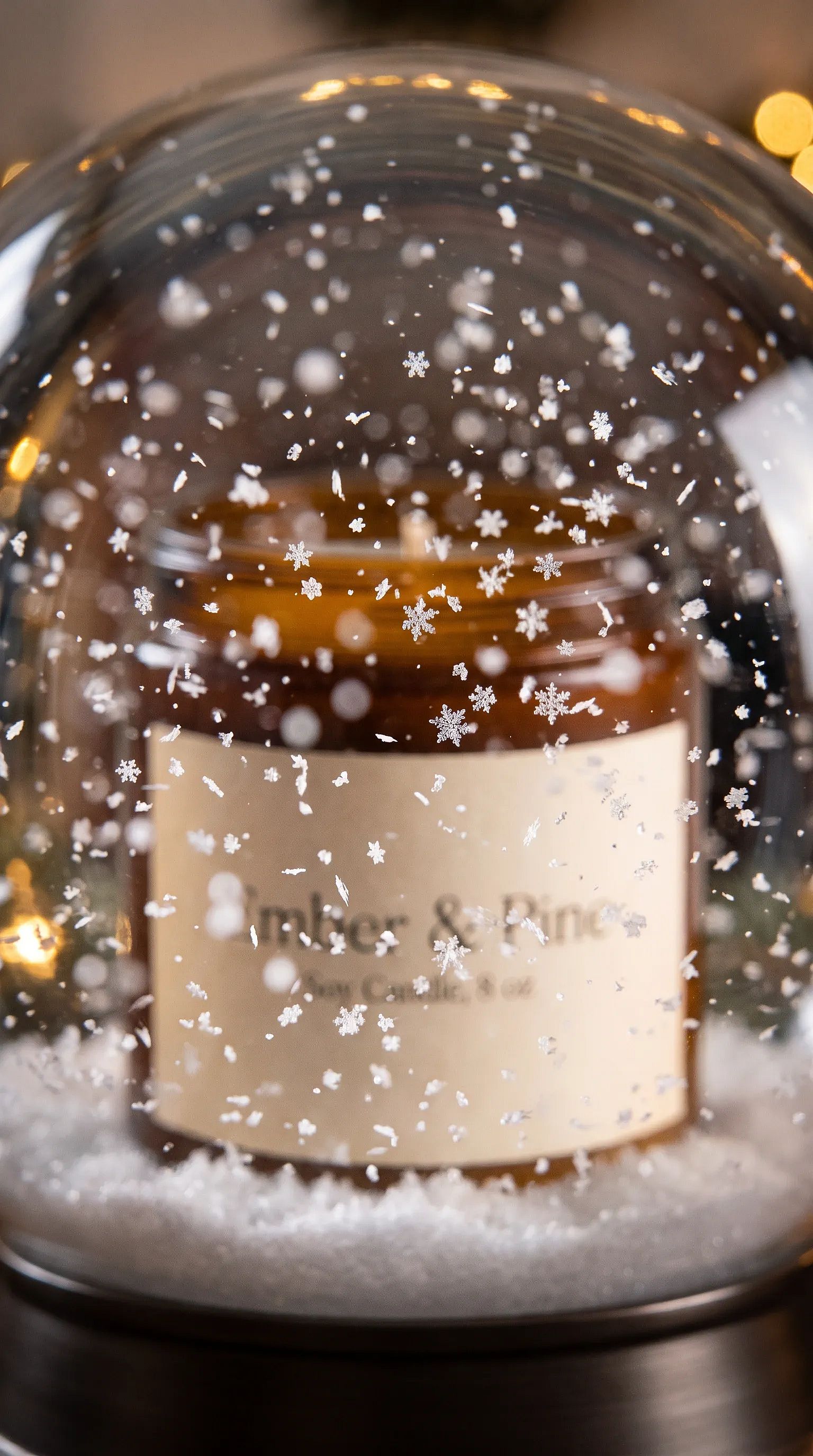
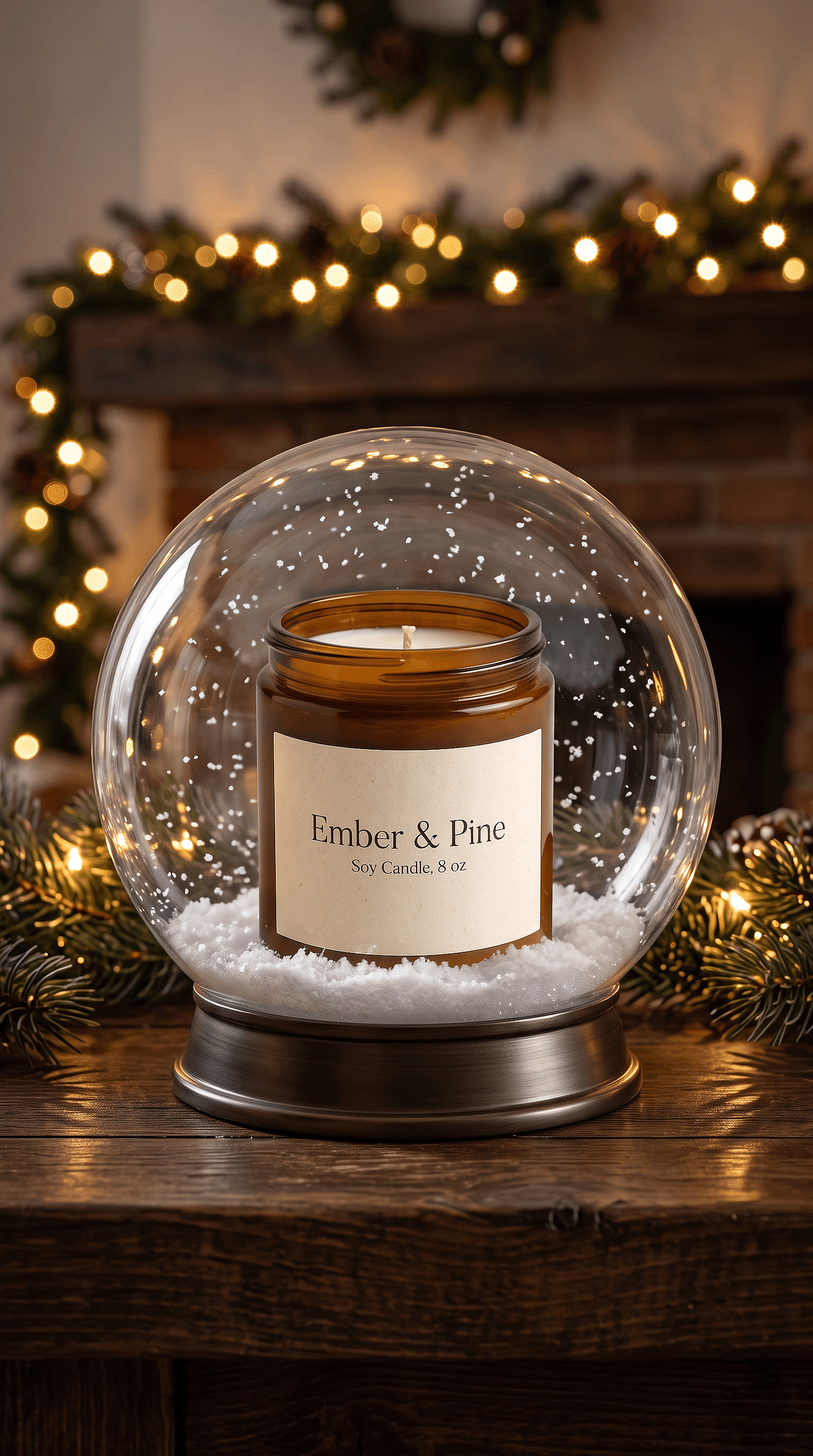
Step 2: animate between them. Use the close-up as the start frame and the full globe as the end frame:
Snow swirls inside the globe, then slowly settles. The camera pulls back from the snow to show the whole globe on the mantel. The fairy lights flicker softly.
Settings: AI product image generator for the stills, then Image to Video with start and end frames (Wan 2.7), 9:16, 8 seconds
2. Glowing Product Loop
Best for: candles and lamps
Hook: "This is what 6pm in December looks like."
A short loop of your product glowing in a dark room, with the light flickering softly. Loops replay on their own, which keeps people watching longer.
Step 1: the still.
Use my product photo as the reference. My [product] glows warmly on a side table in a dark living room at night, with a small Christmas tree blurred in the background. Keep the product exactly as it looks in my photo. 9:16.
Step 2: the motion.
The light from the [product] flickers gently and the shadows on the wall move a little. Static camera.
For a clean loop, use the same still as both the start frame and the end frame.
Settings: AI product image generator, then Image to Video with start and end frames (Wan 2.7), 9:16, 5 to 8 seconds.
3. Christmas Reel Idea: Your Product by a Cabin Fireplace
Best for: any product that belongs in a home
Hook: "Cozy season starts here."
Put your product in a snowy cabin, next to a crackling fire and a frosted window. This is the scene people want to be in, and they picture your product there with them.
Step 1: the still.
Use my product photo as the reference. My [product] sits on a wooden table in a cabin, next to a stone fireplace, with a frosted window behind it. Warm, golden light. Keep the product exactly as it looks in my photo. 9:16.
Step 2: the motion.
The fire crackles and snow falls past the window. The camera slowly pushes in toward the [product].
Settings: AI product image generator, then Image to Video, 9:16, 8 to 10 seconds.
4. Your Product in a Miniature Christmas Village
Best for: collectibles and toys
Hook: "This tiny town has a new favorite statue."
Your product stands like a giant landmark in the middle of a tiny snowy village, with little lit-up houses and a miniature train going past. The camera glides in like a drone.
Step 1: the still. Make it a wide, high angle, so the camera has room to move in.
Use my product photo as the reference. A miniature Christmas village at night, seen from above, with tiny houses, glowing windows and a small train on a track around the square. My [product] stands on a snowy pedestal like the town’s statue, at about half the height of the houses, with one train circling the square. Keep the product exactly as it looks in my photo. 9:16.
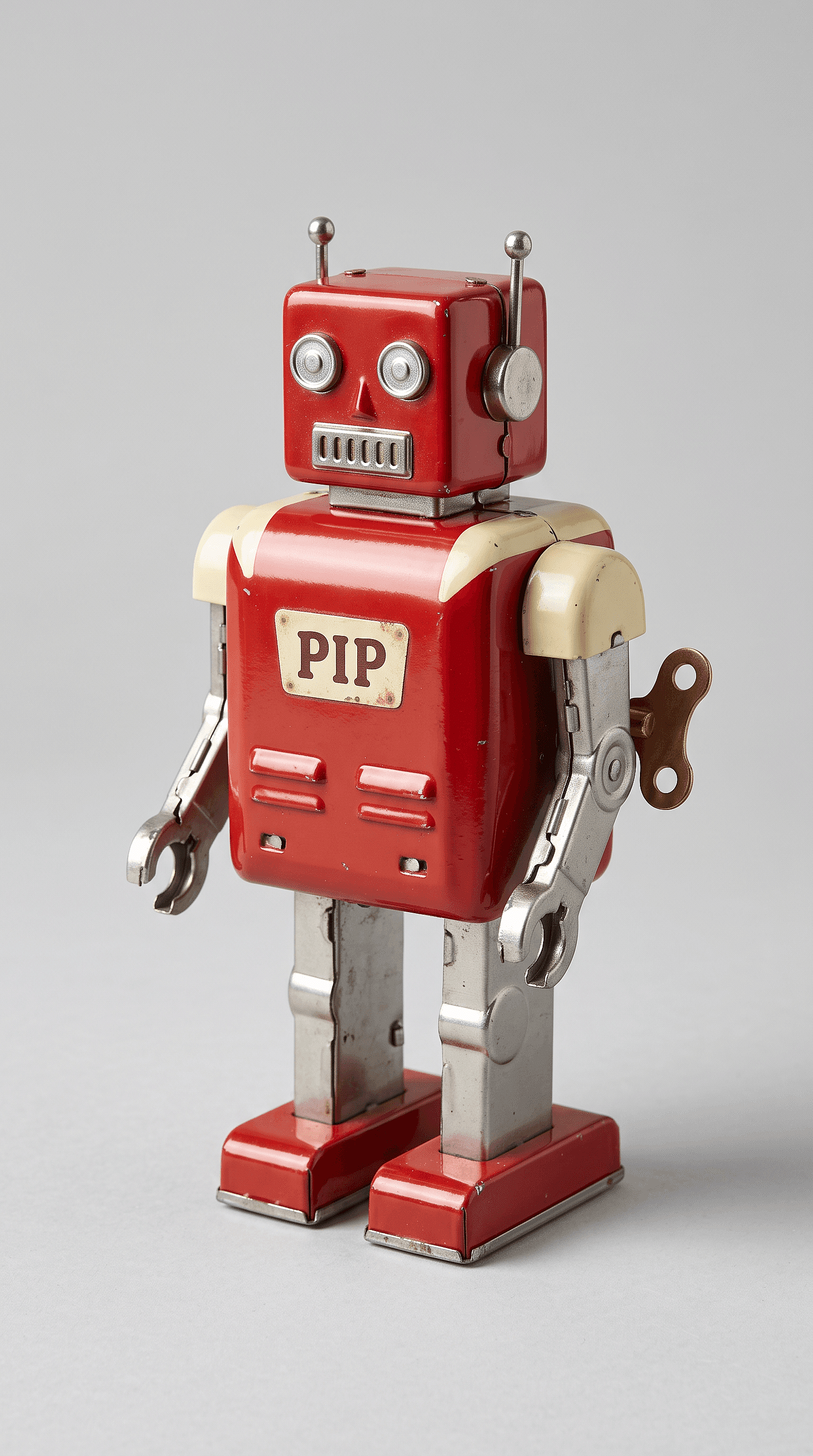
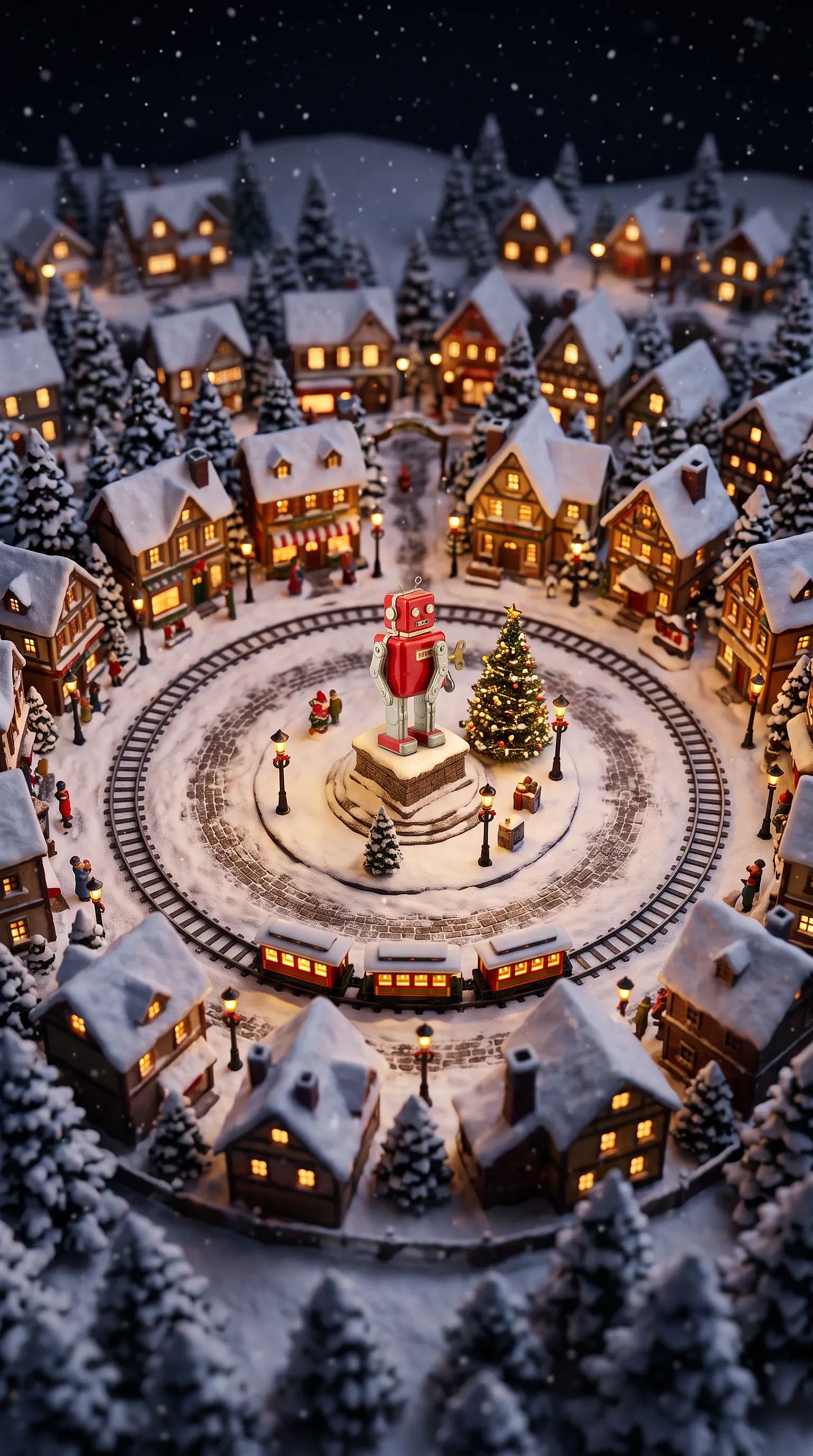
Step 2: the motion.
Light snow falls and the small train circles the square. The camera glides down and in toward the [product], like a slow drone shot. The [product] stays still and keeps its size.
Settings: AI product image generator, then Image to Video, 9:16, 8 seconds.
5. Gift Guide Video With One Product per Cut
Best for: shops with several giftable products
Hook: "3 gifts under $50, and they all ship by the 18th."
One video, one product per scene, each in the same holiday setting so the guide feels like a set. Smart Shot is built for this. It plans a storyboard with several cuts first, then makes the whole video, so you can fix the order before you generate.
A gift guide video with 3 products. Each cut shows one product on the same cream table with pine branches and warm string lights: [product 1], [product 2], [product 3]. A small price tag sits beside each product. Same lighting and camera angle in every cut.
Settings: Smart Shot, 9:16, 15 seconds.
6. “Loading” Before and After Transition
Best for: apparel and home decor
Hook: “Christmas mode: loading...”
A plain shelf or outfit snaps into its festive version in one cut. People rewatch transitions to catch the switch, and the before shot makes your product’s effect obvious.
Step 1: make the “after” still first.
Use my product photo as the reference. A white wall shelf at night, styled with my [product], a pine garland and warm fairy lights. Cozy, golden glow. Keep the product exactly as it looks in my photo. 9:16.
Step 2: make the “before” still from it. Starting from the styled shelf keeps the camera angle identical in both shots.
The same shelf, from the same angle. Remove the product, the garland and the fairy lights, so the shelf is empty. 9:16.
Step 3: animate between them. Use the plain shelf as the start frame and the styled shelf as the end frame:
Static camera. The daylight fades into evening, and the garland and the [product] appear on the shelf. The fairy lights switch on at the end.
This gives you a quick, smooth transformation. For a hard cut on a flash, make a short clip of each still and join them with a flash in TikTok or CapCut. Add the “loading...” bar in your editor too, because AI often garbles on-screen text.
Settings: AI product image generator for the stills, then Image to Video with start and end frames (Wan 2.7), 9:16, 6 seconds. Smart Shot also works if you’d rather describe both cuts in one prompt.
7. Christmas TikTok Idea: A 12 Days of Deals Countdown Series
Best for: any shop that posts on TikTok most days
Hook: "Day 1 of 12. Today's deal is..."
One short clip a day for 12 days, each with the same look and a new product or offer. A series gives people a reason to come back tomorrow, and it fills your calendar in one sitting.
Make all 12 stills in one sitting, changing only the product and the day number:
Use my product photo as the reference. My [product] on a red velvet surface with gold confetti around it. A large number "[day]" glows softly in the background. Festive, clean and bright. Keep the product exactly as it looks in my photo. 9:16.
Then animate every still with the same motion prompt, so the series matches:
Gold confetti falls slowly. The camera slowly orbits the [product].
Settings: AI product image generator, then Image to Video, 9:16, 5 to 6 seconds each. Add the deal text in your TikTok editor so it stays sharp.
8. Unboxing and Gift Reveal in UGC Style
Best for: jewelry and beauty
Hook: "I wasn't expecting this one."
Phone-style videos of a person opening your product feel like a friend's recommendation. OpenArt's UGC ads tool makes them with AI creators, so you don't need to ship samples to influencers in December.
Label AI creators as AI. A made-up "customer" reaction shown as a real review damages trust fast, and ad platforms have rules about it.
A woman in her 20s sits on a couch in a cozy living room with a Christmas tree behind her. She unwraps a small box, opens it and smiles as she holds up my [product] to the camera. Handheld phone video, natural light, casual feel.
Settings: UGC Ads, 9:16, 10 to 15 seconds.
9. Behind-the-Scenes Holiday Rush
Best for: makers who pack their own orders
Hook: "Packing 200 orders before the cutoff."
This one needs real footage. An AI-made packing scene would show a shop that doesn't exist, so film your actual table on your phone.
OpenArt helps with the finish. Use Relight Video to warm up harsh office lighting, then use Add Sound Effect for tape and rustling paper. A short AI-made title card can open the clip.
Title card: a kraft paper box tied with red string on a wooden table. Text appears on the box: "Holiday orders, packed by hand." Warm light, slight camera drift.
Settings: your phone footage, plus Relight Video and Add Sound Effect, plus a 3-second Text to Video title card.
10. A 30-Second Christmas Promo for Your Whole Shop
Best for: brands that want one video for ads and the homepage
Hook: "Everything you need for a cozy Christmas, in one place."
A short commercial that moves through your best products and ends on your logo and offer. Director mode builds it from your product page, and the next section walks through it step by step.
Settings: Director mode, Product Ads template, 16:9 or 9:16, 30 seconds.
When Should You Post Each Christmas Video?
Post your ads and hook tests first, then move from gift ideas to deadlines as Christmas gets closer. Here's when each of these Christmas video ideas fits best:
| Dates | What to post | Ideas |
|---|---|---|
| Nov 11 to 30 | Hook tests and your 30-second promo for Black Friday ads | 10, plus the hook test |
| Dec 1 to 12 | Your 12 days of deals series, one clip a day | 7 |
| Dec 1 to 14 | Gift guide videos and cozy product scenes | 1, 3, 4, 5 |
| Dec 15 to 20 | Before and after transitions and behind-the-scenes rush clips, with your order-by date on screen | 6, 9 |
| Dec 21 to 24 | UGC unboxing clips for last-minute shoppers | 8 |
| Dec 26 to 31 | Glowing loops and "treat yourself" product clips | 2 |
Make the whole set before December starts, so posting each day only takes a minute. Need festive scenes to start from? These AI photo prompts for Christmas give you holiday stills you can turn into clips with Image to Video.
Christmas Video Template: One Prompt for Any Product
This Christmas video template works for almost any product and most of the Christmas video ideas above. It has two parts, like the ideas: one prompt for the still and one for the motion. Fill in each slot, and change one slot at a time when you want a new version.
Scene: Use my product photo as the reference. My [product] sits [festive setting], in [light: warm golden glow at night / soft morning window light]. Keep the product and its label exactly as they look in my photo. [Ratio].
Motion: [One motion: snow falls / a fire crackles / a ribbon unties]. The camera [slowly pushes in / orbits / pulls back]. The video ends on [final shot: a close-up of the product]. [Length].
Two filled-in versions:
Scene: Use my product photo as the reference. My soy candle sits on a windowsill next to a frosted window, in a warm golden glow at night. Keep the product and its label exactly as they look in my photo. 9:16.
Motion: Snow falls outside and the flame flickers. The camera slowly pushes in. The video ends on a close-up of the candle label. 8 seconds.
Scene: Use my product photo as the reference. My white sneaker sits on a snowy step outside a lit-up shop window, in soft blue evening light with warm light from the shop. Keep the product exactly as it looks in my photo. 9:16.
Motion: Snowflakes land on the toe. The camera orbits slowly. The video ends on a close-up of the logo. 6 seconds.
To keep a whole set of clips in one look, save your logo and colors in a Brand Kit. For video, Brand Kit works in Text to Video with Seedance 2.0.
How Do I Make My Own Christmas Commercial?
You can make a Christmas commercial two ways, depending on what you start with: your website or a single product photo. Both work for a short Christmas promo video or a longer holiday commercial.
Option A: From Your Product Page in Director Mode
- Pick the template. Open Director mode and choose Product Ads.
- Add your brand. Paste your product page URL, upload your logo and add a soundtrack.
- Ask for the length and generate. Ask for a 30-second holiday promo, review the storyboard OpenArt plans, then generate.
OpenArt plans the scenes and keeps them consistent from shot to shot. Director mode videos can run up to 5 minutes, so a 30-second spot has plenty of room. The AI promo video generator and AI commercial generator pages show more examples. You can also paste a product URL into Chat Mode and describe the ad you want.
Option B: From One Product Photo
- Make the scene. Upload a clean, well-lit product shot to the AI product image generator and paste the scene half of the template above.
- Animate it. Open Image to Video, add the still, paste the motion half and set 9:16 and 8 to 10 seconds.
- Make a short series. Repeat with three or four different scenes and post them over a week.
Option A suits a paid ad or a homepage video. Option B suits feeds that need fresh posts every few days.
How Do I Test Hooks on a Holiday Video Ad?
Keep the body of the video the same and swap only the first 3 seconds. That way, any change in results comes from the hook and nothing else.
Make five 3-second openers in the AI ad video generator, then cut each one onto the same body in your editor. If you use OpenArt inside ChatGPT or Claude, the Hook Variants skill builds new openings for one ad video for you.
Any of these Christmas video ideas can carry these five hooks:
- "Still don't have a gift for them?"
- "Order by [date]. Under the tree by the 25th."
- "We put our best-seller in a snow globe."
- "The gift they'll actually use."
- "[Product] sold out last December. It's back."
Run all five during TikTok Shop's Black Friday window, November 11 to 30. NRF found 64% of shoppers plan to wait until Thanksgiving weekend to do most of their holiday shopping, so your test gets real traffic fast. Carry the winning hook into your December ads. Carry the winning hook into your December ads.
Which Christmas Video Idea Should You Start With?
Start with whichever of these Christmas video ideas matches what you already have. One good video live this week beats five half-made ones.
| If you... | Start with |
|---|---|
| Have one hero product and one good photo | Snow globe reveal or the fireplace Reel |
| Sell lots of small products | Gift guide video |
| Run paid ads during Black Friday | 30-second promo, plus hook tests |
| Post on TikTok every day | 12 days of deals series |
| Sell decor, apparel or beauty | "Loading" before and after |
| Want trust more than polish | Behind-the-scenes rush, filmed for real |
What Size Should a Christmas Video Be?
Make 9:16 vertical your main size, then create other ratios from the same prompt.
| Ratio | Where it goes |
|---|---|
| 9:16 | TikTok, Instagram Reels, YouTube Shorts, Stories |
| 4:5 | Instagram and Facebook feed posts and ads |
| 1:1 | Feeds, marketplace listings, carousels |
| 16:9 | YouTube, your website, email headers |
Most Christmas Reel ideas in this guide work best at 9:16 and 8 to 15 seconds. If you post Reels often, the AI reels maker is set up for vertical clips.
How Do I Make a Christmas Video With AI?
Upload a product photo or describe a scene, pick your settings and generate. An AI Christmas video generator turns that into a finished clip in minutes.
- Upload or describe. Open the AI video generator, upload your product photo or type a scene, and paste a prompt from this guide.
- Set the model, length and ratio. Seedance 2.5 handles clips up to 30 seconds. Kling Omni and Veo 3.1 are also there to compare.
- Check and download. Zoom in on labels and small details, make a variation if anything is off, then download.
OpenArt works as a Christmas video maker for every idea above, from a 5-second loop to a full promo. Pick one of these Christmas video ideas, make it today and have it live before the weekend. If you're comparing tools first, see our list of the best AI video generators for TikTok.
Christmas Video Ideas FAQs
What are the best Christmas video ideas for small businesses?
The best Christmas video ideas for small businesses start from one product photo. A snow globe reveal or a fireplace scene takes minutes to make and works on TikTok, Reels, Shorts and ads.
What Christmas video should a small business make first?
Make one hero product video in a cozy holiday scene. It's the fastest to produce and the easiest to reuse across platforms. Add a gift guide video once that's live.
How long should a Christmas video be?
Keep product clips between 8 and 15 seconds and full promos at about 30 seconds. Short clips get watched to the end and replay on their own, which helps on TikTok and Reels.
Can I use Christmas songs in my holiday videos?
Use original or AI-made music instead. Most popular Christmas songs are copyrighted, and business accounts usually can't use them in ads. OpenArt's AI music generator makes a holiday track you can use without that worry.
How many holiday videos should I post?
Aim for one a day during your busiest weeks if you can, or three a week if you can't. Of all the Christmas video ideas here, a countdown series makes daily posting easiest, because you make all the clips in one sitting. Mailchimp also saw order rates twice as high on weekends as on weekdays last season, so don't skip Saturdays.
Can I turn these Christmas video ideas into ads?
Yes. Every idea here works as an ad at 9:16 or 4:5. Pair it with the hook test above so you know which opening to put your budget behind.
Can I make a Christmas video without a photo?
Yes. Text to Video creates a clip from a written description alone. A product photo gives you a more accurate result, so use one whenever the real product needs to appear.
How do I keep my product looking real in AI videos?
Put the product into the scene as a still first, with "keep the product exactly as it looks in my photo" in the prompt. Check the label and small details on that still, then animate it. If anything changes in the video, generate a new version.