

AI Video Resizer
OpenArt's AI video resizer changes the aspect ratio of any video without cropping it. Upload a video up to 5 minutes long, pick up to 7 aspect ratios, and AI fills the new space to match your scene.
Main Feature Deep-Dive
Resize a video without cropping it
OpenArt's AI video resizer keeps your whole video and draws new picture around it to reach the new shape. The tool works like an AI video expander. The AI looks at your scene and continues the floor, the walls, and the sky past the old edges. A wide video of a runner on a beach becomes a tall video with more sky above the runner and more sand below. The whole runner stays in view, and the resized video fills the screen.
Pick from seven aspect ratios
This tool works as a video aspect ratio converter with seven sizes: 9:21, 9:16, 3:4, 1:1, 4:3, 16:9, and 21:9. Pick 9:16 for TikTok, Reels, Shorts, and Stories. Pick 3:4 or 1:1 when you resize a video for Instagram or Facebook feed posts, and pick 16:9 for YouTube and websites. The 21:9 size gives you a wide, movie-style video for trailers and website banners.
Make several sizes in one go
The AI video resizer lets you tick more than one aspect ratio before you click Generate. Each aspect ratio you pick becomes its own video, and each video runs the same length as the video you uploaded. Upload one 16:9 product ad and tick 9:16, 1:1, and 3:4 to get three more versions of the same ad. Each version uses its own credits, and you see the cost before you click Generate.
Convert horizontal video to vertical
OpenArt's AI video resizer turns a wide video into a tall video that fills a phone screen. Upload your 16:9 video, pick 9:16, and the AI adds new picture above and below your scene. Going from 16:9 to 9:16 this way keeps everyone in the video, including people standing at the far left and right. The AI video resizer also works the other way. Pick 16:9 for a vertical phone video, and the AI fills in both sides for YouTube.
Describe what fills the new space
The resizer tool reads your scene and fills the new space for you when you leave the prompt box empty. Add a short prompt when you want to choose what goes in the new space. Type "extend the studio wall" or "more blue sky above the building", and the AI follows your words. A few plain words are enough. To make a resized video sharper, raise it to 4K with the AI video upscaler.
How to Use the AI Video Resizer
You can resize video for any platform in three steps.
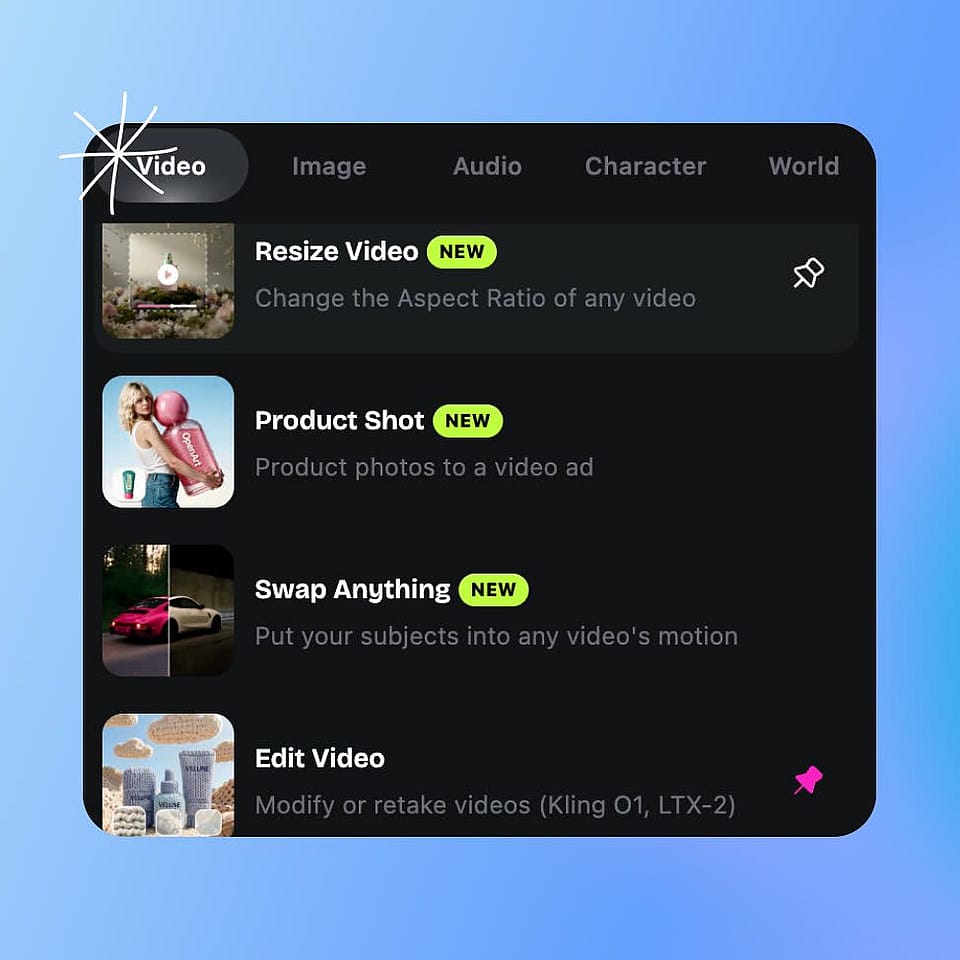
Open Resize Video tool
Open the Video tools in OpenArt and pick Resize Video.
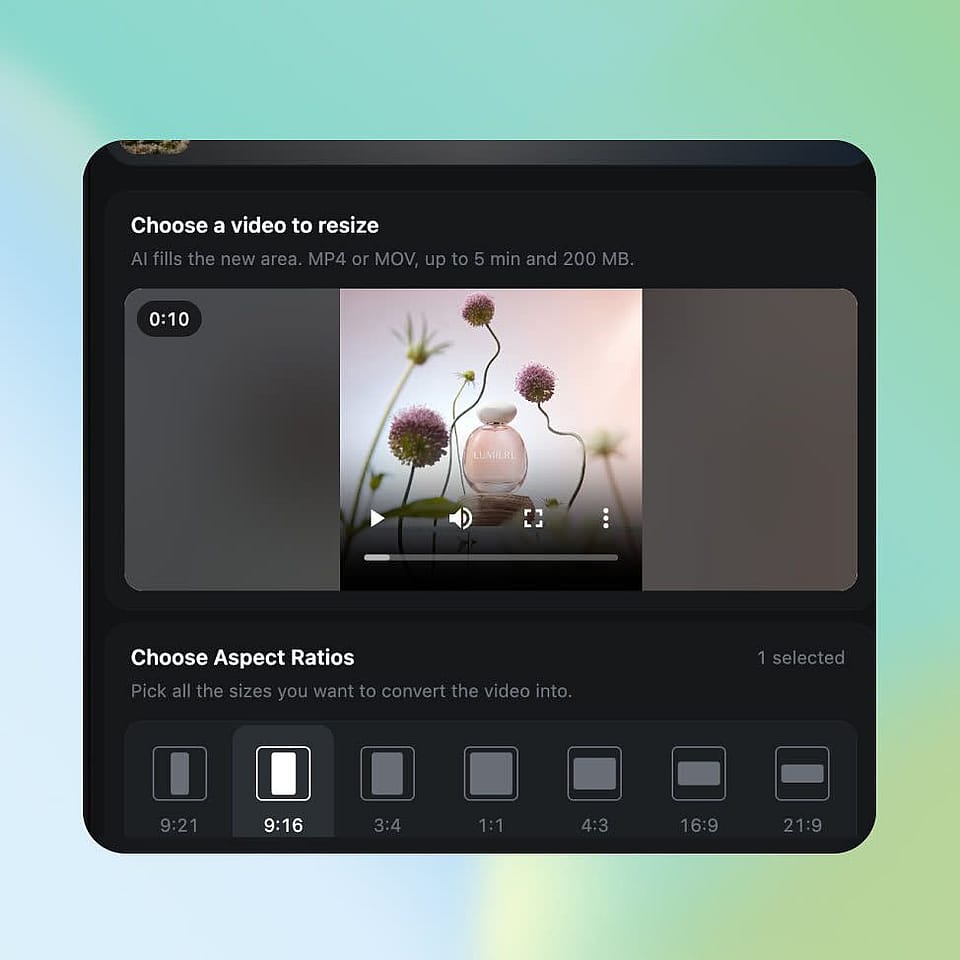
Upload your video and configure
Upload an MP4 or MOV video up to 5 minutes long and 200 MB. Tick every aspect ratio you want, then pick 480p, 768p, or 1080p as the output resolution.

Generate and download
Add a prompt if you want to describe the new space, then click Generate. Download each resized video when it is ready.
Who Uses OpenArt's AI Video Resizer
Performance marketers, brand teams, small business owners, and filmmakers use OpenArt's AI video resizer to fit one video to every screen.
Performance marketers resizing ads
Performance marketers use OpenArt's AI video resizer to turn one finished ad into every size an ad platform asks for. Upload the 16:9 version of your ad and pick 9:16, 1:1, and 3:4 in the same run. You get a vertical ad for TikTok and Reels, plus square and portrait ads for feeds. Your product and your presenter stay in view in every size. To make the first ad, use OpenArt's AI ads generator.
Try it NowBrand and social teams reusing videos
Brand teams and social media teams use OpenArt's AI video resizer to post one campaign video on every channel. Resize a widescreen brand video to 9:16 for Stories, 1:1 for feed posts, and 21:9 for a website banner. Every version comes from the same approved video, so your campaign looks the same on every channel. To reach viewers who speak other languages, add AI video dubbing to your resized videos.
Try it NowBusiness owners adapting for every platform
Small business owners use OpenArt's AI video resizer to get more posts from one video. Film your product once on your phone, then resize the vertical video to 16:9 for YouTube and 1:1 for your shop page. The AI video resizer only asks for a video and the sizes you want, so you can skip editing software. Commercial rights apply on eligible paid plans.
Try it NowAI filmmakers making vertical teasers
Filmmakers use OpenArt's AI video resizer to share widescreen work on phone screens. Resize a 16:9 or 21:9 scene to 9:16, and the AI adds more of the set above and below your actors. Add a prompt like "extend the night sky and the wet street" to guide what the AI draws. You get a vertical teaser for social media without filming the scene again. Make the scene in OpenArt's AI video generator or upload your own footage.
Try it NowFrequently Asked Questions
An AI video resizer is a tool that changes the shape of a video and uses AI to fill the space the new shape adds. OpenArt's AI video resizer turns one video into 9:21, 9:16, 3:4, 1:1, 4:3, 16:9, or 21:9 and keeps the whole original video in view. Inside OpenArt, the tool is called Resize Video.
Open Resize Video in OpenArt, upload an MP4 or MOV video, and tick the aspect ratio you want. Click Generate, and OpenArt's AI video resizer makes a copy of your video in the new aspect ratio. Tick more than one aspect ratio to get several sizes from the same upload.
Upload your video to OpenArt's AI video resizer and pick the size that matches where you will post. Pick 9:16 for Instagram Reels and Stories. Pick 3:4 for a tall feed post or 1:1 for a square feed post. You can tick all three sizes in one run and get a separate video for each.
An AI video expander adds new picture past the edges of a video, so the video becomes wider or taller. OpenArt's AI video resizer works this way. The AI studies your scene and draws more of the background to fill the new aspect ratio you pick.
OpenArt's AI video resizer accepts MP4 and MOV videos up to 5 minutes long and 200 MB. The shorter side of your video needs to be at least 240 pixels. You can upload a video from your device or pick one you already made in OpenArt.
Start with a clear, steady video, and pick 1080p when your video has small details. Add a short prompt to OpenArt's AI video resizer when you know what should fill the new space, like "extend the kitchen counter". Add captions and small on-screen text after you resize, so the words stay sharp in every size.
Upload your video to OpenArt's AI video resizer and pick the aspect ratio you want. The AI adds new picture around your video to reach the new shape, so every part of the original video stays in view. Other ways to resize a video crop the sides or add black bars.
OpenArt's AI video resizer supports seven aspect ratios: 9:21, 9:16, 3:4, 1:1, 4:3, 16:9, and 21:9. Use 9:16 for TikTok, Reels, Shorts, and Stories, and 16:9 for YouTube and websites. Use 3:4 or 1:1 for feed posts, 4:3 for presentations, 9:21 for tall phone screens, and 21:9 for wide banners and trailers.
Upload your horizontal video to OpenArt's AI video resizer and pick 9:16. The AI adds new picture above and below your scene, so a 16:9 to 9:16 change keeps the full width of your video. To go from vertical to horizontal, upload a vertical video and pick 16:9.
Yes. OpenArt's AI video resizer lets you pick from 1 to 7 aspect ratios in one run. Each aspect ratio becomes its own video, the same length as your original video. Each video uses its own credits.
OpenArt's AI video resizer makes videos in 480p, 768p, or 1080p. Pick the resolution before you click Generate. To go higher, raise a resized video up to 4K with OpenArt's AI video upscaler.
Yes. In OpenArt's Chat Mode, add your video and ask for the sizes you want, like "give me this video in 9:16 and 1:1". OpenArt runs Resize Video and sends each resized video back to the chat. The same request works in Claude and ChatGPT once you connect the OpenArt MCP connector.
Get Insights from Experts Blog
Get the insights you need. Our experts share actionable hacks, break down the hottest topics, and provide essential how-to guides to help you create, optimize, and scale.
Read More