

 ChatGPT
 Perplexity
 Claude
 Gemini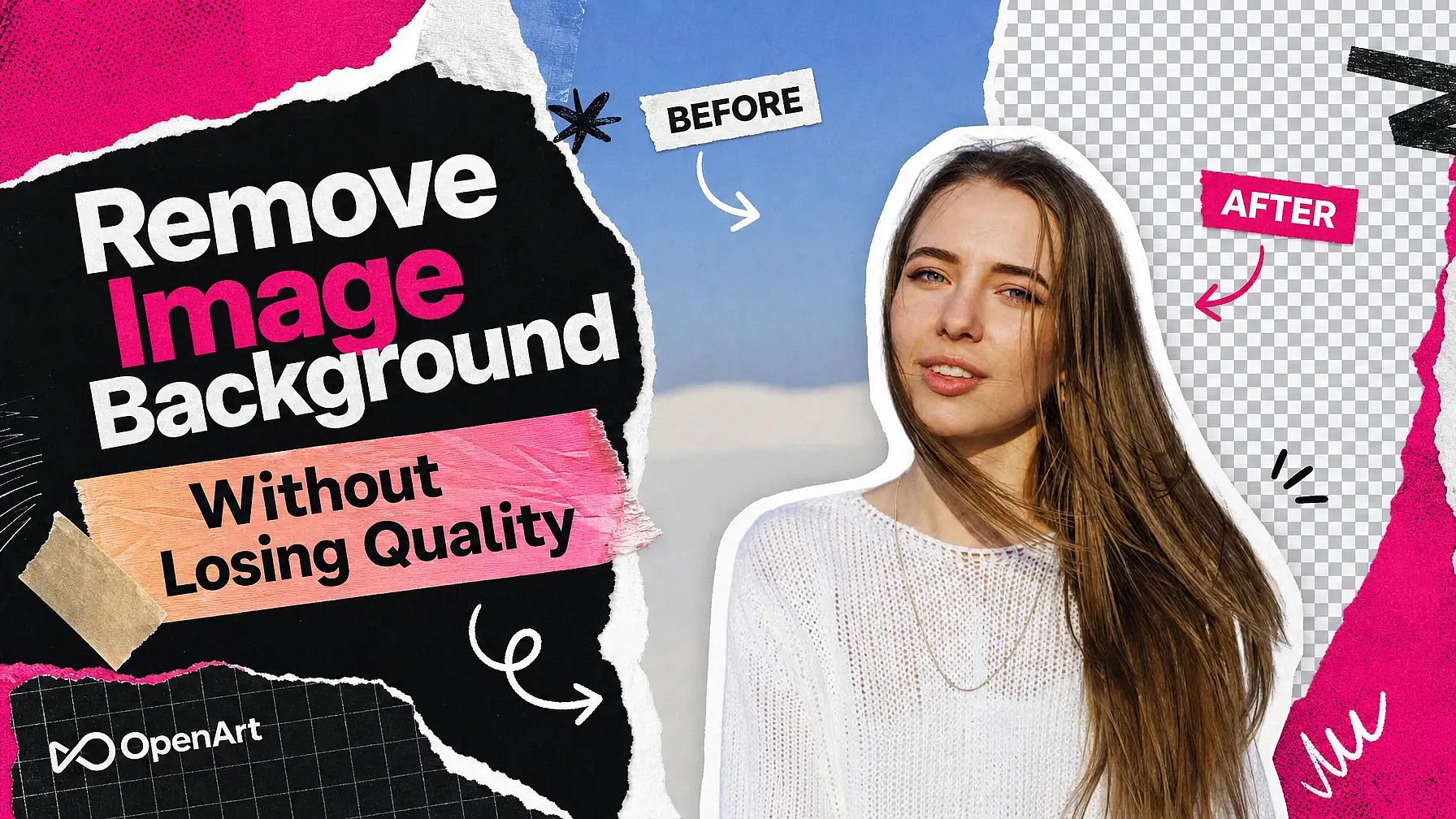
You took the background out of a product photo, and now the edges look fuzzy. The fix usually starts before you touch the background at all.
To remove a background without losing quality, begin with the sharpest, largest copy of the image you have. Then use an AI tool that puts the subject on its own see-through layer, and save the result as a PNG file. This guide covers each step in OpenArt.
Key takeaways
- Background removal looks low quality when the starting photo is small, blurry, or a heavily saved JPG.
- PNG is the right file type for a background-free image, because it keeps the see-through area.
- OpenArt's Extract Layers puts the subject and the background on separate transparent PNG layers.
- OpenArt's Image Upscale makes a small photo larger and sharper before you remove the background.
- Extract Layers can regenerate one rough layer while every other layer stays the same.
Why does removing a background make an image look worse?
Removing a background makes an image look worse when the AI has too little detail to work with. A small or blurry photo has soft edges, so the outline around hair, fur, or a product handle comes out jagged or smudged.
The JPG file type causes the second big drop in quality. A JPG squeezes the picture to make the file smaller, and every new save throws away a little more detail. A JPG also has no way to store a see-through background, so the empty area turns into a solid color.
How to remove a background without losing quality in OpenArt
OpenArt's Extract Layers separates the subject from the background in five steps.
- Find your best image. Use the largest, sharpest version of the photo you have.
- Upscale a small photo first. Open OpenArt's image upscaler, choose Precise mode, and raise the size.
- Upload to Extract Layers. Open Extract Layers from the Image tool list and upload the photo. Choose Whole Image, or choose Select Area and draw a loop around the subject.
- Set the layer count and generate. Pick a maximum from 2 to 16. A person in front of a plain wall needs about 2 or 3.
- Check the subject layer. Hide the background layer to see the edges on their own. Extract Layers saves every layer to your Asset Library as a transparent PNG.
Which file format keeps a transparent background sharp?
PNG is the best everyday file format for an image with its background removed. A PNG keeps every pixel without squeezing the file, and it stores the see-through area around the subject.
A transparent PNG works on websites, product listings, and in design apps like Photoshop, Canva, and Figma. Save a JPG copy only when the image will sit on one solid color.
How do you keep hair and fine edges clean?
Hair, fur, and thin edges come out cleanest when they stand out clearly from the background. A dark-haired person against a light wall separates cleanly.
Three fixes help when the edges still look rough in OpenArt's Extract Layers:
- Regenerate one layer. Extract Layers can redo a single layer and keep the other layers exactly as they were.
- Split a smaller area. Choose Select Area and draw the loop close around the subject.
- Change the layer count. Raise the number if the subject comes out joined to something behind it. Lower the number if the subject comes out in pieces.
What can you do with a background-free image?
A subject on a transparent background can sit on top of any new scene. OpenArt's AI image generator makes that scene from a short prompt, like "a white marble counter in soft morning light."
OpenArt's Brand Kit keeps the new background in your brand colors when you turn it on in Create Image. OpenArt's Chat Mode can make the same background from one message.
FAQ
Can you remove a background without losing quality?
Yes. Start with the largest, sharpest copy of the image, separate the subject with OpenArt's Extract Layers, and keep the result as a PNG.
Why does my image look blurry after removing the background?
An image looks blurry after background removal when the original photo was small, blurry, or saved as a JPG many times. Upscale the photo with OpenArt's image upscaler in Precise mode before you remove the background.
What is the best format for a transparent background?
PNG is the best format for a transparent background. A PNG file stores the see-through area and keeps every pixel.
Can I try OpenArt for free?
Yes. OpenArt's free trial gives you 40 credits over 7 days, with no credit card needed and no watermark on what you make. A daily free credit allowance for basic image generation continues after the trial ends.