

Why Use OpenArt’s AI Image Upscaler
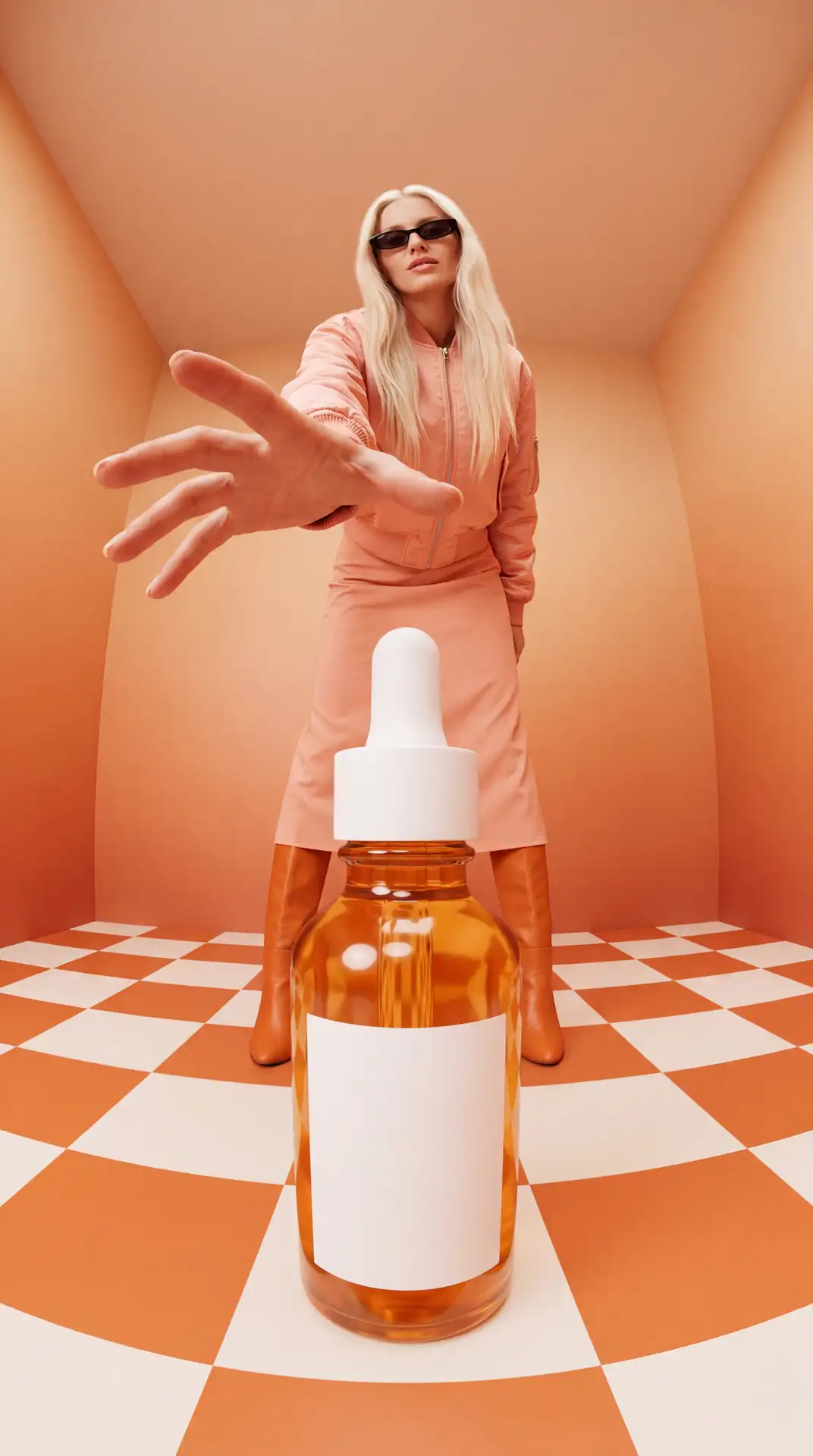
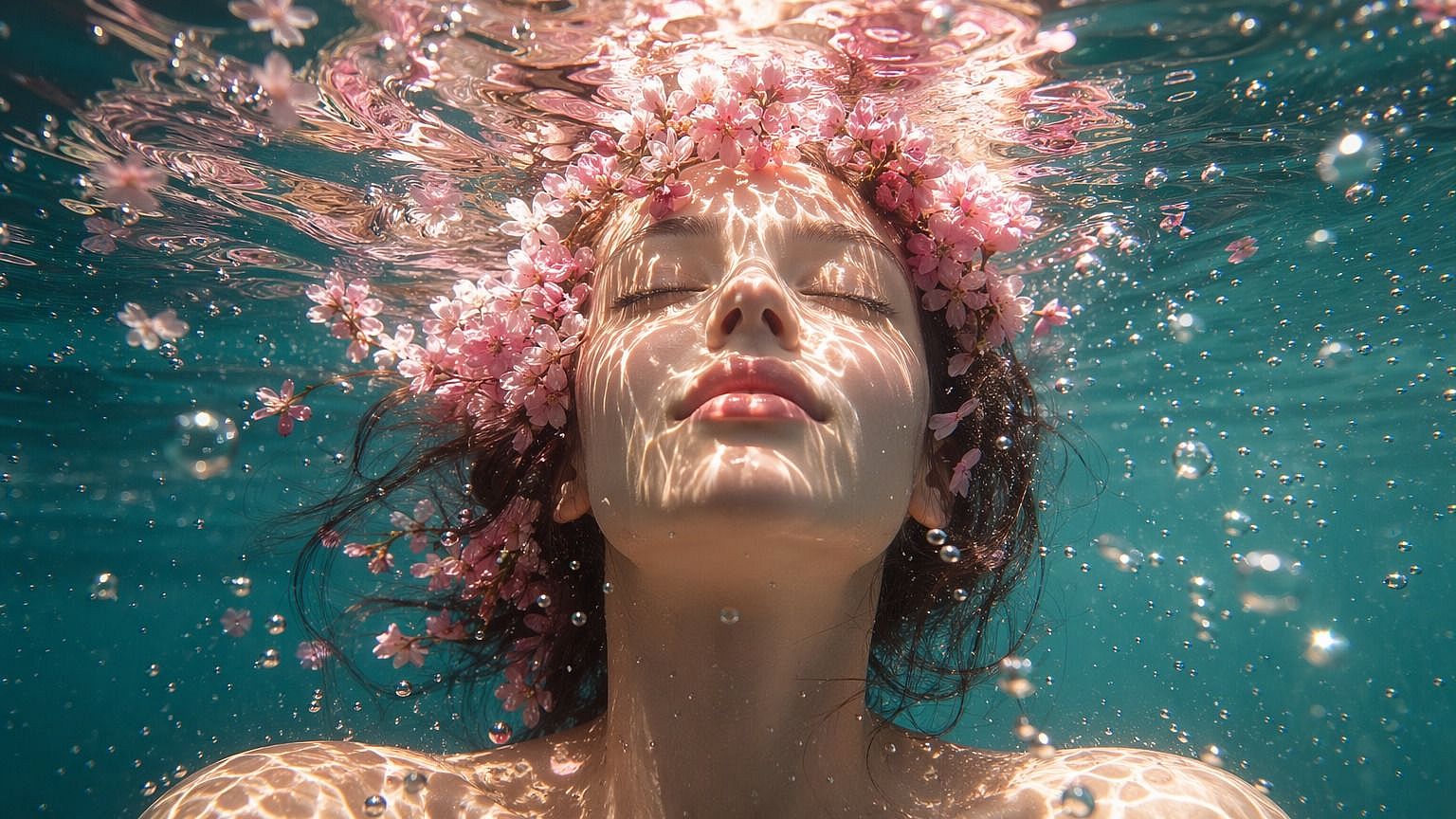
Bigger without the blur
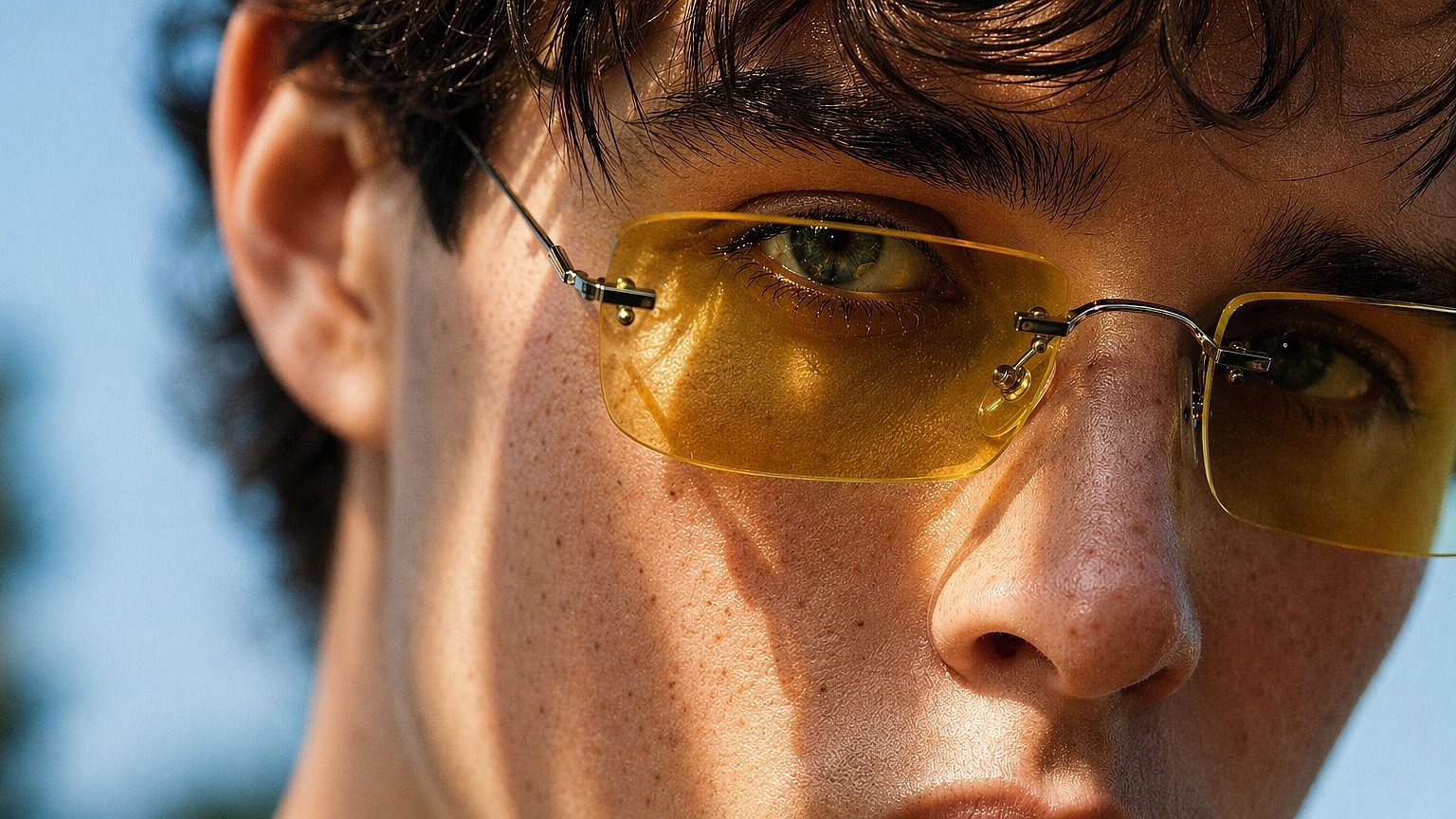
Small or low-res images come back larger and sharper. The AI adds detail instead of stretching pixels.
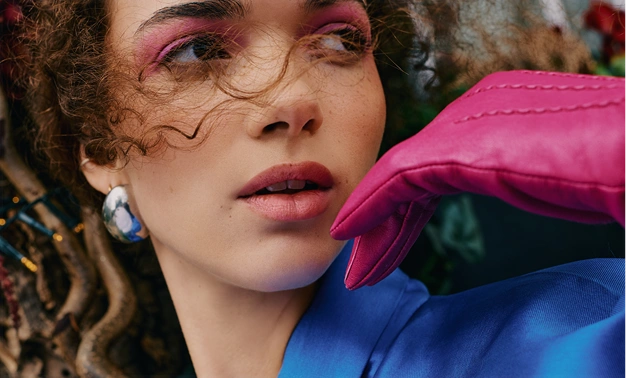
Pick how it upscales
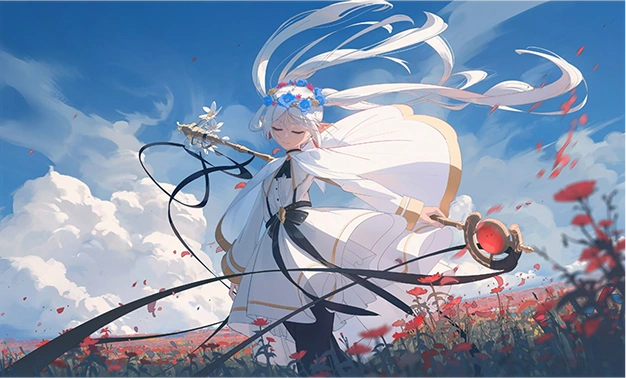
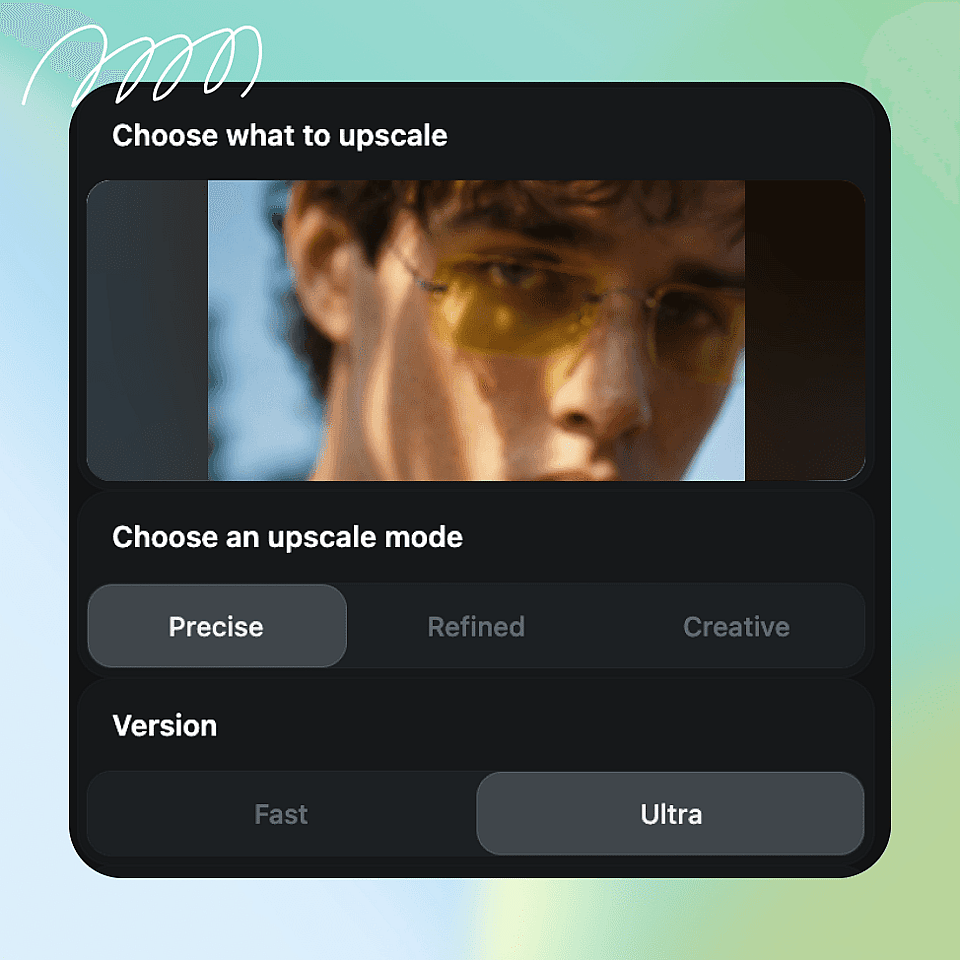
Choose Precise, Refined, or Creative depending on how close you want to stay to the original.
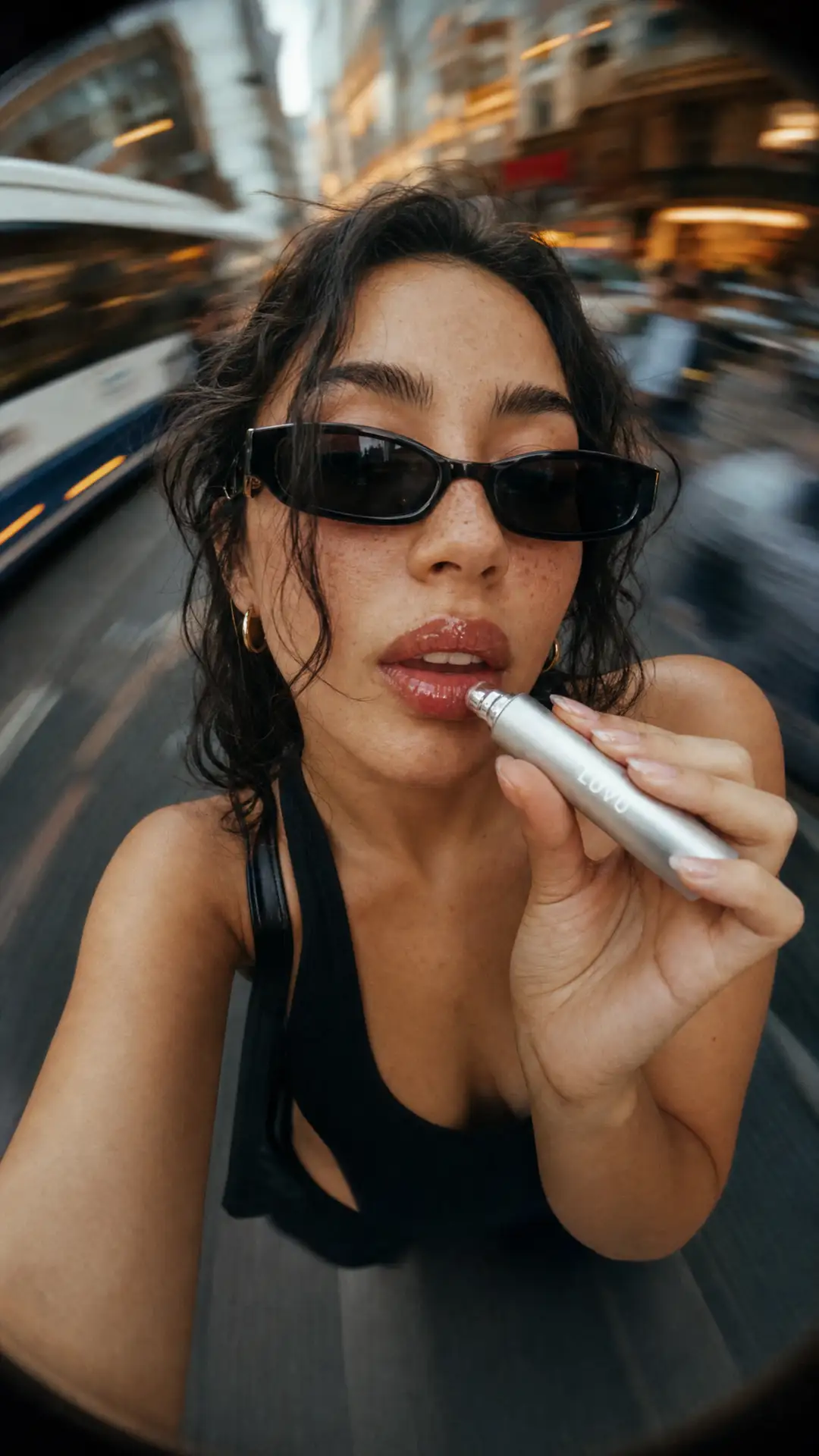
Skin stays natural
Turn on skin enhancement while you upscale so faces look real, not smoothed over.
Upscale Any Image & Keep Every Detail
OpenArt's AI Image Upscaler is built on top of leading image models, so your upscaled result looks clean and natural rather than over-processed. You control how far the AI goes.
Add Real Resolution
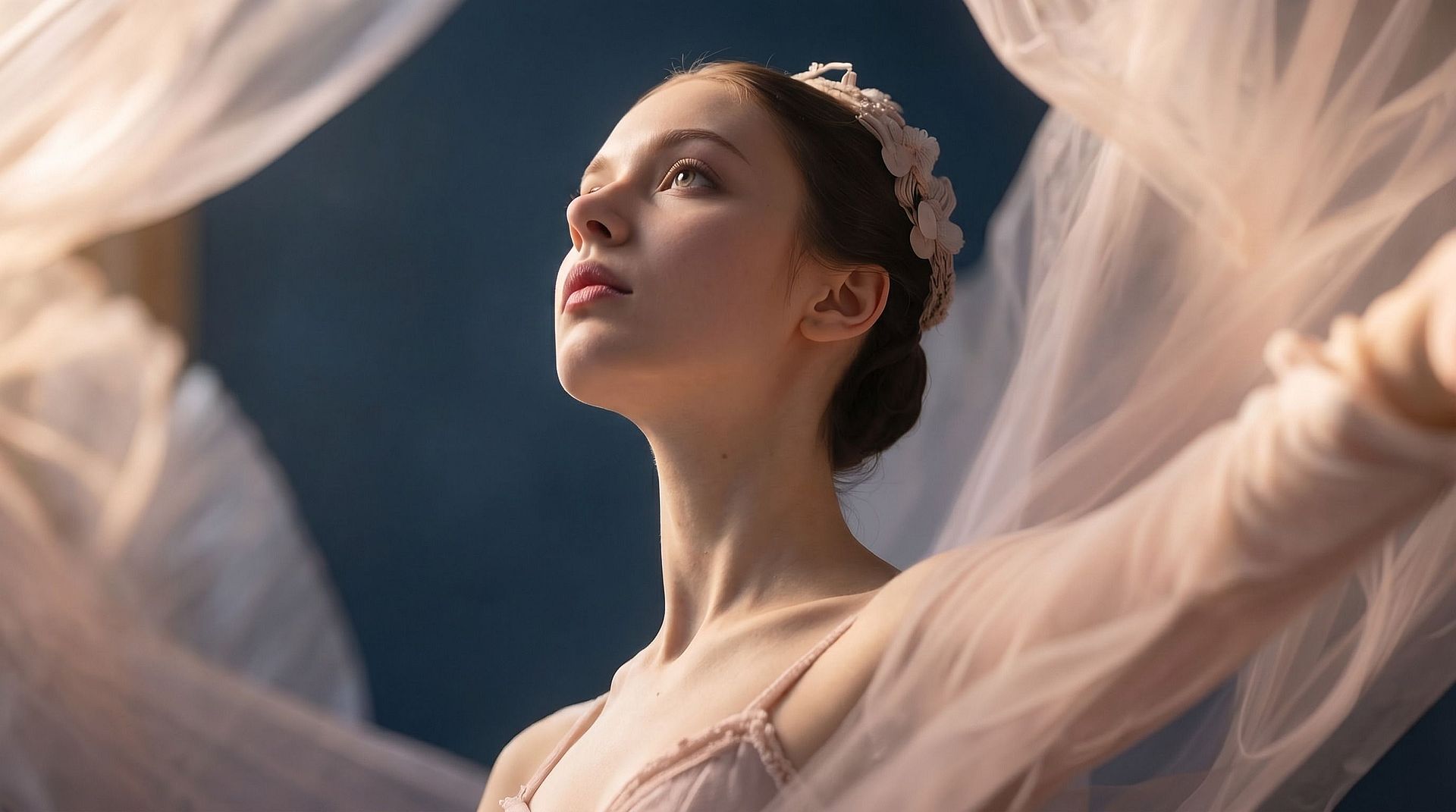
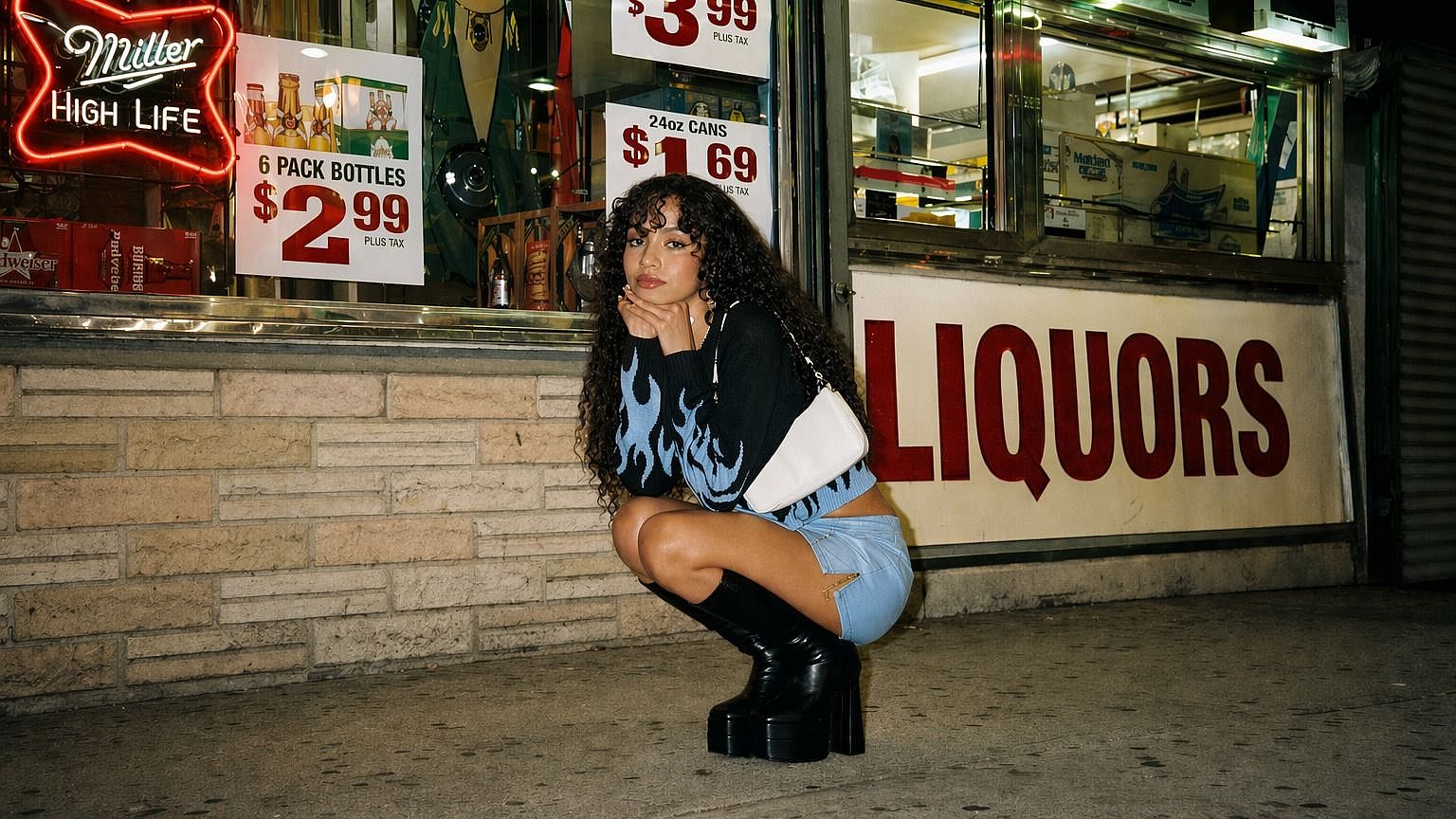
Upload any image and the AI rebuilds it at a higher resolution with more pixels. It fills in detail across edges, textures, and fine areas, so the result holds up when you zoom in or print it larger.
Choose your Upscale Mode
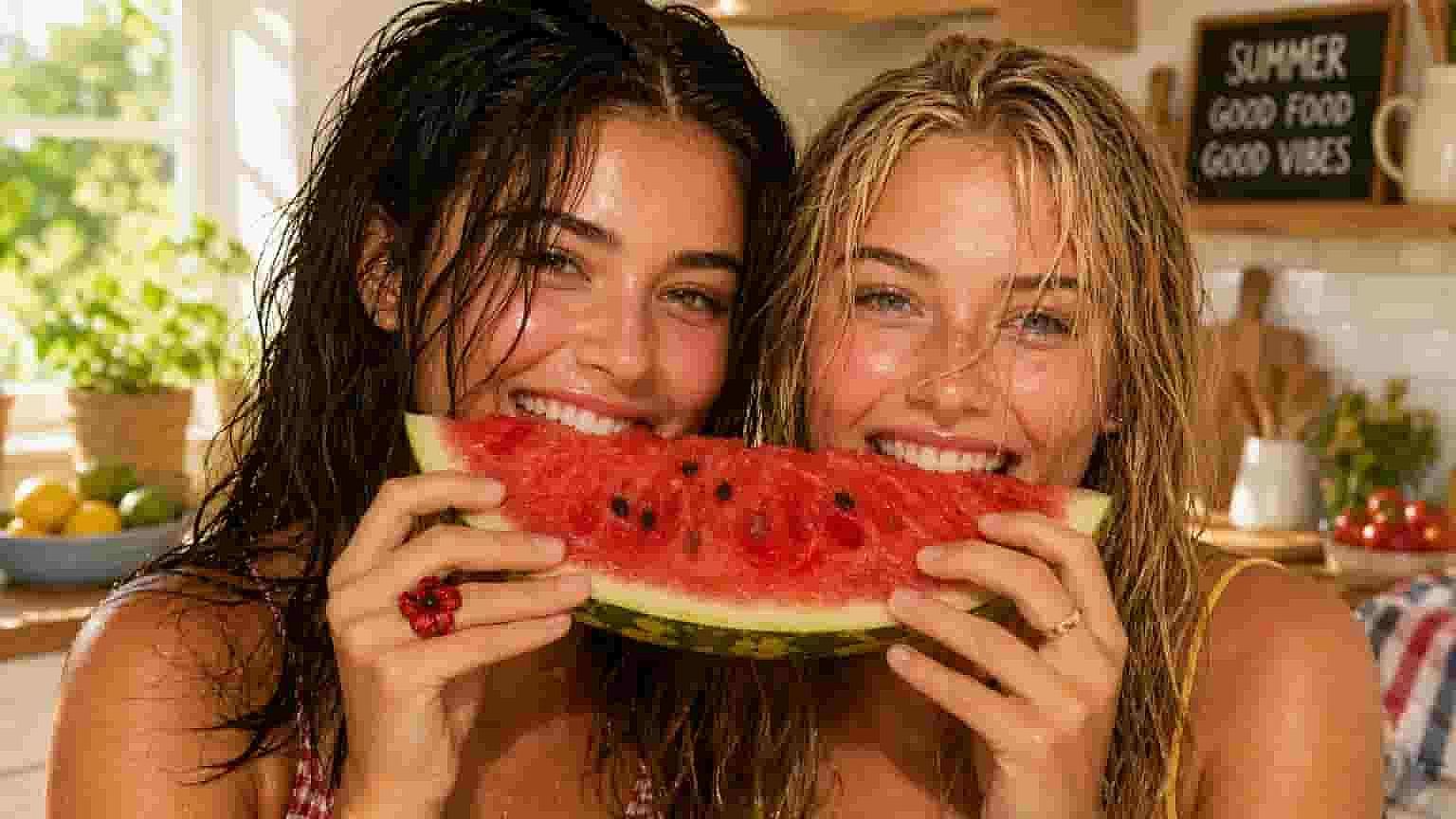
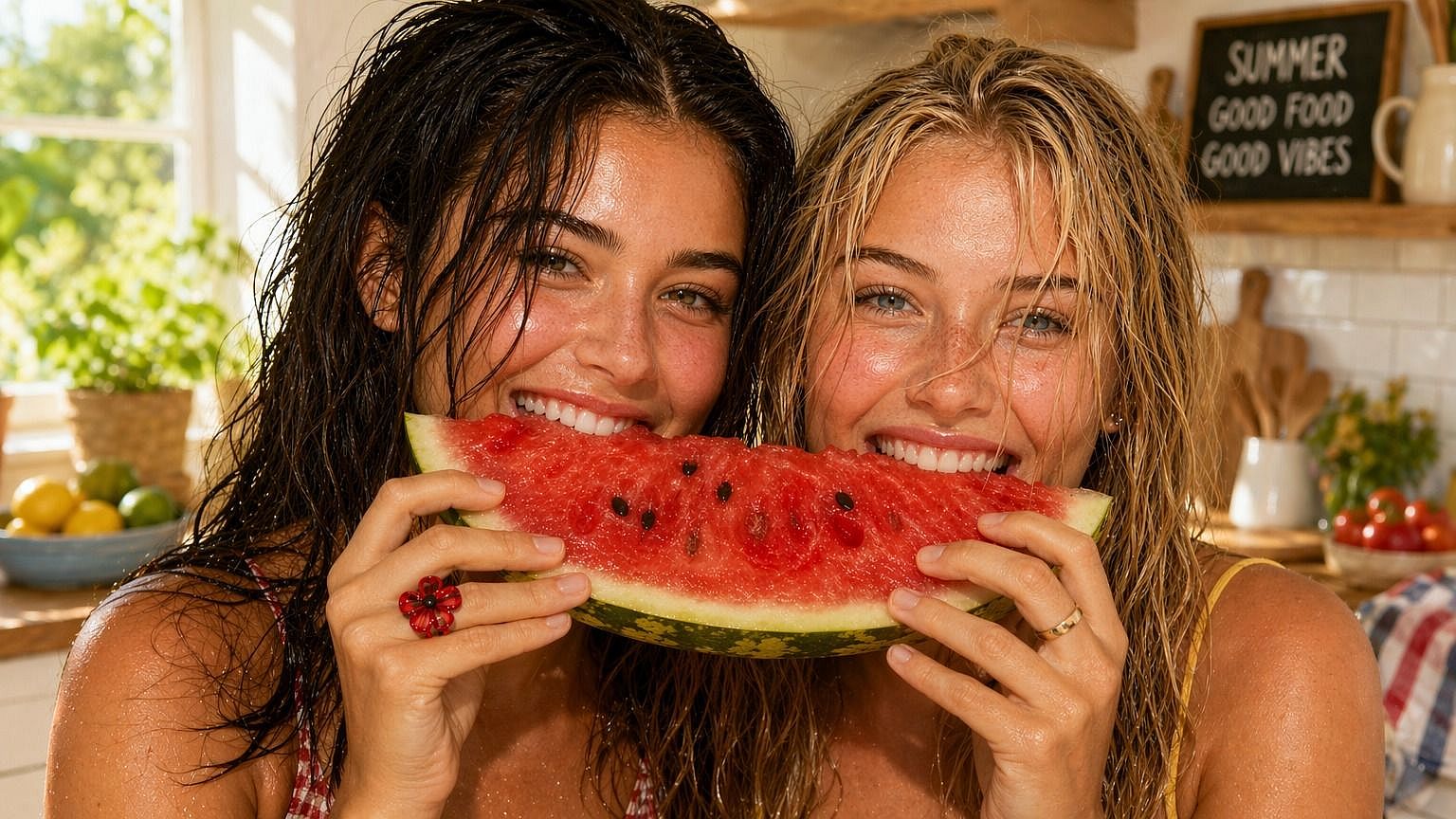
Pick 'Precise' to stay faithful to the original, 'Creative' for a cleaner result, or 'Generative' when you want the AI to add more detail on its own. The mode decides how much the image can change as it scales up.
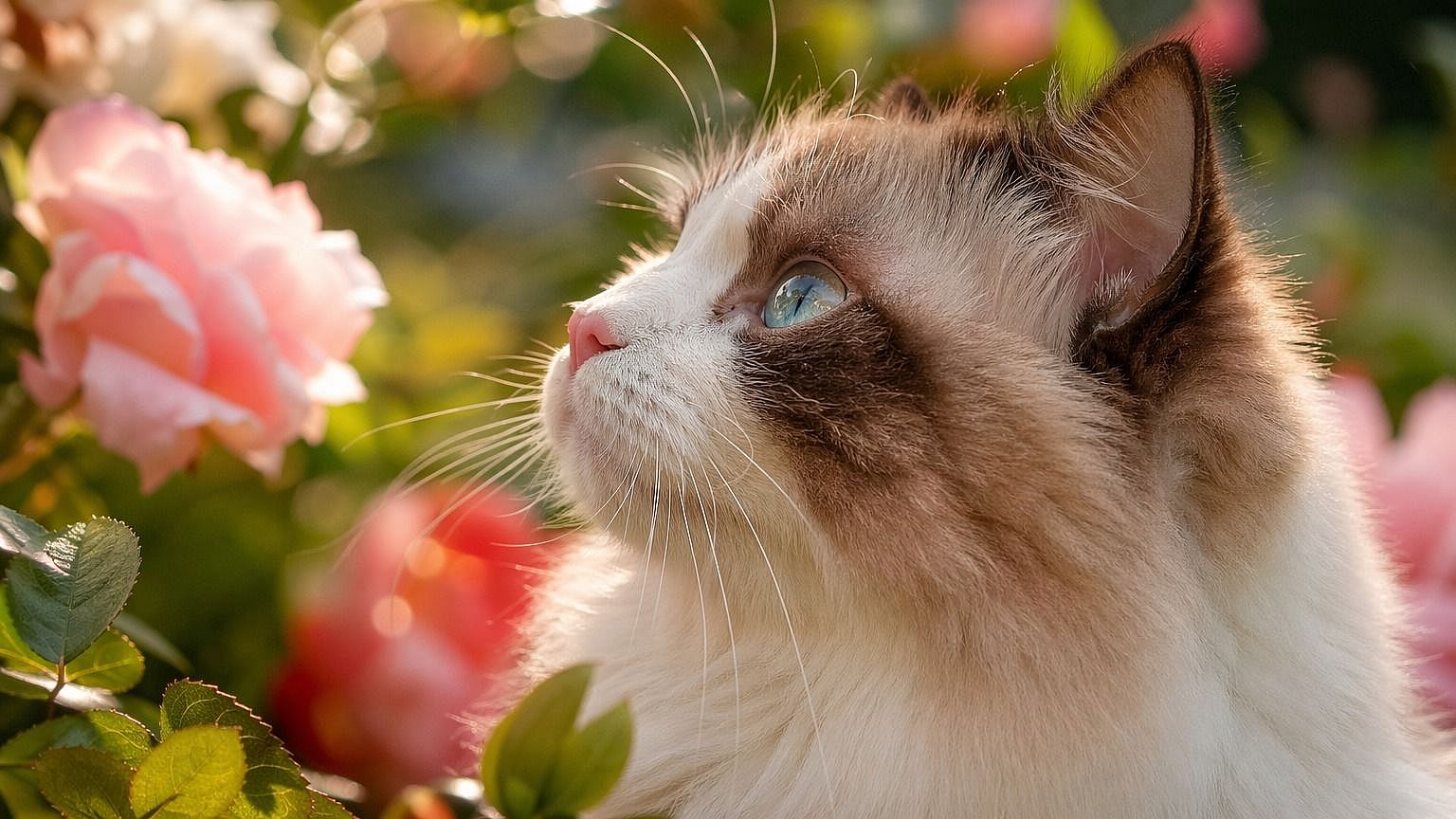
Set the Upscale Factor
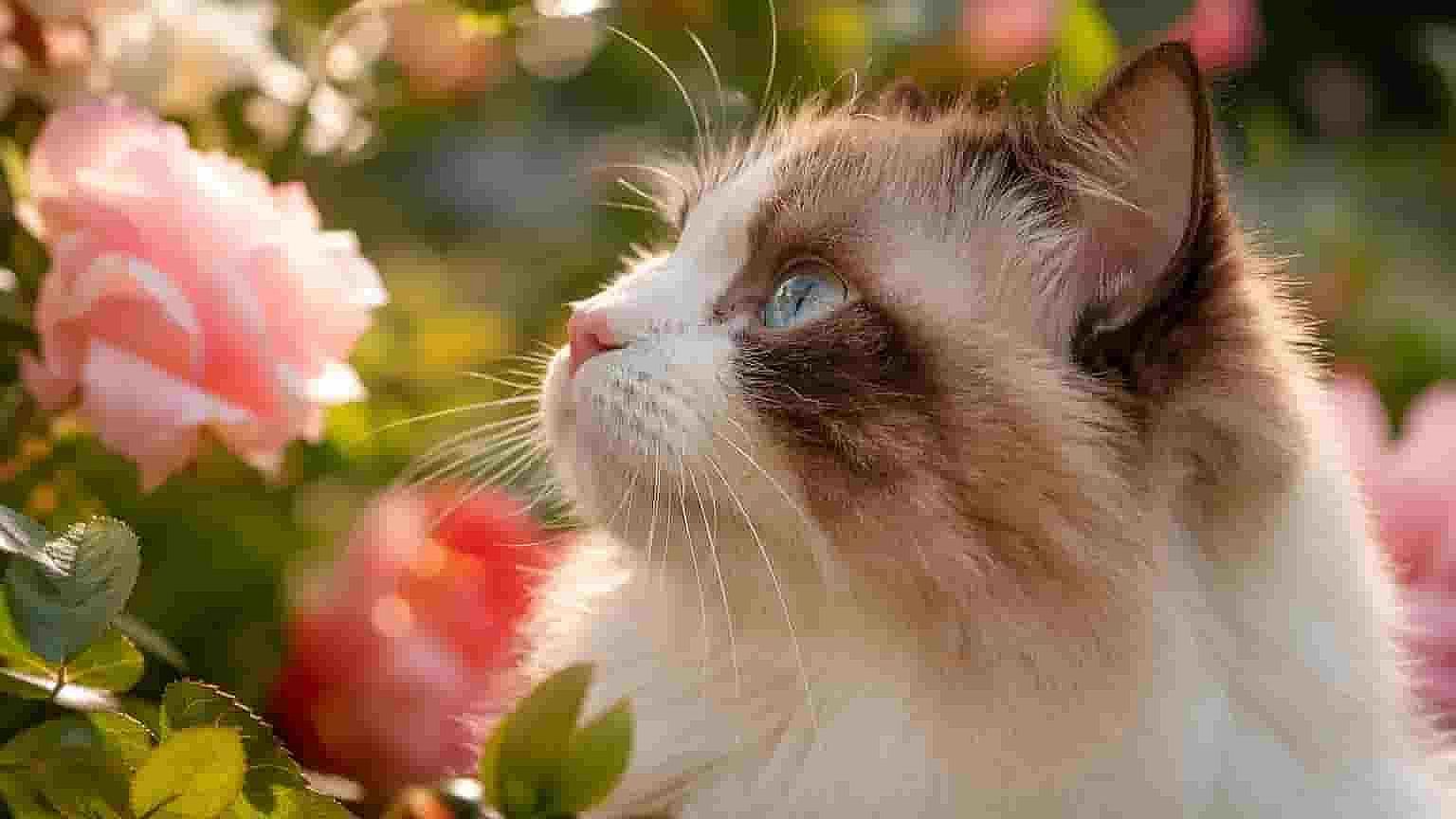
Drag the upscale factor slider anywhere from 1x to 10x. A small bump sharpens a photo that is almost there, and a bigger jump rebuilds a low-resolution image into something you can print or crop.
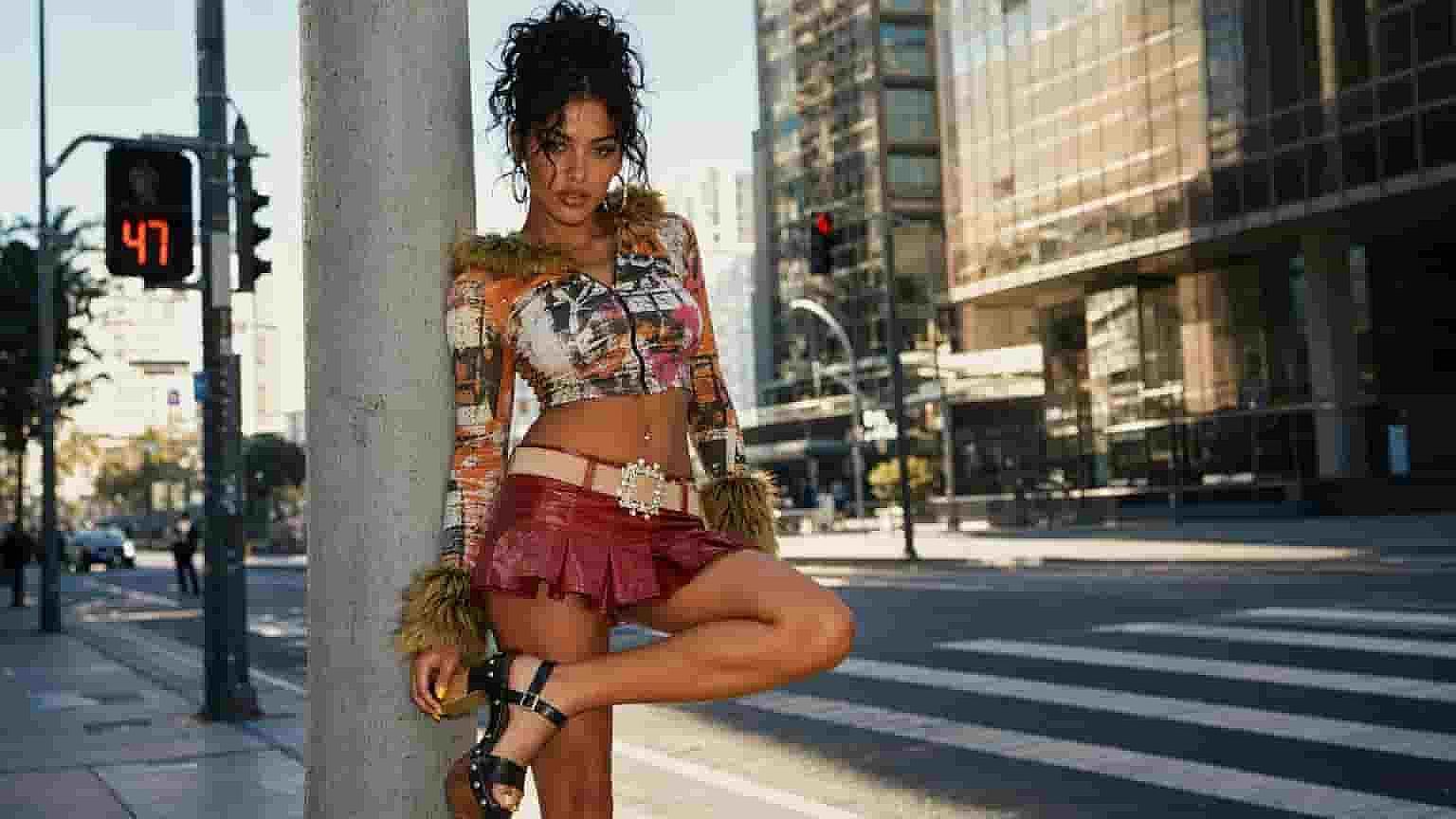
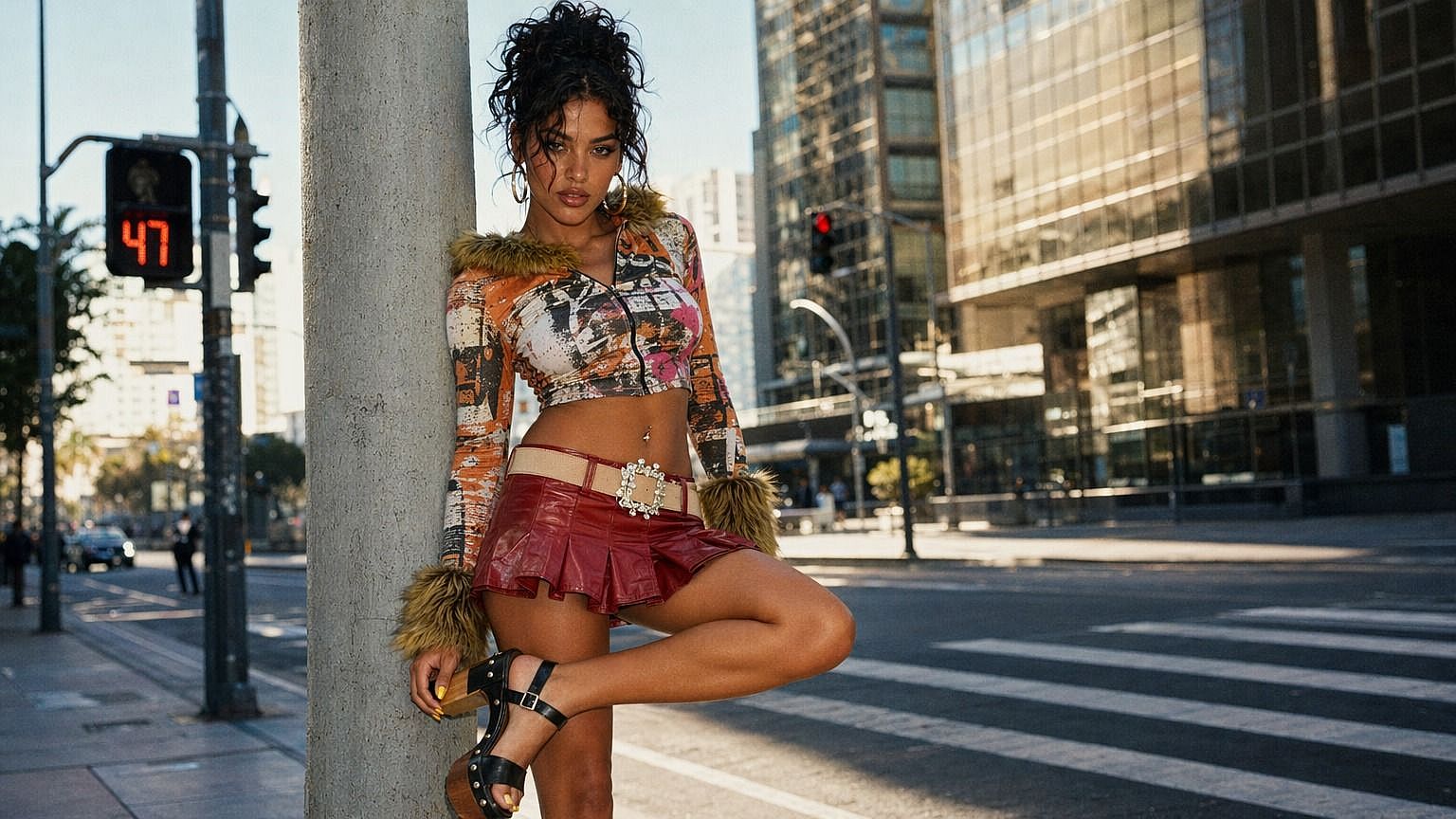
Enhance Face Skin in One Pass
Toggle 'face enhancement' on to clean up faces and skin texture while you upscale image. It keeps skin looking natural and detailed instead of plastic, so portraits come out sharp and believable.
How to Use the AI Image Upscaler
Upscaling an image takes three steps.
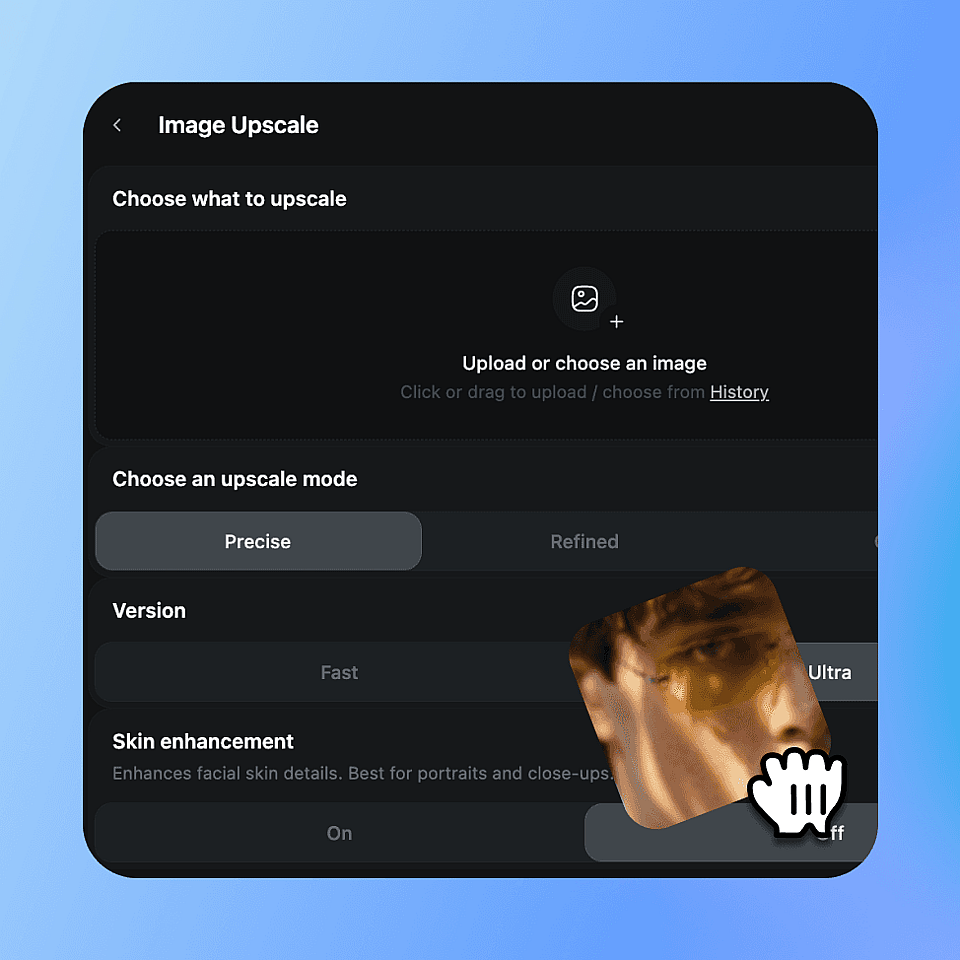
Upload your image
Choose the image you want to upscale and drop it in.
Choose your settings
Pick an upscale mode, set Fast or Ultra quality, and toggle skin enhancement if you need it.
Upscale and download
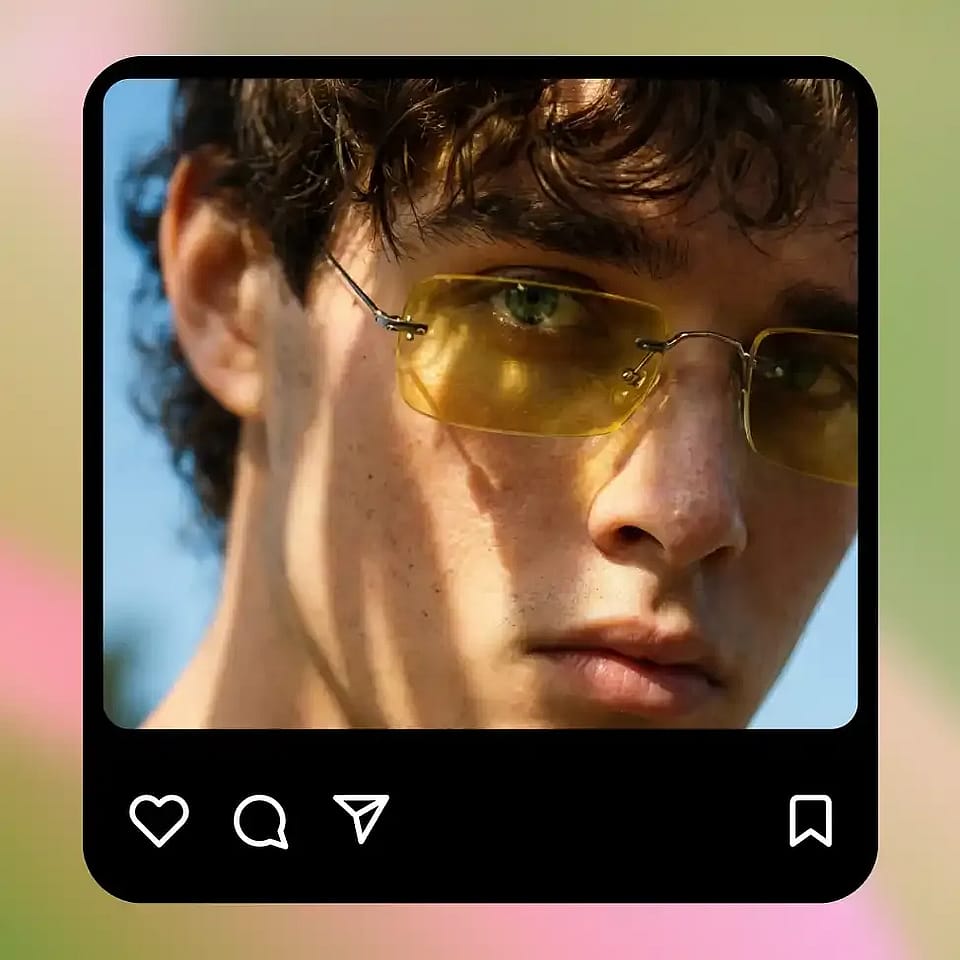
Run it, review the result, and download your higher-resolution image.
Best Uses of AI Image Upscaler
Wherever your image is too small or too soft, the upscaler brings it up to a usable quality.
Photographers And Editors
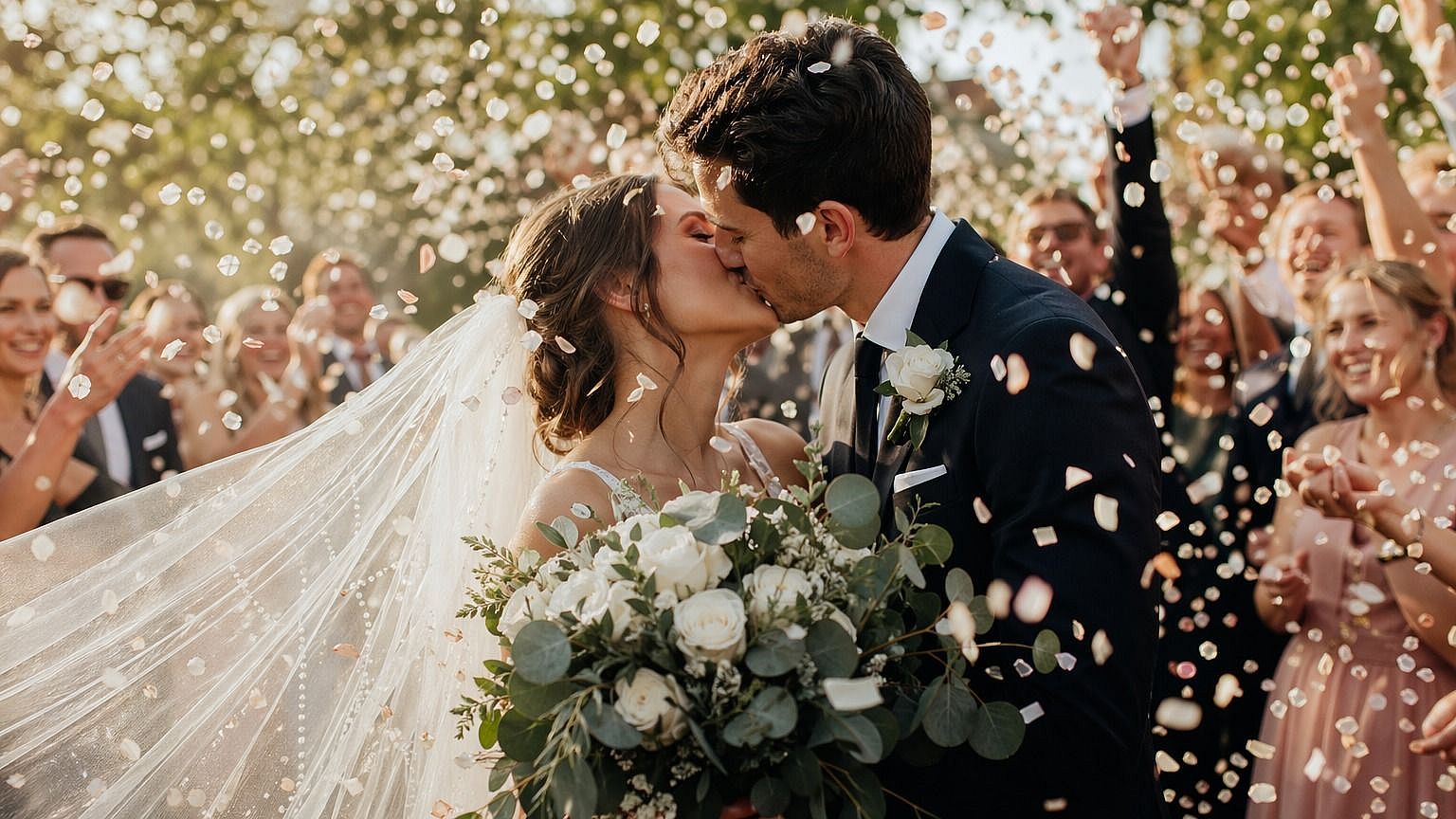
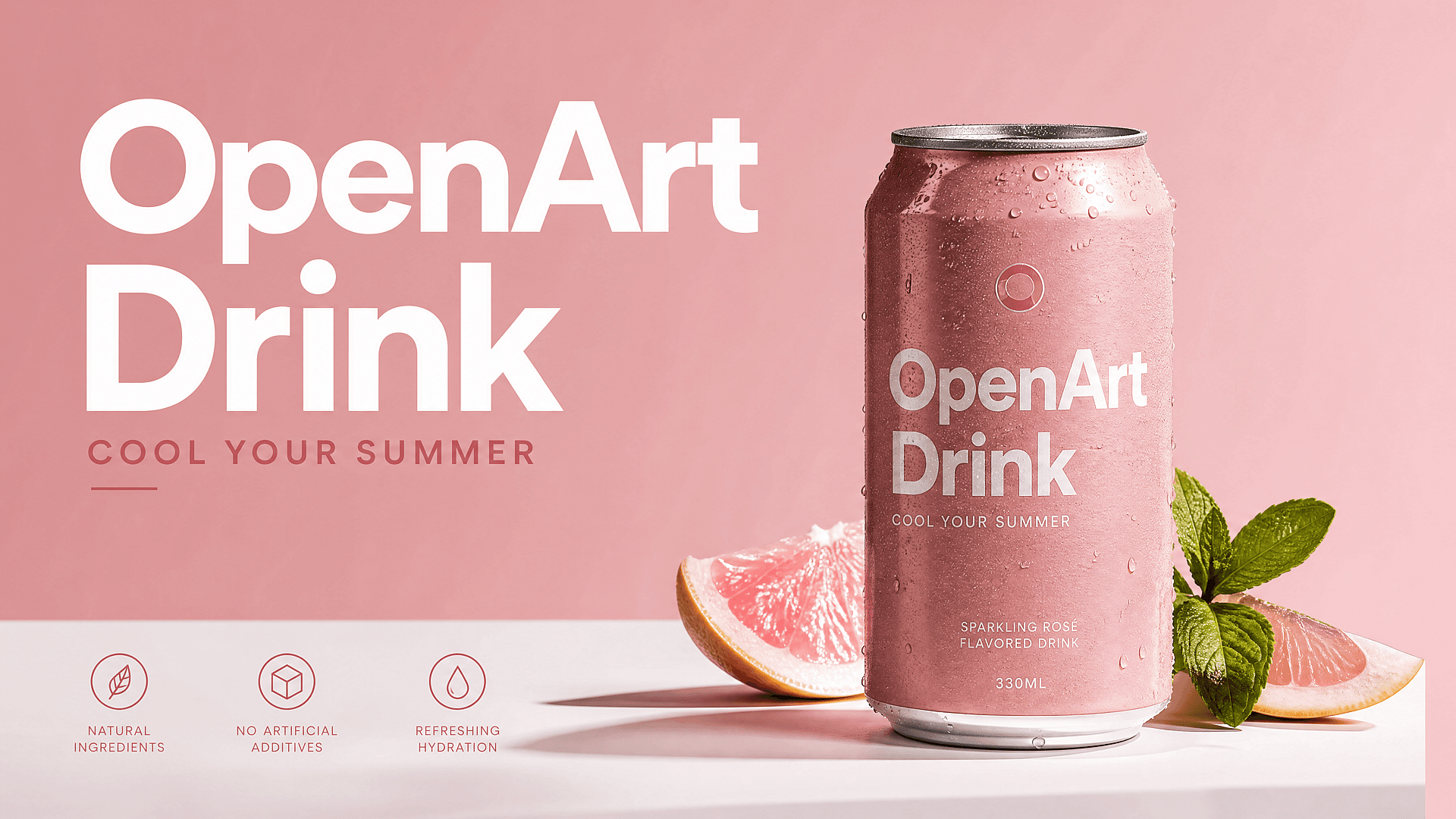
Bring older or low-res shots up to a size you can crop, print, or deliver. The upscaler adds detail while keeping the photo looking real, so you spend less time reshooting or rescuing files.
Try it Now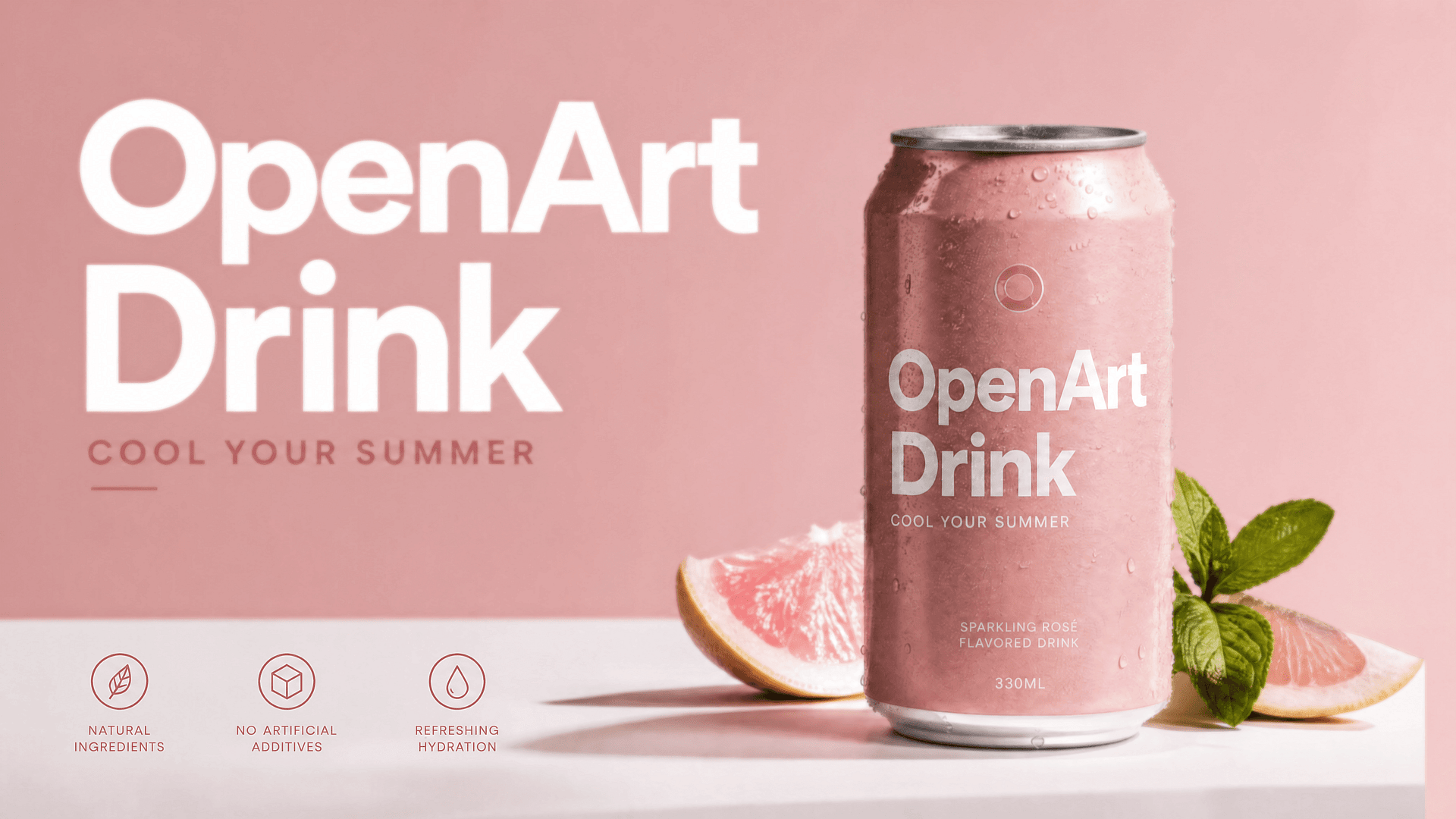
Online Sellers And Print
Product photos and graphics often need to be larger and sharper for listings, banners, or print. Upscale them to a clean, high-resolution version that looks professional at any size.
Try it Now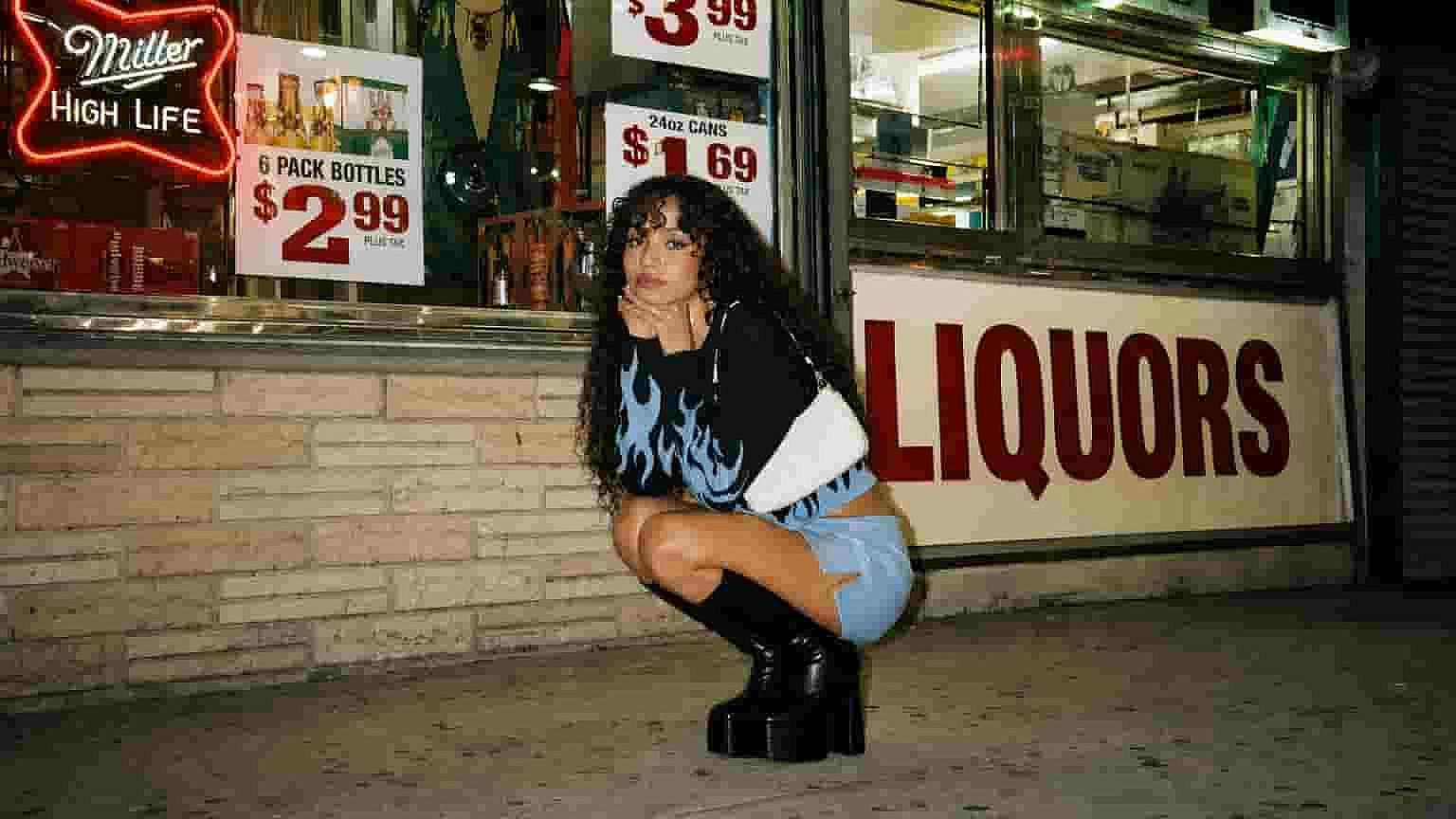
Designers And Agencies
Client assets rarely arrive at the right resolution. Upscale logos, photos, and reference images so they hold up in layouts, mockups, and large-format work without looking soft.
Try it Now
Social And Content Creators
Thumbnails, posts, and reposted images can come out blurry. Upscale them to a crisp version that looks sharp on every screen and stands out in the feed.
Try it NowFrequently Asked Questions
It's an OpenArt tool that increases the resolution of any image using AI. It adds real detail as it scales up, so your image gets larger and sharper at the same time.
Precise stays as close to the original as possible, Refined gives a cleaner balanced result, and Creative lets the AI add more detail. Choose based on how much change you want.
Yes. Turn on skin enhancement and the upscaler keeps skin detailed and believable instead of smoothing it into a plastic look.
You can upscale photos, product images, graphics, and AI-generated images. Any image that's too small or too soft is a good fit.
You can take small or low-res images up to a much higher resolution suitable for cropping, print, and large displays. The exact output depends on the model and quality setting you choose.
They set your output quality. Fast gives you a quick result, and Ultra gives you the highest-quality output when you have time to wait.
On Precise it stays very faithful to the original. On Refined and Creative the AI has more room to add detail, so the result can look slightly different as it sharpens.
Yes, you can use your results for commercial work. Check your current OpenArt plan for the details that apply to your account.
Get Insights from Experts Blog
Get the insights you need. Our experts share actionable hacks, break down the hottest topics, and provide essential how-to guides to help you create, optimize, and scale.
Read More
Create without limits
Join thousands of creators using OpenArt to generate stunning images, videos, and more — all in one platform.
Get Started for Free →