

 ChatGPT
 Perplexity
 Claude
 Gemini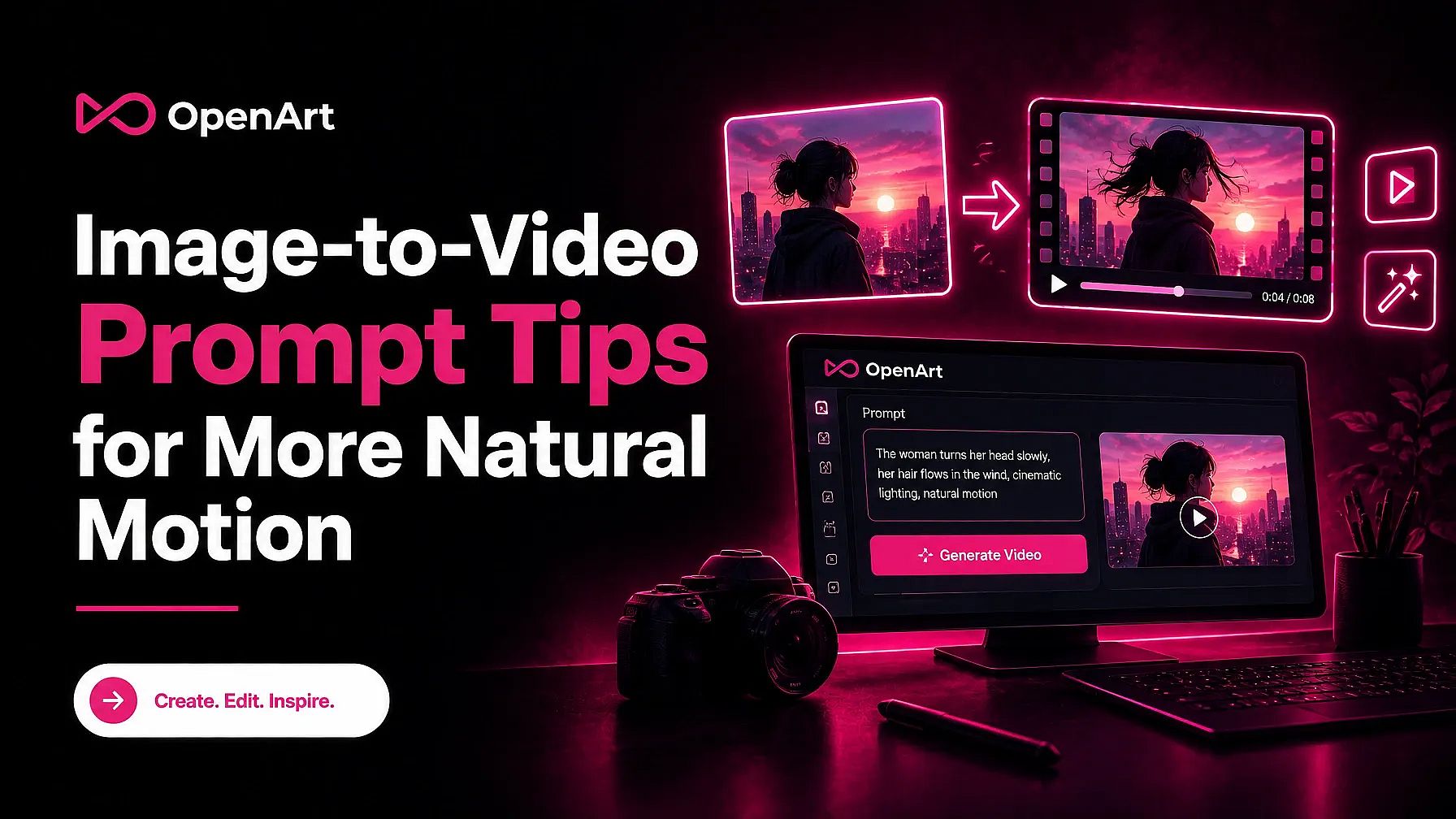
TL;DR
- Give the subject one visible action, such as turning their head or lifting a cup.
- Say which way the subject moves and how quickly. A slow turn gives the model a clearer path than “moves naturally.”
- Choose camera movement that fits the action. Keep the camera still when the subject’s movement needs to remain easy to see.
- Name the setting and the details that must stay unchanged, such as a face, product label, or background.
- Change one prompt detail at a time if the clip looks wrong. Clear wording helps, but a blurry image or a model’s motion limits can still affect the result.
Why image-to-video prompts fail before they even render
A vague prompt leaves too many motion choices to the video model. “Make this person move naturally” does not tell it whether the person should blink, turn, or walk. The model must also decide how fast the action happens and whether the camera moves. A more specific prompt gives it fewer choices to reconcile in a short clip.
The source image can create problems before you write a prompt. If a hand hides behind a bag, the model cannot see its full shape or position. A blurry face gives it fewer details to carry into later frames. Busy backgrounds and unclear poses can make it harder to tell which parts should move.
Video models also have motion limits. A clear prompt may still produce a warped hand, an object that changes shape, or movement that defies gravity. When an action looks wrong despite a clear image and a focused prompt, try a simpler action or a different model. No wording guarantees realistic physics or perfect consistency.
The five-part formula for natural motion
Start with one action the viewer can see. For a portrait, ask the person to turn their head slightly toward the window. If you also ask them to stand, wave, and walk away, the model must connect several changes while preserving the person’s appearance. Give each action its own clip when you need more control.
Add direction and pace so the action has a clear path. “The person slowly turns left” gives the model more guidance than “the person turns.” For a product photo, “the bottle tilts slightly toward the camera, then settles upright” describes a small movement with a clear end position. Keep the requested movement plausible for what the image shows.
Choose a camera move that helps the viewer follow the action. A fixed camera lets a head turn or product tilt remain the main change. A slow camera move toward a still subject can add motion without asking the subject to change shape. Combining a fast orbit with a person turning can make the requested movement harder to follow.
Anchor the parts of the image you want to preserve. Name the room or outdoor setting, then identify details such as clothing, a face, a product label, or the object’s proportions. “The bottle’s label and shape remain unchanged” tells the model which visible details matter while the bottle moves. The instruction can reduce ambiguity, although it cannot guarantee those details will stay identical.
Use this template as a starting point, then revise one part after you see the clip. If the subject moves too quickly, change the pace before changing the action or camera instruction. You will have a better sense of which edit helped.
PROMPT TEMPLATE
The [subject] [one visible action] [direction] at a [pace] pace. The camera [one compatible movement or stays still]. The [setting] remains unchanged. The [important subject details] keep their original appearance.
Before-and-after: a person in a photo
Imagine a portrait of a woman seated at a café table. Her head turns slightly left, and the photo clearly shows her face and shoulders. A vague prompt might read, “Make her move naturally while the camera circles her.” The prompt gives no clear action and asks the camera to reveal parts of the scene the photo does not show.
A more specific prompt reads, “The woman slowly turns her head from left toward the camera, then holds her gaze. Keep the camera still. Her shoulders, the table, and the café background stay in place.”
The rewrite gives the woman one small action that fits her starting pose. “Slowly” sets a pace, while the fixed camera lets you see the head turn without adding another source of movement. You can use the same pattern for your own portrait by naming one visible body movement and keeping the rest of the photo steady. The clearer prompt gives the model less to guess, though it cannot guarantee that every frame will look natural.
Before-and-after: a product photo
A bottle photo needs a smaller motion request than a full product reveal. Suppose your source image shows a labeled bottle on a table, with a water droplet on its side.
Before: “Make the bottle spin while the camera circles it. Add dramatic movement.”
After: “One water droplet slowly slides down the visible side of the bottle, away from the front label. Keep the camera fixed. The bottle’s shape, cap, label text, proportions, and tabletop stay unchanged.”
The first prompt asks for views the photo cannot show, so the model must invent the back of the bottle and its label. The rewrite gives one visible object a direction and pace while keeping the product still. For a marketing clip made from an existing product photo, that smaller change may give you usable motion without arranging another shoot. Check the result before using it, since a prompt cannot guarantee an accurate logo or bottle shape.
Before-and-after: a simple scene
A lake photo needs one clear movement to feel active. A prompt that asks for waves, changing light, and a moving camera gives the model several changes to manage at once.
Before: “Make this lake scene come alive with dramatic waves, shifting sunlight, and a sweeping camera.”
After: “Small ripples move slowly across the lake toward the near shore. Keep the camera still. The shoreline, distant hills, and morning light stay unchanged.”
The revised prompt gives the water a direction and pace while keeping the rest of the scene steady. If your photo shows reeds more clearly than water, you could make a gentle breeze moving the reeds the single action instead. Avoid instructions about exact wave patterns or wind speed. Prompt wording can guide visible motion, but it cannot guarantee accurate physics.
Troubleshooting: change one variable at a time
Change one prompt detail per attempt so you can tell which edit helped. Keep the source image, model, and other settings the same. Save the original prompt, then compare each new clip against it. A different result after one edit does not prove the wording caused it, but the comparison gives you a clearer next step.
- The subject stays frozen. Revise the action first. Replace “moves naturally” with one visible action, such as “turns her head slowly toward the window.”
- A limb bends or warps. Simplify the action or slow its pace. If a walking person’s legs distort, try “takes one small step forward” before asking for a longer walk.
- The camera fights the action. Change the camera instruction. A fast orbit can make a small hand movement harder to follow. Keep the camera still while you test the hand movement.
- The background drifts. Strengthen the setting instruction. Name a visible anchor, such as “the doorway and wall behind the person stay in place.”
If one targeted edit fails, try a clearer source image or a different model rather than adding more instructions to the prompt. The image may leave important details hidden, or the model may struggle with the movement you want.
Where source image quality and model limits take over
A prompt cannot recover detail that the source image does not show clearly. Low resolution can leave a face or product label hard to define. If a hand sits behind someone’s back, the model must guess its shape when the hand moves into view. An unclear pose creates a similar problem. Start with a sharper image and a pose that makes the intended movement easy to picture.
A busy background can also make motion harder to control. If leaves overlap a person’s hair and clothing, the model has to decide which parts should move together. Choose a simpler image when possible, especially for a clip that needs a steady subject or setting.
Each video model also sets limits on clip length and how well it handles physical movement. A prompt cannot extend a clip past the selected model’s length limit. It cannot make a difficult movement, such as a precise throw or a complex walk, obey real-world physics every time. No prompt wording guarantees realistic physics or perfect consistency.
Putting it into practice with OpenArt Image to Video
You can try the prompt formula in OpenArt’s standalone Image to Video tool, which turns a still image into a clip while keeping its subject. Upload a clear image and write one visible change, such as “The person turns their head slowly toward the window. The camera stays still, and the room remains unchanged.”
Watch the result before changing the prompt. If the face warps during the turn, ask for a smaller glance and leave the other instructions alone. If the source photo hides part of the face, try a clearer image. For ways to start with text or existing footage, see OpenArt’s AI Video Generator overview.
FAQs
- How long should an image-to-video prompt be? Write only enough to describe the action and what should stay in place. Two or three short sentences often give you room to do that without adding competing instructions.
- Do camera movement words always work? No. A requested pan or zoom may compete with the subject’s action, and the result depends on the model. If the movement makes the subject drift or change shape, try a still camera.
- What should I do if the subject disappears or morphs? Check that the subject appears clearly in the source image. Remove any instruction that could move it out of view, then try a smaller action. If the problem continues, test a clearer image or another model.
- Can one prompt control multiple actions? You can request them, but a short clip may give each action too little time. Start with one action, then use separate clips if you need a sequence.
Conclusion
Natural motion starts with one believable change in the still image. When a clip looks wrong, adjust one instruction and compare the next result. Keeping the rest of the prompt steady helps you see whether the edit worked.