

 ChatGPT
 Perplexity
 Claude
 Gemini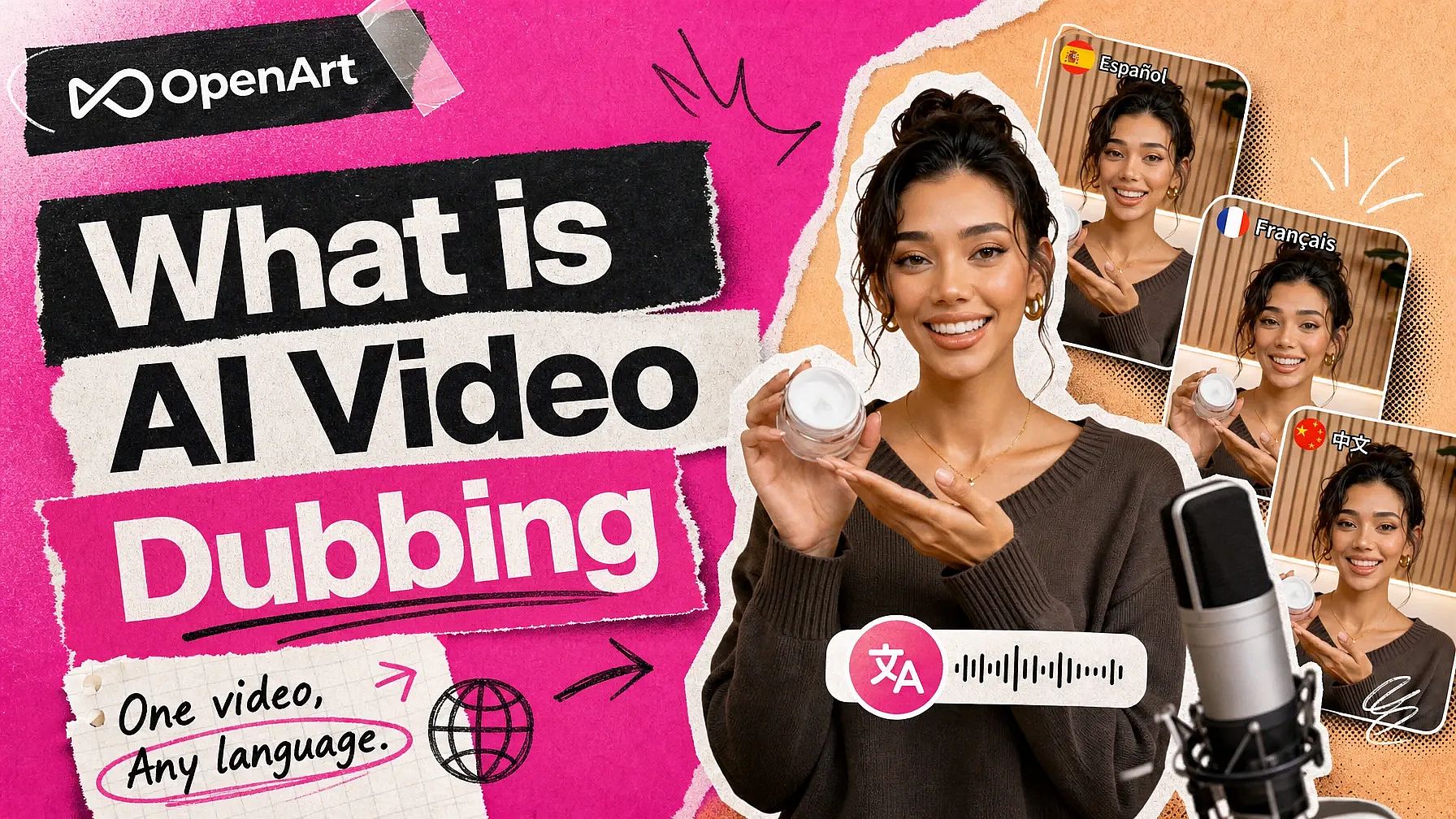
AI video dubbing replaces the spoken audio in a video with a translation in another language, and it moves the speaker's mouth to match the new words (lip sync). Everything else in the frame stays exactly as it was.
With AI video dubbing, your slides, your product, your background, your on-screen graphics, and your editing all stay the same. Only the speech and the mouth change, and that sets dubbing apart from other ways of translating a video.
The OpenArt Dub Video tool dubs one upload into up to 10 languages. Every version comes back with the speaker's lips matched to the new words.
Key takeaways
- AI video dubbing changes the spoken words, carries the delivery across, and re-aligns the speaker's mouth to the new language.
- A translated voiceover changes only what your viewer hears (the audio). Dubbing also changes what they see (the lip sync).
- OpenArt Dub Video handles up to 10 languages from one upload and returns a separate finished video for each.
- OpenArt Dub Video matches the speaker's lips on every dubbed result automatically.
- Clean audio, a clear view of the speaker's face, and one person on camera give you the best dub.
What is AI dubbing?
AI dubbing translates the speech in a video into another language and moves the speaker's mouth to match. The words change to the new language, and the delivery keeps the speaker's emotion, tone, and timing.
OpenArt Dub Video does this in three steps. First, it picks up the speech in your video and translates it into the language you chose.
Next, Dub Video speaks that translation with the same feeling and pacing as the original. Last, Dub Video moves the speaker's lips so the mouth on screen matches the words your viewer hears.
Picture a two-minute product walkthrough filmed in English. Dubbed into Japanese, it becomes a second video where the same person, in the same room, at the same desk, walks through the same screens in Japanese, with their mouth moving to the Japanese words.
AI dubbing gives you one new video per language. Your original file stays untouched, and each dubbed version comes back as its own complete video, ready to post.
AI dubbing is also called AI video localization or video translation. Dubbing is the most exact name, because it covers both the new speech and the new mouth movement.
How is AI dubbing different from a translated voiceover?
A translated voiceover replaces only the audio track. The picture stays the same, so the speaker's mouth keeps forming words in the original language while your viewer hears a different one.
Viewers usually notice that mismatch right away. Even when viewers cannot say what feels off, they can tell the sound was added later.
AI video dubbing changes the audio and the mouth together. The speaker looks like they are talking in your viewer's language, so the video feels like it was made for that audience.
A translated voiceover works well for narration over background footage, screen recordings with no face on camera, and explainers where nobody talks to the camera. When a person's face is on screen and talking, AI dubbing gives a more natural result, because viewers watch the speaker's mouth.
How is AI dubbing different from subtitles?
Subtitles show translated text on screen while the original speech plays. AI dubbing replaces the speech with the viewer's language and matches the speaker's mouth to it.
| Element | Subtitles | AI dubbing |
|---|---|---|
| What your viewer hears | The original spoken language | The viewer's own language |
| What your viewer reads | Translated text on screen | No extra text |
| What the speaker's mouth does | Keeps moving in the original language | Moves with the new language |
| What it asks of your viewer | Reading while watching | Watching and listening |
| Where it fits best | Many languages at once, quiet rooms, viewers who cannot use audio | Videos of a person talking to the camera, product demos, lessons, and ads |
Subtitles cost little, work for many languages at once, and help viewers who are deaf or hard of hearing. Subtitles stay useful even on a video you have dubbed.
AI dubbing lets viewers listen in their own language while their eyes stay on the screen. Anyone following a demo, a set of slides, or your hands on a keyboard can watch every step.
Many creators use both. They add subtitles in a wide set of languages and dub the video into the two or three languages where most of their audience lives.
What happens to the speaker's delivery?
AI dubbing with OpenArt Dub Video carries the speaker's emotion, tone, and timing into the new language. A line said with excitement still sounds excited, and a slow, careful explanation stays slow and careful.
The delivery is a big part of why a video of someone talking works. A flat reading of a good script loses the energy that kept viewers watching.
Dub Video also keeps the timing of each line. The dubbed line lands where the original line landed, so your scene changes, on-screen text, and gestures still line up with the words.
Before you dub a whole library of videos, dub one and watch it. One finished result shows you whether the dubbed delivery suits your content.
How many languages can you dub into at once?
OpenArt Dub Video takes up to 10 languages in a single submission. Every language you pick comes back as its own finished video.
Dub Video supports English, Chinese, Japanese, Korean, Portuguese, Spanish, German, French, Italian, and Russian.
Dub Video makes all the language versions together from the same upload. Asking for Spanish, Japanese, and German gives you three finished videos from one submission.
When should you use AI video dubbing?
AI video dubbing pays off most on a video that already performs well and shows a person talking on camera. Five kinds of teams get the most out of it.
Creators and YouTubers. A tutorial or an interview that does well in one language can reach viewers in nine more with AI dubbing. The visuals stay the same, and you film nothing twice.
A creator's video that took a weekend to make can earn views in new countries for the cost of a dub.
Performance marketers. Performance marketers can dub an ad that already turns viewers into customers and run it in another country. The opening line, the product, and the video itself all stay the same.
A marketing team that dubs a proven ad already knows the ad works. The language is the only new thing the team is testing.
Software and ecommerce marketers. A product demo or a spokesperson video costs a lot to make and is easy to dub. Every screen, every click, and every caption stays where it was, and only the spoken part changes language.
Educators and course creators. Educators put real work into recording each lesson. AI dubbing lets more students follow the same lesson in their own language, with the slides and the screen recording unchanged.
Agencies and production teams. Agencies can turn one approved video into several versions for other countries. Every language version keeps the picture and editing the client already signed off on.
Dubbing one approved video keeps an agency's launch across several countries on one schedule.
What should you check before you dub a video?
AI dubbing works from the video you upload, so a clean recording gives a better dub. Five quick checks before you upload make the biggest difference.
Start with clean audio. Dub Video works from the speech in your file, so a clear recording gives a clear translation. Heavy background noise, echo off a bare wall, or two people talking over each other make the speech harder to pick up.
Show the mouth. Keep the speaker's face big enough to see clearly. A close view of the speaker or a picture-in-picture box in the corner both work.
A face turned away from the camera or shrunk into a tiny corner makes it harder for Dub Video to match the lips.
Keep it to one speaker on camera. A single person talking to the camera is the case AI dubbing handles best. Panels, interviews with quick back-and-forth, and crowd scenes are harder for any dubbing tool.
Check the file and the length. Dub Video takes an MP4 or MOV with an audio track, up to three minutes and 300MB. Trim a longer video down to the part you want to share, which often makes a better clip anyway.
Read the script for lines that will not translate well. Idioms, puns, rhymes, and jokes that rely on English wordplay usually lose their meaning in another language. Swapping those lines for plain wording before you dub makes every language version better at once.
Text that is part of the video picture, such as on-screen titles, stays in the original language after dubbing. Dub Video changes the speech and the mouth, so update on-screen titles in your video editor.
A review from someone who speaks the new language catches small mistakes in a dubbed video. Product names and technical terms you want said a certain way are the most important things to check.
How to dub a video with OpenArt
OpenArt Dub Video turns one video into dubbed versions in four steps.
Upload your video. Open Dub Video and add an MP4 or MOV with sound. You can also pick a video you already made with the AI video generator.
Pick your languages. Choose one language, or up to 10 in the same submission.
Generate. Each dub uses credits based on how long your video is and how many languages you picked. You see the cost before you run it.
Download each version. Every language comes back as its own video, ready to publish.
You can also ask OpenArt for a dub while you work in Director mode. Name the language you want in your prompt, and the dubbed version comes back in the project you are already working in.
The takeaway
AI video dubbing works best on a video you already trust. The speaker is recorded, the video is approved, and a dub gives your next audience a version they can understand.
Pick your strongest video of a person talking to the camera, and check the audio and how clearly the face shows. Dub it into the language your analytics show the most interest in, then watch how it performs for a few weeks before you dub more videos.
Start with OpenArt's Dub Video tool when you have a finished video ready to go.
Frequently asked questions
What is AI video dubbing?
AI video dubbing replaces the spoken audio in a video with a translation in another language and moves the speaker's mouth to match the new words. The rest of the frame stays exactly as you made it. On OpenArt, the AI video dubbing tool is called Dub Video.
Does the speaker's mouth move with the new language?
Yes. OpenArt Dub Video re-aligns the speaker's lip movement to the translated speech, so the mouth on screen matches the words your viewer hears. Lip sync happens automatically on every dubbed result.
Which languages can I dub into?
OpenArt Dub Video dubs into ten languages: English, Chinese, Japanese, Korean, Portuguese, Spanish, German, French, Italian, and Russian. You can pick one language or all ten from the same upload.
How many languages can I dub at once?
OpenArt Dub Video takes up to 10 languages in one submission. Each language comes back as its own separate video, so you can publish them one at a time or all together.
Does the dubbed version keep the speaker's delivery?
Yes. OpenArt Dub Video carries the speaker's emotion, tone, and timing into the new language. A line said with energy still sounds energetic, and a slow line stays slow.
What kind of file can I upload?
OpenArt Dub Video accepts an MP4 or MOV file with an audio track, up to three minutes long and 300MB in size. A clear shot of one person talking, with the face big enough to see the mouth, gives the best dub.
Is dubbing better than subtitles?
AI dubbing and subtitles do different jobs. Subtitles cover many languages for little cost and help viewers who cannot use audio. AI dubbing lets viewers listen in their own language while they watch the screen, which suits demos, lessons, and any video with a person talking to the camera. Many creators use both.
Can I use dubbed videos for business?
Yes, you can use videos dubbed with OpenArt Dub Video for business and paid work. Check the terms on your OpenArt plan, and make sure you hold the rights to the original video and to the person who appears in it.