

 ChatGPT
 Perplexity
 Claude
 Gemini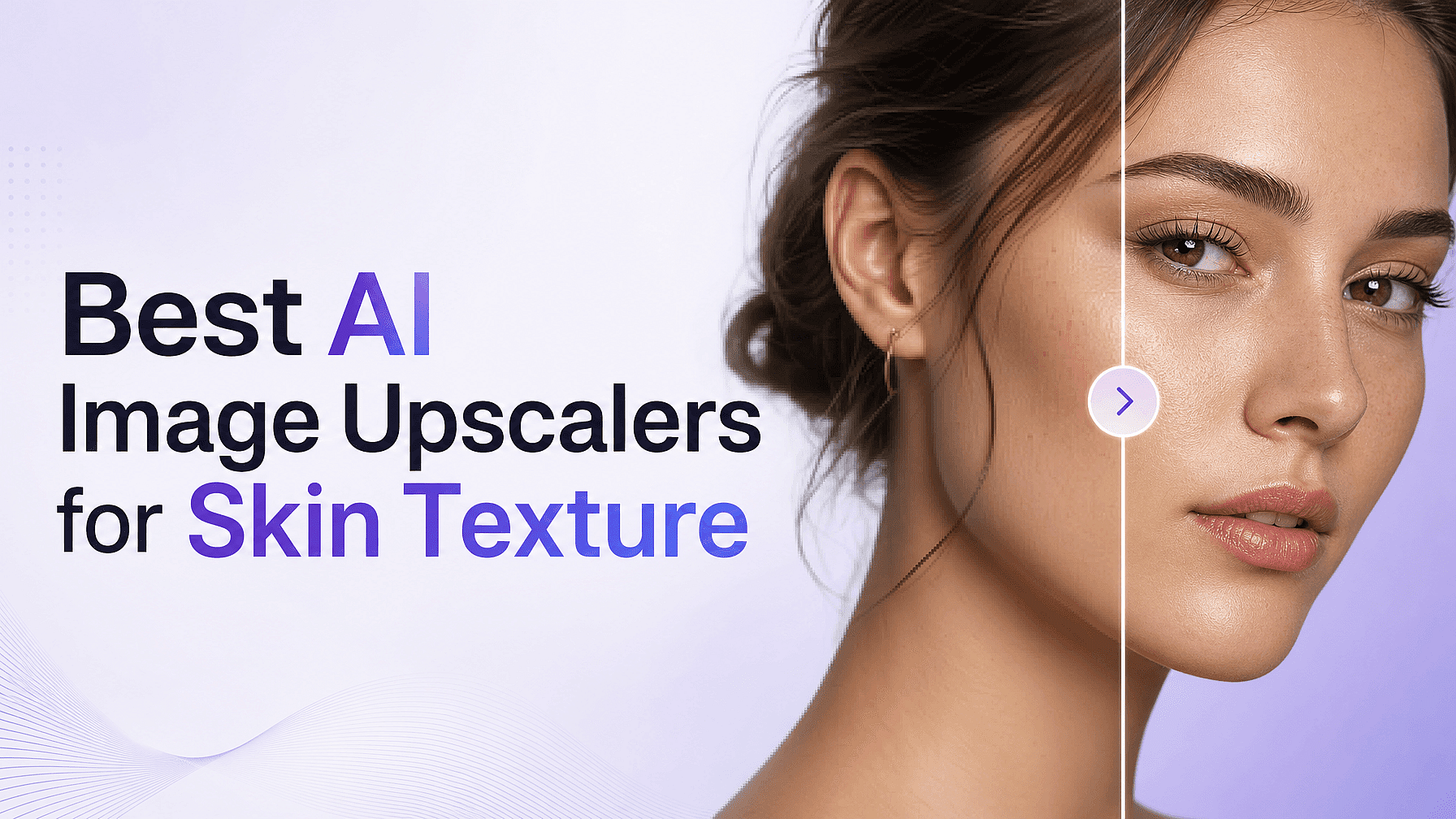
Skin is the hardest thing for an upscaler to get right. Pores, fine lines, and the soft fuzz along a jawline are what tell your eye that a face is real.
Get those back and a portrait holds up at full size. Lose them and the face looks like a mannequin, no matter how sharp the rest of the picture is.
Two different jobs hide under the same search. One is putting texture back into an AI portrait that came out too smooth. The other is recovering real skin detail in a photograph you shot, where the texture existed and the file is just too small.
This guide ranks the tools worth using for both. Every setting and price below was checked against the company's own docs or pricing page in August 2026.
Key takeaways
- Two jobs, two toolsets: rebuilding texture on AI portraits is not the same as recovering it in a real photo.
- "Skin enhancement" means smoothing in some tools and rebuilding detail in others, so read which one you are buying.
- OpenArt builds face enhancement into Image Upscale, with face strength and face creativity as separate sliders.
- Photographers should pick tools that only enhance what is already there, because added detail is made-up detail.
- Topaz is subscription only now, and Aiarty is the one tool here you can still buy outright.
What makes an upscaler good on faces
Five questions sort the good ones from the rest.
- Can you control what happens to the face? A single overall sharpening pass treats a cheek the same way it treats a brick wall.
- Does it recover or invent? Recovering suits photos. Inventing suits AI art. Not every tool is clear about which one it does.
- How much control do you get? One strength slider is a very different thing from a face model with its own settings.
- How big does it go? Print and large screens need the resolution, not just the texture.
- Where does it run? In a browser, in a desktop app, or on your own machine. Each choice changes the cost and the privacy.
AI upscalers for skin texture at a glance
| Tool | Best for | Skin control | Where it runs | Price |
|---|---|---|---|---|
| OpenArt Image Upscale | Faces and resolution in the same pass | Face enhancement toggle, with face strength and face creativity sliders | Browser | Paid plans from $14 a month |
| Magnific Skin Enhancer | AI portraits that came out flat | Detail, Grain, and Sharpness sliders, three modes | Browser | Paid plans from $14.50 a month billed annually |
| Topaz Photo and Topaz Gigapixel | Real photographs and big enlargements | Recover Faces and Face Recovery, plus a Texture slider on Gigapixel | Desktop app | From $149 a year, subscription only |
| Let's Enhance | Headshots that must stay true to the person | No slider, Prime preserves texture by default | Browser | Free tier, paid from $9 a month billed annually |
| Krea Enhancer | AI art where invented detail is welcome | Face detection, face creativity, and face strength | Browser | Free tier, paid from $5.25 a month |
| Aiarty Image Enhancer | Working offline without a subscription | Face Restoration, with a model aimed at AI images | Desktop app | $109 one time, or $59 a year |
| Upscayl | Free, private, offline enlarging | None, no face model ships | Your own machine | Free and open source |
| Clarity Upscaler | Tinkerers who want every dial | Creativity and resemblance, nothing face-specific | Your own machine or hosted | Free to self-host |
| Adobe Camera Raw and Lightroom | Photographers already in Adobe | Super Resolution has no face model | Desktop app | Included with a Creative Cloud photography plan |
1. OpenArt Image Upscale: the face gets its own controls
Most tools treat skin as a side effect of upscaling. OpenArt Image Upscale gives the face its own settings inside the same pass that makes the picture bigger, so you do not have to run a portrait through two tools to get both.
Face enhancement is a toggle. Turn it on and two sliders appear. Face strength sets how hard the enhancement lands, and face creativity sets how much freedom the AI has to rebuild features that are unclear in your file. Keep creativity low and the person stays the person. Push it up and you are asking the AI to invent detail, which suits an AI portrait far more than a wedding photo.
The rest of the settings decide what happens to everything else. The mode sets how far the AI goes overall: Precise stays faithful to your original, Generative gives it more room to rebuild, and Creative lets it add the most. The upscale factor is a slider from 1x to 11x, so you set the size instead of picking from fixed steps.
Presets guide the result based on the kind of file you feed it. High Fidelity, Standard, Art & CGI, Low Res, and Text and Shapes each tell the AI what it is looking at before it starts. Low Res is for the small, soft file that needs the most rebuilding. Art & CGI is for rendered and generated work rather than camera output.
Subject detection then decides where the work lands. All treats the whole picture, Foreground concentrates on the subject, and Background leaves the subject alone. On a portrait shot against a busy scene, that keeps the AI focused on the person.
Use it when: the picture has a face in it, whether the face is the whole subject or one part of a larger shot, and you want the size and the skin handled together. It runs in the browser, and it sits in the same workspace as OpenArt Characters if the same person has to appear across a set. OpenArt paid plans start at $14 a month billed monthly, with annual billing lower.
2. Magnific Skin Enhancer: a separate tool for skin alone
Magnific, the new name Freepik took in 2026, ships a Skin Enhancer as its own tool. It goes after the same problem, and Magnific even publishes a guide on fixing plastic skin for people working with AI images.
The controls are three sliders. Detail restores micro features like pores and faint lines, Grain brings back texture so the skin stops looking artificial, and Sharpness adds clarity where the picture is soft. You pick Creative, Faithful, or Flexible mode depending on how much freedom the AI gets.
Magnific's separate Image Upscaler goes up to 10K and carries a Portraits preset that preserves natural texture. Its Creative mode is the opposite approach: at high creativity it will add detail that was never in your file.
Paid plans start at $14.50 a month billed annually. A free plan appears in the docs but not on the pricing page, and free use is personal with attribution required.
3. Topaz Photo and Topaz Gigapixel: the photographer's standard
Topaz dropped "AI" from both product names, so these are now Topaz Photo and Topaz Gigapixel. They remain two separate desktop apps, and both are subscription only, since Topaz ended its one-time licenses.
Topaz Photo has Recover Faces, which rebuilds small or low-resolution faces and blends the result back in. Topaz describes it recovering wisps of hair, pores of skin, wrinkles, and eye reflections, with a strength setting and a toggle for hair and neck.
Topaz is refreshingly honest about the limits. Its own docs warn that running face recovery on a face that is already high resolution can over-process it and create a plastic feeling because it is too smooth. Use it on faces that need help, not on faces that are already fine.
Gigapixel is the enlarging tool, and its Face Recovery model has its own strength slider. The texture control lives elsewhere: the Redefine model has a Texture slider, and Recover has a Detail slider, both applying to the whole image rather than the face.
Gigapixel starts at $149 a year and Photo at $199 a year. Adobe now builds Gigapixel into Lightroom as Generative Upscale, so some photographers already have part of this.
4. Let's Enhance: enhances what is already there
Let's Enhance does the opposite of every creative upscaler here, and photographers like it for that. Its Prime upscaler treats your photo as the truth and only brings out what is already in it.
On skin it says the right things. Prime preserves texture like skin pores, fabric weave, and fine lines, and the Face Enhancer sharpens eyes and hair and improves skin texture while keeping the person's features intact.
The trade-off is control. There are no sliders, you pick an output size and it runs, which means there is no creativity dial to push too far and no texture dial either. It goes up to 16x.
The free tier gives you 10 credits, caps upscaling at 8 megapixels, and puts a watermark on the output. Paid starts at $9 a month billed annually.
5. Krea Enhancer: honest about inventing detail
Krea's Enhancer has a full set of face-specific controls. Face detection turns on face-aware enhancement, face creativity decides how much the AI rebuilds unclear features, and face strength sets how hard the effect lands.
Krea also says the thing most vendors avoid saying. Its strength setting controls how much additional detail the AI invents. That is exactly what you want on AI art, and exactly what you do not want on a wedding photo.
It runs several engines including Krea Enhance, Bloom, and licensed Topaz models, and reaches 22K on the Topaz option. The free tier gives 100 units a day but caps upscaling at 2K and does not include a commercial license.
6. Aiarty Image Enhancer: buy it once, run it offline
Aiarty is the only tool here you can still buy outright. A lifetime license is $109 one time for up to three machines, or $59 a year for one, which matters now that Topaz has moved fully to subscriptions.
Its Face Restoration ships three named models, and one of them is aimed specifically at AI-generated images. Aiarty's own positioning is to avoid over-sharpening and excessive smoothing so faces do not end up plastic.
It does add detail rather than only recover it, since its own tagline is about generating more image detail. Strength controls and blend modes let you hold it back. It goes up to 8x and runs locally on Windows and Mac.
7. Upscayl: free, offline, and honest about what it does
Upscayl is open source, runs entirely on your own machine, and costs nothing. Nothing you upscale leaves your computer, which settles the privacy question for confidential work.
Set your expectations on faces. No face model ships with it, and the built-in models are all general purpose at 4x. Its own README says it works by guessing what the details could be, which is a fair description of what any upscaler does and a rare thing for a project to admit.
Use it for enlarging landscapes, products, and artwork where no one is looking closely at a face. For a portrait, run it first and finish the skin somewhere else.
8. Clarity Upscaler: every dial, if you want them
Clarity is an open-source project that calls itself a free alternative to Magnific. It hands you the raw controls. Creativity, resemblance, HDR, sharpen, and a tiling setting that changes how much fine detail appears.
There is no face setting. Hands are the only body part with special handling, so skin texture comes from turning creativity up and accepting that the detail is generated rather than recovered.
It is free to self-host and runs through several routes, including locally or inside ComfyUI, with a paid hosted version available. This is a tool for people comfortable with setup, not a two-click fix.
9. Adobe Camera Raw and Lightroom: the safe option you may already own
If you shoot raw, you already have an upscaler. Camera Raw and Lightroom Classic offer Enhance, which includes Super Resolution for double the linear resolution, along with Denoise and Raw Details.
There is no face or skin model in it, and that is the point. Adobe treats these as resolution work rather than picture-making, which makes Super Resolution the safest choice here for headshots and event work. The ceiling is low at 2x linear.
Lightroom also now offers Generative Upscale with Topaz Gigapixel at 2x and 4x, up to 65,000 pixels on the long edge, which uses generative credits. Photoshop's Skin Smoothing filter is a separate thing and works in the opposite direction, as the next section explains.
Smoothing skin and rebuilding skin are opposite jobs
The phrase "skin enhancement" covers two settings that do the reverse of each other, and picking the wrong one is the most common mistake here.
Smoothing removes. Photoshop's Skin Smoothing filter clears blemishes, spots, and acne in one click, and Remini's Face Enhancer smooths uneven texture for a flawless look. Both are beauty tools, and both are good at that.
Rebuilding adds. OpenArt's face enhancement, Magnific's Detail and Grain, and Topaz's Texture slider put detail back into a face that lost it.
If your portrait already looks like plastic, a smoothing tool makes it worse. Reach for a rebuilding control instead, and use smoothing later if you still want to clean something up.
Which one should you run
For an AI portrait that came out too smooth, go straight to a tool that rebuilds the face. OpenArt Image Upscale with face enhancement on and face creativity up, and Magnific Skin Enhancer, are both built to add detail rather than remove it.
For a real photograph where the detail existed and the file is just small, favor the tools that say they enhance what is already there. Let's Enhance Prime and Adobe's Super Resolution are the most conservative, and Topaz Photo sits a step further toward generating. On OpenArt, the same job means Precise mode with face creativity low.
For a picture with a person in it that mainly needs to be bigger, set the upscale factor you need and let subject detection decide where the work lands. For work that cannot leave your machine, Upscayl and Clarity are free, and Aiarty is worth the one-time price if you want a face model offline.
FAQ
Why does AI make skin look plastic?
Most upscalers smooth as they sharpen, so pores, fine lines, and stray hairs get averaged away while edges get harder. Generated portraits often start out too clean as well, since the model never had real skin detail to work from. The fix is a tool with a face control that rebuilds detail, rather than one that only removes blemishes.
What is the best AI upscaler for skin texture?
Look for a tool that treats the face separately from the rest of the picture. OpenArt Image Upscale has a face enhancement toggle with face strength and face creativity sliders, and Magnific's Skin Enhancer uses Detail, Grain, and Sharpness sliders for the same job. For real photographs, Let's Enhance Prime and Topaz Photo are the more common picks.
What is the difference between an image upscaler and a skin enhancer?
An upscaler rebuilds the whole picture at a higher resolution, so skin is one part of a larger job. A skin enhancer targets the face and controls how much detail comes back. Some tools sell them separately, and some build the face controls into the upscale, which is how OpenArt Image Upscale works.
Do AI upscalers invent detail that was not in the photo?
Many of them do, and several vendors say so plainly. Krea states that its strength setting controls how much detail the AI invents, Topaz says its face models generate a high-quality version and blend it in, and Upscayl describes its models as guessing what the details could be. That suits AI art. For news, legal work, or any picture used as proof, pick a tool that says it only brings out what is already there.
How much face enhancement should I use on a portrait?
Start low and raise it. Strength decides how strongly the effect lands, and creativity decides how much the AI is allowed to invent, so the second one is where faces start to drift. A tight close-up can take more than a full body shot, since the face fills more of the frame and needs more real detail to hold up. Compare at full size before you commit, because too much reads as grain.
Is there a free AI upscaler that handles faces well?
Upscayl is free and open source but ships no face model, so it is better for scenery than portraits. Let's Enhance and Krea both have free tiers, though Let's Enhance watermarks free output and caps it at 8 megapixels, and Krea caps free upscaling at 2K without a commercial license. Clarity Upscaler is free if you are willing to self-host it.
Can I upscale a portrait without changing the person's face?
Keep any creativity setting low and choose a tool that states it preserves identity. Let's Enhance says its Prime upscaler does not change facial features, and Adobe's Super Resolution has no face model at all, so it cannot redraw one. On a generative upscaler, the creativity dial is where faces start to drift, so leave it near the bottom for real people.
Related features
- OpenArt AI Image Upscaler: Precise, Generative, and Creative modes, an upscale factor up to 11x, and face enhancement.
- OpenArt Characters: keep the same person consistent across a set before you upscale.
- OpenArt AI image generator: the models these tools finish.