
AI Video Transitions
Add AI video transitions between the shots of any video you make on OpenArt. Pick from 7 transitions, set how long each one lasts, and fade your music and voiceover in and out on the same timeline.
Key Features of AI Video Transitions
Pick a transition between any two shots
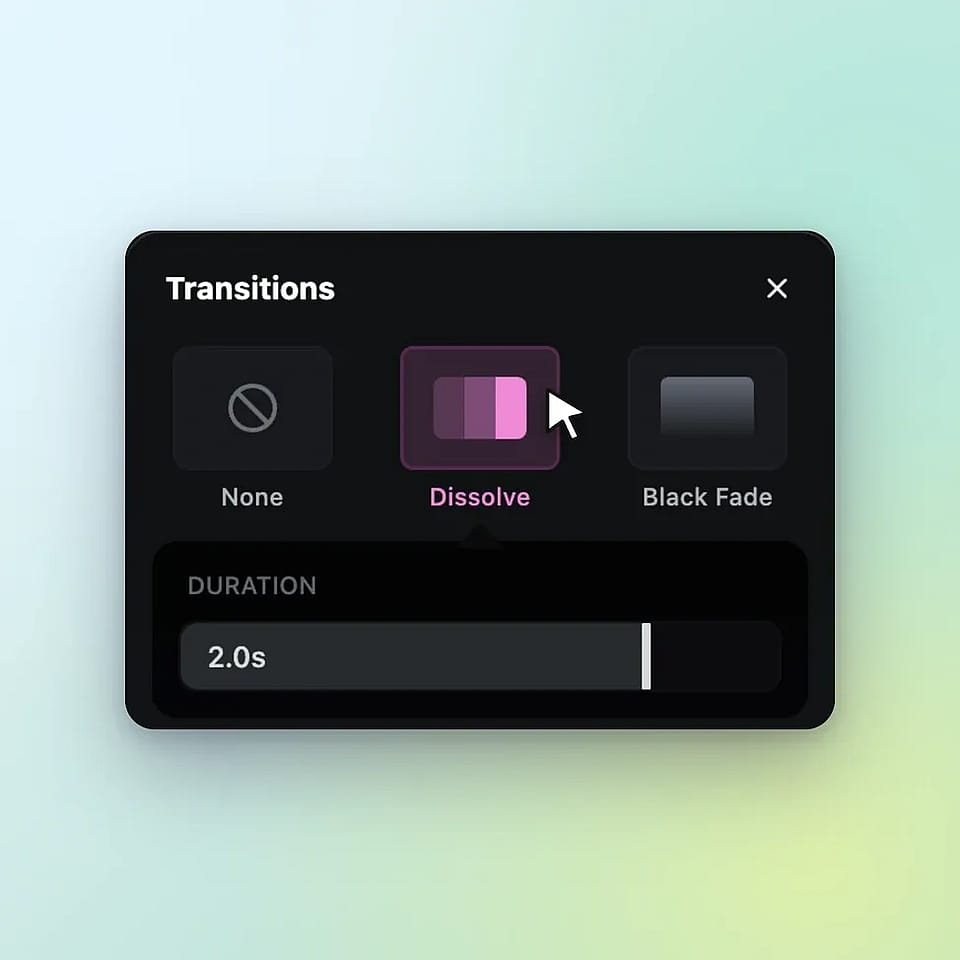
OpenArt's timeline in Director mode shows a small seam button when you hover between two shots. Click the seam button to open the Transitions panel and pick Dissolve, Black Fade, Slide, Clock Wipe, Wipe, Iris, or Zoom. Use Black Fade to close one scene and open the next, or use Dissolve to blend one product shot into another. Pick None to take a transition off again.
Set how long each transition lasts
Every transition on OpenArt's timeline shows up as a purple block on the seam between two shots. Set the length with the Duration slider in the panel, or drag the edges of the purple block. A transition can last from 0.2 seconds to 5 seconds, and it can take up to half of the shorter shot next to it. A 2-second shot can hold a transition of up to 1 second, so every shot stays on screen long enough to see.
Fade music and voiceover in and out
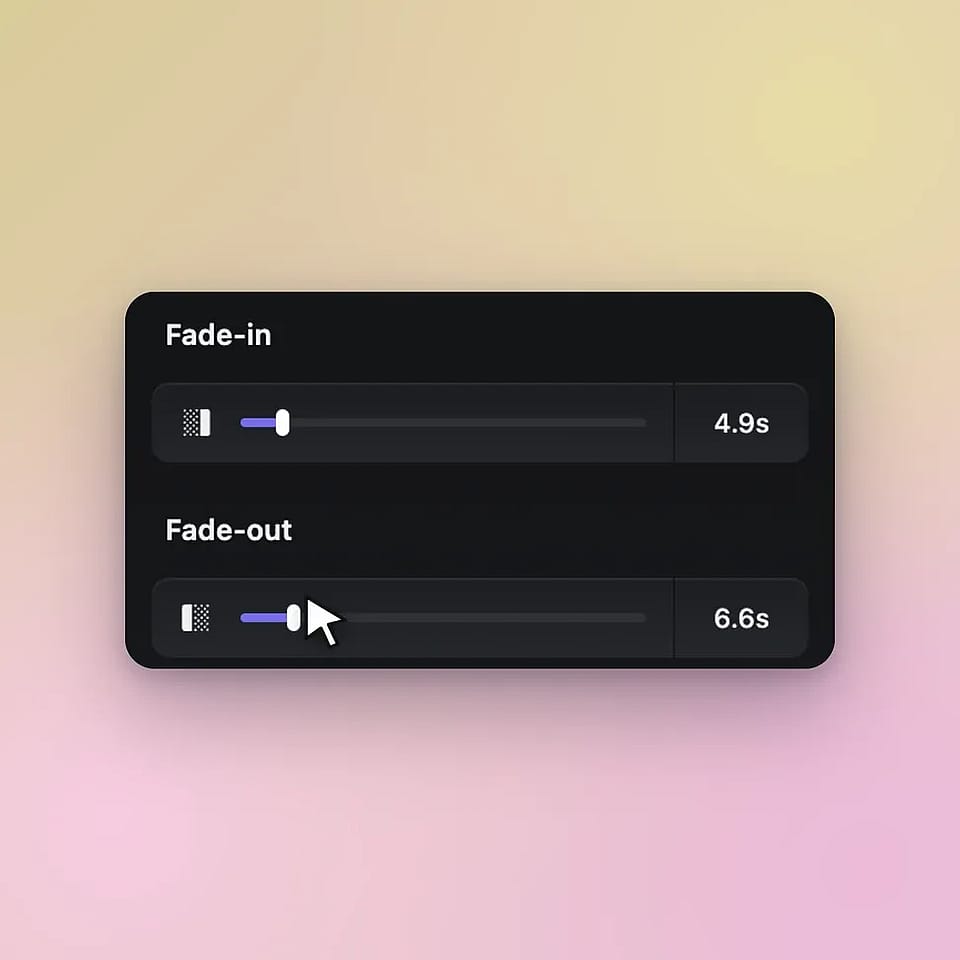
OpenArt's timeline lets you fade any music or voiceover clip in and out. Click the clip, then move the Fade-in and Fade-out sliders in the panel on the right. The change applies right away, and the music track shows the fade as a slope at its end. Let the music rise as your video opens and fade out softly as your logo appears.
Keep transitions in place while you edit
Transitions on OpenArt's timeline stay attached to their shots. When you move a shot or trim it, its transitions move with it. Voiceover and captions lined up with that shot move along too, so your timing stays right. The transitions and fades in your preview match the video you export.
How to Add Video Transitions
You can add and edit transitions in an OpenArt video in three steps.
Make your video and open the timeline
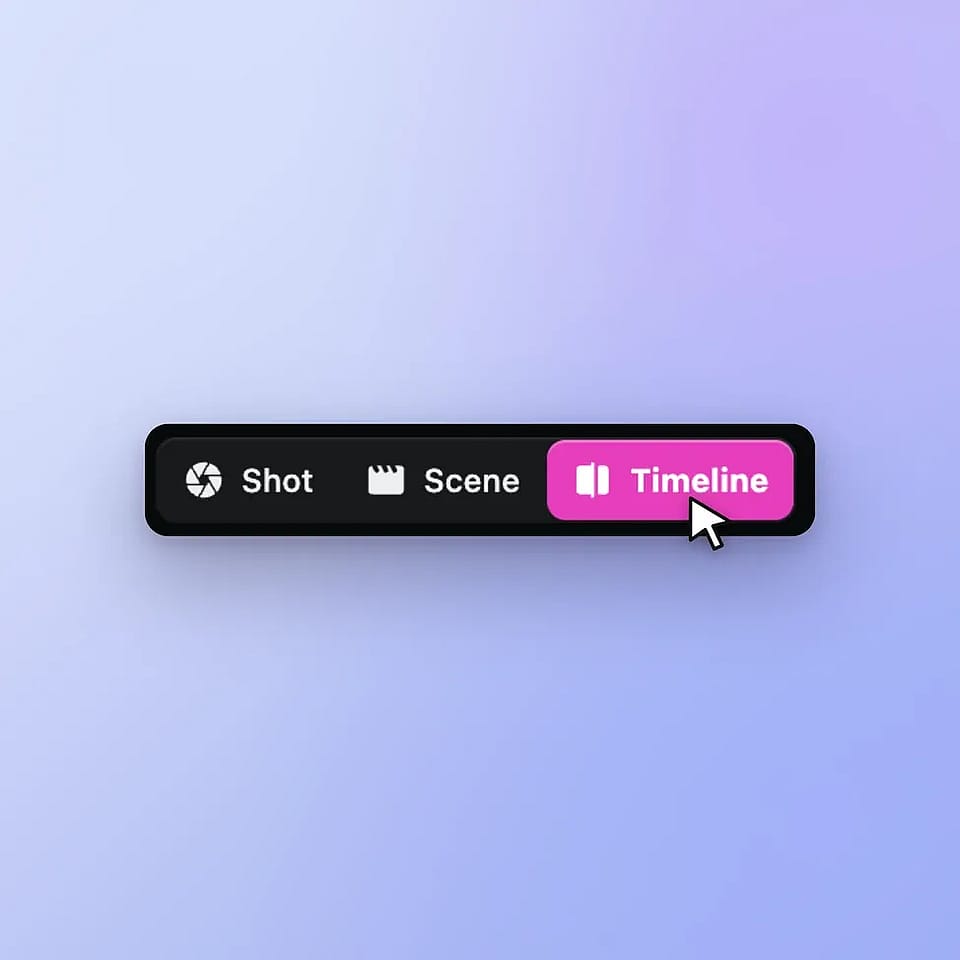
Describe your video in Director mode and click Start Directing. When the video is ready, switch from Scenes to Timeline.
Add your transitions
Hover between two shots, click the seam button, and pick a transition. Set the length with the Duration slider, or click Apply to all clips.
Fade the audio and export
Click your music or voiceover clip to set the Fade-in and Fade-out. Check the preview, then export your video.
Who Uses AI Video Transitions
Performance marketers, brand teams, small business owners, and filmmakers use AI video transitions on OpenArt to make shot changes look smooth and planned.
Performance marketers testing ad versions
Performance marketers use OpenArt's video transitions to make many versions of one ad. Move the hook shot to the front or swap the order of two product shots, and each transition moves with its shot. Click Apply to all clips to give every version the same quick Dissolve or Zoom. You can test a new shot order without rebuilding the whole edit.
Try it NowBrand teams and video editors keeping videos consistent
Brand designers, motion designers, and video editors use OpenArt's video transitions to give every marketing video the same style of scene change. Pick one transition and one length for your brand, then put it on every shot with Apply to all clips. Videos from the launch video maker open on the same timeline, so you can tune their transitions and music fades before launch day. Commercial rights apply on eligible paid plans.
Try it NowSmall business owners polishing promo videos
Small business owners use OpenArt's video transitions to make a promo video look finished. Add a Dissolve between the shots of your shop, your products, and your team. Then fade the music out at the end so the video closes softly. The whole edit happens on one timeline with no extra software.
Try it NowFilmmakers moving between scenes
Filmmakers use OpenArt's video transitions to show a change of time or place in a short film. Use Black Fade between two scenes to show that a day has passed, or a Dissolve to drift into a memory. Tag a saved character from OpenArt Characters in Director mode, so the same person carries through every scene you join. Director mode videos run up to 5 minutes.
Try it NowFrequently Asked Questions
Video transitions are the effects that move a video from one shot to the next, like a dissolve or a fade to black. On OpenArt, you add AI video transitions between the AI-made shots of your Director mode video, right on the timeline. OpenArt offers 7 transitions: Dissolve, Black Fade, Slide, Clock Wipe, Wipe, Iris, and Zoom.
OpenArt's timeline offers Dissolve, Black Fade, Slide, Clock Wipe, Wipe, Iris, and Zoom. Dissolve blends one shot into the next, and Black Fade fades the picture to black before the next shot starts. Clock Wipe sweeps across the picture like the hand of a clock, and Iris opens or closes the picture in a circle.
A transition on OpenArt's timeline can last from 0.2 seconds to 5 seconds. Each transition can take up to half of the shorter shot next to it, so a 4-second shot can hold a transition of up to 2 seconds. The seam button only shows up between shots that are at least 0.4 seconds long.
Yes. Pick a transition and a length in OpenArt's Transitions panel, then click Apply to all clips at the bottom of the panel. OpenArt puts that same transition and length on every shot change in your timeline.
Yes. The transitions and audio fades in your OpenArt preview match the video you export. You can check every shot change in the preview before you export.
Open your video's timeline in Director mode and hover between two shots. Click the seam button that appears, pick a transition in the Transitions panel, and set its length with the Duration slider. The transition shows up as a purple block between the two shots.
Pick Black Fade in OpenArt's Transitions panel. Hover between the two shots on your timeline, click the seam button, and choose Black Fade. Set a longer duration, like 1 or 2 seconds, for a slow, calm fade.
Yes. During a transition on OpenArt, the next shot starts while the first one is still playing, so both shots keep moving as they blend. That overlap makes your finished video shorter by the length of each transition. A 1-second Dissolve takes 1 second off the total.
Click a music or voiceover clip on your OpenArt timeline, then use the Fade-in and Fade-out sliders in the panel on the right. The fade applies right away, and the music track shows a slope where the sound fades. Fade the music out at the end of your video so it closes softly.
Yes. OpenArt's Image to Video tool can start a video on one picture and end it on another. Upload your first image as the start frame and your second image as the end frame, then describe the change you want to see. Models like Veo 3.1, Kling 3.0, and Seedance 2.5 make a video that moves from the first picture to the second.
Get Insights from Experts Blog
Get the insights you need. Our experts share actionable hacks, break down the hottest topics, and provide essential how-to guides to help you create, optimize, and scale.
Read More