

 ChatGPT
 Perplexity
 Claude
 Gemini
These skin prompts help you get skin that looks like a real person's, with pores, a natural glow and the right skin tone. Some prompts make a new image from scratch. Others work on a photo you already have, so you can clean up your face or adjust your skin tone and still look like you.
You'll also find skin tone prompts for every shade and a few tips to use the right words for generating realistic skin. Every example image on this page was made on OpenArt. For prompts in other styles, see our guide to the best AI image generator prompts.
The skin prompt formula:
[the skin's texture] + [its tone or undertone] + [the light] + [the shot].
You can use this like a simple skin prompt generator: keep the structure and swap in your own details.
Key takeaways
- Texture words like pores, freckles and peach fuzz make AI skin look real.
- Words like "flawless" and "perfect" usually make skin look plastic.
- Start every edit prompt with "Keep my face exactly the same" so your features stay yours.
- Naming a warm or cool undertone helps the AI get your skin tone right.
- Soft side light from a window shows skin texture best.
Realistic Skin Texture Prompts
Real skin has small details: pores, a few freckles, fine hairs, acne marks, moles, and lines that show when you smile. Add one or two of these to your prompt, and the AI stops smoothing everything out.
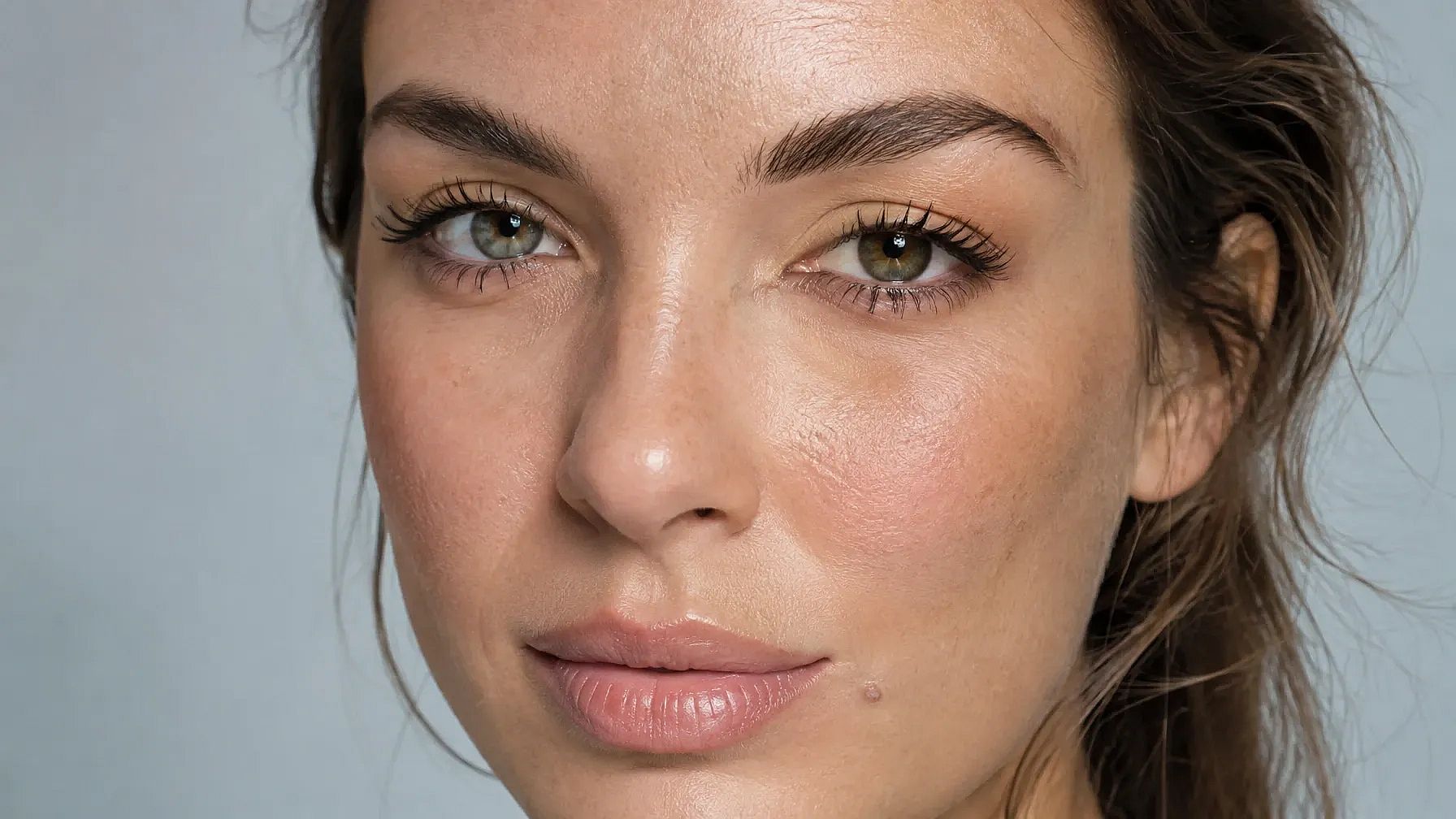
1. Hyper-realistic skin close-up with pores
This is a good starting point if your AI portraits keep coming out too smooth.
Hyper-realistic close-up shot of a person with real skin, highlighting pores and texture, studio background.
2. Freckles and natural marks
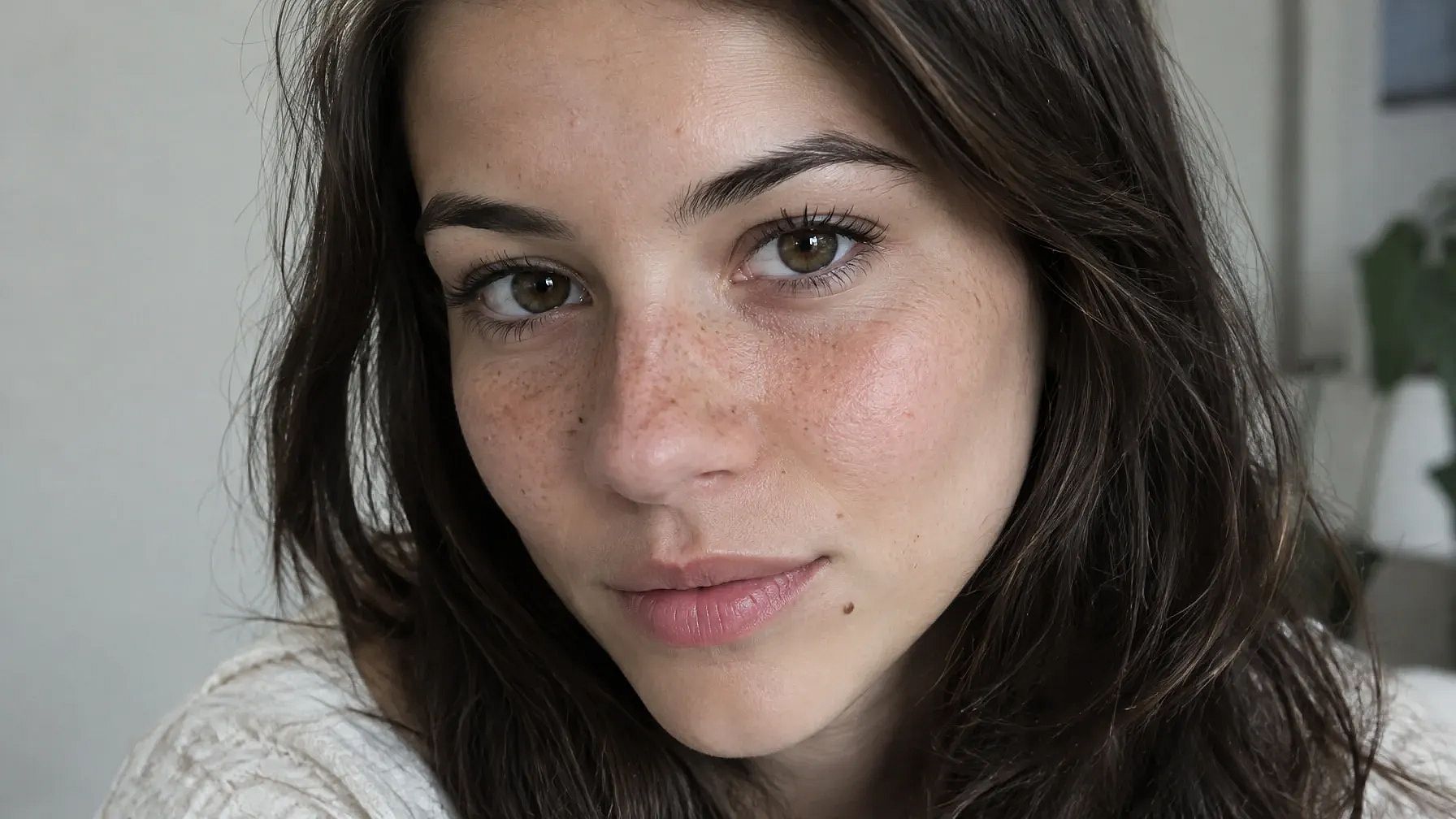
Freckles and small marks make a face feel like someone you could meet.
Realistic portrait of a young woman with light freckles across her nose and cheeks, a small mole near her lip, visible pores, soft daylight, natural matte skin.
3. Peach fuzz macro shot
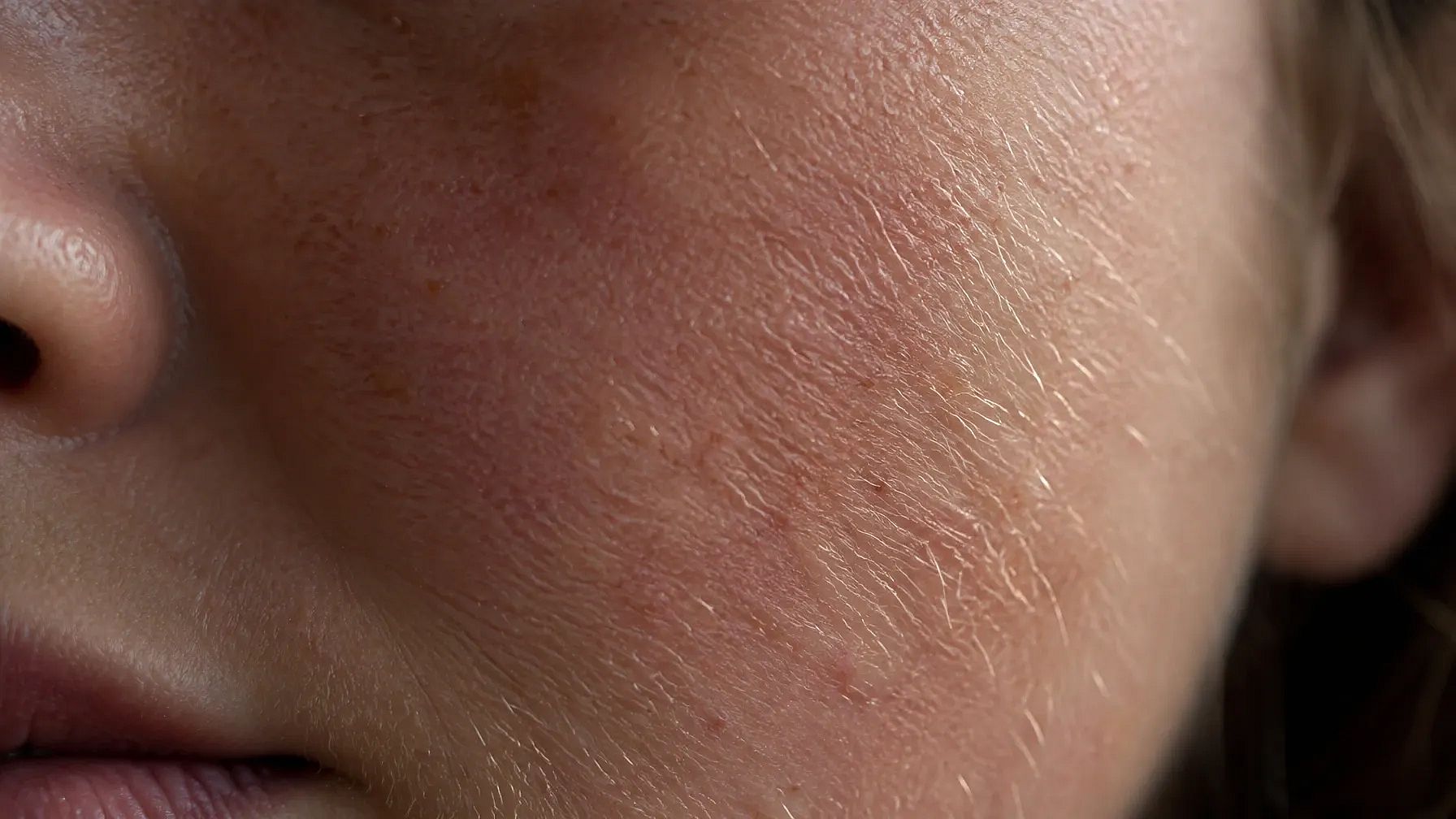
Peach fuzz is the fine, soft hair on your cheeks and chin. It usually shows when it catches the light and is one of the easiest ways to make skin look real.
Macro close-up of a cheek with fine peach fuzz catching soft side light, visible pores, slight redness, shallow depth of field, photorealistic.
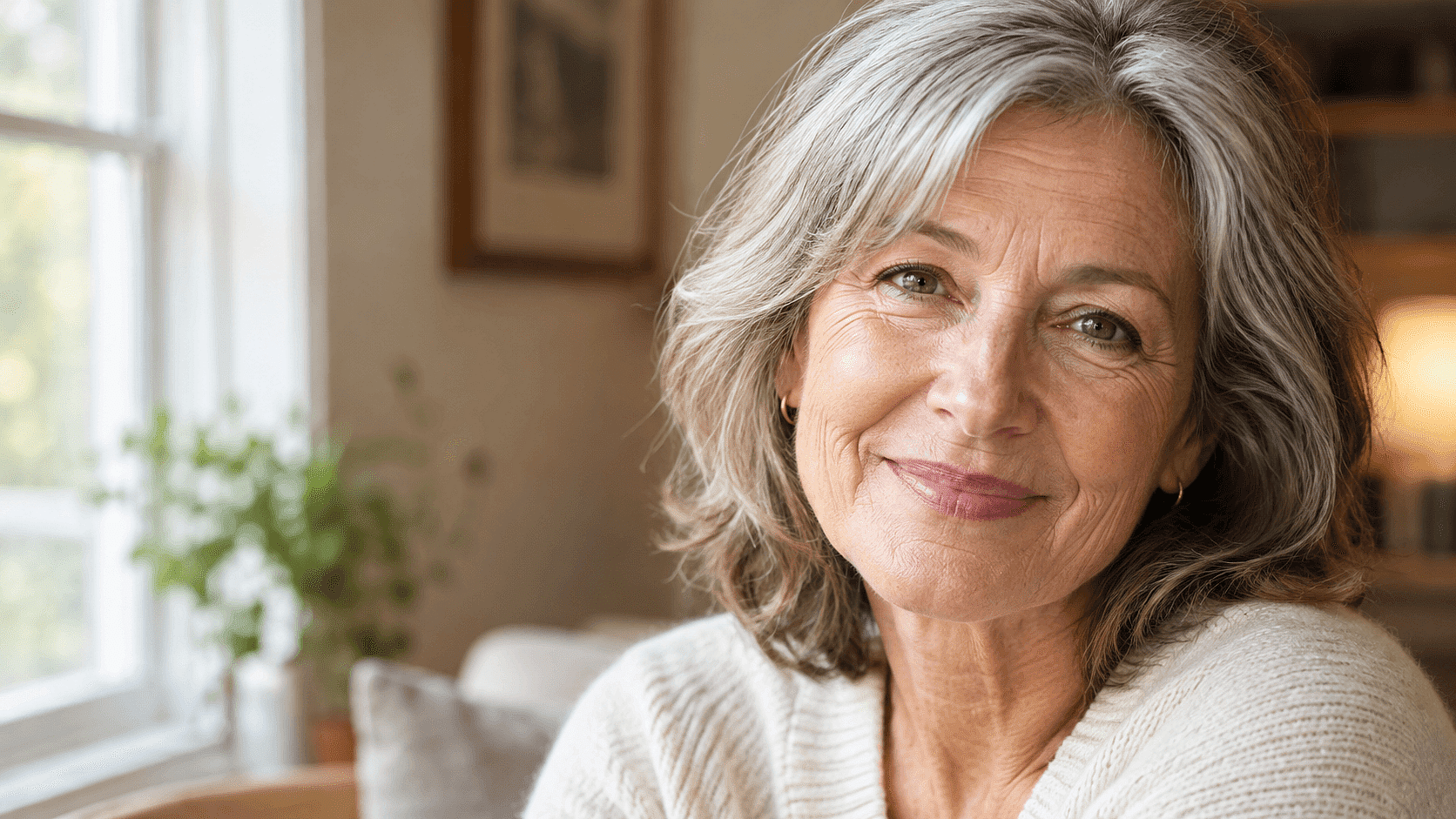
4. Mature skin with fine lines
Lines and texture give older faces their character, so keep them in the prompt.
Realistic portrait of a woman in her sixties with fine lines around her eyes, soft laugh lines and natural skin texture, warm window light, kind expression.
Face Clean and Clear Skin Prompts for Your Photo
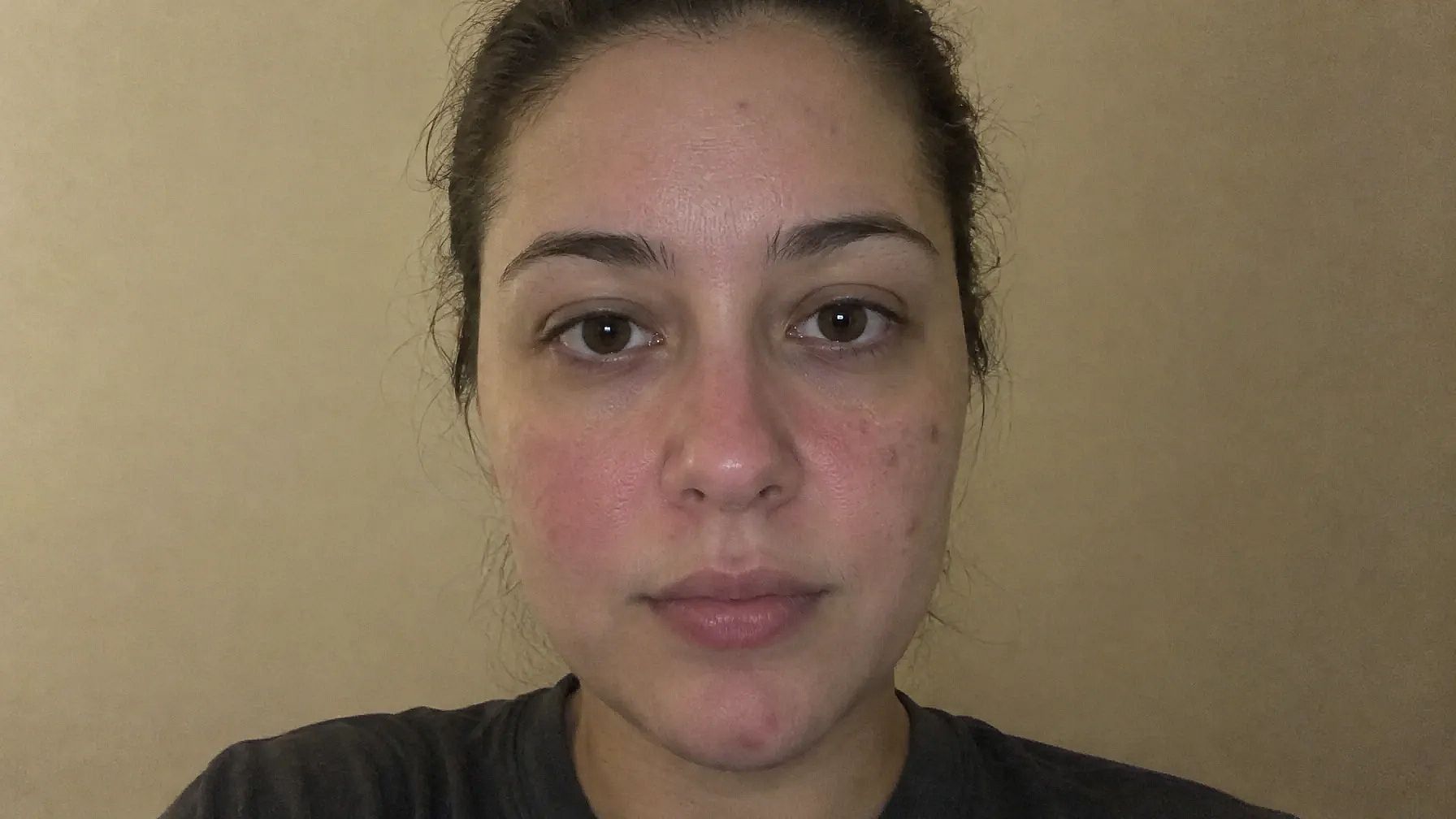
These prompts work on a photo of you. Upload your picture first, then paste the prompt. Each one starts with "Keep my face exactly the same," which tells the AI image generator to leave work only on your skin instead of morphing the facial features.
This is the reference image we used:
5. Clean up a face photo
Use this when the photo is fine but your skin looks a bit red or uneven.
Keep my face exactly the same. Clean up my skin: calm the redness and even out the tone, but keep my pores and natural texture. Do not change my features, hair or expression.
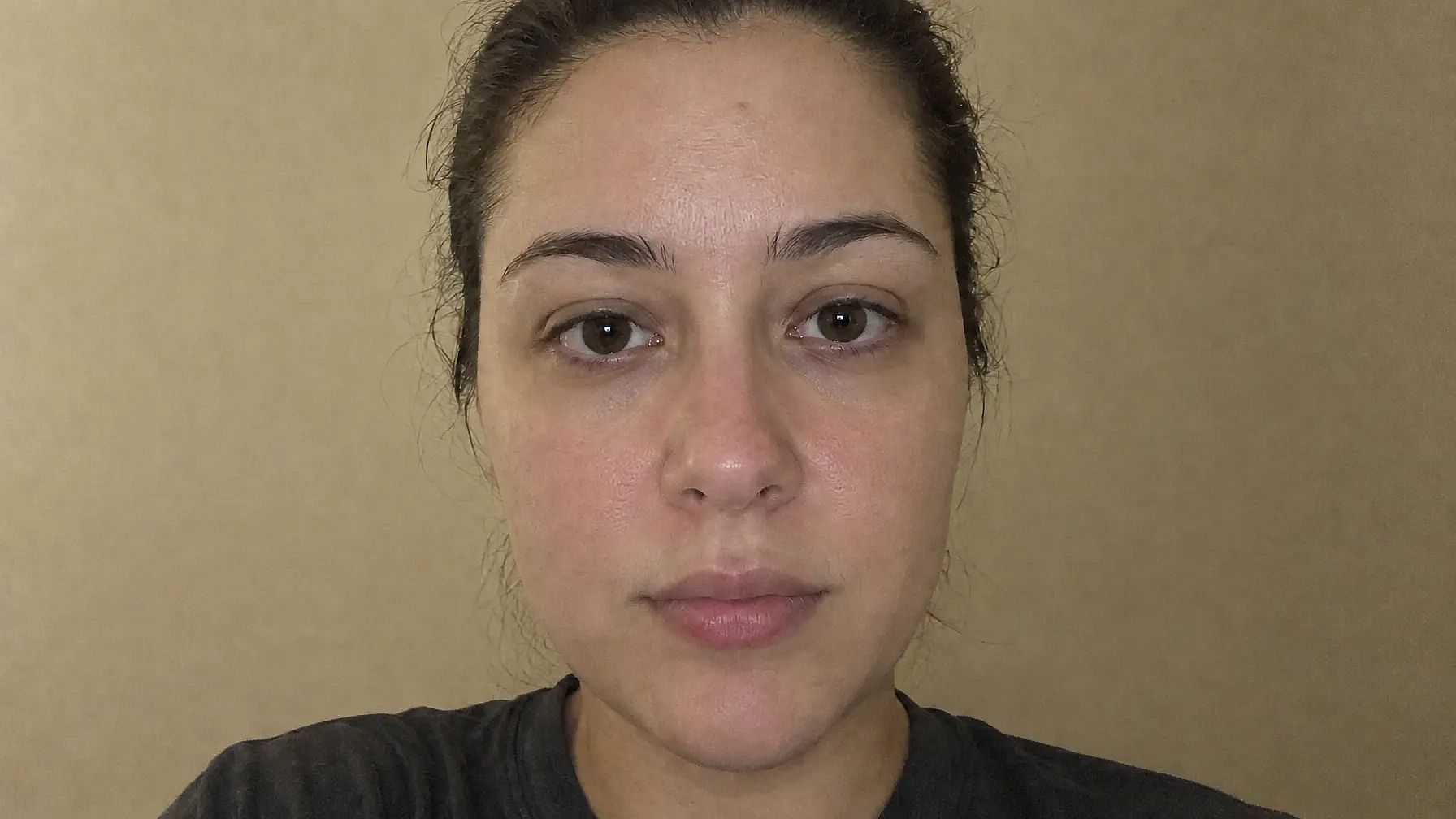
6. Clear skin with softened blemishes
This softens spots and marks so they don't pull attention, while your skin looks life-like instead of the usual plastic AI look.
Keep my face exactly the same. Gently soften the blemishes and dark spots so my skin looks clear and healthy. Keep the pores, fine hairs and natural shine.
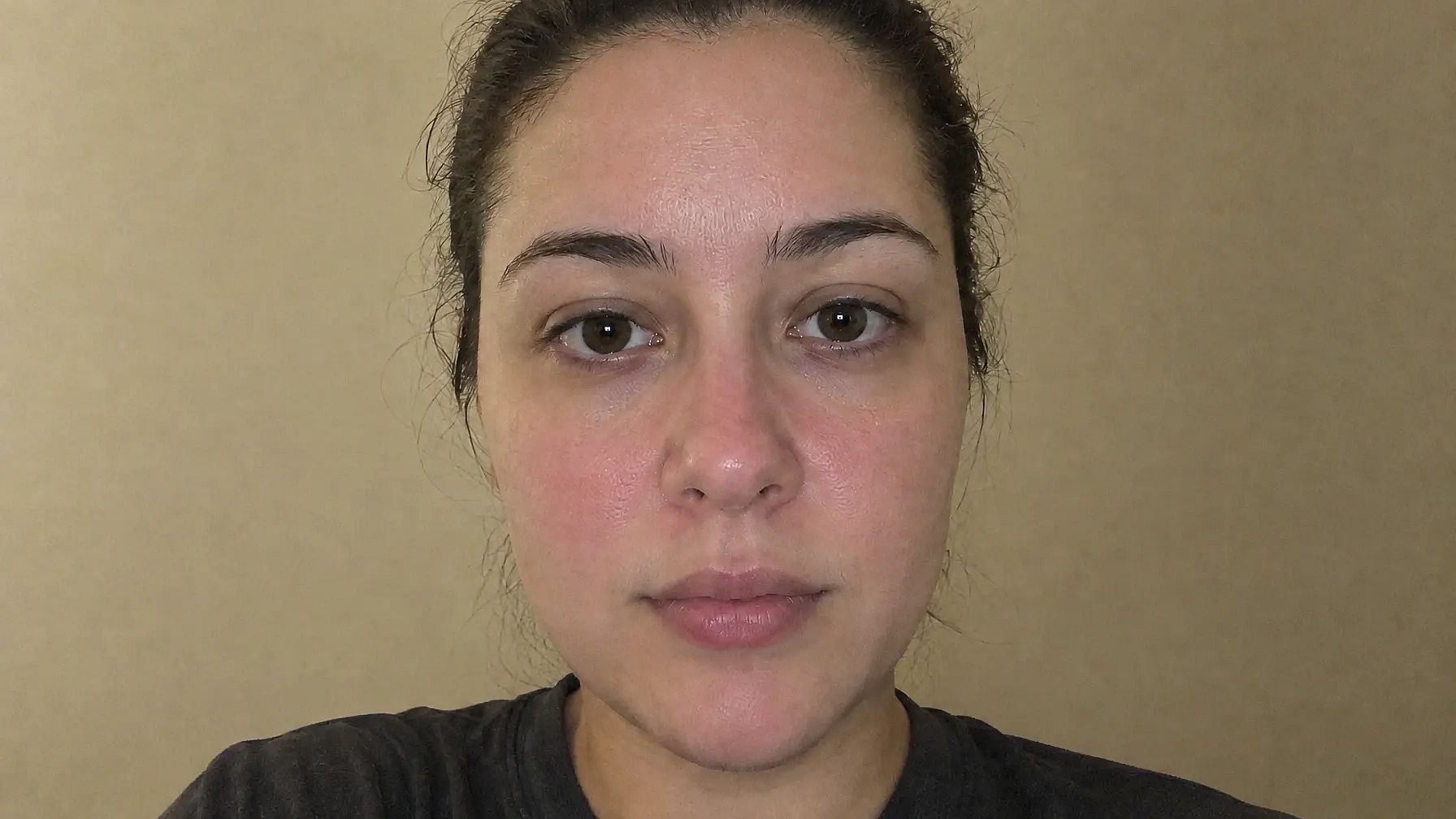
7. Brighten a dull face photo
Indoor light and old phone cameras can make a face look flat and gray. This prompt adds brightness and clarity.
Keep my face exactly the same. Make my face look brighter and clearer, like it was shot in soft daylight. Add a little sharpness to my eyes and skin detail, and keep my real skin tone.
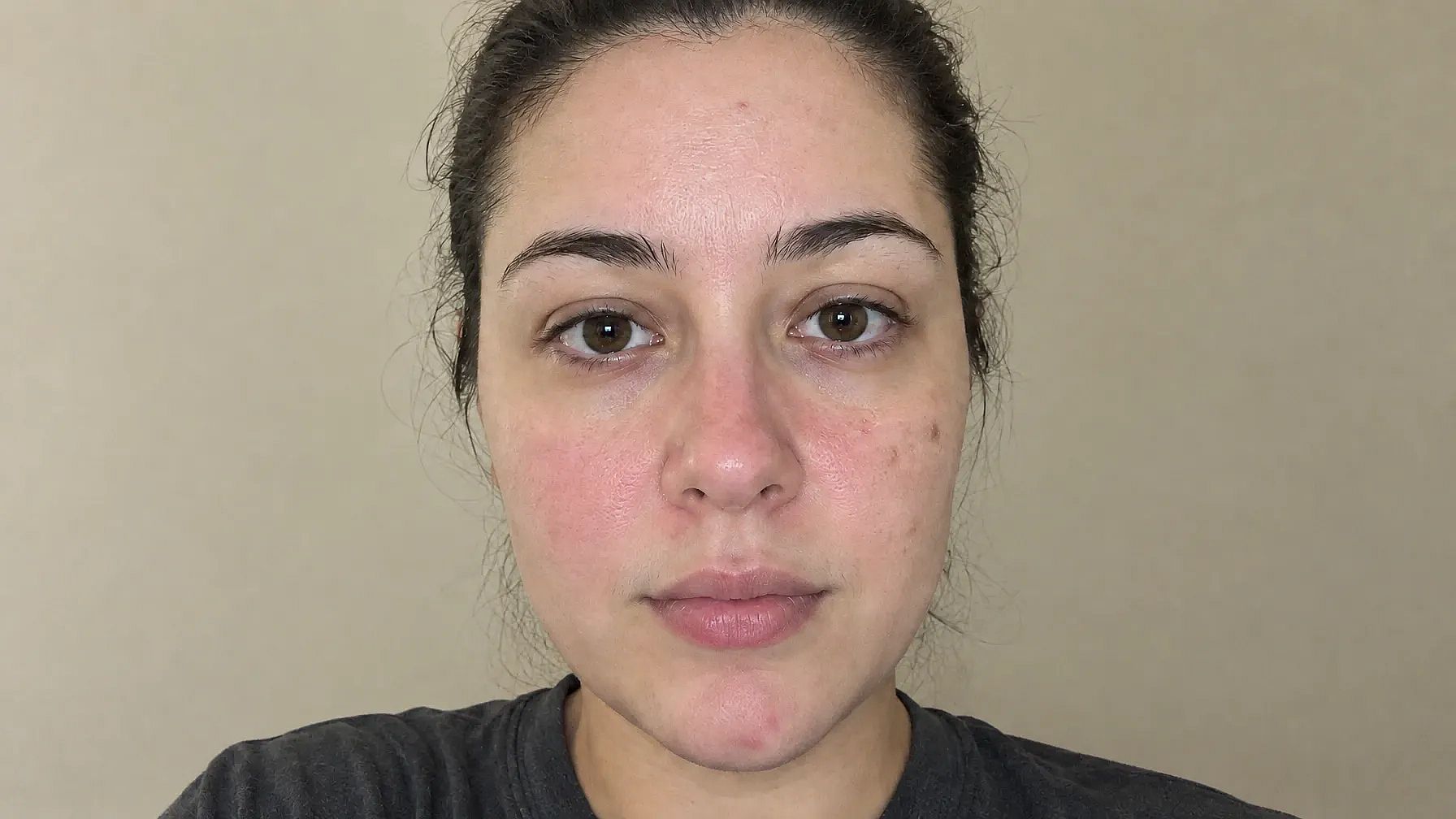
Want it done in one click? OpenArt AI Face Smooth cleans up skin in a selfie or portrait, and you can still add a prompt for extra control.
Glowing Skin Prompts
A healthy glow comes from light sitting on the high points of the face, like the cheekbones and the tip of the nose. Words like "dewy" and "soft light" get you there.
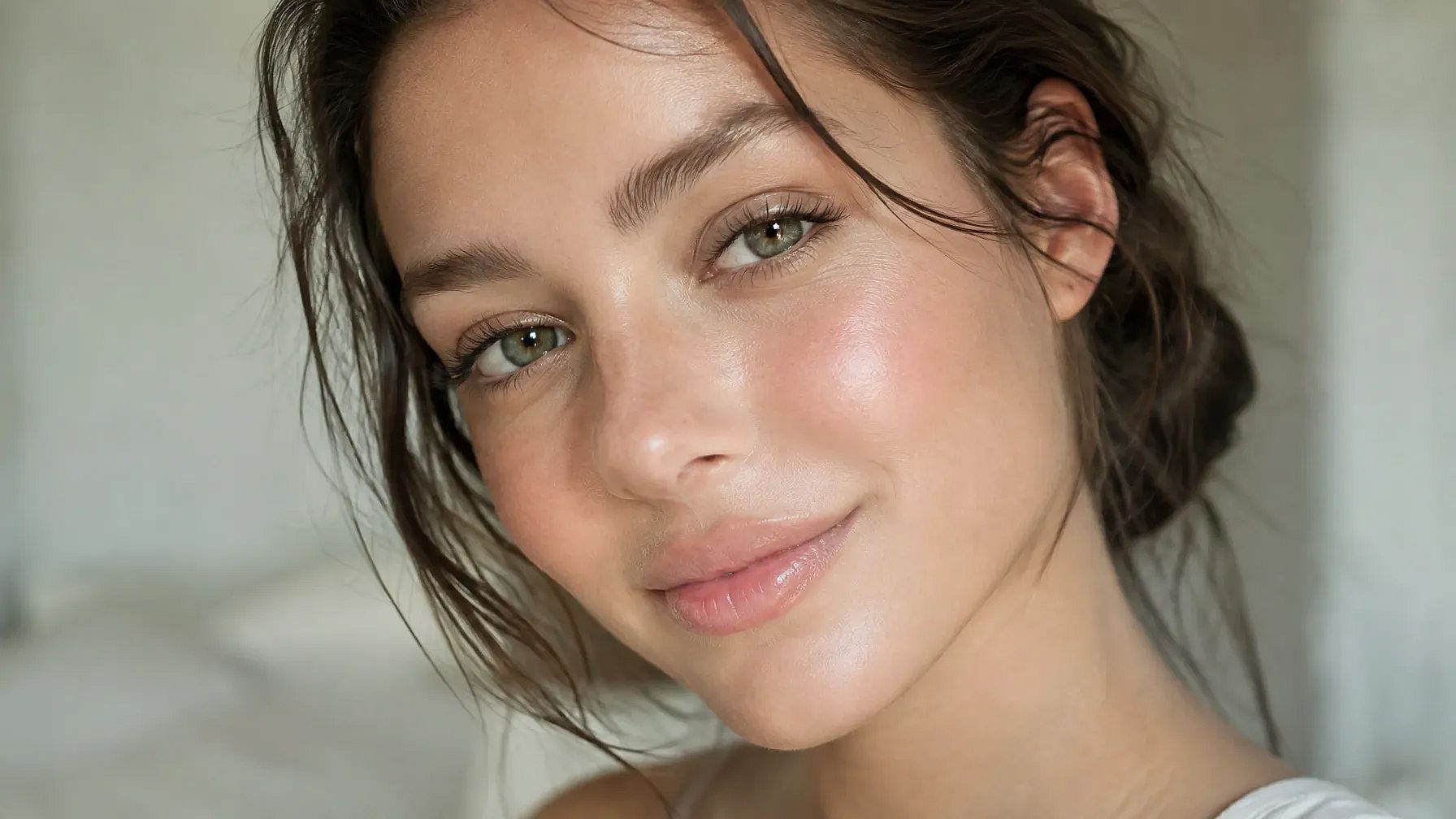
8. Dewy glow with soft focus
This one makes a new portrait with that fresh, just-moisturized look.
Realistic portrait of a woman with glowing, dewy skin, soft focus, natural light.
9. Face glow for your own photo
Upload your photo and add a soft glow that still looks natural.
Keep my face exactly the same. Give my skin a soft, healthy glow on the cheekbones, nose and forehead, like warm morning light. Keep my pores and skin texture visible.
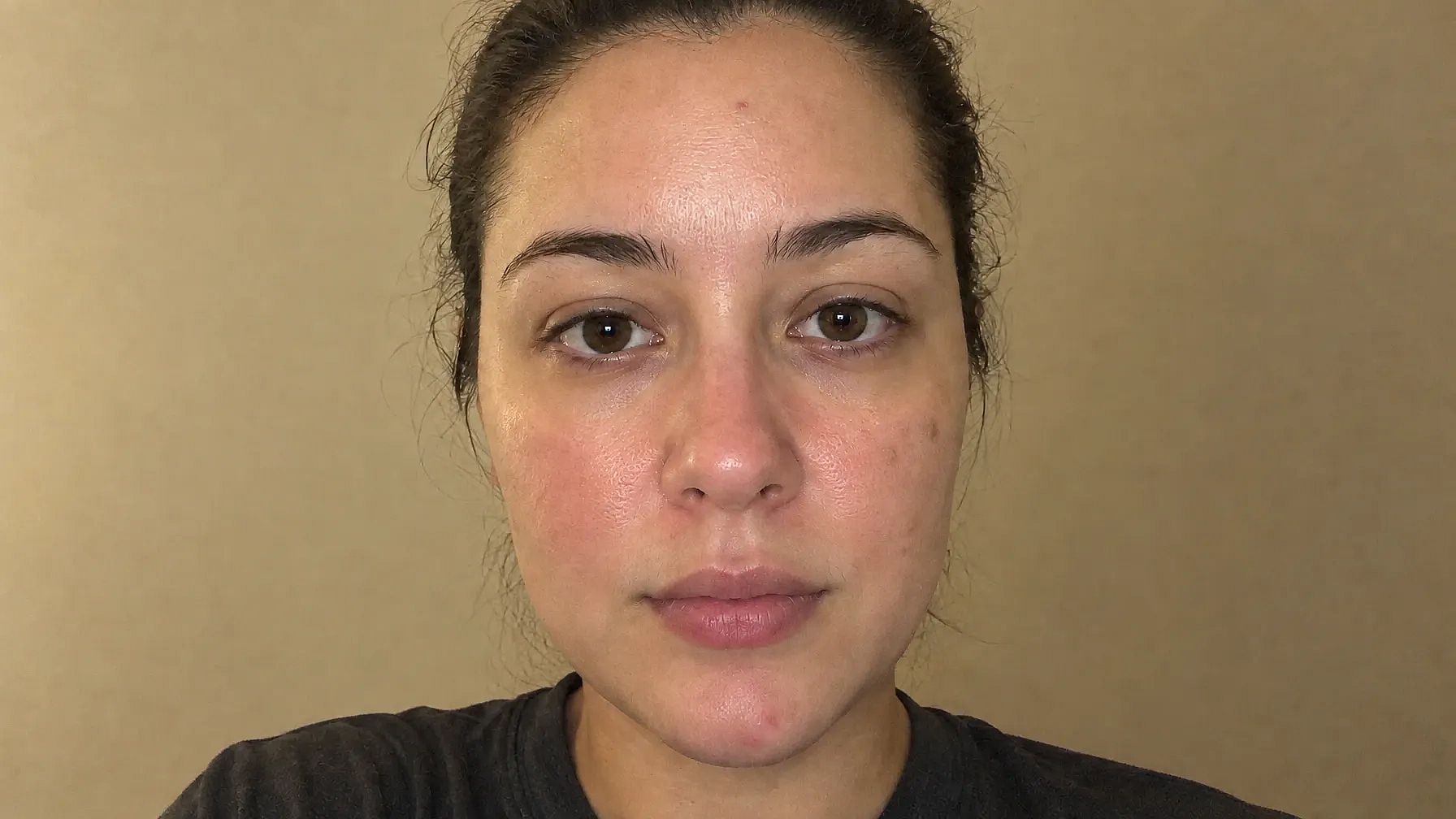
These glow prompts also work well for skincare ads. Swap the person for a close-up of a cheek next to your product, and keep the light words the same.
Skin Tone Prompts
These skin tone prompts work for every shade, from deep brown to light olive. The trick is to describe the shade and the undertone in plain words, then ask the AI to keep everything else the same.
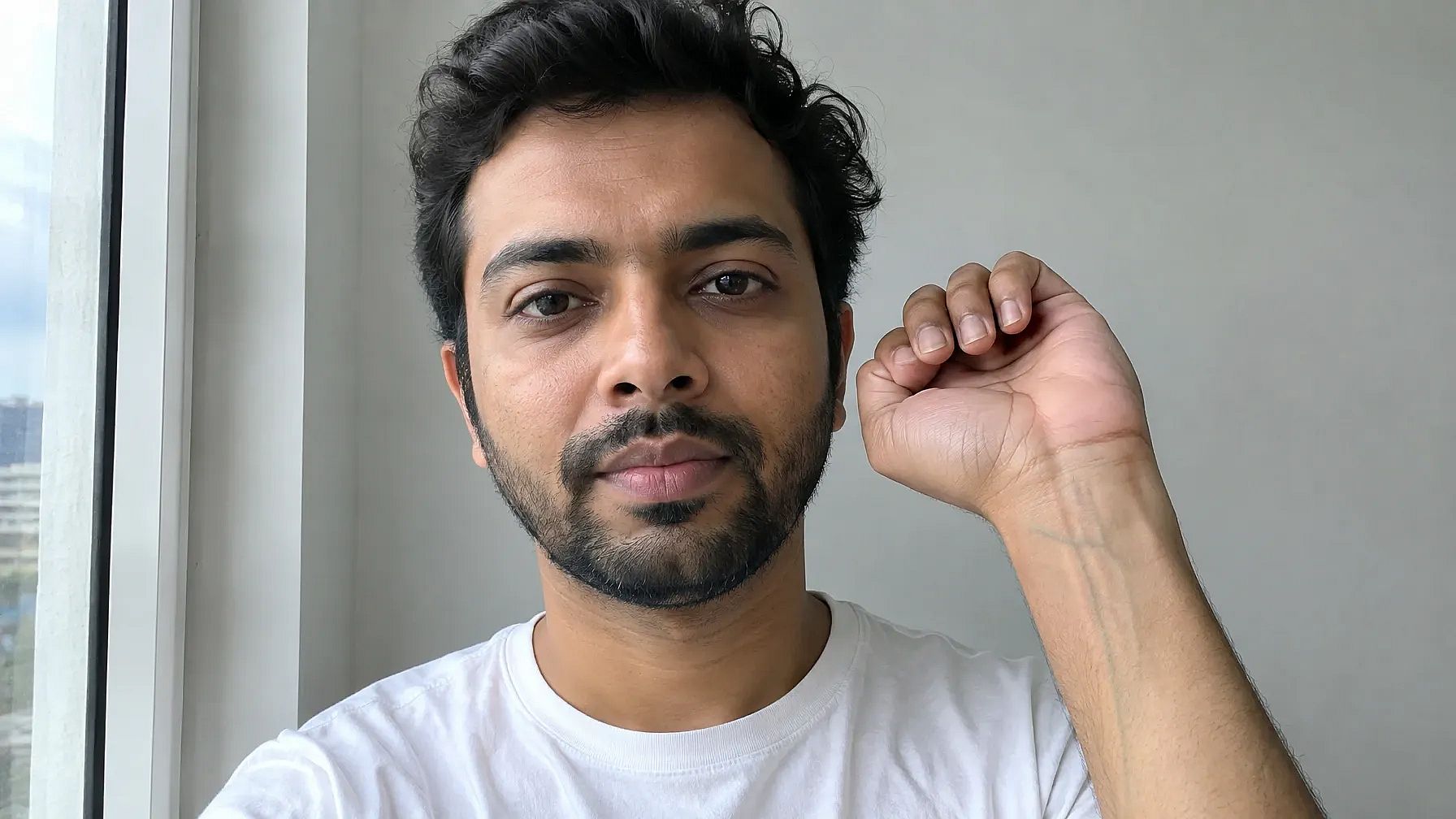
Find your undertone first. If you're not sure whether your undertone is warm or cool, ask ChatGPT. Upload a photo of your face taken in daylight and paste this:
Look at this photo of my face in natural daylight. Tell me if my skin undertone looks warm, cool or neutral, and explain which signs you used. Keep the answer short.
Treat the answer as a good guess, since the light in your photo can change how your skin looks.
We used this photo as a reference image, and ChatGPT guessed medium brown skin and warm golden undertones:
10. Change skin tone and keep your face
Use this to try a different shade or to fix a photo where your skin came out the wrong color.
Keep my face, features and expression exactly the same. Change my skin tone to olive with a natural finish. Match the new tone on my face, neck and hands.
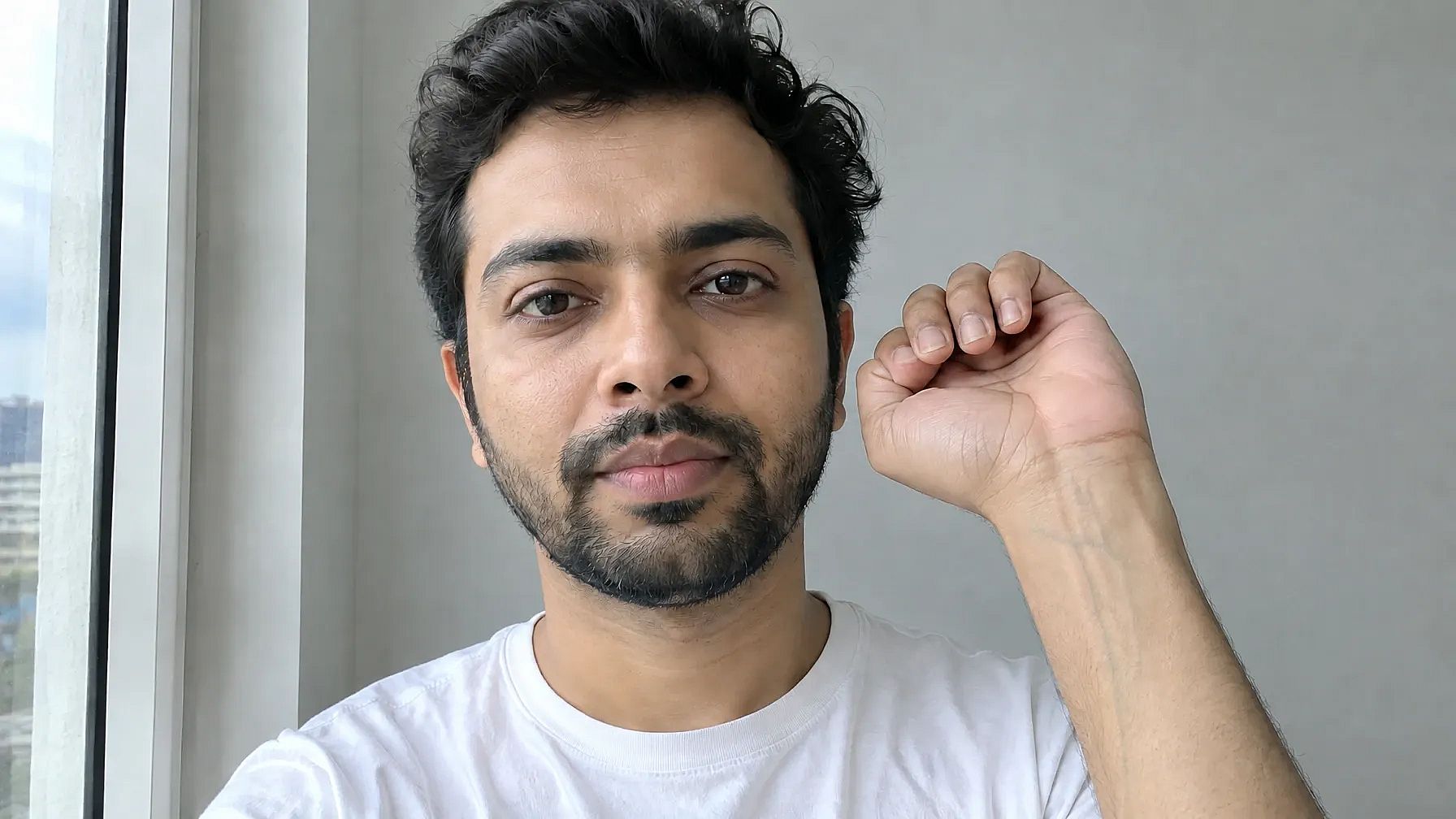
11. Fix uneven skin tone from bad lighting
Yellow bulbs and harsh shadows can make one side of your face look darker than the other. This brings it back to your real tone.
Keep my face exactly the same. Fix the uneven skin tone caused by the lighting so my face looks like it was shot in soft, even daylight. Keep my real skin color and texture.
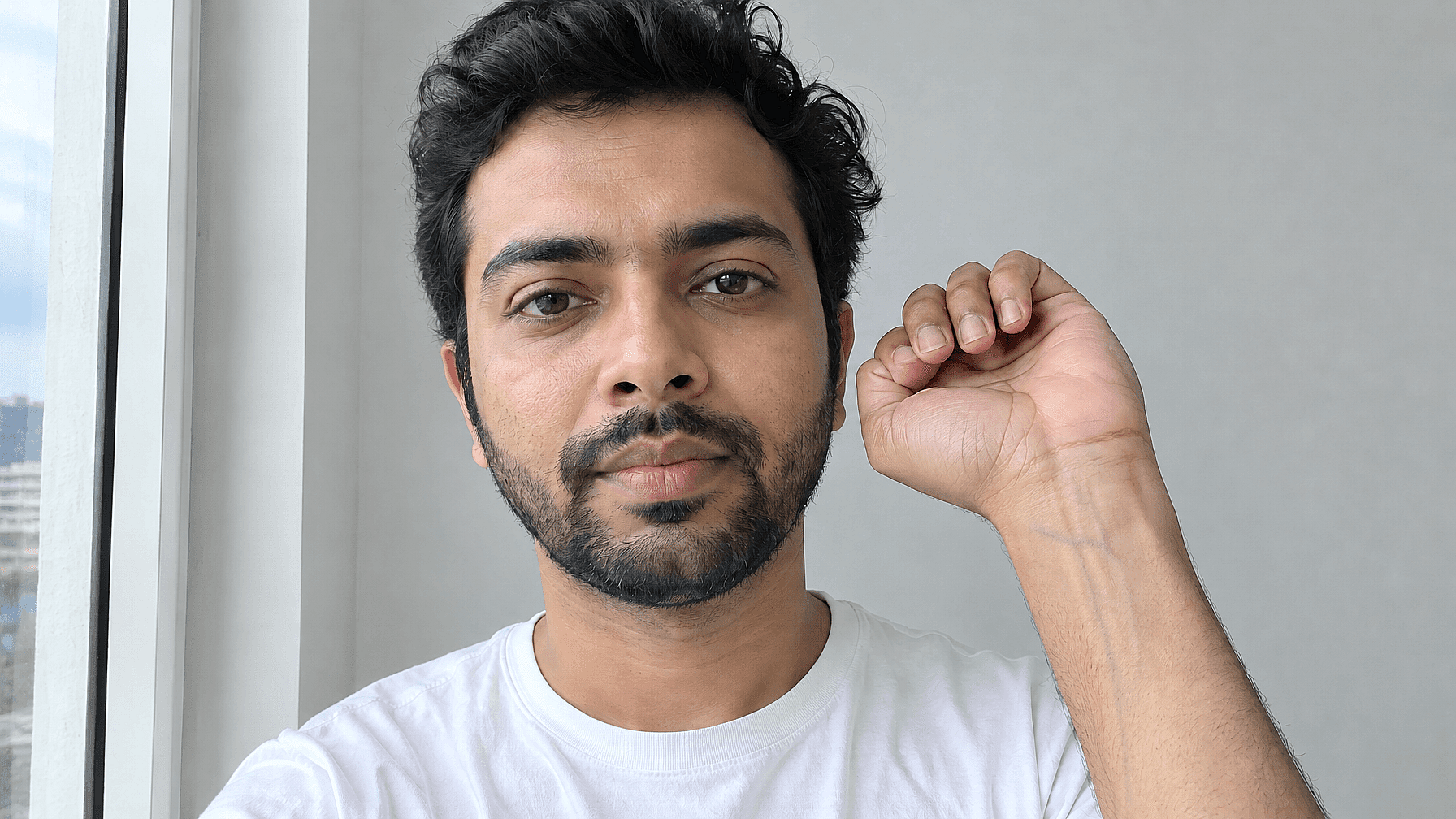
12. Match a warm or cool undertone
Naming the undertone helps the AI pick colors that suit the skin, from the shadows to the lips.
Realistic portrait of a man with fair skin and cool undertones, visible pores, soft window light, neutral beige background.
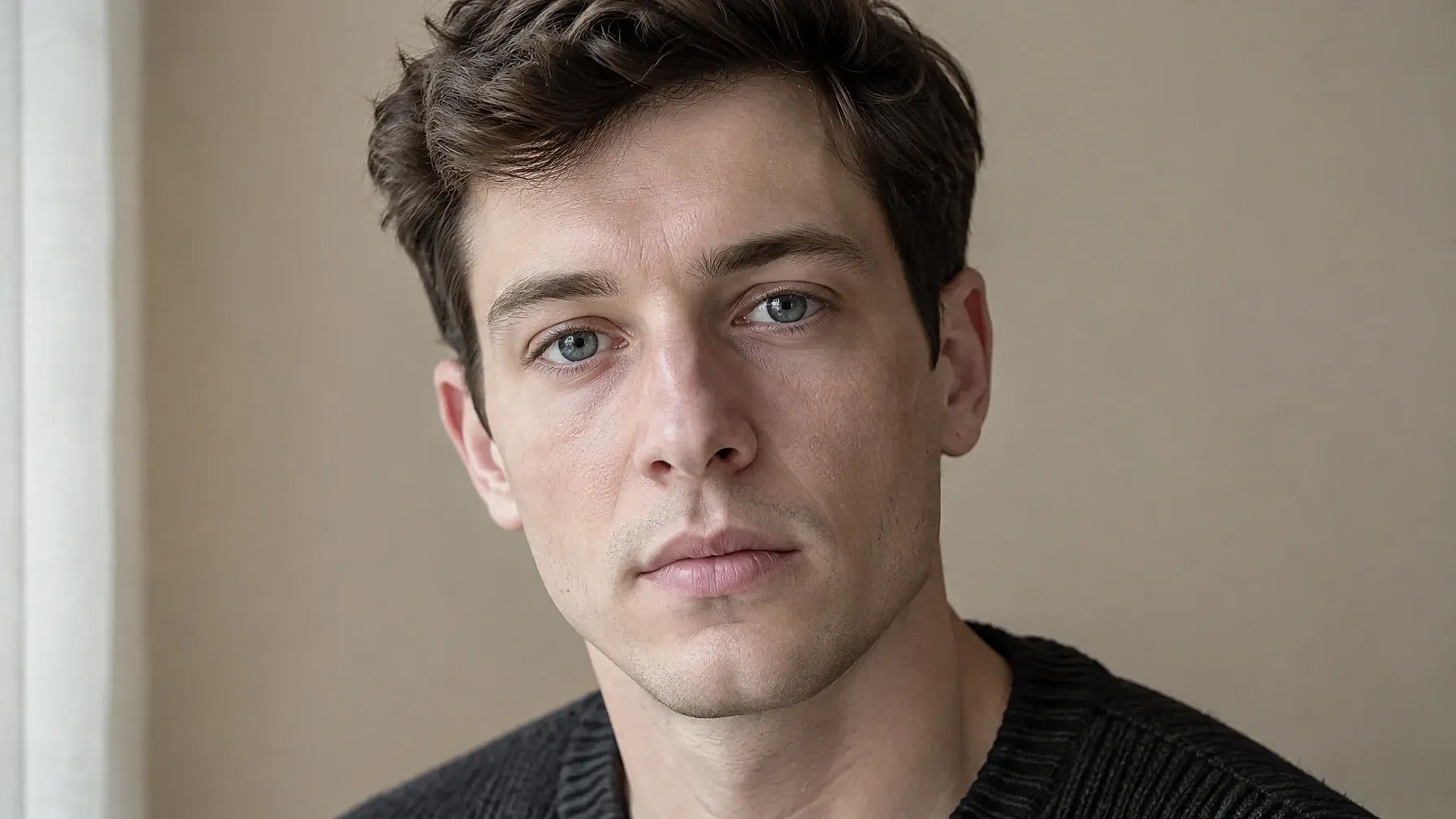
For a cool undertone, swap "warm golden" for "cool pink" or "cool blue-red" and keep the rest.
Smooth Skin and Retouch Prompts
Good retouching makes skin look smoother and retains the detail. If the AI skin smoothening tool returns like a doll image, you must have gone too far.
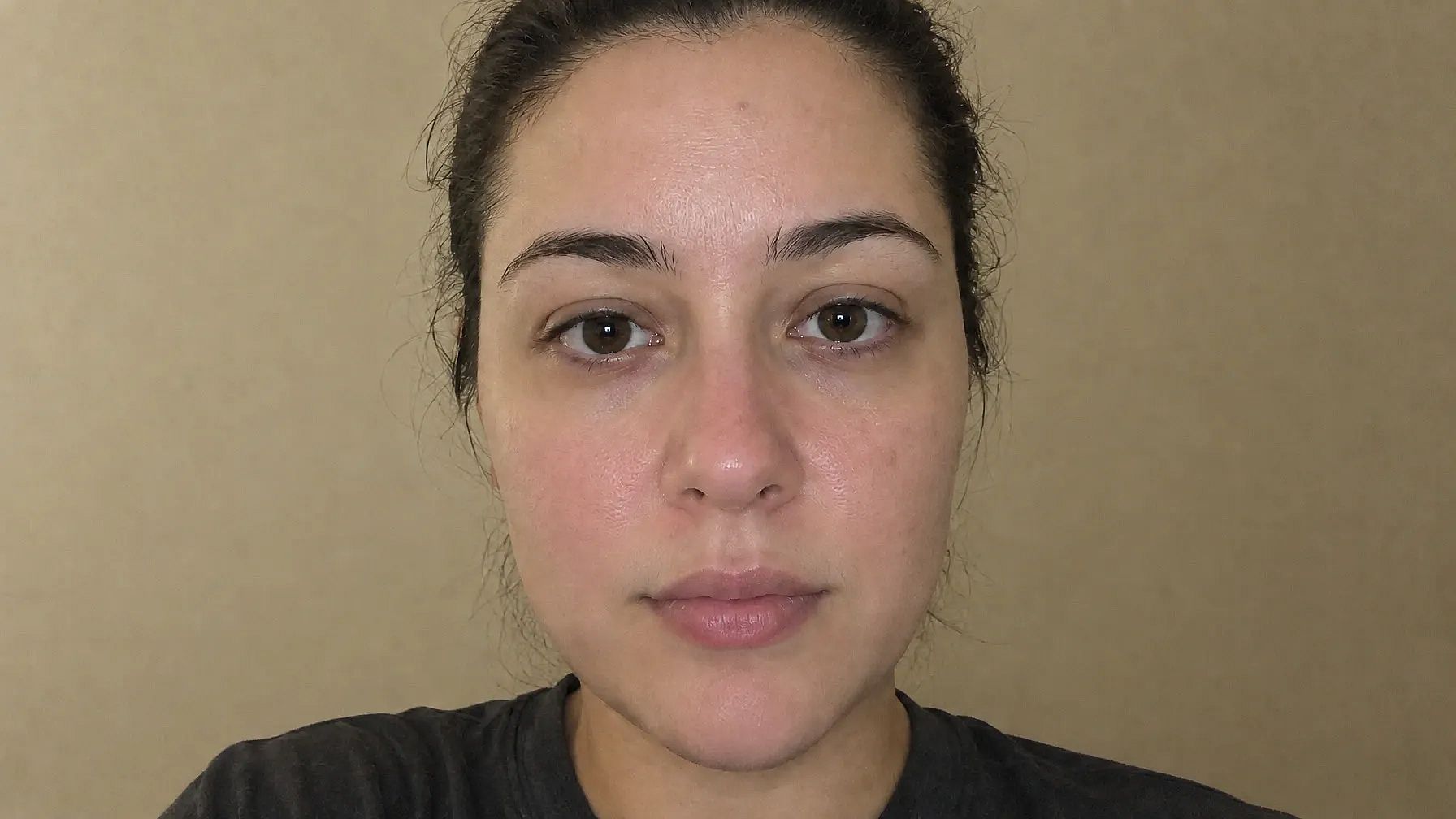
13. High-end skin retouch
This is the kind of edit you see in beauty shoots. It works well on portraits and selfies.
Professional high-end skin edit. Keep my face exactly the same. Smooth and glow, with natural skin texture. Keep the pores and fine details, and soften only the redness and small blemishes.
Tip for soft focus. Ask for "a light soft focus" or "a gentle soft glow" and add "keep the skin texture" right after it. That gives you a dreamy look without blurring your face.
If you want a sharper face after the retouch, run the image through Image Upscale on OpenArt and turn on face enhancement. Retouching a video? The video skin smoothing filter smooths skin in every frame.
Natural, Sun-Kissed and Aesthetic Skin Prompts
Sometimes you want skin that looks like it belongs to a real day outside. These two prompts are simple, and they're easy to change.
14. Natural skin, no-makeup look
This gives you a fresh face with little or no makeup, the kind of photo that feels candid.
Realistic photo of a model with radiant skin, minimal makeup, outdoor setting.
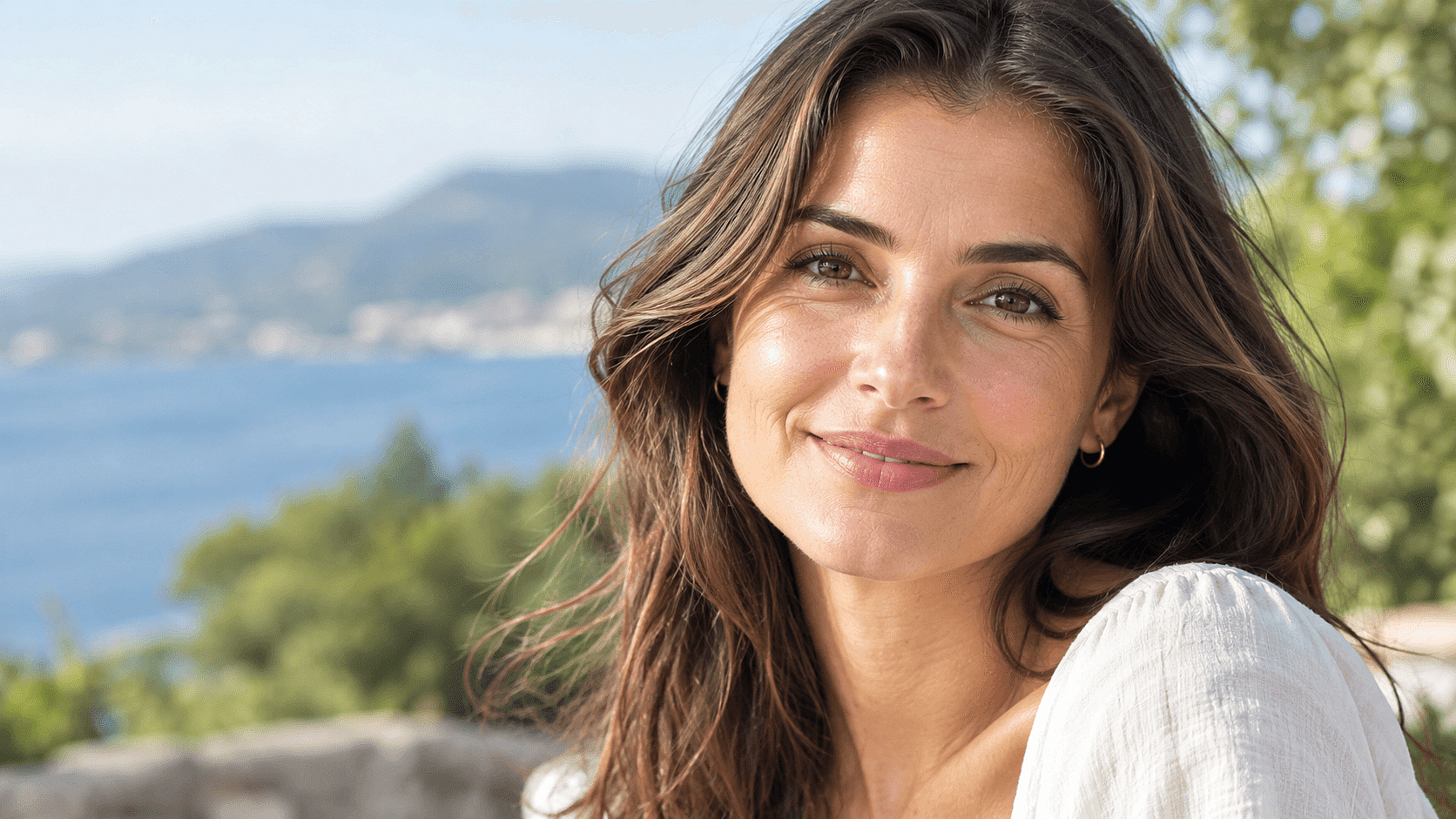
For UGC-style ads, add "casual smartphone selfie in a bedroom, slight motion blur" to the end of this prompt.
15. Sun-kissed skin at golden hour
Golden hour light warms the skin and brings out a little color across the nose and cheeks.
Realistic image of a woman with sun-kissed skin, beach setting, golden hour lighting.
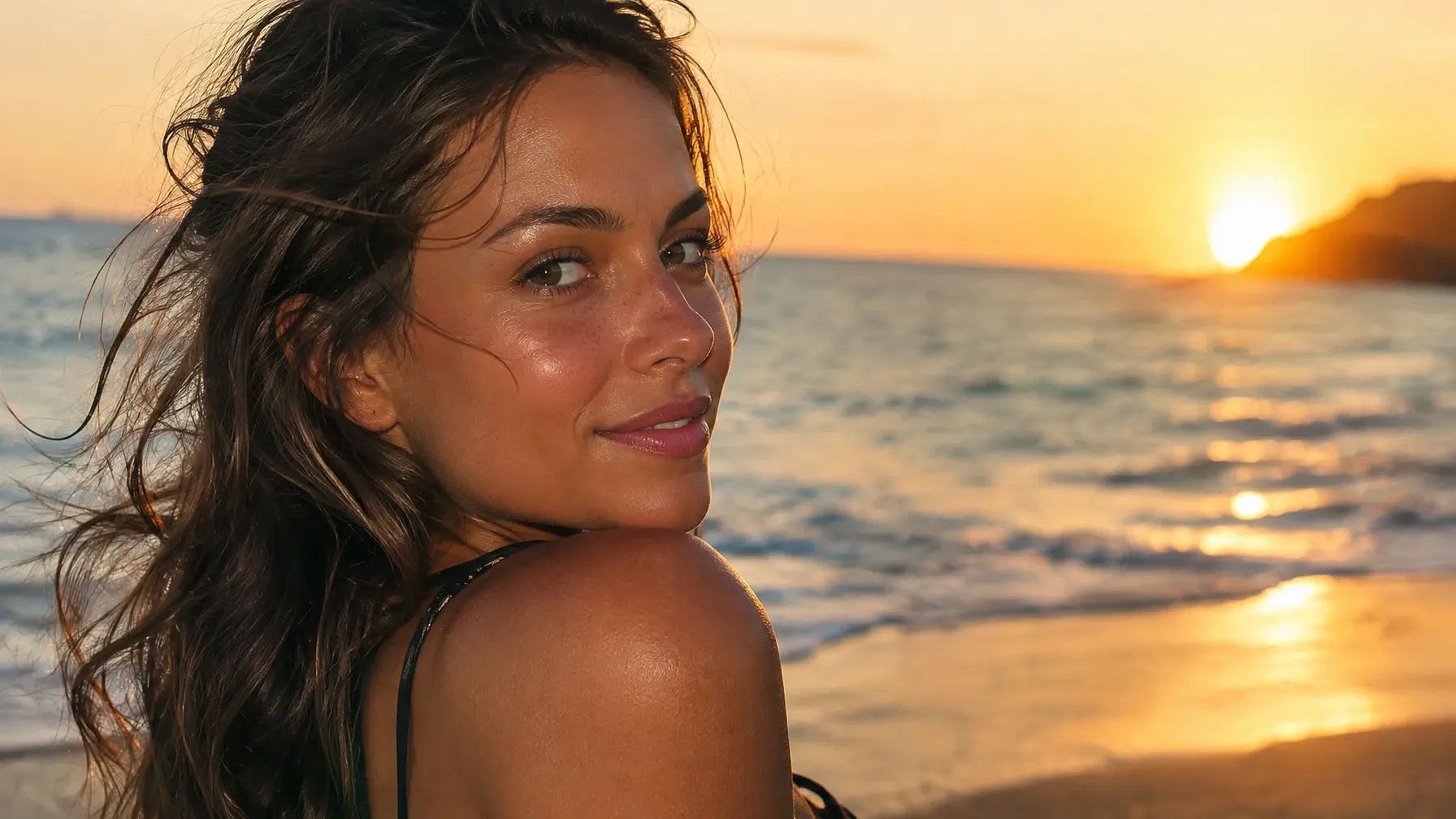
Want a more aesthetic look? Add "glass skin" for a smooth, shiny finish, or "soft film grain, 35mm photo" for a warm, vintage feel. For more ideas on faces, see these AI makeup prompts.
Skin Prompt Tips for Realistic Results
A few words in your prompt decide whether skin looks real or plastic. Use the left column and leave out the right one.
| Words that make skin look real | Words that make skin look plastic |
|---|---|
| visible pores, skin texture | flawless, perfect skin |
| light freckles, small moles | airbrushed |
| peach fuzz, fine hairs | porcelain skin |
| natural matte finish | ultra smooth |
| soft window light, side light | beauty filter |
| soft film grain, 35mm photo | doll-like skin |
| slight asymmetry | perfect symmetry |
| natural catchlights in the eyes | glowing eyes |
Light matters as much as the words. Side light from a window shows texture, while flat light from the front hides it. For more ideas, try these AI lighting prompts.
Why AI skin looks plastic
AI image models often smooth skin by default. Words like "flawless" or "8K" push skin smoothing even further, so the pores and fine hairs disappear and the face starts to look waxy.
To get real skin back, name one or two skin details and use side light. A negative prompt helps too.
Use a negative prompt. If your tool has a negative prompt box, paste this:
plastic skin, waxy skin, airbrushed, beauty filter, over-smoothed
In Midjourney, add the same words after --no at the end of your prompt.
Common skin prompt mistakes
- Asking for "perfect skin" and getting a plastic face back.
- Forgetting "Keep my face exactly the same" when you edit your own photo, so your features shift.
- Smoothing too much. If the pores are gone, dial it back.
- Changing the skin tone on the face only, so it no longer matches your neck and hands.
- Adding "8K," "HDR" or "masterpiece." These make skin sharper and shinier, which often makes it look more fake.
How to Use These Skin Prompts on OpenArt
You can use any edit prompt on this page with your own photo in three steps.
- Upload your photo. Open Edit Image on OpenArt and upload a clear photo of your face.
- Paste a prompt. Copy a prompt from this page into Describe mode. To change only the skin, switch to Area Edit and highlight it first.
- Generate and download. Check the result and adjust the prompt if it needs more or less change. Download the version you like.
To make a new portrait from scratch, paste a prompt into the AI image generator instead. New accounts get 40 free trial credits, so you can try a few prompts before you pay anything.
Using these prompts in Gemini, ChatGPT, Midjourney or Stable Diffusion
Every prompt here is plain text, so it works in other AI tools too. In Gemini or ChatGPT, upload your photo in the chat, then paste an edit prompt and send it. In Midjourney and Stable Diffusion, the skin tone and texture prompts work as written for new images.
Skin Prompt FAQs
What is the best prompt for realistic skin?
The best realistic skin prompt names real details like pores, freckles or peach fuzz, plus the light and the shot. For example: "Close-up portrait with visible pores and light freckles, soft window light, natural matte finish." Leave out words like "flawless," since they smooth the skin too much.
How do I fix plastic-looking AI skin?
Add texture words such as "visible pores" and "fine hairs" to your prompt, and remove words like "perfect" or "airbrushed." Side light from a window also helps, because it shows the small bumps and lines on the skin. If you're editing an image, ask the AI to add natural skin texture and keep the face the same.
What is a good prompt to make my face clear in a photo?
Upload your photo and start with "Keep my face exactly the same." Then ask the AI to soften blemishes and calm redness while keeping your pores. Prompts 5 to 7 on this page are written for exactly this.
How do I change skin tone in a photo with AI?
Upload your photo and use a prompt that keeps your face the same and names the new shade in plain words, like "deep warm brown" or "light olive." Ask for the change on your face, neck and hands so the tone matches. Prompt 10 gives you a ready version.
What is the best prompt for glowing skin?
Ask for a soft glow on the cheekbones, nose and forehead, and add "dewy" and "soft natural light." Keep a texture word in the prompt so the glow doesn't wash out your skin. Prompts 8 and 9 show both a new portrait and an edit.
How do I retouch skin without losing texture?
Tell the AI exactly what to soften, such as redness or small blemishes, and what to keep, such as pores and fine details. Avoid "ultra smooth" or "beauty filter." On OpenArt, AI Face Smooth also gives you a quick retouch you can adjust with a prompt.
Can AI remove acne or blemishes from a photo?
Yes. Upload your photo and ask the AI to gently soften the blemishes and dark spots while keeping your face the same. For the most control in Edit Image, use Area Edit and highlight only the spots you want to change.
Can ChatGPT tell my skin undertone?
ChatGPT can give you a good guess from a clear photo taken in daylight. Upload the photo and ask whether your undertone looks warm, cool or neutral, and which signs it used. Lighting can change how your skin looks, so try more than one photo if the answer seems off.