

 ChatGPT
 Perplexity
 Claude
 Gemini
FLUX 3 Image works best when your prompt reads like a clear, ordered description of a picture. You do not need special symbols, weights, or long lists of keywords. Write full sentences in a sensible order, put the most important thing first, and FLUX 3 Image builds the picture you describe.
A good FLUX 3 Image prompt covers three jobs. It describes the picture you want, it tells FLUX 3 Image what each reference photo is for, and it names exactly what to change during an edit.
One note before you start: in OpenArt's AI image generator, the controls below the prompt box set the resolution, the aspect ratio, and the number of images. Those controls decide the size and shape of every FLUX 3 Image picture, so you can leave them out of the prompt and spend your words on the picture itself.
Put the most important thing first
FLUX 3 Image pays the most attention to the start of your prompt. Open with the main subject and what it is doing, then add the setting, the style, the light, the colors, and the small details, in that order.
Loose FLUX 3 Image prompt: "nice photo, cozy vibes, coffee cup on a table, professional, morning"
Ordered FLUX 3 Image prompt: "A white ceramic coffee cup with steam rising from it, on a linen tablecloth by a window. Real photograph, soft morning light from the left, shallow depth of field. Warm cream and pale wood colors. A folded newspaper sits at the edge of the table."
The ordered FLUX 3 Image prompt gives the subject first, then the place, then the look, then one extra detail. Each part sits on its own line of thought, so you can change the light or the colors on the next try without rewriting the rest.

Order also controls how close the camera feels. "A person inside a forest fire, close-up" tends to give a wide scene with a small person. "A firefighter with a determined face, close-up, forest fire behind her" gives a close portrait, because FLUX 3 Image read the person and the close-up first.
Make the prompt as long as the picture needs
FLUX 3 Image handles a one-line prompt and a long, detailed prompt equally well. The right length depends on the picture.
- One sentence works for quick ideas: "A red vintage bicycle leaning on a yellow wall, afternoon sun."
- Three to five sentences fit most work, such as a product shot, a portrait, or a poster.
- Labeled sections fit busy scenes with several people, many objects, or a lot of text.
Every word in a FLUX 3 Image prompt should change something you can see. Words like "masterpiece", "best quality", or "8K ultra HD" add length without adding a picture, so cut them and add a real detail instead.
Say what the image is for
FLUX 3 Image makes smarter choices about layout when you name the job. "A product photo for the top of a landing page" and "a flat-lay photo for an Instagram post" describe the same cup and give two different pictures.
Add the use to a FLUX 3 Image prompt in a few words at the start or the end of the prompt: a book cover, a YouTube thumbnail, a box design, a sticker, a slide background, a sale banner. FLUX 3 Image uses that to decide where the subject sits and how much empty space to leave for text.
Example: "A YouTube thumbnail. A surprised young man holding a giant pizza slice, on the left half of the picture. Bright yellow background. Bold white text on the right that says "I ate 50 slices"."
Swap mood words for things you can see
FLUX 3 Image turns concrete details into a picture much more reliably than feelings. Words like cozy, epic, moody, and premium work well once you tie them to something visible.
"An epic mountain view" becomes "A tall granite peak filling the right half of the picture, low clouds across the valley below, cold blue light just before sunrise." The second FLUX 3 Image prompt gives the model a scene to build.
For people in a FLUX 3 Image prompt, describe what the camera sees. Say how much of the body shows, where the person looks, what the hands are doing, and what the face is showing. "A woman laughing, eyes closed, one hand holding a wide straw hat on her head, shown from the waist up" gives FLUX 3 Image a clear pose to follow.
Name the light, the materials, and the colors
Light, materials, and colors decide most of how a FLUX 3 Image picture looks. Naming all three is the fastest way to move from a plain picture to a finished one.
- Light: name the source and the direction. "A single window on the left", "an overcast sky", "a warm lamp behind the person", "golden hour sun low on the horizon".
- Materials: name the surface. "Brushed aluminum", "matte cardboard", "wet asphalt", "raw linen", "frosted glass".
- Colors: name a small, matching set of colors. "Muted beige and forest green" reads more clearly to FLUX 3 Image than a long list of every color in the scene.
For exact brand colors, type the hex code and attach it to one object: "The cap of the bottle in color #1E3A5F." FLUX 3 Image matches that shade on that object.
Use camera and film words for real-looking photos
FLUX 3 Image reads camera and film words as a description of the look you want. Ask for a real photograph by naming how a photographer would shoot it.
- Distance: close-up, waist-up, full body, wide view from far away.
- Lens and focus: "85mm lens, shallow depth of field" for a soft background behind a face, or "wide lens, everything in focus" for a room.
- Camera or film look: "shot on a 35mm film camera, natural grain", "early 2000s digital camera, slight noise", "clean, sharp studio photo".
Example: "A street food vendor flipping noodles in a big steel wok, flames rising. Shown from the waist up. Real photograph, shot on a 35mm film camera, natural grain, warm streetlight from above, night market in soft blur behind him."
Describe what you want to see in place of what you want gone
FLUX 3 Image builds the picture from the words you write, so every word should describe something that belongs in the picture. Describe the result you want in plain, positive words.
| Write this | In place of this |
|---|---|
| "An empty street at dawn" | "A street with no people" |
| "Sharp focus from front to back" | "No blur" |
| "A plain white background" | "No background objects" |
| "The only words in the picture are "Open Late"" | "No extra text" |
| "Smooth, clean skin with natural pores" | "No heavy retouching" |
The positive version gives FLUX 3 Image a clear target. A word like "people" or "blur" inside a prompt points the model toward that thing, even when the word next to it says "no".
Put exact words in quotation marks
FLUX 3 Image writes clean, readable text inside a picture, and quotation marks tell FLUX 3 Image which words to write exactly. Anything inside the quotes appears in the picture as text.
Describe four things for every line of text: the words, where they sit, what the letters look like, and how big they are. Add a color if it matters.
Example: "A concert poster. At the top, the words "NIGHT SHIFT" in large, bold, white block letters. In the middle, a saxophone player lit by a single blue spotlight. At the bottom, "Friday 9 PM, The Blue Room" in small, thin, cream letters. Dark navy background."
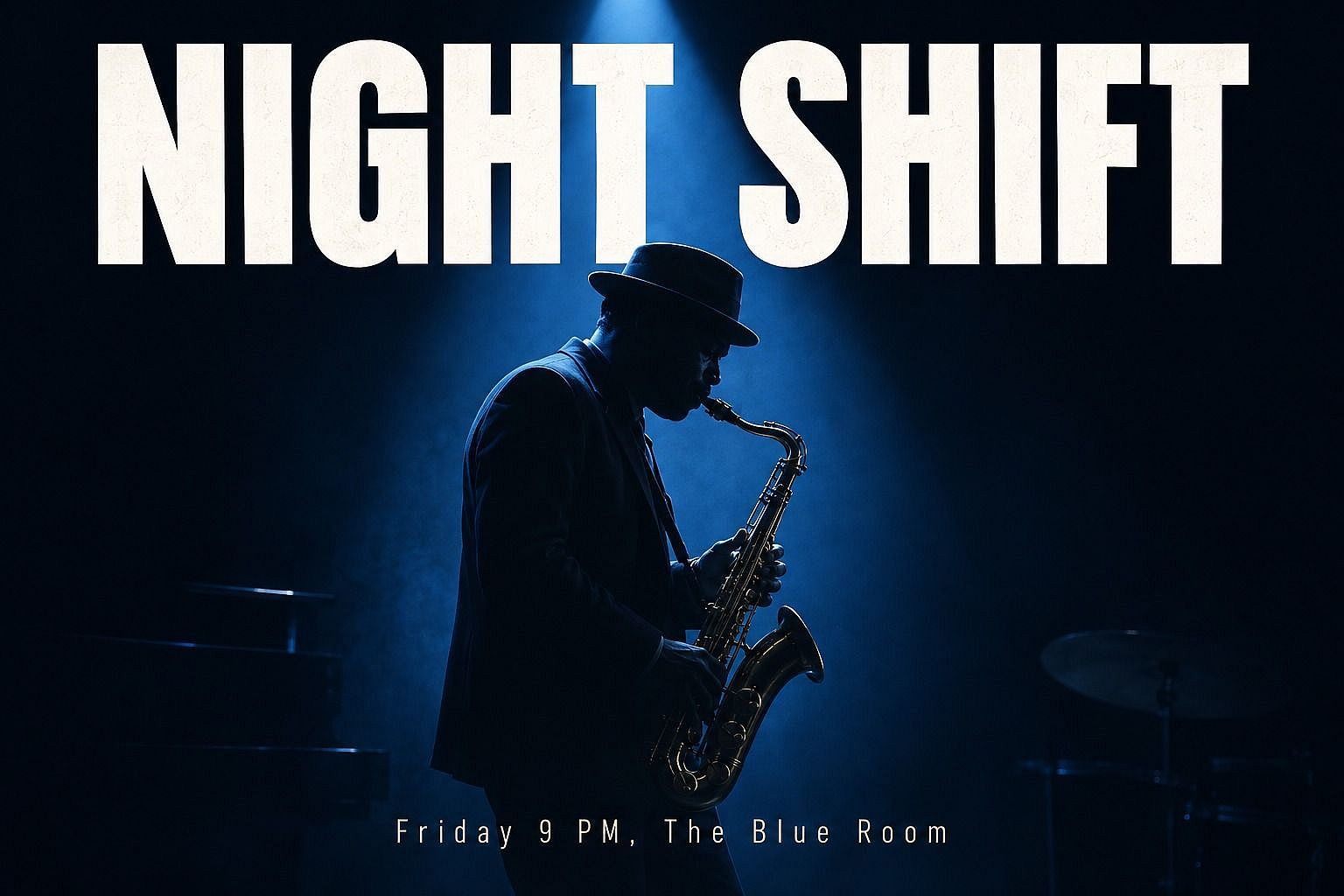
Short lines come out cleanest in FLUX 3 Image. A headline, a date, and a price fit well in one picture. Spell brand names and unusual words exactly the way they should appear, and keep long paragraphs for the page around the picture.
For text in another language, write the rest of the prompt in English and put the foreign words in quotes: 'A bakery sign that says "Boulangerie" in gold script letters.' English prompts give FLUX 3 Image the most precise results, and the quoted words come out in the language you typed.
Change the words in an image you already have
FLUX 3 Image edits text that is already in a picture. Upload the picture, quote the old words, quote the new words, and say what stays the same.
Example: 'Change the text "Summer Sale" to "Fall Sale". Keep the same font, the same size, the same color, and the same position. Keep everything else in the picture exactly the same.'
FLUX 3 Image uses the same pattern to fix a typo, update a price, or change a date on a poster you already made. FLUX 3 Image swaps the words and keeps the design you approved.
Give every reference image a job
FLUX 3 Image combines more than one reference image in a single prompt, and you get the best result when every reference has one clear job. Call the references by number, in the order you uploaded them, and say what to take from each one.
Example: "Image 1 is the model. Image 2 is the jacket. Image 3 is the room. Put the model from image 1 in the jacket from image 2, standing by the window in the room from image 3. Match the soft daylight from image 3. Keep the model's face and the jacket's pattern exactly as they are."
Also say how the pieces fit together in a FLUX 3 Image prompt. Where does the product sit? Which way does the light fall? Who stands in front? A FLUX 3 Image prompt that answers those questions puts each reference in the right place on the first try.
Copy a style from a reference image
FLUX 3 Image copies the look of a reference image onto a different subject. Upload the style picture and say which parts of its look to copy.
Example: "Image 1 is my product, a glass bottle of olive oil. Image 2 is a style reference only. Show the bottle from image 1 on a kitchen counter, painted in the style of image 2: the same loose watercolor brush strokes, the same soft pastel colors, and the same paper texture. Keep the bottle's shape and label from image 1."
Write "style reference only" or "for the colors only" when you want to copy only the look of a picture. FLUX 3 Image then keeps the subject from your own photo and borrows only the style.
Keep the same character or product across scenes
FLUX 3 Image keeps a face, a character, or a product the same across many pictures. Start every picture in the set from the same clean reference photo, and repeat the same short description of the subject in every prompt.
Example set for one product:
- "Image 1 is my serum bottle. Place the exact bottle from image 1 on a white marble bathroom counter, soft morning light, a green plant in soft blur behind it."
- "Image 1 is my serum bottle. Place the exact bottle from image 1 inside an open gift box with tissue paper, top-down view, warm light."
- "Image 1 is my serum bottle. Place the exact bottle from image 1 on a striped beach towel in bright sun, sand and sea in soft blur behind it."
The repeated line "the exact bottle from image 1" tells FLUX 3 Image to hold the cap, the label, and the color steady in every scene. Use the same pattern for a character: "the same woman from image 1, same face, same short red hair".
Add, replace, or remove one thing at a time
FLUX 3 Image edits one part of an uploaded picture and leaves the rest alone. Start the prompt with the action word, name the exact object, and keep each edit to one change.
- Add: "Add a small potted cactus on the left side of the desk."
- Replace: "Replace the red mug on the table with a white enamel mug."
- Remove: "Remove the black cable on the floor and fill that spot with the same wooden floor."
Ask FLUX 3 Image for one change, look at the result, then ask for the next one. Five single edits in a row give FLUX 3 Image a clear target each time, and you can stop the moment the picture is right.
List what should stay the same
FLUX 3 Image keeps the parts of a picture that you name in the prompt. Every edit prompt has two parts: the one change, then the list of things to keep.
Example: "Change only the background to a plain light gray studio wall. Keep the bottle's shape, the label text, the colors, and the reflections exactly as they are. Keep the light coming from the left and the shadow under the bottle."
Repeat the keep list on every turn of a long FLUX 3 Image edit. The repeated list holds your product, your character, and your layout steady from the first edit to the last.
Restyle a whole image
FLUX 3 Image changes the style of an entire picture while keeping what is in it. Name the new style, then name what has to survive the change.
Example: "Turn this photo into a flat, bold cartoon with thick black outlines and bright, solid colors. Keep the same people, the same poses, and the same layout."
Other restyle prompts that work well with FLUX 3 Image: "a soft watercolor painting on rough paper", "a 1970s travel poster with grainy print texture", "a clay model scene with soft studio light", and "a black and white film photo with deep shadows".
Use labeled sections for long prompts
FLUX 3 Image reads labeled sections as easily as plain sentences, and labels make a long prompt simple to change later. Break any prompt longer than a few sentences into short labeled lines.
Example:
SCENE: A sunny rooftop garden in the city at golden hour. Wooden planters full of herbs and tomato plants. String lights hang between two poles. A small round table holds a pitcher of iced lemonade and three glasses.
SUBJECT: A woman in her thirties with curly black hair, a mustard linen shirt, and rolled-up jeans. She kneels by a planter and holds up a bunch of fresh basil toward the camera, smiling. Her hands show a little soil.
STYLE: Real lifestyle photograph for a gardening brand's website. 50mm lens, sharp on the woman, soft city skyline behind her. Warm, low sun from the right. Colors: mustard, leaf green, terracotta, and cream.
TEXT: In the top left corner, the words "Grow Something" in large, rounded, cream letters.
KEEP: The only words in the picture are "Grow Something". Natural hands and real-looking skin.
The result from FLUX 3 Image:

The next version of a labeled FLUX 3 Image prompt takes one line. Change the TEXT line for a new headline, or the SUBJECT line for a new person, and every other part of the picture stays as you set it.
Test at low-resolution, finish at 4K
FLUX 3 Image makes pictures all the way from 768p to 4K. Use lower resolutions while you try ideas and compare versions, then switch to 4K for the final picture.
Keep the same prompt, the same references, and the same settings when you move a FLUX 3 Image picture up to 4K. Then the only thing that changes is the size, and the 4K FLUX 3 Image picture keeps the look you picked at the previous one. Pick 4K for printed posters, product boxes, and full-width web pages, where small text and label details need to stay sharp even when zoomed in.
Example FLUX 3 Image prompts for common jobs
Campaign versions for marketers: "Image 1 is our ad. Keep the product, the logo, and the layout exactly the same. Change the background to a snowy pine forest at dusk, and change the headline to "Winter Glow"."
Product scene for ecommerce: "Image 1 is my ceramic candle. Place the exact candle from image 1 on a wooden bedside table next to a stack of books, warm lamp light from the left, a soft beige wall behind it. Real product photograph, sharp on the label."
Garment swap for fashion: "Image 1 is the model. Image 2 is the green wool coat. Dress the model from image 1 in the coat from image 2, full body, walking on a city sidewalk in autumn. Keep the coat's buttons, collar, and color exactly as in image 2."
Packaging idea for designers: "A box design for a dark chocolate bar called "Midnight Cacao". Matte black box with the name in gold serif letters across the middle. Small gold cocoa leaves around the edges. Shown at a slight angle on a dark slate surface."
Character and location for filmmakers: "Image 1 is my lead character. Show the same man from image 1, same face and same scar over his left eyebrow, sitting alone in a 1950s diner booth at night. Neon light through the window, rain on the glass, shown from the chest up." When the look is right, OpenArt Director builds multi-scene videos up to 5 minutes long.
Thumbnail for social creators: "Image 1 is my face. A YouTube thumbnail with the person from image 1 on the right, pointing at a tiny house on the left. Bright teal background. Bold yellow text across the top that says "I Built This for $500"."
Room idea for everyday creators: "Image 1 is my living room. Paint the walls in sage green, replace the gray sofa with a rust velvet sofa, and add a round jute rug. Keep the windows, the floor, and the room's shape exactly the same."
Common mistakes to avoid
- Burying the subject. Put the main subject in the first sentence so FLUX 3 Image gives it the most attention.
- Writing "no" in the prompt. Describe what belongs in the picture, like "an empty beach", and FLUX 3 Image builds exactly that.
- Leaving references without a job. Name what each image is for, by number, every time you use more than one.
- Asking for five edits at once. Ask for one change per prompt and keep the list of what stays the same.
- Using quality filler words. Cut "masterpiece" and "8K" and add a real detail, like the light source or the material.
- Typing the size into the prompt. Set 2K or 4K and the aspect ratio with the controls below the prompt box.
Putting it together
A strong FLUX 3 Image prompt starts with the subject, adds the place, the look, the light, and the colors, and puts any words in quotation marks. Every reference gets a numbered job, and every edit names one change plus the parts to keep.
Read your prompt back before you generate. If you can picture the image from your own words, FLUX 3 Image can make it. Open OpenArt's AI image generator, pick FLUX 3 Image, and start with one of the example prompts above!