

 ChatGPT
 Perplexity
 Claude
 Gemini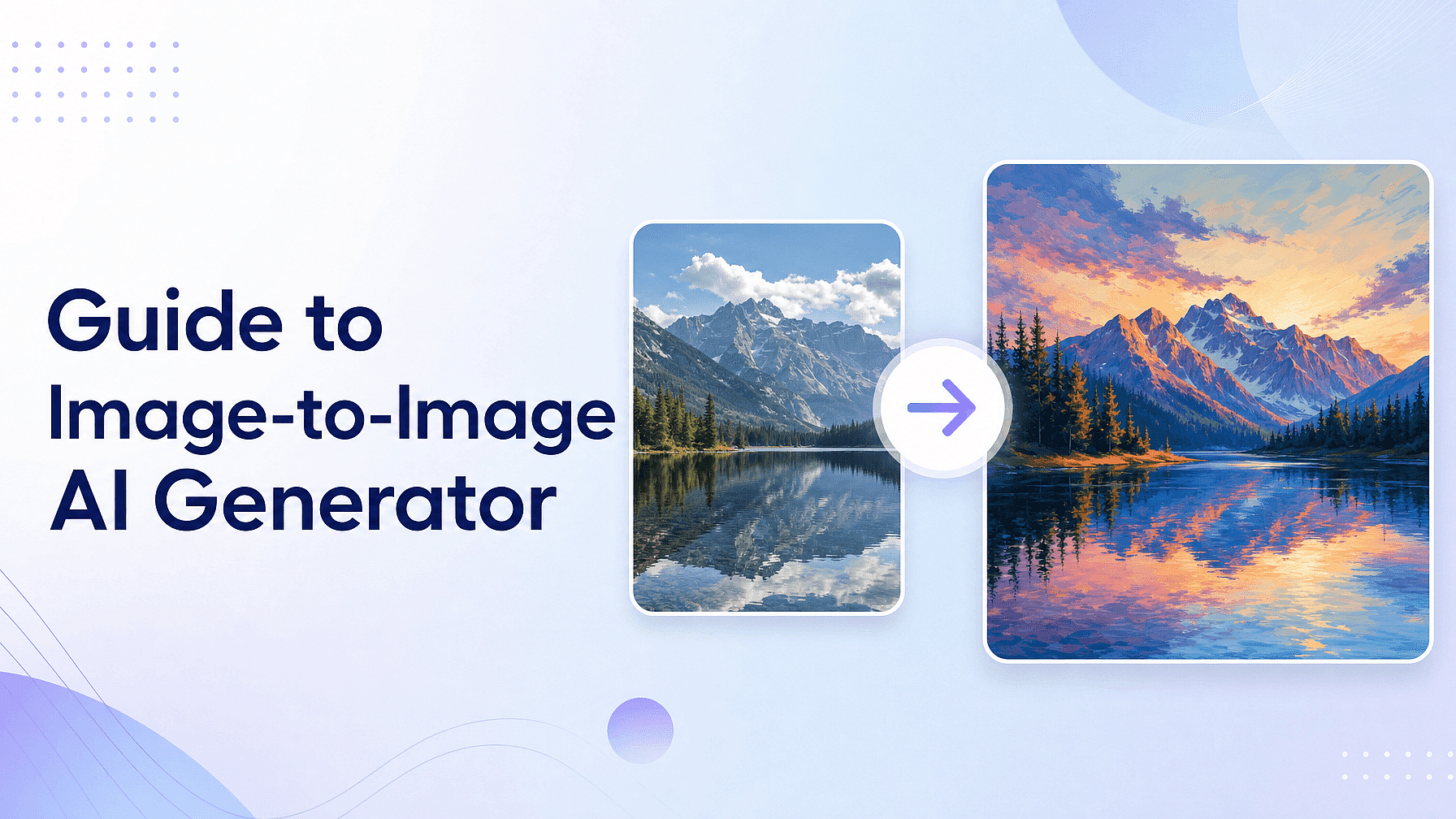
Upload a photo, add a prompt, and the model builds a new image that keeps your reference's composition, pose, lighting, or style while changing what you asked it to change.
That is image-to-image generation, and it solves the problem text prompts cannot. Text alone cannot match something that already exists, whether that is your product, your character, your layout, or a look you have spent years refining.
Key takeaways
- Image-to-image reads structure and style from your reference instead of copying its pixels. Composition and pose carry over reliably. Fine detail does not.
- Exact logos and small text are the weak point, so plan on masked edits and a human check rather than trusting a prompt.
- Different models win different tasks, which is why running one reference through two or three beats committing to one.
- Newer editors dropped the fidelity slider, so preservation now goes in the prompt as an explicit instruction.
- Uploading a reference you do not have rights to is its own risk, separate from whatever the output looks like.
What is an AI image generator from image?
An AI image generator from image, usually called image-to-image or img2img, takes two inputs instead of one: a reference image and a text prompt. The model reads color, structure, lighting, and pose from the reference instead of copying its pixels. Then it builds a new image, steered by your prompt.
If you have only used text-to-image, the difference shows up right away in how much control you get. A text prompt can describe "a woman in a red jacket, three-quarter view," but it cannot reproduce a specific woman, a specific jacket, or a specific camera angle.
A reference image can. On OpenArt you upload the photo alongside your prompt so the output keeps your composition while the style, mood, or details change.
Image-to-image versus text-to-image
Both approaches use the same underlying models. They solve different problems.
| Dimension | Image-to-image | Text-to-image |
|---|---|---|
| Input | Reference image plus a text prompt | Text prompt only |
| Control | High, since composition and pose are anchored to the reference | Lower, since the model builds from your description |
| Consistency | The same subject or layout across many generations | Every generation starts fresh |
| Best for | Product shots, style transfer, character work, restyling photos | Concepting, exploring, brand-new scenes |
Use text-to-image while you are still exploring and do not know what you want. Use image-to-image once you have the thing already, like a product photo, a character sheet, a sketch, or a layout, and you need versions that stay faithful to it.
How image-to-image AI works
Diffusion models handle this by encoding your reference into a compressed form, adding a controlled amount of noise, then using your prompt to guide the cleanup. Hugging Face's own docs put it plainly. A higher strength value gives the model more room to make something different from your reference. At a strength of 1.0, the reference is "more or less ignored."
The model pulls structure and style out of your reference. It carries composition, color palette, lighting direction, pose, and camera angle over reliably. What it does not carry over reliably is exact fine detail.
Photoroom tested 850 apparel and accessory products across 3,400 generations in July 2026. The best model passed its product accuracy checks in 29.0% of generations. Logo or text distortion was the most common failure, at 20.1%. Photoroom sells a product-fidelity layer, so it has a stake in that answer.
The lesson holds even allowing for the source. If your work depends on an exact label or logo, plan on masked edits and a human check, not prompts alone.
Style transfer from a reference image
Style transfer works because the model reads a reference's look separately from its content. Midjourney's documentation puts it well. A style reference "captures the visual vibe of an existing image," meaning its colors, medium, textures, or lighting. It "doesn't copy objects or people."
The same idea applies across tools. Your reference supplies the look and your prompt supplies the subject.
To hold a look across a batch, save it instead of re-uploading it every time. OpenArt's Brand Kit stores your colors, fonts, and style references at the project level, and OpenArt Characters stores a person you can tag into later pictures.
Controlling output fidelity
Stable Diffusion tools have a strength or denoising slider that sets the balance directly. The math is simple. Multiply strength by inference steps to get the steps you actually run, so strength 0.8 with 50 steps runs 40 steps of change.
In plain terms, a lower setting keeps the output close to your uploaded photo and a higher one gives the model more freedom. Stable Diffusion Art's scale is a good rough guide: around 0.2 gives a slight change, 0.6 a large one, and 1.0 a very large one. Treat any tighter numbers you see online as somebody's tested defaults rather than official guidance, and find your own.
OpenArt handles this with a creativity slider on image-to-image, from a subtle restyle that stays close to the original to a bold reinterpretation that keeps only the rough composition.
Midjourney uses image weight, written --iw, instead. Its docs list a range of 0 to 3 with a default of 1 on V8.1, and no values published for V8.2 yet.
Newer instruction-based editors like FLUX.1 Kontext and GPT Image 2 dropped the slider altogether. You control fidelity by writing preservation clauses into the prompt.
How to generate an image from a reference, step by step
The flow is roughly the same everywhere. Here it is on OpenArt.
- Upload your reference image in the AI image generator.
- Write your prompt. Describe the final image you want, not instructions for editing the reference.
- Pick a model. GPT Image 2 handles complex instructions and small text, Nano Banana Pro suits photoreal work with several references, and Seedream 4.5 is the pick for anime and flat illustration.
- Set the creativity slider. Lower keeps you close to the reference and higher gives the model room to reinterpret.
- Generate, compare up to 8 variations, and download the ones you want.
Speed depends on the model. FLUX.1 Kontext makes a 1024 by 1024 image in three to five seconds. Nano Banana averages about ten seconds on Replicate's measurements. OpenAI says complex GPT Image 2 prompts can take up to two minutes.
Best AI models for image-to-image
No single model wins every task, which is the practical case for running one reference through several. Of the models below, GPT Image 2, Nano Banana Pro, and Seedream run on OpenArt's shared credit pool, so comparing those three does not mean comparing subscriptions. FLUX, Stable Diffusion, and Midjourney each need their own account.
- FLUX (Black Forest Labs). On BFL's own KontextBench, FLUX.1 Kontext scored highest on text editing and character preservation. It was the first model built for multi-turn edits that hold identity across changes. BFL is candid about the limit, and documents visible degradation after six edits in a row. It now points new projects at FLUX.2, which takes up to 8 reference images through the API.
- GPT Image 2 (OpenAI). Accepts up to 16 input images per edit request, and processes every input at high fidelity. It sits third at 1,256 Elo on Artificial Analysis's image editing leaderboard. On the academic GEditBench v2, GPT Image 1.5 posted the top instruction-following score at 1,260, and Nano Banana Pro took first overall.
- Nano Banana Pro (Google). Officially Gemini 3 Pro Image. Google documents up to 14 reference inputs in one prompt, of which 6 can be high-fidelity, and consistent resemblance for up to five people. It outputs native 4K.
- Seedream (ByteDance). The pick for anime, illustration, and poster layouts. Seedream 5.0 Pro blends up to 10 reference images, and Seedream 4.5 has the stronger 2D animation styling.
- Stable Diffusion. Still the most manual control if you run it yourself, with a strength slider and ControlNet structural guides, though the official SD 3.5 ControlNets cover only Canny, Depth, and Blur, and pose or sketch guides come from the community.
- Midjourney (V8.2). Strong default aesthetics through image prompts and style references. Its Omni Reference feature still runs on V7, costs twice the GPU time, and does not work with Vary Region, Pan, Zoom Out, Fast Mode, or Draft Mode. There is no free tier, and plans start at $10 a month.
Replicate ran its own comparison in September 2025, on an older generation of models. It found FLUX.1 Kontext and Nano Banana held typography and texture best in text edits, and Nano Banana and Seedream beat Kontext on style transfer. Test your own reference before you spend credits on a batch.
Top use cases
Image-to-image earns its place wherever the output has to match something that already exists.
- Style transfer. Apply a painting style, a film look, or a brand aesthetic to a photo you already have.
- Product photography. Turn a phone snapshot into a studio-lit shot on a new surface with the product's shape intact.
- Anime and art conversion. Turn portraits into anime, illustration, or comic styles while keeping identity and pose.
- Character consistency. Hold the same face, outfit, and proportions across dozens of generations.
- Merging references. Blend several inputs into one output, with Nano Banana Pro taking up to 14 and FLUX.2 up to 8.
- Image to video. Use a finished frame as the first frame of a clip.
Character consistency across outputs
Identity drift is the biggest failure mode in reference-based work. The same face comes back subtly different every generation, and by the tenth image the character has quietly become someone else.
OpenArt Characters deals with drift by making the character a saved asset instead of a per-prompt reference. Build the character once from a prompt, a reference photo, or a preset. Then tag that same character into any later image or video, including scenes in OpenArt Director, the multi-scene video tool.
That difference matters more than any benchmark number. A reference image asks the model to re-derive the face every time, while a saved character gives it the same starting point every time.
Prompt engineering for image-to-image
Every current editor takes natural language instead of keyword tags. The same rules hold across FLUX, GPT Image, and Gemini. Describe the final image you want, not the edits you want made.
State plainly what must be preserved, and pick precise verbs. Black Forest Labs makes the point directly in its prompting guide: "transform" implies a complete change, while "change the clothes" or "replace the background" gives you control over what actually changes.
For anime conversion, name the target look and lock the identity: "create a 2D anime illustration with clean lineart and cel shading, preserve the person's facial identity, hairstyle, pose, and framing, change only the rendering style."
For photoreal restyles, add hard limits on framing and background. OpenAI's own prompting guide recommends stating exclusions explicitly, including phrases like "no extra elements," to stop the model drifting.
For product work, Google's published template is worth borrowing whatever model you use. It names the lighting setup, the camera angle, the background surface, and the detail that must stay sharp.
When you are replacing text or a logo, quote it. The documented FLUX Kontext pattern is: Replace "[original text]" with "[new text]".
Fixing the result without starting over
The first generation is rarely the last. Starting over wastes credits when only one region is wrong. On OpenArt the common fixes stay on the same canvas.
- Region edits. Edit Image's Area Edit mode lets you highlight one spot and change only that area.
- Fill and removal. Generative AI Fill fills a gap, removes an object, or extends the frame.
- Frame changes. Expand Image widens the canvas to any aspect ratio or social preset.
- Backgrounds. The AI Background Remover gives a clean cutout, and the AI Background Changer swaps the scene.
- Faces. The AI Face Editor handles expression changes and retouching.
- Upscaling. The image upscaler runs in Precise, Refined, or Creative mode, and the Vellum Skin Enhancer goes to 8K when skin texture matters.
Every one of those fixes runs on the same canvas, with the model you generated with. On Midjourney, region editing happens on Discord after an upscale, using an older model version.
Commercial use, copyright, and ownership
Start with the baseline. The U.S. Copyright Office's January 2025 report says AI output can be protected "only where a human author has determined sufficient expressive elements." That covers three cases. Your own work is visible in the output, or you arrange the output creatively, or you modify it creatively. Prompts on their own do not count.
In practice that means a purely prompted image has no copyright, and your own edits and arrangement are what earn it.
Platform terms sit on top of that, and they vary a lot. OpenArt makes no ownership or copyright claim over your output. Commercial rights apply on eligible paid plans, with no royalties and no credit line required. OpenAI's consumer and business terms assign output rights to you, as long as you had the rights to your inputs and followed the usage policies. Midjourney asks for a Pro or Mega plan before a company over $1M a year in revenue, or an employee of one, owns its assets.
Two risks apply specifically to reference-image work.
Uploading a copyrighted photo you do not have rights to can be a problem on its own, whatever the output looks like. And publishing output that ends up substantially similar to a protected work invites a claim even when nobody intended it.
The IP Safety Check screens output before you publish, scanning for brand similarity, famous faces, and likeness risk. A green result means nothing was detected, a warning means somebody should look at it, and unsafe means meaningful similarity. OpenArt states the results are informational, so treat a green result as a screen rather than legal clearance.
Plans and credits
OpenArt runs on one credit pool covering its image, video, and audio models. You can start free with 40 credits over 7 days and no card, plus a daily free credit allowance for basic image generation after that.
| Plan | Monthly | Credits a month |
|---|---|---|
| Starter | $14 | 4,000 |
| Plus | $34 | 12,000 |
| Pro | $56 | 24,000 |
| Wonder | $240 | 106,000 |
Those figures are for monthly billing. Annual billing brings each plan down, saving up to 27%, and every paid plan exports without a watermark. Base credits reset monthly, and the $15 Extra Credit Pack adds roughly 5,000 credits that do carry over.
Brand Kit is worth setting up if you generate for a brand. It saves your logo, exact hex codes, fonts, product assets, style references, and brand rules at the project level, so a batch of references comes out consistent no matter which model you pick.
Getting started
The fastest way to judge image-to-image is to run your own reference through it.
- Open the OpenArt image generator and upload your reference photo.
- Write a prompt describing the final image, and say what must stay the same.
- Pick a model, set the creativity slider, and generate.
- Compare the variations, then fix what is close with Area Edit or the upscaler.
- If the same character has to appear again later, build it once in Characters and tag it in future prompts.
FAQ
What file formats and sizes can I upload as a reference?
Most platforms take the common web formats with their own size caps. Midjourney accepts .png, .gif, .webp, .jpg, and .jpeg up to 10 MB. Whatever the tool, a clear, well-lit reference close to your target resolution gives the best result, because the model cannot recover detail your reference never had.
How do I control how closely the output matches my reference?
It depends on the tool. On Stable Diffusion tools, lower the strength slider. On Midjourney, raise --iw toward 3. FLUX Kontext and GPT Image 2 have no slider. Write the preservation into the prompt instead, as in "while keeping the same facial features and hairstyle." On OpenArt, the creativity slider does it, and you can generate up to 8 variations at different settings to see the spread.
Can I use photos of real people as references?
Only with their consent. OpenAI's usage policies bar using someone's likeness without consent, including a photorealistic image or voice, in ways that could confuse people about what is real. New York now asks advertisers to disclose it clearly when they knowingly use a synthetic performer in an ad. The penalty is $1,000 for a first violation and $5,000 for each one after. For any commercial use of a real person, get rights from everyone involved, the photographer as well as the model.
Which model is best for image-to-image?
It depends on the task. FLUX Kontext leads local edits and character preservation on its maker's benchmark. GPT Image 2 handles complex multi-image instructions and small text. Nano Banana Pro leads on photoreal work and takes the most references, and Seedream is the anime and illustration pick. Rankings move between tasks, so run your reference through GPT Image 2, Nano Banana Pro, and Seedream on OpenArt and compare, since those three draw from the same credits.
Why does my product's logo come out wrong?
Because the model rebuilds the logo instead of copying it. Photoroom's testing found logo and text distortion was the most common accuracy failure. The fix is to stop asking the prompt to do it: generate the scene, then use Area Edit to repair just that region, and check it by eye before anything ships.
How do I stop a character's face drifting between generations?
Stop re-uploading a reference and save the character instead. Build it once in OpenArt Characters from a prompt, a photo, or a preset. Then tag that character in every later generation. The model starts from the same place each time instead of re-deriving the face from a fresh reference.
Can I turn the result into a video?
Yes. Once you have a still you like, Image to Video animates it. OpenArt Director goes further and builds a multi-scene video that keeps the same characters across shots. Generating the still first and animating it second gives you more control than describing the whole video in one prompt.