AI Filter Remover
Upload a filtered photo and describe what to undo. OpenArt's AI filter remover rebuilds the image instead of peeling off a layer, so it works even when the filter is baked directly into the pixels.
 Add an image Or drag and drop here · JPEG, PNG, WEBP, HEICJPEG, PNG, WEBP, HEIC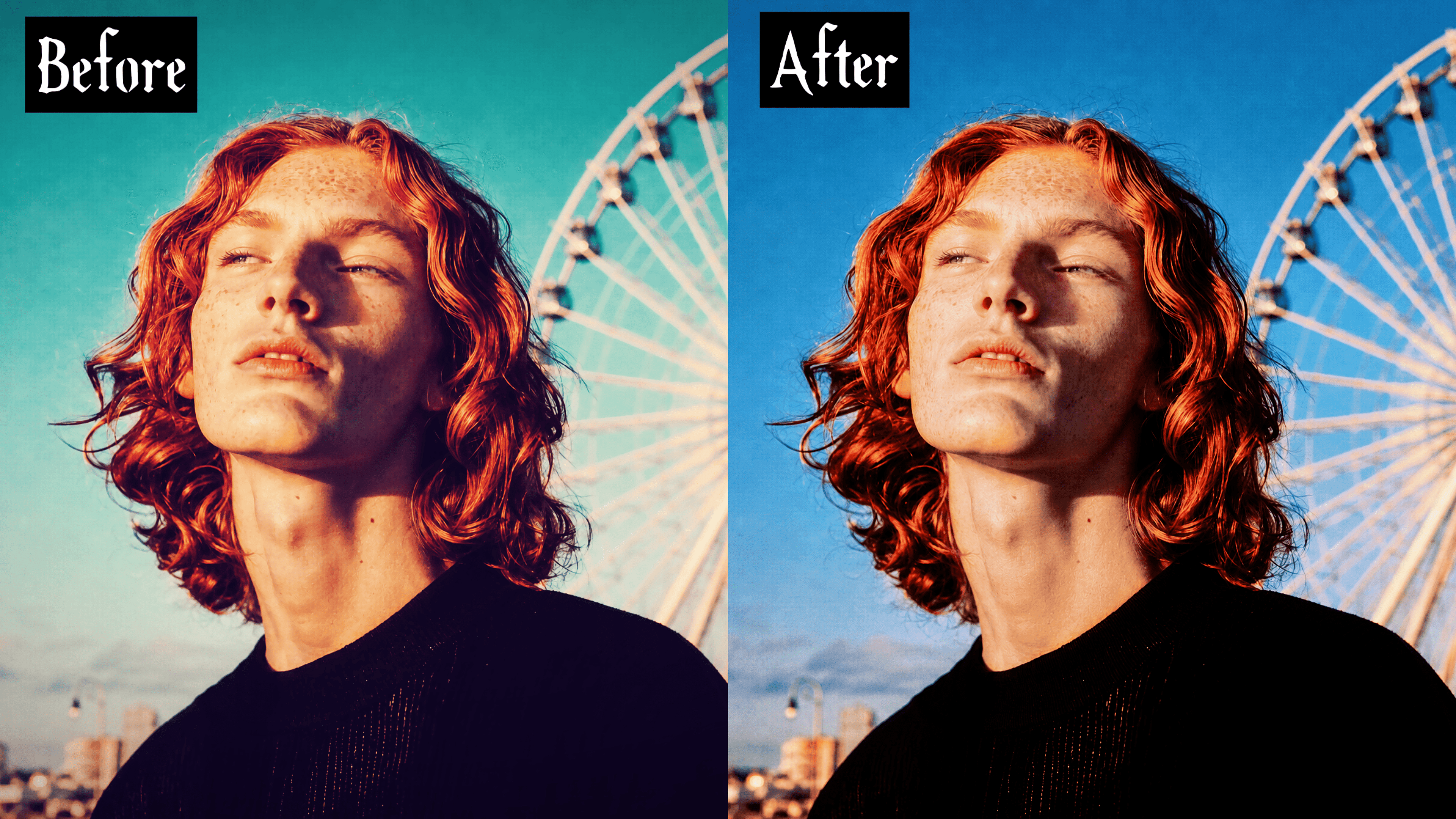
How to Use the AI Filter Remover
Remove any photo filter in three steps, no editing skill required.
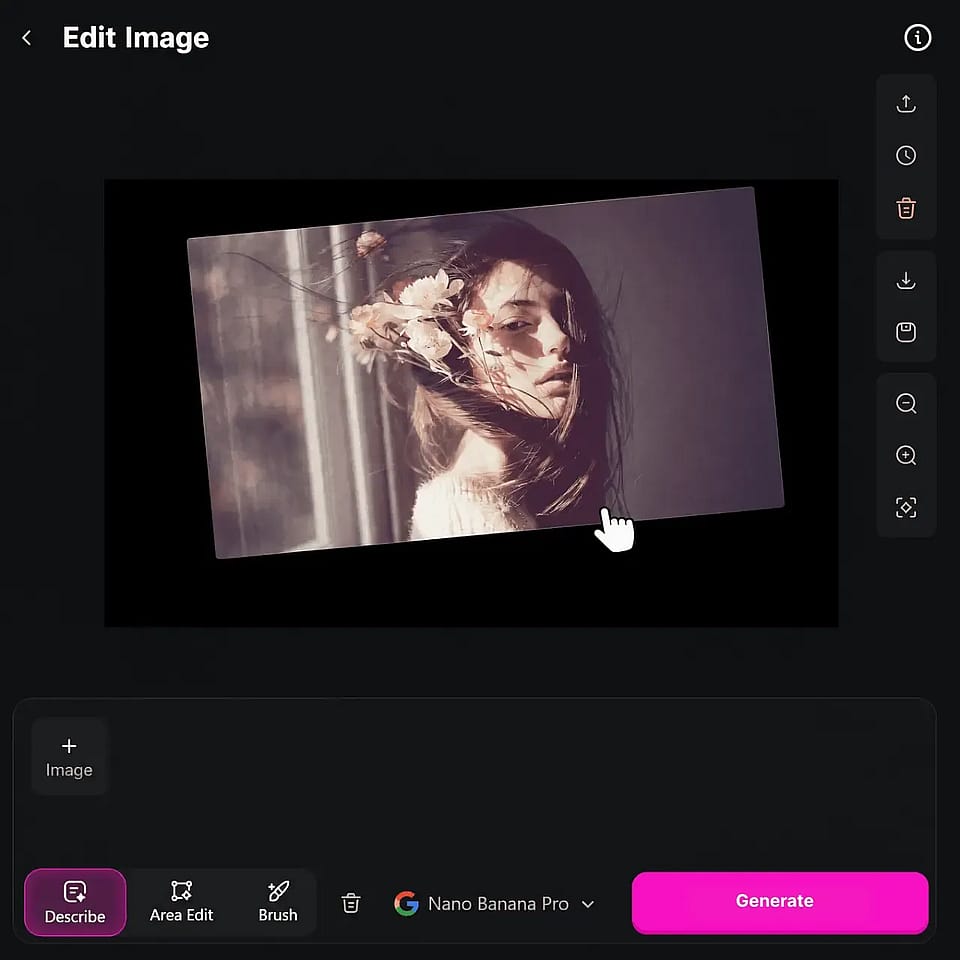
Upload Your Filtered Photo
Go to OpenArt's Image tools and open the Edit Image workflow. Upload a photo with a beauty filter, color tint, platform effect, or heavy AI stylization.
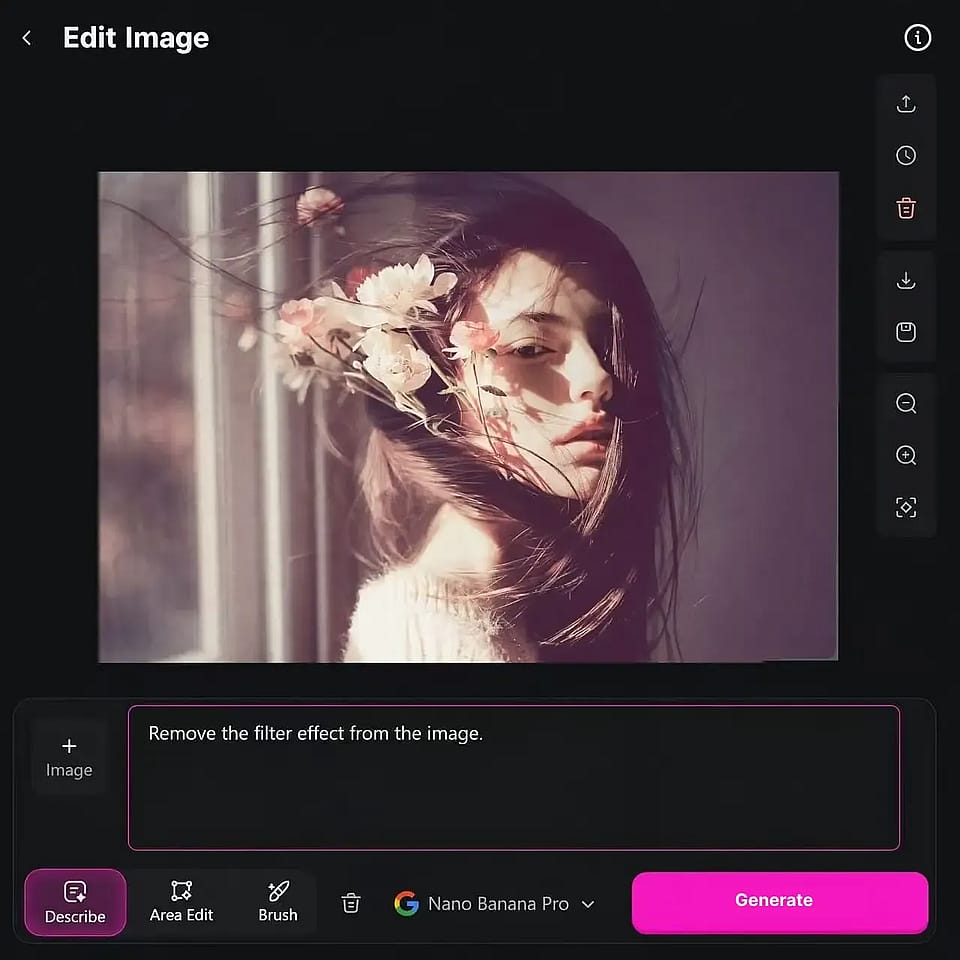
Describe What to Remove
Write the specific effect and the result you want, for example "remove the beauty smoothing and restore natural skin texture."
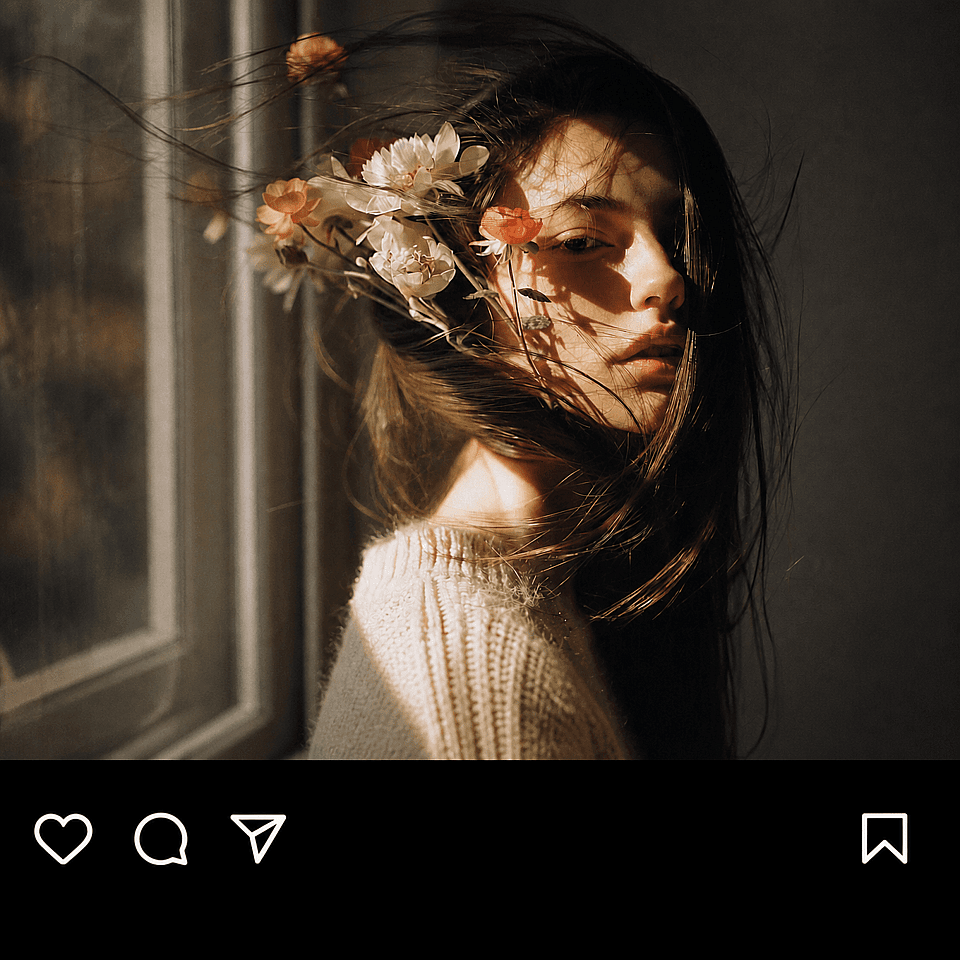
Download and Refine
Compare the result with your original photo. If the first pass doesn't go far enough, regenerate with a more specific description.
Remove Filter From Photo: Beauty, Vintage, App and AI Filters
From beauty filters to platform effects to over-stylized AI images, describe what changed and OpenArt rebuilds it.
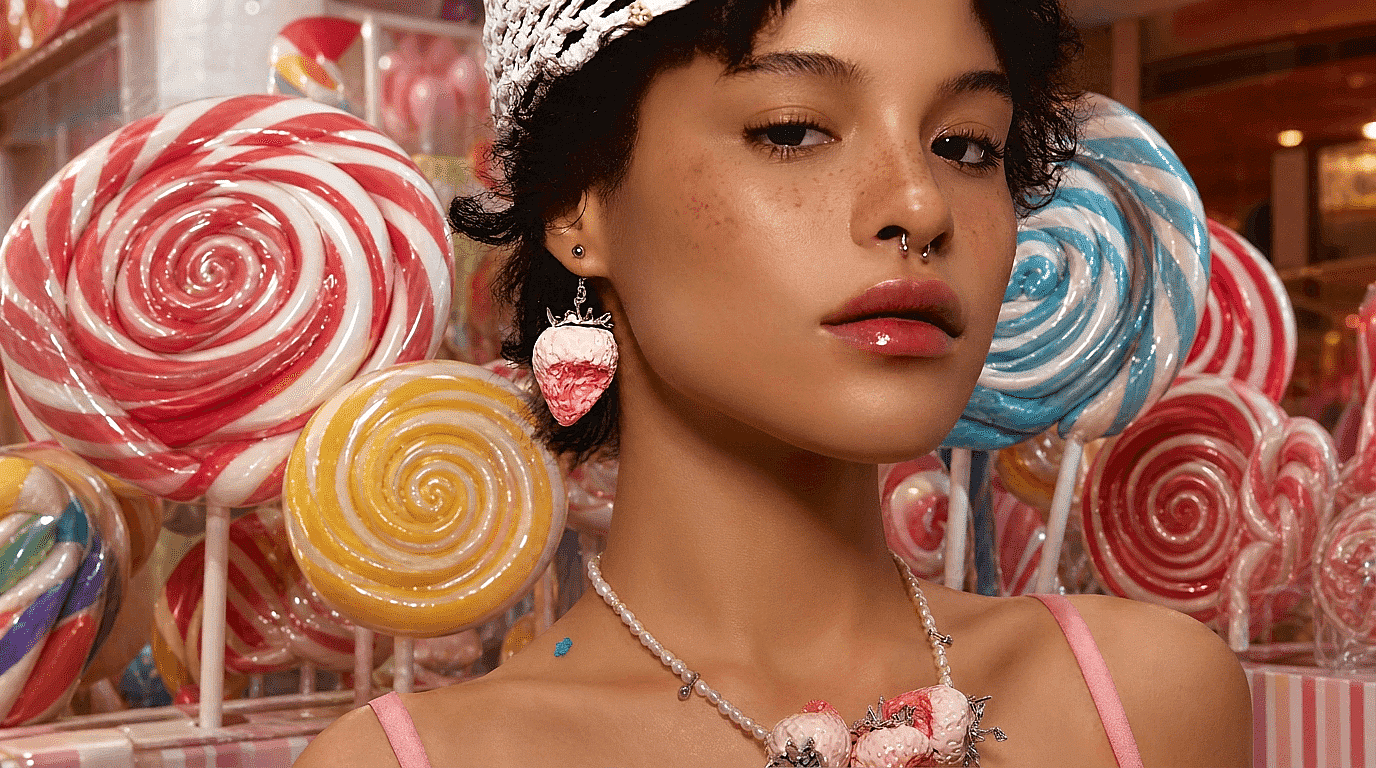
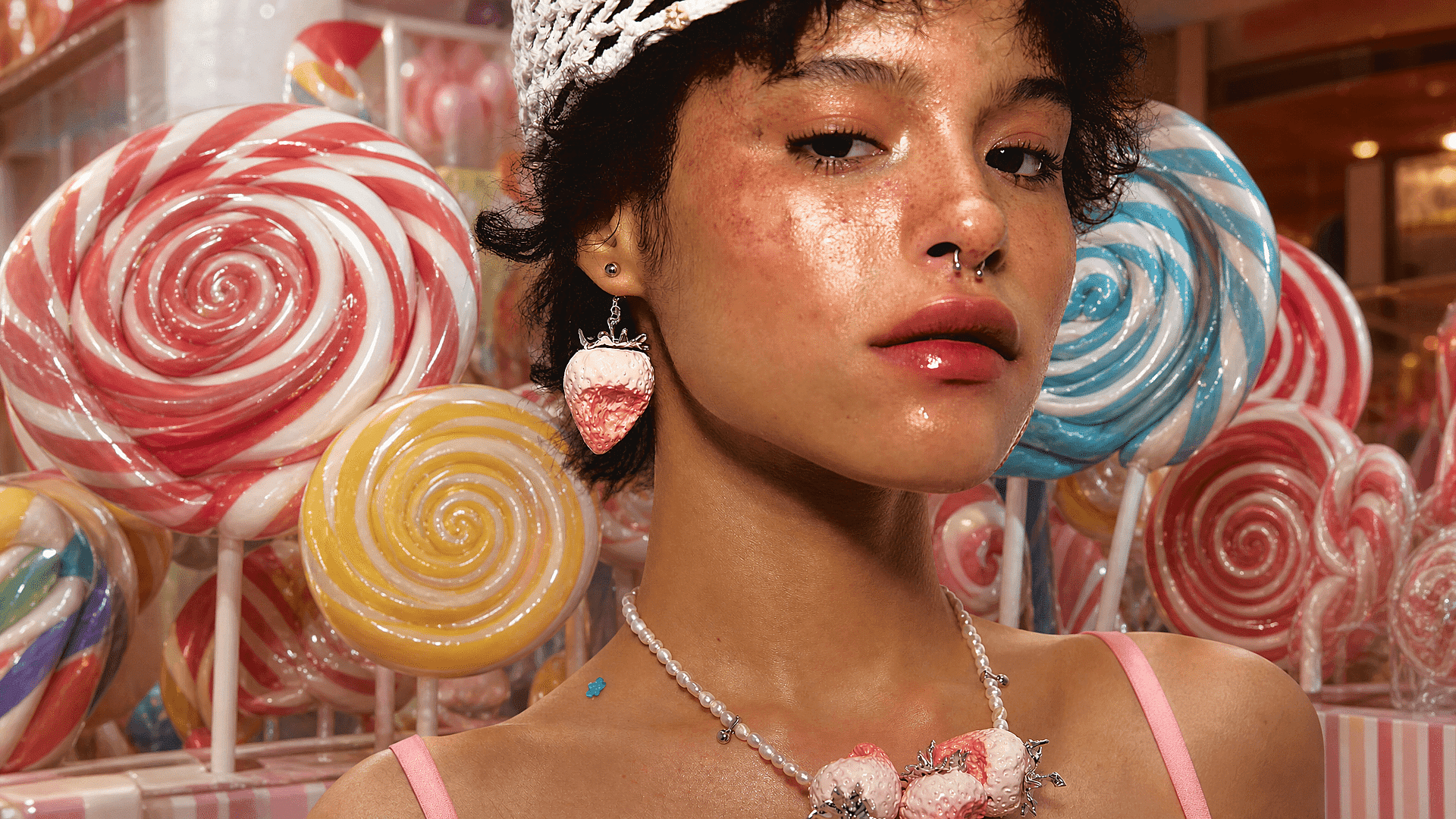
Undo a Beauty or Skin-Smoothing Filter
This is where an AI image generator like OpenArt can do what most other tools can’t. A heavy beauty filter smooths skin, softens edges, and sometimes reshapes facial features directly, leaving no overlay to remove. As a result, tools that only reverse color adjustments won’t do much here. Describe the edit plainly—“restore natural skin texture, keep visible pores, and remove the blur”—and OpenArt reconstructs realistic detail instead of producing the same plastic, over-smoothed look.
Try it Now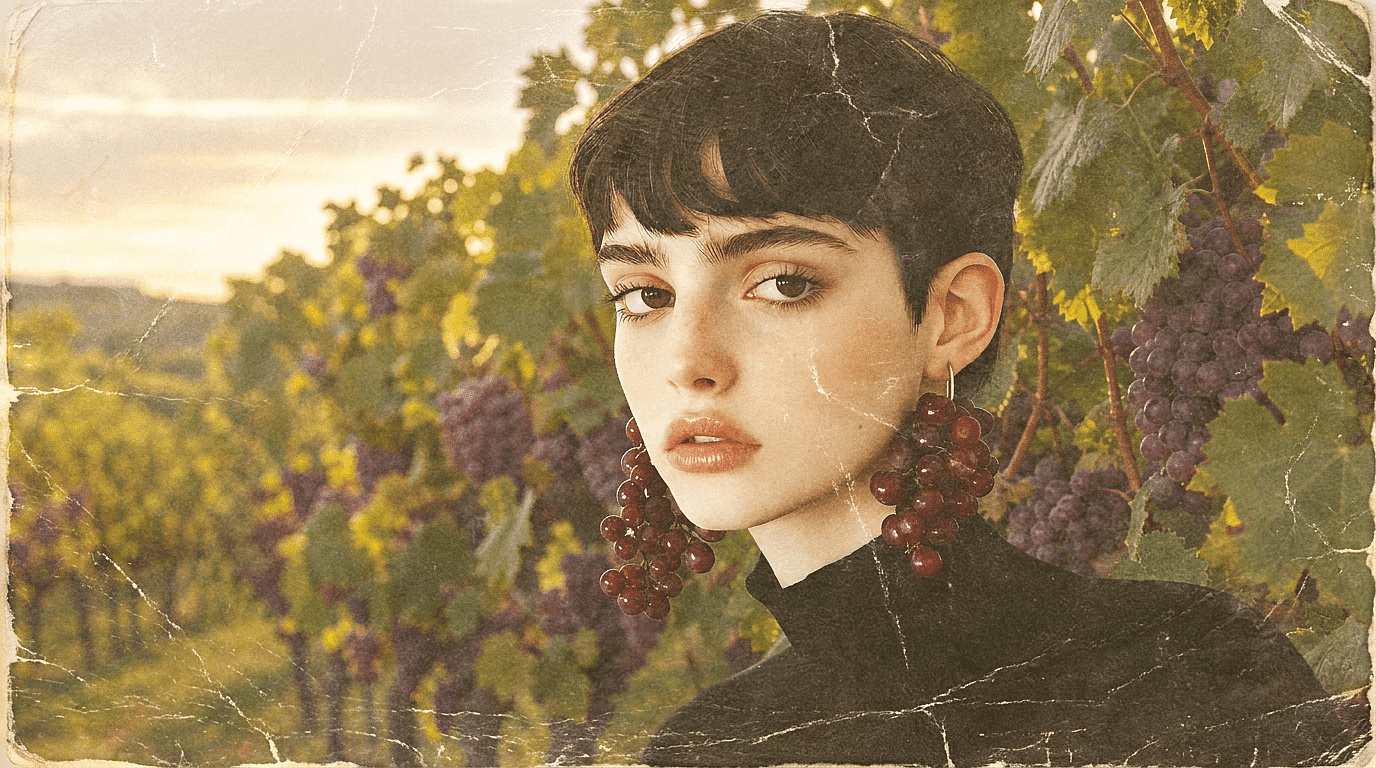
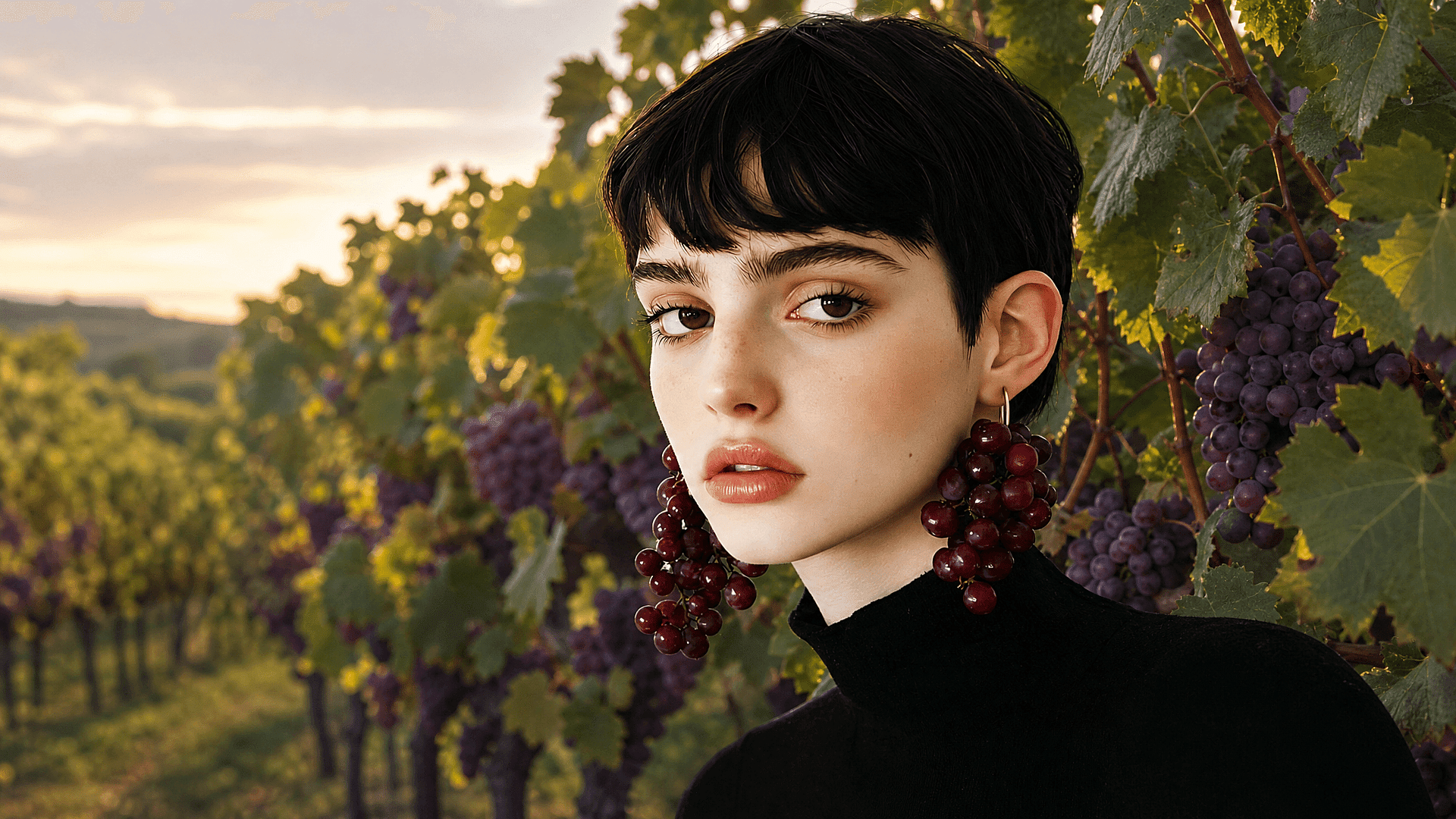
Recover True Color From a Vintage or Tint Filter
Sepia tones, faded-film presets, and warm overlays shift the photo's color balance rather than smoothing skin. Describe the shift, "remove the warm sepia tint, restore natural skin tone and daylight white balance," and OpenArt rebuilds the color relationships instead of just desaturating. This works whether the tint came from a camera filter, a preset pack, or an old scanned photo.
Try it Now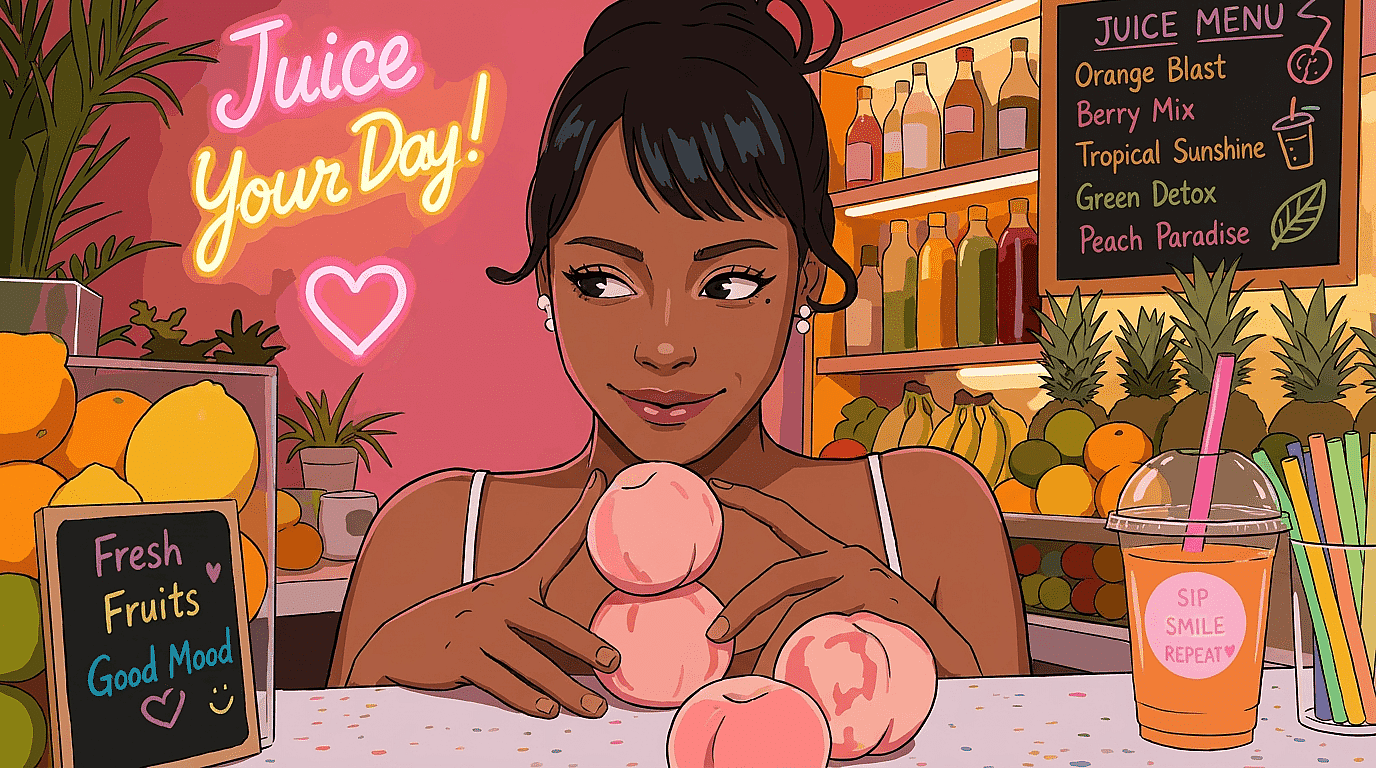

Clean Up an Over-Stylized AI-Generated Image
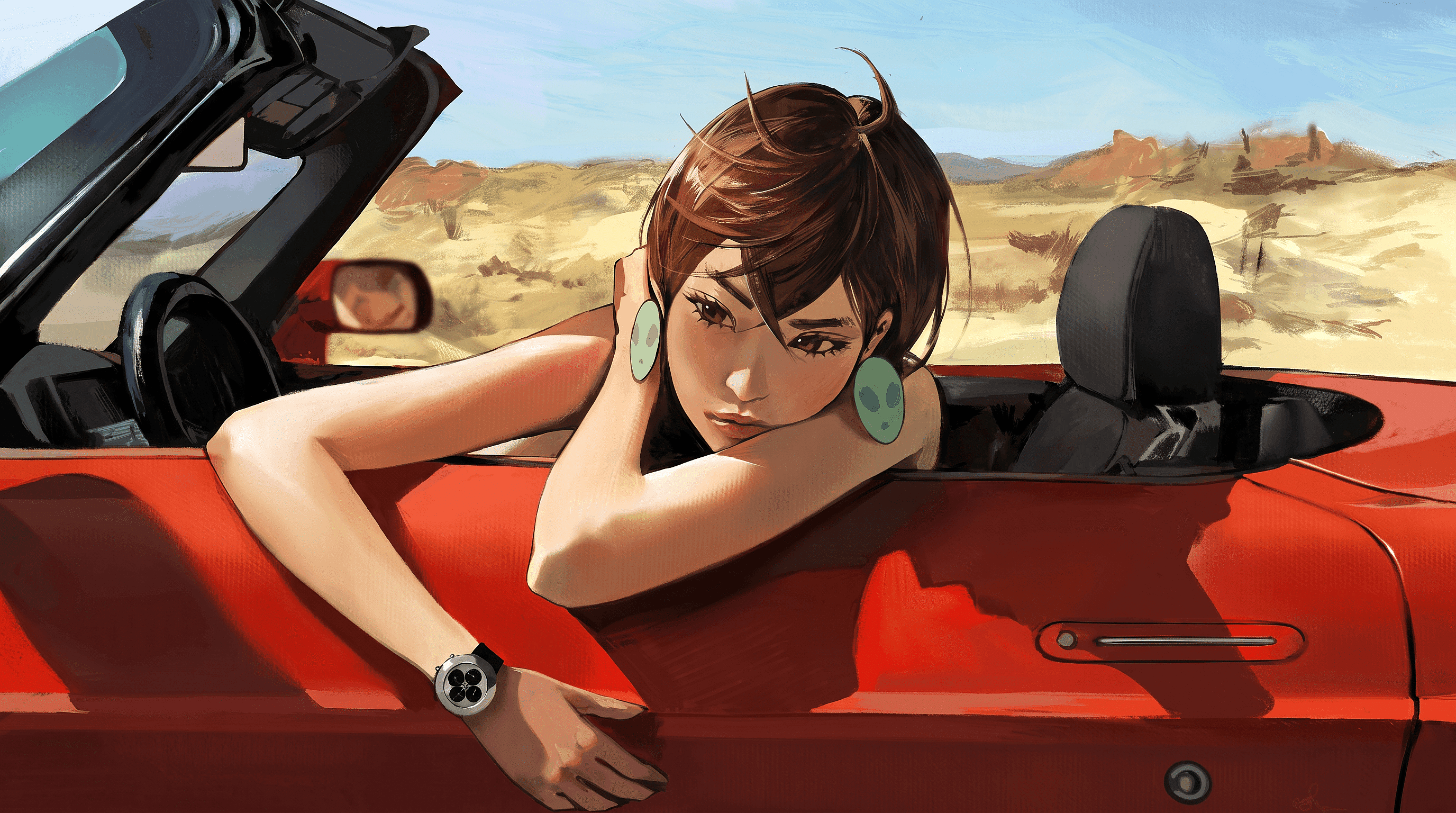
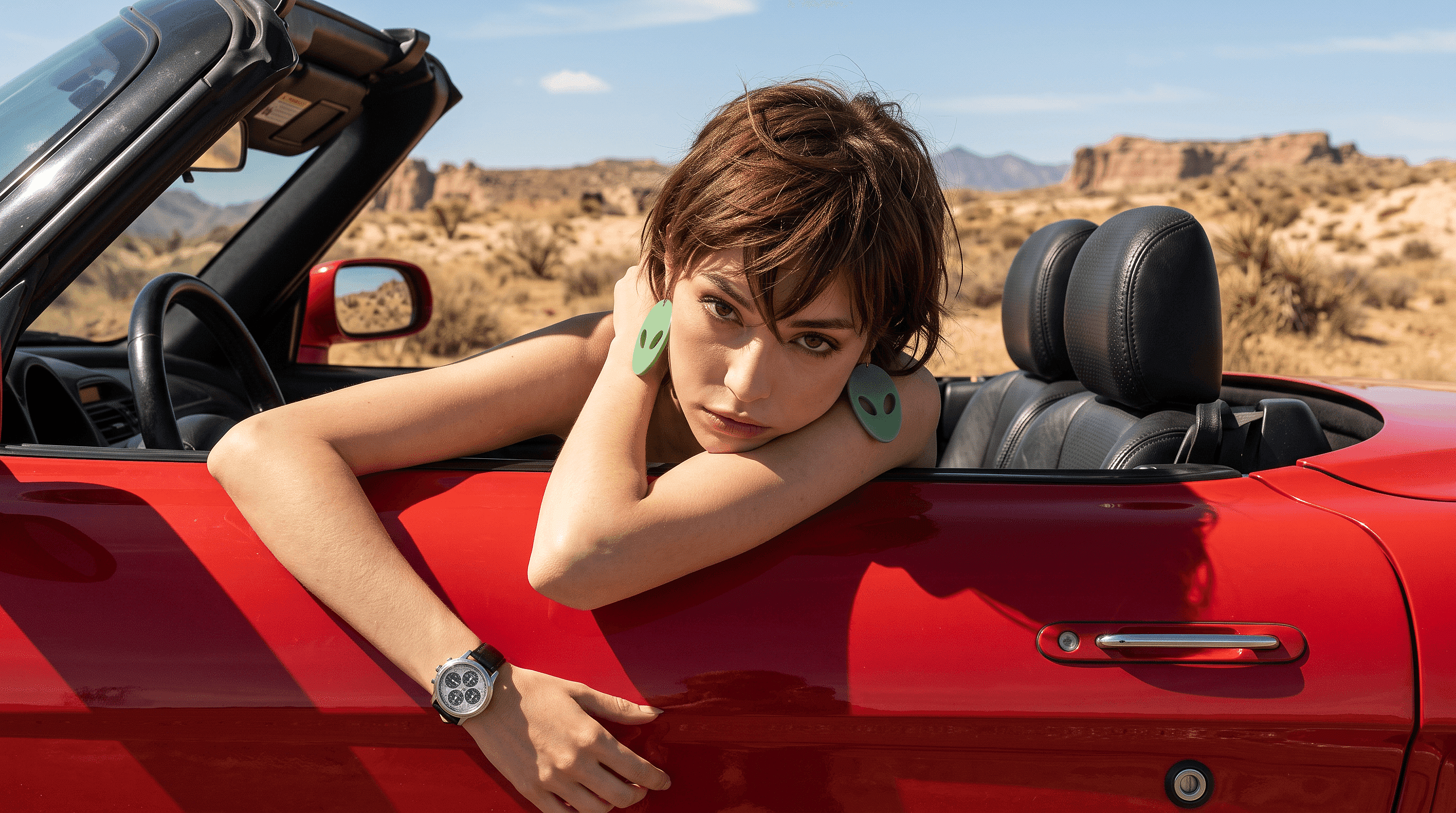
This is the case legacy filter removers were never built for, since it isn't a camera filter at all. An AI generator can push a photo too far toward painterly, anime, or stylized looks, with no known preset to reverse. OpenArt’s AI image-to-image generator reconstructs the image from a description instead, so you can dial an over-stylized generation back toward something natural and photographic.
Try it Now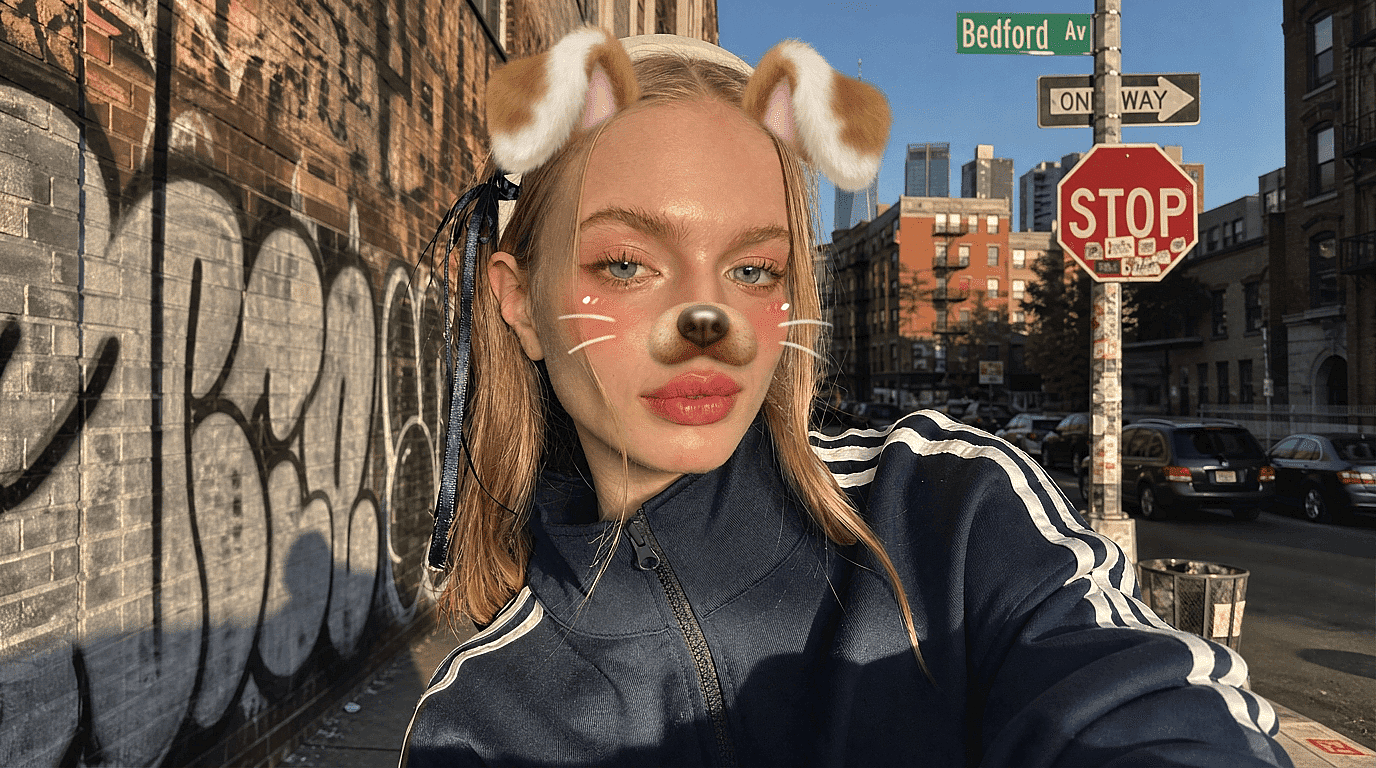
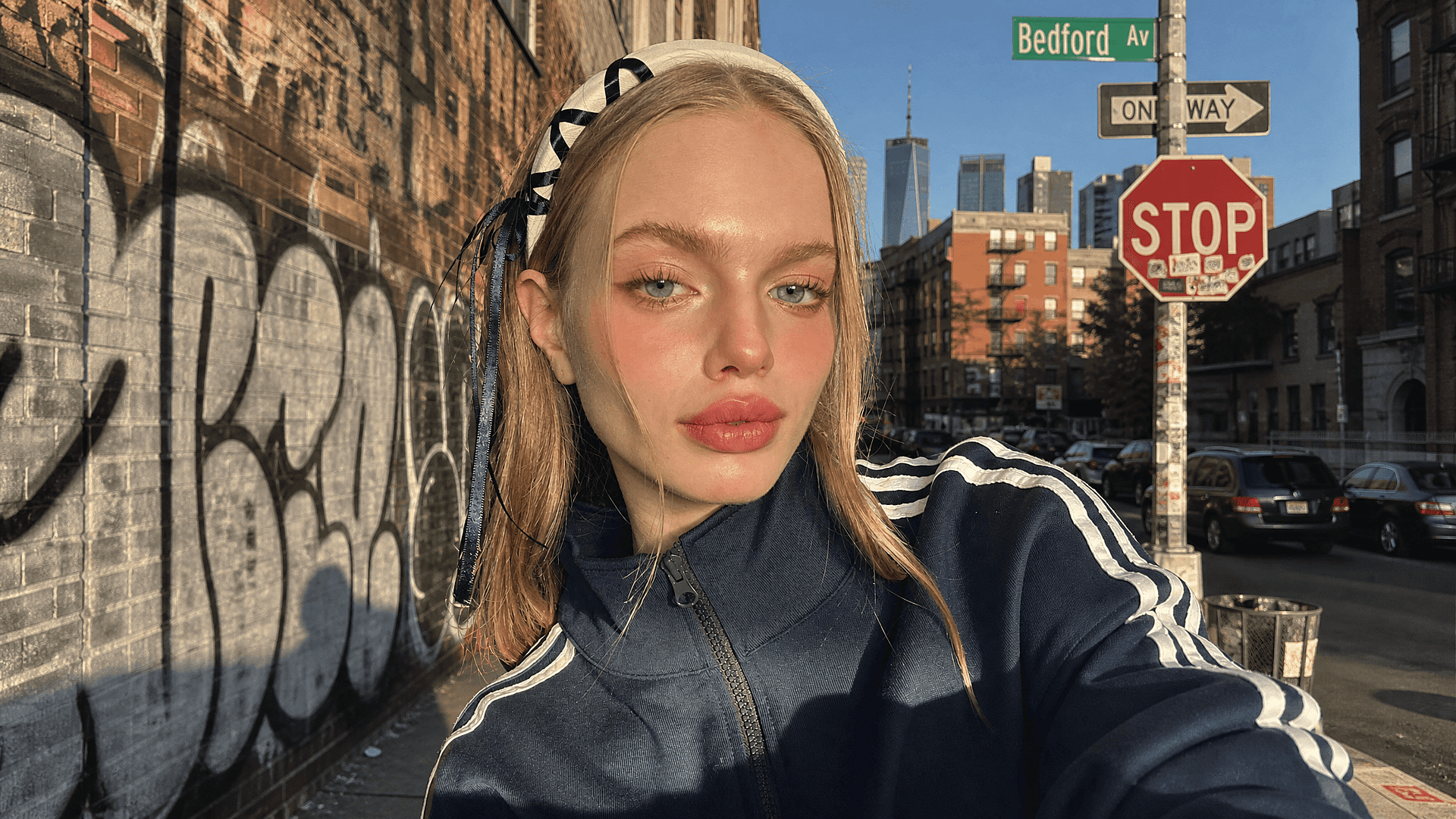
Reverse an Instagram, Snapchat, or TikTok Filter
Sometimes the goal is simpler: curiosity about what a photo looked like before a platform's filter. Describe the specific effect: "remove the Snapchat dog-ear lens and beauty smoothing" or "undo the TikTok warm-tone filter." OpenArt's AI photo editor rebuilds the image toward a more natural-looking original. This approximates what was probably underneath, not a forensic recovery of the exact original pixels.
Try it Now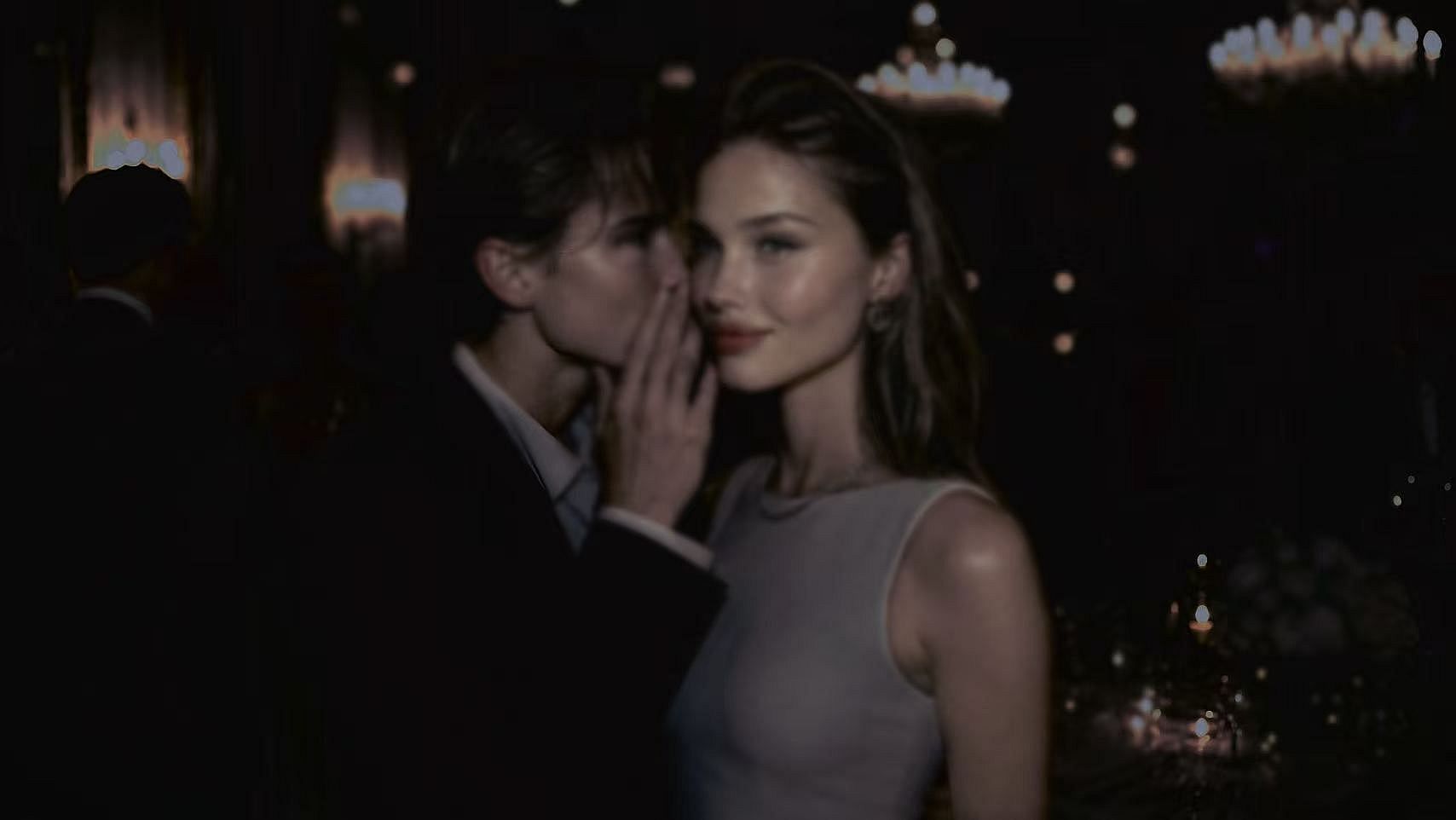
Fix Filtered Product or Brand Photos Before Reuse
This comes up again and again, not just once. A product photo shot under warm store lighting, or a supplier photo with a color-graded filter baked in, throws off the color accuracy a listing needs. Describe the correction the same way, "remove the warm color cast, restore true-to-life color," and a batch of inconsistent photos is as easy to fix as a single portrait.
Try it NowFrequently Asked Questions
An AI filter remover reconstructs a photo to approximate its pre-filter appearance instead of peeling away an overlay. Most filters alter pixels directly, including skin texture, color, and detail. OpenArt rebuilds those affected areas based on your description, so you do not need to identify a preset.
Yes, if you describe the platform effect or named lens you want removed. Exported Instagram, Snapchat, and TikTok images usually preserve the filtered pixels rather than an editable filter layer. OpenArt approximates the underlying appearance instead of recovering an exact unfiltered file.
New OpenArt accounts receive 40 free credits with no credit card required. You can use those credits to test the photo filter remover on your own image before choosing a paid plan.
Yes, OpenArt can remove beauty filters by regenerating natural-looking skin texture and facial detail. Beauty filters often smooth skin or reshape features directly, which leaves no separate overlay for a basic tool to strip. A specific instruction such as "remove beauty smoothing and restore visible pores" gives the model a clear target.
OpenArt should avoid the blur caused by simply fading or blending a filter. The AI regenerates filtered areas, which can preserve sharper texture and detail. Output quality still depends on the original filter strength and the specificity of your description.
Basic tools use fixed preset lists and can only reverse filters they recognize. Photoshop offers more control, but skin work like frequency separation takes editing skill. OpenArt reconstructs from a plain-language description instead, without waiting for a preset match.
Get Insights from Experts Blog
Get the insights you need. Our experts share actionable hacks, break down the hottest topics, and provide essential how-to guides to help you build, optimize, and scale.
Read More