

 ChatGPT
 Perplexity
 Claude
 Gemini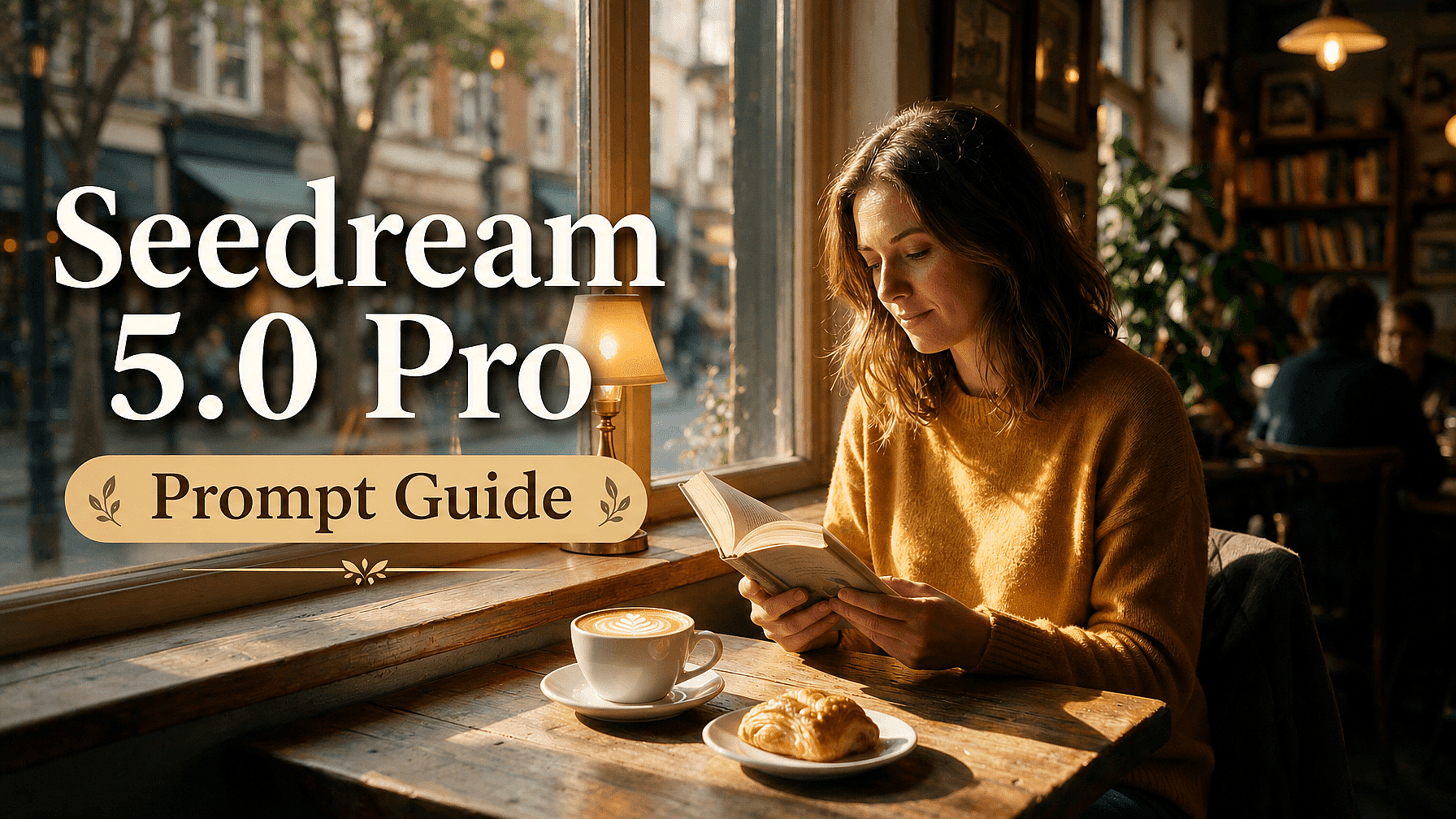
Seedream 5.0 Pro's real strength is that it understands design. It reads the layout, hierarchy, and how elements relate in an image, then makes precise, design-level changes from a plain description.
So the clearer you describe the design you want and the edits you need, the more the model delivers. This guide covers what actually works, from the first generation to the edits that follow.
Key takeaways
- Describe the full scene, not just the subject, and aim for a focused brief of roughly 30 to 80 words.
- Spell out the layout hierarchy for infographics and posters so dense information stays readable.
- Put any in-image text in quotes and name the language you want it rendered in.
- Edit by describing the change in plain language, and say what should stay the same.
- Ask the model to separate layers, then describe an edit for each one on its own.
Describe the whole scene, not just the subject
A simple prompt like "A woman in a cafe" gives the model very little to work with. It will fill the gaps for you, and often not the way you pictured.
Seedream 5.0 Pro responds far better when you describe the subject, the style, the lighting, the setting, and the framing together. Try "a woman in a mustard sweater reading by a cafe window, warm afternoon light, shallow depth of field, photoreal, 3:2 format."
A focused brief of roughly 30 to 80 words is the sweet spot. Too short and the model lacks direction; too long and it may drop some of your details.
Name your lighting and materials
Seedream 5.0 Pro's realism comes from how it handles light and surfaces, so describe them directly. Naming the light does more for a scene than any style word.
Call the direction and quality, like "soft window light from the left" or "hard midday sun." Then name the materials you care about, such as brushed aluminum, frosted glass, or matte skin, and the model renders their reflections and texture accordingly.
Spell out the layout hierarchy
Dense layouts are a signature strength, but the model holds structure best when your prompt provides one. For infographics and posters, state the reading order.
Name the title, the sections, the charts, the labels, and the footnote, and say roughly where each sits. Something like "headline across the top, a bar chart center-left, a timeline down the right, a caption at the bottom" keeps a busy layout organized instead of cluttered.
Put your text in quotes and name the language
In-image text is another strength, so use it deliberately. Write the exact words in quotes and say where they go, like a headline, a label, or a caption.
Because it renders text natively in over ten languages, name the language you want when it is not English. Put the copy in that language directly rather than asking for a translation, so accents and right-to-left scripts come out correct.
Edit by describing the change
When a generation is mostly right, do not start over. Tell the model what to change in plain language, and it edits that part while the rest stays put.
Name the element clearly: "make the bottle on the left blue," or "remove the sign in the background." Because the model understands where each element sits and how it fits the design, it applies the change precisely and leaves the rest untouched.
Say what should stay the same
Conversational editing works best when you protect what already works. Along with the change, tell the model what to keep.
For example, "replace the hat with a crown, keeping the pose and expression unchanged." Naming what stays fixed keeps an edit from quietly shifting the rest of the image.
Separate layers, then edit each one
For design work, ask the model to split a result into layers: the text, the subject, the background, and any decorations. It returns them as independent pieces and fills in whatever was hidden behind the subject.
From there, describe an edit for each layer on its own, like "on the background layer, warm up the sky," or "swap the subject for a peacock." You work at the design level, one element at a time, entirely from your description.
3 sample prompts
Here is how these guidelines come together in practice.
Sample 1: Infographic poster with in-image text
Mode: Create Image
A single-page infographic titled "State of Home Coffee 2026." Headline across the top reading "State of Home Coffee 2026". Below it, a bar chart center-left comparing four brew methods, a small pie chart of bean origins to the right, and a three-step brewing timeline along the bottom. Clean editorial layout, cream and espresso palette, legible labels, 4:5 format.
What this demonstrates: a stated layout hierarchy with named sections and placement, plus quoted in-image text, which is exactly what Seedream 5.0 Pro's dense-layout and text rendering handle well.
Sample 2: Conversational precision edit
Mode: Edit Image
References: your generated image
Make the ceramic mug on the table matte black instead of white, and remove the small plant in the top-right corner. Keep the lighting, the table, and the composition exactly the same.
What this demonstrates: a targeted edit driven entirely by description. You name the elements to change and state what should stay fixed, and the model applies just those changes.
Sample 3: Multilingual campaign poster
Mode: Create Image
A vertical sale poster for a Tokyo bakery, warm morning light on a wooden counter with fresh bread. Japanese headline text reading "パン祭り" across the top, with a smaller line below reading "週末限定". Minimalist layout, soft beige palette, 4:5 format.
What this demonstrates: native text in a non-English language, entered directly rather than translated, so the letterforms and typography render correctly in the generation itself.
The bottom line
Start with a clear, detailed brief, name your lighting and layout, keep in-image text short and quoted, and edit by describing changes rather than re-rolling.
Seedream 5.0 Pro rewards precise language, and on OpenArt’s AI image generator you can carry an image into GPT Image 2, Nano Banana Pro, or Recraft V4 whenever a project calls for a different strength.
Frequently asked questions
How long should a Seedream 5.0 Pro prompt be?
Detailed but focused, roughly 30 to 80 words. Cover the subject, style, lighting, layout, and any text, and skip filler.
How do I edit one part of an image?
Describe the change in plain language and name the element, then say what should stay the same. The model understands where each element sits and edits just that part.
How does layer separation work?
Ask the model in words to split the image into layers, such as text, subject, and background. It returns them separately, and you then describe an edit for each layer.
How do I get readable text in another language?
Put the exact words in quotes, in the target language, and name that language. Native input gets native typography.