 ChatGPT
 Perplexity
 Claude
 Gemini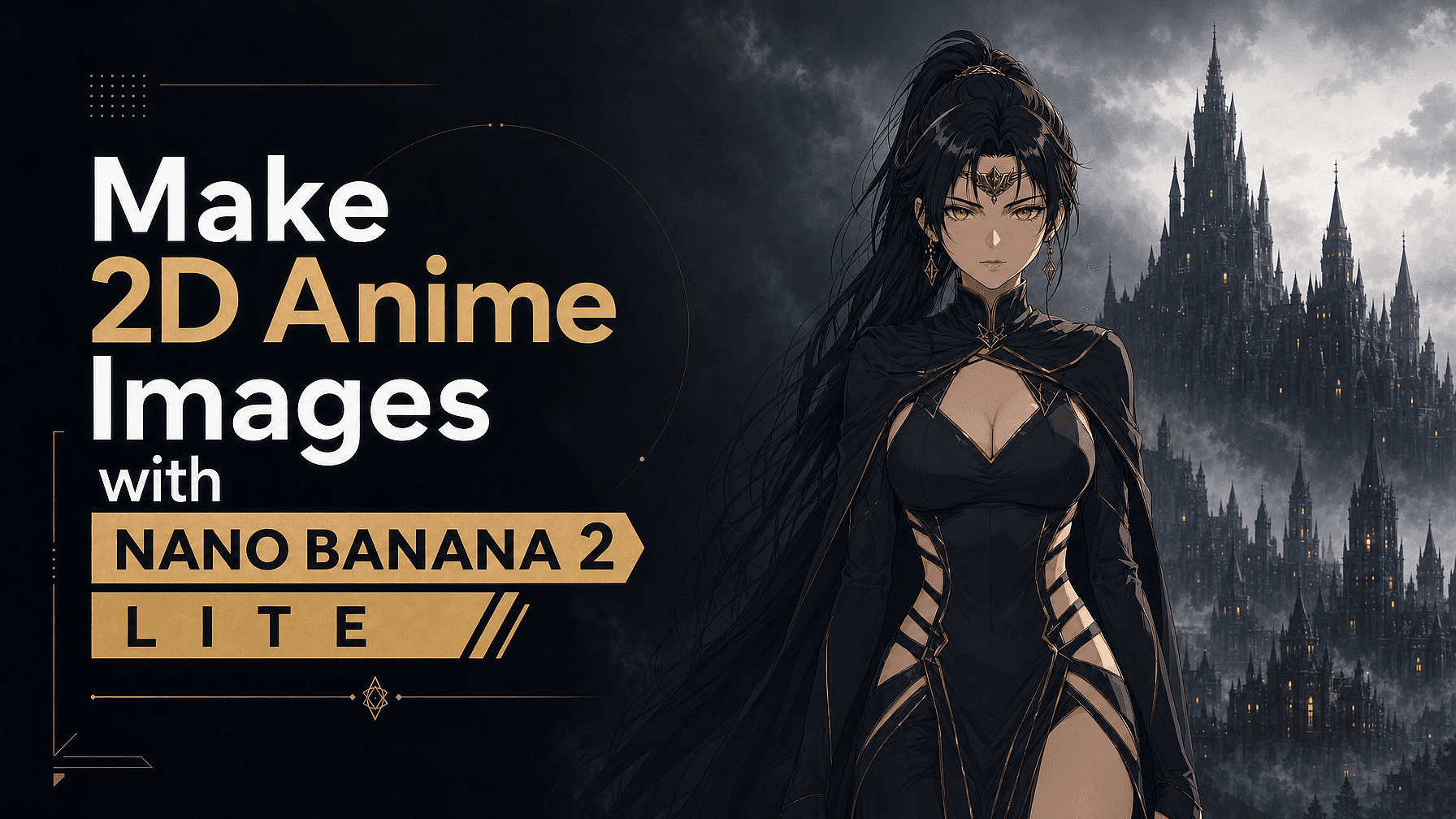
2D anime is a flat, stylized look, with bold linework, clean cel shading, expressive eyes. That makes it a perfect match for Nano Banana 2 Lite, Google's fastest, most affordable image model. You're not chasing one expensive photoreal render; you're dialing in a style, and the fastest way to do that is to iterate.
Because Lite generates in about four seconds for a few cents an image, you can explore dozens of variations until the look is exactly right. Here's how to do it.
Why Nano Banana 2 Lite is a great fit for anime
The whole appeal is speed plus low cost, which turns iteration into your superpower. Anime style lives in the details, hair color, eye shape, palette, line weight, and Lite lets you test them all quickly instead of committing to one slow generation. It also handles the things anime art needs: legible in-image text for signs and manga-style captions, real-world knowledge for authentic settings (a Tokyo backstreet, a school rooftop, cherry blossoms), and edit-by-description so you can refine without starting over.
One honest note up front: Lite is tuned for speed, so it's happiest with flat 2D work and simple scenes. For 3D or CGI-style anime, or projects that need the same character kept perfectly consistent across many images, you'll want a heavier model such as Nano Banana Pro (more on that below). For everyday 2D anime art, it's a fast, fun sweet spot.
What you'll need to use Nano Banana 2 Lite
An OpenArt account — everything runs in your browser, no setup. Just select Nano Banana 2 Lite as your model, and have a clear idea of the anime substyle you're going for.
Step 1: Pick a specific anime substyle
"Anime" is huge, so name the flavor you want. A few directions:
Modern shonen: bold outlines, saturated colors, dynamic energy
Soft shoujo: delicate lines, pastel palettes, sparkles
90s cel anime: retro film grain, hand-painted backgrounds
Chibi: tiny, rounded, sticker-friendly
Manga ink: black-and-white, screentones, high contrast
The more specific you are, the less the model has to guess and the more accurate the outputs would be.
Step 2: Use an anime prompt formula
A reliable structure:
[subject + key features] + [pose or action] + [anime substyle] + [linework & shading] + [color palette] + [setting] + [lighting/mood] + [shot type] + [2D quality tags]
Always include flat-style cues like "flat 2D illustration, cel shading, clean line art" — and add "not a 3D render, no photorealism" to keep the output from drifting toward 3D, which isn't Lite's strength.
Step 3: Try these example prompts
Character portrait: "A teenage girl with short teal hair and bright green eyes, gentle smile, modern shonen anime style, bold clean line art, cel shading, vibrant flat colors, cherry-blossom courtyard behind her, soft afternoon light, upper-body shot, flat 2D illustration, not a 3D render."
Atmospheric scene: "A quiet Tokyo backstreet at dusk, glowing vending machines and neon signage, 90s cel anime style, hand-painted watercolor background, warm nostalgic palette, no characters, wide establishing shot, flat 2D illustration."
Chibi sticker: "A chibi orange tabby cat dressed as a wizard casting a spark of magic, thick clean outlines, flat pastel colors, simple white background, sticker style, flat 2D, no photorealism."
Step 4: Iterate fast without burning credits
Here's where Nano Banana 2 Lite earns its place:
- Generate a batch and pick the version closest to your vision.
- Refine by describing changes: "same character, silver hair instead," "warmer lighting," "add a red scarf," "turn to a 3/4 view." Each pass costs a few cents and takes seconds.
- Lock your look, then spin off new poses and expressions.
Because Lite prioritizes speed, expect small drifts when you reuse a character across many images — if a face or outfit shifts, just regenerate or feed a reference. For a single character or a short set, this is quick and painless.
Step 5: Add text or manga panels (optional)
Nano Banana 2 Lite renders legible in-image text, which is handy for speech bubbles, sound effects, and street signs. Keep the text short and specify it in quotes for the cleanest results.
Tips for better anime results
- Spell out eyes and hair in the prompt. They define an anime character.
- Name your palette and lighting ("pastel," "high-contrast neon," "golden hour").
- Keep scenes to one or two characters for clean, coherent results.
- Reuse "flat 2D illustration / cel shading / no photorealism" as anchor tags every time.
- Reference real places for believable backgrounds.
When to step up to another model
Lite is your fast, affordable 2D workhorse, but it isn't the best tool for everything. If you need a recurring character kept perfectly consistent across a long series, dense multi-character group scenes, a 3D/CGI anime look, or print-resolution detail, reach for a stronger model.
On OpenArt's AI image generator you can switch to Nano Banana Pro for more control and consistency, or try GPT Image 2 and Recraft V4 — all in the same place. A smart workflow is to prototype cheaply on Lite, then finish on a heavier model when the project calls for it.
Frequently asked questions: Making anime images with Nano Banana 2 Lite
Can Nano Banana 2 Lite make anime images? Yes — it's well suited to fast, affordable 2D anime creation and editing.
Is it good for consistent characters? For a single character or a short set, yes. For many recurring characters kept identical across a long project, Nano Banana Pro is the better fit.
What resolution does it output? 1K — ideal for web, social, and manga panels; upscale or use a higher-res model for large prints.
Where can I create anime with it? Either in Google's own Gemini app, or on OpenArt, alongside Nano Banana Pro, GPT Image 2, and Recraft V4.