1
Copia la URL del conector de OpenArt
Pegarás esta URL en Claude en el siguiente paso.
https://mcp.openart.ai/mcp
Los mejores modelos de imagen y vídeo, con un 10 % de descuento en ChatGPT, Claude y más con OpenArt MCP.
Consigue un 10 % de descuento ›Genera imágenes y vídeo dentro de tu agente de IA

Pegarás esta URL en Claude en el siguiente paso.
En el la app de Claude o en claude.ai, ve a Ajustes → Conectores y elige Añadir conector personalizado. Para los planes Team y Enterprise, Sigue las instrucciones en su lugar.
Haz clic Añadir → Conectar e inicia sesión en OpenArt. Configura los permisos como Permitir siempre. Una vez conectado, puedes pedirle a Claude que genera imágenes o vídeos con OpenArt.
Encuentra el plugin de OpenArt aquí, luego haz clic en Instalar plugin.

Inicia sesión con tu Cuenta de OpenArt para conectar, solo lleva unos segundos y no hacen falta claves de API.

Tipo @OpenArt en el cuadro de mensaje para activarlo, y luego simplemente pídele a ChatGPT que generar imágenes o vídeos.

Ajustes → MCP e integraciones → Nuevo servidor MCP (abre mcp.json).
Pega esto en mcp.json y ahorra:
{
  "mcpServers": {
    "openart": {
      "url": "https://mcp.openart.ai/mcp"
    }
  }
}Haz clic en el Requiere iniciar sesión escribe el prompt junto al servidor y aprueba en el navegador. Las herramientas de OpenArt ya aparecen en los chats del agente.
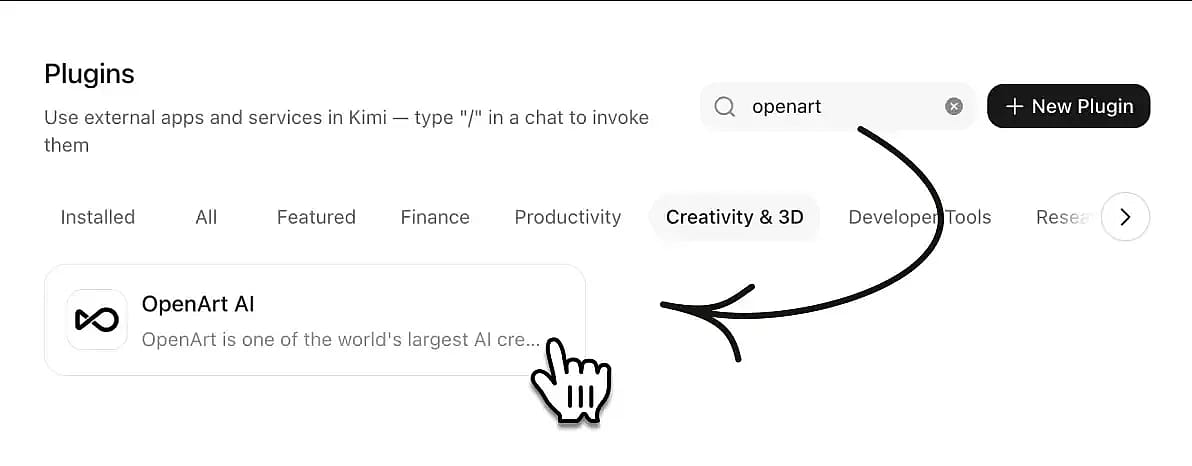
Encuentra 'OpenArt AI' en la tienda de plugins de Kimi e instálalo.
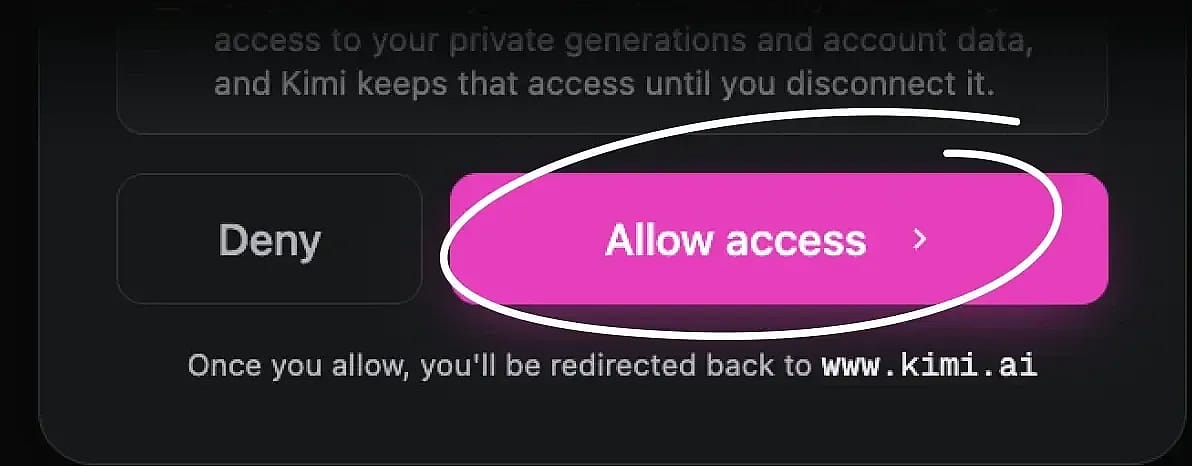
Inicia sesión con tu Cuenta de OpenArt para conectar, solo lleva unos segundos y no hacen falta claves de API.
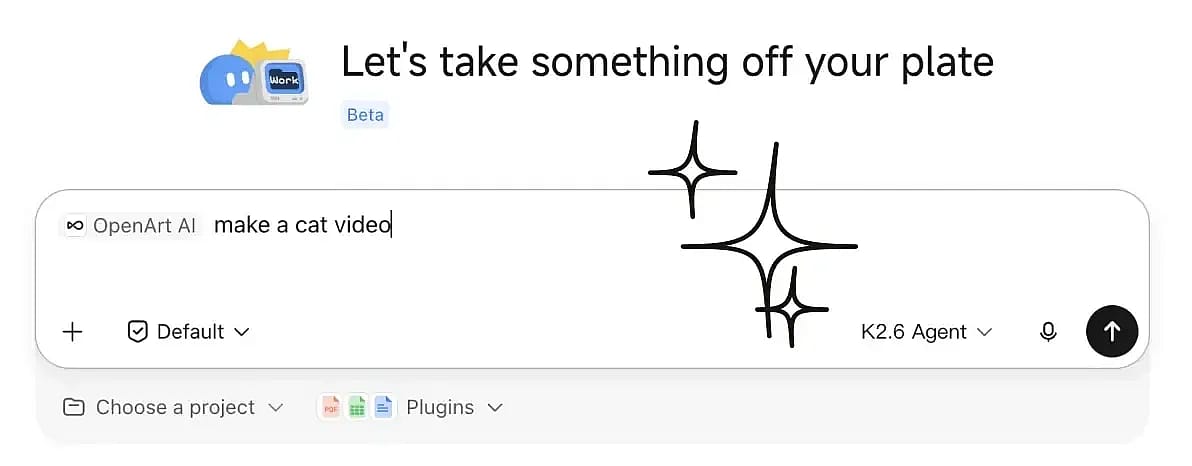
Escribe /OpenArt en el cuadro de mensaje para activarlo y luego simplemente pide a Kimi que genere imágenes o vídeos.
Busca Conectores, Integraciones o servidores MCP.
Añadir un servidor con transporte HTTP en streaming y la URL de arriba. Sin clave de API, sin configuración adicional.
Inicia sesión con tu Cuenta de OpenArt al usarlo por primera vez. Los créditos y los resultados quedan vinculados a tu cuenta.
curl -fsSL https://raw.githubusercontent.com/OpenArt-AI/cli/main/install.sh | shirm https://raw.githubusercontent.com/OpenArt-AI/cli/main/install.ps1 | iexInicia sesión con tu cuenta de OpenArt.
openart loginEmpieza a generar una imagen o un vídeo.
openart generate image "a red fox in the snow" --model nano-banana-2 -o ./out/curl -fsSL https://raw.githubusercontent.com/OpenArt-AI/cli/main/install.sh | shirm https://raw.githubusercontent.com/OpenArt-AI/cli/main/install.ps1 | iexInicia sesión con tu cuenta de OpenArt.
openart loginEmpieza a generar una imagen o un vídeo.
openart generate image "a red fox in the snow" --model nano-banana-2 -o ./out/curl -fsSL https://raw.githubusercontent.com/OpenArt-AI/cli/main/install.sh | shirm https://raw.githubusercontent.com/OpenArt-AI/cli/main/install.ps1 | iexInicia sesión con tu cuenta de OpenArt.
openart loginEmpieza a generar una imagen o un vídeo.
openart generate image "a red fox in the snow" --model nano-banana-2 -o ./out/curl -fsSL https://raw.githubusercontent.com/OpenArt-AI/cli/main/install.sh | shirm https://raw.githubusercontent.com/OpenArt-AI/cli/main/install.ps1 | iexInicia sesión con tu cuenta de OpenArt.
openart loginEmpieza a generar una imagen o un vídeo.
openart generate image "a red fox in the snow" --model nano-banana-2 -o ./out/Si usas Claude Code o Codex, es mejor que
GitHubConecta OpenArt con Claude, ChatGPT, Cursor y más para unificar la generación de imágenes, la creación de vídeo y toda tu biblioteca creativa en un flujo de trabajo fluido.
Convierte texto en imágenes y vídeos, todo a través de una única conexión con OpenArt.
Pruébalo ahora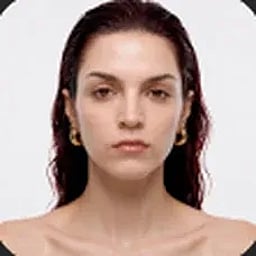
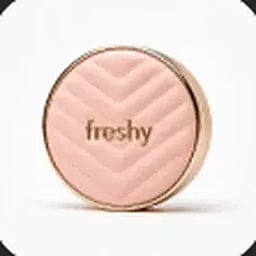
Convierte los fotogramas de inicio y fin seleccionados en un resultado pulido imagen a vídeo manteniendo la transición bajo tu dirección.
Pruébalo ahora
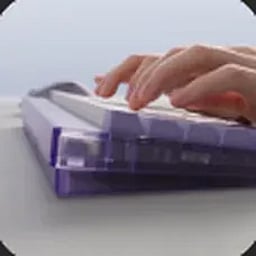
Mano Smart Shot tus referencias y un prompt de texto, y planifica los planos, el encuadre y el movimiento para un spot terminado con múltiples cortes.
Pruébalo ahora

Añade una URL y tu agente accede al instante al catálogo completo de modelos de imagen y vídeo de OpenArt. Cada nuevo modelo se sincroniza automáticamente, así que tu configuración nunca necesita actualizaciones manuales.
Pruébalo ahoraImagen
 GPT Image 2 Recomendado
  Nano Banana Pro Nano Banana 2 Nano Banana 2 Lite
  Seedream 5 Pro Seedream 5 Lite Seedream 4.5
  Kling 3 Omni
 Vídeo
Seedance 2.5 Seedance 2.0 Seedance 2.0 Mini Gemini Omni 1.1 Flash Gemini Omni Flash Kling 3 Omni  Grok Imagine 1.5
  PixVerse V6
  Wan 2.7
 Recupera cualquier generación anterior de OpenArt para una nueva creación como referencia de estilo o fotograma inicial de vídeo. Todo tu historial creativo está siempre a mano para consultarlo.
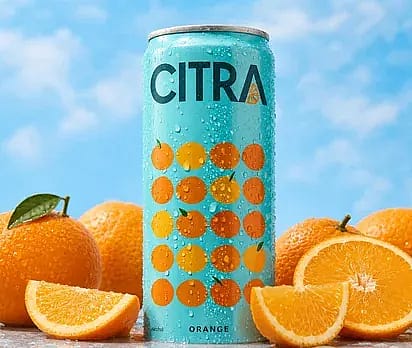
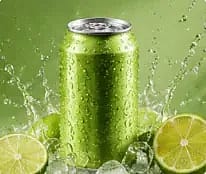
Pruébalo ahoraCrea un anuncio premium de bebida para la lata de refresco de naranja Citra, rodeada de naranjas frescas y salpicaduras cítricas. Usa una iluminación de estudio vibrante, detalle nítido del producto y un estilo comercial pulido.
Trabaja con la misma cuenta de OpenArt, créditos, proyectos y espacios de trabajo que ya usas, con la máxima comodidad.
Pruébalo ahoraDescubre todo lo que es posible cuando conectas OpenArt a tu agente de IA. ¡Solo tienes que chatear con tu agente para crear lo que quieras!
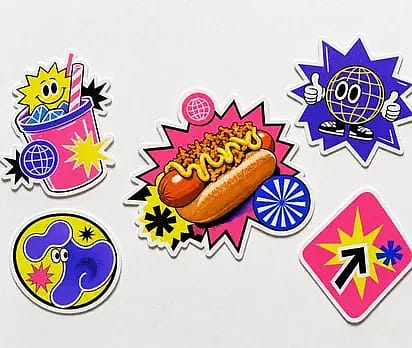
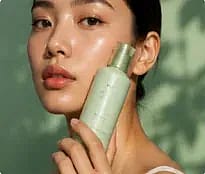
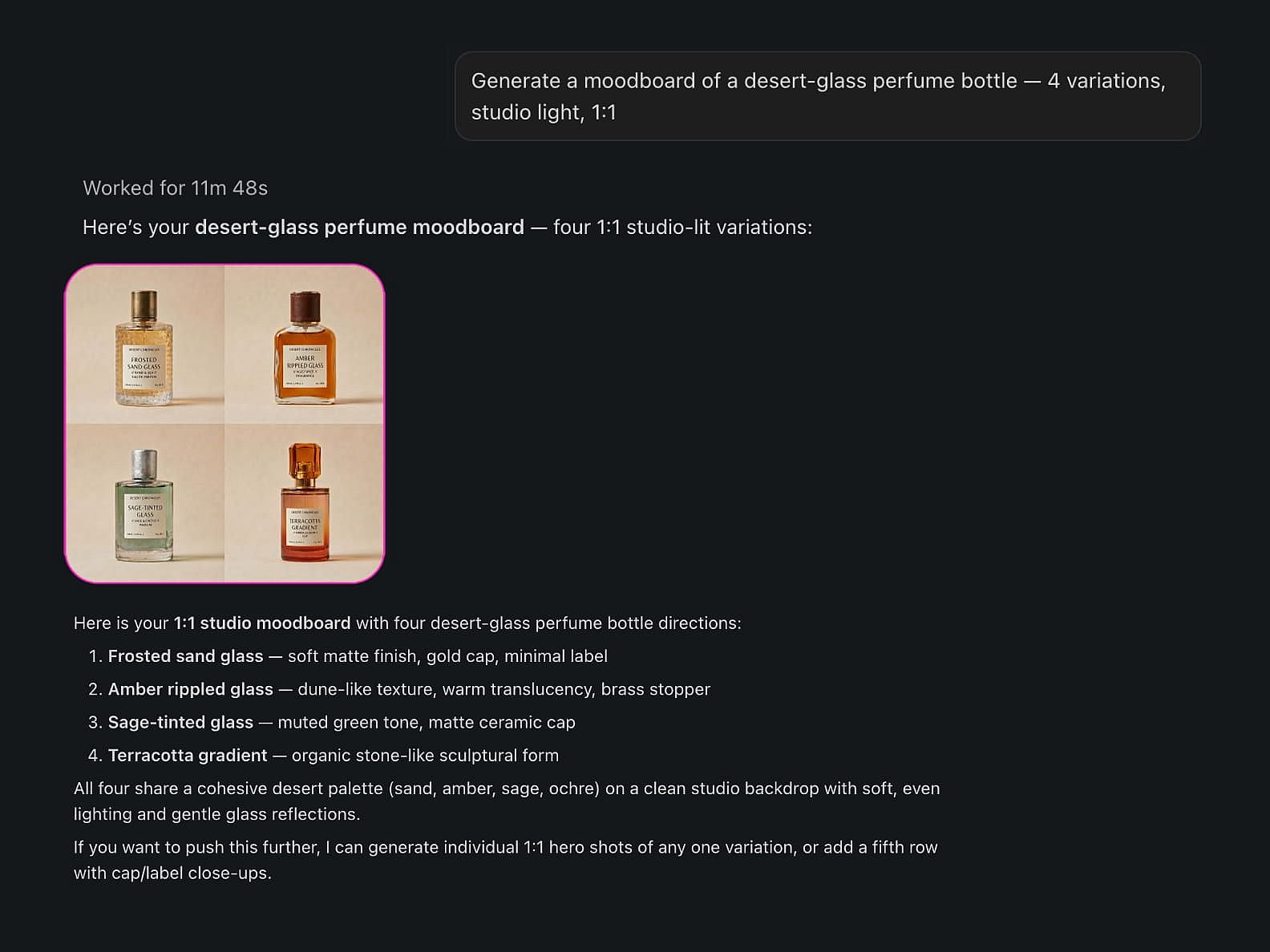
Genera un moodboard de un frasco de perfume de cristal del desierto: 4 variaciones, luz de estudio, 1:1.
Texto a imagen con los modelos de imagen de OpenArt. Tu agente te devuelve los resultados directamente en la conversación y los guarda en tu biblioteca.
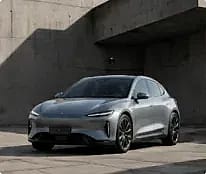
Anima esta foto de producto en un anuncio cinematográfico de 5 segundos.
Crea vídeos a partir de texto o imágenes directamente a través de tu agente de IA. OpenArt se encarga de las generaciones y te devuelve el resultado final en la propia conversación.
Muéstrame mis proyectos de OpenArt y luego crea tres conceptos nuevos en mi proyecto de campaña del Q3.
Muestra tus proyectos de OpenArt y elige uno antes de crear, para que cada generación acabe en el lugar correcto. Sin mover archivos a mano ni cambiar de pestaña.
Usa mis tres últimas renderizaciones como referencias.
Extrae recursos de tu biblioteca de OpenArt y usa generaciones anteriores para mantener el estilo, los personajes y la coherencia creativa.
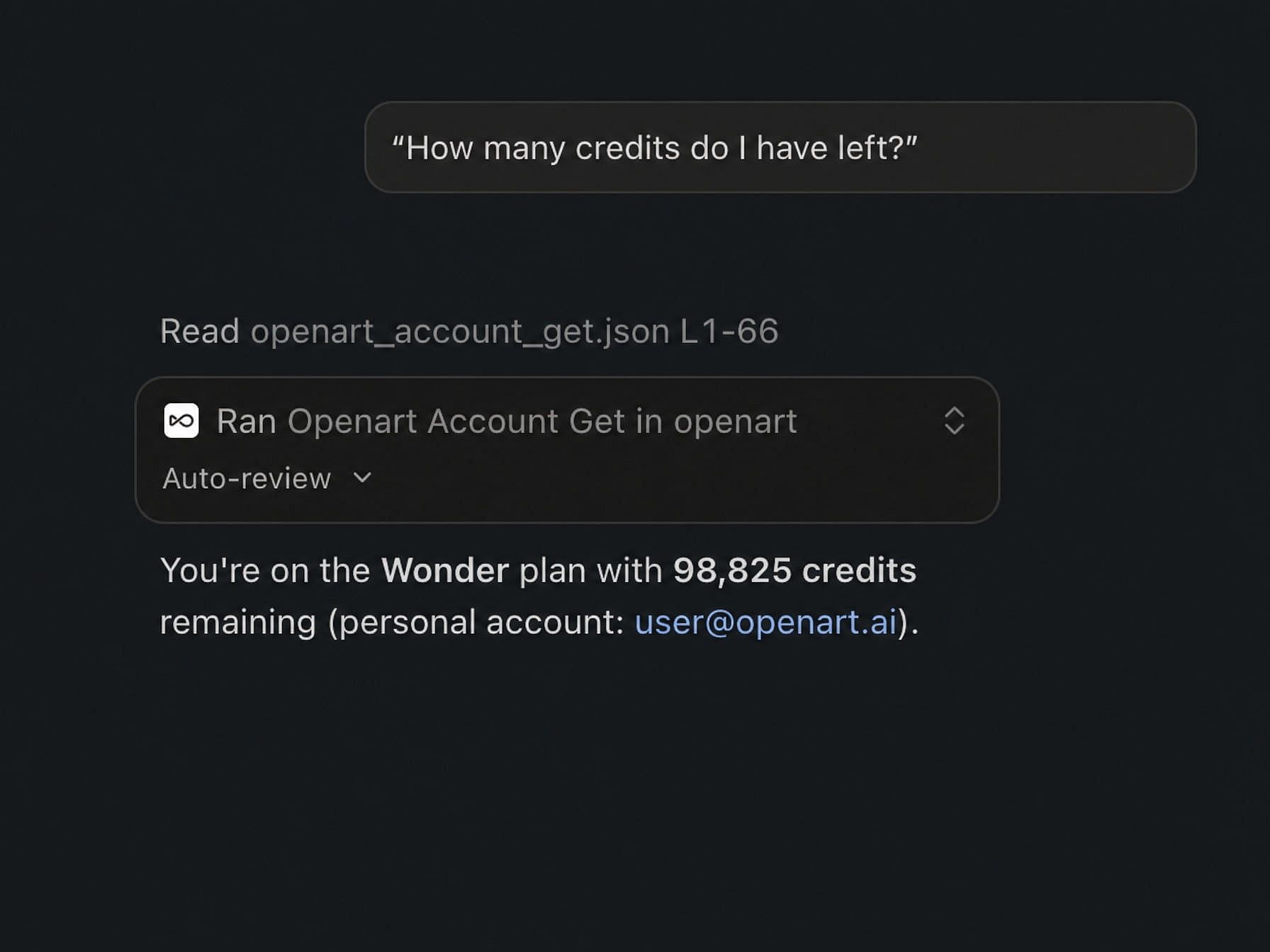
¿Cuántos créditos me quedan?
Consulta al instante los planes, los créditos y la información de la cuenta sin abrir los ajustes de OpenArt. Toda la información fluye libremente entre OpenArt y tu agente de IA.
Únete a miles de creadores que usan OpenArt para generar imágenes, vídeos y mucho más impresionantes, todo en una sola plataforma.
Empieza gratis →