AI Text to Videoジェネレーター
OpenArtのAIテキスト・トゥ・ビデオ生成ツールなら、シンプルなテキストプロンプトから最大4K解像度の完成度の高いAI動画を作れます。欲しいシーン、アクション、カメラワークを説明し、出力設定を整えるだけで、数分でサウンド付きの映画のようなクリップが生成できます。
AIテキストto動画メーカーの主なメリット
素材は不要
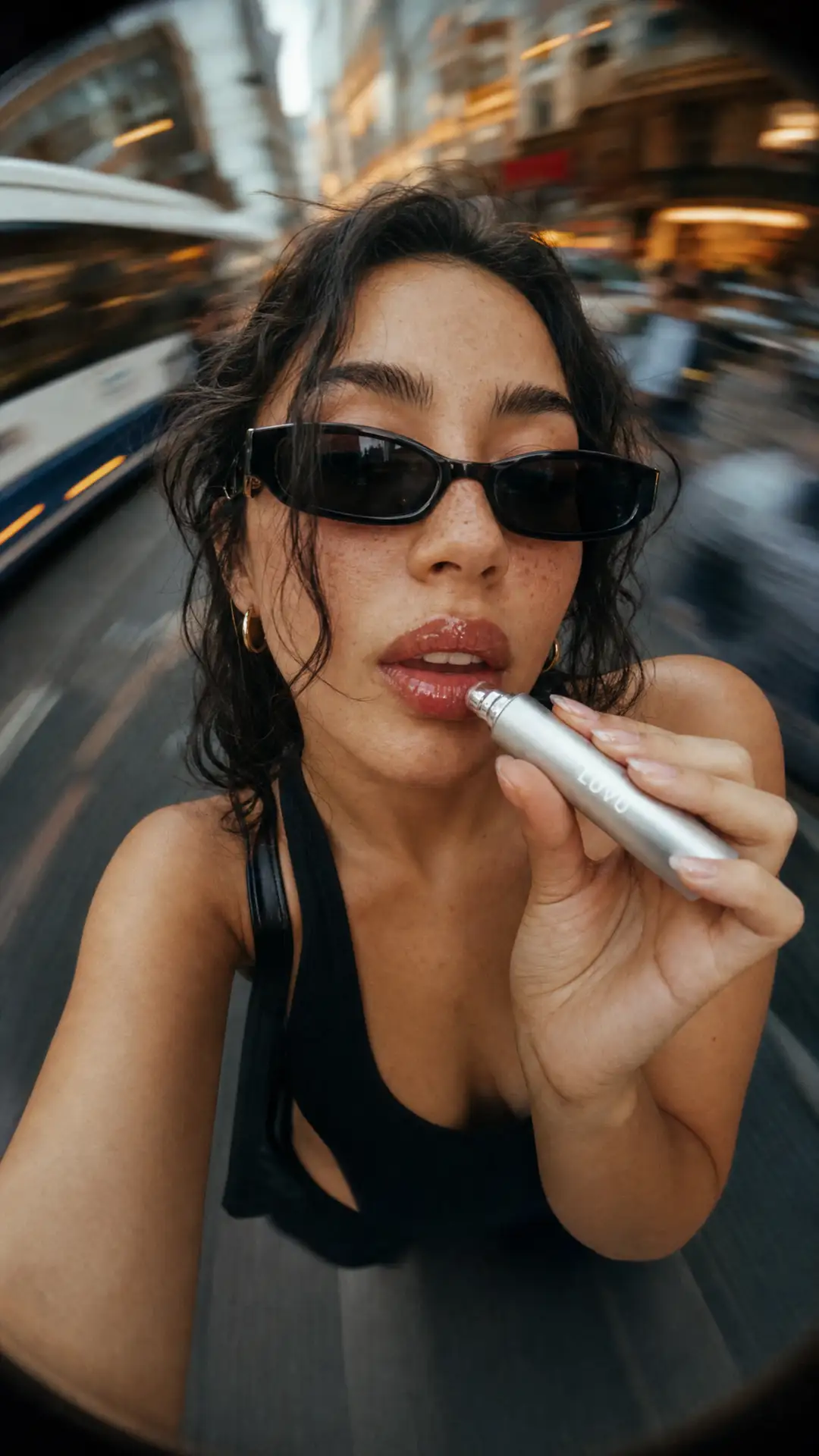
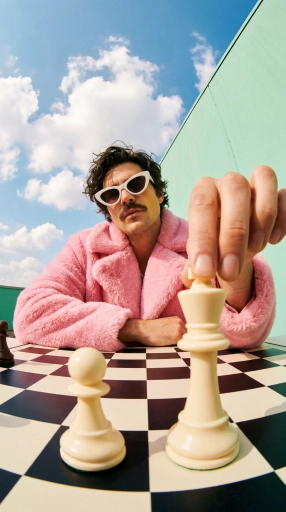
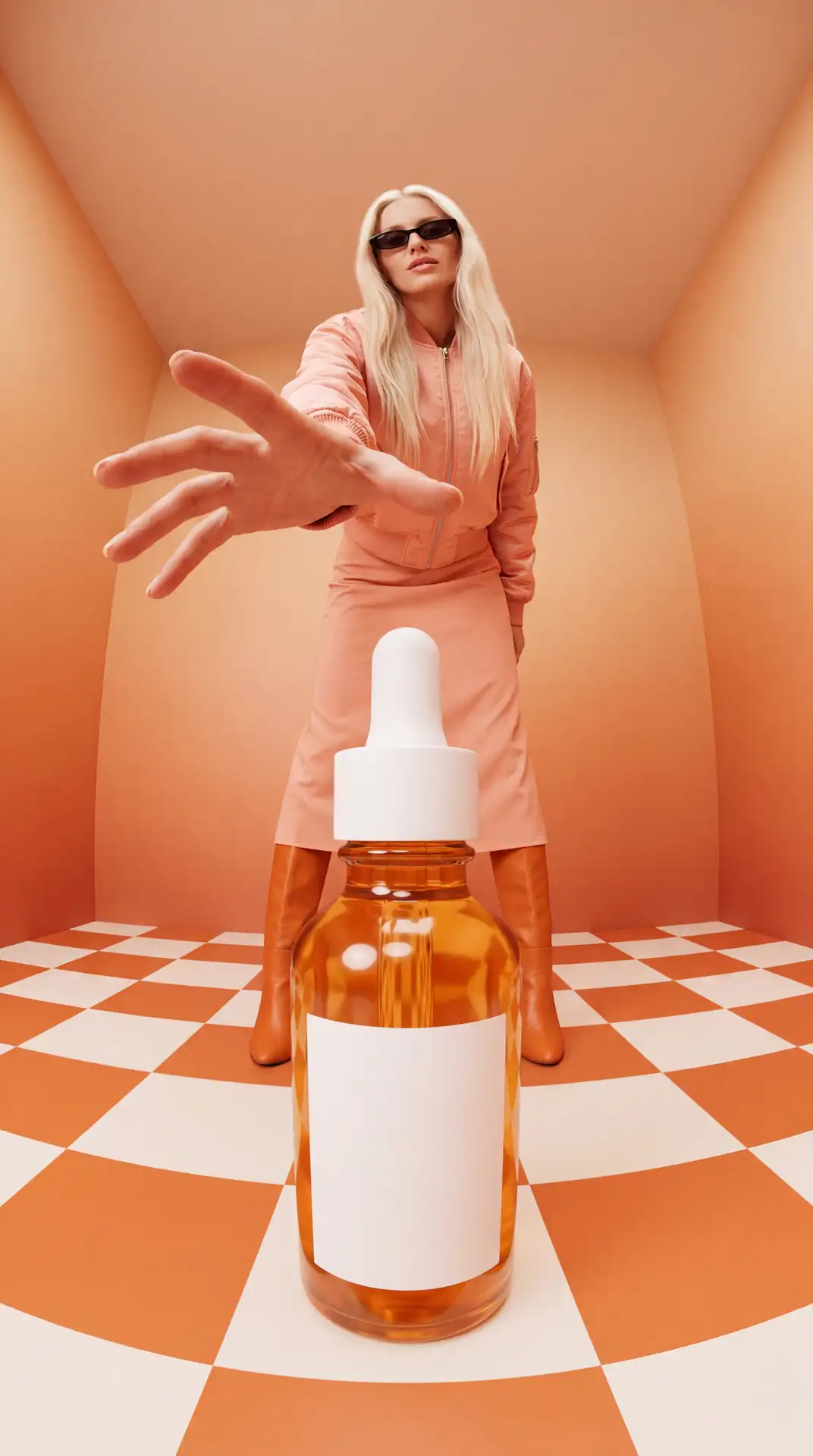
言葉だけからスタートするので、カメラも役者もストック映像も必要ありません。見たいものを説明するだけで、OpenArtがゼロから動画を生成します。
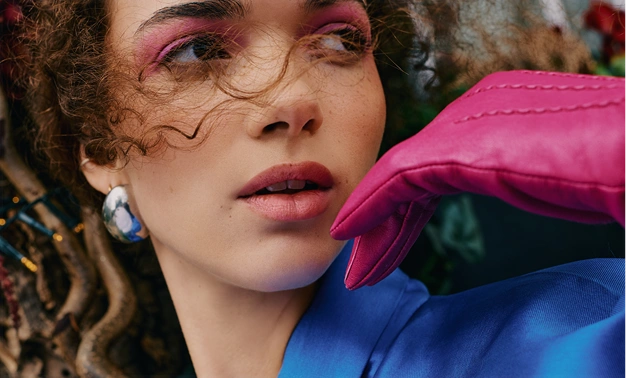
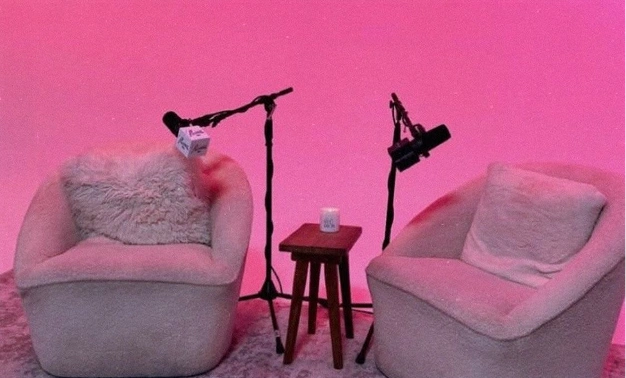
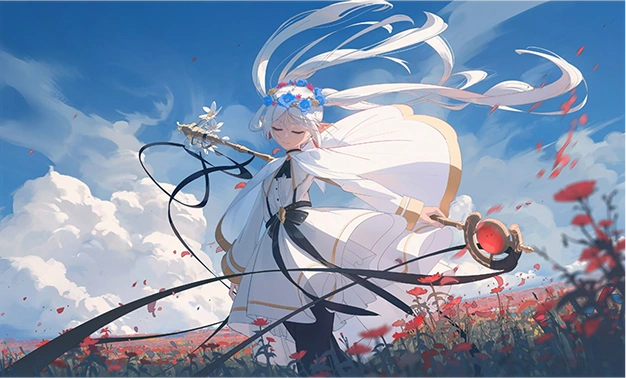
クリップではなく、完全なシーンを
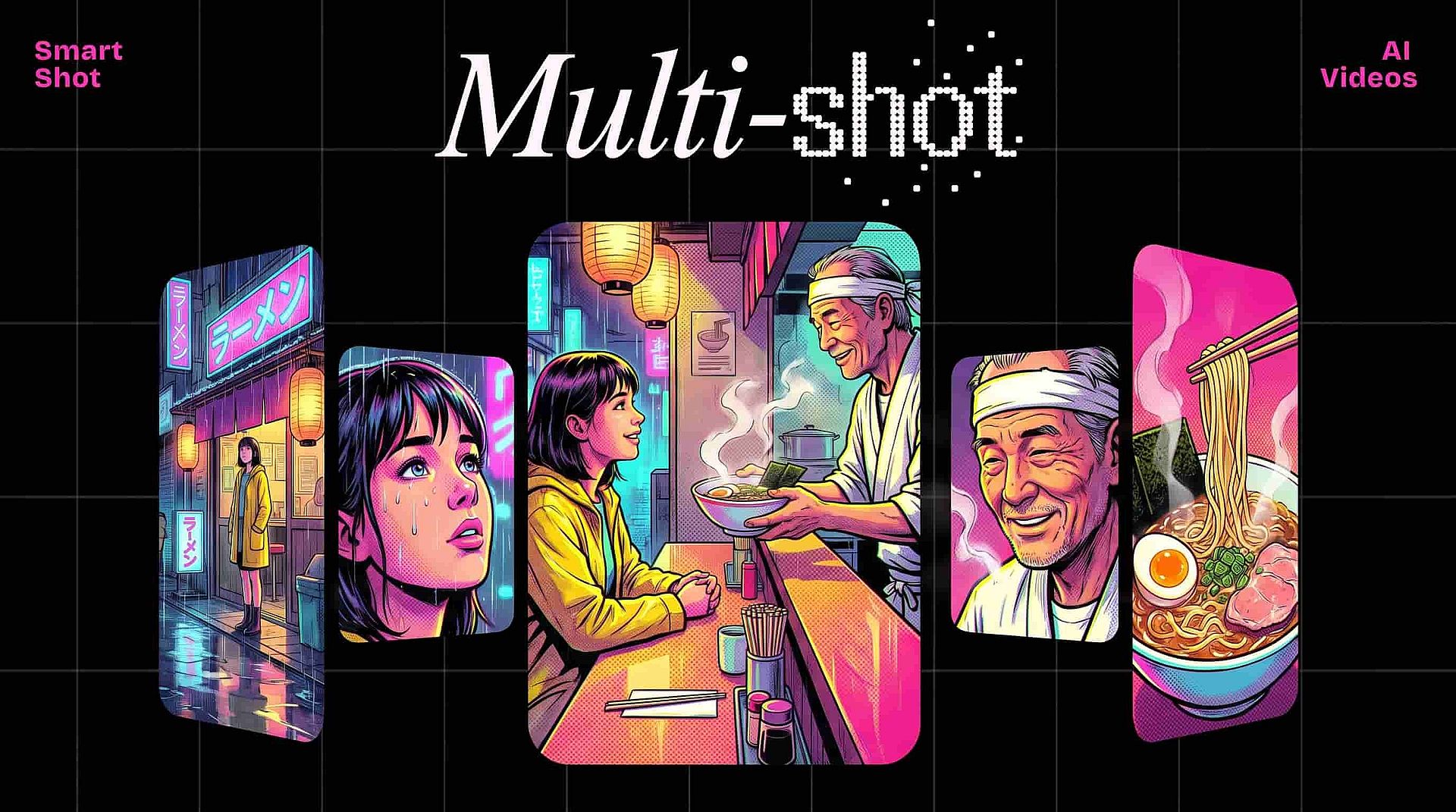
短い断片を手作業でつなぎ合わせる代わりに、たった1つの prompt から複数ショットのシーンを丸ごと生成。OpenArt がショットを設計するので、完成動画はカットからカットへ滑らかに流れます。
おすすめのAI動画モデル
1つのツール内で主要なAI動画モデルから選べるので、狙った見た目にモデルを合わせられます。同じプロンプトの結果を比較し、いちばんしっくりくるバージョンを残しましょう。
AIテキストから動画の主な機能
テキストプロンプトから完成した動画を生成
思い描くシーンを言葉にしよう
設定、アクション、カメラの動きをプロンプトに書きましょう。例えば「夕暮れの沿岸都市の上空を飛ぶドローンショット」のように。OpenArtの AI動画ジェネレーター その説明を、自然な動きと一貫したシーンを備えた最長30秒・4K解像度の動画に変換します。プロンプトが具体的であるほど、頭の中で描いたショットに近い結果が得られます。
動画にサウンドとナレーションを追加
プロンプトで効果音を説明すればサウンドレイヤーを追加でき、生成したシーンに音声がマッチします。Lip Syncはキャラクターの口の動きを、あなたが用意したセリフに合わせます。さらにショットを最大10秒延長したり、最終クリップを4Kにアップスケールしたりできます。これらを組み合わせることで、テキストから生成した動画を仕上げ、映像と音声がひとつになります。
AIテキストから動画ツールの使い方
テキストpromptから動画を3ステップで作成。
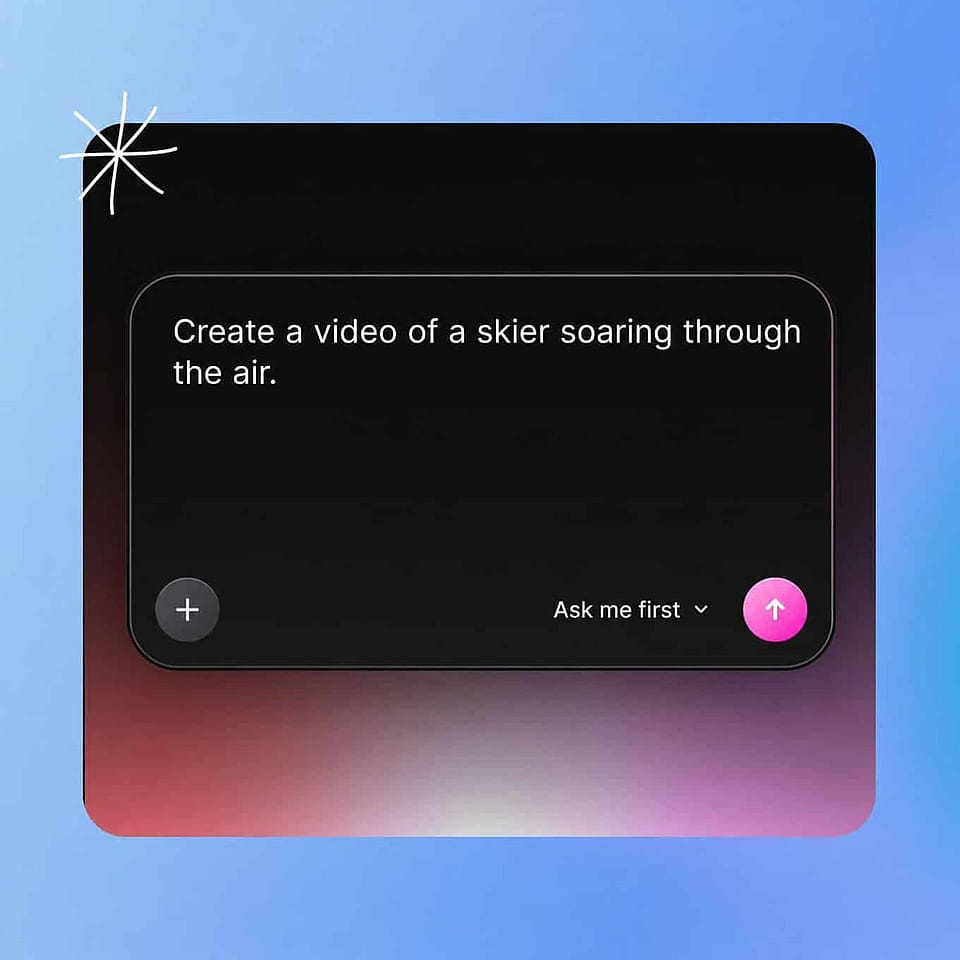
プロンプトを書く
Text to Videoジェネレーターを開き、シーン、アクション、カメラの動きを普通の言葉で説明しましょう。明確で具体的なプロンプトほどモデルが活用できる情報が増え、狙いに近い結果が得られます。
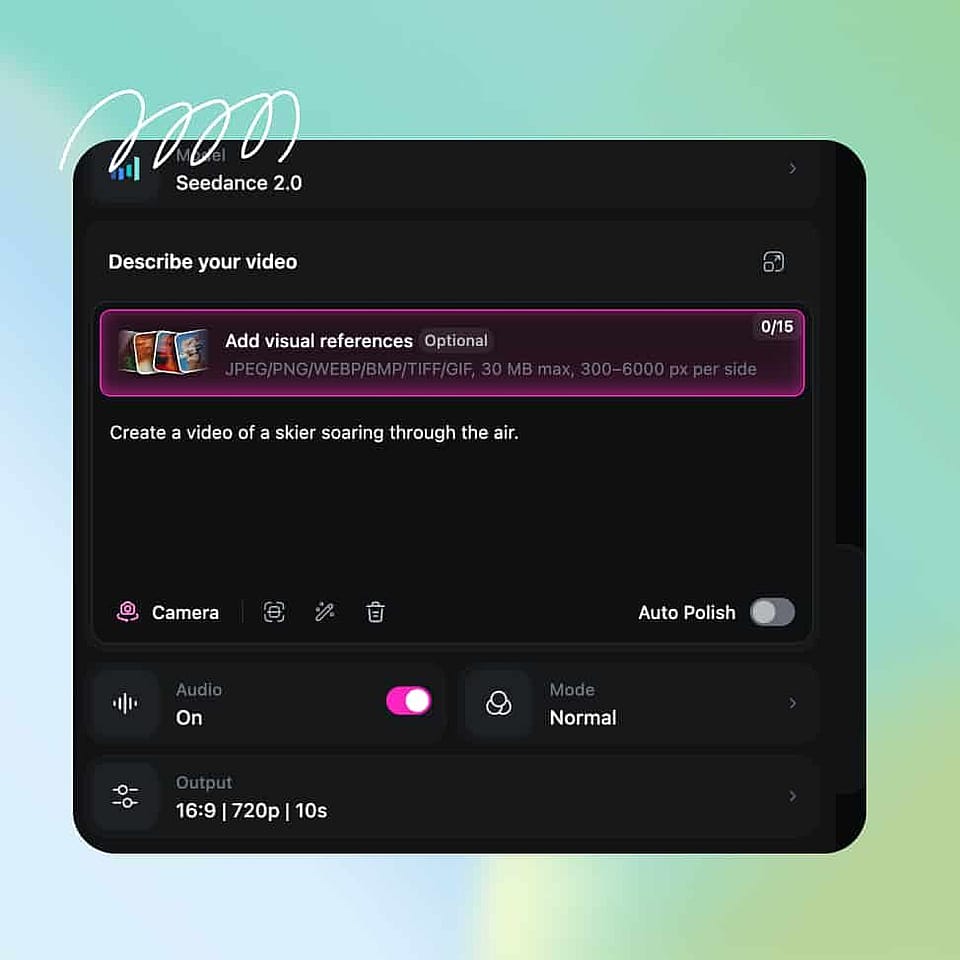
モデルと設定を選ぶ
シーンに合ったAI動画モデルを選び、再生時間、アスペクト比、生成数、解像度を設定しましょう。文言をOpenArtに磨いてほしいときはAuto-Polish Promptをお使いください。
生成してエクスポート
動画を生成し、動きとテンポを確認して、思い描いたシーンに近づくようpromptや設定を調整しましょう。イメージ通りになったら、サウンドの追加、延長、アップスケールを行い、クリップをダウンロードできます。
AIテキストから動画ジェネレーターの活用法
AIテキストから動画への生成ツールを、仕事にもプライベートなプロジェクトにも活用しましょう。
スクリプトを動画広告に
マーケターは短いスクリプトやコンセプトを書くだけで、撮影を予約せずに完成度の高い広告シーンを生成できます。表現したい商品の瞬間を説明し、いくつかのバージョンを生成して、アイデアが一番伝わるものを選ぶだけ。本格的な制作に踏み切る前に広告コンセプトをテストするのが現実的になります。
今すぐ試すコンセプトやストーリーボードを可視化
エージェンシーや映像制作者は、書き起こしたアイデアを動くストーリーボードに変えて、クライアントやチームに見せられます。Smart Shot なら1つのプロンプトがマルチカットのシーケンスになり、静止したボードよりもテンポやトーンをずっとうまく伝えます。誰かがカメラを構える前にシーンを提案できる、スピーディな方法です。
今すぐ試すプロンプトから説明動画を作成
クリエイターや教育者は、各シーンをテキストで描写するだけで解説動画やハウツー動画を生成できます。撮影も編集もスキップしながら、メッセージがしっかり伝わる見やすい映像が手に入ります。各クリップは数分でできるので、一連のレッスンを素早く量産できます。
今すぐ試すBロールとシーンフィラーを生成
動画編集者は、ストック素材ライブラリを探し回る代わりに、プロジェクトにぴったり合ったカスタムBロールや背景シーンを作成できます。足りないショットを描写すれば、必要なアスペクト比で生成できます。
今すぐ試すよくある質問 よくある質問
AIテキスト動画生成ツールとは、書いたプロンプトを動画に変えるツールです。シーンやアクション、カメラワークを普通の言葉で描写するだけで、AIがサウンド付きの動く映像を生成。撮影も編集も自分でせずに、完成したクリップが手に入ります。
はい。生成時に環境音をオンにしたり、Add Sound Effectで説明した音を重ねたり、Lip Syncでキャラクターの口の動きをセリフに合わせたりできます。つまり、テキストのpromptだけでシーンの映像と音声の両方を作れるということです。
ほとんどのクリップは数分で生成され、モデル・解像度・現在の混雑状況によって変わります。Fast出力はすぐに下書きを返し、Quality出力はより仕上がりのよい最終動画のために少し時間がかかります。
シーン設定、被写体の動き、カメラワークを具体的に書き、求めるムードやスタイルを明記しましょう。詳細が明確なほどモデルはあなたの意図を汲み取りやすくなります。Auto-Polish Promptをオンにすれば、OpenArtが文言を自動で洗練してくれます。
はい。Brand Kitはロゴ、HEXカラー、フォント、ブランド素材、スタイルの参照、ブランドルールを保存します。OpenArtはそれらをプロジェクト内のすべてのテキストから動画の生成に適用し、選んだどのモデルでもあなたのカラー、フォント、ルールが維持されます。
テキストから動画は、入力した言葉からシーン全体を組み立てるため、すべての見た目をAIが決定します。AI画像から動画はアップロードした写真から始まるので、動画はあなたの被写体をそのまま保ちます。新しいアイデアにはテキストから動画を、製品や人物を実際の写真に合わせる必要がある場合は画像から動画をお使いください。
OpenArtのAIテキスト動画ジェネレーターを開き、思い描くシーンやアクションを説明するpromptを入力し、モデルと設定を選んで生成するだけ。AIが数分であなたの説明を動画に仕上げ、promptを調整して結果を細かく仕上げていけます。
OpenArtではSeedance 2.5、Wan 2.7、Kling Omni、LTX 2.3、Google Veo 3.1など主要モデルから選べます。最適なモデルは求めるシーンや雰囲気によって変わるので、同じpromptを複数のモデルで生成して比べてから選べます。
ほとんどのモデルで最大15秒、一部では最大30秒のクリップを生成でき、さらに動画延長ツールでショットを最大10秒延ばせます。
すべての標準アスペクト比で生成でき、対応モデルなら最大4K解像度まで対応(標準デフォルトは1080p)。手作業の追加編集なしで、TikTok、Reels、YouTube、横型広告に最適な形式で書き出せます。
はい。OpenArt Charactersでキャラクターを一度作成し、テキストから動画へのプロンプトでそのキャラクターをタグ付けするだけ。同じ顔とスタイルがすべてのクリップに登場するので、シリーズや広告キャンペーンで一貫した人物を保てます。