 ChatGPT
 Perplexity
 Claude
 Gemini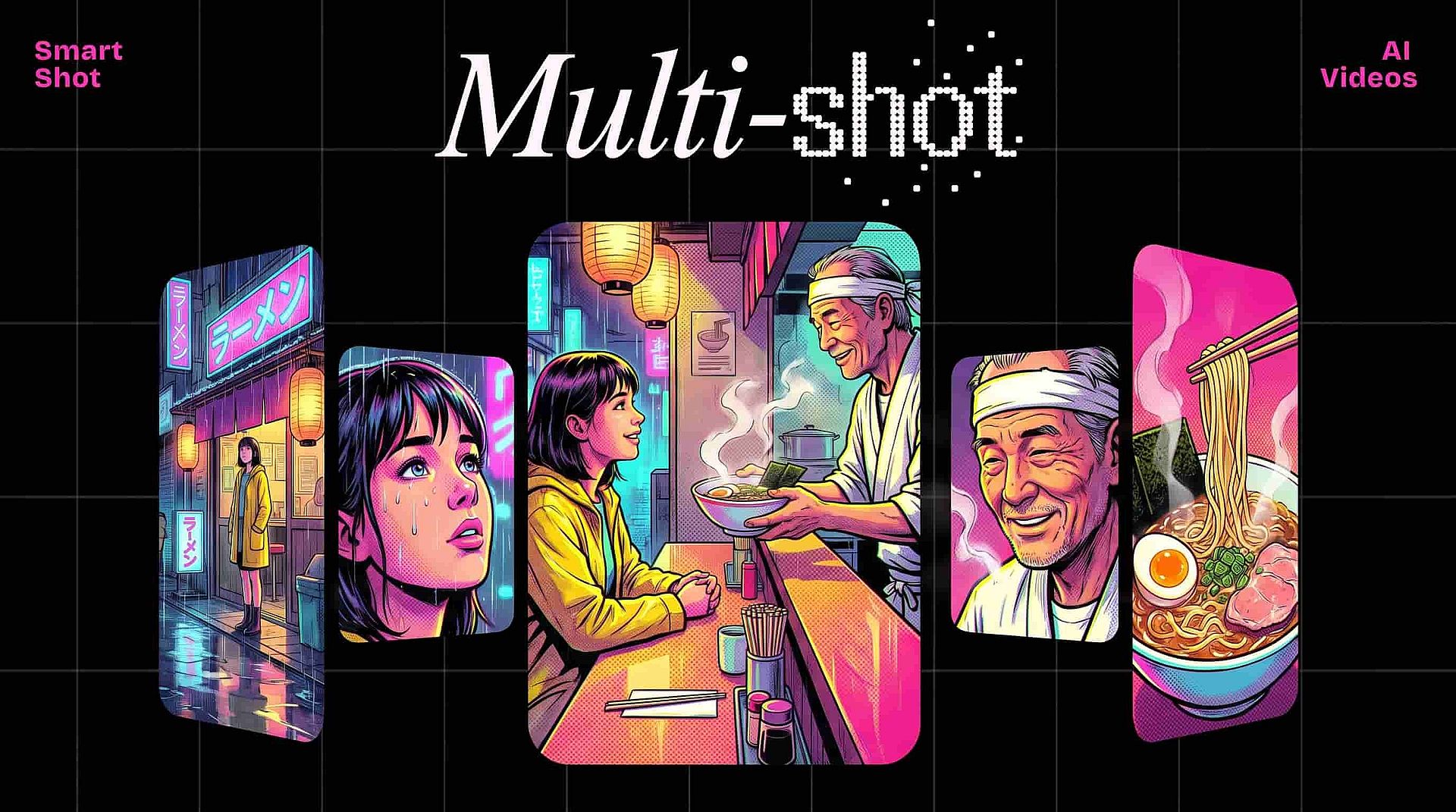
OpenArtのSmart Shotは、1つのプロンプトを3〜5種類のショットからなる短い動画に変えます。街路の広い画からある顔のクローズアップへ切り替わり、角を曲がる人を追いかけることもできます。
あるカメラアングルから次のアングルへの切り替えはカットと呼ばれます。Smart Shotは動画を作成する前にすべてのショットとカットを計画し、計画を先に変更できます。
要点
- Smart Shotは1つのプロンプトを、3〜5種類のショットからなる10〜20秒の動画に変えます。
- Smart Shotはまずショットプランを作成し、ストーリーボードのフレーム、カメラ位置、ライティングのメモを用意します。
- 動画が作成される前に、ショットプランを読んで、希望を入力するだけで変更できます。
- 保存したキャラクターとOpenArt Worldsの環境により、どのショットでも同じ顔や場所が保たれます。
- Smart Shotは、OpenArtの動画ツールメニューにある独立したツールで、Text to Videoの隣にあります。
複数のショットがある動画は、なぜよりリアルに感じられるのでしょう?
映画、広告、YouTube動画は常にカメラアングルを切り替えています。ワイドショット、クローズアップ、新しい視点を行き来し、その切り替えがテンポを生み出し、視聴者を引きつけ続けます。
1本のAI動画クリップは通常、最初から最後まで1つの画を映します。複数のショットからなる動画は、小さなストーリーを語ります。広い画で場所を示し、クローズアップで大切なものを見せます。
計画されたAI動画には何が必要?
Film crews plan every shot before they start filming. The director decides what each shot looks like, where the camera goes, and how the scene moves from one moment to the next.
Smart Shotがその計画のステップを代わりに行います。あなたのプロンプトから計画を作成し、それを見せ、そのうえで動画を作成します。
Smart Shotのショットプランとは?
Shot Planは、Smart Shotが何かを生成する前にあなたの動画のために作成する1ページの計画です。撮影クルーはこの種の計画をストーリーボードと呼びます。Smart ShotのShot Planには次が含まれます:
- 各ショットの見え方を示すストーリーボードのフレーム
- 各ショットのカメラ位置とカメラの動き。たとえば被写体へのゆっくりとした寄りや、周囲を回り込むような動き
- カメラの立ち位置を示す俯瞰マップ
- ワイドショット、クローズアップ、被写体を追うカメラなどのショットの種類
- キャラクター、商品、小道具のリファレンスビュー。どのショットでも同じに見えるようにします
- セット。ショットからショットへ場所が同じに保たれます
- 雰囲気を決めるライティングのメモ。たとえば温かみのある夕日の光や、冷たい青みの夜など
ショットプランでは、Smart Shotが動画を作成する前に、ショットの順番、カメラの動き、ライティングを確認できます。各ショットは次のショットへ自然につながるように計画され、完成した動画は1つのシーンのように再生されます。
Smart ShotでマルチショットのAI動画を作るには?
Smart Shotは、書き出したアイデアから完成した動画まで、5つのステップで進みます。
1. シーンを説明する
OpenArtの動画ツールメニューからSmart Shotを開きます AI動画ジェネレーターのText to Videoの隣にあります。誰が登場し、何をして、どこで起こるかを説明します。たとえば「忙しいレストランの厨房で、夜にシェフがデザートを盛り付ける」のように。
2. リファレンスを追加する(任意)
保存したキャラクターを追加: OpenArt Characters または商品写真を使えば、被写体がどのショットでも同じに見えます。環境を追加するには OpenArt Worlds で、どのショットでも同じ場所を保ちましょう。
3. ショットプランを確認する
Smart Shotはあなたのプロンプトからショットプランを作成します。ストーリーボードのフレーム、カメラの動き、ライティングのメモに目を通しましょう。
4. 入力して計画を変更する
「2番目のショットを彼女の手のクローズアップにして」や「最後のショットで車を一周させて」など、加えたい変更を入力してください。Smart Shotがそれに合わせて計画を更新します。
5. 動画を生成する
計画が問題なさそうなら動画を生成しましょう。3〜5ショットの10〜20秒の動画ができ、どのショットからでも単一フレームをダウンロードして、サムネイルや静止画として使えます。
Smart Shotは誰が使う?
コンテンツクリエイター
コンテンツクリエイターはSmart Shotを使って、編集された映像のようにアングルが切り替わる動画を投稿します。料理動画ならキッチン全体から始まり、フライパンに切り替わり、最後に完成した料理のクローズアップで締めくくれます。
シーンを計画する映像制作者
映像制作者はSmart Shotを使って、撮影前にシーンがどう展開するかを確認します。ショットプランがカメラ位置と動きをすべて示すので、撮影当日の前にチーム全員が計画を把握できます。
マーケティングと商品動画
マーケターはSmart Shotを使って、1つの動画の中で1つの製品を複数のアングルから見せます。スニーカー広告なら、靴全体、次にソール、次にレースをクローズアップで見せることが、カメラもスタジオもなしで可能です。
製品写真をSmart Shotにリファレンスとして追加すれば、どのショットでもスニーカーが同じ見た目になります。
AIインフルエンサーとキャラクター動画
AIインフルエンサー クリエイターはSmart Shotを使って、すべてのショットでキャラクターの顔を同じに保ちます。OpenArt Charactersから保存したキャラクターを追加すれば、Smart Shotが各ショットでそのキャラクターの見た目を維持します。
初めてのマルチショット動画を作る
Smart Shotは1つのアイデアを3〜5ショットの計画された動画に変え、何かを生成する前にその計画を見せてくれます。開く: OpenArtのSmart Shotでシーンを説明し、生成する前にショットプランを確認します。
よくある質問
Smart Shot動画の長さは?
Smart Shot動画は10〜20秒で、3〜5種類のショットをまとめられます。シーンの多い長編ストーリーなら、OpenArtが動画全体を構築します Directorモード、最長5分まで。
Smart Shotが動画を作成する前に、ショットプランを変更できますか?
はい。Smart Shotはまずショットプランを見せ、希望を入力するだけで変更できます。広い画をクローズアップに差し替えたり、カメラの動きを変えたり、ショットの順番を並べ替えたりできます。
Smart ShotはText to Videoとどう違う?
Text to Videoはプロンプトから1つのクリップを作成します。Smart Shotはまず3〜5のショットを計画し、その計画を見せたうえで、それらのショットを切り替える1本の動画を作成します。
ChatGPTやClaudeの中でSmart Shotを使えますか?
はい。Smart Shotは次を通じて動作します: OpenArt MCPコネクター。これはChatGPT、Claude、Cursorの中で動作します。Shot Planだけをリクエストすることも、計画と完成した動画の両方をリクエストすることもできます。
OpenArtを無料で試せますか?
はい。OpenArtの無料トライアルでは7日間で40クレジットが使え、クレジットカードは不要、生成物にウォーターマークも付きません。