
期間限定オファー!年間プランが最大27%OFF、1年間の無限のクリエイティビティを解き放とう。

プランを見る ›

レイヤー抽出 - AIで画像をレイヤーに分解

レイヤー抽出は、OpenArtの画像からレイヤーへのワークフローツールです。1枚の画像をアップロードするだけで、背景・商品・人物・テキストを、編集・削除・再利用できる透明な別々のレイヤーに分割します。
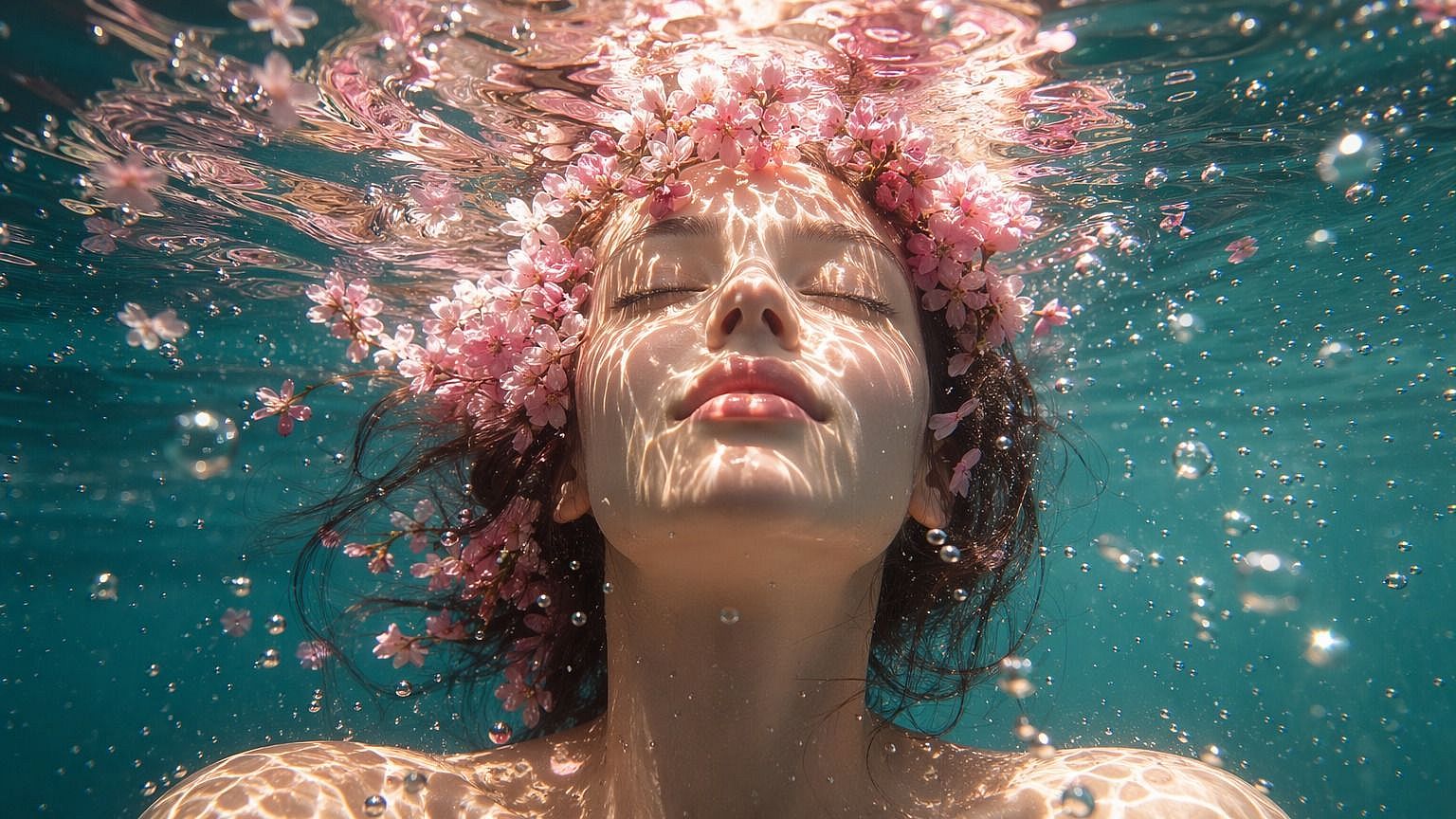
画像参照を追加
今すぐ抽出

AIレイヤー分割のメリット

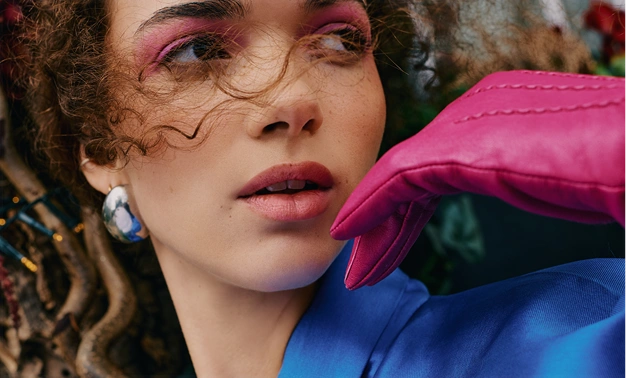
一度に1つの部分を変更

「レイヤー抽出」は背景、商品、人物、テキストをそれぞれ別のレイヤーに分けるので、一部だけを編集して残りはそのまま維持できます。
すべてのパーツを再利用

「レイヤー抽出」で得られる各レイヤーは透過PNGなので、新しいポスターや広告、商品ページにそのまま配置できます。
保存の手間は不要

レイヤー抽出は各レイヤーを自動でアセットライブラリに保存するので、分割が終わった瞬間からすぐに使えます。

「レイヤー抽出」の主な機能

AIで画像をレイヤーに分割

OpenArtのレイヤー抽出は、Seedream 5.0 Proを使って画像内の各オブジェクトを見つけ出し、それぞれに独立したレイヤーを割り当てます。レイヤー抽出は、OpenArtの他の画像ツールと並んで利用できます。 AI画像ジェネレーター.

画像全体または一部エリアを分割

レイヤー抽出では、画像を2通りの方法でレイヤーに分割できます。画像全体を選べば、写真全体を各パーツに分解します。範囲選択を選び、賑やかな棚の中の1つの商品のように、特定の部分をフリーハンドで囲みます。するとレイヤー抽出は、囲んだ範囲内だけを分割します。

必要なレイヤーの最大数を設定

レイヤー抽出では、最大レイヤー数を2〜16の範囲で指定できます。マグカップを持つ人物の写真なら、人物・マグカップ・背景の3レイヤーだけで済むこともあります。見出し・ロゴ・ステッカーが詰まった賑やかなポスターならもっと多く使えます。指定した数は上限として扱われるため、実際にはそれより少ないレイヤーになる場合があります。

レイヤーの並べ替え・非表示・個別のやり直し

レイヤー抽出では、結果がレイヤーカードのリストとして表示され、手前のレイヤーが上、奥のレイヤーが下に並びます。カードを上下にドラッグすると前後の重なり順が変わり、プレビューも更新されます。レイヤーを非表示にすれば、それを除いた状態で画像を確認できます。1つのレイヤーがおかしく見える場合は、そのレイヤーだけを再生成しましょう。

アセットライブラリですべてのレイヤーを見つける

レイヤー抽出は、分割が完了するとすぐに各レイヤーを透明なPNGとしてアセットライブラリに保存します。透明とは、オブジェクトの周囲がすべて透けている状態のことで、商品のレイヤーをどんな新しい背景にも重ねられます。後で戻ってくると、レイヤー抽出は前回の分割を開くので、作業を続けたり新しく始めたりできます。

画像からレイヤーを抽出する方法

OpenArtのレイヤー抽出ツールを使えば、3ステップで画像をレイヤーに分割できます。
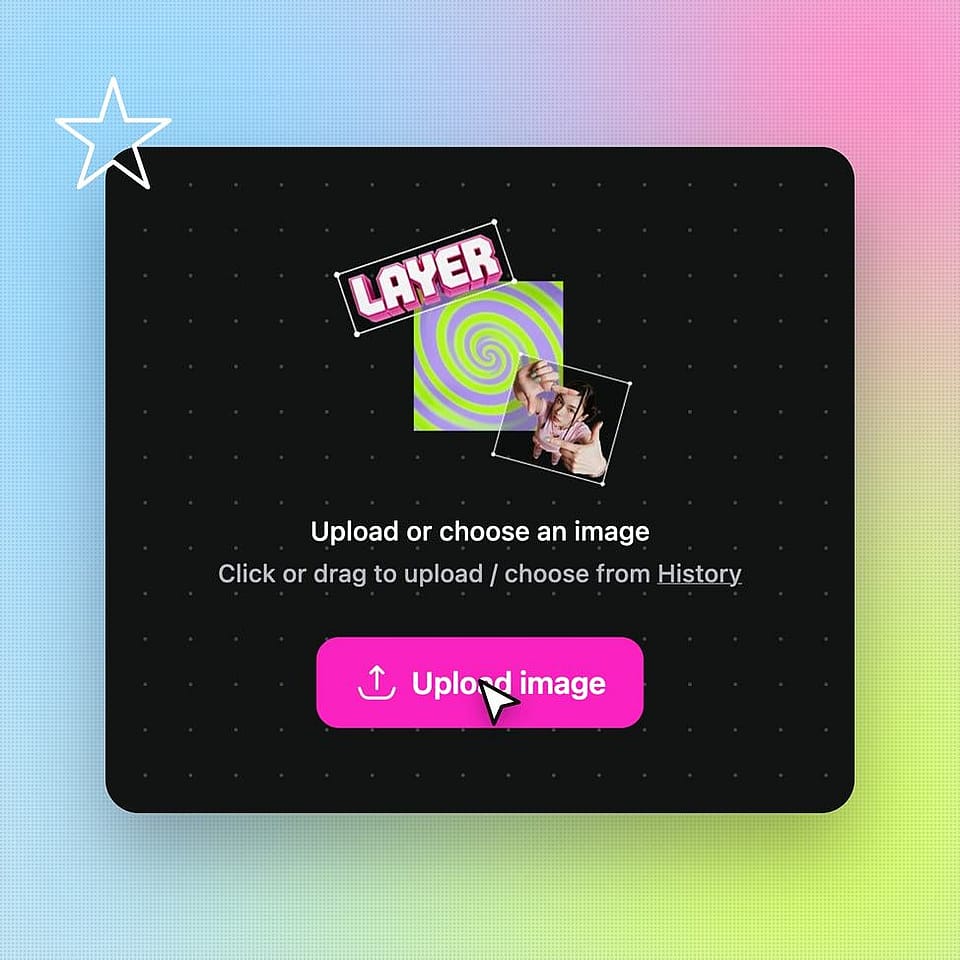
Upload your image
ステップ01

画像をアップロード

画像ツール一覧からレイヤー抽出を開き、1枚の画像をアップロードします。
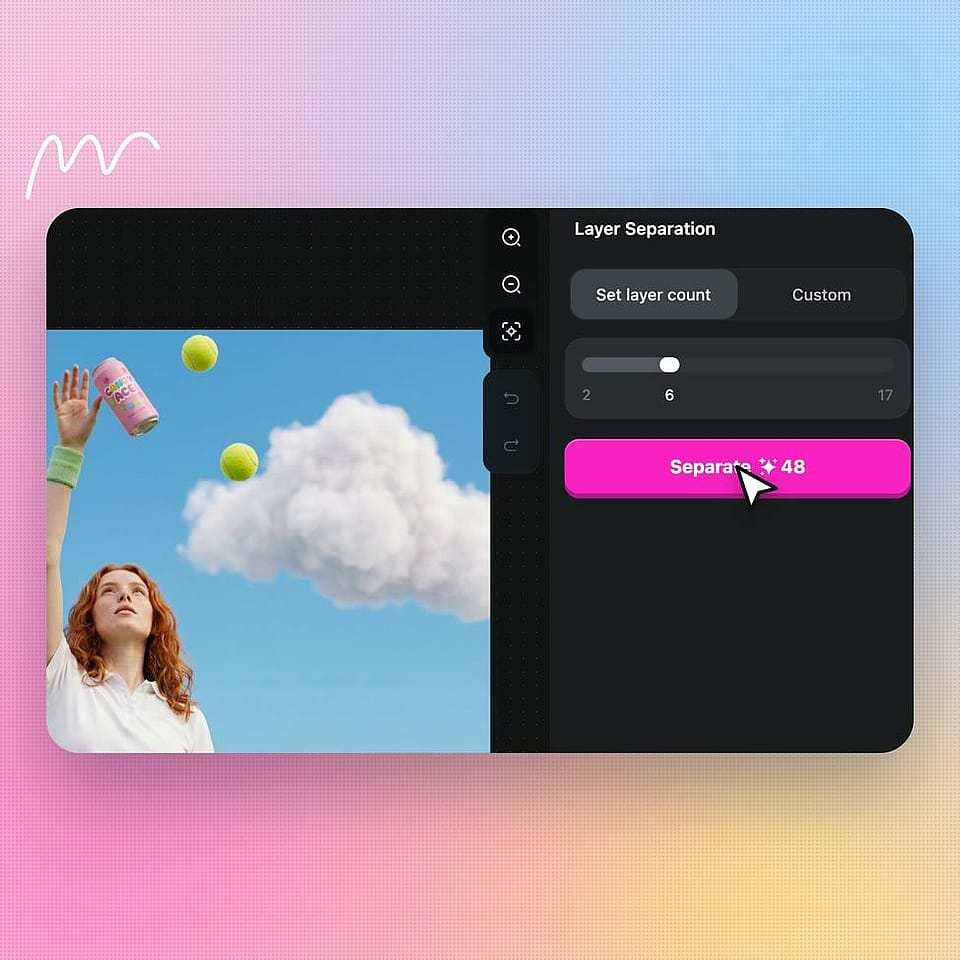
Choose the area and the layer count
ステップ02

範囲とレイヤー数を選ぶ

「画像全体」を選ぶか、「範囲選択」を選んで必要な部分をぐるりと囲みます。レイヤーの最大数を2〜16で設定し、生成します。
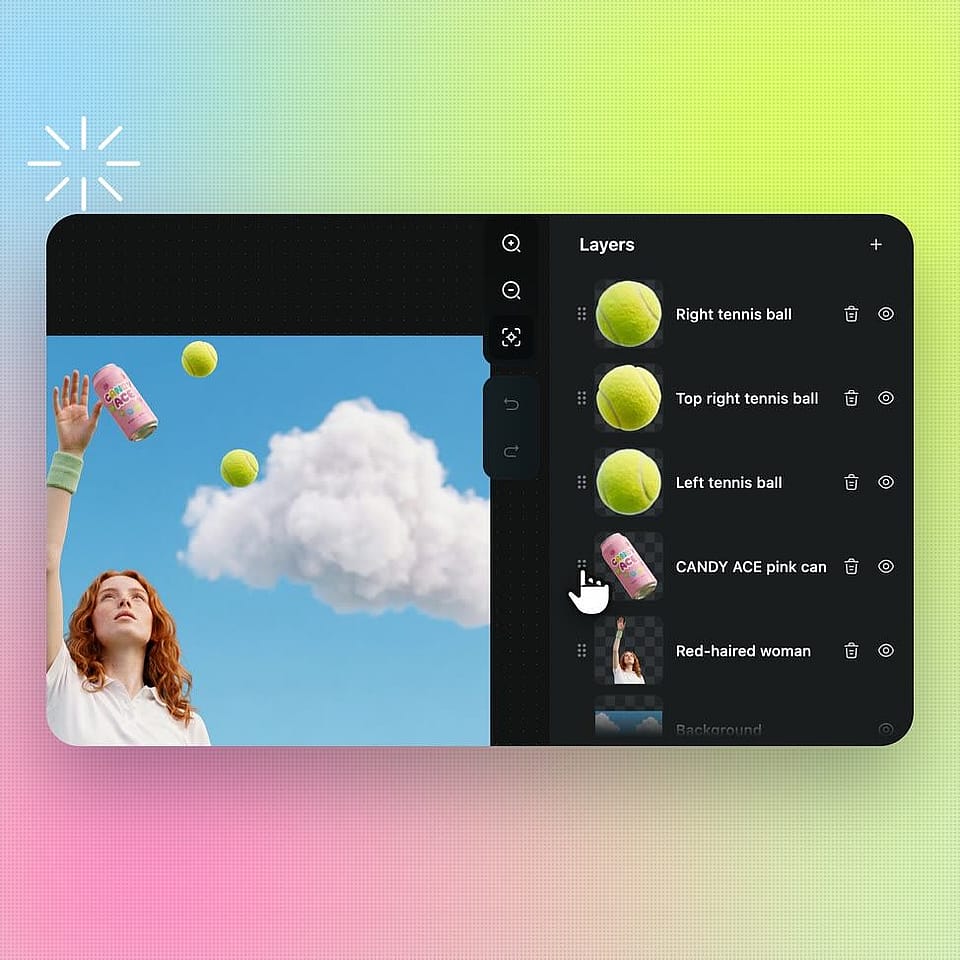
Check and arrange your layers
ステップ03

レイヤーを確認して並べ替える

レイヤーカードをドラッグして前面に出すレイヤーを入れ替えたり、任意のレイヤーを非表示にしたり、おかしく見えるものを再生成したりできます。すべてのレイヤーはすでにアセットライブラリに保存されています。

AIレイヤー分割の活用法ベスト

OpenArtのレイヤー抽出は、ネット販売者から代理店チームまで、完成した画像の一部を変更したいあらゆる人にぴったりです。

キャンペーンポスターを更新するマーケティングチーム

マーケティングチームはレイヤー抽出を使って、完成したポスターを一から作り直さずに更新しています。ポスターを分割すれば、見出し・商品・背景がそれぞれ別のレイヤーに。画像作成のブランドキットでブランドカラーの新しい背景を作り、保存した商品レイヤーをデザインアプリで上に重ねましょう。

今すぐ試す

商品写真を作るオンラインセラー

ネットショップのオーナーは、ごちゃごちゃした写真から商品だけを抜き出すために「レイヤー抽出」を使います。「範囲選択」で商品をぐるりと囲めば、「レイヤー抽出」が透過PNGとして保存します。同じ商品レイヤーを、白背景のきれいな商品写真にも、ホリデーバナーにも、セール広告にも使えます。1回の撮影から何枚もの商品画像が手に入ります。

今すぐ試す

クライアントのアートワークを再利用するデザイナー・代理店向け

デザイナーや制作チームは、クライアントから元のデザインファイルがないフラットな画像を受け取ったときに「レイヤー抽出」を使います。「レイヤー抽出」はロゴ、テキスト、アートワークをそれぞれ別のレイヤーに分けます。チームは各要素を同じクライアント向けの新しいサイズやレイアウトで再利用できます。これで、すべての形を手作業でなぞる何時間もの作業が省けます。

今すぐ試す

ベスト画像をリミックスするクリエイター

SNSクリエイターは、1枚の優れた画像からより多くの投稿を生み出すために「レイヤー抽出」を使います。AIポートレートを分割すると、人物と背景が別々のレイヤーになります。人物を新しい背景に乗せてサムネイルにしたり、背景だけを投稿したり。完成したサムネイルを「画像から動画」にアップロードすれば、動きのある映像にできます。

今すぐ試す

よくある質問 よくある質問

レイヤー抽出は、1枚の画像を別々の透明なレイヤーに分割するOpenArtの画像ツールです。レイヤー抽出では、背景・商品・人物・テキスト・装飾を取り出せるので、それぞれを変更・除去・再利用できます。各レイヤーはPNGファイルとしてアセットライブラリに保存されます。
はい。OpenArtの「レイヤー抽出」のようなAIレイヤー分割は、フラットな画像を解析して個々のオブジェクトを見つけ出し、それぞれを透過レイヤーに分けます。「レイヤー抽出」はすべての分割にSeedream 5.0 Proモデルを使うので、モデルを選ぶ必要もなく、毎回同じ仕上がりが得られます。
はい。OpenArtのレイヤー抽出で範囲選択を選び、抽出したい部分をフリーハンドで囲みます。囲んだ範囲を閉じて確定すると、レイヤー抽出は選択範囲内だけを分割します。
OpenArtのレイヤー抽出は、分割が完了するとすぐに各レイヤーを透明なPNGとしてアセットライブラリに保存します。保存は自動で行われ、ボタンを押したりフォルダーを選んだりする必要はありません。レイヤー抽出に戻ると、直近の分割結果が開くので、作業を続けたり新しいタスクを始めたりできます。
最大レイヤー数は、画像内にある別々の要素の数に近い値に設定しましょう。テーブルの上の商品1つだけなど、1つのオブジェクトだけが必要なときは、OpenArtのレイヤー抽出でエリア選択を使います。あるレイヤーの縁が粗く見える場合は、そのレイヤーだけを再生成しましょう。
Yes. Commercial rights apply on eligible paid plans, so you can use layers from Extract Layers in ads, product listings, and client work. Make sure you own the image you upload or have the rights to use it. Internal SEO Targets (strip before publishing) Primary keyword: image to layers (70 US volume, KD 1, Gauge, Oct 2 2026). Placed in the meta title, meta description, H1, and hero subheading. The tool name "Extract Layers" leads the H1 and meta title (see Internal Notes, check 6). Secondary keywords used: * extract layers: tool name, used throughout. No Gauge volume returned. * separate image into layers (50, KD 0): deep-dive H2, FAQ 2 ("How do I separate an image into layers?", which also covers "how to separate an image into layers", 30). * ai layer splitter (40, KD 0): use-case H2, FAQ 3. * split image into layers (10, KD 0): deep-dive block 1, How-To intro, FAQ 9. * extract layers from image: FAQ 4 ("How many layers can I extract from an image?"), FAQ 5. No Gauge volume returned. Long-tail and informational queries answered in the FAQ: * how to separate an image into layers * can AI split an image into layers * how many layers can you extract from an image * can you split only part of an image into layers * can I open image layers in Photoshop or Canva * how is AI layer separation different from cutting out layers by hand Search context: the SERP for these terms is mostly layer.ai (Split into Layers, plus a Seedream 5.0 Pro Layerize model page), Qwen-Image-Layered guides, and Adobe and GIMP forum threads asking how to separate a photo into layers. The forum threads drove FAQs 2 and 10. In-body internal links used: * https://openart.ai/ai-image-generator/ (詳細解説の導入)* https://openart.ai/features/ai-brand-kit/ (ユースケース 1) * https://openart.ai/features/ai-image-to-video/ (use case 4) Internal Notes (strip before publishing) Anchor tool. Every product claim comes from the Extract Layers entry in openart-image-tools.md: Whole Image or Select Area (free-form lasso, closed selection only), a maximum of 2 to 16 layers with no Auto mode, Seedream 5.0 Pro only, automatic saving to the Asset Library as transparent PNGs, a front-to-back draggable layer list, hide, select, and regenerate per layer, and the latest valid task restored on return. Kept out on purpose (MVP limits): an exact layer count, Auto mode, model choice, more than one image per task, history beyond the latest task, brush masks, advanced path controls, advanced canvas transforms, and PSD/AI or any layered-file export. The page never says layers can be moved or resized inside Extract Layers. Combining layers happens "in your design app" in use cases 1 and 4. Product checks before publishing: 1. Download from the Asset Library. FAQ 8 tells readers to download layers from the Asset Library. The brief covers auto-saving but not downloading. Confirm downloading keeps the transparent PNG. 2. What fills the space behind a removed object. The brief says layers support "removal". It does not say whether the background layer gets the hidden area filled in when a front object is split off. The copy describes hiding a layer and makes no claim about what shows behind it. If the background is filled in, add that to deep-dive block 3 and FAQ 6, since it is a strong selling point. 3. Text layers. Text is separated as a picture of the text. The copy never says the text becomes editable type. 4. Credits and trial. The standard 40-credit, 7-day wording is used. Confirm Extract Layers runs on trial credits, and decide whether to show a per-split credit cost. 5. Layer resolution. No output size is claimed. Confirm whether layers keep the original image size. 6. H1 and meta title format. The house format is - OpenArt with a clean keyword H1. Because the tool name is the brand term, the H1 reads "Extract Layers: Image to Layers With AI". If you prefer the strict format, use Image to Layers - OpenArt and H1 Image to Layers, and move "Extract Layers" into the hero subheading's first sentence (it is already there). 7. Page URL. There is no approved public URL for Extract Layers yet, so no other page links to it. Suggested slug: /features/extract-layers/. Once it is live, link it from the AI image generator page and the background remover page if that page is still up.
OpenArtのレイヤー抽出に画像をアップロードし、画像全体またはエリア選択を選びます。必要なレイヤー数を2〜16で設定して生成しましょう。レイヤー抽出は画像の各部分をそれぞれ別のレイヤーに分け、すべてのレイヤーをアセットライブラリに保存します。
OpenArtの「レイヤー抽出」では、最大レイヤー数を2〜16の範囲で設定できます。画像に含まれる要素が少ない場合は、設定した最大数より少ないレイヤー数で返されることもあります。ポスターのような複雑な画像には多めの数を、シンプルな商品写真には少なめの数を設定しましょう。
OpenArtのレイヤー抽出機能は、背景・商品・人物・テキスト・図形やステッカーなどの装飾を分離できます。背景の差し替え、不要な要素の除去、商品を別のデザインで再利用するといったよくある作業に対応します。1つのレイヤーがうまくいかない場合は、そのレイヤーだけを再生成し、ほかはそのまま使えます。
はい。OpenArtのレイヤー抽出で得られる各レイヤーは、透明な背景を持つ標準的なPNGです。Photoshop、Canva、FigmaはどれもPNGファイルを開けます。アセットライブラリからレイヤーをダウンロードし、デザインアプリで同じ順序で重ねてください。
手作業でレイヤーを切り抜くには、選択ツールで各オブジェクトを一つずつなぞり、それぞれを別のレイヤーにコピーしていきます。OpenArtの「レイヤー抽出」なら、画像内のすべてのオブジェクトを一度に見つけて分割します。慎重なクリックを何度も繰り返す作業が、たった1回の生成で済みます。

制限なく、思いのままに

OpenArtを使う何千人ものクリエイターの仲間入りを。魅力的な画像や動画などを、すべてひとつのプラットフォームで生成できます。

無料で始める →